Viewing Panoramas
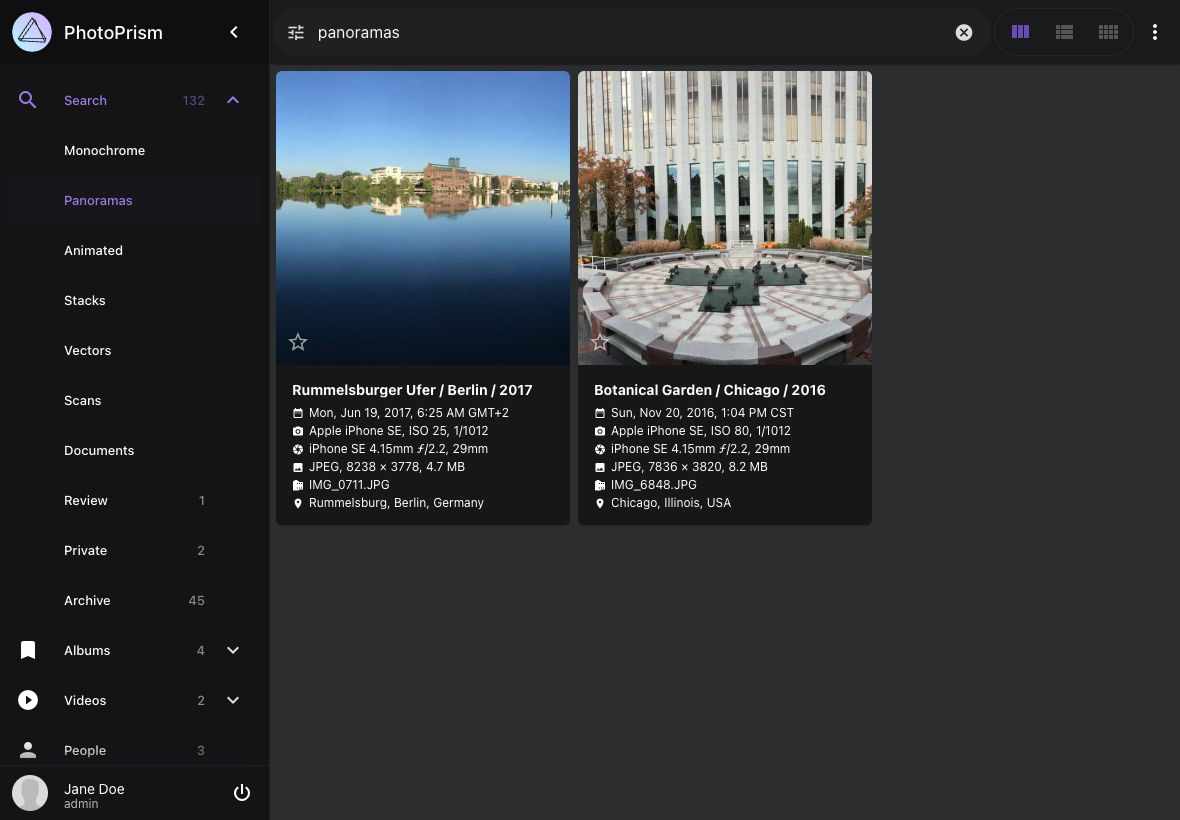
PhotoPrism marks pictures with an aspect ratio of about 2:1 or wider as panoramas, so they appear in search results next to your other pictures and videos. Equirectangular 360° photos and videos open in an interactive sphere viewer instead of being shown as a flat, distorted image, letting you look around and zoom in without any separate 360° mode to switch on.
Finding Panoramas
Navigate to Search > Panoramas to browse everything that has been marked as a panorama.
You can also limit any search to panoramas with the panorama:yes filter.
Learn more ›
Using the 360° Viewer
Open an equirectangular photo or video by clicking it in search results. The viewer detects suitable media automatically and shows the following controls:
Look Around
Drag with the mouse or one finger to change the viewing direction.
Zoom
Use the scroll wheel, or pinch with two fingers on a touch screen, to zoom in and out.
Playing 360° Videos
360° videos are played inside the sphere, so you can keep looking around while the video is running. Use the playback controls to pause, resume, and mute it.
Other Pictures
Dragging horizontally pans the sphere instead of switching to the next picture, so use the arrow buttons at the left and right edge of the screen to move to the previous or next file.
Supported Files
Equirectangular content — a full sphere flattened into a single frame with an aspect ratio of about 2:1 — is displayed interactively without any conversion:
- pictures are recognized by the
equirectangularprojection type stored in their Exif or XMP metadata, which most 360° cameras write when saving a file;GPanometadata is accepted as well - videos often carry no projection metadata that can be read, so a video is displayed in the sphere viewer if it has been marked as panorama and its frame size is roughly 2:1
Fisheye 360° originals from Insta360 cameras are converted first and then open in the same viewer:
.insvvideos,.insppictures, and fisheye DNG files are recognized while indexing and dewarped to equirectangular in a background job, so they may take a moment to become available- your originals are never modified, and a file that cannot be converted is shown as a regular picture
Cameras PhotoPrism recognizes, such as the Insta360 and Ricoh Theta series, are dewarped using their
own known field of view. For anything else,
PHOTOPRISM_FFMPEG_FISHEYE_FOV sets the
fallback in degrees. It describes the span of the stored fisheye disc, not the lens itself, so a
wider lens paired with a narrower value crops a wedge of the scene at each seam of the sphere.
Other projection types, such as cubemaps and cylindrical panoramas, as well as ultra-wide videos, are shown as regular pictures because they would be distorted when rendered as a sphere.
Rendering a sphere requires a browser with WebGL 2 support, which is enabled by default in all current browsers. Note that manually marking faces on 360° content is not supported yet.
Image Quality
Since you can zoom deep into a 360° picture, details are lost quickly when the rendered preview is
too small. If you have high-resolution originals, we therefore recommend increasing the
static and dynamic size limits to a value
that matches your files — sizes up to 16K UHD (15360×8640) are supported. The resolution of
transcoded videos is configured separately with the
PHOTOPRISM_FFMPEG_SIZE option.
Bear in mind that larger previews need more storage and take longer to generate, so pick the smallest size that still looks good on your screens.
Panorama Flags
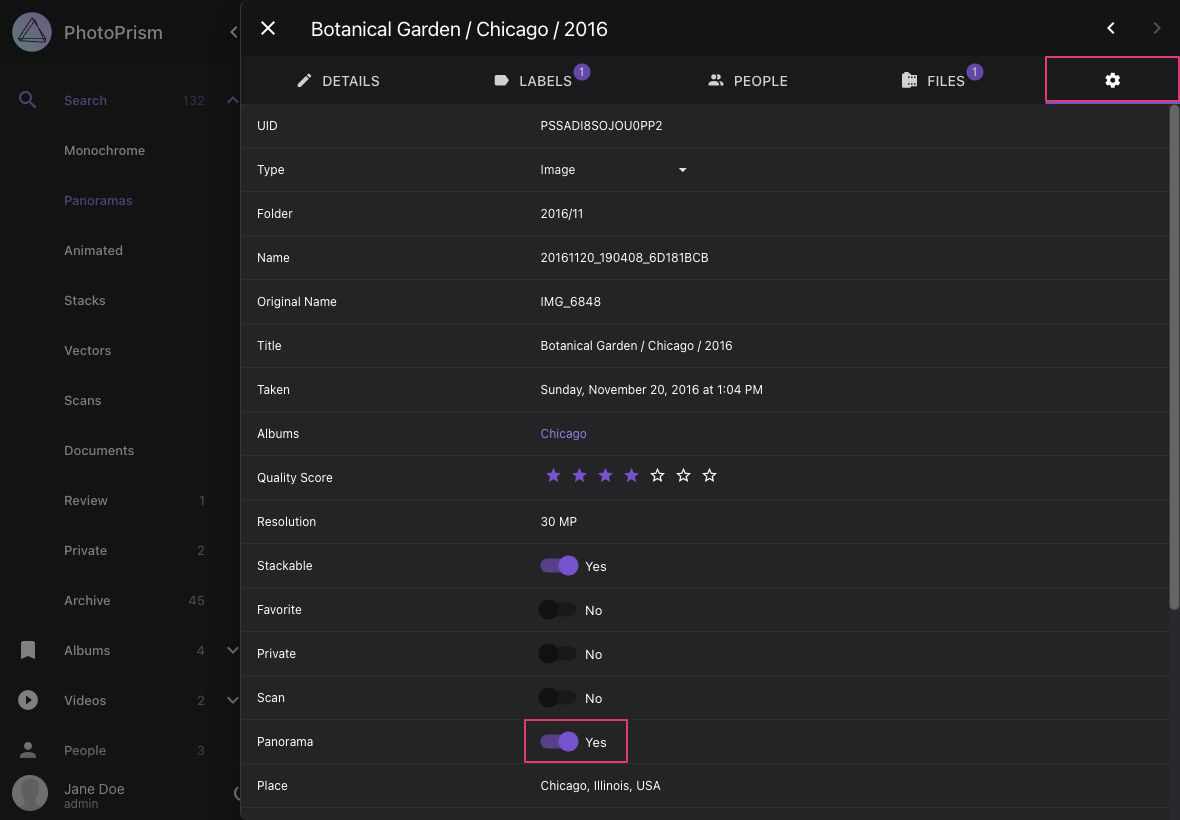
If a 360° file is not detected automatically — for example, a spherical video whose metadata does not include a projection type — you can set the panorama flag manually:
- Open the photo edit dialog
- Click
- Set or unset the panorama flag
Removing the panorama flag from a 360° video also removes it from the sphere viewer, as the flag
is what identifies videos as spherical when their metadata does not include a projection type.
Pictures with an equirectangular projection type are not affected by this.