Reading Documents
PhotoPrism indexes PDF files as documents and renders their first page as a cover image, so they appear in search results next to your pictures and videos. Clicking a document opens it in the built-in viewer, where you can read all of its pages without downloading the file first.
Finding Documents
Navigate to Search > Documents to browse everything that has been classified as a document.
You can also limit any search to documents with the document:yes filter or the more general type:document
filter. Learn more ›
Using the Viewer
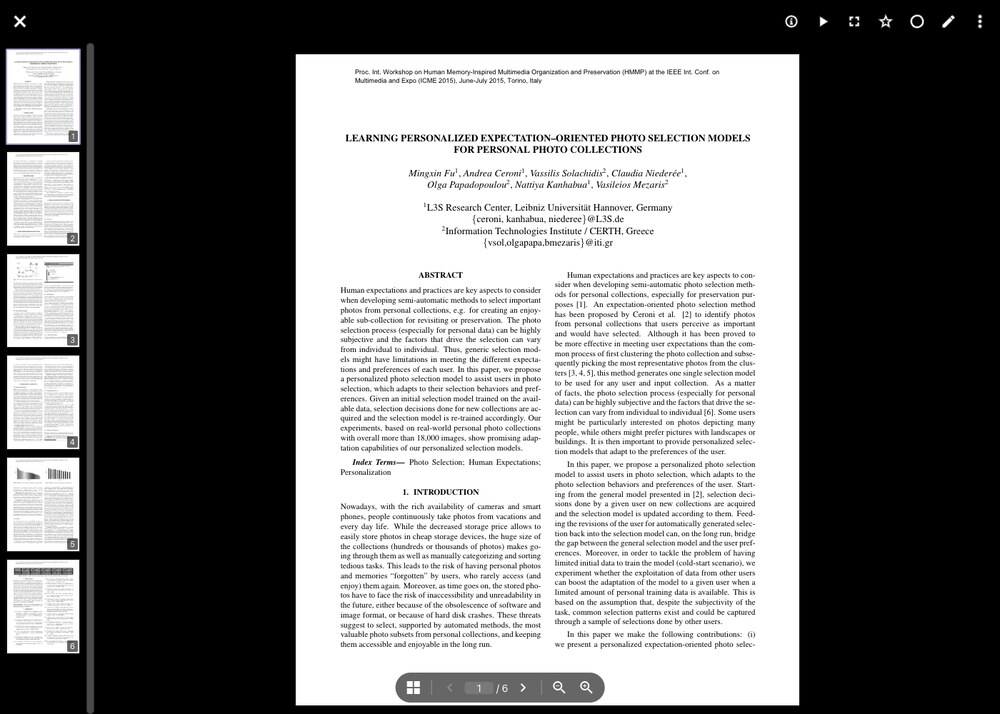
Open a document by clicking its cover in search results. The viewer loads all pages and shows the following controls:
Thumbnails
A strip of page thumbnails is shown on the left so you can see the structure of a document at a glance and jump straight to a page. Use the button to hide the strip and give the page more room. It is not available on phones, where it would take up most of the screen.
Pages
Scroll to move through the document, or use the and buttons next to the page number. To jump to a specific page, type its number into the page field and press Enter. On a keyboard, Up, Down, and Page Down scroll the current page.
Zoom
A document opens at a zoom level that fits a whole page on your screen where possible, and fits the page width otherwise. Use the and buttons to change it, or pinch with two fingers on a touch screen. When a page is larger than the window, you can drag it with the mouse to pan around.
Other Documents
To move to the previous or next document without leaving the viewer, use the arrows at the left and right edge of the screen, press the Left and Right arrow keys, or swipe inward from the left or right edge on a touch screen.
Sharing Documents
Documents can be added to albums and shared like any other file. Everyone who opens the share link can read the shared documents in the same viewer, without being able to reach documents outside the shared albums.