Running PhotoPrism on ZimaOS
ZimaOS is the operating system of Zima home server devices such as the ZimaBoard, ZimaBlade, and ZimaCube. PhotoPrism is part of its App Store, where it is published and maintained by the ZimaOS team, so you can install it with a single click.
Before setting up PhotoPrism on your device, we recommend that you check its CPU and memory configuration. For a good user experience, it should be a 64-bit system with at least 2 cores and 3 GB of RAM.
The App Store installs PhotoPrism as a single container without a separate database server, so your index is stored in an SQLite database file. Since SQLite is not a good choice for users who require scalability and high performance, we recommend using MariaDB before indexing a large library. MariaDB is not included in the app, so it must be installed separately and then configured manually.
Setup
Step 1: Install PhotoPrism
Open the App Store on your ZimaOS home screen, type PhotoPrism in the search box, and then click "Install":
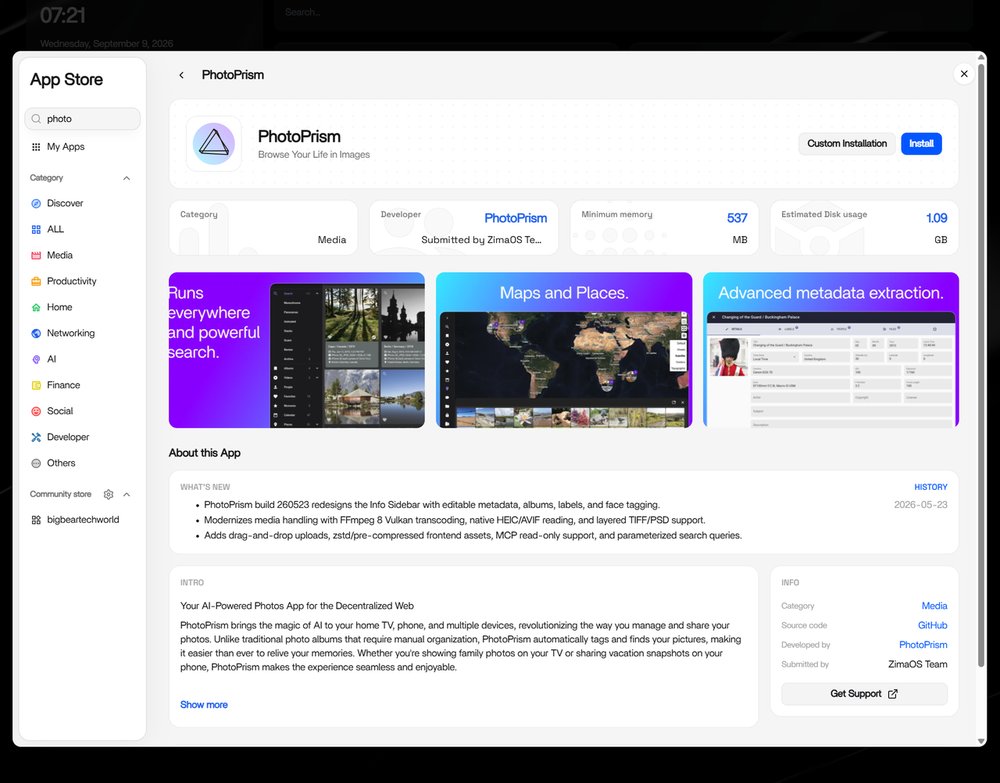
No further input is required, as the app ships with a default configuration. Should you want to review the volumes, port, and environment variables before the app is created, choose "Custom Installation" instead and see Configuration below.
Step 2: Open PhotoPrism
Once the installation is complete, you will find PhotoPrism on your home screen, where you can open it with one click:
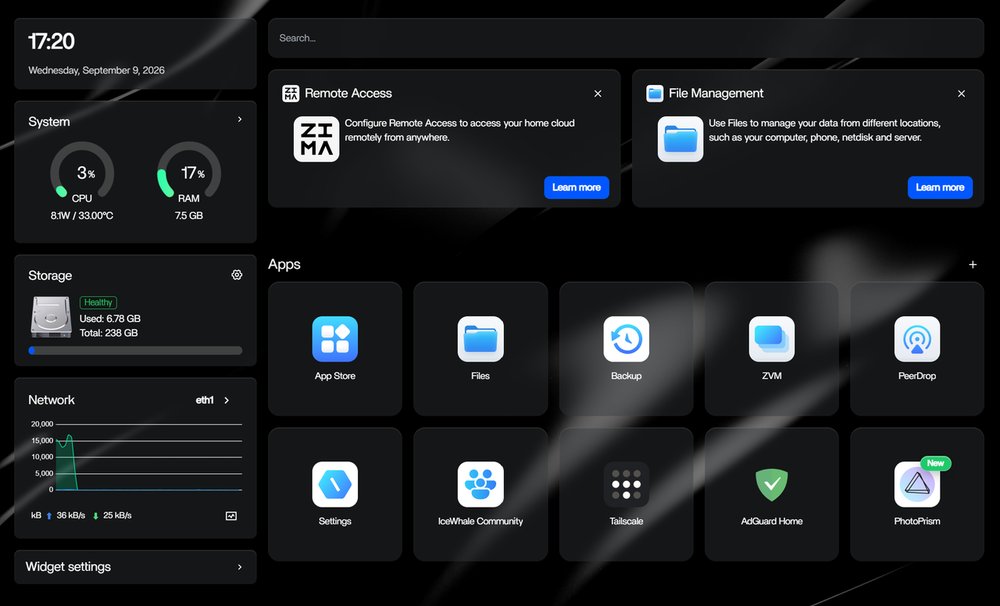
Before the app opens in a new tab, a dialog shows the credentials of the default account:
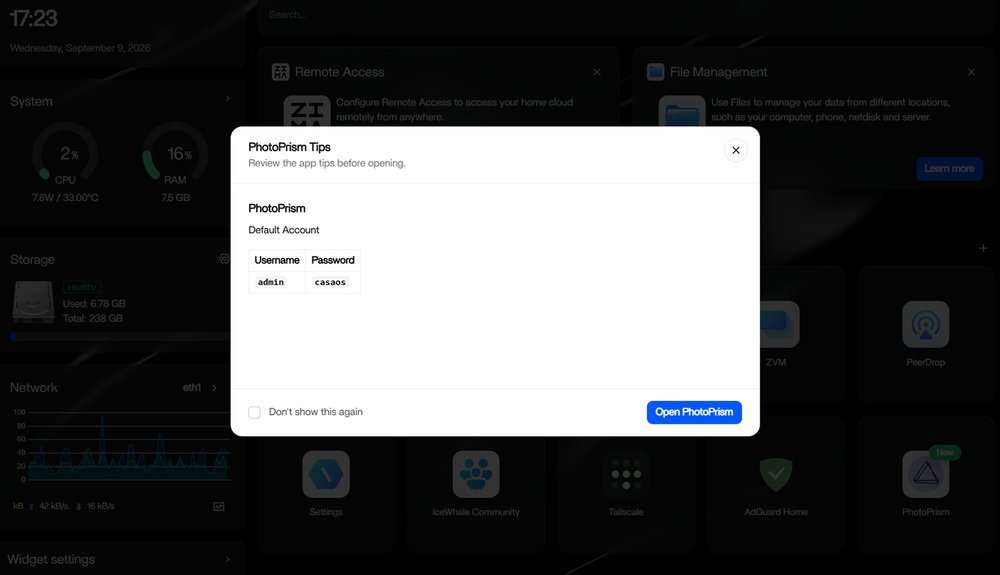
Enter the username admin and the password shown in the dialog to sign in. You can also navigate directly to port 2342 on your device.
Remember to change your password after the first login. You can do this in Settings > Account.
Step 3: Add Your Files
Your picture library is the Gallery folder of your device, which is located at /DATA/Gallery and mounted as the originals folder inside the app. You can add files to it with the ZimaOS Files app, over the network, or by uploading them in the PhotoPrism web interface.
To add new pictures to your index, open the Library tab and click "Start".
Files that you add with the Files app or over the network are not indexed automatically. To have your index updated regularly, you can set an indexing schedule by adding PHOTOPRISM_INDEX_SCHEDULE to the environment variables of the app, for example @every 3h to index every three hours.
Our First Steps 👣 tutorial guides you through the user interface and settings to ensure your library is indexed according to your individual preferences.
Configuration
The following steps are optional, as you can get started right away with the default configuration.
To change the settings of an installed app, open its menu on the home screen and select "Settings". ZimaOS lets you edit the values in a form or, if you prefer, directly as YAML:
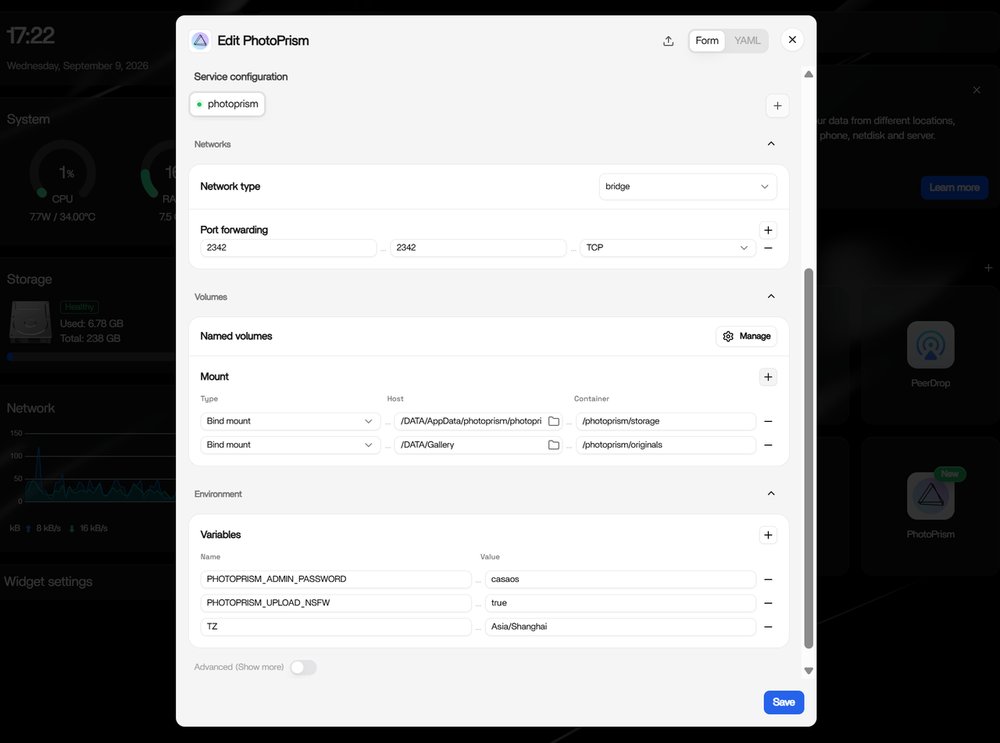
The values you may want to adjust are:
| Setting | Default |
|---|---|
| Port of the web interface | 2342 |
Folder mounted as /photoprism/originals |
/DATA/Gallery |
Folder mounted as /photoprism/storage |
a photoprism subfolder of /DATA/AppData |
Folder mounted as /photoprism/import |
none, as it is optional |
The storage folder holds the database, cache, thumbnail, and sidecar files. It must never be placed inside the originals folder, as that would cause PhotoPrism to index its own cache files. The same applies to the optional import folder, which you can add with the "+" button next to "Mount".
Any config option can be set by adding it to the environment variables of the app, for example PHOTOPRISM_SITE_URL to specify the canonical site URL.
Getting Updates
The App Store installs a specific PhotoPrism build instead of the latest tag, so you will receive new releases when the app is updated by the ZimaOS team. They typically do this about every two months, after testing a new stable release for compatibility and stability. The version and release notes are shown on the app's page in the App Store.
If you prefer to update independently of the App Store, you can change the image tag to photoprism/photoprism:latest in the YAML editor and then recreate the app. Note that you will then receive releases before they have been tested by the ZimaOS team.
Troubleshooting
If your device runs out of memory or other system resources:
- Try reducing the number of workers by setting
PHOTOPRISM_WORKERSto a reasonably small value, depending on the performance of your device - Make sure your device has at least 4 GB of swap space so that indexing doesn't cause restarts when memory usage spikes; RAW image conversion and video transcoding are especially demanding
- If you are using SQLite, switch to MariaDB, which is better optimized for high concurrency
- As a last measure, you can disable image classification and facial recognition
Other issues? Our troubleshooting checklists help you quickly diagnose and resolve them.
Should you experience problems with the installation, we recommend that you ask the ZimaSpace community for advice, as we cannot provide support for third-party software and services. Also note that third-party integrations may not provide direct access to config files or the command line, so you might not be able to use all features and config options.
Help improve these docs! You can contribute by clicking to send a pull request with your changes.