Hostinger VPS Hosting
PhotoPrism can be deployed at Hostinger with a single click through its Docker Manager. The installation includes a Traefik reverse proxy, which obtains a free Let's Encrypt certificate so you can access your instance over HTTPS.
This guide covers the PhotoPrism app in Hostinger's Docker Manager catalog on a VPS plan. For optional caption generation on the same server, see AI Captions With Ollama.
Setup
1. Choose a Plan
We recommend a VPS plan with at least 2 CPU cores and 4 GB of memory.
Indexing, face recognition, and video transcoding share the available CPU resources. Processing RAW images and videos can be slow on a server with only one core.
RAW image conversion and face recognition are disabled on instances with 1 GB or less memory. We take no responsibility for instability or performance problems if your server does not meet the system requirements.
2. Deploy PhotoPrism
- Log in to your Hostinger account
- Go to VPS, select your server, and open the Docker Manager
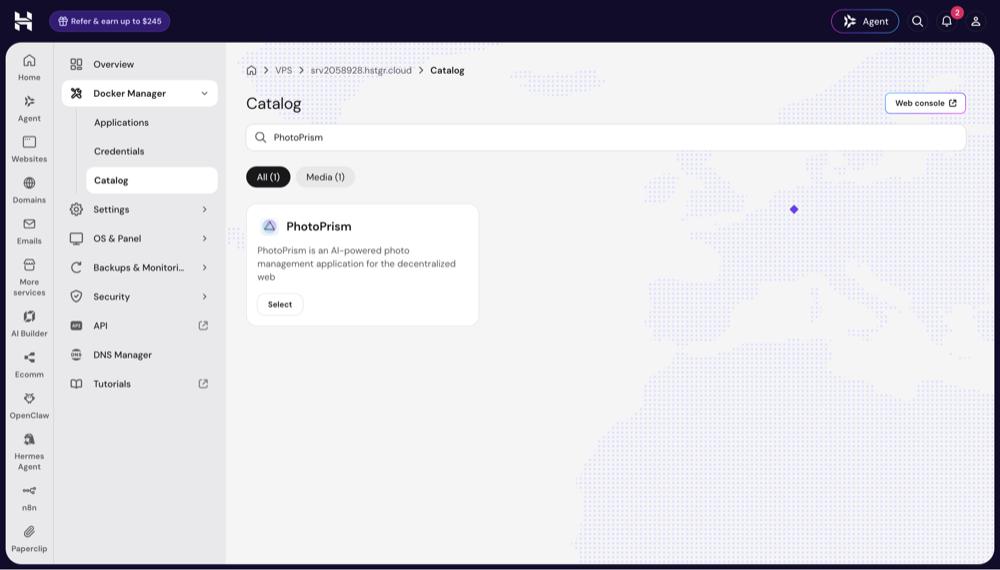
- Switch to the Catalog tab, search for "PhotoPrism", and click Select
- Enter the password for the "admin" account and click Deploy
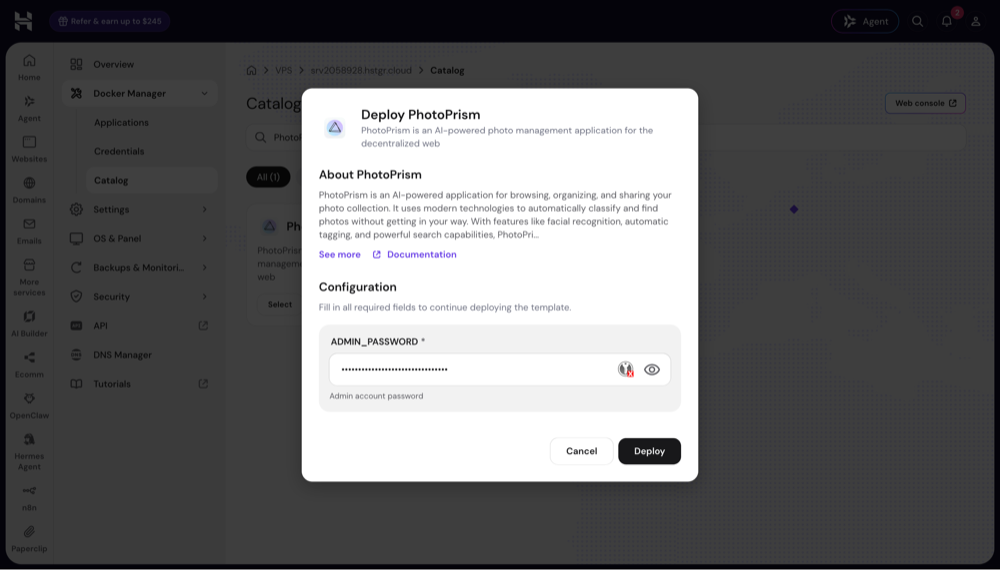
Hostinger then creates two applications, photoprism-<name> and traefik. Replace photoprism-<name> in the examples below with the application name shown in the Docker Manager. The deployment takes about a minute and writes its log to /docker/photoprism-<name>/.build.log on the server.
3. Open PhotoPrism
As soon as both applications show Running, click Open in the PhotoPrism row:
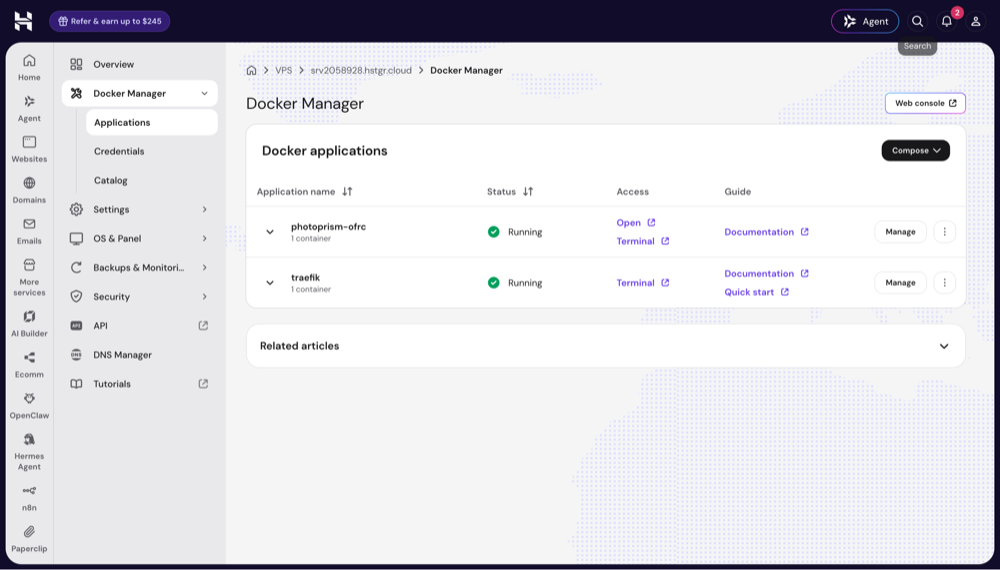
PhotoPrism opens over HTTPS at the hostname assigned to your application, for example https://photoprism-example.srv123456.hstgr.cloud. Sign in with the username "admin" and the password you entered during the deployment. You can change your password in Settings > Account.
Your Instance Is Also Reachable Without Encryption
The catalog deployment also exposes PhotoPrism over HTTP on a randomly assigned server port. Run docker port photoprism-<name>-photoprism-1 in a server terminal to find this port, which may change when the application is recreated. Use the HTTPS address shown in the Docker Manager when accessing or sharing your instance.
4. First Steps 👣
After signing in, add your pictures through browser uploads or WebDAV:
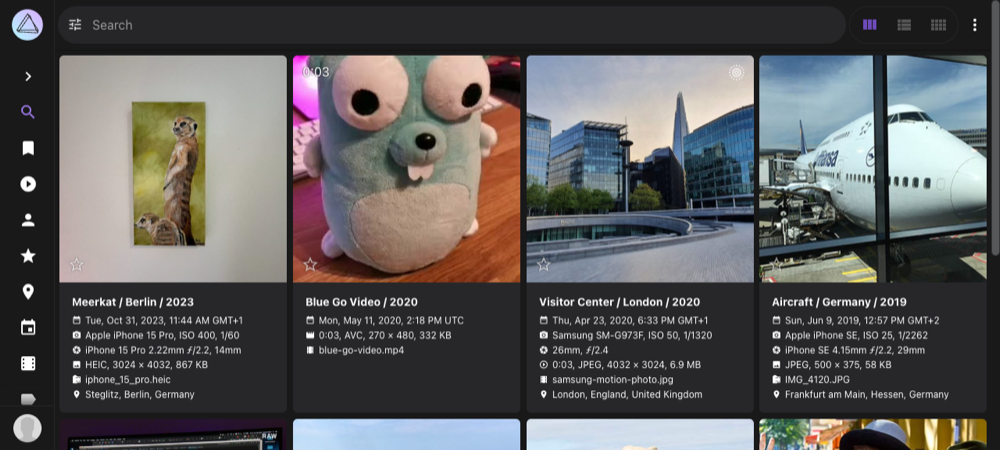
Our First Steps Tutorial introduces the user interface and library settings.
The default configuration does not mount an import folder. Browser uploads and WebDAV work without changing the Compose file.
Terminal Access
You can open a terminal in the hPanel user interface:
- The Web console button in the Docker Manager opens a server terminal in a new browser tab.
- The Terminal link in the Access column of an application's row opens a terminal for that application.
To connect over SSH, add your public key under VPS > Settings > SSH keys with + SSH key, then run ssh root@<your-server> from your computer. Replace <your-server> with your server's IP address or hostname.
Run the Docker and Docker Compose commands in this guide in a server terminal, using the Web console or SSH. To use PhotoPrism's command-line interface from there, prefix its commands with docker exec:
docker exec photoprism-<name>-photoprism-1 photoprism status
docker exec photoprism-<name>-photoprism-1 photoprism index
docker exec photoprism-<name>-photoprism-1 photoprism faces status
docker exec photoprism-<name>-photoprism-1 photoprism backup -i -f
If you use the application's Terminal instead, run the photoprism commands directly, without the docker exec photoprism-<name>-photoprism-1 prefix.
The deployment runs the PhotoPrism container as root. See our Docker Security Guide for instructions on running it as a non-root user. After verifying that SSH key authentication works, disable SSH password authentication and review the firewall settings in hPanel.
Updates
The deployment uses the latest image tags for PhotoPrism and Traefik. Containers must be updated separately from the server's operating system.
Create a backup before updating. Then open a server terminal, change to your application's directory, and pull the latest images:
cd /docker/photoprism-<name>
docker compose pull
docker compose up -d
After the update, check the application log with docker compose logs -f photoprism. You can also update the application through the Docker Manager.
Backups
The installation stores your pictures in the photoprism-<name>_photoprism_originals Docker volume. The photoprism-<name>_photoprism_storage volume contains the SQLite index database, configuration, cache, and backup files. Both volumes are stored below /var/lib/docker/volumes/ on the server.
PhotoPrism's default configuration creates daily database backups and retains up to three SQL dumps. You can change the schedule and retention limits in the backup configuration.
To create a database backup manually, run:
docker exec photoprism-<name>-photoprism-1 photoprism backup -i -f
With the default Docker image configuration, the dump is saved as /photoprism/storage/backups/sqlite3/<date>.sql inside the container. The corresponding path on the host is /var/lib/docker/volumes/photoprism-<name>_photoprism_storage/_data/backups/sqlite3/.
These database backups remain on the same server. For a full backup, also copy your originals and storage volumes to a separate location, as described in our Backup Guide.
To restore a dump, stop PhotoPrism and mount its existing volumes in a temporary container. Replace <file> with the SQL dump filename:
docker stop photoprism-<name>-photoprism-1
docker run --rm --entrypoint sh \
  -e PHOTOPRISM_STORAGE_PATH=/photoprism/storage \
  -e PHOTOPRISM_ORIGINALS_PATH=/photoprism/originals \
  -v photoprism-<name>_photoprism_storage:/photoprism/storage \
  -v photoprism-<name>_photoprism_originals:/photoprism/originals \
  photoprism/photoprism:latest -c "photoprism restore -i -f /photoprism/storage/backups/sqlite3/<file>.sql"
docker start photoprism-<name>-photoprism-1
Restoring a database backup does not restore or remove original files. Files that remain in the originals volume can be indexed again during the next scan.
Domains & HTTPS
Your instance receives a valid Let's Encrypt certificate for the Hostinger hostname by default. Traefik renews this certificate automatically.
To use your own domain, follow Hostinger's Docker Domain Guide:
- Create an A record for your hostname, for example
photos.example.com, pointing to your VPS IP address. If your domain uses Hostinger nameservers, you can manage its DNS records in hPanel. Otherwise, use your DNS provider's dashboard. - In hPanel, open VPS > Manage > Docker Manager, select your PhotoPrism project, and click Manage to open the YAML editor.
- Update the existing Traefik router rules in the
photoprismservice'slabelssection to use your full hostname, for exampleHost(`photos.example.com`). Keep the existing router names and update both HTTP and HTTPS rules if present. - Set the
photoprismservice'sPHOTOPRISM_SITE_URLenvironment variable tohttps://photos.example.com/so generated links use the new address. - Click Deploy to apply the changes. Traefik will request a Let's Encrypt certificate for the new hostname. Allow 1-3 minutes, then open your HTTPS address.
If an existing router rule combines ${COMPOSE_PROJECT_NAME} and ${TRAEFIK_HOST}, changing TRAEFIK_HOST alone also keeps the project name as a hostname prefix. Set the complete hostname in the router's Host rule as described above.
Always use HTTPS when accessing PhotoPrism over the Internet to protect your files and passwords.
AI Captions With Ollama
You can optionally run Ollama on the same server to generate captions with a local vision model. The example below makes its API available to PhotoPrism over the Docker network and to the server over localhost.
Step 1: Install Ollama
Create the /docker/ollama directory on your server, then save the following as /docker/ollama/docker-compose.yml. Replace photoprism-<name>_default with your application's Docker network name:
services:
  ollama:
    image: ollama/ollama:latest
    restart: unless-stopped
    ports:
      - "127.0.0.1:11434:11434"
    mem_limit: 4g
    volumes:
      - ollama_models:/root/.ollama
    networks:
      - photoprism

volumes:
  ollama_models:

networks:
  photoprism:
    name: photoprism-<name>_default
    external: true
To check the network name, run docker network ls in a server terminal. Start Ollama from its own directory:
cd /docker/ollama
docker compose up -d
Step 2: Download a Model
From the /docker/ollama directory, download the model:
docker compose exec ollama ollama pull minicpm-v4.6:1b
Step 3: Configure PhotoPrism
Add these variables to the existing environment list of the photoprism service in /docker/photoprism-<name>/docker-compose.yml:
      - OLLAMA_BASE_URL=http://ollama:11434
      - OLLAMA_MODEL=minicpm-v4.6:1b
Then recreate the PhotoPrism service to apply the environment variables:
cd /docker/photoprism-<name>
docker compose up -d
Create or edit vision.yml in PhotoPrism's storage/config folder, which is located at /photoprism/storage/config/ inside the container. Add the following model to generate captions for newly indexed pictures:
Models:
  - Type: caption
    Model: minicpm-v4.6:1b
    Engine: ollama
    Run: newly-indexed
    Service:
      Uri: ${OLLAMA_BASE_URL}/api/generate
      Think: "false"
Captions for newly indexed pictures are generated by background workers, so they may appear a few minutes after an upload.
On a server with 8 GB of memory, we recommend a small model such as minicpm-v4.6:1b to leave enough memory for indexing, face recognition, and video transcoding.