# PhotoPrism Documentation
> Official documentation for PhotoPrism: setup guides, the user guide, developer reference, and release notes for the privacy-focused, self-hosted AI photo and video app.
PhotoPrism® is a privacy-focused, self-hosted AI photo and video app for browsing, organizing, and sharing media libraries. This is the official documentation site, covering installation and setup (Docker, NAS, Raspberry Pi, and cloud), the user guide for organizing and searching your library, a developer reference (APIs, build, and contribution guides), and release notes. For product information, editions, pricing, and support articles, see the main website at https://www.photoprism.app/.
# Features
Source: https://docs.photoprism.app/
# PhotoPrism: Browse Your Life in Pictures
PhotoPrism® is an AI-powered, privacy-first app for browsing, organizing, and sharing photos and videos. It helps tag, search, and rediscover media without getting in your way, whether self-hosted or in the cloud.
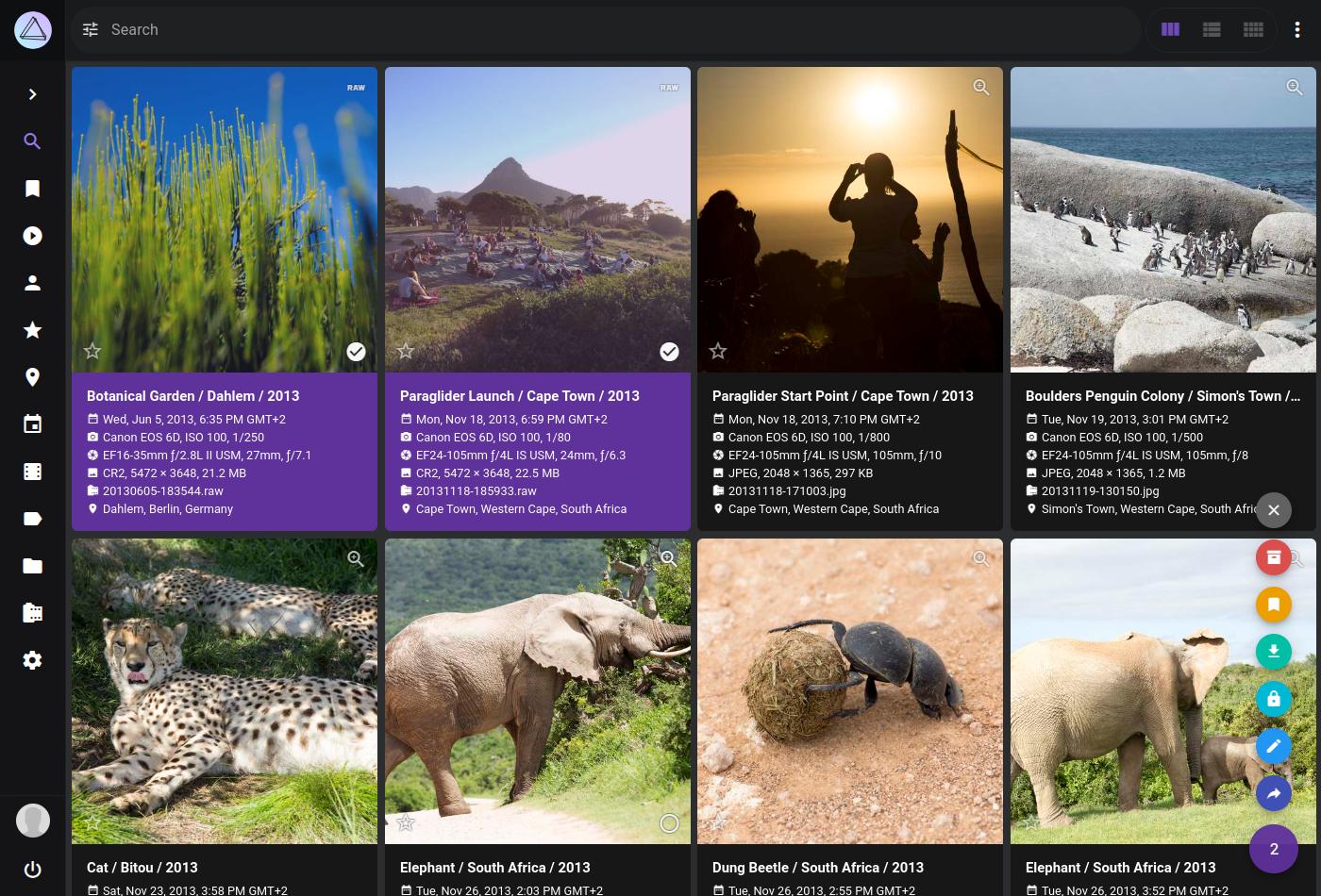
## Feature Overview
Our mission is to provide the most user- and privacy-friendly solution to keep your pictures organized and accessible. That's why PhotoPrism was built from the ground up to run wherever you need it, without compromising freedom, privacy, or functionality:
* Browse [all your pictures](https://docs.photoprism.app/user-guide/organize/browse/) without worrying about [RAW images](https://www.photoprism.app/kb/file-formats/) or [video formats](https://docs.photoprism.app/user-guide/organize/video/)
* Whether you're using a phone, tablet, or desktop computer, our [intuitive PWA](https://try.photoprism.app/) provides a native app-like experience and can be [easily installed](https://docs.photoprism.app/user-guide/pwa/) on your home screen
* Quickly find specific photos and videos with [powerful search filters](https://docs.photoprism.app/user-guide/search/filters/) that can be combined and are available for [many different properties](https://docs.photoprism.app/user-guide/search/filters/#filter-reference), including [labels](https://try.photoprism.app/library/labels), [location](https://try.photoprism.app/library/places?q=s2:47a85a63f764), [resolution](https://try.photoprism.app/library/browse?view=cards&q=mp:4), [color](https://try.photoprism.app/library/browse?view=cards&q=color:red), [chroma](https://try.photoprism.app/library/browse?view=cards&q=mono%3Atrue), and [quality](https://try.photoprism.app/library/review)
* [Automatically labels your pictures](https://try.photoprism.app/library/labels) based on content and location, and recognizes the faces of [your family and friends](https://try.photoprism.app/library/people/new)
* [Live Photos](https://try.photoprism.app/library/live) start playing when you [hover over them](https://try.photoprism.app/library/browse?view=cards&q=type%3Alive) and when viewing a slideshow
* Six high-resolution [World Maps](https://try.photoprism.app/library/places) and our [privacy-preserving geocoding service](https://docs.photoprism.app/getting-started/#maps-places) help bring back memories of your favorite trips and let you explore the world
* Metadata can be extracted and merged from Exif, XMP, and other sources like Google Photos
* [Use compatible apps](https://docs.photoprism.app/user-guide/native-apps/) like [PhotoSync](https://link.photoprism.app/photosync) to back up iOS and Android phones in the background
* WebDAV clients such as [Microsoft's Windows Explorer](https://docs.photoprism.app/user-guide/sync/webdav/#__tabbed_1_2) and [Apple's Finder](https://docs.photoprism.app/user-guide/sync/webdav/#connect-to-a-webdav-server) can [connect directly to PhotoPrism](https://docs.photoprism.app/user-guide/sync/webdav/), allowing you to open, edit, and delete files from your computer as if they were local
[Compare Features ›](https://www.photoprism.app/editions/#compare)
### 100% Privacy :lock:
Because PhotoPrism is [**100% self-funded and independent**](https://www.photoprism.app/membership/), we can promise you that we will [never sell your data](https://www.photoprism.app/privacy/) and that we will [always be transparent](https://www.photoprism.app/terms/) about our software and services. Your data will never be shared with Google, Amazon, Microsoft or Apple unless you intentionally upload files to one of their services.
TRY OUR DEMO
GET STARTED
---
# Setup
Source: https://docs.photoprism.app/getting-started/
# Setup
PhotoPrism can be installed on all operating systems supporting [Docker](https://store.docker.com/search?type=edition&offering=community), as well as [FreeBSD](https://docs.photoprism.app/getting-started/ports/freebsd/), [Raspberry Pi](https://docs.photoprism.app/getting-started/raspberry-pi/), and many [NAS devices](https://docs.photoprism.app/getting-started/nas/synology/). It is also available in the cloud on [PikaPods](https://docs.photoprism.app/getting-started/cloud/pikapods/) and [DigitalOcean](https://docs.photoprism.app/getting-started/cloud/digitalocean/).
We recommend running PhotoPrism with [Docker Compose](https://docs.photoprism.app/getting-started/docker-compose/) when hosting it on a private server. It is available for [Mac](https://docs.docker.com/desktop/setup/install/mac-install/), [Linux](https://docs.photoprism.app/getting-started/troubleshooting/docker/#installation), and [Windows](https://docs.docker.com/desktop/setup/install/windows-install/).
Once the initial setup is complete, our [First Steps 👣](https://docs.photoprism.app/user-guide/first-steps/) tutorial guides you through the user interface and settings to ensure your library is indexed according to your individual preferences.
!!! tldr ""
[Our stable releases](https://docs.photoprism.app/release-notes/) and [preview builds](https://docs.photoprism.app/getting-started/updates/#development-preview) are available as [multi-arch Docker images](https://hub.docker.com/r/photoprism/photoprism/tags) for 64-bit AMD, Intel, and ARM processors. Experienced users can [alternatively use the packages](https://docs.photoprism.app/getting-started/faq/#installation-packages) at [dl.photoprism.app/pkg/linux/](https://dl.photoprism.app/pkg/linux/README.html) to manually install PhotoPrism on compatible Linux distributions. For more installation methods, see our [Getting Started FAQ](https://docs.photoprism.app/getting-started/faq/#how-can-i-install-photoprism-without-docker).
## System Requirements
You should host PhotoPrism on a server with **at least 2 cores**, **3 GB of physical memory**,[^1] and a 64-bit operating system. Beyond these minimum requirements, the amount of RAM should [match the number of CPU cores](https://docs.photoprism.app/getting-started/troubleshooting/performance/#memory). Indexing large photo and video collections also benefits greatly from [local SSD storage](https://docs.photoprism.app/getting-started/troubleshooting/performance/#storage), especially for the database and cache files.
Also ensure that your server has [at least 4 GB of swap](https://docs.photoprism.app/getting-started/troubleshooting/docker/#adding-swap) configured and avoid setting a [hard memory limit](https://docs.photoprism.app/getting-started/faq/#why-is-my-configured-memory-limit-exceeded-when-indexing-even-though-photoprism-doesnt-actually-seem-to-use-that-much-memory) as this can cause unexpected restarts when the indexer temporarily needs more memory to process large files. Indexing [RAW images and high-resolution panoramas](https://docs.photoprism.app/getting-started/troubleshooting/performance/#memory) may require additional [swap space](https://docs.photoprism.app/getting-started/troubleshooting/docker/#adding-swap) and/or physical memory beyond the recommended minimum.
!!! tldr ""
We take no responsibility for instability or performance problems if your device does not meet the requirements.
#### Databases ####
PhotoPrism is compatible with [SQLite 3](https://www.sqlite.org/) and [MariaDB 10.5.12+](https://mariadb.org/).[^2] Note that [SQLite is generally not a good choice](https://docs.photoprism.app/getting-started/troubleshooting/sqlite/) for users who require scalability and high performance, and that support for [MySQL 8 has been discontinued](https://github.com/photoprism/photoprism/issues/1764) due to low demand and missing features.[^3]
#### Browsers ####
PhotoPrism requires a modern, full-featured browser with ES2019 and WebGL support.[^4] We test with the most recent stable versions of [Chrome](https://www.google.com/chrome/)/[Chromium](https://www.chromium.org/getting-involved/download-chromium) (80+), [Edge](https://www.microsoft.com/en-us/edge) (79+), [Firefox](https://www.mozilla.org/en-US/firefox/all/#product-desktop-release) (75+), and [Safari/iOS](https://www.apple.com/safari/) (13+). If you see a warning on the splash screen prompting you to update your browser, please install the latest version or switch to one of these browsers before continuing.
Keep hardware acceleration and WebGL enabled to ensure optimal performance; [video playback](https://caniuse.com/?search=video%20format) and [interactive world maps](https://demo.photoprism.app/library/places) in [Places](https://docs.photoprism.app/user-guide/organize/places/) depend on them. Chrome, Safari, and Edge natively support [AAC](https://caniuse.com/aac), the default audio codec for [MPEG-4 AVC](https://caniuse.com/avc), while Firefox and Opera only optionally support it.
[Learn more ›](https://docs.photoprism.app/getting-started/troubleshooting/browsers/)
#### HTTPS ####
If you install PhotoPrism on a public server outside your home network, **always run it behind a secure HTTPS reverse proxy** such as [Traefik](https://docs.photoprism.app/getting-started/proxies/traefik/) or [Caddy](https://docs.photoprism.app/getting-started/proxies/caddy-2/).
Your files and passwords will otherwise be transmitted in clear text and can be intercepted by anyone, including your provider, hackers, and governments. Backup tools and file sync apps like [FolderSync](https://foldersync.io/docs/faq/#https-connection-errors) may refuse to connect as well.
#### Firewall ####
In order to successfully set up your installation and view location details in PhotoPrism, you must [allow incoming requests as well as those to our Geocoding API and Docker](https://docs.photoprism.app/getting-started/troubleshooting/firewall/) if you have a firewall installed, and make sure that your Internet connection is working.
[Configure Firewall ›](https://docs.photoprism.app/getting-started/troubleshooting/firewall/)
## Maps & Places
As explained in our [Privacy Policy](https://www.photoprism.app/privacy/#section-7), reverse geocoding and interactive world maps depend on retrieving the necessary information [from us](https://www.photoprism.app/contact/) and [MapTiler AG](https://www.maptiler.com/contacts/), headquartered in Switzerland. Both services are provided with a very high level of privacy and confidentiality.[^5]
Your use of these services is [fully covered by us](https://docs.photoprism.app/getting-started/faq/#are-the-keys-for-using-interactive-world-maps-provided-free-of-charge). Depending on your usage, this can save you much more than the cost of a [PhotoPrism+ Membership](https://www.photoprism.app/membership/), since other providers generally charge usage-based fees and often don't allow you to cache the data they provide, compromising performance and your privacy with unnecessary requests.
[View Privacy Policy ›](https://www.photoprism.app/privacy/#section-7) [View Compliance FAQ ›](https://www.photoprism.app/kb/compliance-faq/#privacy)
## Roadmap
Our vision is to provide the most user- and privacy-friendly solution to keep your pictures organized and accessible. The [project roadmap](https://link.photoprism.app/roadmap) shows what tasks are in progress, what needs testing, and which features are going to be implemented next.
Please note, however, that we have a [zero-bug policy](https://docs.photoprism.app/known-issues/) and do our best to help users when they need support or have questions. This comes at a price, as we can't give exact release dates for new features.
## Getting Support
Common problems can be quickly diagnosed and solved using our [Troubleshooting Checklists](https://docs.photoprism.app/getting-started/troubleshooting/). You can also post your questions on [GitHub Discussions](https://link.photoprism.app/discussions), ask in our [Community Chat](https://link.photoprism.app/chat), or consult our [Virtual Expert](https://www.photoprism.app/kb/getting-support/#virtual-experts) on [ChatGPT](https://link.photoprism.app/chatgpt).[^6]
[Silver, Gold, and Platinum](https://link.photoprism.app/membership) members, as well as [users with a team plan](http://link.photoprism.app/team-editions), are welcome to email us for technical support and advice.
[View Support Options ›](https://www.photoprism.app/kb/getting-support/) [Compare Memberships ›](https://link.photoprism.app/membership)
!!! info ""
**We kindly ask you not to report bugs via *GitHub Issues* unless you are certain to have found a fully reproducible and previously unreported issue that must be fixed directly in the app.**
[Contact us](https://www.photoprism.app/contact/) or [a community member](https://link.photoprism.app/discussions)
if you need help, it could be a configuration problem, or a misunderstanding in how the software works.
[^1]: RAW image conversion and TensorFlow are disabled on systems with 1 GB or less memory
[^2]: Our [configuration examples](https://dl.photoprism.app/docker/) are generally based on the [current stable MariaDB version](https://mariadb.com/docs/release-notes/community-server) to take advantage of performance improvements. This does not mean that older versions are no longer supported and you must upgrade immediately. We recommend not using the `:latest` tag for the MariaDB Docker image and to upgrade manually by changing the tag once we had a chance to test a new major version.
[^3]: Oracle seems to have stopped shipping [new features and enhancements](https://github.com/photoprism/photoprism/issues/1764). As a result, the testing effort required before each release is no longer feasible.
[^4]: [WebGL](https://caniuse.com/?search=webgl) may not be fully supported by some versions of Firefox, especially on [Android](https://play.google.com/store/apps/details?id=org.mozilla.firefox&hl=en&pli=1).
[^5]: Our [Compliance FAQ](https://www.photoprism.app/kb/compliance-faq/#privacy) provides answers to the most frequently asked questions about product compliance and scalability.
[^6]: ChatGPT can make mistakes and, unless you opt out, your chats may be used for training purposes.
---
# Docker Compose
Source: https://docs.photoprism.app/getting-started/docker-compose/
# Setup Using Docker Compose
With [Docker Compose](https://docs.docker.com/compose/), you use [a YAML file](https://docs.photoprism.app/developer-guide/technologies/yaml/) to configure all application services so that you can start them with a single command.
Before you proceed, make sure you have [Docker](https://docs.docker.com/get-started/get-docker/) installed on your system. It is available for [macOS](https://docs.docker.com/desktop/setup/install/mac-install/), [Linux](https://docs.photoprism.app/getting-started/troubleshooting/docker/#installation), and [Windows](https://docs.docker.com/desktop/setup/install/windows-install/).
Alternatively, [Podman Compose](https://docs.photoprism.app/getting-started/troubleshooting/docker/#podman-compose) is supported as a drop-in replacement for Docker Compose on Red Hat-compatible Linux distributions like RHEL, CentOS, Fedora, AlmaLinux, and Rocky Linux.
### Step 1: Configure
=== "Linux"
Download our [compose.yaml](https://dl.photoprism.app/docker/compose.yaml) example
(right click and *Save Link As...* or use `wget`) to a folder of your choice,
and change the [configuration](https://docs.photoprism.app/getting-started/config-options/) as needed:
```bash
wget https://dl.photoprism.app/docker/compose.yaml
```
Commands on Linux may have to be prefixed with `sudo` when not running as root.
Note that this will point the home directory shortcut `~` to `/root` in the `volumes:`
section of your config file. Kernel security modules such as AppArmor and SELinux
have been [reported to cause issues](https://docs.photoprism.app/getting-started/troubleshooting/docker/#kernel-security).
We recommend that your server has [at least 4 GB of swap](https://docs.photoprism.app/getting-started/troubleshooting/docker/#adding-swap) configured and to avoid setting a [hard memory limit](https://docs.photoprism.app/getting-started/faq/#why-is-my-configured-memory-limit-exceeded-when-indexing-even-though-photoprism-doesnt-actually-seem-to-use-that-much-memory), as this can lead to unexpected restarts when the indexer temporarily needs more memory to process large files. Indexing [RAW images and high-resolution panoramas](https://docs.photoprism.app/getting-started/troubleshooting/performance/#memory) may require additional [swap space](https://docs.photoprism.app/getting-started/troubleshooting/docker/#adding-swap) and/or physical memory beyond the [recommended minimum](https://docs.photoprism.app/getting-started/#system-requirements).
=== "Podman"
Download our [compose.yaml](https://dl.photoprism.app/podman/docker-compose.yml) example
(right click and *Save Link As...* or use `wget`) to a folder of your choice,
and change the [configuration](https://docs.photoprism.app/getting-started/config-options/) as needed:
```bash
wget https://dl.photoprism.app/podman/docker-compose.yml
```
Alternatively, you can run these commands to install Podman and download the default configuration to `/opt/photoprism`:
```
mkdir -p /opt/photoprism
cd /opt/photoprism
curl -sSf https://dl.photoprism.app/podman/install.sh | bash
```
Please keep in mind to replace the `docker` and `docker compose` commands with `podman` and `podman-compose` when following the examples in our documentation.
We recommend that your server has [at least 4 GB of swap](https://docs.photoprism.app/getting-started/troubleshooting/docker/#adding-swap) configured and to avoid setting a [hard memory limit](https://docs.photoprism.app/getting-started/faq/#why-is-my-configured-memory-limit-exceeded-when-indexing-even-though-photoprism-doesnt-actually-seem-to-use-that-much-memory), as this can lead to unexpected restarts when the indexer temporarily needs more memory to process large files. Indexing [RAW images and high-resolution panoramas](https://docs.photoprism.app/getting-started/troubleshooting/performance/#memory) may require additional [swap space](https://docs.photoprism.app/getting-started/troubleshooting/docker/#adding-swap) and/or physical memory beyond the [recommended minimum](https://docs.photoprism.app/getting-started/#system-requirements).
=== "Raspberry Pi"
Download our [compose.yaml](https://dl.photoprism.app/docker/arm64/compose.yaml) example for
the [Raspberry Pi](https://docs.photoprism.app/getting-started/raspberry-pi/) and other ARM64-based devices (right click and *Save Link As...* or use `wget`) to a folder of your choice,
and change the [configuration](https://docs.photoprism.app/getting-started/config-options/) as needed:
```bash
wget https://dl.photoprism.app/docker/arm64/compose.yaml
```
Mostly the same installation instructions as for regular Linux servers apply.
Commands may have to be prefixed with `sudo` when not running as root.
Please verify if your device meets the [system requirements](https://docs.photoprism.app/getting-started/raspberry-pi/#system-requirements) and has
[at least 4 GB of swap](https://docs.photoprism.app/getting-started/troubleshooting/docker/#adding-swap) configured before you continue. Indexing [RAW images and high-resolution panoramas](https://docs.photoprism.app/getting-started/troubleshooting/performance/#memory) may require additional [swap space](https://docs.photoprism.app/getting-started/troubleshooting/docker/#adding-swap) and/or physical memory beyond the [recommended minimum](https://docs.photoprism.app/getting-started/#system-requirements).
=== "ARMv7"
Download our [compose.yaml](https://dl.photoprism.app/docker/armv7/compose.yaml) example for
older ARMv7-based devices (right click and *Save Link As...* or use `wget`) to a folder of your choice,
and change the [configuration](https://docs.photoprism.app/getting-started/config-options/) as needed:
```bash
wget https://dl.photoprism.app/docker/armv7/compose.yaml
```
Mostly the same installation instructions as for regular Linux servers apply.
Commands may have to be prefixed with `sudo` when not running as root.
Please verify if your device meets the [system requirements](https://docs.photoprism.app/getting-started/raspberry-pi/#system-requirements) and has
[at least 4 GB of swap](https://docs.photoprism.app/getting-started/troubleshooting/docker/#adding-swap) configured before you continue. Indexing [RAW images and high-resolution panoramas](https://docs.photoprism.app/getting-started/troubleshooting/performance/#memory) may require additional [swap space](https://docs.photoprism.app/getting-started/troubleshooting/docker/#adding-swap) and/or physical memory beyond the [recommended minimum](https://docs.photoprism.app/getting-started/#system-requirements).
=== "Windows"
Download our [compose.yaml](https://dl.photoprism.app/docker/windows/compose.yaml) example for Windows
(right click and *Save Link As...*) to a folder of your choice, and change the [configuration](https://docs.photoprism.app/getting-started/config-options/) as needed:
[https://dl.photoprism.app/docker/windows/compose.yaml](https://dl.photoprism.app/docker/windows/compose.yaml) :material-download:
It is important to [increase the Docker memory limit](https://docs.photoprism.app/getting-started/img/docker-resources-advanced.jpg) to 4 GB or more when using *Hyper-V*. The default of 2 GB can reduce indexing performance and cause unexpected restarts. Also make sure you configure at least 4 GB of swap space. [Docker Desktop](https://docs.docker.com/desktop/setup/install/windows-install/) uses dynamic memory allocation with *WSL 2*, meaning you do not need to change any memory-related settings (depending on which version of Windows and Docker you are using).
Indexing [RAW images and high-resolution panoramas](https://docs.photoprism.app/getting-started/troubleshooting/performance/#memory) may require additional [swap space](https://docs.photoprism.app/getting-started/troubleshooting/docker/#adding-swap) and/or physical memory beyond the [recommended minimum](https://docs.photoprism.app/getting-started/#system-requirements).
!!! note ""
Running the following commands will automatically download all required config files and start the server for you:
```bat
curl.exe -o install.bat https://dl.photoprism.app/docker/windows/install.bat
install.bat
```
Before you run this, make sure you are in the directory where you want to install PhotoPrism and that [Docker Desktop](https://docs.docker.com/desktop/setup/install/windows-install/) is installed and started on your PC.
=== "macOS"
Download our [compose.yaml](https://dl.photoprism.app/docker/macos/compose.yaml) example for macOS
(right click and *Save Link As...*) to a folder of your choice, and change the [configuration](https://docs.photoprism.app/getting-started/config-options/) as needed:
[https://dl.photoprism.app/docker/macos/compose.yaml](https://dl.photoprism.app/docker/macos/compose.yaml) :material-download:
It is important to [increase the Docker memory limit to 4 GB](https://docs.photoprism.app/getting-started/img/docker-resources-advanced.jpg) or more,
as the default of 2 GB can reduce indexing performance and cause unexpected restarts.
Indexing [RAW images and high-resolution panoramas](https://docs.photoprism.app/getting-started/troubleshooting/performance/#memory) may require additional [swap space](https://docs.photoprism.app/getting-started/troubleshooting/docker/#adding-swap) and/or physical memory beyond the [recommended minimum](https://docs.photoprism.app/getting-started/#system-requirements).
!!! note ""
When editing YAML files, please make sure that [related values remain on the same indentation level](https://docs.photoprism.app/developer-guide/technologies/yaml/) and that [lists start with a dash](https://docs.photoprism.app/developer-guide/technologies/yaml/#multiple-values).
If the value of an environment variable contains a literal `$` sign, for example in a password, it [must be escaped](https://docs.photoprism.app/developer-guide/technologies/yaml/#dollar-signs) with `$$` (a double dollar sign) so that e.g. `"compo$e"` becomes `"compo$$e"`.
!!! danger ""
Always change `PHOTOPRISM_ADMIN_PASSWORD` so that the app **starts with a secure initial password**.
Never use easy-to-guess passwords or default values like `insecure` on publicly accessible servers.
There is no default [in case no password was provided](https://docs.photoprism.app/user-guide/users/cli/#changing-a-password). A minimum length of 8 characters is required.
#### Database
Our example includes a pre-configured [MariaDB](https://mariadb.com/) database server. If you remove it and provide no other database server credentials, SQLite database files will be created in the *storage* folder. Local [SSD storage is best](https://docs.photoprism.app/getting-started/troubleshooting/performance/#storage) for databases of any kind.
Never [store database files](https://docs.photoprism.app/getting-started/troubleshooting/mariadb/#corrupted-files) on an unreliable device such as a USB flash drive, SD card, or shared network folder. These may also have [unexpected file size limitations](https://thegeekpage.com/fix-the-file-size-exceeds-the-limit-allowed-and-cannot-be-saved/), which is especially problematic for databases that do not split data into smaller files.
!!! tldr ""
You cannot change the database password with `MARIADB_PASSWORD` after MariaDB has been started for the first time. However, choosing a secure password is not essential if you do not share the database with other applications or [expose it over a network](https://docs.photoprism.app/getting-started/troubleshooting/mariadb/#cannot-connect). To enable [automatic schema updates](https://docs.photoprism.app/getting-started/troubleshooting/mariadb/#auto-upgrade) when upgrading to a new major version, please make sure that `MARIADB_AUTO_UPGRADE` is set to a non-empty value.
#### Volumes
You must explicitly [specify the directories](https://docs.docker.com/reference/compose-file/volumes/) you want to mount from your host, since PhotoPrism can't see files in folders that have not been shared. This is an important security feature and allows for a flexible configuration without having to change any other variables.
!!! danger ""
It is important that all folders are mounted to persistent volumes. We recommend changing the relative paths used in our examples to absolute paths and to avoid using [named or anonymous volumes](https://docs.docker.com/reference/compose-file/volumes/#example) in order to prevent potential data loss when the container is recreated, e.g. [after an update](https://docs.photoprism.app/getting-started/updates/#docker-compose) of the Docker image.
##### /photoprism/originals
The *originals* folder contains your original photo and video files. `~/Pictures` will be mounted by default, where `~` is a shortcut for your home directory:
```yaml
services:
photoprism:
volumes:
- "~/Pictures:/photoprism/originals"
```
We recommend that you change `~/Pictures` to the directory where your existing media files are, for example:
```yaml
- "/mnt/photos:/photoprism/originals"
```
Additional directories can be mounted as sub folders of `/photoprism/originals` (depending on [overlay filesystem support](https://docs.photoprism.app/getting-started/troubleshooting/docker/#overlay-volumes)):
```yaml
volumes:
- "/mnt/photos:/photoprism/originals"
- "/mnt/videos:/photoprism/originals/videos"
```
On Windows, prefix the host path with the drive letter and use `/` instead of `\` as separator:
```yaml
volumes:
- "D:/Example/Pictures:/photoprism/originals"
```
[Learn more ›](https://docs.photoprism.app/getting-started/troubleshooting/windows/#mounting-volumes)
!!! tldr ""
When *read-only mode* is enabled, all features that require write permission to the *originals* folder are disabled, e.g. [WebDAV](https://docs.photoprism.app/user-guide/sync/webdav/), uploading and deleting files. To do this, set `PHOTOPRISM_READONLY` to `"true"` in the `environment` section of your `compose.yaml` file.[^2] You can additionally [mount volumes with the `:ro` flag](https://docs.docker.com/reference/compose-file/services/#volumes) so that writes are also blocked by Docker.
##### /photoprism/storage
The *storage* folder is used to save config, cache, backup, thumbnail, and sidecar files. It must always be specified so that you do not lose these files after a restart or upgrade.
If available, we recommend you put the *storage* folder on a [local SSD drive](https://docs.photoprism.app/getting-started/troubleshooting/performance/#storage) for best performance. You can otherwise keep the default and store the files in a folder relative to the current directory:
```yaml
services:
photoprism:
volumes:
- "./storage:/photoprism/storage"
```
!!! tldr ""
Never configure the *storage* folder to be inside the *originals* folder unless the name starts with a `.` to indicate that it is hidden.
Should you later want to move your instance to another host, the easiest and most time-saving way is to copy the entire *storage* folder along with your *originals* and *database*.
##### /photoprism/import
You can optionally mount an *import* folder from which files can be transferred to the *originals* folder in a structured way that avoids duplicates, for example:
```yaml
services:
photoprism:
volumes:
- "/mnt/media/usb:/photoprism/import"
```
[Imported files](https://docs.photoprism.app/user-guide/library/import/) receive a canonical filename and will be organized by year and month. You should never configure the *import* folder to be inside the *originals* folder, as this will cause a loop by importing already indexed files.
!!! tldr ""
Even if you don't specify an *import* folder, adding files via [Web Upload](https://docs.photoprism.app/user-guide/library/upload/) and [WebDAV](https://docs.photoprism.app/user-guide/sync/webdav/) remains possible unless [read-only mode](https://docs.photoprism.app/getting-started/config-options/#feature-flags) is enabled or the [features have been disabled](https://docs.photoprism.app/user-guide/settings/general/).
### Step 2: Start the server
Open a terminal and change to the folder in which your config file has been saved.[^1]
Run this command to start the application and database services in the background:
```bash
docker compose up -d
```
*Note that our examples use the new `docker compose` command by default. If your server does not yet support it, you can still use `docker-compose` or alternatively `podman-compose` on Red Hat-compatible distributions.*
Now open the Web UI by navigating to http://localhost:2342/. You should see a login screen. Sign in with the user `admin` and the initial password configured via `PHOTOPRISM_ADMIN_PASSWORD`. You may change it on the [account settings page](https://docs.photoprism.app/user-guide/settings/account/). Enabling [public mode](https://docs.photoprism.app/getting-started/config-options/#authentication) will disable authentication.
!!! info ""
It can be helpful to [keep Docker running in the foreground while debugging](https://docs.photoprism.app/getting-started/troubleshooting/docker/#viewing-logs) so that log messages are displayed directly. To do this, omit the `-d` parameter when restarting.
If the server is already running, or you see no errors, you may have started it
on a different host and/or port. There could also be an [issue with your browser,
ad blocker, or firewall settings](https://docs.photoprism.app/getting-started/troubleshooting/#connection-fails).
!!! tldr ""
You cannot change the password with `PHOTOPRISM_ADMIN_PASSWORD` after the app has been started for the first time. To change the *admin* password, run the `docker compose exec photoprism photoprism passwd [username]` command in a terminal. You can also run `docker compose exec photoprism photoprism reset` to delete the existing index database and start from scratch.
The server port and other [config options](https://docs.photoprism.app/getting-started/config-options/) can be changed in your `compose.yaml` file[^2] at any time.
Remember to restart the services for changes to take effect:
```bash
docker compose stop
docker compose up -d
```
### Step 3: Index Your Library
Our [First Steps 👣](https://docs.photoprism.app/user-guide/first-steps/) tutorial guides you through the user interface and settings to ensure your library is indexed according to your individual preferences.
### PhotoPrism® Plus
Our members can activate [additional features](https://link.photoprism.app/membership) by logging in with the [admin user created during setup](https://docs.photoprism.app/getting-started/config-options/#authentication) and then following the steps [described in our activation guide](https://www.photoprism.app/kb/activation/). Thank you for your support, which has been and continues to be essential to the success of the project! :octicons-heart-fill-24:{ .heart .purple }
[Compare Memberships ›](https://link.photoprism.app/membership) [View Membership FAQ ›](https://www.photoprism.app/membership/faq/)
!!! example ""
We recommend that new users install our free Community Edition before [signing up for a membership](https://link.photoprism.app/membership).
### Troubleshooting
If your server runs out of memory or other system resources:
- [ ] Try [reducing the number of workers](https://docs.photoprism.app/getting-started/config-options/#indexing) by setting `PHOTOPRISM_WORKERS` to a reasonably small value in your `compose.yaml` file, depending on the CPU performance and number of cores. Running `photoprism config` shows the chosen worker count and the rationale that was applied (e.g. `index-workers: 4 (sqlite-cap)`); SQLite installs are capped at four workers automatically.
- [ ] Ensure that your server has [at least 4 GB of swap](https://docs.photoprism.app/getting-started/troubleshooting/docker/#adding-swap) configured and avoid setting a [hard memory limit](https://docs.photoprism.app/getting-started/faq/#why-is-my-configured-memory-limit-exceeded-when-indexing-even-though-photoprism-doesnt-actually-seem-to-use-that-much-memory) as this can cause unexpected restarts when the indexer temporarily needs more memory to process large files
- [ ] If you are using SQLite, switch to MariaDB, which is [better optimized for high concurrency](https://docs.photoprism.app/getting-started/faq/#should-i-use-sqlite-mariadb-or-mysql)
- [ ] As a last measure, you can [disable image classification and facial recognition](https://docs.photoprism.app/getting-started/config-options/#feature-flags)
Other issues? Our [troubleshooting checklists](https://docs.photoprism.app/getting-started/troubleshooting/) help you quickly diagnose and resolve them.
!!! info ""
You are welcome to ask for help in our [community chat](https://link.photoprism.app/chat).
[Sponsors](https://www.photoprism.app/membership/) receive direct [technical support](https://www.photoprism.app/contact/) via email.
Before [submitting a support request](https://docs.photoprism.app/getting-started/#getting-support), try to [determine the cause of your problem](https://docs.photoprism.app/getting-started/troubleshooting/).
### Command-Line Interface
#### Introduction
`photoprism help` lists all commands and [config options](https://docs.photoprism.app/getting-started/config-options/) available in the current version:
```bash
docker compose exec photoprism photoprism help
```
Use the `--help` flag to see a detailed command description, for example:
```bash
docker compose exec photoprism photoprism backup --help
```
PhotoPrism's command-line interface is also well suited for job automation using a [scheduler](https://dl.photoprism.app/docker/scheduler/).
!!! tip ""
When using *Docker Compose*, you can prefix the commands you want to run with `docker compose exec [service]` to execute them in the specified service container.
If this fails with *no container found*, please make sure that the service has been started, you have specified an existing service (usually `photoprism`) and you are in the folder where your config file is located.
#### Opening a Terminal
To open a terminal session as the [default user](https://docs.docker.com/reference/compose-file/services/#user):
```bash
docker compose exec photoprism bash
```
Since the above will open the terminal as root by default, we recommend that you pass the `-u` flag to explicitly open a non-root session if PhotoPrism is running under a specific user account, for example:
```bash
docker compose exec -u 1000 photoprism bash
```
This avoids potential [filesystem permission issues](https://docs.photoprism.app/getting-started/troubleshooting/docker/#file-permissions) that can occur when a command creates new files or folders, e.g. to store thumbnails.
#### Changing the User ID
Specifying a user with the `-u` flag is possible for all commands you run with [Docker](https://docs.photoprism.app/getting-started/docker/#command-line-interface) and Docker Compose. In the following examples, it is omitted for brevity.
Note, however, that commands that you run without an explicit user ID might be executed as root.
The currently supported user ID ranges are 0, 33, 50-99, 500-600, 900-1250, and 2000-2100.
!!! tip ""
We recommend running the `photoprism` service as a non-root user by setting either the [user service property](https://docs.docker.com/reference/compose-file/services/#user) or the `PHOTOPRISM_UID` [environment variable](https://docs.photoprism.app/getting-started/config-options/#docker-image) in your config file. Don't forget to update file permissions and/or ownership with the `chown` command when you make changes.
#### Examples
| Action | Command |
|--------------------------------------------------------|---------------------------------------------------------------|
| *Start Services* | `docker compose up -d` |
| *Stop Services* | `docker compose stop` |
| *Download Updates* | `docker compose pull` |
| *Uninstall* | `docker compose rm -s -v` |
| [*Watch Logs*](https://docs.photoprism.app/getting-started/troubleshooting/docker/#viewing-logs) | `docker compose logs -f --tail=100` |
| *Display Config Values* | `docker compose exec photoprism photoprism show config` |
| *Show Migration Status* | `docker compose exec photoprism photoprism migrations ls` |
| *Repeat Failed Migrations* | `docker compose exec photoprism photoprism migrations run -f` |
| *Reset Database* | `docker compose exec photoprism photoprism reset --yes` |
| *Backup Database* | `docker compose exec photoprism photoprism backup -i -f` |
| *Restore Database* | `docker compose exec photoprism photoprism restore -i -f` |
| *Change Password* | `docker compose exec photoprism photoprism passwd [username]` |
| *Show User Management Commands* | `docker compose exec photoprism photoprism users help` |
| *Reset User Accounts* | `docker compose exec photoprism photoprism users reset --yes` |
| *Reset Sessions and Access Tokens* | `docker compose exec photoprism photoprism auth reset --yes` |
| *Show Face Recognition Commands* | `docker compose exec photoprism photoprism faces help` |
| *Index Faces* | `docker compose exec photoprism photoprism faces index` |
| *Reset People & Faces* | `docker compose exec photoprism photoprism faces reset -f` |
| *Transcode Videos to AVC* | `docker compose exec photoprism photoprism convert` |
| *Regenerate Thumbnails* | `docker compose exec photoprism photoprism thumbs -f` |
| [*Update Index*](https://docs.photoprism.app/user-guide/library/originals/) | `docker compose exec photoprism photoprism index --cleanup` |
| [*Move to Originals*](https://docs.photoprism.app/user-guide/library/import/) | `docker compose exec photoprism photoprism import [path]` |
| [*Copy to Originals*](https://docs.photoprism.app/user-guide/library/import/) | `docker compose exec photoprism photoprism cp [path]` |
*Note that our examples use the new `docker compose` command by default. If your server does not yet support it, you can still use `docker-compose` or alternatively `podman-compose` on Red Hat-compatible distributions.*
!!! info "Complete Rescan"
`docker compose exec photoprism photoprism index -f` rescans all originals, including already indexed and unchanged files.
This may be necessary after major upgrades and after migrations of the database schema, especially if search results are missing or incorrect. Note you can also start a [rescan from the user interface](https://docs.photoprism.app/user-guide/library/originals/) by navigating to *Library* > *Index*, checking "Complete Rescan" and then clicking "Start". Manually entered information such as labels, people, titles or captions will not be modified when indexing, even if you perform a "complete rescan".
*[home directory]: \user\username on Windows, /Users/username on macOS, and /root or /home/username on Linux
*[host]: Computer, Cloud Server, or VM that runs PhotoPrism
*[swap]: substitute for physical memory
*[root]: superuser account with the ID 0
*[HEIF]: High Efficiency Image File Format
*[RAW]: image format that contains unprocessed sensor data
*[SSD]: Solid-State Drive
*[CDN]: Content Delivery Network
*[UI]: User Interface
*[CLI]: Command-Line Interface
*[AVC]: MPEG-4 / H.264
*[FFmpeg]: transcodes video files
*[SQLite]: self-contained, serverless SQL database
*[read-only]: write protected
*[filesystem]: contains your files and folders
*[RHEL]: Red Hat Enterprise Linux®
[^1]: The default name for [Docker Compose](https://docs.docker.com/compose/) configuration files is `compose.yaml`. For simplicity, it does not need to be specified if you are running commands in the same directory. Config files for other applications and instances should be placed in separate folders.
[^2]: With the latest version of [Docker Compose](https://docs.docker.com/compose/), the [default config file name](https://docs.docker.com/compose/intro/compose-application-model/#the-compose-file) is `compose.yaml`, although the [`docker compose` command](https://docs.photoprism.app/getting-started/troubleshooting/docker/#docker-compose) still supports legacy `docker-compose.yml` files for backward compatibility.
---
# Portainer
Source: https://docs.photoprism.app/getting-started/portainer/
# Portainer Setup Guide
[Portainer](https://www.portainer.io/) can be used to manage Docker containers through a web interface. On many [NAS devices](https://docs.photoprism.app/getting-started/nas/synology/), it is either available from the vendor's app store or easy to install separately. If you are installing PhotoPrism on a regular home or cloud server, you may instead want to follow our [Docker Compose Setup Guide](https://docs.photoprism.app/getting-started/docker-compose/), which only uses standard Docker tools and commands.
### Step 1: Create Stack ###
Navigate to "Stacks", click "Add stack", and paste the [contents of our *stack.yml* config template](https://dl.photoprism.app/docker/portainer/stack.yml) (opens in a new tab) into the *Web editor* so that you can change the storage folder locations in the `volumes` sections as needed:
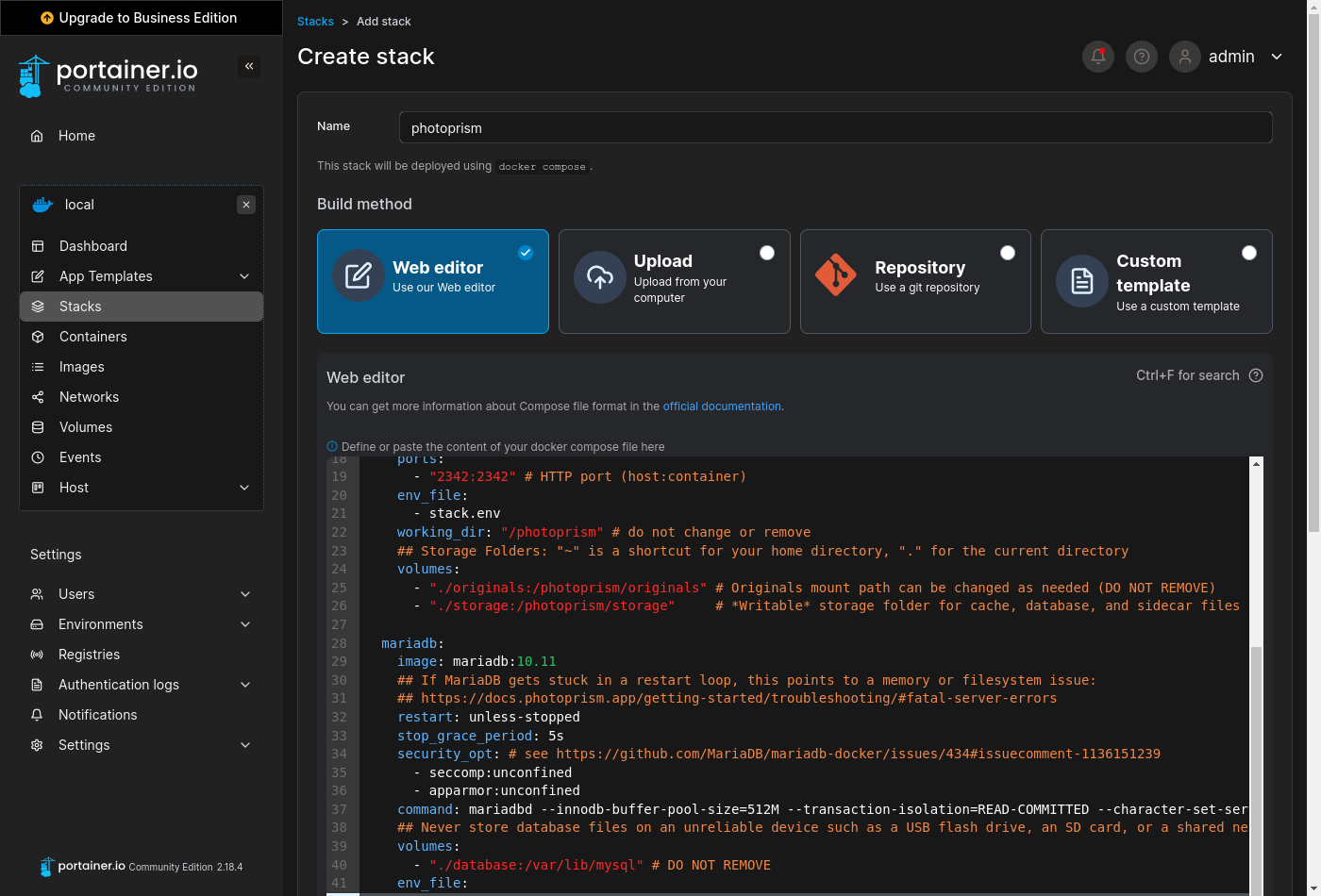
When using the *Web editor*, please make sure that related values remain on the [same indentation level](https://docs.photoprism.app/developer-guide/technologies/yaml/) and that lists start with a dash, as shown in our template.
#### Volumes ####
You need to explicitly [specify the directories](https://docs.docker.com/reference/compose-file/services/#volumes) you want to use on your NAS device, since PhotoPrism can't see files in folders that have not been shared. This is an important security feature and allows for a flexible configuration without having to change any other variables.
!!! danger ""
**It is important that all folders specified in the "volumes" sections are located on a persistent volume on your device.** We recommend changing the relative paths used in our example to absolute paths in order to avoid potential data loss, e.g. if the default application folder managed by Portainer changes or is reset after an update.
The volume mount paths to configure depend on your NAS device and its settings. As on most operating systems, a dot followed by a slash `./` can be used to specify a path relative to the current directory. If you keep the defaults, all files will be located in the internal application folder that Portainer automatically creates when you add a new stack.
##### Database #####
Our [stack template](https://dl.photoprism.app/docker/portainer/stack.yml) includes a pre-configured [MariaDB](https://mariadb.com/) database server that stores its data in the Portainer application folder by default:
```yaml
services:
mariadb:
volumes:
- "./database:/var/lib/mysql"
```
If your NAS device has a mixed drive configuration with solid-state drives (SSDs) and traditional hard disks, we recommend that you change `./database` to an absolute path located on an SSD as this [significantly improves performance](https://docs.photoprism.app/getting-started/troubleshooting/performance/#storage), for example:
```yaml
- "/mnt/ssd/database:/var/lib/mysql"
```
!!! tldr ""
Database files should [never be located on an unreliable device](https://docs.photoprism.app/getting-started/troubleshooting/mariadb/#corrupted-files) such as a USB flash drive, SD card, or network folder.
##### /photoprism/originals #####
The *originals* folder contains your original photo and video files:
```yaml
services:
photoprism:
volumes:
- "./originals:/photoprism/originals"
```
We recommend that you change `./originals` to the directory on your NAS where your existing media files are, for example:
```yaml
- "/mnt/photos:/photoprism/originals"
```
Additional directories can be mounted as sub folders of `/photoprism/originals` (depending on [overlay filesystem support](https://docs.photoprism.app/getting-started/troubleshooting/docker/#overlay-volumes)):
```yaml
volumes:
- "/mnt/photos:/photoprism/originals"
- "/mnt/videos:/photoprism/originals/videos"
```
!!! tldr ""
If you want to start with an empty library, you can mount any directory that has enough free space for your needs.
##### /photoprism/storage #####
The *storage* folder is used to save config, cache, backup, thumbnail, and sidecar files. It must always be specified so that you do not lose these files after a restart or upgrade.
If available, we recommend that you put the *storage* folder on a [local SSD drive](https://docs.photoprism.app/getting-started/troubleshooting/performance/#storage) for best performance. You can otherwise keep the default to store the files in the internal application folder:
```yaml
services:
photoprism:
volumes:
- "./storage:/photoprism/storage"
```
!!! tldr ""
Never configure the *storage* folder to be inside the *originals* folder unless the name starts with a `.` to indicate that it is hidden.
Should you later want to move your instance to another NAS, the easiest and most time-saving way is to copy the entire *storage* folder along with your *originals* and *database*.
##### /photoprism/import #####
You can optionally mount an *import* folder from which files can be transferred to the *originals* folder in a structured way that avoids duplicates, for example:
```yaml
services:
photoprism:
volumes:
- "/mnt/media/usb:/photoprism/import"
```
[Imported files](https://docs.photoprism.app/user-guide/library/import/) receive a canonical filename and will be organized by year and month. You should never configure the *import* folder to be inside the *originals* folder, as this will cause a loop by importing already indexed files.
!!! tldr ""
Even if you don't specify an *import* folder, adding files via [Web Upload](https://docs.photoprism.app/user-guide/library/upload/) and [WebDAV](https://docs.photoprism.app/user-guide/sync/webdav/) remains possible unless [read-only mode](https://docs.photoprism.app/getting-started/config-options/#feature-flags) is enabled or the [features have been disabled](https://docs.photoprism.app/user-guide/settings/general/).
### Step 2: Finalize Setup ###
To complete the setup, [download the *stack.env* file from our server](https://dl.photoprism.app/docker/portainer/stack.env) (right click and *Save Link As...*), click "Load variables from .env file", upload it to Portainer, and then [change the values according to your needs](https://docs.photoprism.app/getting-started/config-options/):
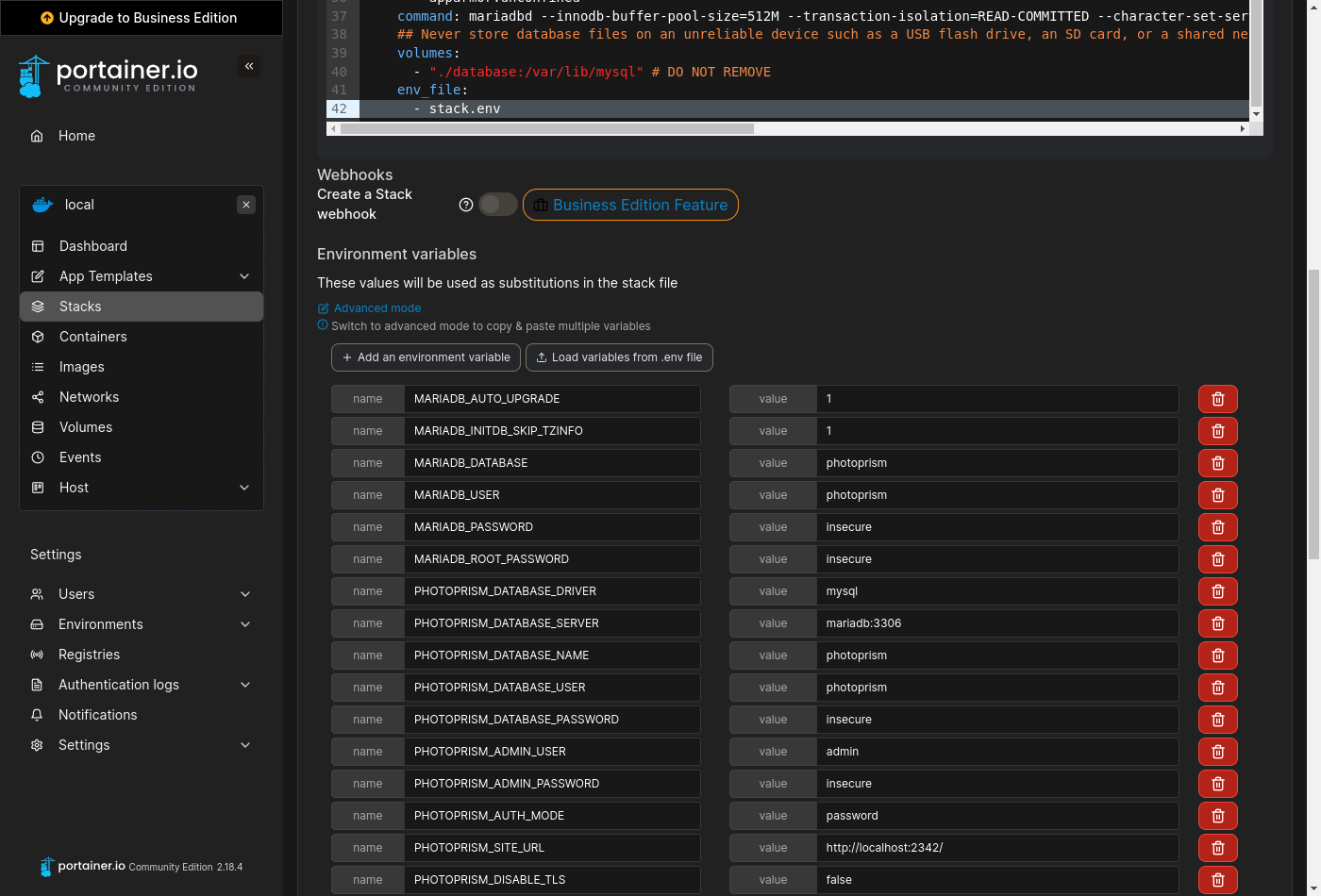
!!! danger ""
Always change `PHOTOPRISM_ADMIN_PASSWORD` so that the app **starts with a secure initial password**.
Never use easy-to-guess passwords or default values like `insecure` on publicly accessible instances.
There is no default [in case no password was provided](https://docs.photoprism.app/user-guide/users/cli/#changing-a-password). A minimum length of 8 characters is required.
!!! tldr ""
You cannot change the database password with `MARIADB_PASSWORD` after MariaDB has been started for the first time. However, choosing a secure password is not essential if you do not share the database with other applications or [expose it over a network](https://docs.photoprism.app/getting-started/troubleshooting/mariadb/#cannot-connect). To enable [automatic schema updates](https://docs.photoprism.app/getting-started/troubleshooting/mariadb/#auto-upgrade) when upgrading to a new major version, please make sure that `MARIADB_AUTO_UPGRADE` is set to a non-empty value.
When you're done, scroll down and click "Deploy the stack" without changing any of the other options:
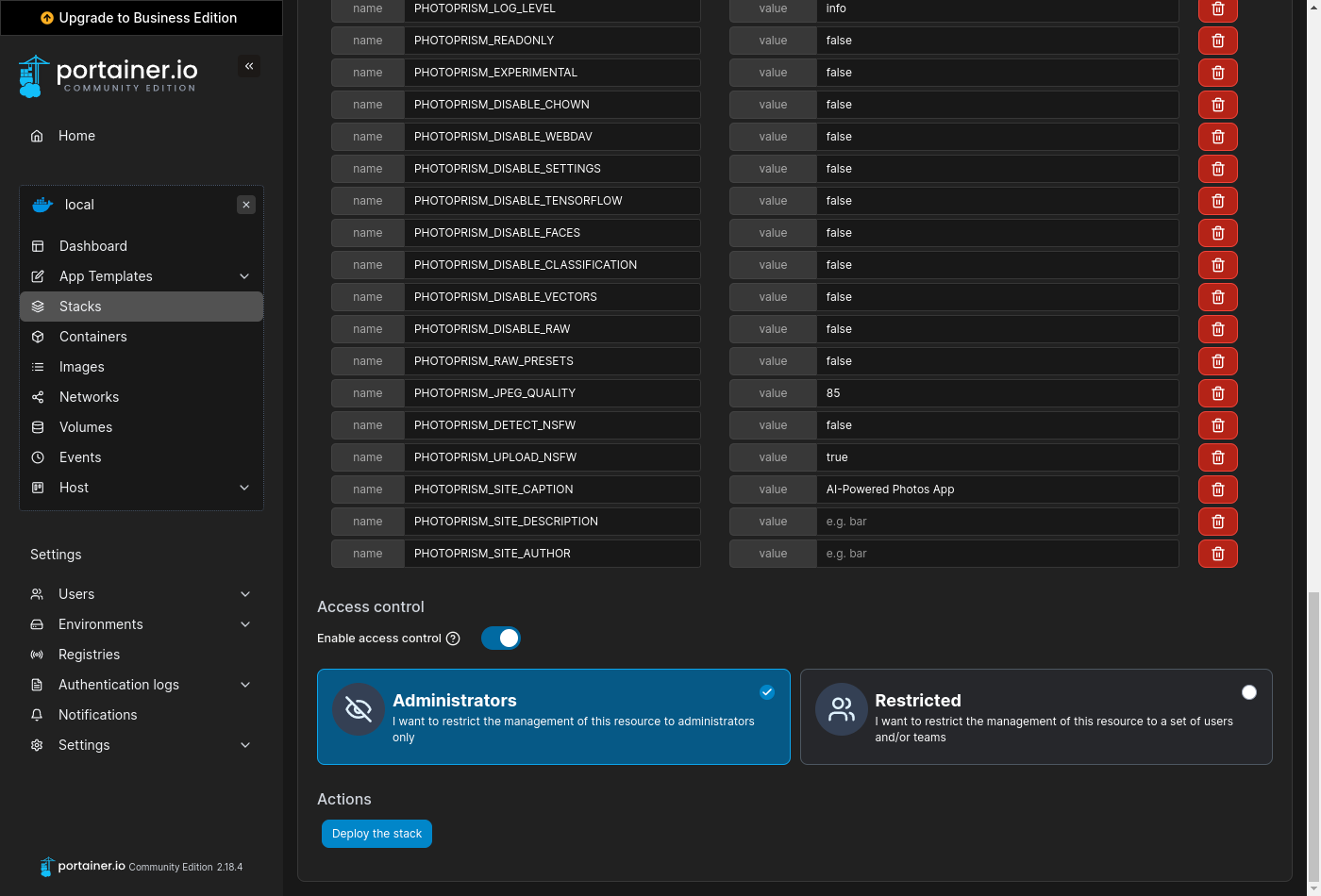
After waiting a few moments, you should be able to log in as `admin` with the password specified in `PHOTOPRISM_ADMIN_PASSWORD` when you navigate to `http://:2342/`.
!!! tldr ""
If you have modified the server hostname, port, or protocol in your configuration, the URL to use changes accordingly.
### Step 3: Index Your Library ###
Our [First Steps 👣](https://docs.photoprism.app/user-guide/first-steps/) tutorial guides you through the user interface and settings to ensure your library is indexed according to your individual preferences.
!!! tldr ""
The config options and container image you want to use can be changed at any time by navigating to "Stacks", selecting your existing PhotoPrism stack, clicking "Editor", updating the [configuration to your needs](https://docs.photoprism.app/getting-started/config-options/), and then clicking "Update the stack" to apply the changes.
### PhotoPrism® Plus ###
Our members can activate [additional features](https://link.photoprism.app/membership) by logging in with the [admin user created during setup](https://docs.photoprism.app/getting-started/config-options/#authentication) and then following the steps [described in our activation guide](https://www.photoprism.app/kb/activation/). Thank you for your support, which has been and continues to be essential to the success of the project! :octicons-heart-fill-24:{ .heart .purple }
[Compare Memberships ›](https://link.photoprism.app/membership) [View Membership FAQ ›](https://www.photoprism.app/membership/faq/)
!!! example ""
We recommend that new users install our free Community Edition before [signing up for a membership](https://link.photoprism.app/membership).
### Troubleshooting ###
If your device runs out of memory or other system resources:
- [ ] Try [reducing the number of workers](https://docs.photoprism.app/getting-started/config-options/#indexing) by setting `PHOTOPRISM_WORKERS` to a reasonably small value, depending on the CPU performance and number of cores
- [ ] Make sure [your device has at least 4 GB of swap space](https://docs.photoprism.app/getting-started/troubleshooting/docker/#adding-swap) so that indexing doesn't cause restarts when memory usage spikes; RAW image conversion and video transcoding are especially demanding
- [ ] If you are using SQLite, switch to MariaDB, which is [better optimized for high concurrency](https://docs.photoprism.app/getting-started/faq/#should-i-use-sqlite-mariadb-or-mysql)
- [ ] As a last measure, you can [disable image classification and facial recognition](https://docs.photoprism.app/getting-started/config-options/#feature-flags)
Other issues? Our [troubleshooting checklists](https://docs.photoprism.app/getting-started/troubleshooting/) help you quickly diagnose and resolve them.
!!! info ""
You are welcome to ask for help in our [community chat](https://link.photoprism.app/chat).
[Sponsors](https://www.photoprism.app/membership/) receive direct [technical support](https://www.photoprism.app/contact/) via email.
Before [submitting a support request](https://docs.photoprism.app/getting-started/#getting-support), try to [determine the cause of your problem](https://docs.photoprism.app/getting-started/troubleshooting/).
### Command-Line Interface ###
#### Opening a Terminal
Navigate to "Stacks", select the PhotoPrism stack and scroll down to the list of containers:
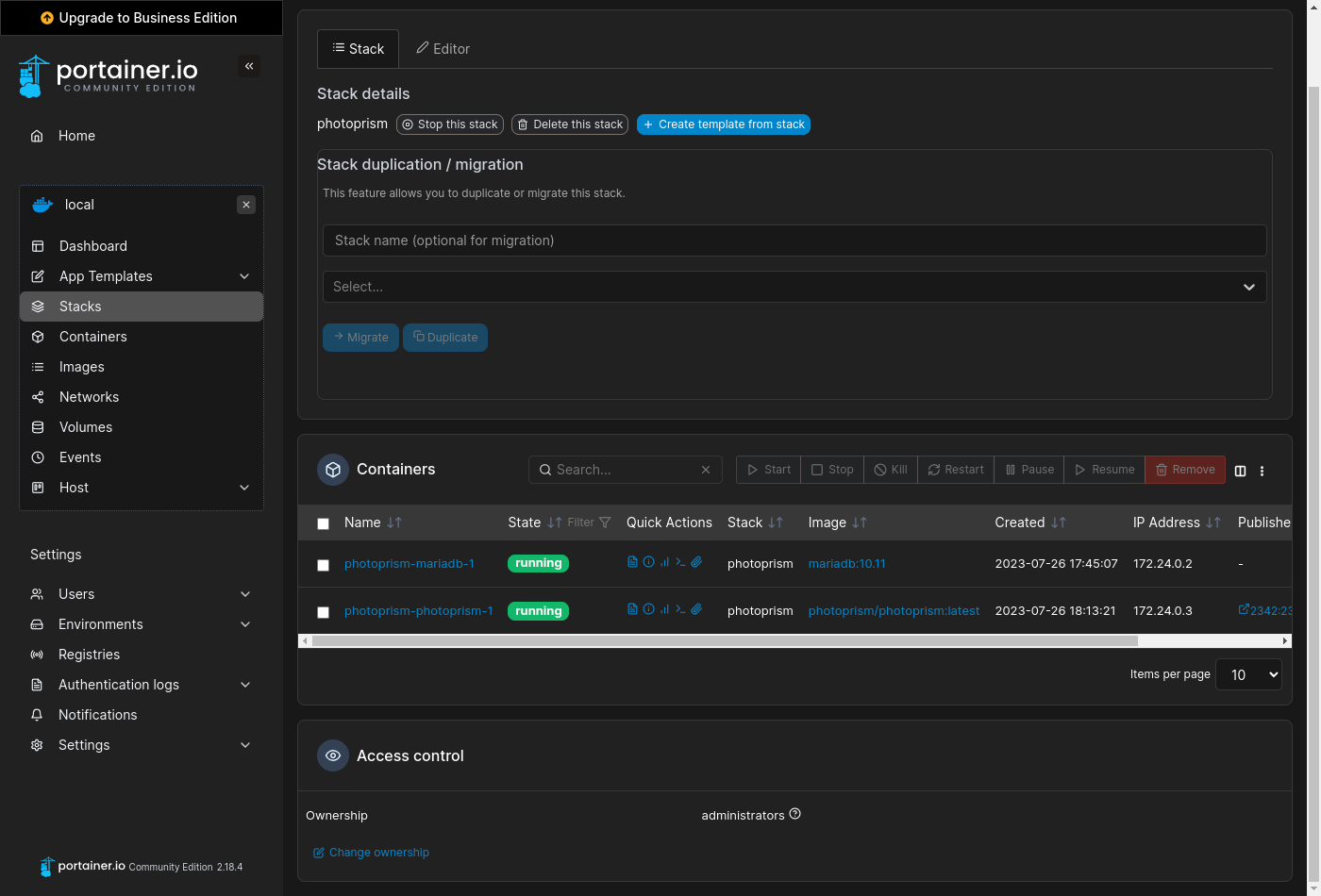
Now click the :fontawesome-solid-terminal: button belonging to the *photoprism-photoprism-1* container and [accept the default settings](https://docs.photoprism.app/getting-started/portainer/console-settings.png) to open a terminal:
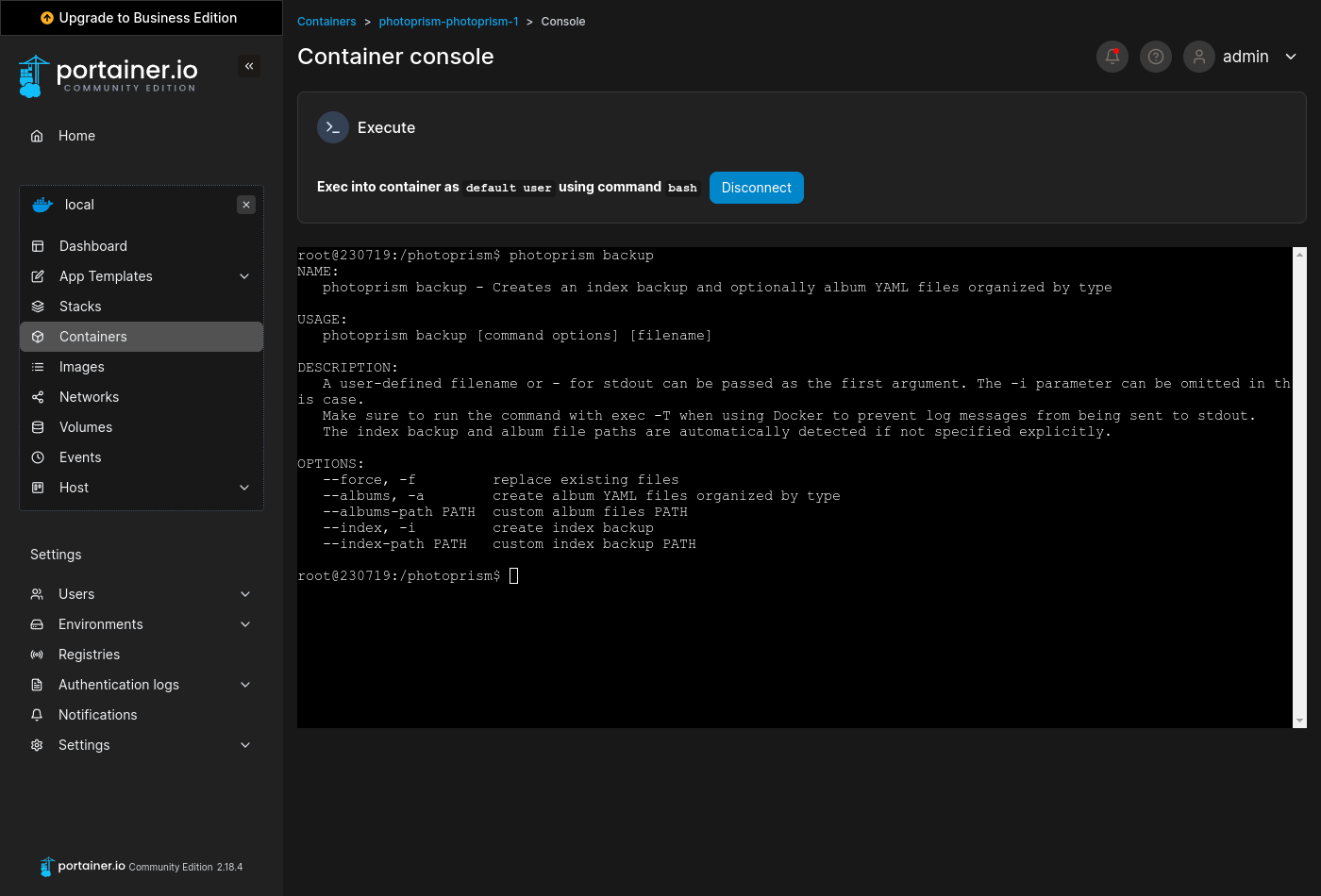
Running `photoprism help` lists all commands and [options](https://docs.photoprism.app/getting-started/config-options/) available in the current version:
```bash
photoprism help
```
Use the `--help` flag to see a detailed command description, for example:
```bash
photoprism backup --help
```
The command-line interface is also well suited for job automation using a [scheduler](https://dl.photoprism.app/docker/scheduler/).
#### Examples
| Action | Command |
|-----------------------------------------------------------|--------------------------------|
| *Display Config Values* | `photoprism show config` |
| *Show Migration Status* | `photoprism migrations ls` |
| *Repeat Failed Migrations* | `photoprism migrations run -f` |
| *Reset Database* | `photoprism reset --yes` |
| *Backup Database* | `photoprism backup -i -f` |
| *Restore Database* | `photoprism restore -i -f` |
| *Change Password* | `photoprism passwd [username]` |
| *Show User Management Commands* | `photoprism users help` |
| *Reset Users* | `photoprism users reset --yes` |
| *Show Face Recognition Commands* | `photoprism faces help` |
| *Index Faces* | `photoprism faces index` |
| *Reset People & Faces* | `photoprism faces reset -f` |
| *Transcode Videos to AVC* | `photoprism convert` |
| *Regenerate Thumbnails* | `photoprism thumbs -f` |
| [*Update Index*](https://docs.photoprism.app/user-guide/library/originals/) | `photoprism index --cleanup` |
| [*Move to Originals*](https://docs.photoprism.app/user-guide/library/import/) | `photoprism import [path]` |
| [*Copy to Originals*](https://docs.photoprism.app/user-guide/library/import/) | `photoprism cp [path]` |
*[home directory]: /home/username on Linux and many NAS devices
*[host]: Computer, Cloud Server, or VM that runs PhotoPrism
*[swap]: substitute for physical memory
*[HEIF]: High Efficiency Image File Format
*[RAW]: image format that contains unprocessed sensor data
*[SSD]: Solid-State Drive
*[CDN]: Content Delivery Network
*[UI]: User Interface
*[CLI]: Command-Line Interface
*[AVC]: MPEG-4 / H.264
*[FFmpeg]: transcodes video files
*[SQLite]: self-contained, serverless SQL database
*[read-only]: write protected
*[filesystem]: contains your files and folders
---
# Pure Docker
Source: https://docs.photoprism.app/getting-started/docker/
# Running PhotoPrism with Docker
We recommend using [Docker Compose](https://docs.photoprism.app/getting-started/docker-compose/) because it is easier to manage multiple services than the [Docker command-line interface](https://docs.docker.com/reference/cli/docker/).
Before you proceed, make sure you have [Docker](https://docs.docker.com/get-started/get-docker/) installed on your system. It is available for macOS, Linux, and Windows.
Alternatively, [Podman](https://podman.io/) is supported as a drop-in replacement for Docker on Red Hat-compatible Linux distributions like RHEL, CentOS, Fedora, AlmaLinux, and Rocky Linux.
### Step 1: Start the server
=== "Linux"
Open a terminal and run this command to start the app after replacing `~/Pictures` with
the folder containing your pictures:
```bash
docker run -d \
--name photoprism \
--security-opt seccomp=unconfined \
--security-opt apparmor=unconfined \
-p 2342:2342 \
-e PHOTOPRISM_UPLOAD_NSFW="true" \
-e PHOTOPRISM_ADMIN_PASSWORD="insecure" \
-v ~/PhotoPrism/storage:/photoprism/storage \
-v ~/Pictures:/photoprism/originals \
photoprism/photoprism:latest
```
=== "Podman"
Open a terminal and run this command to start the app after replacing `~/Pictures` with
the folder containing your pictures:
```bash
podman run -d \
--name photoprism \
--privileged \
--security-opt seccomp=unconfined \
--security-opt apparmor=unconfined \
-p 2342:2342 \
-e PHOTOPRISM_UPLOAD_NSFW="true" \
-e PHOTOPRISM_ADMIN_PASSWORD="insecure" \
-v ~/PhotoPrism/storage:/photoprism/storage \
-v ~/Pictures:/photoprism/originals \
photoprism/photoprism:latest
```
Please keep in mind to replace the `docker` command with `podman` when following the examples in our documentation.
The server port and other [config options](https://docs.photoprism.app/getting-started/config-options/) can be changed as needed. If you provide no database server credentials, SQLite database files will be created in the *storage* folder. Note, however, that SQLite is not a good choice for users who require scalability and high performance. We therefore do not recommend using this example to set up a production environment without modifying it, e.g. to connect it to an existing MariaDB database instance.
!!! danger ""
Always change `PHOTOPRISM_ADMIN_PASSWORD` so that the app starts with a **secure initial password**.
Never use easy-to-guess passwords or default values like `insecure` on publicly accessible servers.
There is no default [in case no password was provided](https://docs.photoprism.app/user-guide/users/cli/#changing-a-password). A minimum length of 8 characters is required.
Commands on Linux may have to be prefixed with `sudo` when not running as root.
Note that this will point the home directory shortcut `~` to `/root` in volume mounts.
Kernel security modules such as AppArmor and SELinux have been reported to cause
[issues](https://docs.photoprism.app/getting-started/troubleshooting/docker/#kernel-security).
When the app has been started, open the Web UI by navigating to http://localhost:2342/. You should see a login screen.
Sign in with the user `admin` and the password configured via `PHOTOPRISM_ADMIN_PASSWORD`.
You may change it on the [account settings page](https://docs.photoprism.app/user-guide/settings/account/).
Enabling [public mode](https://docs.photoprism.app/getting-started/config-options/#authentication) will disable authentication.
!!! info ""
It can be helpful to keep Docker running in the foreground while debugging
so that log messages are displayed directly. To do this, omit the `-d` parameter when restarting.
If the server is already running, or you see no errors, you may have started it
on a different host and/or port. There could also be an [issue with your browser,
ad blocker, or firewall settings](https://docs.photoprism.app/getting-started/troubleshooting/#connection-fails).
!!! tldr ""
You cannot change the password with `PHOTOPRISM_ADMIN_PASSWORD` after the app has been started for the first time. To change the *admin* password, run the `docker exec -ti photoprism photoprism passwd [username]` command in a terminal. You can also run `docker exec -ti photoprism photoprism reset` to delete the existing index database and start from scratch.
#### Volumes
Since the app is running inside a container, you have to explicitly [mount the host folders](https://docs.docker.com/engine/storage/bind-mounts/) you want to use.
PhotoPrism won't be able to see folders that have not been mounted. That's an important security feature.
##### /photoprism/originals
The *originals* folder contains your original photo and video files. They are mounted from `~/Pictures` in the example
above, where `~` is a shortcut for your home directory.
You may [mount any folder accessible from the host](https://docs.docker.com/engine/storage/bind-mounts/) instead,
including [network drives](https://docs.photoprism.app/getting-started/faq/#how-can-i-mount-network-shares-with-docker). Additional directories can
be mounted as sub folders of `/photoprism/originals`:
```bash
-v ~/Example:/photoprism/originals/Example
```
!!! tldr ""
When *read-only mode* is enabled, all features that require write permission to the *originals* folder are disabled, e.g. [WebDAV](https://docs.photoprism.app/user-guide/sync/webdav/), uploading and deleting files. To do this, add the `-e PHOTOPRISM_READONLY="true"` command flag. You can additionally [mount volumes with the `:ro` flag](https://docs.docker.com/engine/storage/bind-mounts/#use-a-read-only-bind-mount) so that writes are also blocked by Docker.
##### /photoprism/storage
SQLite, config, cache, backup, thumbnail and sidecar files are saved in the *storage* folder:
- a *storage* folder must always be mounted so that you do not lose these files after a restart or upgrade
- never configure the *storage* folder to be inside the *originals* folder unless the name starts with a `.` to indicate that it is hidden
- we recommend placing the *storage* folder on a [local SSD drive](https://docs.photoprism.app/getting-started/troubleshooting/performance/#storage) for best performance
- mounting [symbolic links](https://en.wikipedia.org/wiki/Symbolic_link) or using them inside the *storage* folder is currently not supported
Using our example, a host folder is mounted as the *storage* folder so that config, index, cache, and sidecar files remain available after a restart or upgrade. You can change the host path as needed, just as with *originals*.
!!! tldr ""
Should you later want to move your instance to another host, the easiest and most time-saving way is to copy the entire *storage* folder along with your originals and database.
##### /photoprism/import
You can optionally mount an *import* folder from which files can be transferred to the *originals* folder
in a structured way that avoids duplicates:
- [imported files](https://docs.photoprism.app/user-guide/library/import/) receive a canonical filename and will be organized by year and month
- never configure the *import* folder to be inside the *originals* folder, as this will cause a loop by importing already indexed files
!!! tldr ""
You can safely skip this. Adding files via [Web Upload](https://docs.photoprism.app/user-guide/library/upload/)
and [WebDAV](https://docs.photoprism.app/user-guide/sync/webdav/) remains possible unless [read-only mode](https://docs.photoprism.app/getting-started/config-options/#feature-flags)
is enabled or the [features have been disabled](https://docs.photoprism.app/user-guide/settings/general/).
### Step 2: First steps
Our [First Steps 👣](https://docs.photoprism.app/user-guide/first-steps/) tutorial guides you through the user interface and settings to ensure your library is indexed according to your individual preferences.
### Step 3: When you're done...
You can stop PhotoPrism and start it again using the following commands:
```bash
docker stop photoprism
docker start photoprism
```
To remove the container completely:
```bash
docker rm -f photoprism
```
### PhotoPrism® Plus
Our members can activate [additional features](https://link.photoprism.app/membership) by logging in with the [admin user created during setup](https://docs.photoprism.app/getting-started/config-options/#authentication) and then following the steps [described in our activation guide](https://www.photoprism.app/kb/activation/). Thank you for your support, which has been and continues to be essential to the success of the project! :octicons-heart-fill-24:{ .heart .purple }
[Compare Memberships ›](https://link.photoprism.app/membership) [View Membership FAQ ›](https://www.photoprism.app/membership/faq/)
!!! example ""
We recommend that new users install our free Community Edition before [signing up for a membership](https://link.photoprism.app/membership).
### Troubleshooting
If your server runs out of memory or other system resources:
- [ ] Try [reducing the number of workers](https://docs.photoprism.app/getting-started/config-options/#indexing) by setting `PHOTOPRISM_WORKERS` to a reasonably small value, depending on the CPU performance and number of cores
- [ ] Ensure that your server has [at least 4 GB of swap](https://docs.photoprism.app/getting-started/troubleshooting/docker/#adding-swap) configured and avoid setting a [hard memory limit](https://docs.photoprism.app/getting-started/faq/#why-is-my-configured-memory-limit-exceeded-when-indexing-even-though-photoprism-doesnt-actually-seem-to-use-that-much-memory) as this can cause unexpected restarts when the indexer temporarily needs more memory to process large files
- [ ] If you are using SQLite, switch to MariaDB, which is [better optimized for high concurrency](https://docs.photoprism.app/getting-started/faq/#should-i-use-sqlite-mariadb-or-mysql)
- [ ] As a last measure, you can [disable image classification and facial recognition](https://docs.photoprism.app/getting-started/config-options/#feature-flags)
Other issues? Our [troubleshooting checklists](https://docs.photoprism.app/getting-started/troubleshooting/) help you quickly diagnose and resolve them.
!!! info ""
You are welcome to ask for help in our [community chat](https://link.photoprism.app/chat).
[Sponsors](https://www.photoprism.app/membership/) receive direct [technical support](https://www.photoprism.app/contact/) via email.
Before [submitting a support request](https://docs.photoprism.app/getting-started/#getting-support), try to [determine the cause of your problem](https://docs.photoprism.app/getting-started/troubleshooting/).
### Command-Line Interface
#### Introduction
`photoprism help` lists all commands and [config options](https://docs.photoprism.app/getting-started/config-options/) available in the current version:
```bash
docker exec -ti photoprism photoprism help
```
Use the `--help` flag to see a detailed command description, for example:
```bash
docker exec -ti photoprism photoprism backup --help
```
PhotoPrism's command-line interface is also well suited for job automation using a [scheduler](https://dl.photoprism.app/docker/scheduler/).
!!! tip ""
When using *Docker*, you can prepend commands like `docker exec -ti [container] [command]` to run them in a container. Should this fail with *no container found*, make sure the container has been started and you have specified an existing container name or id.
#### Opening a Terminal
To open a terminal session, you can run the following (replace `$UID` with the user ID to be used or omit the `-u` flag altogether to open the terminal as root):
```bash
docker exec -ti -u $UID photoprism bash
```
Passing the `-ti` flag is important for interactive commands to work, for example if you need to confirm an action.
#### Changing the User ID
Specifying a user with the `-u` flag is possible for all commands you run with Docker. In the following examples, it is omitted for brevity.
Note, however, that commands that you run without an explicit user ID might be executed as root.
The currently supported user ID ranges are 0, 33, 50-99, 500-600, 900-1250, and 2000-2100.
#### Examples
| Action | Command |
|--------------------------------------------------------|-----------------------------------------------------------|
| *Start PhotoPrism* | `docker start photoprism` |
| *Stop PhotoPrism* | `docker stop photoprism` |
| *Download Update* | `docker pull photoprism/photoprism:latest` |
| *Uninstall* | `docker rm -f photoprism` |
| *View Logs* | `docker logs --tail=100 -f photoprism` |
| *Display Config Values* | `docker exec -ti photoprism photoprism show config` |
| *Show Migration Status* | `docker exec -ti photoprism photoprism migrations ls` |
| *Repeat Failed Migrations* | `docker exec -ti photoprism photoprism migrations run -f` |
| *Reset Database* | `docker exec -ti photoprism photoprism reset --yes` |
| *Backup Database* | `docker exec -ti photoprism photoprism backup -i -f` |
| *Restore Database* | `docker exec -ti photoprism photoprism restore -i -f` |
| *Change Password* | `docker exec -ti photoprism photoprism passwd [username]` |
| *Show User Management Commands* | `docker exec -ti photoprism photoprism users help` |
| *Reset User Accounts* | `docker exec -ti photoprism photoprism users reset --yes` |
| *Reset Sessions and Access Tokens* | `docker exec -ti photoprism photoprism auth reset --yes` |
| *Show Face Recognition Commands* | `docker exec -ti photoprism photoprism faces help` |
| *Index Faces* | `docker exec -ti photoprism photoprism faces index` |
| *Reset People & Faces* | `docker exec -ti photoprism photoprism faces reset -f` |
| *Transcode Videos to AVC* | `docker exec -ti photoprism photoprism convert` |
| *Regenerate Thumbnails* | `docker exec -ti photoprism photoprism thumbs -f` |
| *Update Index* | `docker exec -ti photoprism photoprism index --cleanup` |
| [*Move to Originals*](https://docs.photoprism.app/user-guide/library/import/) | `docker exec -ti photoprism photoprism import [path]` |
| [*Copy to Originals*](https://docs.photoprism.app/user-guide/library/import/) | `docker exec -ti photoprism photoprism cp [path]` |
*You can alternatively use `podman` as a drop-in replacement for `docker` on Red Hat-compatible distributions.*
!!! info "Complete Rescan"
`docker exec -ti photoprism photoprism index -f` rescans all originals, including already indexed and unchanged files.
This may be necessary after major upgrades and after migrations of the database schema, especially if search results are missing or incorrect.
You can also start a [rescan from the user interface](https://docs.photoprism.app/user-guide/library/originals/) by navigating to *Library* > *Index*, checking "Full Rescan", and then clicking "Start". Manually entered information such as labels, people, titles, or captions will not be modified when indexing, even if you perform a complete rescan.
*[home directory]: \user\username on Windows, /Users/username on macOS, and /root or /home/username on Linux
*[host]: Computer, Cloud Server, or VM that runs PhotoPrism
*[HEIF]: High Efficiency Image File Format
*[RAW]: image format that contains unprocessed sensor data
*[UI]: User Interface
*[CLI]: Command-Line Interface
*[AVC]: MPEG-4 / H.264
*[read-only]: write protected
*[filesystem]: contains your files and folders
*[SQLite]: self-contained, serverless SQL database
*[RHEL]: Red Hat Enterprise Linux®
---
# Config Options
Source: https://docs.photoprism.app/getting-started/config-options/
# Config Options #
!!! tldr ""
Note that changes to the config options listed below **always require a restart** to take effect.[^1] Instead of using environment variables, you can alternatively use an ↪ [`options.yml`](https://docs.photoprism.app/getting-started/config-files/) file to configure your instance.
## Environment Variables
### Authentication
| Environment | CLI Flag | Default | Description |
|:-------------------------------------------------|:------------------------|:-----------------------------|:------------------------------------------------------------------------------------------------------------------------------------|
| PHOTOPRISM_AUTH_MODE | --auth-mode | password | authentication `MODE` (public[^2], password) |
| PHOTOPRISM_ADMIN_USER, PHOTOPRISM_ADMIN_USERNAME | --admin-user | admin | `USERNAME` of the superadmin account that is created on first startup |
| PHOTOPRISM_ADMIN_PASSWORD | --admin-password | | initial `PASSWORD` of the superadmin account (8-72 characters) |
| PHOTOPRISM_PASSWORD_LENGTH | --password-length | 8 | minimum password `LENGTH` in characters |
| PHOTOPRISM_LOGIN_INFO | --login-info | | custom login footer info `TEXT` *plus* |
| PHOTOPRISM_OIDC_URI | --oidc-uri | | issuer `URI` for single sign-on via OpenID Connect, e.g. https://accounts.google.com |
| PHOTOPRISM_OIDC_CLIENT | --oidc-client | | client `ID` for single sign-on via OpenID Connect |
| PHOTOPRISM_OIDC_SECRET | --oidc-secret | | client `SECRET` for single sign-on via OpenID Connect |
| PHOTOPRISM_OIDC_SCOPES | --oidc-scopes | openid email profile address | client authorization `SCOPES` for single sign-on via OpenID Connect |
| PHOTOPRISM_OIDC_PROMPT | --oidc-prompt | | authorization `PROMPT` for single sign-on via OpenID Connect (login, select_account, consent) |
| PHOTOPRISM_OIDC_PROVIDER | --oidc-provider | | custom identity provider `NAME`, e.g. Google |
| PHOTOPRISM_OIDC_ICON | --oidc-icon | | custom identity provider icon `URI` |
| PHOTOPRISM_OIDC_REDIRECT | --oidc-redirect | false | automatically redirects unauthenticated users to the configured identity provider |
| PHOTOPRISM_OIDC_REGISTER | --oidc-register | false | allows new users to create an account when they sign in with OpenID Connect |
| PHOTOPRISM_OIDC_LOGOUT | --oidc-logout | false | ends the provider session on sign-out via OpenID Connect RP-initiated logout |
| PHOTOPRISM_OIDC_USERNAME | --oidc-username | preferred_username | preferred username `CLAIM` for new OpenID Connect users (preferred_username, name, nickname, email) |
| PHOTOPRISM_OIDC_WEBDAV | --oidc-webdav | false | allows new OpenID Connect users to use WebDAV when they have a role that allows it |
| PHOTOPRISM_DISABLE_OIDC | --disable-oidc | false | disables single sign-on via OpenID Connect, even if an identity provider has been configured |
| PHOTOPRISM_SESSION_MAXAGE | --session-maxage | 1209600 | session expiration time in `SECONDS`, doubled for accounts with 2FA (-1 to disable) |
| PHOTOPRISM_SESSION_TIMEOUT | --session-timeout | 604800 | session idle time in `SECONDS`, doubled for accounts with 2FA (-1 to disable) |
| PHOTOPRISM_SESSION_CACHE | --session-cache | 900 | session cache duration in `SECONDS` (60-3600) |
| PHOTOPRISM_DOWNLOAD_TOKEN | --download-token | | shared static `TOKEN` accepted for permanent download URLs without identifying a session (leave blank to accept signed tokens only) |
| PHOTOPRISM_DOWNLOAD_TOKEN_MAXAGE | --download-token-maxage | 3600 | signed download token lifetime in `SECONDS` (minimum 900) |
| PHOTOPRISM_PREVIEW_TOKEN | --preview-token | | shared static `TOKEN` for thumbnail and video streaming URLs (leave blank for an automatic value) |
### Logging
| Environment | CLI Flag | Default | Description |
|:---------------------|:------------|:--------|:-------------------------------------------------------------------|
| PHOTOPRISM_LOG_LEVEL | --log-level | info | log message verbosity `LEVEL` (trace, debug, info, warning, error) |
| PHOTOPRISM_PROD | --prod | false | disables debug mode and only logs startup warnings and errors |
| PHOTOPRISM_DEBUG | --debug | false | enables debug mode for development and troubleshooting |
| PHOTOPRISM_TRACE | --trace | false | enables trace mode to display all debug and trace logs |
### Storage
| Environment | CLI Flag | Default | Description |
|:----------------------------|:-------------------|:-----------------------------|:---------------------------------------------------------------------------------------------------------------------------|
| PHOTOPRISM_STORAGE_PATH | --storage-path | | writable storage `PATH` for sidecar, cache, and database files |
| PHOTOPRISM_STORAGE_FREE | --storage-free | -1 | minimum `PERCENT` (1-99) of free storage required for indexing, importing, and uploads, -1 disables the check |
| PHOTOPRISM_CONFIG_PATH | --config-path | | config storage `PATH` or options.yml filename, values in this file override CLI flags and environment variables if present |
| PHOTOPRISM_DEFAULTS_YAML | --defaults-yaml | /etc/photoprism/defaults.yml | loads default config values from `FILENAME` if it exists, does not override CLI flags or environment variables |
| PHOTOPRISM_ORIGINALS_PATH | --originals-path | | storage `PATH` of your original media files (photos and videos) |
| PHOTOPRISM_ORIGINALS_LIMIT | --originals-limit | 1000 | maximum size of media files in `MB` (1-100000; -1 to disable) |
| PHOTOPRISM_RESOLUTION_LIMIT | --resolution-limit | 150 | maximum resolution of media files in `MEGAPIXELS` (1-900; -1 to disable) |
| PHOTOPRISM_USERS_PATH | --users-path | users | relative `PATH` to create base and upload subdirectories for users |
| PHOTOPRISM_IMPORT_PATH | --import-path | | base `PATH` from which files can be imported to originals *optional* |
| PHOTOPRISM_IMPORT_DEST | --import-dest | | relative originals `PATH` in which files should be imported by default *optional* |
| PHOTOPRISM_IMPORT_ALLOW | --import-allow | | restricts imports to these file types (comma-separated list of `EXTENSIONS`; leave blank to allow all) |
| PHOTOPRISM_UPLOAD_NSFW | --upload-nsfw | false | allows uploads that might be offensive (when disabled, files flagged by the NSFW model are rejected before indexing) |
| PHOTOPRISM_UPLOAD_ALLOW | --upload-allow | | restricts uploads to these file types (comma-separated list of `EXTENSIONS`; leave blank to allow all) |
| PHOTOPRISM_UPLOAD_ARCHIVES | --upload-archives | false | allows upload of zip archives (will be extracted before import) |
| PHOTOPRISM_UPLOAD_LIMIT | --upload-limit | 1000 | maximum total size of uploaded files in `MB` (1-100000; -1 to disable) |
| PHOTOPRISM_CACHE_PATH | --cache-path | | custom cache `PATH` for sessions and thumbnail files *optional* |
| PHOTOPRISM_TEMP_PATH | --temp-path | | temporary file `PATH` *optional* |
| PHOTOPRISM_ASSETS_PATH | --assets-path | | assets `PATH` containing static resources like icons, models, and translations |
| PHOTOPRISM_MODELS_PATH | --models-path | | custom model assets `PATH` where computer vision models are located |
### Sidecar Files
| Environment | CLI Flag | Default | Description |
|:------------------------|:---------------|:--------|:-------------------------------------------------------|
| PHOTOPRISM_SIDECAR_PATH | --sidecar-path | | custom relative or absolute sidecar `PATH` *optional* |
| PHOTOPRISM_SIDECAR_YAML | --sidecar-yaml | true | creates YAML sidecar files to back up picture metadata |
### Usage
| Environment | CLI Flag | Default | Description |
|:-----------------------|:--------------|:--------|:------------------------------------------------------------------|
| PHOTOPRISM_USAGE_INFO | --usage-info | false | displays storage usage information in the user interface |
| PHOTOPRISM_FILES_QUOTA | --files-quota | 0 | maximum total size of all indexed files in `GB` (0 for unlimited) |
### Backup
| Environment | CLI Flag | Default | Description |
|:---------------------------|:------------------|:--------|:--------------------------------------------------------------------------------------------------------------|
| PHOTOPRISM_BACKUP_PATH | --backup-path | | custom base `PATH` for creating and restoring backups *optional* |
| PHOTOPRISM_BACKUP_SCHEDULE | --backup-schedule | daily | backup `SCHEDULE` in cron format (e.g. "0 12 \* \* \*" for daily at noon) or at a random time (daily, weekly) |
| PHOTOPRISM_BACKUP_RETAIN | --backup-retain | 3 | `NUMBER` of index backups to keep (-1 to keep all) |
| PHOTOPRISM_BACKUP_DATABASE | --backup-database | true | enables regular backups based on the configured schedule |
| PHOTOPRISM_BACKUP_ALBUMS | --backup-albums | true | enables the use of YAML files for backing up album metadata |
### Indexing
| Environment | CLI Flag | Default | Description |
|:---------------------------------------------|:------------------|:--------|:--------------------------------------------------------------------------------------------------|
| PHOTOPRISM_INDEX_WORKERS, PHOTOPRISM_WORKERS | --index-workers | auto | maximum `NUMBER` of indexing workers, or 'auto' to derive from the available CPU cores |
| PHOTOPRISM_INDEX_SCHEDULE | --index-schedule | | indexing `SCHEDULE` in cron format (e.g. "@every 3h" for every 3 hours; "" to disable) |
| PHOTOPRISM_WAKEUP_INTERVAL | --wakeup-interval | 15m0s | `TIME` between facial recognition, file sync, and metadata worker runs (1-86400s) |
| PHOTOPRISM_AUTO_INDEX | --auto-index | 300 | delay before automatically indexing files in `SECONDS` when uploading via WebDAV (-1 to disable) |
| PHOTOPRISM_AUTO_IMPORT | --auto-import | -1 | delay before automatically importing files in `SECONDS` when uploading via WebDAV (-1 to disable) |
### Feature Flags
| Environment | CLI Flag | Default | Description |
|:----------------------------------|:-------------------------|:--------|:--------------------------------------------------------------------------------------------------|
| PHOTOPRISM_READONLY | --read-only | false | disables features that require write permission for the originals folder |
| PHOTOPRISM_EXPERIMENTAL | --experimental | false | enables new features that may be incomplete or unstable |
| PHOTOPRISM_DISABLE_FRONTEND | --disable-frontend | false | disables the web user interface so that only the service API endpoints are accessible |
| PHOTOPRISM_DISABLE_SETTINGS | --disable-settings | false | disables the settings frontend and related API endpoints, e.g. in combination with public mode |
| PHOTOPRISM_DISABLE_BACKUPS | --disable-backups | false | prevents database and album backups as well as YAML sidecar files from being created |
| PHOTOPRISM_DISABLE_RESTART | --disable-restart | false | prevents admins from restarting the server through the user interface |
| PHOTOPRISM_DISABLE_WEBDAV | --disable-webdav | false | prevents other apps from accessing PhotoPrism as a shared network drive |
| PHOTOPRISM_DISABLE_MCP | --disable-mcp | false | disables the Model Context Protocol (MCP) API endpoint for AI agent integrations |
| PHOTOPRISM_DISABLE_PLACES | --disable-places | false | disables interactive world maps and reverse geocoding |
| PHOTOPRISM_DISABLE_TENSORFLOW | --disable-tensorflow | false | disables face recognition with TensorFlow *deprecated* |
| PHOTOPRISM_DISABLE_FACES | --disable-faces | false | disables face detection and recognition (requires TensorFlow) |
| PHOTOPRISM_DISABLE_CLASSIFICATION | --disable-classification | false | disables all image classification and label generation |
| PHOTOPRISM_DISABLE_FFMPEG | --disable-ffmpeg | false | disables video transcoding and thumbnail extraction with FFmpeg |
| PHOTOPRISM_DISABLE_EXIFTOOL | --disable-exiftool | false | disables metadata extraction with ExifTool (required for full Video, Live Photo, and XMP support) |
| PHOTOPRISM_DISABLE_SIPS | --disable-sips | false | disables file conversion using the sips command under macOS |
| PHOTOPRISM_DISABLE_DARKTABLE | --disable-darktable | false | disables conversion of RAW images with Darktable |
| PHOTOPRISM_DISABLE_RAWTHERAPEE | --disable-rawtherapee | false | disables conversion of RAW images with RawTherapee |
| PHOTOPRISM_DISABLE_IMAGEMAGICK | --disable-imagemagick | false | disables conversion of image files with ImageMagick |
| PHOTOPRISM_DISABLE_HEIFCONVERT | --disable-heifconvert | false | disables conversion of HEIC images with libheif |
| PHOTOPRISM_DISABLE_RSVGCONVERT | --disable-rsvgconvert | false | disables conversion of SVG graphics with librsvg *plus* |
| PHOTOPRISM_DISABLE_VECTORS | --disable-vectors | false | disables vector graphics support *plus* |
| PHOTOPRISM_DISABLE_JPEGXL | --disable-jpegxl | false | disables JPEG XL file format support |
| PHOTOPRISM_DISABLE_RAW | --disable-raw | false | disables indexing and conversion of RAW images |
| PHOTOPRISM_RAW_PRESETS | --raw-presets | false | enables custom user presets when converting RAW images (reduces performance) |
| PHOTOPRISM_EXIF_BRUTEFORCE | --exif-bruteforce | false | performs a brute-force search if no Exif headers were found |
### Customization
| Environment | CLI Flag | Default | Description |
|:----------------------------|:-------------------|:-----------|:---------------------------------------------------------------------------------------------------------|
| PHOTOPRISM_DEFAULT_LOCALE | --default-locale | en | default user interface language `CODE` |
| PHOTOPRISM_DEFAULT_TIMEZONE | --default-timezone | Local | default time zone `NAME`, e.g. for scheduling backups |
| PHOTOPRISM_DEFAULT_THEME | --default-theme | | default user interface theme `NAME` |
| PHOTOPRISM_PLACES_LOCALE | --places-locale | local | location details language `CODE`, e.g. en, de, or local |
| PHOTOPRISM_APP_NAME | --app-name | | app `NAME` when installed as a Progressive Web App (PWA) |
| PHOTOPRISM_APP_MODE | --app-mode | standalone | app display `MODE` (fullscreen, standalone, minimal-ui, browser) |
| PHOTOPRISM_APP_ICON | --app-icon | | home screen app `ICON` (logo, app, crisp, mint, bold, square, bloom, flower, ring, glass, neon, rainbow) |
| PHOTOPRISM_APP_COLOR | --app-color | #19191a | app background and splash screen `COLOR` |
| PHOTOPRISM_LEGAL_INFO | --legal-info | | legal information `TEXT`, displayed in the page footer |
| PHOTOPRISM_LEGAL_URL | --legal-url | | legal information `URL` |
| PHOTOPRISM_WALLPAPER_URI | --wallpaper-uri | | login screen background image `URI` |
### Site Information
| Environment | CLI Flag | Default | Description |
|:----------------------------|:-------------------|:--------------------------------------------------------------------------------------|:-----------------------------------------------------------------------------------------------------------------------------|
| PHOTOPRISM_SITE_URL | --site-url | http://localhost:2342/ | canonical site `URL` used in generated links and to determine HTTPS/TLS (scheme://host[:port]) |
| PHOTOPRISM_SITE_AUTHOR | --site-author | | site `OWNER` shown in the author meta tag |
| PHOTOPRISM_SITE_NAME | --site-name | | short `NAME` for identifying this instance within a cluster *optional* |
| PHOTOPRISM_SITE_TITLE | --site-title | | main `TITLE` shown in the web interface and meta tags |
| PHOTOPRISM_SITE_CAPTION | --site-caption | AI-Powered Photos App | short `CAPTION` or tagline shown alongside the title |
| PHOTOPRISM_SITE_DESCRIPTION | --site-description | | longer `DESCRIPTION` shown in SEO and social meta tags *optional* |
| PHOTOPRISM_SITE_FAVICON | --site-favicon | | custom favicon `FILENAME` for web browsers *optional* |
| PHOTOPRISM_SITE_PREVIEW | --site-preview | | sharing preview image `URL` |
| PHOTOPRISM_CDN_URL | --cdn-url | | content delivery network `URL` |
| PHOTOPRISM_CDN_VIDEO | --cdn-video | false | streams videos over the specified CDN |
| PHOTOPRISM_CORS_ORIGIN | --cors-origin | | origin `URL` from which browsers are allowed to perform cross-origin requests (leave blank to disable or use * to allow all) |
| PHOTOPRISM_CORS_HEADERS | --cors-headers | Accept, Accept-Ranges, Content-Disposition, Content-Encoding, Content-Range, Location | one or more `HEADERS` that browsers should see when performing a cross-origin request |
| PHOTOPRISM_CORS_METHODS | --cors-methods | GET, HEAD, OPTIONS | one or more `METHODS` that may be used when performing a cross-origin request |
### Networking
| Environment | CLI Flag | Default | Description |
|:--------------------------------|:-----------------------|:------------------|:--------------------------------------------------------------------------------------------------------|
| PHOTOPRISM_HTTPS_PROXY | --https-proxy | | proxy server `URL` to be used for outgoing connections *optional* |
| PHOTOPRISM_HTTPS_PROXY_INSECURE | --https-proxy-insecure | false | ignores invalid HTTPS certificates when using a proxy |
| PHOTOPRISM_TRUSTED_PLATFORM | --trusted-platform | | trusted client IP header `NAME`, e.g. when running behind a cloud provider load balancer |
| PHOTOPRISM_TRUSTED_PROXY | --trusted-proxy | 172.16.0.0/12 | `CIDR` ranges or IPv4/v6 addresses from which reverse proxy headers can be trusted, separated by commas |
| PHOTOPRISM_PROXY_CLIENT_HEADER | --proxy-client-header | X-Forwarded-For | proxy client IP header `NAME`, e.g. X-Forwarded-For, X-Client-IP, X-Real-IP, or CF-Connecting-IP |
| PHOTOPRISM_PROXY_PROTO_HEADER | --proxy-proto-header | X-Forwarded-Proto | proxy protocol header `NAME` |
| PHOTOPRISM_PROXY_PROTO_HTTPS | --proxy-proto-https | https | forwarded HTTPS protocol `NAME` |
| PHOTOPRISM_SERVICES_CIDR | --services-cidr | | comma-separated `CIDR` ranges or IPs allowed for outbound service connections, e.g. 172.18.0.0/16 |
### Web Server
| Environment | CLI Flag | Default | Description |
|:--------------------------------|:-----------------------|:------------|:----------------------------------------------------------------------------------------------------------------------|
| PHOTOPRISM_DISABLE_TLS | --disable-tls | false | disables HTTPS/TLS even if the site URL starts with https:// and a certificate is available |
| PHOTOPRISM_DEFAULT_TLS | --default-tls | false | uses a self-signed HTTPS/TLS certificate if no other certificate is available |
| PHOTOPRISM_TLS_CERT | --tls-cert | | public HTTPS certificate `FILENAME` (.crt), ignored for Unix domain sockets |
| PHOTOPRISM_TLS_KEY | --tls-key | | private HTTPS key `FILENAME` (.key), ignored for Unix domain sockets |
| PHOTOPRISM_DISABLE_STS | --disable-sts | false | disables HTTP Strict-Transport-Security (STS) header |
| PHOTOPRISM_STS_SECONDS | --sts-seconds | 31536000 | `TIME` for the browser to remember that the site is to be accessed only via HTTPS (0 to disable) *plus* |
| PHOTOPRISM_STS_SUBDOMAINS | --sts-subdomains | false | rule applies to all subdomains as well *plus* |
| PHOTOPRISM_STS_PRELOAD | --sts-preload | false | submit to Google's HSTS preload service *plus* |
| PHOTOPRISM_AUTH_LIMIT | --auth-limit | 60 | maximum number of consecutive invalid access `TOKENS` from a single IP *plus* |
| PHOTOPRISM_AUTH_INTERVAL | --auth-interval | 10s | average `DURATION` between invalid access tokens from a single IP (0-86400s) *plus* |
| PHOTOPRISM_LOGIN_LIMIT | --login-limit | 10 | maximum number of consecutive failed `LOGINS` from a single IP *plus* |
| PHOTOPRISM_LOGIN_INTERVAL | --login-interval | 1m0s | average `DURATION` between failed logins from a single IP (0-86400s) *plus* |
| PHOTOPRISM_IPS_LIMIT | --ips-limit | 3 | maximum number of malicious request `ATTEMPTS` before a client IP is blocked (-1 to disable) *plus* |
| PHOTOPRISM_IPS_INTERVAL | --ips-interval | 1h0m0s | average `DURATION` between malicious request attempts from a single IP (0-86400s) *plus* |
| PHOTOPRISM_HTTP_CSP | --http-csp | | HTTP Content-Security-Policy (CSP) `HEADER` *plus* |
| PHOTOPRISM_HTTP_CTO | --http-cto | nosniff | HTTP X-Content-Type-Options `HEADER` *plus* |
| PHOTOPRISM_HTTP_COOP | --http-coop | same-origin | HTTP Cross-Origin-Opener-Policy (COOP) `HEADER` *plus* |
| PHOTOPRISM_HTTP_REFERRER_POLICY | --http-referrer-policy | same-origin | HTTP Referrer-Policy `HEADER` *plus* |
| PHOTOPRISM_HTTP_FRAME_OPTIONS | --http-frame-options | DENY | HTTP X-Frame-Options `HEADER` *plus* |
| PHOTOPRISM_HTTP_MODE | --http-mode | | Web server `MODE` (debug, release, test) |
| PHOTOPRISM_HTTP_COMPRESSION | --http-compression | | Web server compression `METHODS` as a comma-separated preference list (e.g. "zstd,gzip"; supported: gzip, zstd, none) |
| PHOTOPRISM_HTTP_HEADER_TIMEOUT | --http-header-timeout | 15s | timeout for reading request headers as `DURATION` |
| PHOTOPRISM_HTTP_HEADER_BYTES | --http-header-bytes | 1048576 | maximum request header size in `BYTES` |
| PHOTOPRISM_HTTP_IDLE_TIMEOUT | --http-idle-timeout | 3m0s | timeout for idle keep-alive connections as `DURATION` |
| PHOTOPRISM_HTTP_CACHE_PUBLIC | --http-cache-public | false | allows static content to be cached by a CDN or caching proxy |
| PHOTOPRISM_HTTP_CACHE_MAXAGE | --http-cache-maxage | 2592000 | time in `SECONDS` until cached content expires |
| PHOTOPRISM_HTTP_VIDEO_MAXAGE | --http-video-maxage | 21600 | time in `SECONDS` until cached videos expire |
| PHOTOPRISM_HTTP_HOST | --http-host | 0.0.0.0 | Web server `IP` address or Unix domain socket, e.g. unix:/var/run/photoprism.sock?force=true&mode=660 |
| PHOTOPRISM_HTTP_PORT | --http-port | 2342 | Web server port `NUMBER`, ignored for Unix domain sockets |
| PHOTOPRISM_HTTP_HOSTNAME | --http-hostname | | serve requests for this `HOSTNAME` only *plus* |
### Database Connection
| Environment | CLI Flag | Default | Description |
|:-------------------------------|:----------------------|:-----------|:-------------------------------------------------------------------|
| PHOTOPRISM_DATABASE_DRIVER | --database-driver | sqlite | database `DRIVER` (sqlite, mysql) |
| PHOTOPRISM_DATABASE_DSN | --database-dsn | | database connection `DSN` (sqlite file, optional for mysql) |
| PHOTOPRISM_DATABASE_NAME | --database-name | photoprism | database schema `NAME` |
| PHOTOPRISM_DATABASE_SERVER | --database-server | | database `HOST` incl. port, e.g. "mariadb:3306" (or socket path) |
| PHOTOPRISM_DATABASE_USER | --database-user | photoprism | database user `NAME` |
| PHOTOPRISM_DATABASE_PASSWORD | --database-password | | database user `PASSWORD` |
| PHOTOPRISM_DATABASE_TIMEOUT | --database-timeout | 15 | timeout in `SECONDS` for establishing a database connection (1-60) |
| PHOTOPRISM_DATABASE_CONNS | --database-conns | 0 | maximum `NUMBER` of open database connections |
| PHOTOPRISM_DATABASE_CONNS_IDLE | --database-conns-idle | 0 | maximum `NUMBER` of idle database connections |
### File Conversion
| Environment | CLI Flag | Default | Description |
|:-----------------------------------------------------------------|:--------------------------|:-----------------------------------------|:-----------------------------------------------------------------------------------------------|
| PHOTOPRISM_FFMPEG_BIN | --ffmpeg-bin | ffmpeg | FFmpeg `COMMAND` for video transcoding and thumbnail extraction |
| PHOTOPRISM_FFMPEG_ENCODER | --ffmpeg-encoder | libx264 | FFmpeg AVC video encoder `NAME` |
| PHOTOPRISM_FFMPEG_SIZE | --ffmpeg-size | 4096 | encoding resolution limit in `PIXELS` (720-15360) |
| PHOTOPRISM_FFMPEG_QUALITY | --ffmpeg-quality | 50 | encoding `QUALITY` (1-100, where 100 is almost lossless) |
| PHOTOPRISM_FFMPEG_BITRATE | --ffmpeg-bitrate | 60 | bitrate `LIMIT` in Mbps for forced transcoding of non-AVC videos (1-960; -1 to disable) |
| PHOTOPRISM_FFMPEG_PRESET | --ffmpeg-preset | fast | FFmpeg compression `PRESET` when using an encoder that supports it, e.g. fast, medium, or slow |
| PHOTOPRISM_FFMPEG_DEVICE | --ffmpeg-device | | FFmpeg device `PATH` when using a hardware encoder that supports it as parameter |
| PHOTOPRISM_FFMPEG_MAP_VIDEO | --ffmpeg-map-video | `0:v:0` | transcoding video stream `MAP` |
| PHOTOPRISM_FFMPEG_MAP_AUDIO | --ffmpeg-map-audio | `0:a:0?` | transcoding audio stream `MAP` |
| PHOTOPRISM_FFMPEG_EXCLUDE, PHOTOPRISM_FFMPEG_BLACKLIST | --ffmpeg-exclude | magy, vfw | container and codec `FORMATS` not to be processed by FFmpeg, separated by commas |
| PHOTOPRISM_EXIFTOOL_BIN | --exiftool-bin | exiftool | ExifTool `COMMAND` for extracting metadata |
| PHOTOPRISM_SIPS_BIN | --sips-bin | sips | Sips `COMMAND` for media file conversion *macOS only* |
| PHOTOPRISM_SIPS_EXCLUDE, PHOTOPRISM_SIPS_BLACKLIST | --sips-exclude | avif, avifs, thm | file `EXTENSIONS` not to be used with Sips *macOS only* |
| PHOTOPRISM_DARKTABLE_BIN | --darktable-bin | darktable-cli | Darktable CLI `COMMAND` for RAW to JPEG conversion |
| PHOTOPRISM_DARKTABLE_EXCLUDE, PHOTOPRISM_DARKTABLE_BLACKLIST | --darktable-exclude | thm | file `EXTENSIONS` not to be used with Darktable |
| PHOTOPRISM_DARKTABLE_CACHE_PATH | --darktable-cache-path | | custom Darktable cache `PATH` |
| PHOTOPRISM_DARKTABLE_CONFIG_PATH | --darktable-config-path | | custom Darktable config `PATH` |
| PHOTOPRISM_RAWTHERAPEE_BIN | --rawtherapee-bin | rawtherapee-cli | RawTherapee CLI `COMMAND` for RAW to JPEG conversion |
| PHOTOPRISM_RAWTHERAPEE_EXCLUDE, PHOTOPRISM_RAWTHERAPEE_BLACKLIST | --rawtherapee-exclude | dng, thm | file `EXTENSIONS` not to be used with RawTherapee |
| PHOTOPRISM_IMAGEMAGICK_BIN | --imagemagick-bin | convert | ImageMagick CLI `COMMAND` for image file conversion |
| PHOTOPRISM_IMAGEMAGICK_EXCLUDE, PHOTOPRISM_IMAGEMAGICK_BLACKLIST | --imagemagick-exclude | heif, heic, heics, avif, avifs, jxl, thm | file `EXTENSIONS` not to be used with ImageMagick |
| PHOTOPRISM_HEIFCONVERT_BIN | --heifconvert-bin | heif-dec | libheif HEIC image conversion `COMMAND` |
| PHOTOPRISM_RSVGCONVERT_BIN | --rsvgconvert-bin | rsvg-convert | librsvg SVG graphics conversion `COMMAND` *plus* |
| PHOTOPRISM_HEIFCONVERT_ORIENTATION | --heifconvert-orientation | keep | Exif `ORIENTATION` of images generated with libheif (keep, reset) |
### Preview Images
| Environment | CLI Flag | Default | Description |
|:-------------------------------|:----------------------|:--------|:-----------------------------------------------------------------------------|
| PHOTOPRISM_THUMB_LIBRARY | --thumb-library | auto | image processing `LIBRARY` to be used for generating thumbnails (auto, vips) |
| PHOTOPRISM_THUMB_COLOR | --thumb-color | auto | standard color `PROFILE` for thumbnails (auto, preserve, srgb, none) |
| PHOTOPRISM_THUMB_SIZE | --thumb-size | 1920 | maximum size of pre-generated thumbnails in `PIXELS` (720-15360) |
| PHOTOPRISM_THUMB_SIZE_UNCACHED | --thumb-size-uncached | 7680 | maximum size of thumbnails generated on demand in `PIXELS` (720-15360) |
| PHOTOPRISM_THUMB_UNCACHED | --thumb-uncached | false | generates missing thumbnails on demand (high memory and cpu usage) |
### Image Quality
| Environment | CLI Flag | Default | Description |
|:------------------------|:---------------|:--------|:------------------------------------------------------------------|
| PHOTOPRISM_JPEG_QUALITY | --jpeg-quality | 83 | higher values increase the image `QUALITY` and file size (25-100) |
| PHOTOPRISM_JPEG_SIZE | --jpeg-size | 15360 | maximum size of generated JPEG images in `PIXELS` (720-30000) |
| PHOTOPRISM_PNG_SIZE | --png-size | 15360 | maximum size of generated PNG images in `PIXELS` (720-30000) |
### Computer Vision
| Environment | CLI Flag | Default | Description |
|:---------------------------|:------------------|:------------|:----------------------------------------------------------------------------------------------------------------------------------|
| PHOTOPRISM_VISION_YAML | --vision-yaml | | computer vision model configuration `FILENAME` *optional* |
| PHOTOPRISM_VISION_API | --vision-api | false | enables the computer vision API endpoints under /api/v1/vision (requires authorization) |
| PHOTOPRISM_VISION_URI | --vision-uri | | vision service base `URI`, e.g. https://example.com/api/v1/vision (leave blank to disable) |
| PHOTOPRISM_VISION_KEY | --vision-key | | vision service access `TOKEN` *optional* |
| PHOTOPRISM_VISION_SCHEDULE | --vision-schedule | | vision worker `SCHEDULE` for background processing (e.g. "0 12 \* \* \*" for daily at noon) or at a random time (daily, weekly) |
| PHOTOPRISM_VISION_FILTER | --vision-filter | public:true | vision worker search `FILTER` applied to scheduled runs (same syntax as photoprism vision run) |
| PHOTOPRISM_DETECT_NSFW | --detect-nsfw | false | flags newly added pictures as private if they might be offensive (uses the configured NSFW model; built-in TensorFlow by default) |
| PHOTOPRISM_XMP_FACES | --xmp-faces | false | imports face regions and names from XMP metadata as people markers |
### Face Recognition
!!! info ""
A reasonable range for the similarity distance is between 0.60 and 0.85, with higher values resulting in more aggressive clustering and more false positives. To cluster a smaller number of faces, reduce the core to 3 or 2 similar faces. After changing any of the clustering parameters, it is **strongly recommended** that you run the "photoprism faces reset" command in a terminal to remove existing clusters and mappings, as otherwise inconsistencies may result in unexpected behavior or errors.
We recommend that only advanced users change these parameters:
| Environment | CLI Flag | Default | Description |
|:---------------------------------|:------------------------|:--------|:------------------------------------------------------------------------|
| PHOTOPRISM_FACE_ENGINE | --face-engine | auto | face detection engine `NAME` (auto, onnx) |
| PHOTOPRISM_FACE_ENGINE_THREADS | --face-engine-threads | 0 | face detection thread `COUNT` (0 uses half the available CPU cores) |
| PHOTOPRISM_FACE_SIZE | --face-size | 25 | minimum size of faces in `PIXELS` (20-10000) |
| PHOTOPRISM_FACE_SCORE | --face-score | 9 | minimum face `QUALITY` score (1-100) |
| PHOTOPRISM_FACE_OVERLAP | --face-overlap | 42 | face area overlap threshold in `PERCENT` (1-100) |
| PHOTOPRISM_FACE_CLUSTER_SIZE | --face-cluster-size | 60 | minimum size of automatically clustered faces in `PIXELS` (20-10000) |
| PHOTOPRISM_FACE_CLUSTER_SCORE | --face-cluster-score | 20 | minimum `QUALITY` score of automatically clustered faces (1-100) |
| PHOTOPRISM_FACE_CLUSTER_CORE | --face-cluster-core | 4 | `NUMBER` of faces forming a cluster core (1-100) |
| PHOTOPRISM_FACE_CLUSTER_DIST | --face-cluster-dist | 0.64 | similarity `DISTANCE` of faces forming a cluster core (0.1-1.5) |
| PHOTOPRISM_FACE_CLUSTER_RADIUS | --face-cluster-radius | 0.42 | maximum cluster `RADIUS` accepted for automatic matches (0.1-1.5) |
| PHOTOPRISM_FACE_COLLISION_DIST | --face-collision-dist | 0.05 | minimum collision discrimination `DISTANCE` (0.01-1) |
| PHOTOPRISM_FACE_EPSILON_DIST | --face-epsilon-dist | 0.01 | collision tolerance `DELTA` appended to max match distances (0.001-0.1) |
| PHOTOPRISM_FACE_MATCH_DIST | --face-match-dist | 0.4 | similarity `OFFSET` for matching faces with existing clusters (0.1-1.5) |
| PHOTOPRISM_FACE_SKIP_CHILDREN | --face-skip-children | false | skips automatic matching of child face embeddings |
| PHOTOPRISM_FACE_ALLOW_BACKGROUND | --face-allow-background | false | allows matching of probable background embeddings |
### Daemon Mode
If you start the server as a *daemon* in the background, you can additionally specify a filename for the log and the process ID:
| Environment | CLI Flag | Default | Description |
|:------------------------|:---------------|:--------|:-----------------------------------------|
| PHOTOPRISM_PID_FILENAME | --pid-filename | | process id `FILENAME` *daemon-mode only* |
| PHOTOPRISM_LOG_FILENAME | --log-filename | | server log `FILENAME` *daemon-mode only* |
### Docker Image ###
The following variables are used by our Docker images only and have no effect otherwise:
| Environment | Default | Description |
|--------------------------|------------------|----------------------------------------------------------------------------------------------------------------------------------------------------------------------------------------------|
| PHOTOPRISM_UID | 0 | run as a non-root user after initialization (supported: 0, 33, 50-99, 500-600, 900-1250, and 2000-2100) |
| PHOTOPRISM_GID | 0 | run with a specific group id after initialization, can optionally be used together with `PHOTOPRISM_UID` (supported: 0, 33, 44, 50-99, 105, 109, 115, 116, 500-600, 900-1250, and 2000-2100) |
| PHOTOPRISM_UMASK | 0002 | [file-creation mode](https://linuxize.com/post/umask-command-in-linux/) (default: u=rwx,g=rwx,o=rx) |
| PHOTOPRISM_INIT | https tensorflow | run/install on first startup (common options: [update tensorflow https intel gpu davfs yt-dlp](https://github.com/photoprism/photoprism/blob/develop/scripts/dist/Makefile)) |
| PHOTOPRISM_DISABLE_CHOWN | false | disable updating storage permissions via chmod and chown on startup |
!!! abstract ""
Docker problems? Our [troubleshooting guide](https://docs.photoprism.app/getting-started/troubleshooting/docker/) helps you quickly diagnose and resolve them. 🛟
[^1]: If you are using [Docker Compose](https://docs.photoprism.app/getting-started/docker-compose/), you can open a terminal, run `docker compose stop`, and then run `docker compose up -d` to restart all services.
[^2]: Enabling public mode is not recommended for instances installed on a server outside your home network, as this allows others to access your pictures without authentication.
## CLI Reference
The following commands can be executed on the host or [inside any running container](https://docs.photoprism.app/getting-started/docker-compose/#opening-a-terminal):
- `photoprism help` (or `photoprism --help`) lists all subcommands and global flags.
- `photoprism show config` (alias `photoprism config`) displays the current configuration values. Pass `--json`, `--md`, `--tsv`, or `--csv` to change the output format.
- `photoprism show config-options` displays the supported environment variables with short descriptions and default values.
- `photoprism show config-yaml` displays the [YAML configuration](https://docs.photoprism.app/getting-started/config-files/) keys and their expected types, as well as the corresponding command flags.
### View Current Values
Before changing [environment variables](https://docs.photoprism.app/getting-started/config-options/#environment-variables) or [YAML files](https://docs.photoprism.app/getting-started/config-files/), run `photoprism config | grep -i ` to confirm the current values, such as for `password-length`:
```bash
photoprism config | grep -i password-length
```
---
# options.yml
Source: https://docs.photoprism.app/getting-started/config-files/
# `options.yml`
As an alternative to [configuring your instance with environment variables](https://docs.photoprism.app/getting-started/config-options/), it may be more convenient to use an `options.yml` file located in your *config path*, for example if PhotoPrism was installed [through an app store](https://docs.photoprism.app/getting-started/nas/asustor/) or with the [installation packages we provide](https://dl.photoprism.app/pkg/linux/README.html).
By default, the *config path* is a subdirectory of the [*storage path*](https://docs.photoprism.app/getting-started/docker-compose/#photoprismstorage). You can specify a custom configuration path by setting a `ConfigPath` value in your ↪ [`defaults.yml`](https://docs.photoprism.app/getting-started/config-files/defaults/) file. You can also use the command flag `--config-path` or the [environment variable](https://docs.photoprism.app/getting-started/config-options/#storage) `PHOTOPRISM_CONFIG_PATH` to specify a custom configuration directory.
Custom [config defaults](https://docs.photoprism.app/getting-started/config-files/defaults/) are automatically loaded from `/etc/photoprism/defaults.yml`. If that file is missing or empty, they are loaded from `/defaults.yml` (or `.yaml`) instead. This allows you to set defaults in the regular config directory without modifying or mounting `/etc/photoprism`, which is useful in containerized environments and for non-root installations.
If you use a third-party integration or package, you should find the exact location of the configuration files in the corresponding documentation.
!!! tldr ""
Note that changes to the `options.yml` file require a restart to take effect and
that [config values changed through the web interface](https://docs.photoprism.app/user-guide/settings/advanced/) will also be saved to this
file. We therefore recommend that you only edit it manually while your instance is stopped.
### YAML File Format ###
You can use any text editor to [create or modify YAML config files](https://docs.photoprism.app/developer-guide/technologies/yaml/). When
specifying values, make sure that [their data type matches the documentation](https://docs.photoprism.app/getting-started/config-files/#config-options), e.g. *bool*
values must be either `true` or `false` (without quotes,
unlike [in `compose.yaml` files](https://docs.photoprism.app/developer-guide/technologies/yaml/#true-false)) and *int* values must be
whole numbers, as shown in [this example](https://dl.photoprism.app/pkg/linux/defaults.yml):
```yaml
Debug: false
AdminUser: "admin"
AdminPassword: "insecure"
DatabaseUser: "photoprism"
DatabasePassword: "insecure"
DatabaseName: "photoprism"
DatabaseDriver: "mysql"
DatabaseServer: "localhost:3306"
HttpPort: 2342
SiteCaption: "AI-Powered Photos App"
SiteDescription: ""
SiteAuthor: ""
SiteUrl: "http://localhost:2342/"
```
To avoid ambiguity, it is recommended to enclose text strings in `"` (double quotes), especially if they contain spaces,
a colon, or other special characters.
!!! note ""
File and directory paths may be specified using `~` as a placeholder for the home directory of the current user, e.g. `~/Pictures`. Relative paths can also be specified via `./pathname`.
If no explicit [*originals*](https://docs.photoprism.app/getting-started/docker-compose/#photoprismoriginals), [*import*](https://docs.photoprism.app/getting-started/docker-compose/#photoprismimport) and/or *assets* path has been configured, a list of [default directory paths](https://github.com/photoprism/photoprism/blob/develop/pkg/fs/directories.go) will be searched and the first existing directory will be used for the respective path.
## Sources and Precedence
PhotoPrism loads configuration values in the following order:
1. **Built-in defaults** defined in the [`internal/config`](https://github.com/photoprism/photoprism/blob/develop/internal/config) package.
2. **`defaults.yml`** — [configuration defaults](https://docs.photoprism.app/getting-started/config-files/defaults/) located in `/etc/photoprism` or the *config path*.
3. **Environment variables** prefixed with ↪ [`PHOTOPRISM_…`](https://docs.photoprism.app/getting-started/config-options/). This is the primary override mechanism in Docker/Kubernetes container environments.
4. **`options.yml`** — [user-level configuration](https://docs.photoprism.app/getting-started/config-files/#config-options) loaded from `/options.yml`. Values here override both [configuration defaults](https://docs.photoprism.app/getting-started/config-files/defaults/) and [environment variables](https://docs.photoprism.app/getting-started/config-options/).
5. **Command-line flags** (for example `photoprism --cache-path=/tmp/cache`). Flags always win when a conflict exists.
### Inspect Before Editing
Before changing [environment variables](https://docs.photoprism.app/getting-started/config-options/#environment-variables) or YAML files, run `photoprism config | grep -i ` to confirm the current values, such as for `password-length`:
```bash
photoprism config | grep -i password-length
```
## Config Options
Below are the names of the config options that you can set in the `options.yml` and ↪ [`defaults.yml`](https://docs.photoprism.app/getting-started/config-files/defaults/) configuration files, grouped by purpose.
### Authentication
| Name | Type | CLI Flag |
|:---------------|:-------|:------------------|
| AuthMode | string | --auth-mode |
| Public | bool | --public |
| AdminUser | string | --admin-user |
| AdminPassword | string | --admin-password |
| PasswordLength | int | --password-length |
| OIDCUri | string | --oidc-uri |
| OIDCClient | string | --oidc-client |
| OIDCSecret | string | --oidc-secret |
| OIDCScopes | string | --oidc-scopes |
| OIDCProvider | string | --oidc-provider |
| OIDCIcon | string | --oidc-icon |
| OIDCRedirect | bool | --oidc-redirect |
| OIDCRegister | bool | --oidc-register |
| OIDCUsername | string | --oidc-username |
| OIDCWebDAV | bool | --oidc-webdav |
| DisableOIDC | bool | --disable-oidc |
| SessionMaxAge | int64 | --session-maxage |
| SessionTimeout | int64 | --session-timeout |
| SessionCache | int64 | --session-cache |
### Logging
| Name | Type | CLI Flag |
|:---------|:-------|:------------|
| LogLevel | string | --log-level |
| Prod | bool | --prod |
| Debug | bool | --debug |
| Trace | bool | --trace |
### Storage
| Name | Type | CLI Flag |
|:----------------|:-------|:-------------------|
| ConfigPath | string | --config-path |
| OriginalsPath | string | --originals-path |
| OriginalsLimit | int | --originals-limit |
| ResolutionLimit | int | --resolution-limit |
| UsersPath | string | --users-path |
| StoragePath | string | --storage-path |
| ImportPath | string | --import-path |
| ImportDest | string | --import-dest |
| ImportAllow | string | --import-allow |
| UploadNSFW | bool | --upload-nsfw |
| UploadAllow | string | --upload-allow |
| UploadArchives | bool | --upload-archives |
| UploadLimit | int | --upload-limit |
| CachePath | string | --cache-path |
| TempPath | string | --temp-path |
| AssetsPath | string | --assets-path |
| ModelsPath | string | --models-path |
### Sidecar Files
| Name | Type | CLI Flag |
|:------------|:-------|:---------------|
| SidecarPath | string | --sidecar-path |
| SidecarYaml | bool | --sidecar-yaml |
### Usage
| Name | Type | CLI Flag |
|:-----------|:-------|:--------------|
| UsageInfo | bool | --usage-info |
| FilesQuota | uint64 | --files-quota |
### Backup
| Name | Type | CLI Flag |
|:---------------|:-------|:------------------|
| BackupPath | string | --backup-path |
| BackupSchedule | string | --backup-schedule |
| BackupRetain | int | --backup-retain |
| BackupDatabase | bool | --backup-database |
| BackupAlbums | bool | --backup-albums |
### Indexing
| Name | Type | CLI Flag |
|:---------------|:--------------|:------------------|
| IndexWorkers | string | --index-workers |
| IndexSchedule | string | --index-schedule |
| WakeupInterval | time.Duration | --wakeup-interval |
| AutoIndex | int | --auto-index |
| AutoImport | int | --auto-import |
### Feature Flags
| Name | Type | CLI Flag |
|:----------------------|:-----|:-------------------------|
| ReadOnly | bool | --read-only |
| Experimental | bool | --experimental |
| DisableFrontend | bool | --disable-frontend |
| DisableSettings | bool | --disable-settings |
| DisableBackups | bool | --disable-backups |
| DisableRestart | bool | --disable-restart |
| DisableWebDAV | bool | --disable-webdav |
| DisableMCP | bool | --disable-mcp |
| DisablePlaces | bool | --disable-places |
| DisableTensorFlow | bool | --disable-tensorflow |
| DisableFaces | bool | --disable-faces |
| DisableClassification | bool | --disable-classification |
| DisableFFmpeg | bool | --disable-ffmpeg |
| DisableExifTool | bool | --disable-exiftool |
| DisableSips | bool | --disable-sips |
| DisableDarktable | bool | --disable-darktable |
| DisableRawTherapee | bool | --disable-rawtherapee |
| DisableImageMagick | bool | --disable-imagemagick |
| DisableHeifConvert | bool | --disable-heifconvert |
| DisableVectors | bool | --disable-vectors |
| DisableJpegXL | bool | --disable-jpegxl |
| DisableRaw | bool | --disable-raw |
| RawPresets | bool | --raw-presets |
| ExifBruteForce | bool | --exif-bruteforce |
### Customization
| Name | Type | CLI Flag |
|:----------------|:-------|:-------------------|
| DefaultLocale | string | --default-locale |
| DefaultTimezone | string | --default-timezone |
| DefaultTheme | string | --default-theme |
| PlacesLocale | string | --places-locale |
| AppName | string | --app-name |
| AppMode | string | --app-mode |
| AppIcon | string | --app-icon |
| AppColor | string | --app-color |
| LegalInfo | string | --legal-info |
| LegalUrl | string | --legal-url |
| WallpaperUri | string | --wallpaper-uri |
### Site Information
| Name | Type | CLI Flag |
|:----------------|:-------|:-------------------|
| SiteUrl | string | --site-url |
| SiteAuthor | string | --site-author |
| SiteTitle | string | --site-title |
| SiteCaption | string | --site-caption |
| SiteDescription | string | --site-description |
| SiteFavicon | string | --site-favicon |
| SitePreview | string | --site-preview |
| CdnUrl | string | --cdn-url |
| CdnVideo | bool | --cdn-video |
| CORSOrigin | string | --cors-origin |
| CORSHeaders | string | --cors-headers |
| CORSMethods | string | --cors-methods |
### Networking
| Name | Type | CLI Flag |
|:-------------------|:---------|:-----------------------|
| HttpsProxy | string | --https-proxy |
| HttpsProxyInsecure | bool | --https-proxy-insecure |
| TrustedPlatform | string | --trusted-platform |
| TrustedProxies | []string | --trusted-proxy |
| ProxyClientHeaders | []string | --proxy-client-header |
| ProxyProtoHeaders | []string | --proxy-proto-header |
| ProxyProtoHttps | []string | --proxy-proto-https |
| ServicesCIDR | string | --services-cidr |
### Web Server
| Name | Type | CLI Flag |
|:------------------|:--------------|:----------------------|
| DisableTLS | bool | --disable-tls |
| DefaultTLS | bool | --default-tls |
| TLSEmail | string | --tls-email |
| TLSCert | string | --tls-cert |
| TLSKey | string | --tls-key |
| HttpMode | string | --http-mode |
| HttpCompression | string | --http-compression |
| HttpHeaderTimeout | time.Duration | --http-header-timeout |
| HttpHeaderBytes | int | --http-header-bytes |
| HttpIdleTimeout | time.Duration | --http-idle-timeout |
| HttpCachePublic | bool | --http-cache-public |
| HttpCacheMaxAge | int | --http-cache-maxage |
| HttpVideoMaxAge | int | --http-video-maxage |
| HttpHost | string | --http-host |
| HttpPort | int | --http-port |
### Database Connection
| Name | Type | CLI Flag |
|:--------------------------|:-------|:-------------------------------|
| DatabaseDriver | string | --database-driver |
| DatabaseDSN | string | --database-dsn |
| DatabaseName | string | --database-name |
| DatabaseServer | string | --database-server |
| DatabaseUser | string | --database-user |
| DatabasePassword | string | --database-password |
| DatabaseTimeout | int | --database-timeout |
| DatabaseConns | int | --database-conns |
| DatabaseConnsIdle | int | --database-conns-idle |
| DatabaseProvisionDriver | string | --database-provision-driver |
| DatabaseProvisionPrefix | string | --database-provision-prefix |
| DatabaseProvisionDSN | string | --database-provision-dsn |
| DatabaseProvisionProxyDSN | string | --database-provision-proxy-dsn |
### File Conversion
| Name | Type | CLI Flag |
|:-----------------------|:-------|:--------------------------|
| FFmpegBin | string | --ffmpeg-bin |
| FFmpegEncoder | string | --ffmpeg-encoder |
| FFmpegSize | int | --ffmpeg-size |
| FFmpegQuality | int | --ffmpeg-quality |
| FFmpegBitrate | int | --ffmpeg-bitrate |
| FFmpegPreset | string | --ffmpeg-preset |
| FFmpegDevice | string | --ffmpeg-device |
| FFmpegMapVideo | string | --ffmpeg-map-video |
| FFmpegMapAudio | string | --ffmpeg-map-audio |
| ExifToolBin | string | --exiftool-bin |
| SipsBin | string | --sips-bin |
| SipsExclude | string | --sips-exclude |
| DarktableBin | string | --darktable-bin |
| DarktableCachePath | string | --darktable-cache-path |
| DarktableConfigPath | string | --darktable-config-path |
| DarktableExclude | string | --darktable-exclude |
| RawTherapeeBin | string | --rawtherapee-bin |
| RawTherapeeExclude | string | --rawtherapee-exclude |
| ImageMagickBin | string | --imagemagick-bin |
| ImageMagickExclude | string | --imagemagick-exclude |
| HeifConvertBin | string | --heifconvert-bin |
| HeifConvertOrientation | string | --heifconvert-orientation |
| RsvgConvertBin | string | --rsvgconvert-bin |
### Security Tokens
| Name | Type | CLI Flag |
|:--------------|:-------|:-----------------|
| DownloadToken | string | --download-token |
| PreviewToken | string | --preview-token |
### Preview Images
| Name | Type | CLI Flag |
|:------------------|:-------|:----------------------|
| ThumbLibrary | string | --thumb-library |
| ThumbColor | string | --thumb-color |
| ThumbSize | int | --thumb-size |
| ThumbSizeUncached | int | --thumb-size-uncached |
| ThumbUncached | bool | --thumb-uncached |
### Image Quality
| Name | Type | CLI Flag |
|:------------|:-----|:---------------|
| JpegQuality | int | --jpeg-quality |
| JpegSize | int | --jpeg-size |
| PngSize | int | --png-size |
### Computer Vision
| Name | Type | CLI Flag |
|:---------------|:-------|:------------------|
| VisionYaml | string | --vision-yaml |
| VisionApi | bool | --vision-api |
| VisionUri | string | --vision-uri |
| VisionKey | string | --vision-key |
| VisionSchedule | string | --vision-schedule |
| VisionFilter | string | --vision-filter |
| DetectNSFW | bool | --detect-nsfw |
### Face Recognition
| Name | Type | CLI Flag |
|:------------------|:-------|:----------------------|
| FaceEngine | string | --face-engine |
| FaceEngineThreads | int | --face-engine-threads |
### Daemon Mode
If you start the server as a *daemon* in the background, you can additionally specify a filename for the log and the process ID:
| Name | Type | CLI Flag |
|:-------------|:-------|:----------------|
| PIDFilename | string | --pid-filename |
| LogFilename | string | --log-filename |
| DetachServer | bool | --detach-server |
---
# defaults.yml
Source: https://docs.photoprism.app/getting-started/config-files/defaults/
# `defaults.yml`
Global config defaults, including the *config* and *storage* paths to be used, can be defined [with a `defaults.yml` file](https://dl.photoprism.app/pkg/linux/defaults.yml). PhotoPrism automatically checks for `/etc/photoprism/defaults.yml` (or `.yaml`) first and, when the system file is missing or empty, falls back to `/defaults.yml` (also `.yaml`) under `PHOTOPRISM_CONFIG_PATH`, which is useful in containerized environments and for non-root installations. You can override the lookup entirely by pointing the environment variable `PHOTOPRISM_DEFAULTS_YAML` or the command flag `--defaults-yaml` to another file.
PhotoPrism resolves these files in the following order:
1. `PHOTOPRISM_DEFAULTS_YAML` / `--defaults-yaml` (only if the referenced file exists and is readable)
2. `/etc/photoprism/defaults.yml` or `/etc/photoprism/defaults.yaml`
3. `/defaults.yml` or `/defaults.yaml` (the config path defaults to `storage/config`)
Keep in mind that any changes to the config options, either [through the UI](https://docs.photoprism.app/user-guide/settings/advanced/), [config files](https://docs.photoprism.app/getting-started/config-files/), or by [setting environment variables](https://docs.photoprism.app/getting-started/config-options/), always require a restart to take effect.
!!! tldr ""
A `defaults.yml` file affects all users and should only contain options for which you want to set a global default.
### YAML File Format ###
You can use any text editor to [create or modify YAML config files](https://docs.photoprism.app/developer-guide/technologies/yaml/). When specifying values, make sure that [their data type matches the documentation](https://docs.photoprism.app/getting-started/config-files/#config-options), e.g. *bool* values must be either `true` or `false` (without quotes, unlike [in `compose.yaml` files](https://docs.photoprism.app/developer-guide/technologies/yaml/#true-false)) and *int* values must be whole numbers, as shown in [this example](https://dl.photoprism.app/pkg/linux/defaults.yml):
```yaml
ConfigPath: "~/.config/photoprism"
StoragePath: "~/.photoprism"
OriginalsPath: "~/Pictures"
ImportPath: "/media"
AdminUser: "admin"
AdminPassword: "insecure"
AuthMode: "password"
DatabaseDriver: "sqlite"
HttpHost: "127.0.0.1"
HttpPort: 2342
HttpCompression: "gzip"
DisableTLS: false
DefaultTLS: true
Experimental: false
DisableWebDAV: false
DisableSettings: false
DisableTensorFlow: false
DisableFaces: false
DisableClassification: false
DisableVectors: false
DisableRaw: false
RawPresets: false
JpegQuality: 85
DetectNSFW: false
UploadNSFW: true
```
To avoid ambiguity, it is recommended to enclose text strings in `"` (double quotes), especially if they contain spaces, a colon, or other special characters.
!!! note ""
File and directory paths may be specified using `~` as a placeholder for the home directory of the current user, e.g. `~/Pictures`. Relative paths can also be specified via `./pathname`.
If no explicit [*originals*](https://docs.photoprism.app/getting-started/docker-compose/#photoprismoriginals), [*import*](https://docs.photoprism.app/getting-started/docker-compose/#photoprismimport) and/or *assets* path has been configured, a list of [default directory paths](https://github.com/photoprism/photoprism/blob/develop/pkg/fs/directories.go) will be searched and the first existing directory will be used for the respective path.
### Supported Options ###
↪ see [`options.yml`](https://docs.photoprism.app/getting-started/config-files/#config-options)
### Overriding Defaults ###
Defaults can be overridden by values in [an `options.yml` file](https://docs.photoprism.app/getting-started/config-files/) as well as by [command flags and environment variables](https://docs.photoprism.app/getting-started/config-options/). PhotoPrism evaluates settings in this order, with each step overriding the previous one when a key is present: built-in defaults → the resolved `defaults.yml` file → environment variables → `options.yml` → CLI flags. Changes made through the web UI are persisted back to `options.yml`, so they follow the same precedence.
To override values with an `options.yml` file, you can specify its path (without the file name) by adding the `ConfigPath` option to your `defaults.yml`. Alternatively, you can use the command flag `--config-path` or the environment variable `PHOTOPRISM_CONFIG_PATH`. By default, it is located in the *config* subdirectory of the [*storage path*](https://docs.photoprism.app/getting-started/docker-compose/#photoprismstorage).
The values in an `options.yml` file are not global by default and can be used to customize individual instances.
In both files you can set any of the [supported options](https://docs.photoprism.app/getting-started/config-files/#config-options).
---
# settings.yml
Source: https://docs.photoprism.app/getting-started/config-files/settings/
# `settings.yml`
User interface, download, and indexing preferences are stored in a `settings.yml` file, located in the *config path*. If it does not exist yet, it will be created automatically.
Experienced users may edit this file directly to change certain settings, as not all of them can be changed through the user interface.
!!! tldr ""
Note that changes to the `settings.yml` file require a restart to take effect and that [settings changed through the web interface](https://docs.photoprism.app/user-guide/settings/general/) will also be saved to this file. We therefore recommend that you only edit it manually while your instance is stopped.
### File Format ###
You can use any text editor to [create or modify YAML config files](https://docs.photoprism.app/developer-guide/technologies/yaml/). However, it is important that related values, e.g. [key-value pairs](https://docs.photoprism.app/developer-guide/technologies/yaml/#key-value-pairs), start at the same indentation level and that spaces are used for indentation, for example:
```yaml
Index:
Path: /
Convert: true
Rescan: false
SkipArchived: false
```
To avoid ambiguity, it is recommended to enclose text strings in `"` (double quotes), especially if they contain spaces, a colon, or other special characters.
### Global Defaults
User settings can optionally be initialized from a `settings.yml` file located in the same folder as the ↪ [`defaults.yml`](https://docs.photoprism.app/getting-started/config-files/defaults/) file, e.g. `/etc/photoprism`.
## Sections
### UI
The `UI` section allows you to change general user interface settings, such as which theme, language, time zone, and start page to use by default:
```yaml
UI:
Scrollbar: true
Zoom: false
Theme: default
Language: en
TimeZone: UTC
StartPage: default
```
If you set `Scrollbar` to `false`, the browser scrollbar will be hidden regardless of which device you use and which page you are on. This is generally not recommended, but can be useful e.g. when taking screenshots.
Setting `Zoom` to `true` allows you to enlarge the user interface with gestures on mobile devices, making the app feel more like a regular web page. This can be useful for visually impaired users so that they can magnify text and images when needed.
`Theme` and `Language` change the theme and language of the user interface and correspond to the settings dropdowns you find when navigating to [Settings > General](https://docs.photoprism.app/user-guide/settings/general/).
### Search
In the `Search` section, you can turn off the list view and the display of titles and captions in search results:
```yaml
Search:
BatchSize: -1
ListView: true
ShowTitles: true
ShowCaptions: true
```
The optional `BatchSize` setting allows you to configure how many search results are fetched from the backend with each request. We recommend that you do not change the default.
### Library
Since you can also change your indexing and import preferences under [Settings > Content](https://docs.photoprism.app/user-guide/settings/library/#stacks) and in the [Library UI](https://docs.photoprism.app/user-guide/library/originals/), it is not necessary to edit them directly in the `settings.yml` configuration file:
#### Import
Defines the default settings for importing new files into your library:
```yaml
Import:
Path: /
Move: false
Dest: 2006/01/20060102_150405_82F63B78.jpg
```
The date and time placeholders for `Dest`, the import destination file path pattern, are described in the [time package documentation](https://pkg.go.dev/time#Layout). Using a different 8-digit hex number such as `12345678` for the [CRC32 checksum](https://en.wikipedia.org/wiki/Cyclic_redundancy_check) and `.ext` instead of `.jpg` for the file extension will also work. Invalid and empty patterns are ignored and the default is used instead. [Learn more ›](https://docs.photoprism.app/user-guide/library/import/#changing-the-import-file-path)
#### Index
Defines the default settings for indexing files in your library:
```yaml
Index:
Path: /
Convert: true
Rescan: false
SkipArchived: false
```
#### Stack
These settings affect which files are [indexed together as a stack](https://docs.photoprism.app/user-guide/organize/stacks/) when you index your library or import new files:
```yaml
Stack:
UUID: true
Meta: true
Name: false
```
### Download
The following settings allow you to configure file downloads through the user interface:
```yaml
Download:
Name: file
Disabled: false
Originals: true
MediaRaw: false
MediaSidecar: false
```
The `Name` setting determines which file names are used when downloading pictures from search results or in the photo viewer. Currently, the following options are supported:
- `file` uses the actual file name in the *originals* folder
- `original` if the file was imported, the name before it was renamed is used
- `share` uses a share-friendly file name based on the title and creation date
In case `Originals` is set to `true`, only the files in the *originals* folder will be downloaded, but not any files that were automatically created in the *sidecar* folder. This is the recommended default.
If you set `MediaRaw` to `true`, RAW image files are downloaded automatically, for example when you click the download button in the photo viewer.
Setting `MediaSidecar` to `true` will also download sidecar files as used for XMP metadata. This is generally not recommended except for some professional workflows.
### Albums
These settings allow you to change the default sort order for newly created albums, as well as configure or disallow downloads of entire albums:
```yaml
Albums:
Download:
Name: share
Disabled: false
Originals: true
MediaRaw: false
MediaSidecar: false
Order:
Album: oldest
Folder: added
Moment: oldest
State: newest
Month: oldest
```
For more information on the download settings, see the [Download](https://docs.photoprism.app/getting-started/config-files/settings/#download) section above. Supported album sort orders are *added*, *oldest*, *newest*, *name*, *size*, *duration*, and *title*.
---
# PikaPods
Source: https://docs.photoprism.app/getting-started/cloud/pikapods/
# **PikaPods** Open Source App Hosting
!!! verified "Trusted Partner"
[PikaPods](https://prism.ws/pikapods-com) has partnered with us to offer you this **officially supported, cloud-hosted solution**.[^1] Your personal app instance is ready to use in just a few steps and [includes member features](https://www.photoprism.app/editions/#compare) like premium themes and high-resolution world maps - at no additional cost! New customers also receive a $5 welcome credit.
## Setup
This step-by-step guide explains how to set up a new PhotoPrism instance at PikaPods.
### 1. Create Account
Sign up at [www.pikapods.com/register](https://prism.ws/pikapods-register) with your contact details.
You will then receive a confirmation email with an activation link that you must click to continue.
Before proceeding, we recommend that you enter your credit card information first to avoid usage restrictions.
### 2. Start PhotoPrism
If it isn't already selected, go to [Available Apps](https://prism.ws/pikapods-apps) and select PhotoPrism, then click *Run Your Own*:
Continue by entering a Pod Name and selecting a Region:
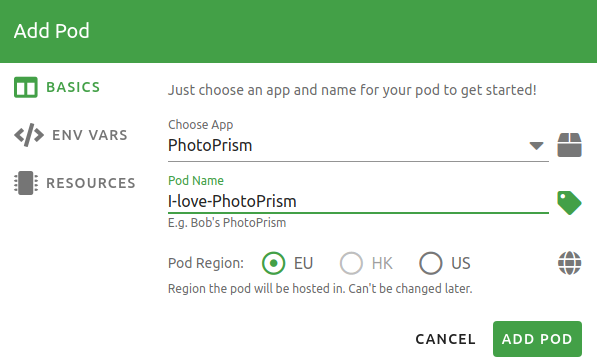
Click *ENV VARS* to specify the initial password for the "admin" user account:
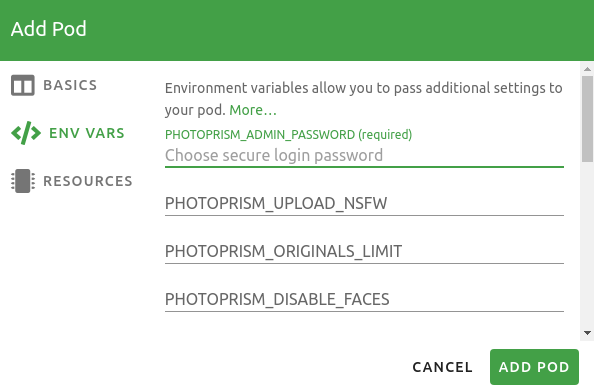
In *RESOURCES*, you can configure the storage space available for photos and videos, as well as the compute resources PhotoPrism can use, such as for indexing and face recognition.
!!! info ""
PhotoPrism currently requires **at least 2 CPUs and 8 GB of memory**. We are working to lower these minimum requirements.
The approximate price per month is shown at the bottom:
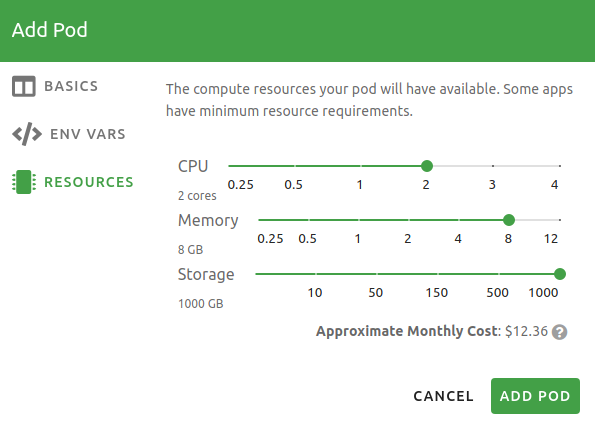
Finally, click *Add Pod* to complete the setup and start your instance.
### 3. Add Your Files
PhotoPrism is now fully set up and ready to use. To log in, click *Open Pod*, enter the username "admin" and the password you have specified:
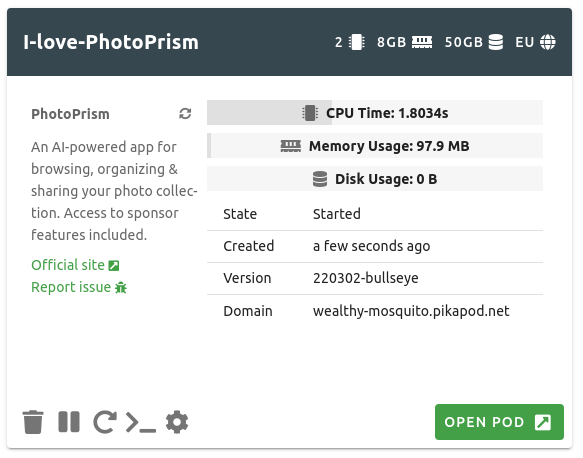
If you want to change your password, you can do so in [Settings > Account](https://docs.photoprism.app/user-guide/settings/account/#change-password).
Our [First Steps 👣](https://docs.photoprism.app/user-guide/first-steps/) tutorial will guide you through the user interface and settings to ensure your library is indexed according to your individual preferences.
[^1]: A share of the revenue [helps fund the development of PhotoPrism](https://www.photoprism.app/oss/faq/#pikapods)
---
# DigitalOcean
Source: https://docs.photoprism.app/getting-started/cloud/digitalocean/
# Using our DigitalOcean 1-Click App #
PhotoPrism can be deployed at DigitalOcean with just a few clicks.
If you have no DigitalOcean account yet, you may use this sign-up link to receive a $100, 60-day account credit:
Sign up at DigitalOcean
## Install PhotoPrism ##
- [Sign Up](https://m.do.co/c/f9725a28bb6b) or [Log In](https://cloud.digitalocean.com/login) at DigitalOcean
- Open the [PhotoPrism listing](https://marketplace.digitalocean.com/apps/photoprism) in the marketplace
- Click *Create PhotoPrism Droplet*
### Configure Your Droplet ###
#### Choose an Image ####
The PhotoPrism image will be pre-selected
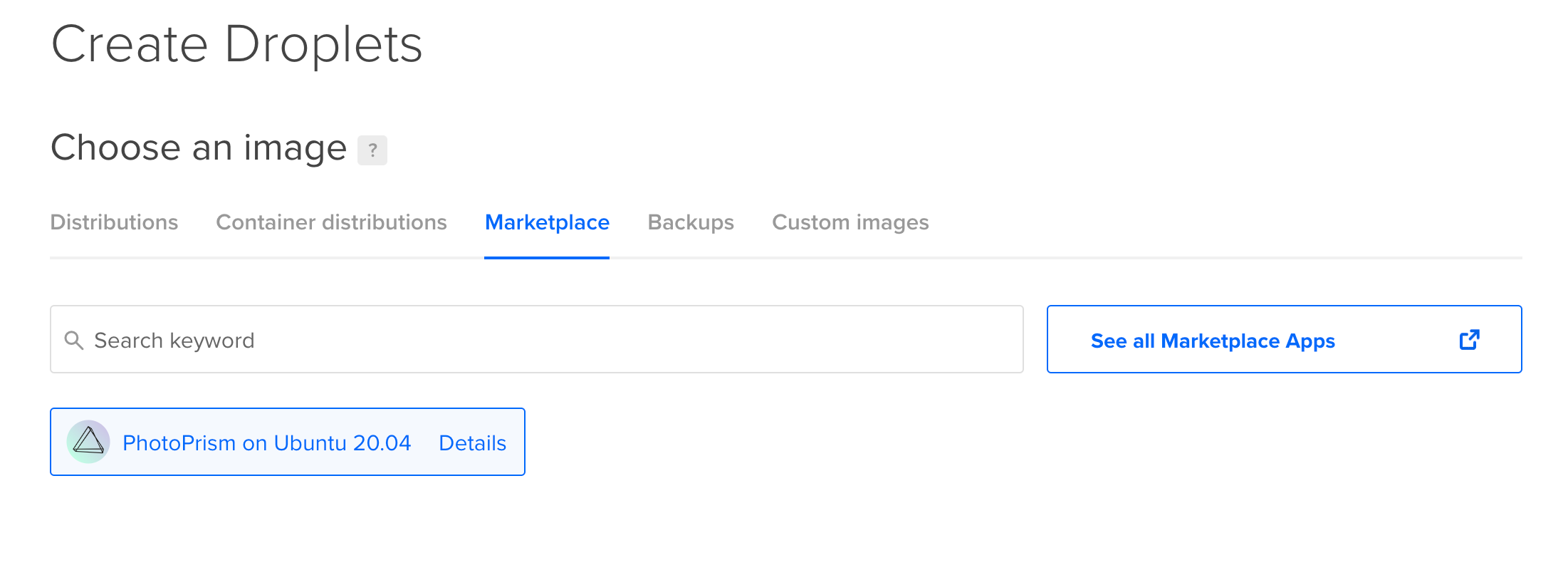
#### Choose a Plan ####
We recommend hosting PhotoPrism on a server with at least 2 cores and 3 GB of physical memory. Indexing and searching can be slow on smaller Droplets, depending on how many and what types of files you upload.
!!! info ""
While PhotoPrism has been reported to work on Droplets with less memory, we take no responsibility for instability or performance problems. RAW image conversion and TensorFlow are disabled on Droplets with 1 GB or less memory.
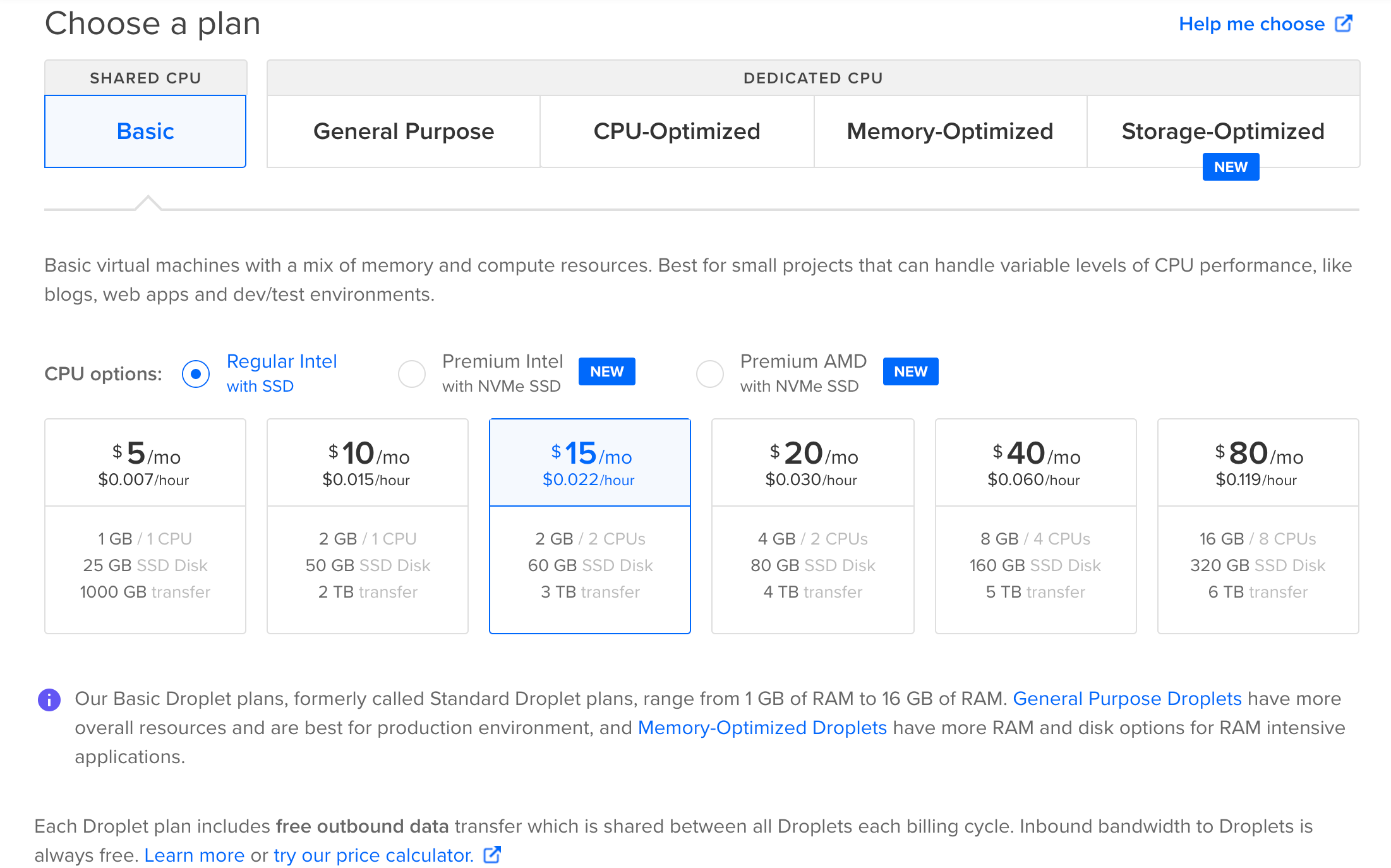
#### Choose a Datacenter Region ####
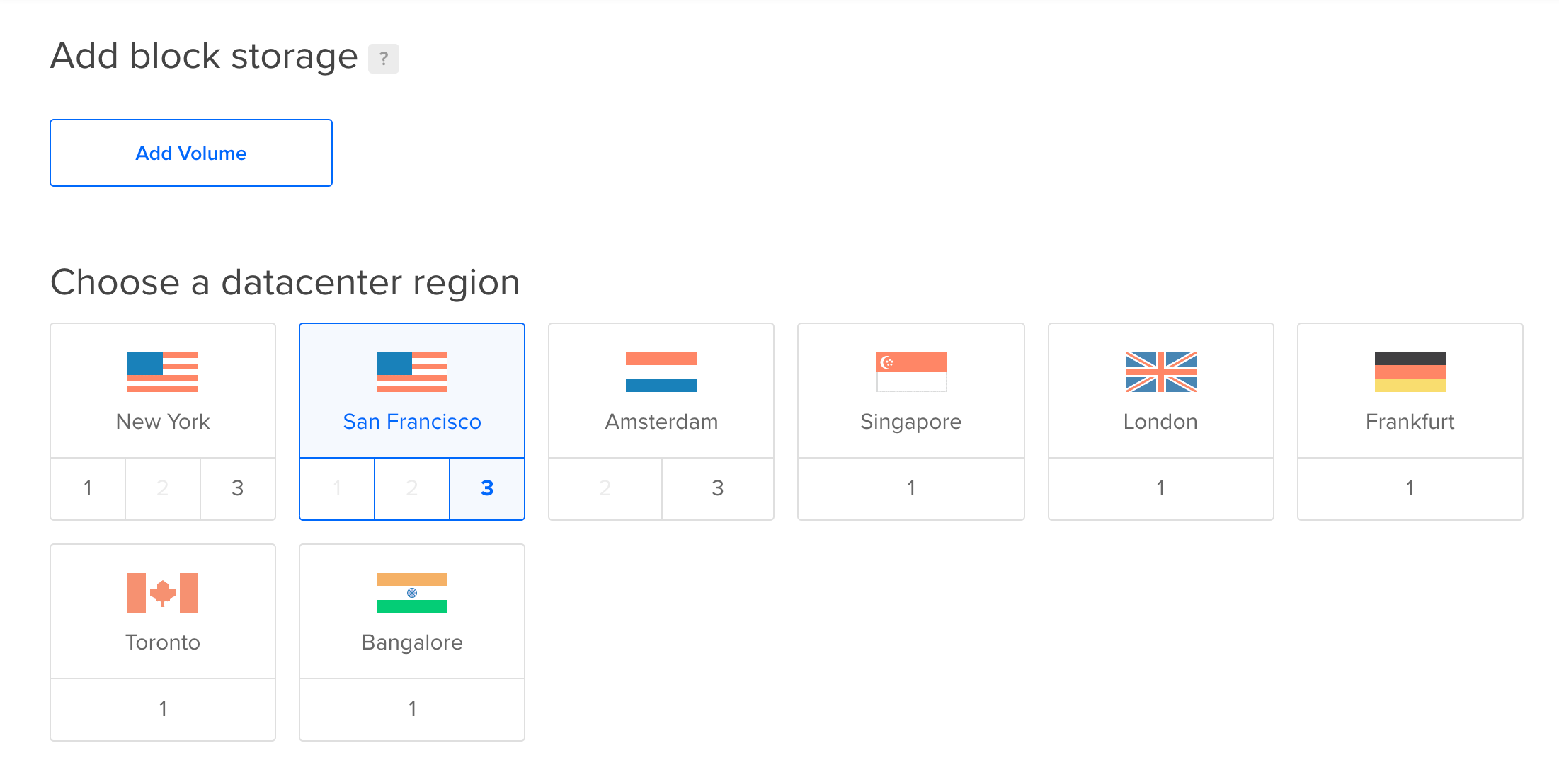
#### Choose an Authentication Mode ####
#### Finalize Your Droplet ####
Finalize your droplet and click *Create Droplet*
Your droplet is now being created.
## Admin Password ##
- Click *More*
- Click *Access console*
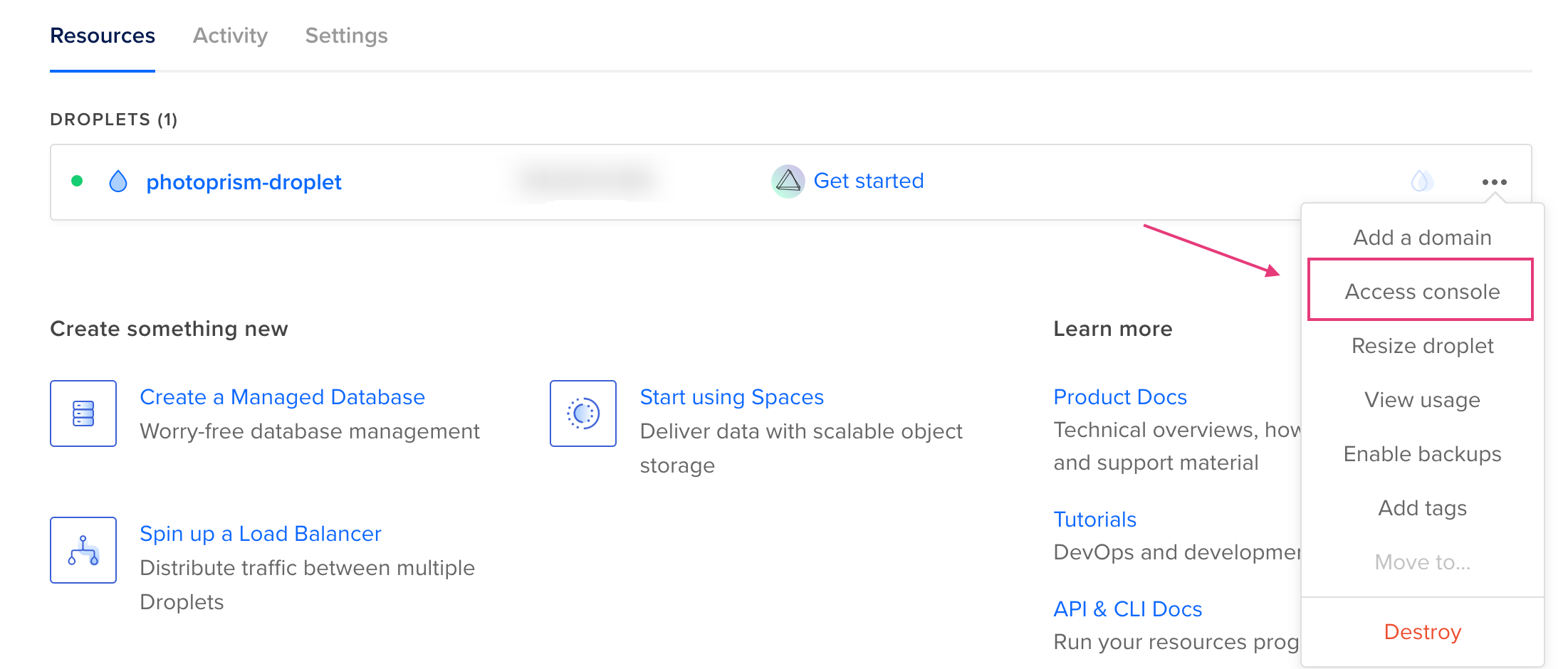
- Launch the console as root
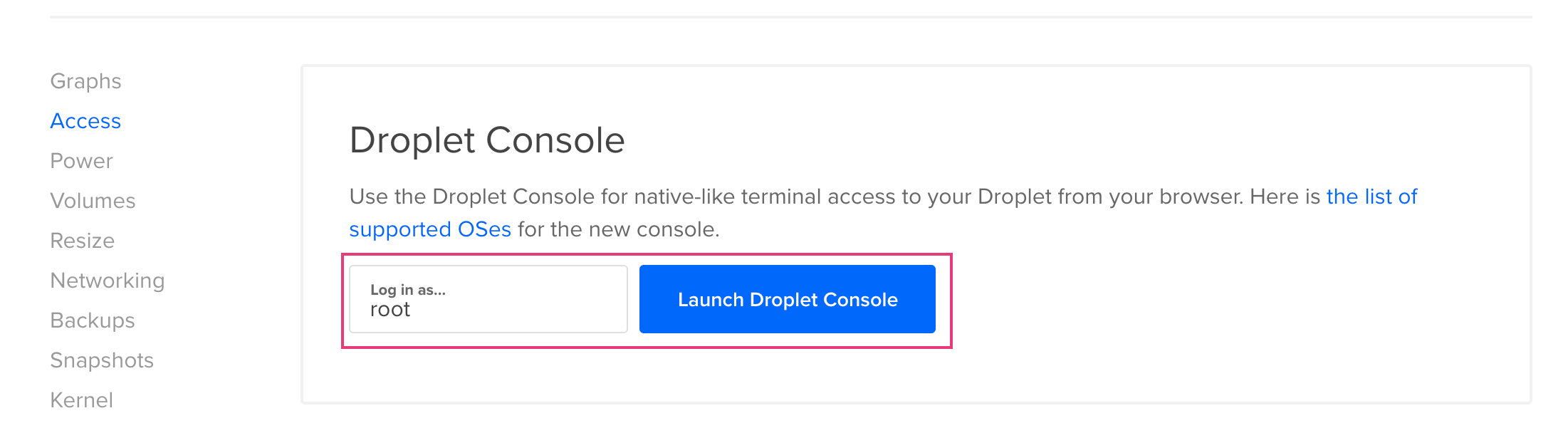
- Within the console type ```cat /root/.initial-password.txt``` and click enter
- Copy your initial password
## Open PhotoPrism ##
- Click *Get started*
- Click *Quick access*
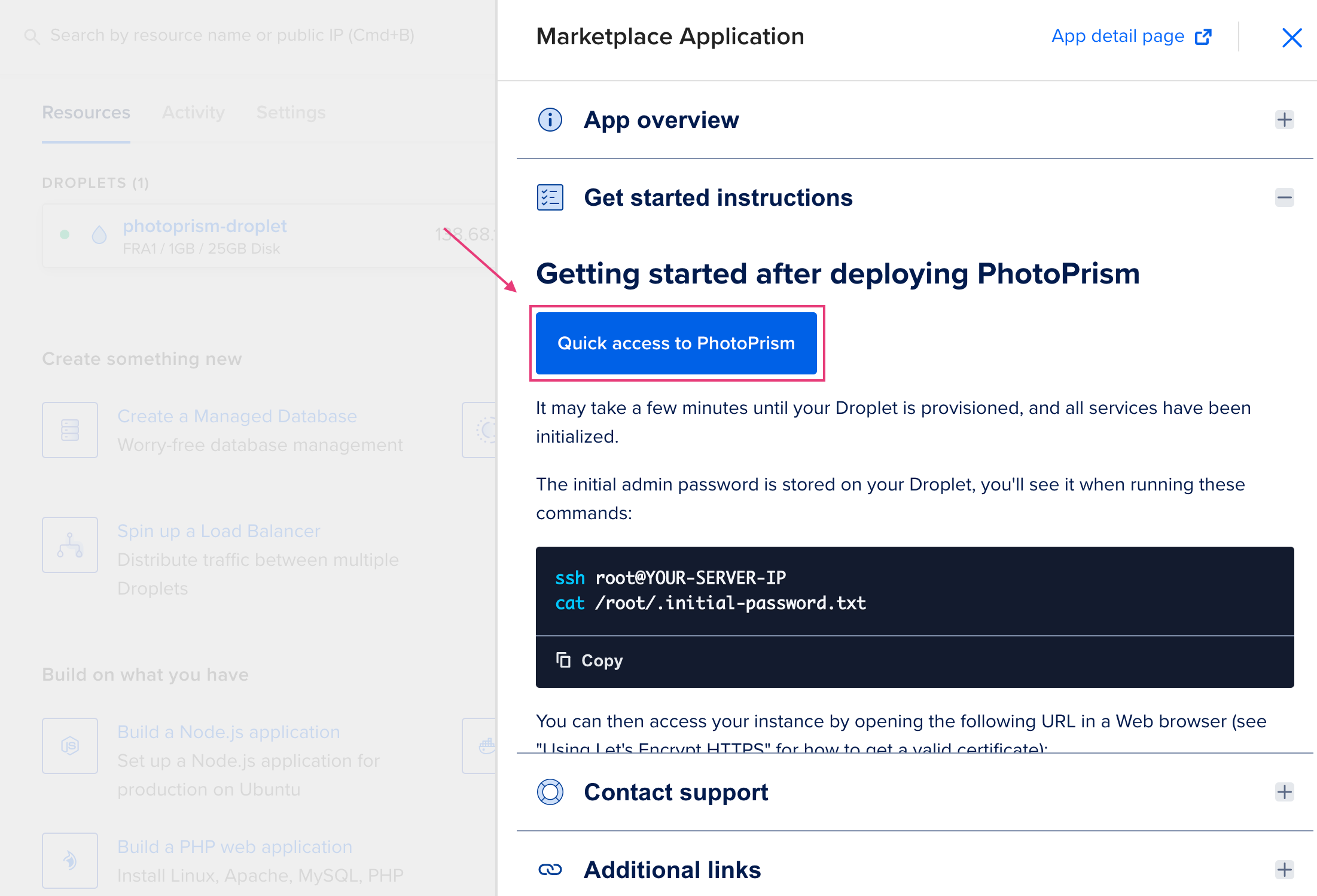
!!!info
In case you have no domain and let's encrypt set up you will see the notice "Your connection is not private".
Click *Advanced* and click *Open page*.
- Use username "admin" and your initial password to sign in
- You may [change your password](https://docs.photoprism.app/user-guide/settings/account/) using the Web UI
### First Steps 👣
Once you're logged in, only two more steps remain before you can start [browsing your pictures](https://docs.photoprism.app/user-guide/search/):
1. Configure [your content](https://docs.photoprism.app/user-guide/settings/library/) and [advanced settings](https://docs.photoprism.app/user-guide/settings/advanced/) according to your individual preferences.
2. Choose [whether you want](https://docs.photoprism.app/user-guide/library/) to [index your originals directly](https://docs.photoprism.app/user-guide/library/originals/), leaving all file and folder names unchanged, or use the [optional import feature](https://docs.photoprism.app/user-guide/library/import/), which automatically removes duplicates, gives files a unique name, and sorts them by year and month.
To add new pictures, you can either copy them to the *originals* or *import* folder, for example [via WebDAV](https://docs.photoprism.app/user-guide/sync/webdav/), or [upload them using a browser](https://docs.photoprism.app/user-guide/library/upload/), which will automatically import them once uploaded.
[Learn more ›](https://docs.photoprism.app/user-guide/first-steps/)
## Traefik Reverse Proxy
[Traefik](https://traefik.io/traefik) is pre-installed as [a reverse proxy](https://docs.photoprism.app/getting-started/proxies/traefik/) and can be configured in your `/opt/photoprism/compose.yml` file, as well as through the config files located in `/opt/photoprism/traefik`.
[Learn more ›](https://docs.photoprism.app/getting-started/proxies/traefik/)
### Getting Updates
Make sure to use the [latest version tag](https://hub.docker.com/_/traefik) for Traefik in your `compose.yaml` file, e.g.:
```yaml
services:
traefik:
image: traefik:v3.6
```
Then run the following command to pull the latest image and restart the service:
```bash
sudo docker compose up -d --pull always
```
This ensures you receive the latest security updates and prevents [errors when upgrading Docker](https://github.com/photoprism/photoprism/discussions/5314) to the latest version.
[Learn more ›](https://docs.photoprism.app/getting-started/updates/)
### Certificate Warnings
Web browsers do not recognize the default TLS certificate as valid, so a warning will appear when connecting over HTTPS.
To avoid this issue, use a valid certificate e.g. obtained for free via Let's Encrypt.
[Learn more ›](https://docs.photoprism.app/getting-started/using-https/)
!!! danger ""
If you install PhotoPrism on a public server outside your home network, **always run it behind a secure HTTPS reverse proxy**. Your files and passwords will otherwise be transmitted in clear text and can be intercepted by anyone, including your provider, hackers, and governments. Backup tools and file sync apps may refuse to connect as well.
---
# Requirements
Source: https://docs.photoprism.app/getting-started/raspberry-pi/
# Running PhotoPrism on a Raspberry Pi
Our [stable releases](https://docs.photoprism.app/release-notes/) and [preview builds](https://docs.photoprism.app/getting-started/updates/#development-preview) are available as [multi-arch Docker images](https://hub.docker.com/r/photoprism/photoprism/tags) for 64-bit AMD, Intel, and ARM processors.[^1]
As a Raspberry Pi owner, you therefore get the same core functionality and can follow the same [installation steps](https://docs.photoprism.app/getting-started/docker-compose/) after reviewing the [system requirements](https://docs.photoprism.app/getting-started/raspberry-pi/#system-requirements) and [architecture-specific notes](https://docs.photoprism.app/getting-started/raspberry-pi/#architecture-specific-notes).
!!! verified "PhotoPrismPi"
The easiest way to run PhotoPrism on a Raspberry Pi[^2] is with [PhotoPrismPi](https://docs.photoprism.app/getting-started/raspberry-pi/microsd-image/).
Simply [flash the image](https://docs.photoprism.app/getting-started/raspberry-pi/microsd-image/) to an SD card, plug it into the Pi and boot it. After a few minutes, our latest release will be ready to use!
### System Requirements ###
- For a good user experience, we recommend running PhotoPrism on [a Raspberry Pi 4 or 5 with at least 4 GB RAM](https://docs.photoprism.app/getting-started/raspberry-pi/#is-a-raspberry-pi-fast-enough) and a [64-bit operating system](https://docs.photoprism.app/getting-started/raspberry-pi/#modern-arm64-based-devices)
- Indexing performance will benefit greatly from [using SSD storage](https://docs.photoprism.app/getting-started/troubleshooting/performance/#storage), e.g. connected via USB 3
- Ensure that your device has [at least 4 GB of swap](https://docs.photoprism.app/getting-started/troubleshooting/docker/#adding-swap) configured and avoid setting a [hard memory limit](https://docs.photoprism.app/getting-started/faq/#why-is-my-configured-memory-limit-exceeded-when-indexing-even-though-photoprism-doesnt-actually-seem-to-use-that-much-memory) as this can cause unexpected restarts when the indexer temporarily needs more memory to process large files
- Indexing RAW images and high-resolution panoramas may require additional [swap space](https://docs.photoprism.app/getting-started/troubleshooting/docker/#adding-swap) and/or physical memory beyond the recommended minimum; RAW image conversion and TensorFlow are disabled on systems with 1 GB or less memory
- You should [enable HTTPS](https://docs.photoprism.app/getting-started/using-https/#how-to-enable-https) or run your server behind a [secure HTTPS reverse proxy like Traefik](https://docs.photoprism.app/getting-started/proxies/traefik/) if it is connected to a shared network or the public Internet
- Depending on the Linux distribution, you may need to set the following [security options](https://docs.photoprism.app/getting-started/troubleshooting/docker/#kernel-security) in your [compose.yaml](https://dl.photoprism.app/docker/arm64/compose.yaml):
```yaml
photoprism:
security_opt:
- seccomp:unconfined
- apparmor:unconfined
```
### Architecture Specific Notes ###
#### Modern ARM64-based Devices ####
| Image | Name |
|---------------------|---------------------------------|
| Stable Release | `photoprism/photoprism:latest` |
| Development Preview | `photoprism/photoprism:preview` |
| MariaDB | `arm64v8/mariadb:12.3` |
Running 64-bit Docker images under Raspberry Pi OS may require additional manual [configuration changes](https://docs.photoprism.app/getting-started/raspberry-pi/#raspberry-pi-os), especially on installations that still prioritize 32-bit user space for compatibility with older software. If you do not need compatibility with 32-bit apps, we recommend choosing a standard 64-bit Linux distribution instead, as it saves time and reduces setup complexity:
- [Raspberry Pi Debian](https://raspi.debian.net/)
- [Ubuntu for Raspberry Pi](https://ubuntu.com/raspberry-pi)
- [UbuntuDockerPi](https://github.com/guysoft/UbuntuDockerPi) is a 64-bit Ubuntu Server with Docker pre-configured
!!! info ""
Other distributions that target the same use case as Raspberry Pi OS, such as CoreELEC, can have similar limitations and are therefore not ideal for running modern server applications.
##### Raspberry Pi OS #####
To ensure compatibility with 64-bit Docker images, your Raspberry Pi must boot with the `arm_64bit=1` flag in its [config.txt file](https://www.raspberrypi.com/documentation/computers/config_txt.html).
An "exec format" error will occur otherwise.
Try explicitly pulling the ARM64 version if you've booted your device with the `arm_64bit=1` flag
and you see the "no matching manifest" error on Raspberry Pi OS:
```bash
docker pull --platform=arm64 photoprism/photoprism:latest
```
It may also help to set the `DOCKER_DEFAULT_PLATFORM` environment variable to `linux/arm64`.
In case you see Docker errors related to "cgroups", try adding the following parameters to
`/boot/firmware/cmdline.txt` or `/boot/cmdline.txt` (file location depends on the OS in use):
```
cgroup_enable=cpuset cgroup_enable=memory cgroup_memory=1
```
#### Older ARMv7-based Devices ####
You may use the following [32-bit Docker images](https://hub.docker.com/r/photoprism/photoprism/tags?page=1&name=armv7)
to run PhotoPrism and MariaDB on ARMv7-based devices (always use our ARM64 image if possible):
| Image | Name |
|---------------------|---------------------------------------|
| Stable Release | `photoprism/photoprism:armv7` |
| Development Preview | `photoprism/photoprism:preview-armv7` |
| MariaDB | `yobasystems/alpine-mariadb:latest` |
If your device meets the [requirements](https://docs.photoprism.app/getting-started/raspberry-pi/#system-requirements), mostly the same installation instructions as for regular Linux servers apply.
However, you should pay close attention to differences in path and environment variable names.
!!! note ""
Darktable is not included in the ARMv7 image because it is not 32-bit compatible. Always choose the regular
64-bit version if your device supports it.
### Is a Raspberry Pi fast enough? ###
This mainly depends on your expectations and the number of files you have. Most users report that PhotoPrism runs smoothly on a Raspberry Pi 4 with 4 GB of RAM.
Note, however, that [initial indexing usually takes much longer](https://docs.photoprism.app/user-guide/first-steps/) than on a regular desktop computer and that the hardware has [limited video transcoding capabilities](https://docs.photoprism.app/getting-started/advanced/transcoding/), so video file format conversion is not well supported and software transcoding is generally slow. We take no responsibility for instability or performance problems if your device does not [meet the requirements](https://docs.photoprism.app/getting-started/raspberry-pi/#system-requirements).
### Getting Updates ###
Open a terminal and change to the folder where your `compose.yaml` file is located.[^3]
Now run the following commands to download the newest image from Docker Hub and
restart your instance in the background:
```bash
docker compose up -d --pull always
```
Pulling a new version can take several minutes, depending on your internet connection speed.
Advanced users can [add this to a `Makefile`](https://dl.photoprism.app/docker/Makefile) so that they only have to type a single
command like `make update`. See [Command-Line Interface](https://docs.photoprism.app/getting-started/docker-compose/#command-line-interface)
to learn more about terminal commands.
!!! tldr ""
Even when you use an image with the `:latest` tag, Docker does not automatically download new images for you. You can either manually upgrade as shown above, or set up a service like [Watchtower](https://docs.photoprism.app/getting-started/updates/#watchtower) to get automatic updates.
#### Config Examples ####
We recommend that you compare your own `compose.yaml` with [our latest examples](https://dl.photoprism.app/docker/) from time to time, as they may include new [config options](https://docs.photoprism.app/getting-started/config-options/) or other enhancements relevant to you.
#### MariaDB Server ####
Our [config examples](https://dl.photoprism.app/docker/) are generally based on the [latest stable release](https://mariadb.com/docs/release-notes/community-server) to take advantage of performance enhancements.
This does not mean [older versions](https://docs.photoprism.app/getting-started/#databases) are no longer supported and you have to upgrade immediately.
!!! note ""
If MariaDB fails to start after upgrading from an earlier version (or migrating from MySQL), the internal management schema may be outdated. See [Troubleshooting MariaDB Problems](https://docs.photoprism.app/getting-started/troubleshooting/mariadb/#version-upgrade) for instructions on how to fix this.
### Troubleshooting ###
If your device runs out of memory or other system resources:
- [ ] Try [reducing the number of workers](https://docs.photoprism.app/getting-started/config-options/#indexing) by setting `PHOTOPRISM_WORKERS` to a reasonably small value in your `compose.yaml` file, depending on the performance of your device[^3]. Running `photoprism config` shows the chosen worker count and the rationale that was applied (e.g. `index-workers: 4 (sqlite-cap)`); SQLite installs are capped at four workers automatically.
- [ ] Ensure that your device has [at least 4 GB of swap](https://docs.photoprism.app/getting-started/troubleshooting/docker/#adding-swap) configured and avoid setting a [hard memory limit](https://docs.photoprism.app/getting-started/faq/#why-is-my-configured-memory-limit-exceeded-when-indexing-even-though-photoprism-doesnt-actually-seem-to-use-that-much-memory) as this can cause unexpected restarts when the indexer temporarily needs more memory to process large files
- [ ] If you are using SQLite, switch to MariaDB, which is [better optimized for high concurrency](https://docs.photoprism.app/getting-started/faq/#should-i-use-sqlite-mariadb-or-mysql)
- [ ] As a last measure, you can [disable image classification and facial recognition](https://docs.photoprism.app/getting-started/config-options/#feature-flags)
Other issues? Our [troubleshooting checklists](https://docs.photoprism.app/getting-started/troubleshooting/) help you quickly diagnose and resolve them.
!!! info ""
You are welcome to ask for help in our [community chat](https://link.photoprism.app/chat).
[Sponsors](https://www.photoprism.app/membership/) receive direct [technical support](https://www.photoprism.app/contact/) via email.
Before submitting a support request, try to [determine the cause of your problem](https://docs.photoprism.app/getting-started/troubleshooting/).
[^1]: Experienced users can [alternatively use the packages](https://docs.photoprism.app/getting-started/faq/#installation-packages) at [dl.photoprism.app/pkg/linux/](https://dl.photoprism.app/pkg/linux/README.html) to manually install PhotoPrism on compatible Linux distributions. For more installation methods, see our [Getting Started FAQ](https://docs.photoprism.app/getting-started/faq/#how-can-i-install-photoprism-without-docker).
[^2]: [PhotoPrismPi](https://dl.photoprism.app/nas/raspberry-pi/) is based on [Ubuntu Server](https://cdimage.ubuntu.com/releases/24.04.3/release/).
[^3]: The default [Docker Compose](https://docs.docker.com/compose/) config filename is `compose.yaml`. For simplicity, it doesn't need to be specified when running `docker compose` or `docker-compose` in the same directory. Config files for other apps or instances should be placed in separate folders.
*[Raspbian]: Raspberry Pi OS
*[Apple Silicon]: Apple M1 and M2
---
# SD Card Image
Source: https://docs.photoprism.app/getting-started/raspberry-pi/microsd-image/
# MicroSD Image for the Raspberry Pi
The easiest way to run PhotoPrism on a Raspberry Pi is with [PhotoPrismPi](https://dl.photoprism.app/nas/raspberry-pi/).[^1]
Simply flash the image to an SD card and boot your device with it.
We recommend using a fast MicroSD card with at least 64 GB so that you don't run out of storage space later on. These are usually sold with an adapter that fits into normal SD card slots.
## Step 1: Install Imager
With the [Raspberry Pi Imager](https://www.raspberrypi.com/software/), installing the image we provide to a microSD card is quick and easy. The card is then ready to use with your Raspberry Pi.
It is available for Ubuntu, Windows, and macOS, and can be downloaded for free at [raspberrypi.com/software/](https://www.raspberrypi.com/software/).
## Step 2: Download and Flash
After installing [Raspberry Pi Imager](https://www.raspberrypi.com/software/) or another SD card flashing tool, you can download the latest version of [PhotoPrismPi](https://dl.photoprism.app/nas/raspberry-pi/) from [dl.photoprism.app/nas/raspberry-pi/latest.img.xz](https://dl.photoprism.app/nas/raspberry-pi/latest.img.xz).
Then, use the Imager to write the file to an inserted SD card:
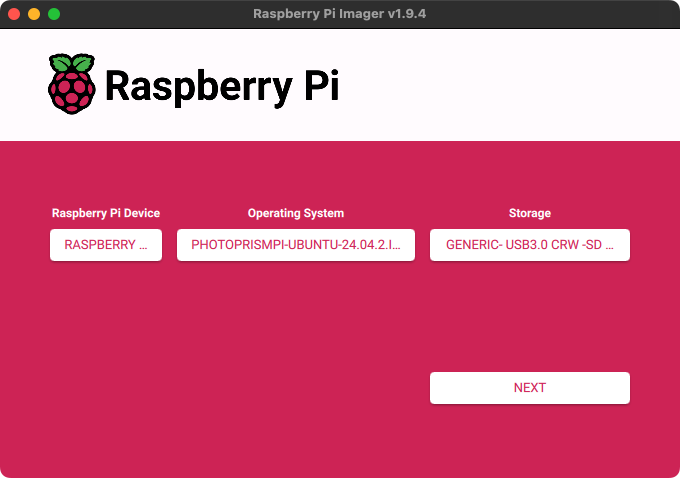
Once you have selected the downloaded image under "Operating System" and your SD card storage device, click "Next" to begin flashing the image. Depending on the speed of your SD card, this may take a few minutes.
## Step 3: Boot Your Device
Insert the SD card into your Raspberry Pi and ensure that it is connected to a wired network. Then turn it on. After a few minutes, the operating system will finish its first-run setup and download the latest PhotoPrism release to your device.[^2]
You should then be able to access the web interface by navigating to `http://:2342/` or ![^3]
### User Accounts
When you first log in to PhotoPrism, the username for the initial super admin account is `admin` and the password is `photoprismpi`.
You can also [connect to the server via SSH](https://www.howtogeek.com/311287/how-to-connect-to-an-ssh-server-from-windows-macos-or-linux/) on standard port 22 using the username `pi` and password `raspberry`.
!!! danger "Danger"
Since they can be easily guessed, **both passwords should be changed immediately**. This is especially important if your device is connected to the Internet or any other shared network.
### Storage Folders
Your pictures, uploads, sidecar files, and cache files are stored in subfolders of `/opt/photoprism`. You can also connect external drives via USB and access them as folders from `/mnt/a` to `/mnt/d` without further configuration.
Should you want to make changes to the [default settings](https://docs.photoprism.app/getting-started/config-options/), you can find your `compose.yaml` file in `/opt/photoprism`.
After [connecting via SSH](https://www.howtogeek.com/311287/how-to-connect-to-an-ssh-server-from-windows-macos-or-linux/) with the credentials provided above, you can obtain root privileges by running `sudo -i`.
## Running Commands
After [connecting via SSH](https://www.howtogeek.com/311287/how-to-connect-to-an-ssh-server-from-windows-macos-or-linux/), navigate to `/opt/photoprism` to run commands or view logs:
```bash
cd /opt/photoprism
```
Run PhotoPrism commands:
```bash
sudo docker compose exec photoprism photoprism [command]
```
[Learn more ›](https://docs.photoprism.app/getting-started/docker-compose/#command-line-interface)
### Viewing Logs
The following will watch the service logs for troubleshooting:
```bash
sudo docker compose logs -f photoprism
```
[Learn more ›](https://docs.photoprism.app/getting-started/troubleshooting/docker/#viewing-logs)
## Traefik Reverse Proxy
[Traefik](https://traefik.io/traefik) is pre-installed as [a reverse proxy](https://docs.photoprism.app/getting-started/proxies/traefik/) and can be configured in your `/opt/photoprism/compose.yaml` file, as well as through the config files located in `/opt/photoprism/traefik`.
[Learn more ›](https://docs.photoprism.app/getting-started/proxies/traefik/)
### Getting Updates
Make sure to use the [latest version tag](https://hub.docker.com/_/traefik) for Traefik in your `compose.yaml` file, e.g.:
```yaml
services:
traefik:
image: traefik:v3.6
```
Then run the following command to pull the latest image and restart the service:
```bash
sudo docker compose up -d --pull always
```
This ensures you receive the latest security updates and prevents [errors when upgrading Docker](https://github.com/photoprism/photoprism/discussions/5314) to the latest version.
[Learn more ›](https://docs.photoprism.app/getting-started/updates/)
### Certificate Warnings
Web browsers do not recognize the default TLS certificate as valid, so a warning will appear when connecting over HTTPS.
To avoid this issue, use a valid certificate e.g. obtained for free via Let's Encrypt.
[Learn more ›](https://docs.photoprism.app/getting-started/using-https/)
!!! danger ""
If you install PhotoPrism on a public server outside your home network, **always run it behind a secure HTTPS reverse proxy**. Your files and passwords will otherwise be transmitted in clear text and can be intercepted by anyone, including your provider, hackers, and governments. Backup tools and file sync apps may refuse to connect as well.
[^1]: [PhotoPrismPi](https://dl.photoprism.app/nas/raspberry-pi/) is based on [Ubuntu Server](https://cdimage.ubuntu.com/releases/24.04.3/release/).
[^2]: Download and installation time depends on the speed of your Internet connection.
[^3]: If you can't connect, try using the existing hostname or IP address instead.
---
# Asustor
Source: https://docs.photoprism.app/getting-started/nas/asustor/
# Running PhotoPrism on an Asustor NAS
Before setting up PhotoPrism on your NAS, we recommend that you check the [Asustor product database](https://www.asustor.com/en/product/product_list) for the CPU and memory configuration of your device.
For a good user experience, it should be a 64-bit system with [at least 2 cores and 3 GB of RAM](https://docs.photoprism.app/getting-started/#system-requirements). Indexing large photo and video collections also benefits greatly from [using SSD storage](https://docs.photoprism.app/getting-started/troubleshooting/performance/#storage), especially for the database and cache files.
!!! tldr ""
Third-party integrations may not provide direct access to config files or the command line, so you might not be able to use all features and config options.
Also note that [RAW image conversion and TensorFlow are disabled](https://docs.photoprism.app/user-guide/settings/advanced/) on devices with 1 GB or less memory, and that high-resolution panoramic images may require [additional swap space](https://docs.photoprism.app/getting-started/troubleshooting/docker/#adding-swap) and/or physical memory above the [recommended minimum](https://docs.photoprism.app/getting-started/#system-requirements). We take no responsibility for [instability or performance problems](https://docs.photoprism.app/getting-started/troubleshooting/performance/) if your device does not [meet the requirements](https://docs.photoprism.app/getting-started/#system-requirements).
## Setup
This step-by-step guide explains how to set up a new PhotoPrism instance through App Central, the built-in app store.
### Step 1: Open App Central
Log in to the user interface of your NAS. You can do this by navigating to *https://asustor:7001* if you replace *asustor* with the actual IP address or hostname of your device and change the port depending on your configuration.
Now open "App Central" on the home screen:
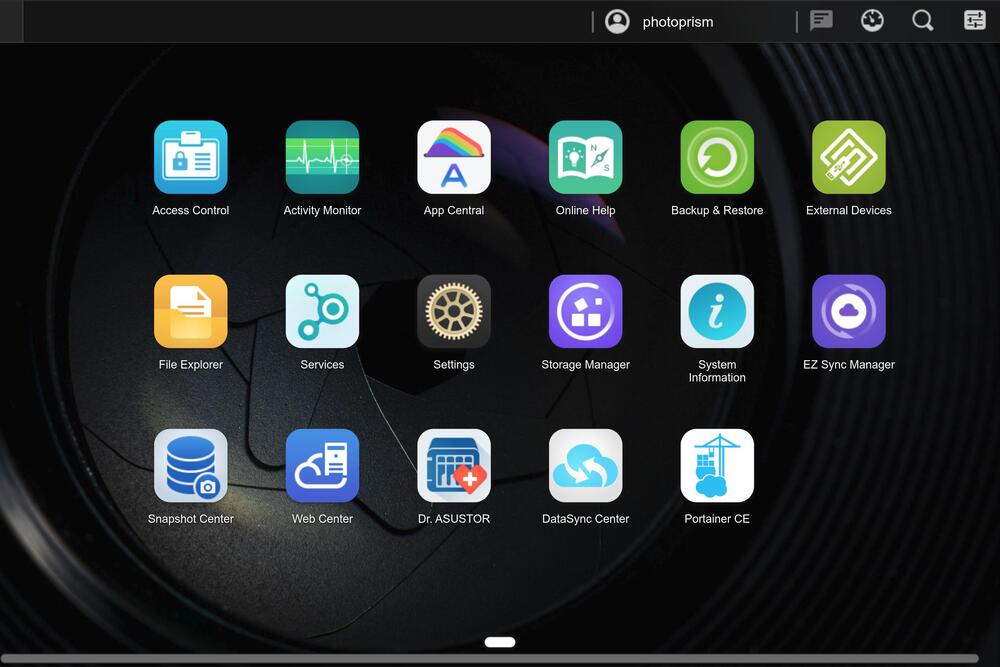
### Step 2: Install PhotoPrism
Type *PhotoPrism* in the search box in the upper right corner and press Enter to start the search. PhotoPrism should then be displayed so you can click "Install" to start the installation:
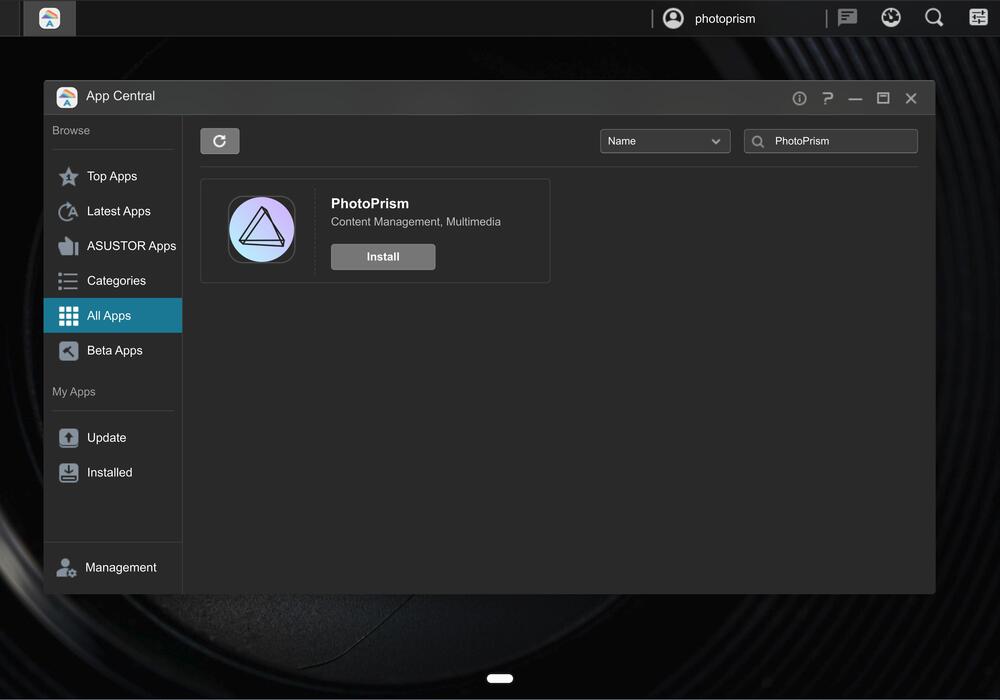
Next, you will be informed about dependencies like Docker that need to be installed, and you can decide whether you want your instance to be accessible from the Internet (if you have set this up for your NAS and your Internet router is compatible):
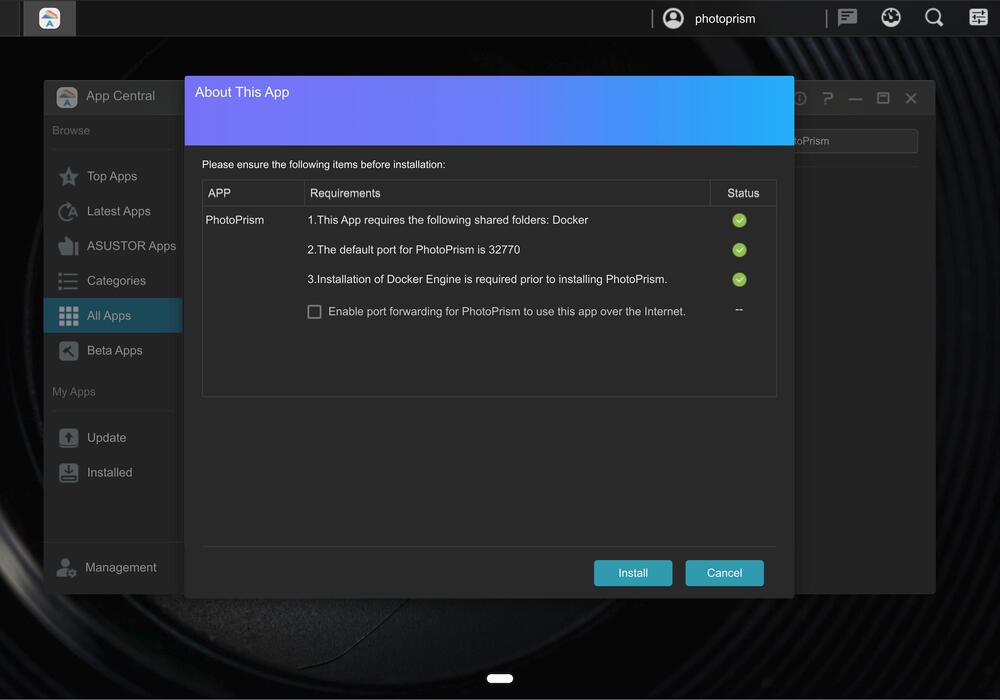
If you want to [uninstall PhotoPrism](https://docs.photoprism.app/getting-started/nas/img/asustor/asustor-step-3.jpg) later, you can also do that in App Central.
### Step 3: Open PhotoPrism
Once the installation is complete, you will find PhotoPrism on your home screen, where you can open it in a new tab with one click:
You can also navigate directly to port `32770` on your device.
When you see the login screen, enter the username `admin` and password `admin321` to sign in:
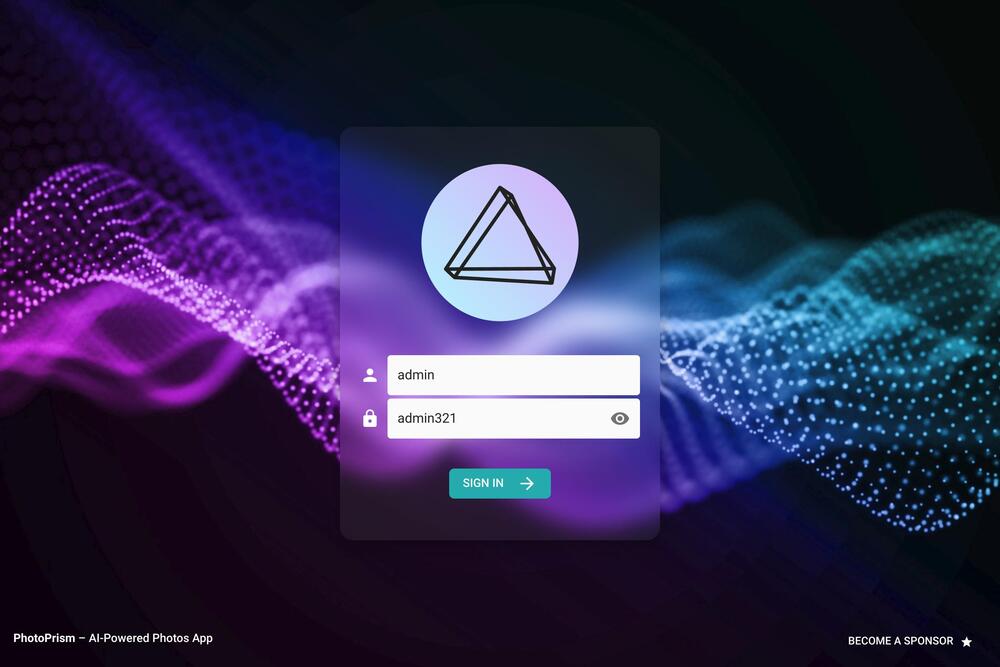
Remember to change your password after the first login. You can do this in [Settings > Account](https://docs.photoprism.app/user-guide/settings/account/#change-password).
### Step 4: Add Your Files
Our [First Steps 👣](https://docs.photoprism.app/user-guide/first-steps/) tutorial guides you through the user interface and settings to ensure your library is indexed according to your individual preferences.
Depending on which strategy you choose, you can add your media files to the *originals* or *import* folder located in */volume1/Docker/PhotoPrism/data*:
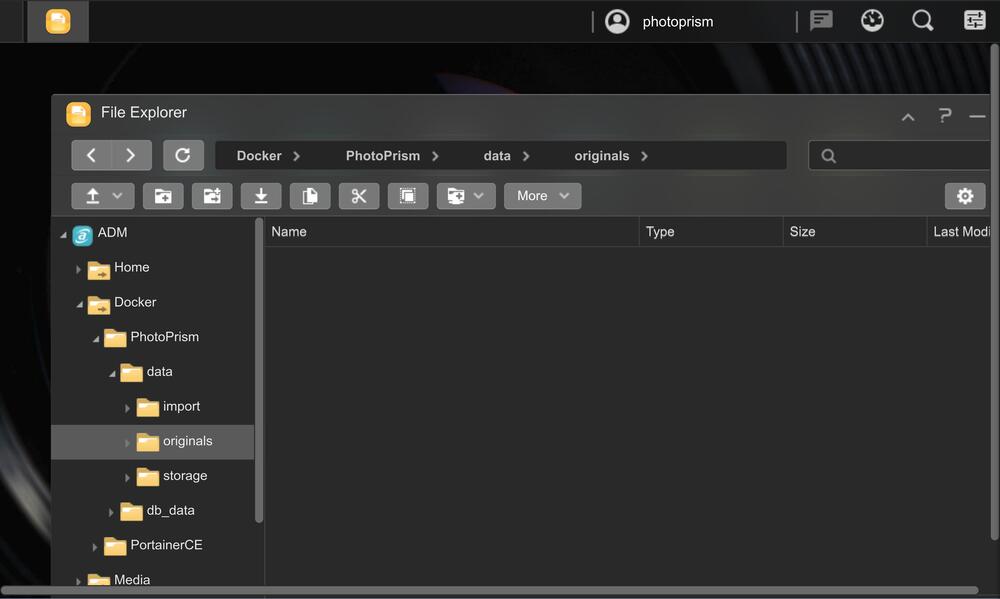
The *storage* folder, which contains configuration, cache and sidecar files, can also be found there.
!!! tldr ""
Note that the folders that PhotoPrism uses cannot be dynamically configured at the moment when using this app store version. However, we are working to make this possible.
---
# Synology
Source: https://docs.photoprism.app/getting-started/nas/synology/
# Running PhotoPrism on a Synology NAS
Before setting up PhotoPrism on your NAS, we recommend that you check the [Synology Knowledge Base](https://kb.synology.com/en-us/DSM/tutorial/What_kind_of_CPU_does_my_NAS_have) for the CPU and memory configuration of your device.
For a good user experience, it should be a 64-bit system with [at least 2 cores and 3 GB of RAM](https://docs.photoprism.app/getting-started/#system-requirements). Indexing large photo and video collections also benefits greatly from [using SSD storage](https://docs.photoprism.app/getting-started/troubleshooting/performance/#storage), especially for the database and cache files. Whether your device is fast enough largely depends on your expectations and how many files you have. Most users report that PhotoPrism runs well on their Synology NAS. However, keep in mind that the initial indexing process may take longer than it would on a typical desktop computer or server.
!!! tldr ""
Should you experience problems with the installation, we recommend that you ask the Synology community for advice, as we cannot provide support for third-party software and services.
Also note that [RAW image conversion and TensorFlow are disabled](https://docs.photoprism.app/user-guide/settings/advanced/) on devices with 1 GB or less memory, and that high-resolution panoramic images may require [additional swap space](https://docs.photoprism.app/getting-started/troubleshooting/docker/#adding-swap) and/or physical memory above the [recommended minimum](https://docs.photoprism.app/getting-started/#system-requirements).
## Setup ##
### Setup using Portainer ###
If you have [Portainer](https://www.portainer.io/) set up on your device, you can follow our [step-by-step guide](https://docs.photoprism.app/getting-started/portainer/) to install PhotoPrism. [Learn more ›](https://docs.photoprism.app/getting-started/portainer/)
### Setup using Synology Container Manager ###
Follow the steps below if you prefer Synology's built-in [Container Manager](https://www.synology.com/en-global/releaseNote/ContainerManager) ([DSM 7.2+](https://www.synology.com/en-global/dsm)). The workflow mirrors Docker Compose, so you keep the entire configuration in a single YAML file and can redeploy updates with a few clicks.
#### 1. Prerequisites
- Install **[Container Manager](https://www.synology.com/en-global/releaseNote/ContainerManager)** from *Package Center ▸ Search ▸ “Container”*. DSM replaces the legacy Docker app with this package starting in [DSM 7.2](https://www.synology.com/en-global/dsm).
- Confirm your NAS has a 64-bit CPU and enough memory for your library size. In practice, 4 GB RAM plus at least 4 GB of swap is a good baseline for indexing on consumer NAS hardware.
- Decide where originals live. Fast SSD volumes for the `storage` directory (cache, thumbnails, database dumps) significantly improve indexing performance.
#### 2. Create shared folders
1. Open **Control Panel ▸ Shared Folder ▸ Create**.
2. Create a share such as `/volume1/docker/photoprism`, then add subfolders:
- `storage` – holds config, cache, sidecars.
- `database` – persistent MariaDB data.
- `import` – optional staging folder for uploads.
- `originals` – use this only if you plan to copy photos into a new folder. Most users should mount the share that already contains their pictures (for example `/volume1/photo`).
3. Grant read/write access to the Container Manager system account (and your admin user) so Compose can mount these paths. Keeping assets inside `/volume1/docker/` simplifies snapshots and backups.
#### 3. Download the PhotoPrism image
1. Launch **Container Manager** and switch to the **Registry** tab.
2. Search for `photoprism/photoprism`, select it, and choose the `latest` tag (use an architecture-specific tag only if your NAS requires it).
3. Click **Download**; the image appears under the **Image** tab once the pull completes.
#### 4. Create a Compose project
1. Go to the **Project** tab and click **Create**.
2. Set a project name such as `photoprism`.
3. Select **Create with compose**, then paste an adapted version of our standard Compose file into the editor:
```yaml
services:
mariadb:
image: mariadb:12.3
restart: unless-stopped
environment:
MARIADB_AUTO_UPGRADE: "1"
MARIADB_INITDB_SKIP_TZINFO: "1"
MARIADB_ROOT_PASSWORD: "supersecret"
MARIADB_DATABASE: photoprism
MARIADB_USER: photoprism
MARIADB_PASSWORD: "change-me"
volumes:
# persistent database files on the NAS
- /volume1/docker/photoprism/database:/var/lib/mysql
photoprism:
image: photoprism/photoprism:latest
depends_on:
- mariadb
restart: unless-stopped
ports:
- "2342:2342"
environment:
# initial admin password (8-72 characters)
PHOTOPRISM_ADMIN_PASSWORD: "choose-a-strong-password"
# canonical URL used to generate links
PHOTOPRISM_SITE_URL: "http://YOUR_NAS_IP:2342/"
# disables built-in HTTPS/TLS when set to "true"
PHOTOPRISM_DISABLE_TLS: "false"
# uses a self-signed certificate if the site URL starts with https://
PHOTOPRISM_DEFAULT_TLS: "true"
# default UI language (e.g., en, de, fr)
PHOTOPRISM_DEFAULT_LOCALE: "en"
# location language (local, en, de, …)
PHOTOPRISM_PLACES_LOCALE: "local"
# write YAML sidecars with asset metadata
PHOTOPRISM_SIDECAR_YAML: "true"
# back up album metadata periodically
PHOTOPRISM_BACKUP_ALBUMS: "true"
# enable automatic database backups
PHOTOPRISM_BACKUP_DATABASE: "true"
# cron entry or shortcut (daily, weekly) for backups
PHOTOPRISM_BACKUP_SCHEDULE: "daily"
# cron syntax or "" to disable scheduled indexing
PHOTOPRISM_INDEX_SCHEDULE: ""
# delay (seconds) before indexing WebDAV uploads
PHOTOPRISM_AUTO_INDEX: 300
# delay (seconds) before importing WebDAV uploads
PHOTOPRISM_AUTO_IMPORT: -1
# auto-flag potentially offensive content (TensorFlow required)
PHOTOPRISM_DETECT_NSFW: "false"
# allow uploads that might be offensive
PHOTOPRISM_UPLOAD_NSFW: "true"
# restrict uploads to listed extensions (leave blank to allow all)
PHOTOPRISM_UPLOAD_ALLOW: ""
# allow zip uploads (extracted before import)
PHOTOPRISM_UPLOAD_ARCHIVES: "true"
# max upload size in MB
PHOTOPRISM_UPLOAD_LIMIT: 5000
# max originals size in MB (larger files are skipped)
PHOTOPRISM_ORIGINALS_LIMIT: 5000
# enable zstd and gzip to reduce bandwidth
PHOTOPRISM_HTTP_COMPRESSION: "zstd,gzip"
# database driver / connection settings
PHOTOPRISM_DATABASE_DRIVER: "mysql"
PHOTOPRISM_DATABASE_SERVER: "mariadb:3306"
PHOTOPRISM_DATABASE_NAME: "photoprism"
PHOTOPRISM_DATABASE_USER: "photoprism"
PHOTOPRISM_DATABASE_PASSWORD: "change-me"
volumes:
# config, cache, and backups (place on SSD storage if available)
- /volume1/docker/photoprism/storage:/photoprism/storage
# existing media; replace /volume1/photo with your actual path
- /volume1/photo:/photoprism/originals
# optional import staging folder
- /volume1/docker/photoprism/import:/photoprism/import
```
By default, our Docker images use the volume mount paths `/photoprism/storage` and `/photoprism/originals`, so no [additional variables](https://docs.photoprism.app/getting-started/config-options/#storage) are required to configure them.
4. Update the placeholders (passwords, `/volume1/docker/photoprism`, and your actual originals share such as `/volume1/photo`) before clicking **Next ▸ Create**. Container Manager stores the Compose file with the project so you can edit it later without retyping.
If you want HTTPS on your NAS, we recommend using a [reverse proxy](https://docs.photoprism.app/getting-started/proxies/traefik/) and then changing `PHOTOPRISM_SITE_URL` to the external `https://` address.
#### 5. Deploy and verify
1. Highlight your new project and click **Start**. Container Manager creates both services; the **Container** tab should show green status dots for `photoprism` and `mariadb`.
2. Visit `http://:2342/` from your browser, complete the welcome wizard, and begin indexing. Expect the first scan to take a while on Atom-class CPUs; keep an eye on RAM usage and let the process finish without interruptions.
3. Revisit the Compose file any time you need to adjust paths, environment variables, or add hardware acceleration flags documented in [Config Options](https://docs.photoprism.app/getting-started/config-options/).
4. Our [First Steps 👣](https://docs.photoprism.app/user-guide/first-steps/) tutorial guides you through the user interface and settings to ensure your library is indexed according to your individual preferences.
## Troubleshooting ##
If your device runs out of memory or other system resources:
- [ ] Try [reducing the number of workers](https://docs.photoprism.app/getting-started/config-options/#indexing) by setting `PHOTOPRISM_WORKERS` to a reasonably small value in your `compose.yaml` file, depending on the performance of your device
- [ ] Make sure [your device has at least 4 GB of swap space](https://docs.photoprism.app/getting-started/troubleshooting/docker/#adding-swap) so that indexing doesn't cause restarts when memory usage spikes; RAW image conversion and video transcoding are especially demanding
- [ ] If you are using SQLite, switch to MariaDB, which is [better optimized for high concurrency](https://docs.photoprism.app/getting-started/faq/#should-i-use-sqlite-mariadb-or-mysql)
- [ ] As a last measure, you can [disable image classification and facial recognition](https://docs.photoprism.app/getting-started/config-options/#feature-flags)
Other issues? Our [troubleshooting checklists](https://docs.photoprism.app/getting-started/troubleshooting/) help you quickly diagnose and resolve them.
---
# QNAP
Source: https://docs.photoprism.app/getting-started/nas/qnap/
# Running PhotoPrism on a QNAP NAS
Before setting up PhotoPrism on your NAS, we recommend that you check the [QNAP product database](https://www.qnap.com/en/product) for the CPU and memory configuration of your device.
For a good user experience, it should be a 64-bit system with [at least 2 cores and 3 GB of RAM](https://docs.photoprism.app/getting-started/#system-requirements). Indexing large photo and video collections also benefits greatly from [using SSD storage](https://docs.photoprism.app/getting-started/troubleshooting/performance/#storage), especially for the database and cache files.
!!! tldr ""
Should you experience problems with the installation, we recommend that you ask the QNAP community for advice, as we cannot provide support for third-party software and services.
Also note that [RAW image conversion and TensorFlow are disabled](https://docs.photoprism.app/user-guide/settings/advanced/) on devices with 1 GB or less memory, and that high-resolution panoramic images may require [additional swap space](https://docs.photoprism.app/getting-started/troubleshooting/docker/#adding-swap) and/or physical memory above the [recommended minimum](https://docs.photoprism.app/getting-started/#system-requirements).
## Setup
### Setup using Portainer ###
If you have [Portainer](https://www.portainer.io/) set up on your device, you can follow our [step-by-step guide](https://docs.photoprism.app/getting-started/portainer/) to install PhotoPrism. [Learn more ›](https://docs.photoprism.app/getting-started/portainer/)
### Setup using QNAP Container Station (GUI)
Follow these steps if you prefer [Container Station’s](https://www.qnap.com/en-us/software/container-station) graphical workflow on [QTS 5](https://www.qnap.com/qts/5.0/en/) / [QuTS hero](https://www.qnap.com/en/operating-system/quts-hero). The interface treats PhotoPrism and its MariaDB dependency as a single “Application” defined by a Docker Compose file.
#### 1. Prepare your NAS
1. Install **[Container Station](https://www.qnap.com/en-us/software/container-station)** from the App Center, then launch it and accept the first-launch prompts (downloads the base images it requires).
2. Update QTS/QuTS hero to the latest release, then reboot so Kernel patches and Docker updates are applied before you deploy storage-heavy apps.
3. Decide where the PhotoPrism workspace should live. Most users keep everything under `/share/Container/photoprism`, while the actual originals may stay in `/share/Multimedia` or another existing volume.
4. Optional but recommended: enable SSH (Control Panel ▸ Network & File Services ▸ Telnet/SSH) so you can run `docker compose` commands for troubleshooting later.
#### 2. Create persistent folders
Use File Station or SSH to create the directories Container Station will mount:
```sh
mkdir -p /share/Container/photoprism/{storage,import,database}
```
- `storage` holds the application cache, sidecars, and backups (SSD recommended).
- `database` stores MariaDB data files.
- `originals` should point to the share that already contains your photo library (for example `/share/Multimedia`). Create `/share/Container/photoprism/originals` only if you plan to copy photos into a new folder later.
- `import` is optional but useful if you upload archives that should be reorganized by PhotoPrism before landing in Originals.
#### 3. Create the Compose application
1. Open **Container Station ▸ Applications ▸ Create**.
2. Enter an application name such as `photoprism`.
3. Paste the Compose configuration below into the YAML editor and adjust passwords and paths before clicking **Validate** and **Create**:
```yaml
services:
mariadb:
image: mariadb:12.3
restart: unless-stopped
environment:
MARIADB_AUTO_UPGRADE: "1"
MARIADB_INITDB_SKIP_TZINFO: "1"
MARIADB_ROOT_PASSWORD: "supersecret"
MARIADB_DATABASE: photoprism
MARIADB_USER: photoprism
MARIADB_PASSWORD: "change-me"
volumes:
# persistent MariaDB data on the NAS
- /share/Container/photoprism/database:/var/lib/mysql
photoprism:
image: photoprism/photoprism:latest
depends_on:
- mariadb
restart: unless-stopped
ports:
- "2342:2342"
environment:
# initial admin password (8-72 characters)
PHOTOPRISM_ADMIN_PASSWORD: "choose-a-strong-password"
# public URL so links and redirects use the correct origin
PHOTOPRISM_SITE_URL: "http://YOUR_NAS_IP:2342/"
# disables built-in HTTPS/TLS when set to "true"
PHOTOPRISM_DISABLE_TLS: "false"
# uses a self-signed certificate if the site URL starts with https://
PHOTOPRISM_DEFAULT_TLS: "true"
# default UI language (e.g., en, de, fr)
PHOTOPRISM_DEFAULT_LOCALE: "en"
# location language (local, en, de, …)
PHOTOPRISM_PLACES_LOCALE: "local"
# write YAML sidecars with asset metadata
PHOTOPRISM_SIDECAR_YAML: "true"
# back up album metadata periodically
PHOTOPRISM_BACKUP_ALBUMS: "true"
# enable automatic database backups
PHOTOPRISM_BACKUP_DATABASE: "true"
# cron entry or shortcut (daily, weekly) for backups
PHOTOPRISM_BACKUP_SCHEDULE: "daily"
# cron syntax or "" to disable scheduled indexing
PHOTOPRISM_INDEX_SCHEDULE: ""
# delay (seconds) before indexing WebDAV uploads
PHOTOPRISM_AUTO_INDEX: 300
# delay (seconds) before importing WebDAV uploads
PHOTOPRISM_AUTO_IMPORT: -1
# auto-flag potentially offensive content (TensorFlow required)
PHOTOPRISM_DETECT_NSFW: "false"
# allow uploads that might be offensive
PHOTOPRISM_UPLOAD_NSFW: "true"
# restrict uploads to listed extensions (leave blank to allow all)
PHOTOPRISM_UPLOAD_ALLOW: ""
# allow zip uploads (extracted before import)
PHOTOPRISM_UPLOAD_ARCHIVES: "true"
# max upload size in MB
PHOTOPRISM_UPLOAD_LIMIT: 5000
# max originals size in MB (larger files are skipped)
PHOTOPRISM_ORIGINALS_LIMIT: 5000
# enable zstd and gzip to reduce bandwidth
PHOTOPRISM_HTTP_COMPRESSION: "zstd,gzip"
# database driver / connection settings
PHOTOPRISM_DATABASE_DRIVER: "mysql"
PHOTOPRISM_DATABASE_SERVER: "mariadb:3306"
PHOTOPRISM_DATABASE_NAME: "photoprism"
PHOTOPRISM_DATABASE_USER: "photoprism"
PHOTOPRISM_DATABASE_PASSWORD: "change-me"
volumes:
# config, cache, and backups (use SSD-backed storage if available)
- /share/Container/photoprism/storage:/photoprism/storage
# existing media; replace /share/Multimedia with your actual path
- /share/Multimedia:/photoprism/originals
# optional staging folder for the Import tool
- /share/Container/photoprism/import:/photoprism/import
```
By default, our Docker images use the volume mount paths `/photoprism/storage` and `/photoprism/originals`, so no [additional variables](https://docs.photoprism.app/getting-started/config-options/#storage) are required to configure them.
4. Double-check that each host path points to the correct absolute `/share/...` location so you don't lose data when updating or redeploying the stack. After the application is created, open **Applications ▸ photoprism ▸ Settings** and set a default web port shortcut (Service `photoprism`, Port `2342`) so the “Open” button launches the UI.
If you want HTTPS on your NAS, we recommend using a [reverse proxy](https://docs.photoprism.app/getting-started/proxies/traefik/) and then changing `PHOTOPRISM_SITE_URL` to the external `https://` address.
#### 4. Start and verify
1. Select the new application and click **Start**. Container Station will pull both images and create the containers.
2. Watch the application logs for `Starting PhotoPrism...` and `database system is ready to accept connections`.
3. Visit `http://:2342/`, sign in with the admin password you set, and follow the welcome wizard to point PhotoPrism at your originals folder if you mounted a parent directory.
4. Trigger **Library ▸ Index ▸ Start** once to create previews and metadata. Keep the browser tab open until the queue drains.
#### 5. Keep it updated
- When new releases ship, open **Applications ▸ photoprism**, click **Stop**, then **Update Images** to pull the latest tags, and start the application again.
- Regularly download the MariaDB backups from `/share/Container/photoprism/storage/backups` or replicate the entire folder to another disk.
- If Container Station reports YAML errors, click **Applications ▸ photoprism ▸ Edit YAML** to fix indentation or update environment variables without recreating the project.
- Our [First Steps 👣](https://docs.photoprism.app/user-guide/first-steps/) tutorial guides you through the user interface and settings to ensure your library is indexed according to your individual preferences.
### Setup using Docker Compose (CLI)
Prefer the terminal? The community tutorial below walks through the same deployment via SSH:
↪
## Troubleshooting ##
If your device runs out of memory or other system resources:
- [ ] Try [reducing the number of workers](https://docs.photoprism.app/getting-started/config-options/#indexing) by setting `PHOTOPRISM_WORKERS` to a reasonably small value in your `compose.yaml` file, depending on the performance of your device
- [ ] Make sure [your device has at least 4 GB of swap space](https://docs.photoprism.app/getting-started/troubleshooting/docker/#adding-swap) so that indexing doesn't cause restarts when memory usage spikes; RAW image conversion and video transcoding are especially demanding
- [ ] If you are using SQLite, switch to MariaDB, which is [better optimized for high concurrency](https://docs.photoprism.app/getting-started/faq/#should-i-use-sqlite-mariadb-or-mysql)
- [ ] As a last measure, you can [disable image classification and facial recognition](https://docs.photoprism.app/getting-started/config-options/#feature-flags)
Other issues? Our [troubleshooting checklists](https://docs.photoprism.app/getting-started/troubleshooting/) help you quickly diagnose and resolve them.
!!! example ""
**Help improve these docs!** You can contribute by clicking :material-file-edit-outline: to send a pull request with your changes.
---
# Unraid
Source: https://docs.photoprism.app/getting-started/nas/unraid/
# Setting Up PhotoPrism on Unraid
!!! tldr ""
Should you experience problems with the installation, we recommend that you ask the Unraid community for advice, as we cannot provide support for third-party software and services. Also note that third-party integrations may not provide direct access to config files or the command line, so you might not be able to use all features and config options.
!!! note ""
[SQLite is not a good choice](https://docs.photoprism.app/getting-started/troubleshooting/sqlite/) for users who require scalability and high performance. If it is used in a configuration template, change it to use MariaDB instead before importing any media.
## Using Docker Compose Manager
Unraid does not ship with Docker Compose, but the Community Apps plugin offers **Docker Compose Manager**, which lets you paste a standard compose file, store it on your array, and control the stack from the Docker tab.
### 1. Prerequisites
1. Update Unraid OS (v6.12 or later) and reboot so Docker Engine is current.
2. Install **Community Apps** (Apps ▸ Install if it is missing) and search for **Docker Compose Manager**. Click *Install Plugin*; it adds a *Compose* section to the Docker tab plus a settings page under *Plugins ▸ Compose.Manager*.
3. Create a protected share for PhotoPrism data, for example `appdata` (default on most systems). Inside it, make folders for `photoprism/storage`, `photoprism/database`, and `photoprism/import`. You can use the terminal:
```sh
mkdir -p /mnt/user/appdata/photoprism/{storage,database,import}
```
4. Decide which share already holds your originals (many users point to `/mnt/user/photos` or `/mnt/user/Multimedia`). PhotoPrism will read and write there, so ensure the share is included in your parity-backed array or cache pool.
5. Enable SSH or open the web terminal so you can troubleshoot with `docker compose` if needed.
### 2. Create the stack
1. Navigate to **Docker ▸ Add New Stack**.
2. Enter a name such as `photoprism`, click the **Advanced** toggle, and set the stack path to `/mnt/user/appdata/photoprism` (keeps compose files off the USB thumb drive).
3. After the stack is created, select the gear icon ▸ **Edit Stack**, paste the compose file below, and edit the passwords and host paths before saving:
```yaml
services:
mariadb:
image: mariadb:12.3
restart: unless-stopped
environment:
MARIADB_AUTO_UPGRADE: "1"
MARIADB_INITDB_SKIP_TZINFO: "1"
MARIADB_ROOT_PASSWORD: "supersecret"
MARIADB_DATABASE: photoprism
MARIADB_USER: photoprism
MARIADB_PASSWORD: "change-me"
volumes:
- /mnt/user/appdata/photoprism/database:/var/lib/mysql
photoprism:
image: photoprism/photoprism:latest
depends_on:
- mariadb
restart: unless-stopped
ports:
- "2342:2342"
environment:
# initial admin password (8-72 characters)
PHOTOPRISM_ADMIN_PASSWORD: "choose-a-strong-password"
# canonical URL used to generate links
PHOTOPRISM_SITE_URL: "http://YOUR_UNRAID_IP:2342/"
# disables built-in HTTPS/TLS when set to "true"
PHOTOPRISM_DISABLE_TLS: "false"
# uses a self-signed certificate if the site URL starts with https://
PHOTOPRISM_DEFAULT_TLS: "true"
PHOTOPRISM_DEFAULT_LOCALE: "en"
PHOTOPRISM_PLACES_LOCALE: "local"
PHOTOPRISM_SIDECAR_YAML: "true"
PHOTOPRISM_BACKUP_ALBUMS: "true"
PHOTOPRISM_BACKUP_DATABASE: "true"
PHOTOPRISM_BACKUP_SCHEDULE: "daily"
PHOTOPRISM_INDEX_SCHEDULE: ""
PHOTOPRISM_AUTO_INDEX: 300
PHOTOPRISM_AUTO_IMPORT: -1
PHOTOPRISM_DETECT_NSFW: "false"
PHOTOPRISM_UPLOAD_NSFW: "true"
PHOTOPRISM_UPLOAD_ALLOW: ""
PHOTOPRISM_UPLOAD_ARCHIVES: "true"
PHOTOPRISM_UPLOAD_LIMIT: 5000
PHOTOPRISM_ORIGINALS_LIMIT: 5000
PHOTOPRISM_HTTP_COMPRESSION: "zstd,gzip"
PHOTOPRISM_DATABASE_DRIVER: "mysql"
PHOTOPRISM_DATABASE_SERVER: "mariadb:3306"
PHOTOPRISM_DATABASE_NAME: "photoprism"
PHOTOPRISM_DATABASE_USER: "photoprism"
PHOTOPRISM_DATABASE_PASSWORD: "change-me"
volumes:
# config, cache, and backups (SSD cache preferred)
- /mnt/user/appdata/photoprism/storage:/photoprism/storage
# existing originals share; replace with your path
- /mnt/user/photos:/photoprism/originals
# optional staging area for the Import tool
- /mnt/user/appdata/photoprism/import:/photoprism/import
```
By default, our Docker images use the volume mount paths `/photoprism/storage` and `/photoprism/originals`, so no [additional variables](https://docs.photoprism.app/getting-started/config-options/#storage) are required to configure them.
4. (Optional) Use the **Edit Env** tab if you prefer to keep secrets (passwords, tokens) outside the compose file.
If you want HTTPS on your NAS, we recommend using a [reverse proxy](https://docs.photoprism.app/getting-started/proxies/traefik/) and then changing `PHOTOPRISM_SITE_URL` to the external `https://` address.
### 3. Start and verify
1. Back on the Docker tab, scroll to the **Compose** section and click **Compose Up** (or **Start**) for the `photoprism` stack. The plugin saves compose files on your array and runs `docker compose up -d` under the hood.
2. Open the stack’s **Logs** to confirm MariaDB finishes initialization and PhotoPrism prints `Starting PhotoPrism…`.
3. Visit `http://YOUR_UNRAID_IP:2342/`, sign in with the admin password you set, and follow the welcome wizard. When prompted for originals, choose the same path you mounted (for example `/photoprism/originals`).
4. Start an initial index via **Library ▸ Index ▸ Start**; keep the browser open until the queue completes.
### 4. Updates and maintenance
- To update, stop the stack, click **Update Stack** (Compose Manager pulls new images), then start it again. Ignore the “Update ready” label in Unraid’s standard Docker UI; Compose-managed containers always show that status.
- Keep the `/mnt/user/appdata/photoprism/storage/backups` folder in your parity-backed backup routine.
- If you ever edit the compose file outside the UI, place it in `/mnt/user/appdata/photoprism/docker-compose.yml` and click **Reload Stack** so the plugin re-reads it.
- Our [First Steps 👣](https://docs.photoprism.app/user-guide/first-steps/) tutorial guides you through the user interface and settings to ensure your library is indexed according to your individual preferences.
## Manual Installation
If you prefer full terminal control, you can install Docker Compose manually or via the plugin, store `docker-compose.yml` inside `/mnt/user/appdata/photoprism`, and run `docker compose up -d`. This mirrors the workflow shown in [the IBRACORP video tutorial](https://youtu.be/WMNsO-0BuG8), which walks through backing up appdata and updating stacks from the Unraid shell.
[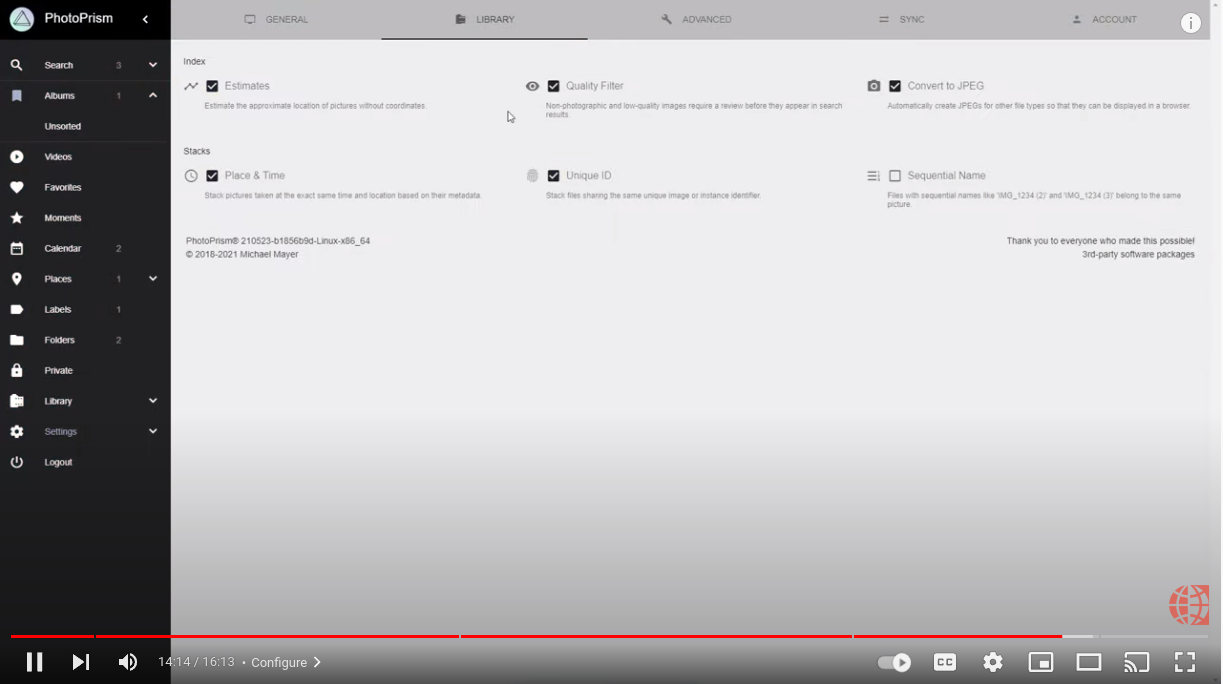](https://youtu.be/WMNsO-0BuG8)
## Troubleshooting ##
If your device runs out of memory or other system resources:
- [ ] Try [reducing the number of workers](https://docs.photoprism.app/getting-started/config-options/#indexing) by setting `PHOTOPRISM_WORKERS` to a reasonably small value in your `compose.yaml` file, depending on the performance of your device
- [ ] Make sure [your device has at least 4 GB of swap space](https://docs.photoprism.app/getting-started/troubleshooting/docker/#adding-swap) so that indexing doesn't cause restarts when memory usage spikes; RAW image conversion and video transcoding are especially demanding
- [ ] If you are using SQLite, switch to MariaDB, which is [better optimized for high concurrency](https://docs.photoprism.app/getting-started/faq/#should-i-use-sqlite-mariadb-or-mysql)
- [ ] As a last measure, you can [disable image classification and facial recognition](https://docs.photoprism.app/getting-started/config-options/#feature-flags)
Other issues? Our [troubleshooting checklists](https://docs.photoprism.app/getting-started/troubleshooting/) help you quickly diagnose and resolve them.
!!! example ""
**Help improve these docs!** You can contribute by clicking :material-file-edit-outline: to send a pull request with your changes.
---
# OpenMediaVault
Source: https://docs.photoprism.app/getting-started/nas/openmediavault/
# Running PhotoPrism on OpenMediaVault
!!! tldr ""
Should you experience problems with the installation, we recommend that you ask the [OpenMediaVault community](https://forum.openmediavault.org/) for advice, as we cannot provide support for third-party software and services. Also note that third-party integrations may not provide direct access to config files or the command line, so you might not be able to use all features and config options.
PhotoPrism can be conveniently installed using the OpenMediaVault [plugin](https://www.openmediavault.org/?p=3146).
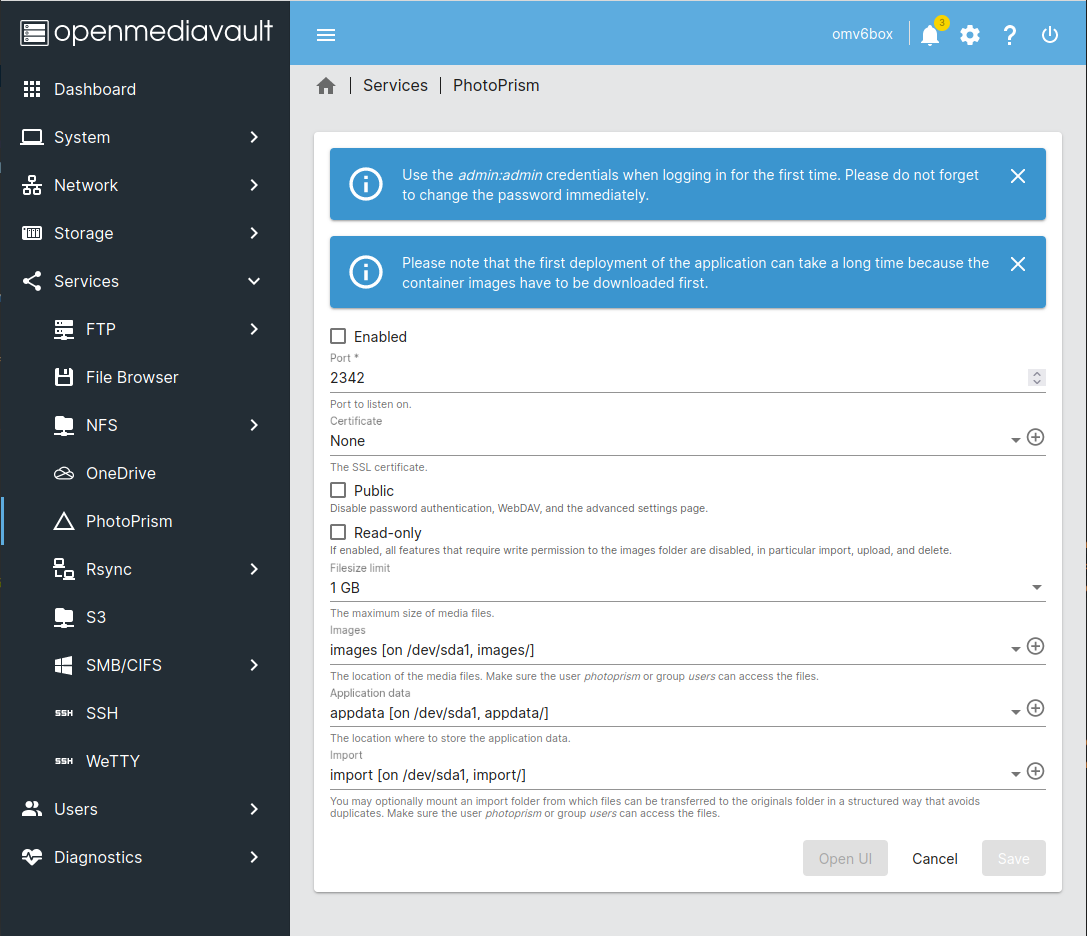
## Getting Updates
To upgrade your instance, first connect to the server running OpenMediaVault via SSH or open a terminal from the web interface. Then stop the PhotoPrism service, download the newest image from [Docker Hub](https://hub.docker.com/r/photoprism/photoprism/tags) and start the service again:
```bash
sudo systemctl stop pod-photoprism.service
sudo podman pull docker.io/photoprism/photoprism:latest
sudo systemctl start pod-photoprism.service
```
## Opening a Terminal
OpenMediaVault runs PhotoPrism as a containerized service with Podman, which means you can use the [`podman` command](https://docs.photoprism.app/getting-started/troubleshooting/docker/#podman-compose) to open a terminal session.
To do this, first connect to the server running OpenMediaVault via SSH or open a terminal from the web interface and then check if PhotoPrism is running (and if so, under what name):
```bash
sudo podman ps
```
In the output, you should see PhotoPrism running under a name like `photoprism-app`, which you can then use to open a terminal session:
```bash
sudo podman exec -ti photoprism-app /bin/bash
```
You should now be able to run terminal commands, such as those for [managing users](https://docs.photoprism.app/user-guide/users/cli/). Running `photoprism help` will list all commands and [config options](https://docs.photoprism.app/getting-started/config-options/) available in the current version:
```bash
photoprism help
```
Use the `--help` flag to see a detailed command description, for example:
```bash
photoprism backup --help
```
## Troubleshooting ##
If your device runs out of memory or other system resources:
- [ ] Try [reducing the number of workers](https://docs.photoprism.app/getting-started/config-options/#indexing) by setting `PHOTOPRISM_WORKERS` to a reasonably small value in your `compose.yaml` file, depending on the performance of your device
- [ ] Make sure [your device has at least 4 GB of swap space](https://docs.photoprism.app/getting-started/troubleshooting/docker/#adding-swap) so that indexing doesn't cause restarts when memory usage spikes; RAW image conversion and video transcoding are especially demanding
- [ ] If you are using SQLite, switch to MariaDB, which is [better optimized for high concurrency](https://docs.photoprism.app/getting-started/faq/#should-i-use-sqlite-mariadb-or-mysql)
- [ ] As a last measure, you can [disable image classification and facial recognition](https://docs.photoprism.app/getting-started/config-options/#feature-flags)
Other issues? Our [troubleshooting checklists](https://docs.photoprism.app/getting-started/troubleshooting/) help you quickly diagnose and resolve them.
!!! example ""
**Help improve these docs!** You can contribute by clicking :material-file-edit-outline: to send a pull request with your changes.
---
# FreeBSD
Source: https://docs.photoprism.app/getting-started/ports/freebsd/
# Running PhotoPrism On FreeBSD
!!! danger ""
Please note that third-party apps may not provide access to the `compose.yaml` or `docker-compose.yml` file or the command line, and therefore you may not be able to use all of PhotoPrism's features and config options.
!!! tldr ""
Should you experience problems with the installation, we recommend that you ask the FreeBSD community for advice, as we cannot provide support for third-party software and services. You can contribute by clicking :material-file-edit-outline: to send a pull request with your changes.
For FreeBSD and TrueNAS CORE (formerly FreeNAS) users, an [unofficial port is available](https://github.com/huo-ju/photoprism-freebsd-port) that builds PhotoPrism from source. It will also compile and install the required TensorFlow libraries for you.
**1. Clone or download the port:**
```bash
git clone https://github.com/huo-ju/photoprism-freebsd-port
```
**2. Build TensorFlow and PhotoPrism from source, then install:**
```bash
cd photoprism-freebsd-port
make config
make && make install
```
When running the make config command, a CPU feature options dialog will be presented, and the default option is NONE.
**3. Add entries to rc.conf:**
```bash
photoprism_enable="YES"
photoprism_assetspath="/var/photoprism/assets"
photoprism_storagepath="/var/photoprism/storage"
```
You can add more command line parameters into photoprism_flags="" in the rc.conf
`photoprism config` shows all config parameters.
**4. Start the service:**
```bash
service photoprism start
```
Done!
## When should I perform a complete rescan?
We recommend performing a [complete rescan](https://docs.photoprism.app/user-guide/library/originals/#when-should-complete-rescan-be-selected) after major updates to take advantage of new search filters and sorting options. Be sure to [read the notes for each release](https://docs.photoprism.app/release-notes/) to see what changes have been made and if they might affect your library, for example, because of the file types you have or because new search features have been added. If you encounter problems that you cannot solve otherwise (i.e. before reporting a bug), please also try a rescan and see if it solves the problem.
You can start a [rescan from the user interface](https://docs.photoprism.app/user-guide/library/originals/) by navigating to *Library* > *Index*, selecting "Complete Rescan", and then clicking "Start".
!!! tldr ""
Manually entered information such as labels, people, titles or captions will not be modified when indexing, even if you perform a "complete rescan". Be careful not to start multiple indexing processes at the same time, as this will lead to a high server load.
---
# Using a CDN
Source: https://docs.photoprism.app/getting-started/using-a-cdn/
# Using a Content Delivery Network (CDN)
A *Content Delivery Network* is a distributed network of servers that can deliver static content to users around the world.
## When to use a CDN?
**Large Media Files:** PhotoPrism stores photos and videos that can be very large. A CDN can help speed up the delivery of these files to users.
**Global Audience:** If your PhotoPrism instance is accessed from different locations around the world, a CDN can help reduce latency and improve the overall user experience by delivering content from servers that are closer to your users.
**Many Users:** If your PhotoPrism instance is getting a lot of traffic, a CDN can improve application performance by reducing the load on your server.
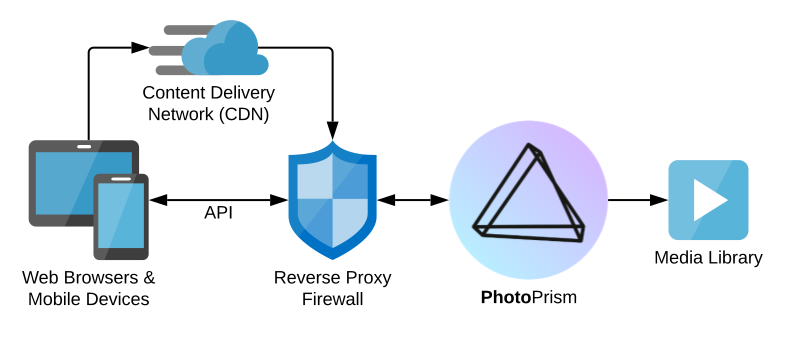
## Config Options
You can use the following config options to specify the URL of an external CDN and change the cache expiration time for thumbnails and other static content:
| Environment | CLI Flag | Default | Description |
|------------------------------|---------------------|---------|-------------------------------------------------------------|
| PHOTOPRISM_CDN_URL | --cdn-url | | content delivery network `URL` |
| PHOTOPRISM_CDN_VIDEO | --cdn-video | false | stream videos over the specified CDN |
| PHOTOPRISM_HTTP_CSP | --http-csp | | HTTP Content-Security-Policy (CSP) `HEADER` *plus* |
| PHOTOPRISM_HTTP_CACHE_PUBLIC | --http-cache-public | true | allow static content to be cached by a CDN or caching proxy |
| PHOTOPRISM_HTTP_CACHE_MAXAGE | --http-cache-maxage | 2592000 | time in `SECONDS` until cached content expires |
| PHOTOPRISM_HTTP_VIDEO_MAXAGE | --http-video-maxage | 21600 | time in `SECONDS` until cached videos expire |
## CDN Providers
### bunny.net

If you don't have a CDN provider yet, we can recommend [bunny.net](https://link.photoprism.app/bunny-cdn). This EU-based company has a cute name, but is a reputable provider with [excellent performance](https://www.cdnperf.com/), a wide range of features, and more than 20,000 customers including big names like Hyundai. We also chose bunny.net for our website and public demo as they are fully compliant with the GDPR.[^1]
Pricing starts at $0.005/GB and there is no minimum usage or monthly fee, so you only pay for what you actually need.
[Learn more ›](https://link.photoprism.app/bunny-cdn)
### Cloudflare
[Cloudflare](https://www.cloudflare.com/) works similarly to a [reverse proxy](https://docs.photoprism.app/getting-started/proxies/traefik/) and allows you to make a private server publicly accessible over the Internet. This means that users accessing your instance through their service will only see a single URL as if they were connecting directly.
You must therefore **not configure a CDN URL** for your site, as this may prevent the user interface from loading. Also note that their free tier [does not include video streaming](https://www.cloudflare.com/plans/), so there may be problems with video playback if you are not a paying customer.
[^1]: We receive a $20 credit when you sign up through our link, which helps us fund the project infrastructure.
---
# Using HTTPS
Source: https://docs.photoprism.app/getting-started/using-https/
# Using HTTPS
*This guide shows you how to enable HTTPS/TLS, configure existing server certificates, and obtain new certificates as needed. If you have suggestions for improvement, please let us know by clicking :material-file-edit-outline: to send a pull request.*
## Why Use Encryption?
If you install PhotoPrism on a shared server so that it is not only accessible to the local host, always **secure the connection using HTTPS**. Your files and passwords will otherwise be transmitted in clear text and can be intercepted by anyone, including your provider, hackers, and governments. Backup tools and file synchronization apps may also refuse to connect.
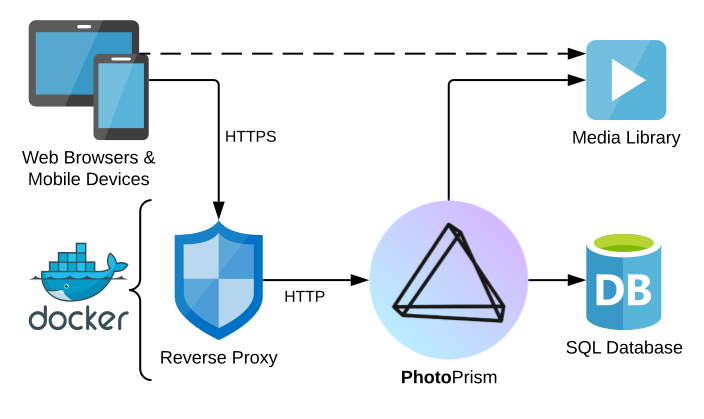
!!! tldr ""
HTTPS connections use Transport Layer Security (TLS) for encryption. TLS is a network protocol that establishes an encrypted connection to an authenticated peer over an untrusted network.
## How To Enable HTTPS
You have the following options to enable HTTPS/TLS when using our [latest stable release](https://docs.photoprism.app/release-notes/).
Note that after adding or updating certificates, it is required to restart PhotoPrism for the changes to take effect.
### 1. HTTPS Reverse Proxy
To run your instance behind an [HTTPS reverse proxy like Traefik](https://docs.photoprism.app/getting-started/proxies/traefik/), we recommend that you explicitly disable TLS in PhotoPrism by setting `PHOTOPRISM_DISABLE_TLS` to `"true"` in your `compose.yaml` or `docker-compose.yml` configuration:
```yaml
services:
photoprism:
# ...
environment:
PHOTOPRISM_SITE_URL: "https://www.example.com/"
PHOTOPRISM_DISABLE_TLS: "true"
```
!!! note ""
Especially if your server also has other web applications installed and/or a proxy with working HTTPS is already in place, this may be the best option.
### 2. Self-Signed Certificate
```yaml
services:
photoprism:
# ...
environment:
PHOTOPRISM_SITE_URL: "https://www.example.com/"
PHOTOPRISM_DISABLE_TLS: "false"
PHOTOPRISM_DEFAULT_TLS: "true"
PHOTOPRISM_INIT: "https"
```
### 3. Custom Certificate
To use your own certificates, you can add a custom TLS certificate and private key to the `storage/config/certificates` folder with the filenames `www.example.com.crt` and `www.example.com.key`, replacing `www.example.com` with the actual server domain. For this, you can set the same config options as when using a self-signed certificate (see above).
Alternatively, you can specify a custom TLS certificate (`*.crt`) and private key (`*.key`) filename within the `storage/config/certificates` folder using the `PHOTOPRISM_TLS_CERT` and `PHOTOPRISM_TLS_KEY` [environment variables](https://docs.photoprism.app/getting-started/config-options/) in your `compose.yaml` or `docker-compose.yml`, or use the corresponding [command flags](https://docs.photoprism.app/getting-started/config-options/):
```yaml
services:
photoprism:
# ...
environment:
PHOTOPRISM_SITE_URL: "https://www.example.com/"
PHOTOPRISM_TLS_CERT: "site.crt"
PHOTOPRISM_TLS_KEY: "site.key"
PHOTOPRISM_DISABLE_TLS: "false"
PHOTOPRISM_DEFAULT_TLS: "true"
PHOTOPRISM_INIT: "https"
```
!!! note ""
We recommend that you keep the `PHOTOPRISM_DEFAULT_TLS` option enabled so that you can always connect securely over HTTPS even if there is a problem with your custom certificates.
## Obtaining Certificates
Valid server certificates can be obtained either from a commercial [Certificate Authority](https://en.wikipedia.org/wiki/Certificate_authority) (CA) like [ZeroSSL](https://docs.photoprism.app/getting-started/using-https/#zerossl) or free of charge from [Let's Encrypt](https://docs.photoprism.app/getting-started/using-https/#lets-encrypt):
### Let’s Encrypt

[Let's Encrypt](https://letsencrypt.org/) is an automatic certificate authority that provides you with free HTTPS/TLS certificates. Many web servers and reverse proxies such as [Traefik](https://docs.photoprism.app/getting-started/proxies/traefik/) and [Caddy](https://docs.photoprism.app/getting-started/proxies/caddy-2/) have integrated support for obtaining single-domain certificates if your server is accessible on port 80 over the public Internet.
The creation of certificates for servers that are not publicly reachable or that are valid for all subdomains (wildcard) is alternatively possible with the [LEGO Let's Encrypt client](https://go-acme.github.io/lego/usage/cli/obtain-a-certificate/). If you use Docker and [DigitalOcean's free DNS service](https://m.do.co/c/f9725a28bb6b), the [command to run](https://go-acme.github.io/lego/usage/cli/obtain-a-certificate/) will look as follows (replace the certificate path, access token, domain names, and email address with the appropriate values):
```bash
docker run --rm -v "/path/to/certificates:/data/" \
-e DO_AUTH_TOKEN=Your_Access_Token goacme/lego run -a \
-d "example.com" -d "*.example.com" --email="you@example.com" \
--dns=digitalocean --dns.timeout=180 --path=/data
```
Note that this verification method only works if you use a [supported DNS provider](https://go-acme.github.io/lego/dns/) that LEGO can access through an API. Please refer to [its documentation](https://go-acme.github.io/lego/dns/) for details, as each provider requires different authentication credentials. If you are [using DigitalOcean](https://m.do.co/c/f9725a28bb6b), you can create the required access token in [your customer dashboard](https://cloud.digitalocean.com/account/api/tokens) and replace `Your_Access_Token` with it.
### ZeroSSL
[](https://link.photoprism.app/zerossl)
[ZeroSSL](https://link.photoprism.app/zerossl) is a widely trusted commercial certificate authority with more than 500,000 customers worldwide. Its headquarters are located in [Vienna, Austria](https://link.photoprism.app/zerossl-contact).
Compared to Let's Encrypt, you can also create and revoke certificates through a user-friendly web interface, obtain certificates with a validity of more than 90 days, and choose between additional domain verification methods.[^1]
[Learn more ›](https://link.photoprism.app/zerossl)
## Troubleshooting
### Enabling Trace Log Mode
A good way to troubleshoot configuration issues is to increase the log level. To enable [trace log mode](https://docs.photoprism.app/getting-started/config-options/), set `PHOTOPRISM_LOG_LEVEL` to `"trace"` in the `environment:` section of the `photoprism` service (or use the `--trace` flag when running the `photoprism` command directly):
```yaml
services:
photoprism:
environment:
PHOTOPRISM_LOG_LEVEL: "trace"
...
```
Then [restart all services](https://docs.photoprism.app/getting-started/docker-compose/#step-2-start-the-server) for your changes to take effect:
```bash
docker compose stop
docker compose up -d
```
### Viewing Docker Service Logs
You can run this command to check the server logs for warnings and errors, including the last 100 messages (omit `--tail=100` to see them all, and `-f` to output only the last logs without watching them):
```bash
docker compose logs -f --tail=100
```
[Learn more ›](https://docs.photoprism.app/getting-started/troubleshooting/docker/#viewing-logs)
### Determining Your Public IP Address
If you have a domain name and want to set up a public host entry for your home network, you can use one of the following services to see your public IP address, i.e. the IP address that others outside your home network can use to reach you:
- https://api.ipify.org/
- https://canhazip.com/
### Failed to Find Any PEM Data in Key Input
This error can indicate that your key file starts with an unexpected Byte Order Mark (BOM):
- https://www.google.com/search?q=failed+to+find+any+pem+data+tls+golang
- https://stackoverflow.com/questions/57596920/failed-to-find-any-pem-data-in-key
While BOMs are not strictly forbidden, there is only one way to encode UTF-8, and so they are not needed and extremely rare. As a result, a lot of software has problems with them.
You should be able to fix this by opening the file with a regular text or code editor (not Notepad) and then saving it again. Finally, restart all services for the changes to take effect:
```bash
docker compose stop
docker compose up -d
```
!!! tldr ""
Our examples use the new `docker compose` command by default. If your server does not yet support it, you can still use `docker-compose` or alternatively `podman-compose` on Red Hat-compatible distributions.
[^1]: We may receive a credit when you sign up through our link, which helps us fund the project infrastructure.
---
# Getting Updates
Source: https://docs.photoprism.app/getting-started/updates/
# Getting Updates
### Docker Compose
Open a terminal and change to the folder where your `compose.yaml` file is located.[^1]
Now run the following commands to download the newest image from [Docker Hub](https://hub.docker.com/r/photoprism/photoprism/tags) and restart your instance in the background:
```bash
docker compose up -d --pull always
```
*Note that our examples use the new `docker compose` command by default. If your server does not yet support it, you can still use `docker-compose` or alternatively `podman-compose` on Red Hat-compatible distributions.*
Pulling a new version can take several minutes, depending on your internet connection speed.
Advanced users can [add this to a `Makefile`](https://dl.photoprism.app/docker/Makefile) so that they only have to type a single command like `make update`. See [Command-Line Interface](https://docs.photoprism.app/getting-started/docker-compose/#command-line-interface) to learn more about terminal commands.
!!! tldr ""
Even when you use an image with the `:latest` tag, Docker does not automatically download new images for you. You can either manually upgrade as shown above, or set up a service like [Watchtower](https://docs.photoprism.app/getting-started/updates/#watchtower) to get automatic updates.
#### Config Examples
We recommend that you compare your own `compose.yaml` with [our latest examples](https://dl.photoprism.app/docker/) from time to time, as they may include new [config options](https://docs.photoprism.app/getting-started/config-options/) or other enhancements relevant to you.
#### Development Preview
You can test [**upcoming features and enhancements**](https://link.photoprism.app/roadmap) by changing the `photoprism/photoprism` image tag from `:latest` to [`:preview`](https://hub.docker.com/r/photoprism/photoprism/tags?page=1&name=preview) and then running the following commands to download the newest image from [Docker Hub](https://hub.docker.com/r/photoprism/photoprism/tags) and restart your instance in the background:
```bash
docker compose up -d --pull always
```
*Note that our examples use the new `docker compose` command by default. If your server does not yet support it, you can still use `docker-compose` or alternatively `podman-compose` on Red Hat-compatible distributions.*
#### Watchtower
Adding [Watchtower](https://github.com/nicholas-fedor/watchtower) as a service to your `compose.yaml` or `docker-compose.yml` will automatically keep images up-to-date:
```yaml
services:
watchtower:
image: nickfedor/watchtower
restart: unless-stopped
volumes:
- "/var/run/docker.sock:/var/run/docker.sock"
```
Users of our [DigitalOcean 1-Click App](https://docs.photoprism.app/getting-started/cloud/digitalocean/) have Watchtower pre-installed.
!!! danger
Keep in mind that automatic updates can interrupt indexing and import operations, and enable Watchtower only if this is acceptable to you.
### Portainer
You can [change or update the image you are using](https://docs.photoprism.app/getting-started/portainer/) by navigating to "Stacks", selecting your existing PhotoPrism stack, and clicking "Editor":
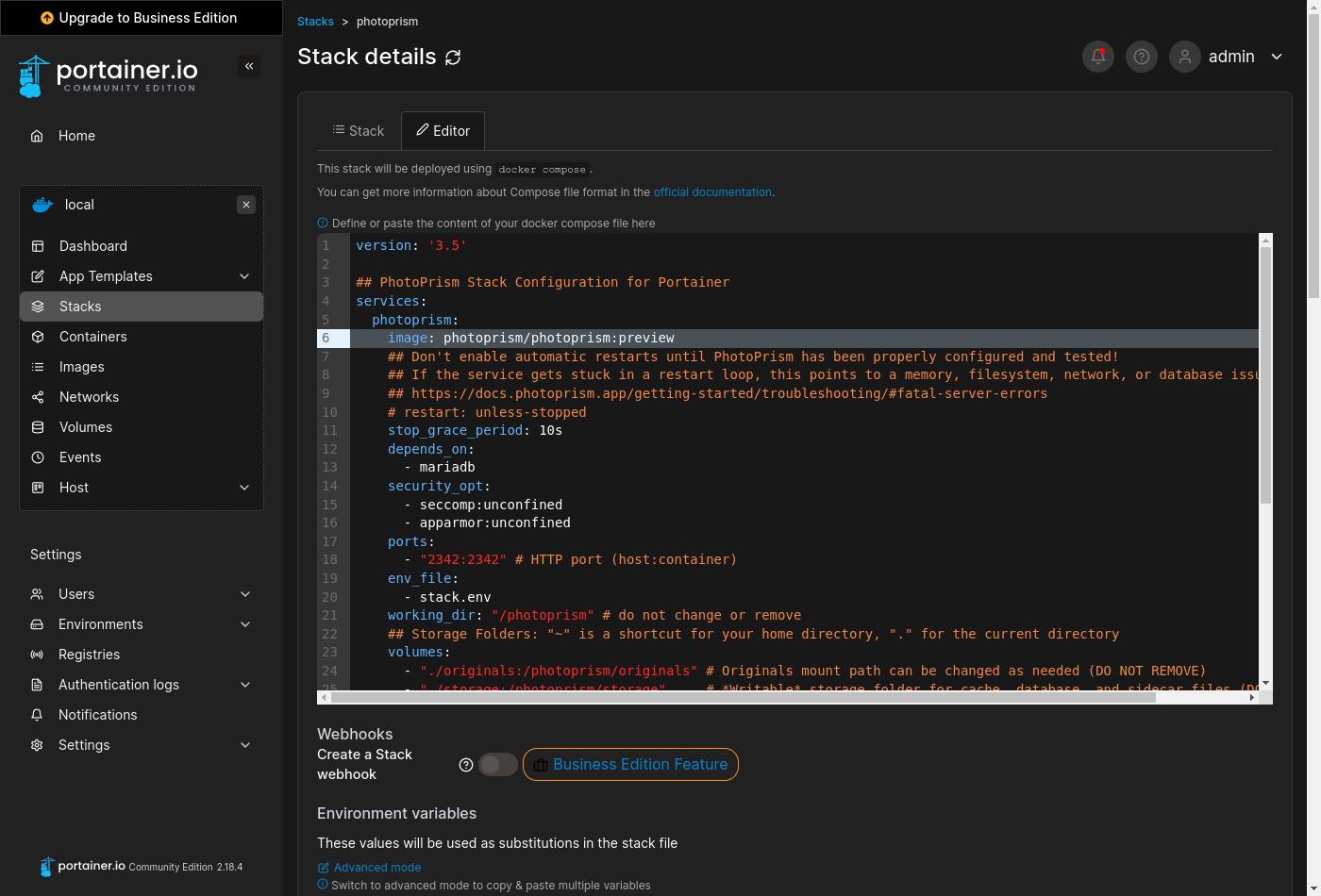
When you have [changed the configuration](https://docs.photoprism.app/getting-started/portainer/) to your needs or just want to get the latest image from Docker Hub, scroll down, click on "Update the stack", enable the "re-pull and redeploy" option, and then click on "Update":
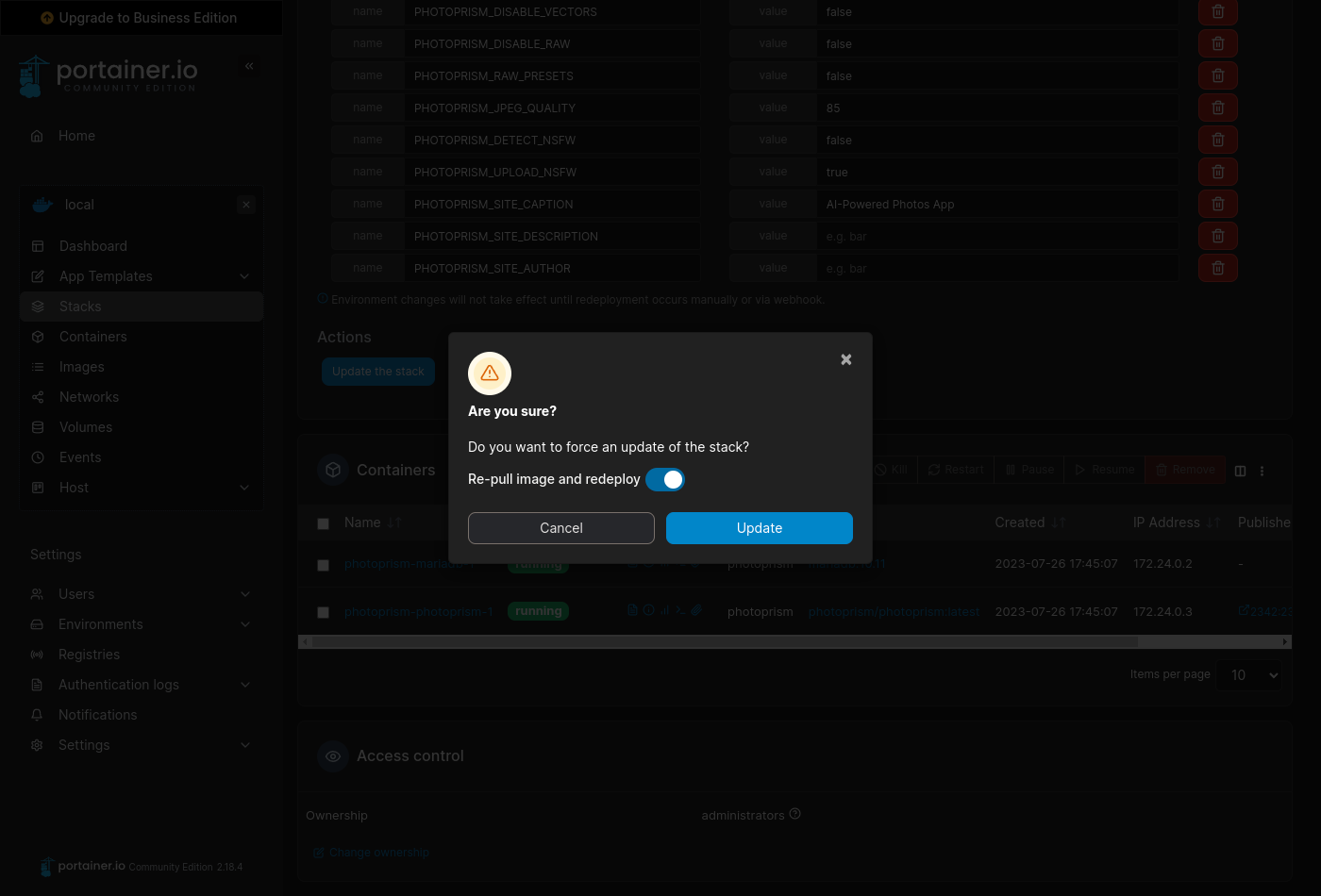
### Pure Docker
Open a terminal and run the following to download the newest image from [Docker Hub](https://hub.docker.com/r/photoprism/photoprism/tags):
```bash
docker pull photoprism/photoprism:latest
```
Then stop and [recreate the `photoprism` service](https://docs.photoprism.app/getting-started/docker/#step-1-start-the-server) based on the new image, for example:
```bash
docker stop photoprism
docker rm photoprism
docker run -d \
--name photoprism \
--security-opt seccomp=unconfined \
--security-opt apparmor=unconfined \
-p 2342:2342 \
-e PHOTOPRISM_UPLOAD_NSFW="true" \
-e PHOTOPRISM_ADMIN_PASSWORD="insecure" \
-v /photoprism/storage \
-v ~/Pictures:/photoprism/originals \
photoprism/photoprism:latest
```
[Learn more ›](https://docs.photoprism.app/getting-started/docker/)
!!! tldr ""
In order to simplify configuration and updates, we recommend using [Docker Compose](https://docs.photoprism.app/getting-started/docker-compose/) instead of [Docker](https://docs.photoprism.app/getting-started/docker/).
### OpenMediaVault
To upgrade your instance, first connect to the server running OpenMediaVault via SSH or open a terminal from the web interface, then download the newest image from [Docker Hub](https://hub.docker.com/r/photoprism/photoprism/tags) and restart the service:
```bash
sudo podman pull docker.io/photoprism/photoprism:latest
sudo systemctl restart pod-photoprism.service
```
[Learn more ›](https://docs.photoprism.app/getting-started/nas/openmediavault/)
### Complete Rescan
We recommend performing a [complete rescan](https://docs.photoprism.app/user-guide/library/originals/#when-should-complete-rescan-be-selected) after major updates to take advantage of new search filters and sorting options. Be sure to [read the notes for each release](https://docs.photoprism.app/release-notes/) to see what changes have been made and if they might affect your library, for example, because of the file types you have or because new search features have been added. If you encounter problems that you cannot solve otherwise (i.e. before reporting a bug), please also try a rescan and see if it solves the problem.
You can start a [rescan from the user interface](https://docs.photoprism.app/user-guide/library/originals/) by navigating to *Library* > *Index*, selecting "Complete Rescan", and then clicking "Start". Manually entered information such as labels, people, titles or captions will not be modified when indexing, even if you perform a "complete rescan".
!!! tldr ""
Be careful not to start multiple indexing processes at the same time, as this will lead to a high server load.
### Face Recognition
Existing users may index faces without performing a complete rescan:
```bash
docker compose exec photoprism photoprism faces index
```
Remove existing people and faces for a clean start e.g. after upgrading from our
[development preview](https://docs.photoprism.app/release-notes/#development-preview):
```bash
docker compose exec photoprism photoprism faces reset -f
```
### MariaDB Server
Our [configuration examples](https://dl.photoprism.app/docker/) are generally based on the [current stable version](https://mariadb.com/docs/release-notes/community-server) to take advantage of performance improvements. This does not mean that [older versions](https://docs.photoprism.app/getting-started/#databases) are no longer supported and you must upgrade immediately.
We recommend using a version or subversion tag, such as `:12` or [`:12.3`](https://mariadb.com/docs/release-notes/community-server/12.3/mariadb-12.3-changes-and-improvements), instead of `:latest`, to specify the MariaDB service image in your `compose.yaml` file, as shown in this example:
```yaml
services:
mariadb:
image: mariadb:12.3
...
```
You can then manually upgrade to [new major versions](https://mariadb.com/docs/release-notes/community-server) by changing the image tag, e.g. from `mariadb:12` to `mariadb:13`, once [they are stable](https://mariadb.org/about/#maintenance-policy) and we had time to test them.
However, this requires periodically checking for [new MariaDB images](https://hub.docker.com/_/mariadb) and adjusting [your `compose.yaml` file](https://docs.photoprism.app/getting-started/docker-compose/#database) accordingly, so you don't get stuck with an [outdated](https://mariadb.org/about/#maintenance-policy) version.
[Learn more ›](https://docs.photoprism.app/getting-started/troubleshooting/mariadb/#auto-upgrade)
!!! note ""
If MariaDB fails to start after upgrading from an earlier version (or migrating from MySQL), the internal management schema may be outdated. See [Troubleshooting MariaDB Problems](https://docs.photoprism.app/getting-started/troubleshooting/mariadb/#version-upgrade) for instructions on how to fix this.
### Raspberry Pi
Our [stable releases](https://docs.photoprism.app/release-notes/) and [preview builds](https://docs.photoprism.app/getting-started/updates/#development-preview) are available as [multi-arch Docker images](https://hub.docker.com/r/photoprism/photoprism/tags) for 64-bit AMD, Intel, and ARM processors.
You therefore get the exact same functionality and can follow the same [update instructions](https://docs.photoprism.app/getting-started/updates/#docker-compose) if your device [meets the system requirements](https://docs.photoprism.app/getting-started/raspberry-pi/#system-requirements).
Try explicitly pulling the ARM64 version if you've booted your device with the `arm_64bit=1` flag and you see the "no matching manifest" error on [Raspberry Pi OS](https://docs.photoprism.app/getting-started/raspberry-pi/#raspberry-pi-os) (Raspbian):
```bash
docker pull --platform=arm64 photoprism/photoprism:latest
```
If you don't use legacy software, we recommend choosing a [standard 64-bit Linux distribution](https://docs.photoprism.app/getting-started/raspberry-pi/#modern-arm64-based-devices) as it requires less experience. For [ARMv7-based devices](https://docs.photoprism.app/getting-started/raspberry-pi/#older-armv7-based-devices), 32-bit images are [provided separately](https://hub.docker.com/r/photoprism/photoprism/tags?page=1&name=armv7).
!!! tldr ""
Darktable is not included in the ARMv7 version because it is not 32-bit compatible.
### PhotoPrism® Plus
Our members can activate [additional features](https://link.photoprism.app/membership) by logging in with the [admin user created during setup](https://docs.photoprism.app/getting-started/config-options/#authentication) and then following the steps [described in our activation guide](https://www.photoprism.app/kb/activation/). Thank you for your support, which has been and continues to be essential to the success of the project! :octicons-heart-fill-24:{ .heart .purple }
[Compare Memberships ›](https://link.photoprism.app/membership) [View Membership FAQ ›](https://www.photoprism.app/membership/faq/)
!!! example ""
We recommend that new users install our free [Community Edition](https://docs.photoprism.app/getting-started/) before [signing up for a membership](https://link.photoprism.app/membership).
### How can I shorten the startup time after a restart or update?
To reduce startup time, do not set `PHOTOPRISM_INIT` to avoid running additional setup scripts, and set `PHOTOPRISM_DISABLE_CHOWN` to `"true"` to [disable automatic permission updates](https://docs.photoprism.app/getting-started/config-options/#docker-image).
!!! tldr ""
If your instance doesn't start even after waiting for some time, our [Troubleshooting Checklists](https://docs.photoprism.app/getting-started/troubleshooting/#connection-fails) help you quickly diagnose and solve the problem.
[^1]: With the latest version of [Docker Compose](https://docs.docker.com/compose/), the [default config file name](https://docs.docker.com/compose/intro/compose-application-model/#the-compose-file) is `compose.yaml`, although the [`docker compose` command](https://docs.photoprism.app/getting-started/troubleshooting/docker/#docker-compose) still supports legacy `docker-compose.yml` files for backward compatibility.
---
# Checklists
Source: https://docs.photoprism.app/getting-started/troubleshooting/
# Troubleshooting Checklists
!!! info ""
You are welcome to ask for help in our [community chat](https://link.photoprism.app/chat).
[Sponsors](https://www.photoprism.app/membership/) receive direct [technical support](https://www.photoprism.app/contact/) via email.
Before [submitting a support request](https://docs.photoprism.app/user-guide/#getting-support), try to determine the cause of your problem.
### Connection Fails ###
If [your browser](https://docs.photoprism.app/getting-started/troubleshooting/browsers/) cannot connect to the Web UI even after waiting a few minutes, run this command to watch the logs including the last 100 messages (omit `--tail=100` to see them all, and `-f` to output only the last logs without watching them):
```bash
docker compose logs -f --tail=100
```
Before reporting a bug:
- [ ] Check the logs for messages like *disk full*, *disk quota exceeded*, *no space left on device*, *read-only file system*, *error creating path*, *wrong permissions*, *no route to host*, *connection failed*, and *killed*:
- [ ] If a service has been "killed" or otherwise automatically terminated, this points to a [memory problem](https://docs.photoprism.app/getting-started/troubleshooting/docker/#adding-swap) (add swap and/or memory; remove or increase usage limits)
- [ ] In case the logs show "disk full", "quota exceeded", or "no space left" errors, either [the disk containing the *storage* folder is full](https://docs.photoprism.app/getting-started/troubleshooting/docker/#disk-space) (add storage) or a disk usage limit is configured (remove or increase it)
- [ ] Errors such as "read-only file system", "error creating path", "failed to create folder", "permission denied", or "wrong permissions" indicate a [filesystem permission problem](https://docs.photoprism.app/getting-started/troubleshooting/docker/#file-permissions)
- [ ] It may help to [add the `:z` mount flag to volumes](https://docs.docker.com/engine/storage/bind-mounts/#configure-the-selinux-label) when using SELinux (Red Hat/Fedora)
- [ ] Log messages that contain "no route to host" indicate a [problem with the database](https://docs.photoprism.app/getting-started/troubleshooting/mariadb/) or Docker network configuration (follow our [examples](https://dl.photoprism.app/docker/))
- [ ] Make sure you are using the correct protocol (default is `http`), port (default is `2342`), and host (default is `localhost`):
- [ ] Check if the server port you try to use [has been exposed](https://docs.docker.com/reference/compose-file/services/#ports) and [no firewall is blocking it](https://support.microsoft.com/en-us/windows/turn-microsoft-defender-firewall-on-or-off-ec0844f7-aebd-0583-67fe-601ecf5d774f)
- [ ] Only use `localhost` or `127.0.0.1` if the server is running on the same computer (host)
- [ ] Avoid using IP addresses other than `127.0.0.1` directly, as [they can change](https://github.com/photoprism/photoprism/discussions/2791#discussioncomment-3985376)
- [ ] We recommend [configuring a local hostname](https://dl.photoprism.app/img/docs/pihole-local-dns.png) to access other hosts on your network
- [ ] If you use a [firewall](https://docs.photoprism.app/getting-started/troubleshooting/firewall/), ensure that it is configured correctly and that [outgoing connections to our geocoding API are allowed](https://docs.photoprism.app/getting-started/#maps-places)
- [ ] If you use a reverse proxy, make sure [the public Site URL](https://docs.photoprism.app/getting-started/config-options/#site-information) matches the external address and that [`PHOTOPRISM_TRUSTED_PROXY`](https://docs.photoprism.app/getting-started/config-options/#networking) includes the proxy IP or CIDR; otherwise forwarded client and protocol headers are ignored
- [ ] Note that HTTP security headers will prevent the app from loading in a frame (override them)
- [ ] Verify your computer meets the [system requirements](https://docs.photoprism.app/getting-started/#system-requirements)
- [ ] Go through the [checklist for fatal server errors](https://docs.photoprism.app/getting-started/troubleshooting/#fatal-server-errors)
#### MariaDB
Should MariaDB get stuck in a restart loop and PhotoPrism cannot connect to it, this indicates a [memory](https://docs.photoprism.app/getting-started/troubleshooting/docker/#adding-swap),
[filesystem](https://docs.photoprism.app/getting-started/troubleshooting/docker/#file-permissions), or other [permission issue](https://docs.photoprism.app/getting-started/troubleshooting/docker/#kernel-security):
```
mariadb: mysqld: ready for connections.
mariadb: mysqld (initiated by: unknown): Normal shutdown
photoprism: dial tcp 172.18.0.2:3306: connect: no route to host
mariadb: mysqld: Shutdown complete
```
[Learn more ›](https://docs.photoprism.app/getting-started/troubleshooting/mariadb/)
#### Firewall
**Maps & Places:** As explained in our [Privacy Policy](https://www.photoprism.app/privacy/#section-7), reverse geocoding and interactive world maps depend on retrieving the necessary information [from us](https://www.photoprism.app/contact/) and [MapTiler AG](https://www.maptiler.com/contacts/), headquartered in Switzerland. If you have a firewall installed, make sure it allows requests to these API endpoints and that your Internet connection is working.
[Learn more ›](https://docs.photoprism.app/getting-started/troubleshooting/firewall/)
**IPTables:** On Linux, Docker manipulates the `iptables` rules to provide network isolation. This has implications when you want to enforce your own policies in addition to the rules Docker manages.
[Learn more ›](https://docs.docker.com/engine/network/packet-filtering-firewalls/)
#### Debug Mode
To [enable debug mode](https://docs.photoprism.app/getting-started/config-options/#logging), set `PHOTOPRISM_LOG_LEVEL` to `"debug"` in the `environment:` section of the `photoprism` service (or use the `--debug` flag when running the `photoprism` command directly):
```yaml
services:
photoprism:
environment:
PHOTOPRISM_LOG_LEVEL: "debug"
```
If you need even more detailed logs for debugging, you can enable [trace log mode](https://docs.photoprism.app/getting-started/config-options/#logging) by setting `PHOTOPRISM_LOG_LEVEL` to `"trace"` in the `environment:` section of the `photoprism` service (or use the `--trace` flag when running the `photoprism` command directly):
```yaml
services:
photoprism:
environment:
PHOTOPRISM_LOG_LEVEL: "trace"
```
Then restart all services for the changes to take effect. It can be helpful to keep Docker running in the foreground while debugging so that log messages are displayed directly. To do this, omit the `-d` parameter when restarting:
```bash
docker compose stop
docker compose up
```
!!! note ""
If you see no errors or no logs at all, you may have started the server on a different host
and/or port. There could also be an [issue with your browser](https://docs.photoprism.app/getting-started/troubleshooting/browsers/), browser plugins, [firewall settings](https://docs.photoprism.app/getting-started/troubleshooting/firewall/),
or other tools you may have installed.
!!! tldr ""
The default [Docker Compose](https://docs.docker.com/compose/) config filename is `compose.yaml`. For simplicity, it doesn't need to be specified when running `docker compose` in the same directory. Config files for other apps or instances should be placed in separate folders.
### Docker Doesn't Work ###
Make sure you have [Docker](https://store.docker.com/search?type=edition&offering=community) or [Docker Desktop](https://www.docker.com/products/docker-desktop/) installed, started, and properly configured on your system. It is available for Mac, Linux, and Windows. On Red Hat-compatible Linux distributions like RHEL, CentOS, Fedora, AlmaLinux, and Rocky Linux, you can [use Podman and Podman Compose as direct replacements](https://docs.photoprism.app/getting-started/troubleshooting/docker/#podman-compose) for Docker and Docker Compose.
↪ [Getting Docker Up and Running](https://docs.photoprism.app/getting-started/troubleshooting/docker/)
### Bad Performance ###
↪ [Performance Tips](https://docs.photoprism.app/getting-started/troubleshooting/performance/)
↪ [Solving Windows-Specific Issues](https://docs.photoprism.app/getting-started/troubleshooting/windows/)
### Fatal Server Errors ###
Fatal errors are often caused by one of the following conditions:
- [ ] Your (virtual) server [disk is full](https://docs.photoprism.app/getting-started/troubleshooting/docker/#disk-space) (add storage)
- [ ] You have accidentally [mounted the wrong folders](https://docs.photoprism.app/getting-started/docker-compose/#volumes) (update config and restart)
- [ ] There is disk space left, but a usage or the [inode limit](https://serverfault.com/questions/104986/what-is-the-maximum-number-of-files-a-file-system-can-contain) has been reached (change it)
- [ ] You are using a [filesystem or network drive with a file size limit](https://thegeekpage.com/fix-the-file-size-exceeds-the-limit-allowed-and-cannot-be-saved/) (change settings or storage)
- [ ] The *storage* folder [is not writable or mounted read-only](https://docs.photoprism.app/getting-started/troubleshooting/docker/#file-permissions) (change [permissions](https://docs.photoprism.app/getting-started/troubleshooting/docker/#file-permissions))
- [ ] [Symbolic links](https://en.wikipedia.org/wiki/Symbolic_link) were mounted or used within a *storage* folder (replace with actual paths)
- [ ] The service configuration is not supported, so startup [fails with an S6 overlay error](https://docs.photoprism.app/getting-started/troubleshooting/docker/#s6-overlay-error)
- [ ] The [server is low on memory](https://docs.photoprism.app/getting-started/#system-requirements) (add memory)
- [ ] You didn't [configure at least 4 GB of swap space](https://docs.photoprism.app/getting-started/troubleshooting/docker/#adding-swap) (add swap)
- [ ] RAW images and/or high-resolution panoramas require [additional memory](https://docs.photoprism.app/getting-started/troubleshooting/performance/#memory) above the [recommended minimum](https://docs.photoprism.app/getting-started/#system-requirements) (add more swap or memory)
- [ ] The server CPU is overheating (improve cooling)
- [ ] The server has an outdated operating system that is not fully compatible (update)
- [ ] The server hardware is defective and [causes random panics](https://github.com/photoprism/photoprism/discussions/1984) (test on another server)
- [ ] The [database server](https://docs.photoprism.app/getting-started/troubleshooting/mariadb/) is not running, [incompatible](https://docs.photoprism.app/getting-started/#databases), or misconfigured (start, upgrade, or [fix it](https://docs.photoprism.app/getting-started/troubleshooting/mariadb/))
- [ ] You've [upgraded the MariaDB server](https://docs.photoprism.app/getting-started/troubleshooting/mariadb/#version-upgrade) without running `mariadb-upgrade`
- [ ] Files are [stored on an unreliable device such as a USB flash drive or a shared network folder](https://docs.photoprism.app/getting-started/troubleshooting/mariadb/#corrupted-files)
- [ ] There are network problems caused by a bad configuration, [firewall](https://docs.photoprism.app/getting-started/troubleshooting/firewall/), or unstable connection
- [ ] [Kernel security modules](https://docs.photoprism.app/getting-started/troubleshooting/docker/#kernel-security) such as [AppArmor](https://wiki.ubuntu.com/AppArmor) and [SELinux](https://en.wikipedia.org/wiki/Security-Enhanced_Linux) are blocking permissions
- [ ] Your Raspberry Pi has not been configured according to our [recommendations](https://docs.photoprism.app/getting-started/raspberry-pi/#system-requirements)
We recommend checking your [Docker Logs](https://docs.photoprism.app/getting-started/troubleshooting/docker/#viewing-logs) for messages like *disk full*, *disk quota exceeded*,
*no space left on device*, *read-only file system*, *error creating path*, *wrong permissions*, *no route to host*, *connection failed*, and *killed*:
- [ ] If a service has been "killed" or otherwise automatically terminated, this points to a [memory problem](https://docs.photoprism.app/getting-started/troubleshooting/docker/#adding-swap) (add swap and/or memory; remove or increase usage limits)
- [ ] In case the logs show "disk full", "quota exceeded", or "no space left" errors, either [the disk containing the *storage* folder is full](https://docs.photoprism.app/getting-started/troubleshooting/docker/#disk-space) (add storage) or a disk usage limit is configured (remove or increase it)
- [ ] Errors such as "read-only file system", "error creating path", "failed to create folder", "permission denied", or "wrong permissions" indicate a [filesystem permission problem](https://docs.photoprism.app/getting-started/troubleshooting/docker/#file-permissions)
- [ ] Log messages that contain "no route to host" indicate a [problem with the database](https://docs.photoprism.app/getting-started/troubleshooting/mariadb/) or network configuration (follow our [examples](https://dl.photoprism.app/docker/))
*Start a full rescan if necessary, for example, if it looks like [thumbnails](https://docs.photoprism.app/getting-started/troubleshooting/#broken-thumbnails) or [pictures are missing](https://docs.photoprism.app/getting-started/troubleshooting/#missing-pictures).*
### App Not Loading ###
If the app doesn't load in your browser when you navigate to the server URL, you can [check the browser console](https://docs.photoprism.app/getting-started/troubleshooting/browsers/#getting-error-details)
for helpful errors and warnings. Sometimes you just need to wait a moment, for example, if you are using a slow wireless
connection or the server was started only a few seconds ago. In case this does not help:
- [ ] You are using an [incompatible browser](https://docs.photoprism.app/getting-started/troubleshooting/browsers/) (try another browser)
- [ ] JavaScript is disabled in your browser settings, so you only see the splash screen (enable it)
- [ ] JavaScript was disabled by a browser plugin (disable it or add an exception)
- [ ] Your browser cannot communicate properly with the server, e.g. because a [reverse proxy](https://docs.photoprism.app/getting-started/proxies/nginx/), VPN, or CDN is configured incorrectly (check its configuration and try without)
- [ ] HTTP security headers prevent the app from loading in a frame (override them)
- [ ] An ad blocker or other plugins block requests (disable them or add an exception)
- [ ] There is a problem with your network connection (test if other sites work)
- [ ] You are connected to the wrong server, VPN, CDN, or a DNS record has not been updated yet
### Cannot Log In ###
If [password authentication is enabled](https://docs.photoprism.app/getting-started/config-options/#authentication) and the user interface loads, but you cannot log in with what you assume is the correct password:
- [ ] There is a problem with the [integrity, stability or connection of the database](https://docs.photoprism.app/getting-started/troubleshooting/mariadb/) that you should be able to diagnose by [watching the logs for errors and warnings](https://docs.photoprism.app/getting-started/troubleshooting/docker/#viewing-logs)
- [ ] You had too many failed login attempts, so another attempt from your IP address is temporarily blocked by the login rate limit (wait a moment or review `PHOTOPRISM_LOGIN_LIMIT`)
- [ ] Caps Lock is enabled on your keyboard, your computer has the wrong input locale set, or somebody else might have changed the password without telling you
- [ ] `PHOTOPRISM_ADMIN_PASSWORD` does not have a minimum length of 8 characters, so PhotoPrism has been started without a password since there is no default
- [ ] Your password [contains one or more `$` signs that were not properly escaped](https://docs.photoprism.app/developer-guide/technologies/yaml/#dollar-signs) in your `compose.yaml` or `docker-compose.yml` file ([escape them](https://docs.photoprism.app/developer-guide/technologies/yaml/#dollar-signs) and [reset your database](https://docs.photoprism.app/getting-started/docker-compose/#examples) or [manually set a new password](https://docs.photoprism.app/user-guide/users/cli/#changing-a-password))
- [ ] The password may be correct, but the username is wrong and does not match `PHOTOPRISM_ADMIN_USER`
- [ ] There is a problem with the schema or data in the `auth_sessions` database table that can be resolved by running the `photoprism auth reset --yes` command [in a terminal](https://docs.photoprism.app/getting-started/docker-compose/#command-line-interface) to reset it to a clean state and [force a re-login of all users](https://docs.photoprism.app/user-guide/users/cli/#session-management) (this will also delete all [client access tokens](https://docs.photoprism.app/user-guide/users/client-credentials/#access-tokens) and [app passwords](https://docs.photoprism.app/user-guide/settings/account/#apps-and-devices) users may have created)
- [ ] You upgraded from an early test or [preview build](https://docs.photoprism.app/getting-started/updates/#development-preview) and might need to run the `photoprism users reset --yes` command [in a terminal](https://docs.photoprism.app/getting-started/docker-compose/#command-line-interface) after the upgrade, see [Known Issues](https://docs.photoprism.app/known-issues/#authentication) for details (this resets the `auth_users` table to a clean state and requires accounts to be recreated)
- [ ] Your browser cannot communicate properly with the server, e.g. because a [reverse proxy](https://docs.photoprism.app/getting-started/proxies/nginx/), VPN, or CDN is configured incorrectly (check its configuration and try without)
- [ ] You are connected to the wrong server, VPN, CDN, or a DNS record has not been updated yet
- [ ] Remember that the initial admin username and password cannot be changed after PhotoPrism has been started for the first time
We also recommend checking your [Docker Logs](https://docs.photoprism.app/getting-started/troubleshooting/docker/#viewing-logs) for messages like *disk full*, *disk quota exceeded*, *no space left on device*, *read-only file system*, *error creating path*, *wrong permissions*, *no route to host*, *connection failed*, and *killed*:
- [ ] If a service has been "killed" or otherwise automatically terminated, this points to a [memory problem](https://docs.photoprism.app/getting-started/troubleshooting/docker/#adding-swap) (add swap and/or memory; remove or increase usage limits)
- [ ] In case the logs show "disk full", "quota exceeded", or "no space left" errors, either [the disk containing the *storage* folder is full](https://docs.photoprism.app/getting-started/troubleshooting/docker/#disk-space) (add storage) or a disk usage limit is configured (remove or increase it)
- [ ] Errors such as "read-only file system", "error creating path", "failed to create folder", "permission denied", or "wrong permissions" indicate a [filesystem permission problem](https://docs.photoprism.app/getting-started/troubleshooting/docker/#file-permissions)
- [ ] Log messages that contain "no route to host" indicate a [problem with the database](https://docs.photoprism.app/getting-started/troubleshooting/mariadb/) or network configuration (follow our [examples](https://dl.photoprism.app/docker/))
To see [which user accounts exist](https://docs.photoprism.app/user-guide/users/cli/) on your instance, [open a terminal](https://docs.photoprism.app/getting-started/docker-compose/#command-line-interface) and [run `photoprism users ls`](https://docs.photoprism.app/user-guide/users/cli/#managing-user-accounts). A new password can be [set with `photoprism passwd [username]`](https://docs.photoprism.app/user-guide/users/cli/#changing-a-password). You can then try to log in again. [Upgrade to the latest release](https://docs.photoprism.app/getting-started/updates/#docker-compose), restart the server, and [check the logs for errors and warnings](https://docs.photoprism.app/getting-started/troubleshooting/docker/#viewing-logs) if it still doesn't work.
### Storage Is Full ###
If you have [enabled the free-storage check](https://docs.photoprism.app/user-guide/library/originals/#free-storage-threshold) and [indexing](https://docs.photoprism.app/user-guide/library/originals/#free-storage-threshold), [importing](https://docs.photoprism.app/user-guide/library/import/), or [uploading](https://docs.photoprism.app/user-guide/library/upload/) does not start because the logs show a warning about low free storage, it means that the amount of free disk space in the [*storage* folder](https://docs.photoprism.app/getting-started/docker-compose/#photoprismstorage) has fallen below the [configured threshold](https://docs.photoprism.app/user-guide/library/originals/#free-storage-threshold):
- [ ] Free up disk space, then try again; the check is re-evaluated automatically as soon as space becomes available
- [ ] Check the available space on the host with `df -h`, and inside the container with `docker compose exec photoprism df -h`
- [ ] If you intentionally operate the volume close to full, lower the threshold via [`PHOTOPRISM_STORAGE_FREE`](https://docs.photoprism.app/getting-started/config-options/#storage), or set it to `-1` to disable the check again (note that a full disk can interrupt operation and cause data loss)
### No WebDAV Access ###
If you [followed our step-by-step guide](https://docs.photoprism.app/user-guide/sync/webdav/) and still have trouble connecting via WebDAV:
- [ ] WebDAV has been disabled for all users in the [advanced settings](https://docs.photoprism.app/user-guide/settings/advanced/)
- [ ] WebDAV is unavailable because your instance is [running in public mode](https://docs.photoprism.app/getting-started/config-options/#authentication) (disable it)
- [ ] You are trying to connect to an invalid path, try `/originals/` without omitting the `/` at the end, and read our [notes on installing PhotoPrism in a subdirectory](https://docs.photoprism.app/known-issues/#shared-domain) on a shared domain
- [ ] Your [user account role](https://docs.photoprism.app/user-guide/users/roles/) is not permitted to use WebDAV (try as *User* or *Admin*)
- [ ] WebDAV access [has not been enabled](https://docs.photoprism.app/user-guide/users/) for your user account (enable it)
- [ ] You are experiencing a [general authentication problem](https://docs.photoprism.app/getting-started/troubleshooting/#cannot-log-in), see *Cannot Log In*
- [ ] Your WebDAV client requires a secure connection ([connect via HTTPS](https://docs.photoprism.app/getting-started/#https))
- [ ] Your instance or reverse proxy uses an invalid [HTTPS/TLS certificate](https://docs.photoprism.app/getting-started/config-options/#web-server)
- [ ] As a Windows user, you may need to [change the basic authentication level](https://docs.photoprism.app/getting-started/troubleshooting/windows/#connecting-via-webdav)
- [ ] Your WebDAV client cannot communicate properly with the server, e.g. because a [reverse proxy](https://docs.photoprism.app/getting-started/proxies/nginx/), VPN, or CDN is configured incorrectly (check its configuration and try without)
- [ ] If you use a reverse proxy or a subdirectory install, make sure it forwards the public host and protocol and preserves or rewrites WebDAV `Destination` headers correctly for copy and move requests
- [ ] You are connected to the wrong server, VPN, or a DNS record has not been updated yet
- [ ] An upload path has been assigned to your user account, limiting write access to that specific path only (check user settings or remove the upload path restriction)
- [ ] If an upload path is set, you need to synchronize with `.../originals/upload-path/` when using WebDAV to add files to the originals folder
- [ ] When using WebDAV to sync to the import folder, you need to manually create a folder with the same name as the upload path in the import folder (if an upload path is configured)
### Missing Pictures ###
If you have indexed your library and some images or videos are missing, first [check *Library > Errors* for errors and warnings](https://docs.photoprism.app/getting-started/troubleshooting/logs/).
In case the application logs do not contain anything helpful:
- [ ] The files exceed the [size limit in megabyte or the resolution limit in megapixels](https://docs.photoprism.app/getting-started/config-options/#storage)
- [ ] The files have [bad filesystem permissions or the wrong owner](https://docs.photoprism.app/getting-started/troubleshooting/docker/#file-permissions), so they cannot be opened
- [ ] The pictures are in [*Review*](https://docs.photoprism.app/user-guide/organize/review/) due to low quality or incomplete metadata
- [ ] You are browsing the [*Calendar*](https://docs.photoprism.app/user-guide/organize/calendar/) view, which only shows pictures that have a [valid creation date and time](https://docs.photoprism.app/user-guide/organize/edit/#details) specified in their metadata or as part of their filename
- [ ] The [file type](https://docs.photoprism.app/getting-started/faq/#what-media-file-types-are-supported) is generally unsupported
- [ ] The [file type](https://docs.photoprism.app/getting-started/faq/#what-media-file-types-are-supported) is generally supported, but a specific feature or codec is not
- [ ] The indexer has skipped the files because they are exact duplicates
- [ ] The indexer has skipped the files because they have an incorrect extension that does not match their actual format, e.g. [JPEG images with a `.heic` extension](https://github.com/photoprism/photoprism-contrib/tree/main/scripts/Batch%20Rename)
- [ ] The files are [ignored based on pattern in a `.ppignore` file](https://docs.photoprism.app/user-guide/library/originals/#ignoring-files-and-folders)
- [ ] They [are in *Library > Hidden*](https://try.photoprism.app/library/hidden) because thumbnails could not be created:
- [ ] *Preview Images* are disabled under *Settings > Content* (enable them)
- [ ] FFmpeg and/or RAW converters are [disabled under *Settings > Advanced*](https://docs.photoprism.app/user-guide/settings/advanced/)
- [ ] The file is broken, e.g. because of [*short Huffman data*](https://github.com/golang/go/issues/10447) (try to fix it)
- [ ] Your [*storage* folder is full](https://docs.photoprism.app/getting-started/troubleshooting/docker/#disk-space), or a quota/[inode limit](https://serverfault.com/questions/104986/what-is-the-maximum-number-of-files-a-file-system-can-contain) has been reached (increase it)
- [ ] Your [*storage* folder is not writable or mounted read-only](https://docs.photoprism.app/getting-started/troubleshooting/docker/#file-permissions) (change [permissions](https://docs.photoprism.app/getting-started/troubleshooting/docker/#file-permissions))
- [ ] Multiple files were [stacked](https://docs.photoprism.app/user-guide/organize/stacks/#for-what-reasons-can-files-be-stacked) based on their metadata or file names
- [ ] The [private](https://docs.photoprism.app/user-guide/organize/private/) or [archived](https://docs.photoprism.app/user-guide/organize/archive/) status was restored from a backup
- [ ] The NSFW filter is enabled, so they were marked as [private](https://docs.photoprism.app/user-guide/organize/private/)
- [ ] You are not signed in as admin, so you cannot see everything
- [ ] You try to index a shared drive on a remote server, but the server is offline
- [ ] Somebody has deleted files without telling you
- [ ] Your server does not have [at least 4 GB of swap](https://docs.photoprism.app/getting-started/troubleshooting/docker/#adding-swap) or a [hard memory limit](https://docs.photoprism.app/getting-started/faq/#why-is-my-configured-memory-limit-exceeded-when-indexing-even-though-photoprism-doesnt-actually-seem-to-use-that-much-memory) is configured, which may cause unexpected restarts when the indexer temporarily needs more memory to process large files
- [ ] Indexing RAW images and high-resolution panoramas may require additional [swap space](https://docs.photoprism.app/getting-started/troubleshooting/docker/#adding-swap) and/or physical memory beyond the [recommended minimum](https://docs.photoprism.app/getting-started/#system-requirements)
- [ ] You are connected to the wrong server, VPN, CDN, or a DNS record has not been updated yet
*Depending on the cause of the problem, you may need to perform a full rescan once the issue is resolved.*
#### Zip Archives ####
When you have tried to [download multiple pictures or albums](https://docs.photoprism.app/user-guide/organize/download/) and found that some files are missing in the resulting zip archive or you got the error message "No files available for download":
- [ ] Your index may be out of sync with the file system ([reindex your library](https://docs.photoprism.app/user-guide/library/originals/) and wait until the operation has been completed)
- [ ] In order to include RAW, XMP and/or generated sidecar files, your [download preferences](https://docs.photoprism.app/user-guide/settings/library/#download) may need to be changed under *Settings > General*
- [ ] If this didn't help, you may need to [perform a complete rescan of your library](https://docs.photoprism.app/user-guide/library/originals/#when-should-complete-rescan-be-selected), e.g. after [upgrading to a new release](https://docs.photoprism.app/release-notes/) or restoring your index from a backup
Also make sure that there is [enough free disk space available](https://docs.photoprism.app/getting-started/troubleshooting/docker/#disk-space), since the server creates a temporary zip file when multiple pictures are selected for download. Complete albums are compressed while downloading without needing temporary storage.
#### File Downloads ####
Follow the [steps to resolve zip download issues](https://docs.photoprism.app/getting-started/troubleshooting/#zip-archives) if you are having problems downloading selected pictures, individual files, or stacks of files that belong to a single photo.
If this didn't help, the problems might be caused by your [browser settings](https://docs.photoprism.app/getting-started/troubleshooting/browsers/), e.g. insufficient permissions to download multiple files, [browser plugins](https://docs.photoprism.app/getting-started/troubleshooting/browsers/), a firewall, VPN, CDN or [proxy that you use](https://chaos.social/@tanuva/111529644552218630) together with PhotoPrism.
### Wrong Search Results ###
If search results are incorrect, for example, in the wrong order or not filtered properly:
- [ ] Indexing [is still in progress](https://docs.photoprism.app/user-guide/library/originals/) and has not been completed yet
- [ ] You need to [re-index your pictures](https://docs.photoprism.app/getting-started/troubleshooting/mariadb/#complete-rescan), for example after updating PhotoPrism
- [ ] Previously [failed migrations must be re-run](https://docs.photoprism.app/getting-started/troubleshooting/mariadb/#incompatible-schema) to update the index schema
- [ ] The database server is [incompatible or needs to be updated](https://docs.photoprism.app/getting-started/#databases)
*It may be a bug if you cannot find any other reasons, such as a local configuration problem or a misunderstanding in how the software works. Please note that [reports must be reproducible](https://docs.photoprism.app/user-guide/#getting-support) in order for us to provide a solution.*
### Broken Thumbnails ###
If some pictures have broken or missing thumbnails, first [check *Library > Errors* for errors and warnings](https://docs.photoprism.app/getting-started/troubleshooting/logs/).
In case the application logs do not contain anything helpful:
- [ ] The issue can be resolved by reloading the page or clearing the browser cache
- [ ] You browse [non-JPEG](https://docs.photoprism.app/getting-started/faq/#what-media-file-types-are-supported) files under *Library > Originals* which have an icon but no preview
- [ ] *Preview Images* are disabled under *Settings > Content* (enable them)
- [ ] *Dynamic Previews* are disabled under *Settings > Advanced* or your server is not powerful enough
- [ ] The sizes in *Settings > Advanced* have been changed so the requested preview cannot be generated
- [ ] FFmpeg and/or RAW converters are disabled under *Settings > Advanced* (enable them)
- [ ] Your [*storage* folder is full](https://docs.photoprism.app/getting-started/troubleshooting/docker/#disk-space), or a quota/[inode limit](https://serverfault.com/questions/104986/what-is-the-maximum-number-of-files-a-file-system-can-contain) has been reached (increase it)
- [ ] Your [*storage* folder is not writable or mounted read-only](https://docs.photoprism.app/getting-started/troubleshooting/docker/#file-permissions) (change [permissions](https://docs.photoprism.app/getting-started/troubleshooting/docker/#file-permissions))
- [ ] Your [cache *storage* folder](https://docs.photoprism.app/getting-started/docker-compose/#photoprismstorage) is not accessible, has been renamed, or was [not mounted on a permanent volume](https://docs.photoprism.app/getting-started/advanced/docker-volumes/#storage-folder), so the [cached thumbnails](https://docs.photoprism.app/user-guide/backups/folders/#thumbnails) have been lost after a restart (run the `photoprism thumbs` command [in a terminal](https://docs.photoprism.app/getting-started/docker-compose/#command-line-interface) to regenerate them after fixing this)
- [ ] Originals or thumbnail files were deleted manually, for example to free up disk space
- [ ] Files cannot be opened, e.g. because the file system permissions have been changed
- [ ] Files are stored on an unreliable device such as a USB flash drive or a shared network folder
- [ ] Some thumbnails could not be created because you didn't [configure at least 4 GB of swap](https://docs.photoprism.app/getting-started/troubleshooting/docker/#adding-swap)
- [ ] Your browser cannot communicate properly with the server, e.g. because a [reverse proxy](https://docs.photoprism.app/getting-started/proxies/nginx/), VPN, or CDN is configured incorrectly (check its configuration and try without)
- [ ] Your proxy, router, or [firewall](https://docs.photoprism.app/getting-started/troubleshooting/firewall/) has a request rate limit, so some requests fail
- [ ] There are other network problems caused by a [firewall](https://docs.photoprism.app/getting-started/troubleshooting/firewall/), router, or unstable connection
- [ ] An ad blocker or other plugins block requests (disable them or add an exception)
- [ ] You are connected to the wrong server, VPN, CDN, or a DNS record has not been updated yet
We also recommend checking your [Docker Logs](https://docs.photoprism.app/getting-started/troubleshooting/docker/#viewing-logs) for messages like *disk full*, *disk quota exceeded*,
*no space left on device*, *read-only file system*, *error creating path*, *wrong permissions*, and *killed*:
- [ ] If a service has been "killed" or otherwise automatically terminated, this points to a [memory problem](https://docs.photoprism.app/getting-started/troubleshooting/docker/#adding-swap) (add swap and/or memory; remove or increase usage limits)
- [ ] In case the logs show "disk full", "quota exceeded", or "no space left" errors, either [the disk containing the *storage* folder is full](https://docs.photoprism.app/getting-started/troubleshooting/docker/#disk-space) (add storage) or a disk usage limit is configured (remove or increase it)
- [ ] Errors such as "read-only file system", "error creating path", "failed to create folder", "permission denied", or "wrong permissions" indicate a [filesystem permission problem](https://docs.photoprism.app/getting-started/troubleshooting/docker/#file-permissions)
*Depending on the cause of the problem, you may need to perform a full rescan once the issue is resolved.*
### Videos Don't Play ###
In case [FFmpeg is disabled](https://docs.photoprism.app/user-guide/settings/advanced/#disable-ffmpeg) or not installed, videos cannot be indexed because still images cannot be created. You should also have [ExifTool enabled](https://docs.photoprism.app/getting-started/config-options/#feature-flags) to extract metadata such as duration, resolution, and codec.
If videos do not play and/or you only see a white/black area when you open a video:
- [ ] You are using an [incompatible browser](https://docs.photoprism.app/getting-started/troubleshooting/browsers/), e.g. without AVC support (try another browser)
- [ ] AVC support or related JavaScript features have been disabled in your browser (check the settings and try another browser)
- [ ] It is a large non-AVC video that needs to be transcoded first (wait or [run `photoprism convert` to pre-transcode videos](https://docs.photoprism.app/getting-started/docker-compose/#command-line-interface))
- [ ] An ad blocker or other plugins block requests (disable them or add an exception)
- [ ] [Your (virtual) server disk is full](https://docs.photoprism.app/getting-started/troubleshooting/docker/#disk-space), or a quota/[inode limit](https://serverfault.com/questions/104986/what-is-the-maximum-number-of-files-a-file-system-can-contain) has been reached (increase it)
- [ ] The *storage* folder [is not writable or mounted read-only](https://docs.photoprism.app/getting-started/troubleshooting/docker/#file-permissions) (change [permissions](https://docs.photoprism.app/getting-started/troubleshooting/docker/#file-permissions))
- [ ] Files are stored on an unreliable device such as a USB flash drive or a shared network folder (check if the files are accessible)
- [ ] Your browser cannot communicate properly with the server, e.g. because a [reverse proxy](https://docs.photoprism.app/getting-started/proxies/nginx/), VPN, or CDN is configured incorrectly (check its configuration and try without)
- [ ] There are other network problems caused by a proxy, [firewall](https://docs.photoprism.app/getting-started/troubleshooting/firewall/), or unstable connection (try a direct connection)
- [ ] You are connected to the wrong server, VPN, CDN, or a DNS record has not been updated yet
We recommend that you check your [Docker Logs](https://docs.photoprism.app/getting-started/troubleshooting/docker/#viewing-logs) and [the browser console](https://docs.photoprism.app/getting-started/troubleshooting/browsers/#getting-error-details)
for messages related to *HTTP requests*, *permissions*, *security*, *FFmpeg*, *videos*, and *file conversion*.
Please note:
1. Not all [video and audio formats](https://caniuse.com/?search=video%20format) can be [played with every browser](https://docs.photoprism.app/getting-started/troubleshooting/browsers/). For example, [AAC](https://caniuse.com/aac) - the default audio codec for [MPEG-4 AVC / H.264](https://caniuse.com/avc) - is supported natively in Chrome, Safari, and Edge, while it is only optionally supported by the OS in Firefox and Opera.
2. HEVC/H.265 video files can have a `.mp4` file extension too, which is often associated with AVC only. This is because MP4 is a *container* format, meaning that the actual video content may be compressed with H.264, H.265, or something else. The file extension doesn't really tell you anything other than that it's probably a video file.
3. When PhotoPrism remuxes HEVC into an MP4 or MOV container, the sample-entry tag is set to `hvc1` so the result plays on Safari, macOS QuickTime, and Edge/Chrome on Windows. Dolby Vision (`dvh1`/`dvhe`) and constrained-extractor (`hvc2`/`hvc3`) variants are also recognized as HEVC.
4. MPEG-4 AVC videos are not re-encoded if they exceed the [configured bitrate limit](https://docs.photoprism.app/getting-started/advanced/transcoding/#bitrate-limit). To reduce the size of AVC videos, you can manually replace the original files with a smaller version or wait for a future release that offers this functionality.
!!! info ""
**We kindly ask you not to report bugs via *GitHub Issues* unless you are certain to have found a fully reproducible and previously unreported issue that must be fixed directly in the app.**
[Ask for technical support](https://docs.photoprism.app/user-guide/#getting-support) if you need help, it could be a local
configuration problem, or a misunderstanding in how the software works.
*[AVC]: MPEG-4 / H.264
*[CDN]: Content Delivery Network
*[VPN]: Virtual Private Network
*[CPU]: Central Processing Unit
*[DNS]: Domain Name System
*[HTTP]: Hypertext Transfer Protocol
*[SSD]: Solid-State Drive
*[RAW]: image format that contains unprocessed sensor data
*[URL]: Web Address
*[FFmpeg]: transcodes video files
*[HEVC]: High Efficiency Video Coding / H.265
*[SQLite]: self-contained, serverless SQL database
*[NSFW]: Not Safe For Work
*[swap]: substitute for physical memory
*[host]: Computer, Cloud Server, or VM that runs PhotoPrism
*[read-only]: write protected
*[filesystem]: contains your files and folders
*[RHEL]: Red Hat Enterprise Linux®
---
# Logs
Source: https://docs.photoprism.app/getting-started/troubleshooting/logs/
# Collecting Debug Information
=== "Web App"
Make sure *Logs* is enabled under *Settings* > *General* so you can see log messages in the Web UI.
**Live Logs**
The continuously updated live logs in *Library* > *Logs* are especially useful for diagnosing indexing and import issues,
but also display other types of logs (depending on the [log level](https://docs.photoprism.app/getting-started/config-options/#logging)):
1. Navigate to *Library*
2. Open the *Logs* tab
!!! note ""
Only a limited number of messages are visible in the Web App to reduce memory usage. You can see all messages
in the [Docker Logs](https://docs.photoprism.app/getting-started/troubleshooting/docker/#viewing-logs). This may be more convenient if you are looking for information
on a specific file or want to attach your full logs to a [support request](https://docs.photoprism.app/user-guide/#getting-support).
**Errors and Warnings**
1. Expand the main navigation
2. Open the *Library* sub navigation
3. Navigate to *Library* > *Errors*
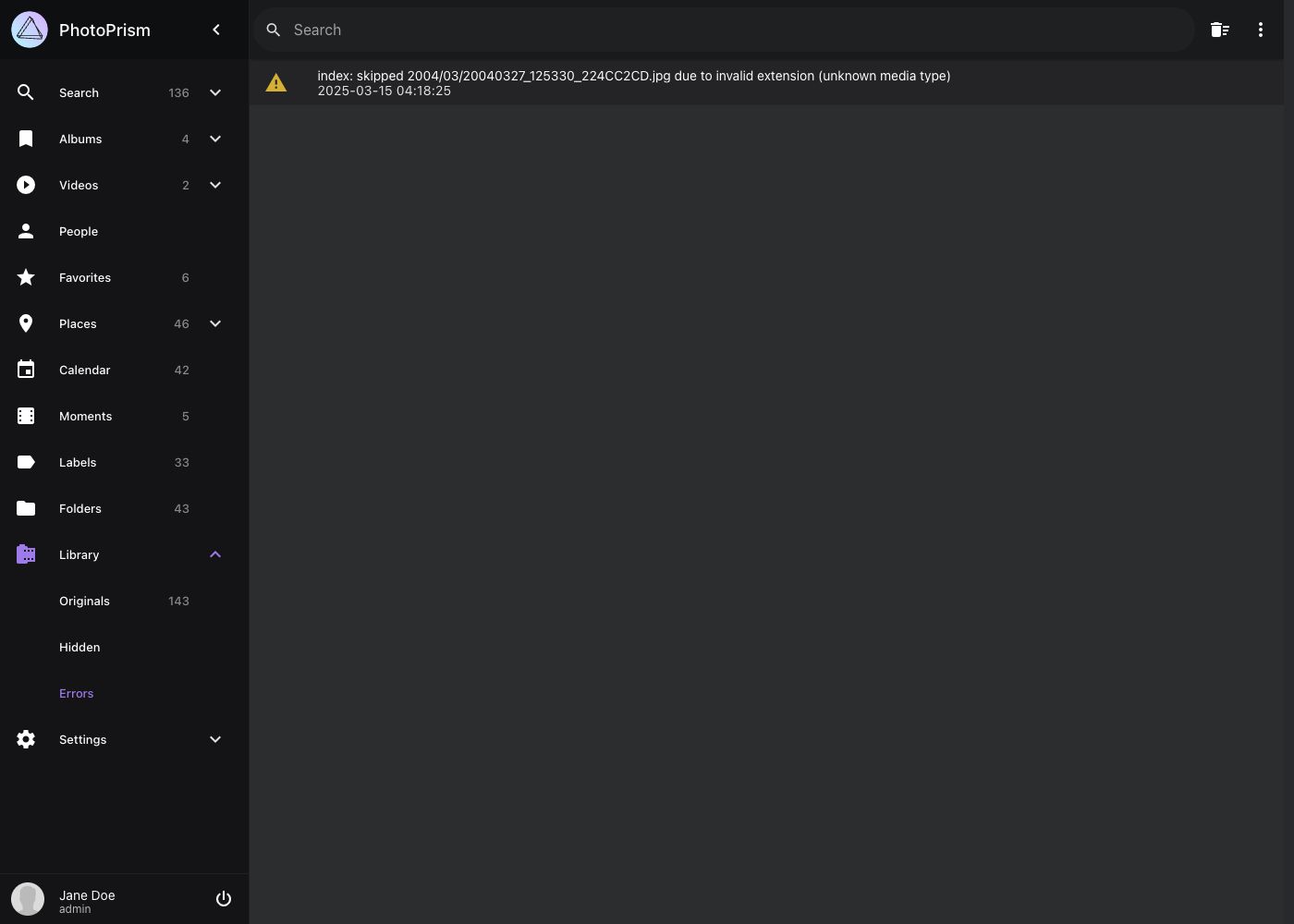
=== "Browser"
If you [have a frontend issue](https://docs.photoprism.app/getting-started/troubleshooting/browsers/), it is often helpful to check the browser console for errors and warnings.
A console is available in all modern browsers and can be activated via keyboard shortcuts or the browser menu.
Problems with the user interface can be caused by a bug or an [incompatible browser](https://docs.photoprism.app/getting-started/troubleshooting/browsers/#try-another-browser):
Some [features may not be supported](https://caniuse.com/) by non-standard browsers, as well as nightly, unofficial,
or outdated versions.
*In case you don't see any log messages, try reloading the page, as the problem may occur while the page is loading.*
**Chrome, Chromium, and Edge**
- press ⌘+Option+J (Mac) or Ctrl+Shift+J (Windows, Linux, Chrome OS) to go directly to the Developer Tools
- or, navigate to *More tools* > *Developer tools* in the browser menu and open the *Console* tab
**Firefox**
- press ⌘+Option+K (Mac) or Ctrl+Shift+K (Windows) to go directly to the Firefox Web Console panel
- or, navigate to *Web Development* > *Web Console* in the menu and open the *Console* panel
**Safari**
Before you can access the console in Safari on MacOS, you first need to enable the *Develop* menu:
1. Choose Safari *Menu* > *Preferences* and select the *Advanced Tab*
2. Select "Show Develop menu in menu bar"
Once the *Develop* menu is enabled:
- press Option+⌘+C to go directly to the *Javascript Console*
- or, navigate to *Develop* > *Show Javascript Console* in the browser menu
**Mobile Safari**
Browser logs on Apple mobile devices running iOS or iPadOS can be viewed when you connect them to a Mac.
Before you can connect your device to a Mac, you must allow your device to be inspected:
1. Open the Settings app
2. Go to Safari
3. Scroll down to Advanced
4. Enable the Web Inspector toggle
If you now connect the device to your Mac with a cable, websites opened in Safari on iOS and iPadOS will appear in a submenu for the connected device in the Develop menu of the Safari desktop browser.
Note that when prompted, you may need to confirm that you trust the Mac you are connecting your device to.
Web pages (and other content) are separated by app, making it easier for you to find the web page you are looking for.
Once you have found and selected the site you want to inspect, a Web Inspector window will open.
See [Apple's Developer Guide](https://developer.apple.com/documentation/safari-developer-tools/inspecting-ios) for additional help and information.
=== "Docker Logs"
You can run this command to watch the Docker service logs, including the last 100 messages (omit `--tail=100` to see them all, and `-f` to output only the last logs without watching them):
```bash
docker compose logs -f --tail=100
```
A good way to troubleshoot configuration issues is to increase the log level. To enable [trace log mode](https://docs.photoprism.app/getting-started/config-options/), set `PHOTOPRISM_LOG_LEVEL` to `"trace"` in the `environment:` section of the `photoprism` service (or use the `--trace` flag when running the `photoprism` command directly):
```yaml
services:
photoprism:
environment:
PHOTOPRISM_LOG_LEVEL: "trace"
...
```
Now [restart all services](https://docs.photoprism.app/getting-started/docker-compose/#step-2-start-the-server) for your changes to take effect:
```bash
docker compose stop
docker compose up -d
```
It can also be helpful to keep Docker running in the foreground while debugging, so that log messages are displayed directly. To do this, omit the `-d` parameter when (re)starting:
```bash
docker compose stop
docker compose up
```
!!! note ""
If you see no errors or no logs at all, you may have started the server on a different host
and/or port. There could also be an [issue with your browser](https://docs.photoprism.app/getting-started/troubleshooting/browsers/), browser plugins, firewall settings,
or other tools you may have installed.
!!! tldr ""
The default [Docker Compose](https://docs.docker.com/compose/) config filename is `compose.yaml`. For simplicity, it doesn't need to be specified when running `docker compose` in the same directory. Config files for other apps or instances should be placed in separate folders.
!!! info ""
**We kindly ask you not to report bugs via *GitHub Issues* unless you are certain to have found a fully reproducible and previously unreported issue that must be fixed directly in the app.**
[Ask for technical support](https://docs.photoprism.app/user-guide/#getting-support) if you need help, it could be a local
configuration problem, or a misunderstanding in how the software works.
---
# Docker
Source: https://docs.photoprism.app/getting-started/troubleshooting/docker/
# Getting Docker Up and Running
!!! info ""
You are welcome to ask for help in our [community chat](https://link.photoprism.app/chat).
[Sponsors](https://www.photoprism.app/membership/) receive direct [technical support](https://www.photoprism.app/contact/) via email.
Before [submitting a support request](https://docs.photoprism.app/user-guide/#getting-support), try to [determine the cause of your problem](https://docs.photoprism.app/getting-started/troubleshooting/).
## Installation
If you cannot use the `docker` and `docker compose` commands, make sure [Docker](https://docs.docker.com/engine/daemon/start/) is running on the host you are connected to and your current user has permission to use it.
The following instructions explain how to install Docker:
- [Ubuntu](https://docs.docker.com/engine/install/ubuntu/), [Mint](https://techviewleo.com/how-to-install-and-use-docker-in-linux-mint/), [Debian](https://www.linode.com/docs/guides/installing-and-using-docker-on-ubuntu-and-debian/), and [Arch Linux](https://wiki.archlinux.org/title/docker#Installation)
- [Microsoft Windows](https://docs.docker.com/desktop/setup/install/windows-install/)
- [Apple macOS](https://hub.docker.com/editions/community/docker-ce-desktop-mac)
Alternatively, [Podman](https://docs.photoprism.app/getting-started/troubleshooting/docker/#podman-compose) is supported as a drop-in replacement for Docker on Red Hat-compatible Linux distributions like RHEL, CentOS, Fedora, AlmaLinux, and Rocky Linux.
### Ubuntu Linux
If you are using Ubuntu Linux, you can run this script to install the latest *Docker* version, including the *Compose Plugin*, on your server in one step:
```bash
bash <(curl -s https://setup.photoprism.app/ubuntu/install-docker.sh)
```
### Docker Compose
Our examples require [Docker Compose v2](https://docs.docker.com/compose/) (the `docker compose` plugin). The standalone `docker-compose` v1 command was [retired by Docker in mid-2023](https://docs.docker.com/compose/migrate/) and is no longer supported.
On some Linux distributions, you may need to install the plugin separately. Use a graphical software package manager or run the following command in a terminal to install the *Compose Plugin* for *Docker* on Ubuntu and Debian:
```bash
sudo apt update
sudo apt install docker-compose-plugin
```
If you have older scripts that still call `docker-compose`, you can add a shell alias for the Compose Plugin so they keep working:
```bash
echo 'docker compose "$@"' | sudo tee /bin/docker-compose
sudo chmod +x /bin/docker-compose
```
!!! note ""
With the latest version of [Docker Compose](https://docs.docker.com/compose/), the [default config file name](https://docs.docker.com/compose/intro/compose-application-model/#the-compose-file) is `compose.yaml`, although the `docker compose` command still supports legacy `docker-compose.yml` files for backward compatibility.
### Podman Compose
On Red Hat-compatible Linux distributions like RHEL, CentOS, Fedora, AlmaLinux, and Rocky Linux, you can use [Podman](https://podman.io/) and [Podman Compose](https://docs.podman.io/en/latest/markdown/podman-compose.1.html) as direct replacements for Docker and Docker Compose. The following installs the `podman` and `podman-compose` commands if they are not already installed:
```bash
sudo dnf update -y
sudo dnf install epel-release -y
sudo dnf install netavark aardvark-dns podman podman-docker podman-compose -y
sudo systemctl start podman
sudo systemctl enable podman
podman --version
```
We also provide a setup script that conveniently installs Podman and downloads the default configuration to a directory of your choice:
```bash
mkdir -p /opt/photoprism
cd /opt/photoprism
curl -sSf https://dl.photoprism.app/podman/install.sh | bash
```
!!! note ""
Please keep in mind to replace the `docker` and `docker compose` commands with `podman` and `podman-compose` when following the examples in our documentation.
## Using Docker
### Cannot Connect
If you see the error message "Cannot connect to the Docker daemon", it means that Docker is not installed or
not running yet. Before you try anything else, it may help to simply restart your computer.
On many Linux distributions, this command will start the Docker daemon manually if needed:
```bash
sudo systemctl start docker.service
```
On other operating systems, start *Docker Desktop* and enable the "Start Docker Desktop when you log in"
option in its settings.
### Connection Aborted
If you see the error message "Connection aborted" or "Connection denied", it usually means that your
current user does not have permission to use Docker.
On Linux, this command grants permission by adding a user to the `docker` group (relogin for changes to take effect):
```bash
sudo usermod -aG docker [username]
```
Alternatively, you can prefix the `docker` and `docker compose` commands with `sudo` when not running as root,
for example:
```bash
sudo docker compose stop
sudo docker compose up -d
```
Note that this will point the home directory shortcut `~` to `/root` in the `volumes:` section
of your `compose.yaml` or `docker-compose.yml`.
### S6 Overlay Error
A container startup error similar to the following indicates that you are [using a custom service configuration](https://github.com/photoprism/photoprism/discussions/4819) that is incompatible with our [Docker images](https://docs.photoprism.app/getting-started/docker-compose/):
```
/package/admin/s6-overlay/libexec/preinit:
fatal: /run belongs to uid 0 instead of 100
and we're lacking the privileges to fix it.
```
In particular, this can happen if you have specified an *unsupported* user or group ID through the optional [`user`](https://docs.docker.com/reference/compose-file/services/#user) property in your [`compose.yaml`](https://dl.photoprism.app/docker/compose.yaml) file to run the service, and at the same time added [`no-new-privileges`](https://github.com/just-containers/s6-overlay/issues/552#issuecomment-2339563938) to the [`security_opt`](https://docs.docker.com/reference/compose-file/services/#security_opt) section.
The supported ID ranges for running our container images are as follows:
- UID: 0, 33, 50-99, 500-600, 900-1250, and 2000-2100
- GID: 0, 33, 44, 50-99, 105, 109, 115, 116, 500-600, 900-1250, and 2000-2100
Please also check if you have specified *both* a [`user`](https://docs.docker.com/reference/compose-file/services/#user) service property and the corresponding [`environment`](https://docs.docker.com/reference/compose-file/services/#environment) variables to [set the user and/or group ID](https://docs.photoprism.app/getting-started/config-options/#docker-image) under which the "photoprism" service should run, as this is neither required nor recommended:
```yaml
services:
photoprism:
user: "1000:1000"
environment:
PHOTOPRISM_UID: 1000
PHOTOPRISM_GID: 1000
```
If you need *maximum security* and do *not* want to perform [any additional startup actions](https://docs.photoprism.app/getting-started/advanced/transcoding/#intel-quick-sync) that require root privileges, you can alternatively set the entrypoint and command for the "photoprism" service as follows:
```yaml
services:
photoprism:
restart: unless-stopped
entrypoint: ["/opt/photoprism/bin/photoprism"]
command: ["start"]
```
The default entrypoint script can install [additional distribution packages](https://docs.photoprism.app/getting-started/advanced/transcoding/#intel-quick-sync), [fix file system permissions](https://docs.photoprism.app/getting-started/troubleshooting/docker/#file-permissions), and/or [change the UID/GID](https://docs.photoprism.app/getting-started/config-options/#docker-image) for the "photoprism" service, as some NAS devices, for example, do not support this from their user interface. So, bypassing it as shown above will disable this functionality and is *only recommended for advanced users* who are familiar with running container services.
[Learn more ›](https://docs.photoprism.app/getting-started/config-options/#docker-image)
!!! abstract ""
If you are experiencing a similar problem with a custom configuration that we did not provide or recommend, please try changing it to see if that helps before [asking our team](https://www.photoprism.app/kb/getting-support/) or [community members](https://github.com/photoprism/photoprism/discussions) for support. 🛟
### IPTables Firewall
On Linux, Docker manipulates the `iptables` rules to provide network isolation. This does have some implications for what you need to do if you want to have your own policies in addition to the rules Docker manages.
[Learn more ›](https://docs.docker.com/engine/network/packet-filtering-firewalls/)
### Wrong MTU Size
If you use Docker on your server or on a virtual machine, technical limitations of the local network or your internet provider can sometimes make it impossible to [reach external services](https://docs.photoprism.app/getting-started/troubleshooting/firewall/#outgoing-connections) such as the [Reverse Geocoding API](https://www.photoprism.app/privacy/#section-7) that we operate for our users. In particular, the *network cards of virtual machines* often do not have the standard [Maximum Transmission Unit (MTU)](https://en.wikipedia.org/wiki/Maximum_transmission_unit) of 1500, but a smaller size like 1492 or 1454.
In this case, you must [configure the virtual network cards](https://mlohr.com/docker-mtu/) of your Docker containers so that they have an MTU size that is less than or equal to that of the outgoing network, for example by [adding the following](https://www.civo.com/learn/fixing-networking-for-docker) to your `compose.yaml` (or `docker-compose.yml`) config files:
```yaml
networks:
default:
driver: bridge
driver_opts:
com.docker.network.driver.mtu: 1450
```
[Learn more ›](https://mlohr.com/docker-mtu/)
!!! note ""
All network configuration changes require a restart of the affected services and/or the Docker daemon to take effect.
## Viewing Logs
You can run this command to watch the Docker [service logs](https://docs.docker.com/engine/logging/configure/), including the last 100 messages (omit `--tail=100` to see them all, and `-f` to output only the last logs without watching them):
```bash
docker compose logs -f --tail=100
```
A good way to troubleshoot configuration issues is to increase the log level. To enable [trace log mode](https://docs.photoprism.app/getting-started/config-options/), set `PHOTOPRISM_LOG_LEVEL` to `"trace"` in the `environment:` section of the `photoprism` service (or use the `--trace` flag when running the `photoprism` command directly):
```yaml
services:
photoprism:
environment:
PHOTOPRISM_LOG_LEVEL: "trace"
...
```
Now [restart all services](https://docs.photoprism.app/getting-started/docker-compose/#step-2-start-the-server) for your changes to take effect:
```bash
docker compose stop
docker compose up -d
```
It can also be helpful to keep Docker running in the foreground while debugging, so that log messages are displayed directly. To do this, omit the `-d` parameter when (re)starting:
```bash
docker compose stop
docker compose up
```
!!! note ""
If you see no errors or no logs at all, you may have started the server on a different host
and/or port. There could also be an [issue with your browser](https://docs.photoprism.app/getting-started/troubleshooting/browsers/), browser plugins, firewall settings,
or other tools you may have installed.
!!! tldr ""
The default [Docker Compose](https://docs.docker.com/compose/) config filename is `compose.yaml`. For simplicity, it doesn't need to be specified when running `docker compose` in the same directory. Config files for other apps or instances should be placed in separate folders.
### Log Rotation
By default, Docker [stores container logs](https://docs.docker.com/engine/logging/configure/) on the host using the [`json-file`](https://docs.docker.com/engine/logging/drivers/json-file/) logging driver.[^1] If log rotation is not configured, these files can grow indefinitely and eventually fill up disk space.
To avoid this, you can either configure log rotation **per service** in your `compose.yaml`:
```yaml
services:
app:
logging:
driver: json-file
options:
max-size: "10m"
max-file: "3"
```
Alternatively, you can configure logging **globally** for all containers by setting defaults in Docker's `daemon.json` (so you don't need to repeat this for every service):
```json
{
"log-driver": "json-file",
"log-opts": {
"max-size": "10m",
"max-file": "3"
}
}
```
After changing the Docker daemon configuration, restart Docker and recreate existing containers so the new defaults are applied.
!!! note ""
Docker also provides the `local` logging driver, which is optimized for local storage and performs log rotation by default. If you don't depend on `json-file` specifically, using `local` as the global default can be a good choice.
## Adding Swap
*Note that indexing RAW images and high-resolution panoramas may require additional swap space and/or [physical memory](https://docs.photoprism.app/getting-started/troubleshooting/performance/#memory) above the [recommended minimum](https://docs.photoprism.app/getting-started/#system-requirements). We recommend [not to set a hard memory limit](https://docs.photoprism.app/getting-started/faq/#why-is-my-configured-memory-limit-exceeded-when-indexing-even-though-photoprism-doesnt-actually-seem-to-use-that-much-memory), unless you are familiar with memory management and understand the implications.*
### Linux
Open a terminal and run this command to check if your server has swap configured.
```bash
swapon --show
```
Example output:
```
NAME TYPE SIZE USED PRIO
/swapfile file 64G 88M -2
```
This means you have 64 GB of swap and don't need to add more. [Learn how much you need.](https://opensource.com/article/18/9/swap-space-linux-systems)
Otherwise, run these commands to permanently add 4 GB of swap (or more depending on how much physical memory you have):
```bash
sudo -i
fallocate -l 4G /swapfile
chmod 600 /swapfile
mkswap /swapfile
swapon /swapfile
echo '/swapfile none swap sw 0 0' | tee -a /etc/fstab
```
!!! note ""
You can skip `sudo -i` if you are already logged in as root.
### Raspbian
Open a terminal on your [Raspberry Pi](https://docs.photoprism.app/getting-started/raspberry-pi/) and run the following command to verify if it has swap configured:
```bash
swapon --show
```
Example output:
```
NAME TYPE SIZE USED PRIO
/swapfile file 100M 0B -2
```
If no swap has been configured or the command only shows 100 MB, open `/etc/dphys-swapfile` with a text editor, search for `CONF_SWAPSIZE=100` and increase the value to `2048` if your device has 4 GB of physical memory, and `4096` otherwise:
```bash
sudo nano /etc/dphys-swapfile
```
Then restart for the changes to take effect:
```bash
sudo reboot
```
In addition, you can reduce memory usage and improve stability by setting `PHOTOPRISM_WORKERS` to `1` in your `compose.yaml` or `docker-compose.yml` file to limit the number of indexing workers.
### Windows
It is important to [increase the Docker memory limit](https://docs.photoprism.app/getting-started/img/docker-resources-advanced.jpg) to 4 GB or more when using *Hyper-V*. The default of 2 GB can reduce indexing performance and cause unexpected restarts. Also make sure you configure at least 4 GB of swap space. [Docker Desktop](https://docs.docker.com/desktop/setup/install/windows-install/) uses dynamic memory allocation with *WSL 2*, meaning you do not need to change any memory-related settings (depending on which version of Windows and Docker you are using).
### macOS
It is important to [increase the Docker memory limit](https://docs.photoprism.app/getting-started/img/docker-resources-advanced.jpg) to 4 GB or more, as the
default of 2 GB can reduce indexing performance and cause unexpected restarts. Also, ensure that you configure
at least 4 GB of swap space.
## Kernel Security
We recommend disabling Linux kernel security modules like *SELinux* (Red Hat/Fedora) on private servers, especially if you have no experience configuring them.
If you have working configuration rules for a particular Linux distribution, feel free to share the instructions with the community so that less experienced users can harden their installation without running into problems.
## File Permissions
Errors such as "read-only file system", "error creating path", "failed to create folder", "permission denied", or "wrong permissions" indicate a filesystem permission problem:
- [ ] Use a file manager, or the commands `ls -alh`, `chmod`, and `chown` on Unix-like operating systems, to [check and change filesystem permissions](https://kb.iu.edu/d/abdb) so all files and folders are accessible
- [ ] The app and database *storage* folders must be writable as well: Verify that the services have write permissions and that you have **not** mounted the folders read-only on your host or [via Docker using the `:ro` flag](https://docs.docker.com/reference/compose-file/services/#volumes)
- [ ] If you have configured specific user and group IDs for a service, make sure they match
- [ ] If [symbolic links](https://en.wikipedia.org/wiki/Symbolic_link) are mounted or used within *storage* folders, replace them with actual paths
- [ ] It may help to [add the `:z` mount flag to volumes](https://docs.docker.com/engine/storage/bind-mounts/#configure-the-selinux-label) when using *SELinux* (Red Hat/Fedora)
- [ ] When mounting folders that only root has access to, you may have to prefix the `docker` and `docker compose` commands with `sudo` on Linux if you are not already logged in as root
An easy way to test for missing permissions is to (temporarily) remove restrictions and make the entire folder accessible to everyone:
```bash
sudo chmod -R a+rwX [folder]
```
*Start a full rescan once all issues have been resolved, especially if it looks like [thumbnails](https://docs.photoprism.app/getting-started/troubleshooting/#broken-thumbnails) or [pictures are missing](https://docs.photoprism.app/getting-started/troubleshooting/#missing-pictures).*
!!! danger ""
**Be very careful when changing permissions in shared hosting environments.** If you are using PhotoPrism on corporate
or university servers, we recommend that you ask your IT help desk for advice.
## Overlay Volumes
Depending on overlay file system support, it is possible to mount additional host folders as sub folders of `/photoprism/originals` (or other storage folders), for example:
```yaml
volumes:
- "/home/username/Pictures:/photoprism/originals"
- "/example/friends:/photoprism/originals/friends"
- "/mnt/photos:/photoprism/originals/media"
```
For this to work, you should have the `cgroupfs-mount` package installed, as shown in the [installation script we provide](https://github.com/photoprism/photoprism/blob/develop/scripts/dist/install-docker.sh).
You may otherwise find that files added to the mounted folders are not visible on the host, and data loss may occur.
!!! note ""
We recommend that you start with a simple configuration without overlay volume mounts or path placeholders like `~`, and only move on to a more complex setup once this works.
## Disk Space
In case the logs show "disk full", "quota exceeded", or "no space left" errors, either the disk containing the
*storage* folder is full (get a new one or use a different disk) or a disk usage limit is configured, for example
in the Docker, Kubernetes, or Virtual Machine configuration (remove or increase it):
- on Linux and other Unix-like operating systems, the [available disk space](https://opensource.com/article/18/7/how-check-free-disk-space-linux) can be viewed by running `df -h` in a terminal
- if you are using *Kubernetes*, *Docker Desktop*, *Hyper-V*, or a Virtual Machine, they have their own settings to adjust the size of [storage](https://docs.photoprism.app/getting-started/docker-compose/#volumes), [RAM](https://docs.photoprism.app/getting-started/#system-requirements), and [swap](https://docs.photoprism.app/getting-started/troubleshooting/docker/#adding-swap)
- for details, refer to the corresponding documentation
*Start a full rescan if necessary, for example, if it looks like [thumbnails](https://docs.photoprism.app/getting-started/troubleshooting/#broken-thumbnails) or [pictures are missing](https://docs.photoprism.app/getting-started/troubleshooting/#missing-pictures).*
## Network Storage
Shared folders that have already been mounted on your host under a drive letter or path can be used with Docker containers like [any other directory](https://docs.photoprism.app/getting-started/docker-compose/#volumes). As shown below, certain types of network storage can alternatively be *mounted directly* with [Docker Compose](https://docs.docker.com/reference/compose-file/volumes/#driver_opts).
Please note that the required system dependencies must be installed on your computer in order to mount NFS (Unix/Linux) and/or CIFS shares (Windows/Mac), e.g. the `nfs-client` and `cifs-utils` packages on [Ubuntu Linux](https://wiki.ubuntu.com/MountWindowsSharesPermanently#CIFS_installation). Also make sure that your Docker version and operating system are up-to-date, and that the latest Subsystem for Linux (WSL) is installed if you have a Windows PC.
!!! tldr ""
Never store database files, e.g. used by MariaDB or SQLite, on an unreliable device like a USB stick, SD card or network drive as this leads to poor performance and can also result in data loss.
### Unix / NFS
Follow this `compose.yaml` example to mount Network File System (NFS) shares e.g. from Unix servers or NAS devices:
```yaml
services:
photoprism:
# ...
volumes:
# Map named volume "originals"
# to "/photoprism/originals":
- "originals:/photoprism/originals"
mariadb:
# ...
# Specify named volumes:
volumes:
originals:
driver_opts:
type: nfs
# Authentication and other mounting options:
o: "addr=1.2.3.4,username=user,password=secret,soft,rw,nfsvers=4.1"
# Mount this path:
device: ":/mnt/example"
```
`device` should contain the path to the share on the NFS server, note the `:` at the beginning. In the above example, the share can be mounted as the named volume `originals`. You can also choose another name as long as it is consistent.
Driver-specific options can be set after the server address in `o`, see the [nfs manual page](https://man7.org/linux/man-pages/man5/nfs.5.html). Here are some examples of commonly used options:
- `nfsvers=3`, `nfsvers=4`, or `nfsvers=4.1` to specify the NFS version
- `nolock` (optional): Remote applications on the NFS server are not affected by lock files inside the Docker container (only other processes inside the container are affected by locks)
- `timeo=n` (optional, default 600): The NFS client waits `n` tenths of a second before retrying an NFS request
- `soft` (optional): The NFS client aborts an NFS request after `retrans=n` unsuccessful retries, otherwise it retries indefinitely
- `retrans=n` (optional, default 2): Sets the number of retries for NFS requests, only relevant when using `soft`
When you are done, please [restart all services](https://docs.photoprism.app/getting-started/docker-compose/#step-2-start-the-server) for the changes to take effect.
!!! note ""
Because some operating environments and file systems do not enforce character set encodings, [NFS v4.1](https://www.rfc-editor.org/rfc/rfc5661#section-14.4) supports the `fs_charset_cap` attribute, which indicates the UTF-8 capabilities to the client.
### SMB / CIFS
Follow this `compose.yaml` example to mount [CIFS network shares](https://en.wikipedia.org/wiki/Server_Message_Block), e.g. **from Windows**, NAS devices or Linux servers with [Samba](https://www.samba.org/):
```yaml
services:
photoprism:
# ...
volumes:
# Map named volume "originals"
# to "/photoprism/originals":
- "originals:/photoprism/originals"
mariadb:
# ...
# Specify named volumes:
volumes:
originals:
driver_opts:
type: cifs
o: "iocharset=utf8,username=user,password=secret,rw"
device: "//host/folder"
```
Then [restart all services](https://docs.photoprism.app/getting-started/docker-compose/#step-2-start-the-server) for the changes to take effect. Note that related values must start at the same indentation level [in YAML](https://docs.photoprism.app/developer-guide/technologies/yaml/) and that **tabs are not allowed for indentation**. We recommend using 2 spaces, but any number will do as long as it is consistent.
!!! info ""
**We kindly ask you not to report bugs via *GitHub Issues* unless you are certain to have found a fully reproducible and previously unreported issue that must be fixed directly in the app.**
[Ask for technical support](https://docs.photoprism.app/user-guide/#getting-support) if you need help, it could be a local
configuration problem, or a misunderstanding in how the software works.
*[home directory]: \user\username on Windows, /Users/username on macOS, and /root or /home/username on Linux
*[host]: Computer, Cloud Server, or VM that runs PhotoPrism
*[swap]: substitute for physical memory
*[read-only]: write protected
*[filesystem]: contains your files and folders
*[RHEL]: Red Hat Enterprise Linux®
*[MTU]: Maximum Transmission Unit
[^1]: When using Docker's [default `json-file` logging driver](https://docs.docker.com/engine/logging/drivers/json-file/) on Linux, logs are typically stored at `/containers//-json.log` (usually `/var/lib/docker/containers/...` unless the Docker data root was changed).
---
# MariaDB
Source: https://docs.photoprism.app/getting-started/troubleshooting/mariadb/
# Troubleshooting MariaDB Problems
!!! info ""
You are welcome to ask for help in our [community chat](https://link.photoprism.app/chat).
[Sponsors](https://www.photoprism.app/membership/) receive direct [technical support](https://www.photoprism.app/contact/) via email.
Before [submitting a support request](https://docs.photoprism.app/user-guide/#getting-support), try to [determine the cause of your problem](https://docs.photoprism.app/getting-started/troubleshooting/).
## Compatibility
PhotoPrism is compatible with [SQLite 3](https://docs.photoprism.app/getting-started/troubleshooting/sqlite/) and [MariaDB 10.5.12+](https://mariadb.org/).
Official support for MySQL 8 is discontinued as Oracle seems to have stopped shipping [new features and enhancements](https://github.com/photoprism/photoprism/issues/1764).
As a result, the testing effort required before each release is no longer feasible.
Our [configuration examples](https://dl.photoprism.app/docker/) are generally based on the [current stable version](https://mariadb.com/docs/release-notes/community-server) to take advantage of performance improvements. This does not mean that [older versions](https://docs.photoprism.app/getting-started/#databases) are no longer supported and you must upgrade immediately.
We recommend using a version or subversion tag, such as `:11` or [`:11.8`](https://mariadb.org/11-8-lts-released/), instead of `:latest`, to specify the MariaDB service image in your `compose.yaml` file, as shown in this example:
```yaml
services:
mariadb:
image: mariadb:12.3
...
```
You can then manually upgrade to [new major versions](https://mariadb.com/docs/release-notes/community-server) by changing the image tag, e.g. from `mariadb:12` to `mariadb:13`, once [they are stable](https://mariadb.org/about/#maintenance-policy) and we had time to test them.
However, this requires periodically [checking for new MariaDB images](https://hub.docker.com/_/mariadb) and adjusting your `compose.yaml` file accordingly, so you don't get stuck with an outdated version.
## Cannot Connect
First, verify that you are using the correct port (default is `3306`) and host:
- in the internal Docker network, the default hostname is `mariadb` (same as the [service](https://dl.photoprism.app/docker/compose.yaml))
- avoid changing the default network configuration, unless you are experienced with this
- avoid using IP addresses other than `127.0.0.1` (localhost) directly, as [they can change](https://github.com/photoprism/photoprism/discussions/2791#discussioncomment-3985376)
- only use `localhost` or `127.0.0.1` if the database port [has been exposed](https://docs.docker.com/reference/compose-file/services/#ports) as described below and you are on the same computer (host)
- we recommend [configuring a local hostname](https://dl.photoprism.app/img/docs/pihole-local-dns.png) to access other hosts on your network
To connect to MariaDB from your host or home network, you need to expose port `3306` in your `compose.yaml` or `docker-compose.yml`
and [restart the service for changes to take effect](https://docs.photoprism.app/getting-started/docker-compose/#step-2-start-the-server):
```yaml
services:
mariadb:
ports:
- "3306:3306"
```
!!! danger ""
Set strong passwords if the database is exposed to an external network. Never expose your database to the public
Internet in this way, for example, if it is running on a cloud server.
If this doesn't help, check the [Docker Logs](https://docs.photoprism.app/getting-started/troubleshooting/docker/#viewing-logs) for messages like *disk full*, *disk quota exceeded*, *no space left on device*, *read-only file system*, *error creating path*, *wrong permissions*, *no route to host*, *connection failed*, *exec format error*, *no matching manifest*, and *killed*:
- [ ] Make sure that the database *storage* folder is readable and writable: Errors such as "read-only file system", "error creating path", "failed to create folder", "permission denied", or "wrong permissions" indicate a [filesystem permission problem](https://docs.photoprism.app/getting-started/troubleshooting/docker/#file-permissions)
- [ ] If [symbolic links](https://en.wikipedia.org/wiki/Symbolic_link) are mounted or used within the *storage* folder, replace them with the actual paths and verify that they are accessible
- [ ] If the MariaDB service has been "killed" or otherwise automatically terminated, this can point to a [memory problem](https://docs.photoprism.app/getting-started/troubleshooting/docker/#adding-swap) (add swap and/or memory; remove or increase usage limits)
- [ ] In case the logs also show "disk full", "quota exceeded", or "no space left" errors, either [the disk containing the *storage* folder is full](https://docs.photoprism.app/getting-started/troubleshooting/docker/#disk-space) (add storage) or a disk usage limit is configured (remove or increase it)
- [ ] Log messages that contain "no route to host" may also indicate a general network configuration problem (follow our [examples](https://dl.photoprism.app/docker/))
- [ ] You have to resort to [alternative Docker images](https://docs.photoprism.app/getting-started/raspberry-pi/#older-armv7-based-devices) to run MariaDB on ARMv7-based devices and those with a 32-bit operating system
- [ ] You may find a solution in the official [MariaDB Docker Image FAQ](https://mariadb.com/kb/en/docker-official-image-frequently-asked-questions/)
## Custom DSN
You may encounter errors similar to this when starting your instance or restoring a backup if you have manually configured a MariaDB [Data Source Name (DSN)](https://pkg.go.dev/github.com/go-sql-driver/mysql#readme-dsn-data-source-name), without [adding the necessary parameters](https://pkg.go.dev/github.com/go-sql-driver/mysql#readme-parameters) such as `parseTime=true` to the [`PHOTOPRISM_DATABASE_DSN`](https://docs.photoprism.app/getting-started/config-options/#database-connection) environment variable or the `--database-dsn` command flag:
```
sql: Scan error on column index 5 unsupported Scan,
storing driver.Value type []uint8 into type *time.Time
```
To avoid this issue, we recommend using the [following configuration options](https://docs.photoprism.app/getting-started/config-options/#database-connection) to specify the MariaDB database name, server, user, and password:
- `PHOTOPRISM_DATABASE_NAME`
- `PHOTOPRISM_DATABASE_SERVER`
- `PHOTOPRISM_DATABASE_USER`
- `PHOTOPRISM_DATABASE_PASSWORD`
This will automatically generate a compatible [Data Source Name (DSN)](https://pkg.go.dev/github.com/go-sql-driver/mysql#readme-dsn-data-source-name) for connecting to your MariaDB database server.
Since the [connection parameters](https://github.com/photoprism/photoprism/blob/develop/internal/config/config_db.go) may change in future versions, manually setting the DSN is not recommended unless it is for testing purposes or to [meet specific requirements](https://github.com/photoprism/photoprism/issues/4998#issuecomment-2884506182). If you need to set it manually, the [following parameters](https://pkg.go.dev/github.com/go-sql-driver/mysql#readme-parameters) should be included at the end:
```
?charset=utf8mb4,utf8&collation=utf8mb4_unicode_ci&parseTime=true&timeout=60s
```
Note that it is not possible to set a custom DSN for MariaDB when a database server is configured at the same time, as the database server setting takes precedence.
When [using SQLite](https://docs.photoprism.app/getting-started/troubleshooting/sqlite/), the DSN configuration option allows you to specify the database filename and custom parameters. [Learn more ›](https://docs.photoprism.app/getting-started/troubleshooting/sqlite/#custom-dsn)
## Unicode Support
Verify the following if your logs show `incorrect string value` database errors or if you are experiencing Emoji encoding issues (for example in album, file, or folder names):
- [ ] Full [Unicode support is enabled](https://mariadb.com/docs/server/reference/data-types/string-data-types/character-sets/setting-character-sets-and-collations#example-changing-the-default-character-set-to-utf-8) in MariaDB, for example by using the command flags `--character-set-server=utf8mb4` and `--collation-server=utf8mb4_unicode_ci`, as shown in our [`compose.yaml` examples](https://dl.photoprism.app/docker/compose.yaml)
- [ ] If [a DSN is used](https://docs.photoprism.app/getting-started/troubleshooting/mariadb/#custom-dsn) to configure the database connection, it includes all [required parameters](https://docs.photoprism.app/getting-started/troubleshooting/mariadb/#custom-dsn)
- [ ] [Open a terminal session](https://docs.photoprism.app/getting-started/docker-compose/#opening-a-terminal) to check whether Unicode or Emoji issues could be caused by the filesystem (for example, run `locale`, `mount`, and `ls -b` in the affected directories)
Existing databases may still use a different character set or collation, especially if they were imported from another server or created before Unicode support was configured correctly. To check the current character set and collation settings, run the following command in a terminal (adjust the root password `insecure` and database name `photoprism` to match your `compose.yaml` or `docker-compose.yml`):
```bash
echo "SHOW VARIABLES WHERE Variable_name LIKE 'character\_set\_%' OR Variable_name LIKE 'collation%';" | \
docker compose exec -T mariadb mariadb -uroot -pinsecure photoprism
```
Before [submitting a support request](https://www.photoprism.app/kb/getting-support/), confirm that the problem also occurs with a **newly created** database based on our [example configuration](https://dl.photoprism.app/docker/compose.yaml):
!!! example "compose.yaml"
```yaml
services:
mariadb:
image: mariadb:12.3
restart: unless-stopped
stop_grace_period: 15s
command: >
--innodb-buffer-pool-size=512M
--transaction-isolation=READ-COMMITTED
--character-set-server=utf8mb4
--collation-server=utf8mb4_unicode_ci
--max-connections=512
--innodb-rollback-on-timeout=OFF
--innodb-lock-wait-timeout=120
volumes:
- "./database:/var/lib/mysql" # DO NOT REMOVE
environment:
MARIADB_AUTO_UPGRADE: "1"
MARIADB_INITDB_SKIP_TZINFO: "1"
MARIADB_DATABASE: "photoprism"
MARIADB_USER: "photoprism"
MARIADB_PASSWORD: "insecure"
MARIADB_ROOT_PASSWORD: "insecure"
```
## Wrong Password
If the password you are using was specified in a `compose.yaml` or `docker-compose.yml` file and contains one or more `$` characters, these [must be escaped with `$$`](https://docs.photoprism.app/developer-guide/technologies/yaml/#dollar-signs) (a double dollar sign) so that, for example, `"compo$e"` becomes `"compo$$e"`:
```yaml
services:
mariadb:
environment:
# sets password to "compo$e"
MARIADB_PASSWORD: "compo$$e"
```
Also note that you **cannot change the database password** with `MARIADB_PASSWORD` after MariaDB has been started for the first time.
In this case, you can either delete the database storage folder and restart the database service or follow the instructions under [Lost Root Password](https://docs.photoprism.app/getting-started/troubleshooting/mariadb/#lost-root-password).
## Bad Performance
Many users reporting poor performance and high CPU usage have migrated from SQLite to MariaDB, so their database schema is no longer optimized for performance. For example, MariaDB cannot handle rows with `text` columns in memory and always uses temporary tables on disk if there are any.
The instructions for these migrations were provided by a contributor and are not part of the original software distribution. As such, they have not been officially released, recommended, or extensively tested by us.
If this is the case, please make sure that your migrated database schema matches that of a [fresh, non-migrated installation](https://docs.photoprism.app/developer-guide/database/). It may help to [run the migrations manually](https://docs.photoprism.app/getting-started/advanced/migrations/) in a terminal using the *migrations* subcommands. However, this does not guarantee that all issues such as missing indexes are resolved.
[Get Performance Tips ›](https://docs.photoprism.app/getting-started/troubleshooting/performance/#mariadb) [View Database Schema ›](https://docs.photoprism.app/developer-guide/database/)
## Version Upgrade
Should MariaDB fail to start after upgrading from an earlier version (or migrating from MySQL), the [internal management schema](https://mariadb.com/kb/en/understanding-mariadb-architecture/#system-databases) may be outdated. With older versions, it could only be updated manually.
However, newer MariaDB Docker images **support automatic upgrades** on startup, so you don't have to worry about that anymore.
!!! danger ""
When upgrading from MariaDB 10.x to [v11.0 or later](https://mariadb.com/docs/release-notes/community-server), you must replace `command: mysqld` with `command: ` (followed by a space and the command flags) in your `compose.yaml` file since the database server may otherwise fail to start.
### Manual Update
To manually upgrade the internal database schema, run this command in a terminal:
```bash
docker compose exec mariadb mariadb-upgrade -uroot -p
```
Enter the MariaDB "root" password specified in your `compose.yaml` or `docker-compose.yml` when prompted.
Alternatively, you can downgrade to the previous version, create a database backup using the `photoprism backup`
command, start a new database instance based on the latest version, and then restore your index with
the `photoprism restore` command.
### Auto Upgrade
To enable automatic schema updates, set `MARIADB_AUTO_UPGRADE` to a non-empty value in your `compose.yaml` or `docker-compose.yml` as shown in our [config example](https://dl.photoprism.app/docker/compose.yaml):
```yaml
services:
mariadb:
image: mariadb:12.3
...
environment:
MARIADB_AUTO_UPGRADE: "1"
MARIADB_INITDB_SKIP_TZINFO: "1"
...
```
Before starting MariaDB in production mode, the database image entrypoint script now runs `mariadb-upgrade` to update the internal management schema as needed. For example, when you pull a new major release and restart the service.
We recommend periodically checking for [new MariaDB images](https://hub.docker.com/_/mariadb) and updating [your `compose.yaml` file](https://docs.photoprism.app/getting-started/docker-compose/#database) as needed so that you don't get stuck with an [outdated](https://mariadb.org/about/#maintenance-policy) version.
[Learn more ›](https://mariadb.org/about/#maintenance-policy)
!!! tldr ""
Since PhotoPrism does not require time zone support, you can also add `MARIADB_INITDB_SKIP_TZINFO` to your config as shown above. However, this is only a recommendation and optional.
## Incompatible Schema
If your database does not seem to be compatible with the currently installed version of PhotoPrism, for example because search results are missing or incorrect, first make sure you are using a [supported database](https://docs.photoprism.app/getting-started/#databases) and that its internal management schema is up-to-date. How to do that is explained in the [previous section](https://docs.photoprism.app/getting-started/troubleshooting/mariadb/#version-upgrade).
Once you have verified that neither is a problem, you can run the following command [in a terminal](https://docs.photoprism.app/getting-started/docker-compose/#command-line-interface) to check the status of previous database schema migrations:
```bash
docker compose exec photoprism photoprism migrations ls
```
!!! note ""
Omit the `docker compose exec photoprism` prefix if you are using an interactive terminal session or are running PhotoPrism directly on your computer without Docker.
### Re-Run Migrations
Should the status of any migration not be OK, you can re-run failed migrations using this command in a terminal:
```bash
docker compose exec photoprism photoprism migrations run -f
```
The `-f` flag instructs the `photoprism migrations run` subcommand to re-run previously failed migrations. Use `--help` to see the command help.
Additional migration command examples can be found in the [Developer Guide](https://docs.photoprism.app/developer-guide/database/migrations/).
### Complete Rescan
We recommend that you **re-index your pictures after a schema migration**, especially if problems persist. You can either start a [rescan from the user interface](https://docs.photoprism.app/user-guide/library/originals/) by navigating to *Library* > *Index*, checking "Complete Rescan", and then clicking "Start", or by running this command in a terminal:
```bash
docker compose exec photoprism photoprism index -f
```
!!! tldr ""
Be careful not to start multiple indexing processes at the same time, as this will lead to a high server load.
## Server Migration
If you want to move your MariaDB database to another server or virtual machine:
- Read the [Creating Backups](https://docs.photoprism.app/user-guide/backups/) chapter in our [User Guide](https://docs.photoprism.app/user-guide/) for general information on [how to back up](https://docs.photoprism.app/user-guide/backups/) and [restore your data](https://docs.photoprism.app/user-guide/backups/restore/)
- We recommend that you [create a full backup](https://docs.photoprism.app/user-guide/backups/) of all files before starting the server migration or making any other major changes
- Ideally, the MariaDB versions of both servers [should match](https://docs.photoprism.app/getting-started/troubleshooting/mariadb/#version-upgrade) and the existing database files should [not be corrupted](https://docs.photoprism.app/getting-started/troubleshooting/mariadb/#corrupted-files), e.g. due to an [unclean shutdown](https://docs.photoprism.app/getting-started/troubleshooting/mariadb/#server-crashes)
- If your servers are not running on the [latest stable release](https://mariadb.org/mariadb/all-releases/), we recommend that you [update both](https://docs.photoprism.app/getting-started/troubleshooting/mariadb/#version-upgrade) for the migration so that they are feature and binary compatible
To create a database backup:
- [ ] In case the MariaDB version and system architecture match, you can shut down your existing PhotoPrism instance and the database server, and then copy the [entire *database* storage folder](https://docs.photoprism.app/user-guide/backups/folders/#database) without changing any file or folder permissions
- [ ] Alternatively, you can use the built-in [`photoprism backup -i -f`](https://docs.photoprism.app/user-guide/backups/#backup-command) [CLI command](https://docs.photoprism.app/getting-started/docker-compose/#opening-a-terminal), or backup the database with a [manually created SQL dump](https://mariadb.com/kb/en/mariadb-dump/) (backup file)
On the new server:
- [ ] If you copied the entire *database* storage folder, start the MariaDB server and make sure PhotoPrism can [access the new database](https://docs.photoprism.app/getting-started/troubleshooting/mariadb/#cannot-connect) by updating its configuration or your network settings if necessary
- [ ] To restore the database from a backup dump ([either manually](https://mariadb.com/kb/en/restoring-data-from-dump-files/) or [using the `photoprism restore -i -f`](https://docs.photoprism.app/user-guide/backups/restore/#restore-command) [CLI command](https://docs.photoprism.app/getting-started/docker-compose/#opening-a-terminal)), the MariaDB server must be running and PhotoPrism must be restarted after the backup has been restored
- [ ] Be sure to [never expose your database](https://docs.photoprism.app/getting-started/troubleshooting/mariadb/#cannot-connect) to the public Internet, and [use strong passwords](https://docs.photoprism.app/getting-started/troubleshooting/mariadb/#wrong-password) if the database is exposed to an external network
## Server Crashes
If the server crashes unexpectedly or your database files get corrupted frequently, it is usually because they are stored on an unreliable device such as a USB flash drive, an SD card, or a shared network folder mounted via NFS or CIFS. These may also have [unexpected file size limitations](https://thegeekpage.com/fix-the-file-size-exceeds-the-limit-allowed-and-cannot-be-saved/), which is especially problematic for databases that do not split data into smaller files.
- [ ] Never use the same database files with more than one server instance
- [ ] To share a database over a network, run the database server directly on the remote server instead of sharing database files
- [ ] To repair your tables after you have moved the files to a local disk, you can [start MariaDB with `--innodb-force-recovery=1`](https://mariadb.com/kb/en/innodb-recovery-modes/) (otherwise the same procedure as for recovering a lost password, see above)
- [ ] Make sure you are using the latest Docker version and read the release notes for the database server version you are using
## Invalid Table Errors
If you are using macOS and see errors like `Invalid (old?) table or database name '._column_stats'`, it may be because you are running MariaDB on a file system like ExFAT that does not support extended attributes. In this case, macOS automatically creates these files and MariaDB then reports them as invalid tables (which is technically correct). To remove extended attribute files, you can run the following in a terminal:
```
find . -type f -name '._*' -delete
```
Unless you open the storage folder again in macOS Finder, the errors should then be gone after restarting the database.
## Corrupted Files
Most database table and/or index corruptions are hardware-related. Corrupted page writes can be caused by power failures or bad memory. The problem can also be caused by using network attached storage (NAS) and placing InnoDB databases on it.
↪ [Server Crashes](https://docs.photoprism.app/getting-started/troubleshooting/mariadb/#server-crashes)
## Lost Root Password
In case you forgot the MariaDB "root" password and the one specified in your configuration does not work, you can [start the server with the `--skip-grant-tables` flag](https://mariadb.com/docs/reference/mdb/cli/mariadbd/skip-grant-tables/) added to the command in your `compose.yaml` or `docker-compose.yml`. This will temporarily give full access to all users after a restart:
```yaml
services:
mariadb:
command: --skip-grant-tables
```
Restart the `mariadb` service for changes to take effect:
```bash
docker compose stop mariadb
docker compose up -d mariadb
```
Now open a database console:
```bash
docker compose exec mariadb mariadb -uroot
```
Enter the following commands to change the password for "root":
```sql
FLUSH PRIVILEGES;
ALTER USER 'root'@'%' IDENTIFIED BY 'new_password';
ALTER USER 'root'@'localhost' IDENTIFIED BY 'new_password';
exit
```
When you are done, remove the `--skip-grant-tables` flag again to restore the original
command and restart the `mariadb` service as described above.
## MySQL Errors
Official [support for MySQL 8 is discontinued](https://docs.photoprism.app/getting-started/#databases) as Oracle seems to have stopped shipping [new features and enhancements](https://github.com/photoprism/photoprism/issues/1764).
As a result, the testing effort required before each release is no longer feasible.
*[SQLite]: self-contained, serverless SQL database
---
# SQLite
Source: https://docs.photoprism.app/getting-started/troubleshooting/sqlite/
# Troubleshooting SQLite Problems
!!! info ""
You are welcome to ask for help in our [community chat](https://link.photoprism.app/chat).
[Sponsors](https://www.photoprism.app/membership/) receive direct [technical support](https://www.photoprism.app/contact/) via email.
Before [submitting a support request](https://docs.photoprism.app/user-guide/#getting-support), try to [determine the cause of your problem](https://docs.photoprism.app/getting-started/troubleshooting/).
## Custom DSN
When [using SQLite](https://docs.photoprism.app/getting-started/faq/#should-i-use-sqlite-mariadb-or-mysql), you can use the [`PHOTOPRISM_DATABASE_DSN`](https://docs.photoprism.app/getting-started/config-options/#database-connection) configuration option to specify a custom database filename and [additional parameters](https://pkg.go.dev/github.com/mattn/go-sqlite3#readme-connection-string):
- https://pkg.go.dev/github.com/mattn/go-sqlite3#readme-connection-string
Otherwise, the default [Data Source Name (DSN)](https://github.com/photoprism/photoprism/blob/develop/internal/config/config_db.go) is `index.db?_busy_timeout=5000`, which instructs the SQLite database driver to store the database in `storage/index.db` and wait the [specified amount of time](https://www.sqlite.org/c3ref/busy_timeout.html) when a table is locked.
[Learn more ›](https://pkg.go.dev/github.com/mattn/go-sqlite3#readme-connection-string)
## Bad Performance
If you only have few pictures, concurrent users, and CPU cores, [SQLite](https://www.sqlite.org/) may seem faster compared to full-featured database servers like [MariaDB](https://mariadb.com/). This changes as the index grows and the number of concurrent accesses increases. While MariaDB is optimized for high concurrency, SQLite frequently locks its index so that other operations have to wait. In the worst case, this can lead to locking errors and timeouts during indexing - especially in combination [with a slow disk](https://docs.photoprism.app/getting-started/troubleshooting/performance/#storage) or [network storage](https://docs.photoprism.app/getting-started/troubleshooting/docker/#network-storage).
The main advantage of SQLite is that you don't need to run a separate database server. It is therefore [well suited for testing](https://docs.photoprism.app/developer-guide/tests/) and can also be [sufficient for small libraries](https://docs.photoprism.app/user-guide/library/) with a few thousand files. If you are looking for [scalability and high performance](https://docs.photoprism.app/getting-started/troubleshooting/performance/), it is not a good choice.
[Get MariaDB Performance Tips ›](https://docs.photoprism.app/getting-started/troubleshooting/performance/#mariadb)
## Locking Errors
If you use [traditional hard drives instead of SSDs](https://docs.photoprism.app/getting-started/troubleshooting/performance/#storage), you will find that PhotoPrism frequently runs into locking issues with SQLite because your CPU is many times faster than the mechanical heads of your disks. To some extent, this may also happen with solid-state drives, but it is much more likely with slow storage.
You may be able to optimize the behavior and reduce locking errors [with SQLite parameters](https://github.com/photoprism/photoprism/issues/2707) that you can set with the [database DSN config option](https://docs.photoprism.app/getting-started/config-options/#database-connection), but ultimately you should use an SSD if you want to keep SQLite or switch to MariaDB. Please note that our team cannot provide support otherwise.
## Server Crashes
If the server crashes unexpectedly or your database files get corrupted frequently, it is usually because they are stored on an unreliable device such as a USB flash drive, an SD card, or a shared network folder mounted via NFS or CIFS. These may also have [unexpected file size limitations](https://thegeekpage.com/fix-the-file-size-exceeds-the-limit-allowed-and-cannot-be-saved/), which is especially problematic for databases that do not split data into smaller files.
- [ ] Never use the same database files with more than one server instance
- [ ] Use SSDs instead of traditional hard drives, never use network storage
- [ ] Consider using MariaDB instead of SQLite
## Corrupted Files
↪ [Server Crashes](https://docs.photoprism.app/getting-started/troubleshooting/sqlite/#server-crashes)
## Migrating to MariaDB
When [migrating from SQLite to MariaDB](https://docs.photoprism.app/getting-started/advanced/migrations/sqlite-to-mariadb/), e.g. using scripts and instructions from the community, you should note that your database schema may no longer be optimized for performance and indexes may be missing. Also, MariaDB cannot handle rows with "text" columns in memory and always uses temporary tables on disk if there are any.
If this is the case, please make sure that your migrated database schema matches that of a [fresh, non-migrated installation](https://docs.photoprism.app/developer-guide/database/) . It may help to [run the migrations manually](https://docs.photoprism.app/getting-started/advanced/migrations/) in a terminal using the *migrations* subcommands. However, this does not guarantee that all issues such as missing indexes are resolved.
[Troubleshoot MariaDB Problems ›](https://docs.photoprism.app/getting-started/troubleshooting/mariadb/)
---
# Raspberry Pi
Source: https://docs.photoprism.app/getting-started/troubleshooting/raspberry-pi/
# Troubleshooting Raspberry Pi Problems
!!! info ""
You are welcome to ask for help in our [community chat](https://link.photoprism.app/chat).
[Sponsors](https://www.photoprism.app/membership/) receive direct [technical support](https://www.photoprism.app/contact/) via email.
Before [submitting a support request](https://docs.photoprism.app/user-guide/#getting-support), try to [determine the cause of your problem](https://docs.photoprism.app/getting-started/troubleshooting/).
## Hardware Watchdog Initiates Reboot
A watchdog timer is an electronic timer that is used to detect and correct computer malfunctions. When activated, it can trigger a reboot when the computer is under heavy load, e.g. when indexing pictures.
Should your Raspberry Pi fail to reset the timer before it expires, the WDT signal will reboot it.
It is [disabled by default in the firmware](https://github.com/raspberrypi/firmware/blob/f694bbe7c6f142e0c1a5033f0f6c15528fd6c98c/boot/overlays/README#L277).
Users can set up "dtparam" also known as Device Tree config files for Raspberry Pi's in `/boot/config.txt`, which will enable the kernel module.
It is the responsibility of the user to [set the parameters of the watchdog daemon correctly](https://linux.die.net/man/5/watchdog.conf).
A common parameter that users set is the average CPU load for 1, 5, or 15 minutes. The default value for the 1 minute span is 24
```bash
max-load-1 = 24
```
The average load is the sum of the queue length and the number of jobs currently running on the CPUs. You can use the following commands to view load average statistics:
```
uptime, procinfo, w, top
```
Raspberry Pi users who have the hardware watchdog enabled need to set a more appropriate value for the 1-minute span for the maximum load than the default value.
As a workaround, you can log the average workload to a file:
```bash
#!/bin/bash
while true; do
echo $(cat /proc/loadavg) >> test_file.log
sleep 10
done
```
This will write a log with a timestamp every 10 seconds. Run the above script while performing intensive tasks that would normally trigger a reboot, such as tagging faces. With this information, you can now set a new value that is greater than the recorded maximum.
!!! example ""
**Help improve these docs!** You can contribute by clicking :material-file-edit-outline: to send a pull request with your changes.
---
# Windows
Source: https://docs.photoprism.app/getting-started/troubleshooting/windows/
# Solving Windows-Specific Issues
## NTFS File System
If you experience poor performance when indexing large libraries stored on NTFS:
- [ ] The I/O bandwidth used to update the *Last Access Time* can be a significant percentage of the total I/O bandwidth on NTFS volumes with a large number of files or folders (disable updates).[^1]
- [ ] In folders with many files, file names may start to conflict after NTFS uses all of the 8.3 short file names that are similar to the long names. Repeated conflicts between new and existing short names cause NTFS to regenerate the short file name from 6 to 8 times (disable short file names and reduce the number of files per folder).[^2] [^3]
- [ ] [exFat](https://en.wikipedia.org/wiki/ExFAT) can be faster than NTFS, especially on external SSD drives with a lot of small files.
- [ ] Windows 10 and 11 allow physical disks formatted with the Linux ext4 file system to be mounted directly in WSL 2, which may be an option for some use cases.[^4]
## Mounting Volumes
When using the latest versions of [Docker Desktop](https://www.docker.com/products/docker-desktop/) and [WSL2](https://learn.microsoft.com/en-us/windows/wsl/install), you should be able to [mount folders from all drives](https://docs.photoprism.app/getting-started/docker-compose/#volumes), including network shares, under `volumes` in your [`compose.yaml`](https://dl.photoprism.app/docker/windows/compose.yaml) file.
You should also be able to [mount additional directories](https://docs.photoprism.app/getting-started/advanced/docker-volumes/#originals-folder) as subfolders of `/photoprism/originals`, as shown in the following example:
```yaml
services:
photoprism:
volumes:
- "C:/Pictures:/photoprism/originals"
- "D:/Shared/Family:/photoprism/originals/Family"
```
If drives other than `C:` cannot be used, or folders are created and mounted from `C:` instead:
- [ ] Make sure e.g. `D:/Shared/Family` already exists on `D:` *before* starting the container. If not, create it in [File Explorer](https://support.microsoft.com/en-us/windows/file-explorer-in-windows-ef370130-1cca-9dc5-e0df-2f7416fe1cb1), bearing in mind that directory names may be case-sensitive.
- [ ] Configure [Docker Desktop](https://www.docker.com/products/docker-desktop/) to use [**WSL2 Linux**](https://docs.docker.com/desktop/settings-and-maintenance/settings/#wsl-integration) containers, and ensure the **latest versions** of [WSL2](https://learn.microsoft.com/en-us/windows/wsl/install) and [Docker Desktop](https://www.docker.com/products/docker-desktop/) are installed: https://docs.docker.com/desktop/features/wsl/
- [ ] Grant access to the folders in [Docker Desktop](https://www.docker.com/products/docker-desktop/) under [Settings](https://docs.docker.com/desktop/settings-and-maintenance/settings/) > [Resources](https://docs.docker.com/desktop/settings-and-maintenance/settings/#resources) > [File Sharing](https://docs.docker.com/desktop/settings-and-maintenance/settings/#file-sharing). Note that these settings [may not be available when using WSL2](https://docs.docker.com/desktop/settings-and-maintenance/settings/#file-sharing). If you can see them, it could mean that you are using [Hyper-V instead of WSL2](https://docs.docker.com/desktop/setup/install/windows-install/#system-requirements).
- [ ] Manually test the `D:` mount using the `docker` command, for example in [PowerShell](https://learn.microsoft.com/en-us/powershell/scripting/install/install-powershell-on-windows) as the user who runs [Docker Desktop](https://www.docker.com/products/docker-desktop/):
```powershell
docker run --rm -it -v "D:/Shared/Family:/data" alpine ls -al /data
```
[Learn more ›](https://docs.docker.com/desktop/settings-and-maintenance/settings/#resources)
## Connecting via WebDAV
If you [followed our step-by-step guide](https://docs.photoprism.app/user-guide/sync/webdav/#__tabbed_1_2) and still have trouble connecting via WebDAV:
- [ ] You need to change the basic authentication level (see below).
- [ ] You do not have sufficient user rights (try as admin).
- [ ] You are experiencing a [general authentication problem](https://docs.photoprism.app/getting-started/troubleshooting/#cannot-log-in).
- [ ] Your instance or reverse proxy uses an invalid HTTPS certificate.
- [ ] You are trying to connect to the wrong network or server.
To **change the basic authentication level** in the Windows registry:
1. Open the [Windows Registry Editor](https://support.microsoft.com/en-us/windows/how-to-open-registry-editor-in-windows-10-deab38e6-91d6-e0aa-4b7c-8878d9e07b11).
2. Locate the following registry directory: `HKEY_LOCAL_MACHINE\SYSTEM\CurrentControlSet\Services\WebClient\Parameters`
3. Locate the value `BasicAuthLevel`.
4. The value data box should be set to 2. If the value is not 2, right click it and then select *Modify*.
5. Change the value to 2.
## WebDAV File Size Limit
When uploading or downloading large files (more than 50 MB) on Windows, this error may occur:
```
Error 0x800700DF: The file size exceeds the limit allowed and cannot be saved
```
To allow larger files, you must increase the size limit in the Windows registry:[^5]
1. Open the [Windows Registry Editor](https://support.microsoft.com/en-us/windows/how-to-open-registry-editor-in-windows-10-deab38e6-91d6-e0aa-4b7c-8878d9e07b11).
2. Locate the following registry directory: `HKEY_LOCAL_MACHINE\SYSTEM\CurrentControlSet\Services\WebClient\Parameters`
3. Locate the value `FileSizeLimitInBytes`.
4. Set the value to `4294967295` (in Decimal).
5. Restart your computer.
!!! example ""
**Help improve these docs!** You can contribute by clicking :material-file-edit-outline: to send a pull request with your changes.
[^1]:
[^2]:
[^3]:
[^4]:
[^5]:
---
# Browsers
Source: https://docs.photoprism.app/getting-started/troubleshooting/browsers/
# Diagnosing Frontend Issues
Problems with the user interface can be caused by a bug or an incompatible browser:
- some features [may not be supported](https://caniuse.com/) by non-standard browsers, as well as nightly, unofficial, or outdated versions
- not all [video and audio formats](https://caniuse.com/?search=video%20format) can be played with every browser, device, and operating system
- for example, [AAC](https://caniuse.com/aac) - the default audio codec for [MPEG-4 AVC / H.264](https://caniuse.com/avc) - is supported natively in Chrome, Safari, and Edge, while it is only optionally supported by the OS in Firefox and Opera
!!! note ""
If the user interface doesn't load at all, our [*App Not Loading*](https://docs.photoprism.app/getting-started/troubleshooting/#app-not-loading) checklist helps you identify and resolve the cause.
## Try Another Browser ##
To test if you have a general problem that is not browser-specific, [open the Web UI](https://docs.photoprism.app/getting-started/docker-compose/#step-2-start-the-server) in other browsers:
- if you are using [Firefox Nightly](https://www.mozilla.org/en-US/firefox/channel/desktop/), try the [stable version](https://www.mozilla.org/en-US/firefox/all/#product-desktop-release) and [Chrome](https://www.google.com/chrome/) or [Chromium](https://www.chromium.org/getting-involved/download-chromium)
- if you have browser plugins installed, try disabling them to see if this makes a difference
- when the problem disappears, you know that the issue is browser-dependent or caused by a plugin
- otherwise, the issue may not be specific to the browser version
- make a note in which browsers the problem occurs, as this will be helpful when submitting a support request
!!! tldr ""
The user interface works with most modern browsers, and runs best on [Chrome](https://www.google.com/chrome/), [Chromium](https://www.chromium.org/getting-involved/download-chromium), [Safari](https://www.apple.com/safari/), [Firefox](https://www.mozilla.org/en-US/firefox/all/#product-desktop-release), and [Edge](https://www.microsoft.com/en-us/edge).
Opera and Samsung Internet have been reported to be compatible as well. Due to [limited resources](https://www.photoprism.app/membership/), we can
not test every release with all browser types and versions.
## Getting Error Details ##
If possible, please also include the error type, error message, and URL of the affected resource when
[submitting a support request](https://docs.photoprism.app/user-guide/#getting-support). For this purpose, check the
browser console for warnings and errors as described below. It is perfectly fine to take screenshots
instead of writing down the details.
*In case you don't see any log messages, try reloading the page, as the problem may occur while the page is loading.*
=== "Chrome, Chromium, and Edge"
- press ⌘+Option+J (Mac) or Ctrl+Shift+J (Windows, Linux, Chrome OS) to go directly to the Developer Tools
- or, navigate to *More tools* > *Developer tools* in the browser menu and open the *Console* tab
=== "Firefox"
- press ⌘+Option+K (Mac) or Ctrl+Shift+K (Windows) to go directly to the Firefox Web Console panel
- or, navigate to *Web Development* > *Web Console* in the menu and open the *Console* panel
=== "Safari"
Before you can access the console in Safari on MacOS, you first need to enable the *Develop* menu:
1. Choose Safari *Menu* > *Preferences* and select the *Advanced Tab*
2. Select "Show Develop menu in menu bar"
Once the *Develop* menu is enabled:
- press Option+⌘+C to go directly to the *Javascript Console*
- or, navigate to *Develop* > *Show Javascript Console* in the browser menu
=== "Mobile Safari"
Browser logs on Apple mobile devices running iOS or iPadOS can be viewed when you connect them to a Mac.
Before you can connect your device to a Mac, you must allow your device to be inspected:
1. Open the Settings app
2. Go to Safari
3. Scroll down to Advanced
4. Enable the Web Inspector toggle
If you now connect the device to your Mac with a cable, websites opened in Safari on iOS and iPadOS will appear in a submenu for the connected device in the Develop menu of the Safari desktop browser.
Note that when prompted, you may need to confirm that you trust the Mac you are connecting your device to.
Web pages (and other content) are separated by app, making it easier for you to find the web page you are looking for.
Once you have found and selected the site you want to inspect, a Web Inspector window will open.
See [Apple's Developer Guide](https://developer.apple.com/documentation/safari-developer-tools/inspecting-ios) for additional help and information.
!!! info ""
**We kindly ask you not to report bugs via *GitHub Issues* unless you are certain to have found a fully reproducible and previously unreported issue that must be fixed directly in the app.**
[Ask for technical support](https://docs.photoprism.app/user-guide/#getting-support) if you need help, it could be a local
configuration problem, or a misunderstanding in how the software works.
*[URL]: Web Address
---
# Metadata
Source: https://docs.photoprism.app/getting-started/troubleshooting/metadata/
# Checking Image and Video Metadata
We recommend checking the file metadata with [Exiftool](https://exiftool.org/) if some of your pictures are displayed incorrectly (stretched, distorted)[^1], information seems to be missing (e.g. title or caption), or the [wrong time and location](https://docs.photoprism.app/user-guide/organize/edit/) are shown.
To do this, run the following command within a Docker [terminal session](https://docs.photoprism.app/getting-started/docker-compose/#opening-a-terminal) or on your host if you have Exiftool installed (`-n` displays the raw values without changes, `-j` will format the output as JSON, and `-g` optionally groups the output by metadata source):
```bash
exiftool -n -j [filename]
```
If the file specified with `[filename]` contains readable metadata, it will then be displayed to you as JSON-formatted values, for example:
```json
[{
"SourceFile": "example.jpg",
"ExifToolVersion": 13.55,
"FileSize": 200108,
"FileType": "JPEG",
"MIMEType": "image/jpeg",
"Make": "HUAWEI",
"Model": "ELE-L29",
"Orientation": 1,
"ExposureTime": 0.02,
"FNumber": 1.8,
"ISO": 100,
"DateTimeOriginal": "2020:10:17 17:48:24",
"CreateDate": "2020:10:17 17:48:24",
"ImageWidth": 500,
"ImageHeight": 375,
"Aperture": 1.8,
"ShutterSpeed": 0.02,
"SubSecCreateDate": "2020:10:17 17:48:24.950488",
"SubSecDateTimeOriginal": "2020:10:17 17:48:24.950488",
"SubSecModifyDate": "2020:10:17 17:48:24.950488",
"GPSAltitude": 84.47,
"GPSDateTime": "2020:10:17 15:48:23Z",
"GPSLatitude": 33.8120962,
"GPSLongitude": -117.9215491
}]
```
This allows you to check e.g. the values for **Orientation** and **Rotation** if you have problems with the [image orientation](https://docs.photoprism.app/getting-started/troubleshooting/metadata/#exif-orientation).
When you post the output on [GitHub](https://github.com/photoprism/photoprism/discussions) or in our [Community Chat](https://link.photoprism.app/chat), please format it as follows for better readability:
```json
[{
"SourceFile": "example.jpg",
"ExifToolVersion": 13.55,
...
}]
```
Thank you very much!
## Exif Orientation
The numbers used in [Exif metadata](https://docs.photoprism.app/developer-guide/metadata/exif/) to specify the [image orientation](https://docs.photoprism.app/developer-guide/metadata/orientation/) are defined as follows:
1. = 0 degrees: the correct orientation, no adjustment is required.
2. = 0 degrees, mirrored: image has been flipped back-to-front.
3. = 180 degrees: image is upside down.
4. = 180 degrees, mirrored: image has been flipped back-to-front and is upside down.
5. = 270 degrees, mirrored: image has been flipped back-to-front and is on its far side.
6. = 90 degrees: image is on its side.
7. = 90 degrees, mirrored: image has been flipped back-to-front and is on its side.
8. = 270 degrees: image is on its far side.
[Learn more ›](https://sirv.com/help/articles/rotate-photos-to-be-upright/)
## Installing Exiftool
Running the following commands will install Exiftool on Debian or Ubuntu Linux if needed:
```bash
sudo apt update
sudo apt install -y exiftool
```
See the [Exiftool documentation](https://exiftool.sourceforge.net/install.html) for how to install it on other operating systems.
[^1]: If images are displayed in low resolution or slightly distorted, this may also be due to a problem with the [thumbnail cache folder](https://docs.photoprism.app/getting-started/docker-compose/#photoprismstorage) or [your quality settings](https://docs.photoprism.app/user-guide/settings/advanced/#image-quality).
---
# Performance
Source: https://docs.photoprism.app/getting-started/troubleshooting/performance/
# Performance Tips
## MariaDB ##
The [InnoDB buffer pool](https://mariadb.com/kb/en/innodb-buffer-pool/) serves as a cache for data and indexes.
It is a key component for optimizing MariaDB performance. Its size should be as large as possible to keep frequently
used data in memory and reduce disk I/O - typically the biggest bottleneck.
By default, the buffer pool size is [between 128 MB and 512 MB](https://github.com/photoprism/photoprism/issues/2390), depending on which configuration example you use. You can change it with the `--innodb-buffer-pool-size` command parameter in the `mariadb:` section of your config file. `M` stands for Megabyte, `G` for Gigabyte. Do not use spaces.
If your server has plenty of physical memory, we recommend increasing the size to 1 or 2 GB:
```yaml
services:
mariadb:
command: --innodb-buffer-pool-size=1G ...
```
As a rule of thumb, [`Innodb_buffer_pool_pages_free`](https://mariadb.com/kb/en/innodb-status-variables/#innodb_buffer_pool_pages_free) should never be [less than 5% of the total pages](https://vettabase.com/blog/is-innodb-buffer-pool-big-enough/).
You can run the following SQL statement, for example using the [`mariadb` command](https://mariadb.com/kb/en/mysql-command-line-client/) in a terminal, to display the number of free pages and other InnoDB-related status information:
```SQL
SHOW GLOBAL STATUS LIKE 'Innodb_buffer%';
```
Advanced users may adjust [additional parameters](https://github.com/photoprism/photoprism-docs/issues/102) to further improve performance. Tools such as the [mysqltuner.pl](https://github.com/major/MySQLTuner-perl) script can provide helpful recommendations for this.
!!! info "Windows and macOS"
If you are using *Docker Desktop* on Windows or macOS, remember to increase the [total memory available](https://docs.photoprism.app/getting-started/img/docker-resources-advanced.jpg) for Docker services. Otherwise, they may run out of resources and cannot benefit from a larger cache size. In case PhotoPrism and MariaDB are running in a virtual machine, its memory size should be increased as well. Restart for changes to take effect.
### Migration from SQLite ###
After [migrating from SQLite](https://docs.photoprism.app/getting-started/advanced/migrations/sqlite-to-mariadb/), it is possible that columns do not have exactly the data type they should have or that indexes are missing. This can lead to poor performance. For example, MariaDB cannot process rows with `text` columns in memory and always uses temporary tables on disk if there are any.
The instructions for these migrations were provided by a contributor and are not part of the original software distribution. As such, they have not been officially released, recommended, or extensively tested by us.
If this is the case, please make sure that your migrated database schema matches that of a [fresh, non-migrated installation](https://docs.photoprism.app/developer-guide/database/) . It may help to [run the migrations manually](https://docs.photoprism.app/getting-started/advanced/migrations/) in a terminal using the *migrations* subcommands. However, this does not guarantee that all issues such as missing indexes are resolved.
[View Database Schema ›](https://docs.photoprism.app/developer-guide/database/)
## Windows ##
[Solve Windows-Specific Issues ›](https://docs.photoprism.app/getting-started/troubleshooting/windows/)
## Storage ##
Local Solid-State Drives (SSDs) are [best for databases](https://mariadb.com/de/resources/blog/how-to-tune-mariadb-write-performance/)
of any kind:
- database performance extremely benefits from high throughput which HDDs can't provide
- SSDs have more predictable performance and can handle more concurrent requests
- due to the HDD seek time, HDDs only support 5% of the reads per second of SSDs
- the cost savings from using slow hard disks are minimal
Switching to SSDs makes a big difference, especially for write operations and when the read cache is not
big enough or can't be used.
!!! note ""
Never store database files on an unreliable device such as a USB flash drive, SD card, or shared network folder. These may also have [unexpected file size limitations](https://thegeekpage.com/fix-the-file-size-exceeds-the-limit-allowed-and-cannot-be-saved/), which is especially problematic for databases that do not split data into smaller files.
## Memory ##
Indexing large photo and video collections benefits from plenty of memory for [caching](https://docs.photoprism.app/getting-started/troubleshooting/performance/#mariadb) and processing large media files.
Ideally, the amount of RAM should match the number of physical CPU cores. If not, reduce the number of workers as [explained below](https://docs.photoprism.app/getting-started/troubleshooting/performance/#troubleshooting).
Also ensure that your server has [at least 4 GB of swap](https://docs.photoprism.app/getting-started/troubleshooting/docker/#adding-swap) configured and avoid setting a [hard memory limit](https://docs.photoprism.app/getting-started/faq/#why-is-my-configured-memory-limit-exceeded-when-indexing-even-though-photoprism-doesnt-actually-seem-to-use-that-much-memory) as this can cause unexpected restarts when the indexer temporarily needs more memory to process large files. Indexing RAW images and high-resolution panoramas may require additional [swap space](https://docs.photoprism.app/getting-started/troubleshooting/docker/#adding-swap) and/or physical memory beyond the [recommended minimum](https://docs.photoprism.app/getting-started/#system-requirements).
!!! note ""
RAW image conversion and TensorFlow are disabled on systems with 1 GB or less memory. We take no responsibility
for instability or performance problems if your device does not meet the requirements.
## Server CPU ##
Last but not least, performance can be limited by your server CPU. If you've tried everything else, then only moving
your instance to a more powerful device or cloud server may help.
Be aware that most [NAS devices](https://kb.synology.com/en-us/DSM/tutorial/What_kind_of_CPU_does_my_NAS_have) are
optimized for minimal power consumption and low production costs. Although their hardware gets faster with each generation,
[benchmarks](https://www.google.com/search?q=cpu+benchmarks) show that even 8-year-old standard desktop CPUs like the [Intel Core i3-4130](https://www.cpubenchmark.net/compare/Intel-Pentium-J3710-vs-Intel-i3-4130/2784vs2015) are often many times faster:
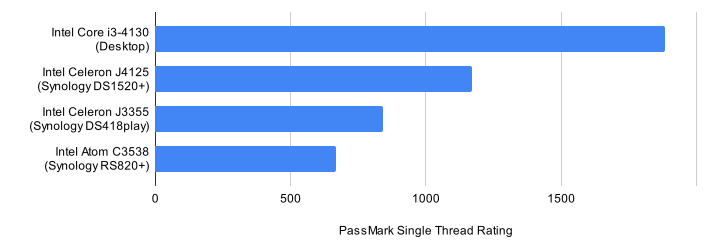
## Legacy Hardware ##
It is a known issue that the user interface and backend operations, especially face recognition, can be slow or even crash on older hardware due to a lack of resources. Like most applications, PhotoPrism has certain requirements and our development process does not include testing on unsupported or unusual hardware.
In many cases, performance can be improved through optimizations. Since these can prove to be very time-consuming and cost-intensive in practice, users and developers must decide on a case-by-case basis whether this provides sufficient benefit in relation to the costs or whether the use of more powerful hardware is faster and cheaper overall.
We kindly ask you not to open a problem report on GitHub Issues for poor performance on older hardware until a full cause and feasibility analysis has been performed. [GitHub Discussions](https://github.com/photoprism/photoprism/discussions) or any of our other public forums and communities are great places to start a discussion.
That being said, one of the advantages of [open-source software](https://docs.photoprism.app/developer-guide/) is that users can submit [pull requests](https://docs.photoprism.app/developer-guide/pull-requests/) with performance and other enhancements they would like to see implemented. This will result in a much faster solution than waiting for a core team member to remotely analyze your problem and then provide a fix.
## Troubleshooting ##
If your server runs out of memory or other system resources:
- [ ] Try [reducing the number of workers](https://docs.photoprism.app/getting-started/config-options/#indexing) by setting `PHOTOPRISM_WORKERS` to a reasonably small value in your `compose.yaml` file, depending on the CPU performance and number of cores. Running `photoprism config` shows the chosen worker count and the rationale that was applied, e.g. `index-workers: 4 (sqlite-cap)` or `8 (auto)`. The `auto` default is derived from `runtime.NumCPU()` and respects container CPU quotas, and SQLite installs are capped at four workers regardless of host size to avoid `database is locked` contention.
- [ ] Ensure that your server has [at least 4 GB of swap](https://docs.photoprism.app/getting-started/troubleshooting/docker/#adding-swap) configured and avoid setting a [hard memory limit](https://docs.photoprism.app/getting-started/faq/#why-is-my-configured-memory-limit-exceeded-when-indexing-even-though-photoprism-doesnt-actually-seem-to-use-that-much-memory) as this can cause unexpected restarts when the indexer temporarily needs more memory to process large files
- [ ] If you are using SQLite, switch to MariaDB, which is [better optimized for high concurrency](https://docs.photoprism.app/getting-started/faq/#should-i-use-sqlite-mariadb-or-mysql)
- [ ] As a last measure, you can [disable image classification and facial recognition](https://docs.photoprism.app/getting-started/config-options/#feature-flags)
Other issues? Our [troubleshooting checklists](https://docs.photoprism.app/getting-started/troubleshooting/) help you quickly diagnose and resolve them.
!!! info ""
You are welcome to ask for help in our [community chat](https://link.photoprism.app/chat).
[Sponsors](https://www.photoprism.app/membership/) receive direct [technical support](https://www.photoprism.app/contact/) via email.
Before [submitting a support request](https://docs.photoprism.app/user-guide/#getting-support), try to [determine the cause of your problem](https://docs.photoprism.app/getting-started/troubleshooting/).
*[SQLite]: self-contained, serverless SQL database
---
# Firewall
Source: https://docs.photoprism.app/getting-started/troubleshooting/firewall/
# Configuring Your Firewall
!!! info ""
You are welcome to ask for help in our [community chat](https://link.photoprism.app/chat).
[Sponsors](https://www.photoprism.app/membership/) receive direct [technical support](https://www.photoprism.app/contact/) via email.
Before [submitting a support request](https://docs.photoprism.app/user-guide/#getting-support), try to [determine the cause of your problem](https://docs.photoprism.app/getting-started/troubleshooting/).
## Incoming Requests
Unless you have changed the default configuration, PhotoPrism is reachable via port 2342 on all network devices. If you are using a firewall, please ensure that this port can be accessed from other computers on your network, or that your instance can be accessed [through a reverse proxy](https://docs.photoprism.app/getting-started/proxies/traefik/):
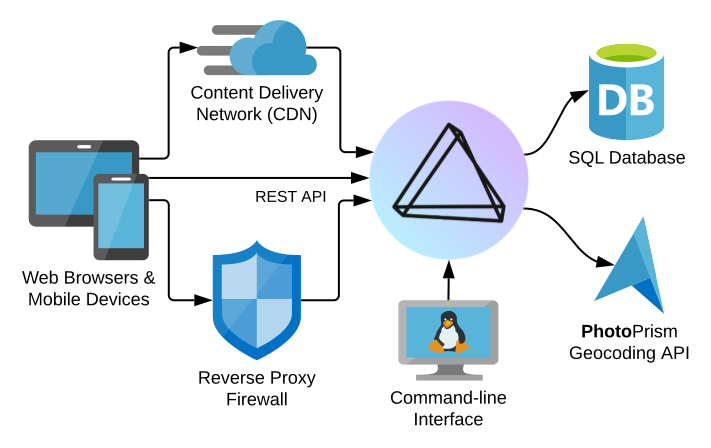
## Outgoing Connections
As explained in our [Privacy Policy](https://www.photoprism.app/privacy/#section-7), reverse geocoding and interactive world maps depend on retrieving the necessary information [from us](https://www.photoprism.app/contact/) and [MapTiler AG](https://www.maptiler.com/contacts/), headquartered in Switzerland. Both services are provided with a very high level of privacy and confidentiality.
[View Privacy Policy ›](https://www.photoprism.app/privacy/#section-7) [View Compliance FAQ ›](https://www.photoprism.app/kb/compliance-faq/#privacy)
In order to successfully set up your installation and view location details in PhotoPrism, you must **allow requests to the following hosts** if you have a firewall installed, and make sure that your Internet connection is working:
- [ ] [dl.photoprism.app](https://dl.photoprism.app/)
- [ ] [my.photoprism.app](https://my.photoprism.app/)
- [ ] [cdn.photoprism.app](https://cdn.photoprism.app/)
- [ ] [charts.photoprism.app](https://charts.photoprism.app/)
- [ ] [maps.photoprism.app](https://maps.photoprism.app/)
- [ ] [places.photoprism.app](https://places.photoprism.app/)
- [ ] [places.photoprism.xyz](https://places.photoprism.xyz/)
In addition, the following API endpoints should be allowed so that public [Docker](https://www.docker.com/) images can be pulled from [Docker Hub](https://hub.docker.com/):
- [ ] auth.docker.io
- [ ] registry-1.docker.io
- [ ] index.docker.io
- [ ] dseasb33srnrn.cloudfront.net
- [ ] production.cloudflare.docker.com
## IPTables and Docker
On Linux, Docker manipulates the `iptables` rules to provide network isolation. This does have some implications for what you need to do if you want to have your own policies in addition to the rules Docker manages.
[Learn more ›](https://docs.docker.com/engine/network/packet-filtering-firewalls/)
## Docker MTU Size
If you use Docker on your server or on a virtual machine, technical limitations of the local network or your internet provider can also make it impossible to reach external services. In particular, the *network cards of virtual machines* often do not have the standard [Maximum Transmission Unit (MTU)](https://en.wikipedia.org/wiki/Maximum_transmission_unit) of 1500, but a smaller size like 1492 or 1454.
In this case, you must [configure the virtual network cards](https://mlohr.com/docker-mtu/) of your Docker containers so that they have an MTU size that is less than or equal to that of the outgoing network, for example by [adding the following](https://www.civo.com/learn/fixing-networking-for-docker) to your `compose.yaml` (or `docker-compose.yml`) config files:
```yaml
networks:
default:
driver: bridge
driver_opts:
com.docker.network.driver.mtu: 1450
```
[Learn more ›](https://mlohr.com/docker-mtu/)
!!! note ""
All network configuration changes require a restart of the affected services and/or the Docker daemon to take effect.
---
# Traefik
Source: https://docs.photoprism.app/getting-started/proxies/traefik/
# Using Traefik as Reverse Proxy
!!! success "Best Choice"
- No custom middleware required for WebSockets or HTTP/2
- [Traefik](https://doc.traefik.io/traefik/) issues and renews [Let’s Encrypt](https://letsencrypt.org/) certificates automatically
- Integrates cleanly with Docker labels, Kubernetes ingress, and static config files
To run PhotoPrism behind Traefik, create a `traefik.yaml` configuration and then add a `traefik` service to your `compose.yaml` or `docker-compose.yml` file, as shown in the following example. Set [the public Site URL](https://docs.photoprism.app/getting-started/config-options/#site-information) to the external `https://` address. If Traefik reaches PhotoPrism from an address outside Docker’s default internal range, also add its IP or CIDR to [`PHOTOPRISM_TRUSTED_PROXY`](https://docs.photoprism.app/getting-started/config-options/#networking).
!!! example "compose.yaml"
```yaml
services:
traefik:
image: traefik:v3.6
restart: unless-stopped
ports:
- "80:80"
- "443:443"
volumes:
- "./traefik.yaml:/etc/traefik/traefik.yaml"
- "./traefik/data:/data"
- "/var/run/docker.sock:/var/run/docker.sock:ro"
photoprism:
image: photoprism/photoprism:latest
restart: unless-stopped
labels:
- "traefik.enable=true"
- "traefik.http.routers.photoprism.rule=Host(`photos.example.com`)"
- "traefik.http.routers.photoprism.entrypoints=websecure"
- "traefik.http.routers.photoprism.tls=true"
- "traefik.http.routers.photoprism.tls.certresolver=myresolver"
- "traefik.http.services.photoprism.loadbalancer.server.port=2342"
volumes:
- "./originals:/photoprism/originals"
- "./storage:/photoprism/storage"
environment:
PHOTOPRISM_SITE_URL: "https://photos.example.com/"
PHOTOPRISM_DISABLE_TLS: "true"
```
!!! example "traefik.yaml"
```yaml
log:
level: INFO
global:
sendAnonymousUsage: false
entryPoints:
web:
address: ":80"
http:
redirections:
entryPoint:
to: websecure
scheme: https
websecure:
address: ":443"
transport:
respondingTimeouts:
readTimeout: "3h"
writeTimeout: "0s"
providers:
docker:
exposedByDefault: false
watch: true
api:
insecure: false
dashboard: false
debug: false
certificatesResolvers:
myresolver:
acme:
email: ssl-admin@example.com
storage: /data/certs.json
httpChallenge:
entryPoint: web
```
Note that you must disable [HTTPS/TLS](https://docs.photoprism.app/getting-started/using-https/#1-https-reverse-proxy) in PhotoPrism by setting `PHOTOPRISM_DISABLE_TLS` to `"true"`, because Traefik is already handling TLS termination. The service label `traefik.http.services.photoprism.loadbalancer.server.port=2342` tells Traefik which internal port to use.
Further `traefik.yaml` examples and a detailed description of the Traefik configuration can be found in the [corresponding documentation](https://doc.traefik.io/traefik/user-guides/docker-compose/basic-example/).
### Why Use a Proxy? ###
If you install PhotoPrism on a public server outside your home network, **always run it behind a secure
HTTPS reverse proxy**. Your files and passwords will otherwise be transmitted in clear text and can be intercepted
by anyone, including your provider, hackers, and governments. Backup tools and file sync apps may refuse to
connect as well.

!!! example ""
**Help improve these docs!** You can contribute by clicking :material-file-edit-outline: to send a pull request with your changes.
---
# Caddy 1
Source: https://docs.photoprism.app/getting-started/proxies/caddy-1/
# Using Caddy 1 as Reverse Proxy
!!! warning "Legacy Software"
Caddy 1 reached end-of-life and only receives critical fixes. Consider upgrading to [Caddy 2](https://docs.photoprism.app/getting-started/proxies/caddy-2/) whenever possible. If you continue to run Caddy 1, the Caddy community—not PhotoPrism—must be your primary support channel.
Caddy 1 can still proxy WebSocket and HTTP/2 traffic for PhotoPrism. Enable the `websocket` and `transparent` options so request headers reach the app unchanged.
Set [the public Site URL](https://docs.photoprism.app/getting-started/config-options/#site-information) to your external `https://` address. If Caddy reaches PhotoPrism from an address outside Docker’s default internal range, add the proxy IP or CIDR to [`PHOTOPRISM_TRUSTED_PROXY`](https://docs.photoprism.app/getting-started/config-options/#networking) so forwarded client and protocol headers are accepted:
```caddyfile
example.com {
gzip
tls you@example.com
proxy / photoprism:2342 {
websocket
transparent
header_upstream X-Forwarded-Proto {scheme}
}
}
```
The `tls` directive requests and renews certificates from Let’s Encrypt automatically. Use `tls internal` if you prefer to run your own CA, or `tls /path/fullchain.pem /path/privkey.pem` when supplying files manually.
Refer to the [Caddy 1 documentation](https://caddyserver.com/v1/docs/websocket) for additional directives and migration tips.
### Why Use a Proxy? ###
If you install PhotoPrism on a public server outside your home network, **always run it behind a secure
HTTPS reverse proxy**. Your files and passwords will otherwise be transmitted in clear text and can be intercepted
by anyone, including your provider, hackers, and governments. Backup tools and file sync apps may refuse to
connect as well.

!!! example ""
**Help improve these docs!** You can contribute by clicking :material-file-edit-outline: to send a pull request with your changes.
---
# Caddy 2
Source: https://docs.photoprism.app/getting-started/proxies/caddy-2/
# Using Caddy 2 as Reverse Proxy
!!! tip "Self-Updating Certificates"
Caddy 2 [issues and renews](https://caddyserver.com/docs/caddyfile/directives/tls) Let’s Encrypt certificates automatically. Keep its data directory persistent so renewals survive container restarts.
WebSocket proxying works out of the box, making Caddy one of the easiest front ends for PhotoPrism. Disable PhotoPrism’s internal TLS (`PHOTOPRISM_DISABLE_TLS="true"`) and let Caddy terminate HTTPS.
Set [the public Site URL](https://docs.photoprism.app/getting-started/config-options/#site-information) to your external `https://` address. If Caddy reaches PhotoPrism from an address outside Docker’s default internal range, add the proxy IP or CIDR to [`PHOTOPRISM_TRUSTED_PROXY`](https://docs.photoprism.app/getting-started/config-options/#networking) so forwarded client and protocol headers are accepted.
## Example Caddyfile
```caddyfile
{
email you@example.com
auto_https disable_redirects
}
photos.example.com {
encode zstd gzip
header Strict-Transport-Security "max-age=31536000; includeSubDomains"
reverse_proxy photoprism:2342 {
flush_interval -1 # stream uploads
health_body /api/v1/status
}
}
```
When running PhotoPrism outside of Docker, replace `photoprism:2342` with the host/IP where PhotoPrism listens. You can also add `basicauth` blocks or global `tls` options (e.g., `tls internal`) depending on your trust model.
See the [Caddy reverse proxy docs](https://caddyserver.com/docs/caddyfile/directives/reverse_proxy) for advanced features such as mutual TLS, rate limiting, and header manipulation.
### Why Use a Proxy? ###
If you install PhotoPrism on a public server outside your home network, **always run it behind a secure
HTTPS reverse proxy**. Your files and passwords will otherwise be transmitted in clear text and can be intercepted
by anyone, including your provider, hackers, and governments. Backup tools and file sync apps may refuse to
connect as well.

!!! example ""
**Help improve these docs!** You can contribute by clicking :material-file-edit-outline: to send a pull request with your changes.
---
# NGINX
Source: https://docs.photoprism.app/getting-started/proxies/nginx/
# Using NGINX as Reverse Proxy
!!! danger "Getting Support"
Since [NGINX](https://www.nginx.com/) is [easy to misconfigure](https://www.nginx.com/nginx-wiki/build/dirhtml/start/topics/tutorials/config_pitfalls/), we cannot [provide individual support](https://www.photoprism.app/kb/getting-support/) for proxy-related issues such as [failed uploads](https://github.com/photoprism/photoprism/discussions/2698#discussioncomment-9056567), [connection errors](https://docs.photoprism.app/getting-started/troubleshooting/#connection-fails), [broken thumbnails](https://docs.photoprism.app/getting-started/troubleshooting/#broken-thumbnails), or [video playback problems](https://docs.photoprism.app/getting-started/troubleshooting/#videos-dont-play). Please ask the NGINX community for help or consider [Traefik](https://docs.photoprism.app/getting-started/proxies/traefik/) when you prefer a simpler proxy.
NGINX sits in front of PhotoPrism to terminate TLS, enforce HTTP/2, and shield uploads and downloads with additional rate limiting or request filtering. Keep PhotoPrism’s internal TLS disabled (`PHOTOPRISM_DISABLE_TLS="true"`) so NGINX can manage certificates, and ensure the proxy host has enough free disk space for TLS assets and logs.
Also set [the public Site URL](https://docs.photoprism.app/getting-started/config-options/#site-information) to your external `https://` address. If NGINX reaches PhotoPrism from an address outside Docker’s default internal range, add the proxy IP or CIDR to [`PHOTOPRISM_TRUSTED_PROXY`](https://docs.photoprism.app/getting-started/config-options/#networking) so forwarded client and protocol headers are accepted.
## Requirements
- Install `nginx` plus `certbot` (or reuse an existing ACME client) on the proxy host.
- Expose only ports 80/443 to the internet; keep PhotoPrism’s internal port (2342 by default) private.
- Enable the `map` directive for `$connection_upgrade` (Ubuntu ships it in `/etc/nginx/nginx.conf`). Add `map $http_upgrade $connection_upgrade { default upgrade; '' close; }` if your distro does not.
## Example Server Blocks
The snippet below redirects HTTP→HTTPS, terminates TLS via Let’s Encrypt, and forwards requests to a Docker service named `photoprism`.
```nginx
upstream photoprism_app {
server photoprism:2342;
}
server {
listen 80;
listen [::]:80;
server_name example.com;
return 301 https://$host$request_uri;
}
server {
listen 443 ssl http2;
listen [::]:443 ssl http2;
server_name example.com;
ssl_certificate /etc/letsencrypt/live/example.com/fullchain.pem;
ssl_certificate_key /etc/letsencrypt/live/example.com/privkey.pem;
include /etc/letsencrypt/options-ssl-nginx.conf;
ssl_dhparam /etc/letsencrypt/ssl-dhparams.pem;
client_max_body_size 512M; # Allow large uploads
proxy_buffering off; # Stream uploads directly
proxy_read_timeout 600s;
proxy_send_timeout 600s;
location / {
proxy_pass http://photoprism_app;
proxy_http_version 1.1;
proxy_set_header Host $host;
proxy_set_header X-Real-IP $remote_addr;
proxy_set_header X-Forwarded-For $proxy_add_x_forwarded_for;
proxy_set_header X-Forwarded-Proto $scheme;
proxy_set_header X-Forwarded-Host $host;
proxy_set_header Upgrade $http_upgrade;
proxy_set_header Connection $connection_upgrade;
}
}
```
Adapt `server_name`, certificate paths, and the upstream address to match your environment. After editing, run `sudo nginx -t` followed by `sudo systemctl reload nginx` to apply the changes.
More examples are available in the [NGINX documentation](https://nginx.org/en/docs/). Also see our [advanced guide](https://docs.photoprism.app/getting-started/advanced/nginx-proxy-setup/) when you need extra hardening tips, WebDAV notes, and operator checklists.
[View "Pitfalls and Common Mistakes" ›](https://www.nginx.com/nginx-wiki/build/dirhtml/start/topics/tutorials/config_pitfalls/)
### Why Use a Proxy? ###
If you install PhotoPrism on a public server outside your home network, **always run it behind a secure
HTTPS reverse proxy**. Your files and passwords will otherwise be transmitted in clear text and can be intercepted
by anyone, including your provider, hackers, and governments. Backup tools and file sync apps may refuse to
connect as well.

!!! example ""
**Help improve these docs!** You can contribute by clicking :material-file-edit-outline: to send a pull request with your changes.
---
# Apache 2.4
Source: https://docs.photoprism.app/getting-started/proxies/apache-2/
# Using Apache 2.4 as Reverse Proxy
!!! danger "Getting Support"
If you run into Apache-specific issues we cannot reproduce, please reach out to the [Apache community](https://httpd.apache.org/userslist.html) for help. Our team cannot provide support for third-party modules or custom SSL setups.
Apache 2.4 can proxy HTTP/2 and WebSocket traffic for PhotoPrism as long as the required modules are enabled (`proxy`, `proxy_http`, `proxy_wstunnel`, `ssl`, `headers`, `http2`). Remember to keep `PHOTOPRISM_DISABLE_TLS="true"` so Apache terminates HTTPS instead of the app container.
Set [the public Site URL](https://docs.photoprism.app/getting-started/config-options/#site-information) to your external `https://` address. If Apache reaches PhotoPrism from an address outside Docker’s default internal range, add the proxy IP or CIDR to [`PHOTOPRISM_TRUSTED_PROXY`](https://docs.photoprism.app/getting-started/config-options/#networking) so forwarded client and protocol headers are accepted.
## Enable Required Modules
```bash
sudo a2enmod proxy proxy_http proxy_wstunnel headers ssl http2 rewrite
sudo systemctl restart apache2
```
## Example VirtualHost Configuration
The snippet below force-redirects HTTP→HTTPS, terminates TLS via Let’s Encrypt, and forwards both standard requests and WebSockets to PhotoPrism.
```apache
ServerName photos.example.com
Redirect permanent / https://photos.example.com/
ServerName photos.example.com
SSLEngine on
SSLCertificateFile /etc/letsencrypt/live/photos.example.com/fullchain.pem
SSLCertificateKeyFile /etc/letsencrypt/live/photos.example.com/privkey.pem
ProxyPreserveHost On
ProxyRequests Off
AllowEncodedSlashes NoDecode
RequestHeader set X-Forwarded-Proto "https"
Header always set Strict-Transport-Security "max-age=31536000;includeSubDomains"
ProxyPass "/api/v1/ws" "ws://photoprism:2342/api/v1/ws" retry=0 timeout=300
ProxyPassReverse "/api/v1/ws" "ws://photoprism:2342/api/v1/ws"
ProxyPass "/" "http://photoprism:2342/" connectiontimeout=5 timeout=600 keepalive=On
ProxyPassReverse "/" "http://photoprism:2342/"
ProxyPassReverseCookieDomain photoprism photos.example.com
ProxyPassReverseCookiePath / /
ErrorLog ${APACHE_LOG_DIR}/photoprism_error.log
CustomLog ${APACHE_LOG_DIR}/photoprism_access.log combined
```
After saving the file in `/etc/apache2/sites-available/`, enable it with `sudo a2ensite photoprism.conf && sudo systemctl reload apache2`.
Refer to the [Apache proxy guide](https://httpd.apache.org/docs/2.4/mod/mod_proxy.html) and the [WebSocket tunnel module](https://httpd.apache.org/docs/2.4/mod/mod_proxy_wstunnel.html) for more detail.
### Why Use a Proxy? ###
If you install PhotoPrism on a public server outside your home network, **always run it behind a secure
HTTPS reverse proxy**. Your files and passwords will otherwise be transmitted in clear text and can be intercepted
by anyone, including your provider, hackers, and governments. Backup tools and file sync apps may refuse to
connect as well.

!!! example ""
**Help improve these docs!** You can contribute by clicking :material-file-edit-outline: to send a pull request with your changes.
---
# SWAG
Source: https://docs.photoprism.app/getting-started/proxies/swag/
# Using SWAG as Reverse Proxy
!!! tldr ""
SWAG bundles NGINX, Certbot, and fail2ban in one container. If you encounter SWAG-specific issues, please contact the [LinuxServer.io community](https://docs.linuxserver.io/general/faq/#support) for assistance.
[SWAG](https://github.com/linuxserver/docker-swag) (Secure Web Application Gateway) automates TLS certificates and delivers a hardened NGINX reverse proxy on Docker. Keep PhotoPrism’s internal TLS off (`PHOTOPRISM_DISABLE_TLS="true"`) so SWAG can terminate HTTPS.
Set [the public Site URL](https://docs.photoprism.app/getting-started/config-options/#site-information) to your external `https://` address. If SWAG reaches PhotoPrism from an address outside Docker’s default internal range, add the proxy IP or CIDR to [`PHOTOPRISM_TRUSTED_PROXY`](https://docs.photoprism.app/getting-started/config-options/#networking) so forwarded client and protocol headers are accepted.
## Step 1: Prepare a Domain or DynDNS Record
Obtain a fully qualified domain name that points to your public IP. DuckDNS works well for home networks; set up port forwarding for TCP 80/443 on your router.
## Step 2: Start SWAG via Docker Compose
Configure SWAG with your domain and preferred validation method. The snippet below uses DuckDNS:
```yaml
services:
swag:
image: ghcr.io/linuxserver/swag
container_name: swag
restart: unless-stopped
ports:
- 80:80
- 443:443
cap_add:
- NET_ADMIN
environment:
- PUID=1000
- PGID=1000
- TZ=Europe/Brussels
- URL=mydomain.duckdns.org
- SUBDOMAINS=photoprism
- VALIDATION=duckdns
- DUCKDNSTOKEN=your-duckdns-token
- EMAIL=admin@example.com
volumes:
- /etc/config/swag:/config
```
Persist `/config` so certificates and fail2ban state survive container restarts.
## Step 3: Enable the PhotoPrism Proxy Config
Inside `/etc/config/swag/nginx/proxy-confs/` rename `photoprism.subdomain.conf.sample` to `photoprism.subdomain.conf`. Custom deployments can create their own file with settings similar to:
```nginx
server {
listen 443 ssl http2;
listen [::]:443 ssl http2;
server_name photoprism.mydomain.duckdns.org;
include /config/nginx/ssl.conf;
client_max_body_size 512M;
location / {
include /config/nginx/proxy.conf;
resolver 127.0.0.11 valid=30s;
set $upstream_app photoprism;
set $upstream_port 2342;
set $upstream_proto http;
proxy_pass $upstream_proto://$upstream_app:$upstream_port;
}
}
```
Adjust `server_name` and the upstream container name or IP as needed. If your PhotoPrism container is not called `photoprism`, update both the SWAG config and your Compose file (`container_name: photoprism`) so the DNS lookup succeeds.
## Step 4: Reload SWAG
Apply configuration changes with `docker restart swag` or by sending `docker exec swag nginx -s reload`. Watch the container logs for certificate renewal or proxy errors.
## Step 5: Test Access
Browse to `https://photoprism.mydomain.duckdns.org/` and verify you can log in, upload large files, and browse thumbnails. Use `docker logs swag` if uploads fail—messages like `client intended to send too large body` indicate `client_max_body_size` must be raised.
!!! attention
PhotoPrism’s container name is prefixed by the project directory (e.g., `photoprism-photoprism-1`) when you rely on Compose defaults. Either set `container_name: photoprism` in your `compose.yaml` or update SWAG’s `set $upstream_app` value so the proxy can resolve the container.
## Why Use a Proxy? ##
If you install PhotoPrism on a public server outside your home network, **always run it behind a secure
HTTPS reverse proxy**. Your files and passwords will otherwise be transmitted in clear text and can be intercepted
by anyone, including your provider, hackers, and governments. Backup tools and file sync apps may refuse to
connect as well.

!!! example ""
**Help improve these docs!** You can contribute by clicking :material-file-edit-outline: to send a pull request with your changes.
---
# HAProxy
Source: https://docs.photoprism.app/getting-started/proxies/haproxy/
# Using HAProxy as Reverse Proxy
!!! tldr ""
HAProxy offers powerful routing options, but we cannot provide support for custom load-balancer setups. Consult the [HAProxy community](https://www.haproxy.org/#support) if you encounter proxy-specific issues.
The example below terminates TLS, enforces SNI routing, and proxies both long uploads and WebSocket connections to a local PhotoPrism service.
Set [the public Site URL](https://docs.photoprism.app/getting-started/config-options/#site-information) to your external `https://` address. If HAProxy reaches PhotoPrism from an address outside Docker’s default internal range, add the proxy IP or CIDR to [`PHOTOPRISM_TRUSTED_PROXY`](https://docs.photoprism.app/getting-started/config-options/#networking) so forwarded client and protocol headers are accepted.
```haproxy
global
log /dev/log local0
maxconn 2000
defaults
log global
mode http
option httplog
option forwardfor
timeout connect 5s
timeout client 1m
timeout server 1m
timeout tunnel 5m
frontend https
bind *:80
bind *:443 ssl crt /etc/ssl/localcerts/wildcard.example.com.pem alpn h2,http/1.1
redirect scheme https code 301 if !{ ssl_fc }
acl host_photoprism hdr(host) -i photos.example.com
use_backend photoprism if host_photoprism
backend photoprism
server photoprism 127.0.0.1:2342 check
http-request set-header X-Forwarded-Proto https
http-response set-header Strict-Transport-Security "max-age=31536000; includeSubDomains"
http-reuse safe
```
PhotoPrism’s WebSocket endpoint (`/api/v1/ws`) works automatically as long as you keep the backend in `mode http` and do not enable `option httpclose`. When forwarding to containers, replace `127.0.0.1:2342` with the container hostname or overlay VIP.
Store certificates in a PEM bundle (full chain + private key) referenced via `crt`. Use `crt-list` when hosting multiple domains on the same load balancer. More complex templates, including mutual TLS and ACL-based routing, are covered in the [HAProxy documentation](https://www.haproxy.com/documentation/).
## Why Use a Proxy? ##
If you install PhotoPrism on a public server outside your home network, **always run it behind a secure
HTTPS reverse proxy**. Your files and passwords will otherwise be transmitted in clear text and can be intercepted
by anyone, including your provider, hackers, and governments. Backup tools and file sync apps may refuse to
connect as well.

!!! example ""
**Help improve these docs!** You can contribute by clicking :material-file-edit-outline: to send a pull request with your changes.
---
# Tailscale VPN
Source: https://docs.photoprism.app/getting-started/vpn/tailscale/
# Tailscale VPN
!!! tldr ""
Tailscale is a third-party mesh VPN. If you run into issues with their service or client, contact the [Tailscale community](https://tailscale.com/community/) because we cannot debug vendor-specific problems.
Tailscale builds a private WireGuard® network between your devices, so you can reach PhotoPrism over an encrypted tunnel without exposing port 2342 to the public internet. The steps below cover the most common home-lab scenario (Linux server + mobile/desktop clients) and highlight optional ACL rules that keep untrusted nodes isolated.
## 1. Create a Tailnet and Install the Client
1. Visit [tailscale.com](https://tailscale.com/) and click **Use Tailscale**.
2. Sign up with Google, Microsoft, GitHub, Apple, or an email address. This creates a *tailnet* tied to your identity or organization.
3. Install the client on every device that should access PhotoPrism:
- **Linux server (PhotoPrism host)**
```bash
curl -fsSL https://tailscale.com/install.sh | sh
sudo systemctl enable --now tailscaled
sudo tailscale up --accept-dns=true --authkey tskey-auth-XXXXXXXXXXXXXXXX
```
Generate one-time auth keys in the [Admin Console](https://login.tailscale.com/admin/settings/keys) or authenticate interactively with `sudo tailscale up` and a browser login.
- **Mobile / desktop clients**: follow the platform downloads for [Android](https://tailscale.com/download/android), [iOS](https://tailscale.com/download/ios), [macOS](https://tailscale.com/download/macos), [Windows](https://tailscale.com/download/windows), etc. Sign in with the same account and approve each device when prompted.
!!! tip
Enable [MagicDNS](https://tailscale.com/kb/1081/magicdns/) in the Admin Console so every node gets a friendly name like `photoprism.your-tailnet.ts.net`. This avoids memorizing 100.x.y.z IP addresses.
## 2. Verify Connectivity
Once the PhotoPrism host and your client devices are connected, they appear in the [Machines](https://login.tailscale.com/admin/machines) list:
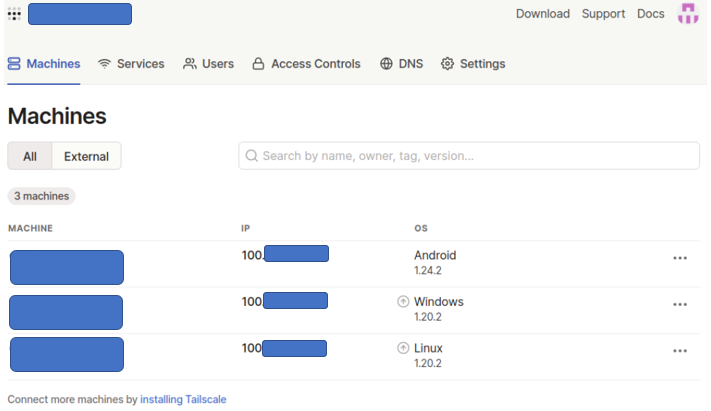
Each device receives an auto-assigned 100.x.x.x address (sometimes shown as `100.64.0.0/10`). Use that IP or MagicDNS name plus PhotoPrism’s port (default `2342`) to reach the UI:
```
http://photoprism-host.ts.net:2342/
# or
http://100.120.34.10:2342/
```
If PhotoPrism runs behind a reverse proxy, continue to access it through the proxy port (for example `https://photos.ts.net/`).
!!! warning
Make sure your firewall allows inbound connections on interface `tailscale0` (Linux) or the Tailscale adapter (Windows) for the PhotoPrism port. Otherwise the VPN will come up but requests to port 2342 will fail.
## 3. Optional: Share Devices or Use Funnel
- **Device sharing** lets you invite individual Tailscale users to a single machine without adding them to your whole tailnet. Use the **••• > Share** button next to a device in the Admin Console.
- **Tailscale Funnel** exposes a service to the public internet via Tailscale’s relay. Only enable Funnel if you understand the implications; at that point PhotoPrism is publicly reachable and you still need HTTPS plus authentication. For private family use, stick with the default private tailnet model.
## 4. Restrict Access with ACL Tags
If you host PhotoPrism in the cloud but only want outbound access *from* your desktop (not the other way around), create Access Control Lists (ACLs) that tag and isolate nodes. The example below creates two tags (`lan` and `cloud`) and prevents the cloud server from initiating connections to your LAN machines.
1. Open the [ACL editor](https://login.tailscale.com/admin/acls/file) and add tags + rules:
```json
{
"tagOwners": {
"tag:lan": ["autogroup:admin"],
"tag:cloud": ["autogroup:admin"]
},
"acls": [
{
"action": "accept",
"src": ["tag:lan"],
"dst": ["*"]
}
]
}
```
2. Go to the [Machines](https://login.tailscale.com/admin/machines) page, open the **ACL tags** dialog for each device, and assign `tag:lan` to desktops/laptops and `tag:cloud` to the cloud VM.
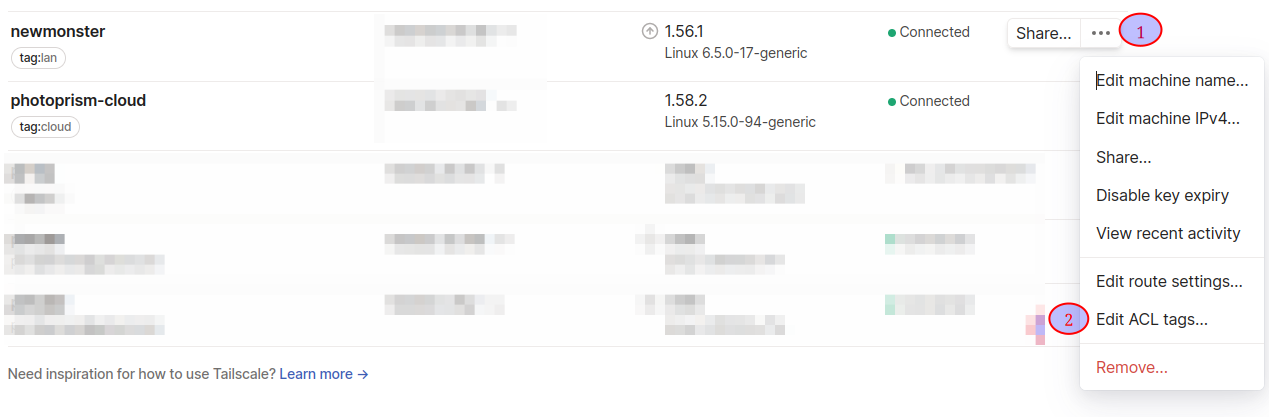
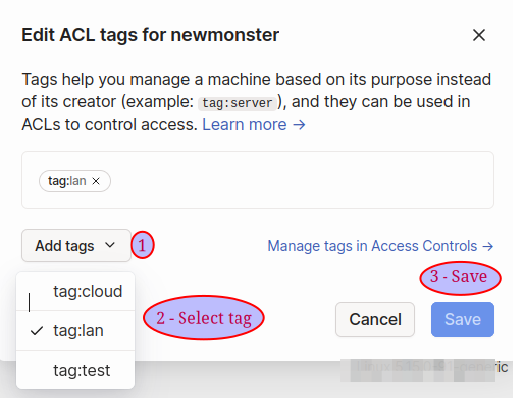
3. Test the policy:
- Access PhotoPrism on the cloud VM from your tagged `lan` desktop (create an album, add labels, etc.).
- SSH from the desktop into the cloud VM — should work.
- Try to ping or SSH from the cloud VM back to the desktop — it should fail because no ACL rule allows it.
!!! note
You can stack additional rules to permit maintenance traffic (for example, allow the cloud VM to reach your monitoring node) while still blocking everything else.
!!! example ""
**Help improve these docs!** You can contribute by clicking :material-file-edit-outline: to send a pull request with your changes.
---
# OpenID Connect
Source: https://docs.photoprism.app/getting-started/advanced/openid-connect/
# Single Sign-On via OpenID Connect
[OpenID Connect (OIDC)](https://docs.photoprism.app/developer-guide/api/oidc/) allows users to log in and optionally register through an external identity provider instead of manually entering a username and password:
## Config Options
| Environment | CLI Flag | Default | Description |
|--------------------------|-----------------|------------------------------|-----------------------------------------------------------------------------------------------------|
| PHOTOPRISM_OIDC_URI | --oidc-uri | | issuer `URI` for single sign-on via OpenID Connect, e.g. https://accounts.google.com |
| PHOTOPRISM_OIDC_CLIENT | --oidc-client | | client `ID` for single sign-on via OpenID Connect |
| PHOTOPRISM_OIDC_SECRET | --oidc-secret | | client `SECRET` for single sign-on via OpenID Connect |
| PHOTOPRISM_OIDC_SCOPES | --oidc-scopes | openid email profile address | client authorization `SCOPES` for single sign-on via OpenID Connect |
| PHOTOPRISM_OIDC_PROMPT | --oidc-prompt | | authorization `PROMPT` for single sign-on via OpenID Connect (login, select_account, consent) |
| PHOTOPRISM_OIDC_PROVIDER | --oidc-provider | | custom identity provider `NAME`, e.g. Google |
| PHOTOPRISM_OIDC_ICON | --oidc-icon | | custom identity provider icon `URI` |
| PHOTOPRISM_OIDC_REDIRECT | --oidc-redirect | | automatically redirect unauthenticated users to the configured identity provider |
| PHOTOPRISM_OIDC_REGISTER | --oidc-register | | allow new users to create an account when they sign in with OpenID Connect |
| PHOTOPRISM_OIDC_LOGOUT | --oidc-logout | | end the provider session on sign-out via OpenID Connect RP-initiated logout |
| PHOTOPRISM_OIDC_USERNAME | --oidc-username | preferred_username | preferred username `CLAIM` for new OpenID Connect users (preferred_username, name, nickname, email) |
| PHOTOPRISM_OIDC_WEBDAV | --oidc-webdav | | allow new OpenID Connect users to use WebDAV when they have a role that allows it |
| PHOTOPRISM_DISABLE_OIDC | --disable-oidc | | disable single sign-on via OpenID Connect, even if an identity provider has been configured |
!!! note ""
Your PhotoPrism instance and the [OpenID Connect Identity Provider (IdP)](https://docs.photoprism.app/getting-started/advanced/openid-connect/#identity-providers) must be accessible **via HTTPS** and have valid TLS certificates configured for it. Please also make sure that the hostname in the [Redirect URL](https://docs.photoprism.app/getting-started/advanced/openid-connect/#redirect-url) configured on the IdP matches the [Site URL](https://docs.photoprism.app/getting-started/config-options/#site-information) used by PhotoPrism. Single sign-on via OIDC can otherwise not be enabled.
## Identity Providers
To allow users to log in via OIDC, you can either set up and use a self-hosted identity provider such as [ZITADEL](https://zitadel.com/docs/self-hosting/deploy/compose) or [Keycloak](https://www.keycloak.org/), or choose a public authentication service such as those provided by [Google](https://developers.google.com/identity/openid-connect/openid-connect), [Microsoft](https://entra.microsoft.com/), [GitHub](https://docs.github.com/en/apps/oauth-apps/building-oauth-apps/creating-an-oauth-app), or [Amazon](https://developer.amazon.com/apps-and-games/login-with-amazon).
Single sign-on can then be configured automatically through your identity provider's `/.well-known/openid-configuration` [service discovery endpoint](https://developer.okta.com/docs/concepts/auth-servers/#discovery-endpoints-org-authorization-servers), for example:
- [https://accounts.google.com/.well-known/openid-configuration](https://accounts.google.com/.well-known/openid-configuration)
### Issuer URI
The [Issuer URI](https://docs.photoprism.app/getting-started/advanced/openid-connect/#config-options) in your configuration must match the `issuer` value returned by the [`/.well-known/openid-configuration`](https://accounts.google.com/.well-known/openid-configuration) endpoint of your [OpenID Connect Identity Provider (IdP)](https://docs.photoprism.app/getting-started/advanced/openid-connect/#identity-providers), for example `https://accounts.google.com` if you use Google for authentication.
!!! note ""
You may not modify the URI in any way, e.g. by adding or omitting slashes at the end. If the values do not match, the validation will fail and users cannot be redirected to your provider's login page. For security reasons, only a generic error message is displayed in this case.
### Redirect URL
The Redirect URL that must be [specified when registering a new client](https://docs.photoprism.app/developer-guide/api/img/redirect-url-example.jpg) with an [Identity Provider](https://docs.photoprism.app/getting-started/advanced/openid-connect/#identity-providers) is as follows, where `{hostname}` must be replaced by the hostname in the [Site URL](https://docs.photoprism.app/getting-started/config-options/#site-information), e.g. configured via `PHOTOPRISM_SITE_URL`:
```
https://{hostname}/api/v1/oidc/redirect
```
!!! note ""
Note that both the [Site URL](https://docs.photoprism.app/getting-started/config-options/#site-information) configured for your instance and the Redirect URL must start with `https://` and that their hostnames must match, as the [use of secure connections](https://docs.photoprism.app/getting-started/using-https/) is a strict requirement for OpenID Connect.
PhotoPrism normalizes the configured Site URL before comparing it against the Redirect URL, so the default port for the URL scheme (`:443` for `https`, `:80` for `http`) is stripped automatically. Registering the Redirect URL with or without an explicit default port produces the same value, e.g. `https://example.com/api/v1/oidc/redirect` and `https://example.com:443/api/v1/oidc/redirect` are equivalent.
## Authorization Prompt
By default, PhotoPrism does not ask your [Identity Provider](https://docs.photoprism.app/getting-started/advanced/openid-connect/#identity-providers) for anything in particular when a
user clicks the sign-in button. This keeps single sign-on seamless: if the user still has a session with the provider,
they are signed in silently as the same account.
That is usually what you want, with one exception. When an account is not permitted to use your instance, clicking the
sign-in button again silently returns the same identity, and the user has no way to choose a different account without
manually signing out of the provider first.
Setting `PHOTOPRISM_OIDC_PROMPT` changes this by sending the OpenID Connect `prompt` parameter with the authorization
request:
| Value | Effect |
|------------------|-----------------------------------------------------------------------------|
| `login` | The provider asks for credentials again, even if a session already exists |
| `select_account` | The provider shows its account chooser so a different account can be picked |
| `consent` | The provider shows its consent screen again |
You can combine values by separating them with a space, for example `PHOTOPRISM_OIDC_PROMPT="login consent"`.
!!! note ""
The value `none` is not accepted, as it would suppress the provider's own sign-in screen and break interactive logins. Any value that is not recognized is ignored, and sign-in continues as if no prompt had been configured.
## Single Sign-Out
Signing out of PhotoPrism ends the PhotoPrism session. It does **not** end the session a user has with your
[Identity Provider](https://docs.photoprism.app/getting-started/advanced/openid-connect/#identity-providers), so clicking the sign-in button again signs them straight back in.
Set `PHOTOPRISM_OIDC_LOGOUT` to `"true"` to also end the provider session on sign-out, using
[RP-initiated logout](https://openid.net/specs/openid-connect-rpinitiated-1_0.html). The next sign-in then asks for
credentials again. Users who sign in with a local password are not affected by this option.
Two things are required on the provider side:
1. Your provider must advertise an `end_session_endpoint` in its
[`/.well-known/openid-configuration`](https://docs.photoprism.app/getting-started/advanced/openid-connect/#identity-providers) document. PhotoPrism reads it from there — there is no
logout URL to configure. If the provider advertises none, sign-out stays local.
2. The provider's client must have the **post-logout redirect URI** registered. PhotoPrism sends users back to its own
login page, where `{hostname}` must be replaced by the hostname in the [Site URL](https://docs.photoprism.app/getting-started/config-options/#site-information):
```
https://{hostname}/library/login
```
Depending on the provider, you can register that URL, or a wildcard for the same host such as
`https://{hostname}/*`.
!!! danger ""
If the post-logout redirect URI has not been registered, the provider rejects the request with an error such as *"Invalid redirect uri"*, the provider session is **not** ended, and the user is left on an error page of the provider instead of the PhotoPrism login page. Register the URI before enabling this option.
!!! note ""
Sign-out is initiated by PhotoPrism. The provider-initiated back-channel and front-channel logout profiles are not part of this feature.
## Preferred Username
When a new user signs in with OpenID Connect[^1], their preferred username may already be registered. In this case, a random 6-digit number is appended to resolve the conflict.
The config option `PHOTOPRISM_OIDC_USERNAME` allows you to change the [preferred username](https://docs.photoprism.app/getting-started/advanced/openid-connect/#config-options) claim for new accounts from `preferred_username` to `name`, `nickname` or verified[^2] `email`. The other claims are used as fallback if no value is returned for the configured claim. Names are changed to lowercase so that, for example, "John Doe" becomes "john.doe".
[Learn more ›](https://docs.photoprism.app/getting-started/advanced/openid-connect/#can-i-configure-a-custom-claim-for-the-preferred-username)
## Existing Accounts
[Super admins](https://docs.photoprism.app/user-guide/users/roles/) can manually connect existing user accounts[^3] under [*Settings > Users*](https://docs.photoprism.app/user-guide/users/) by changing the authentication to *OIDC* and then setting the *Subject ID* to match the account identifier from the configured [Identity Provider](https://docs.photoprism.app/getting-started/advanced/openid-connect/#identity-providers):
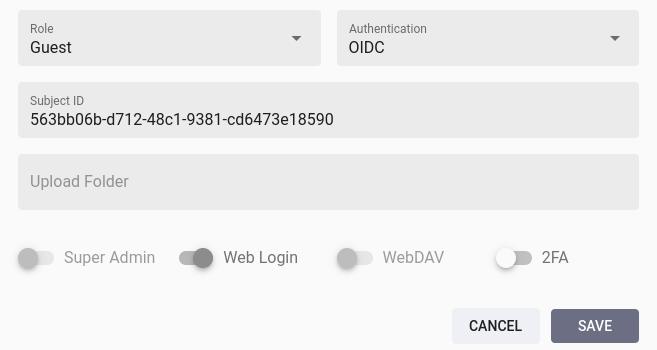
The *Edit Account* dialog may additionally contain a text field for the *Issuer* URL. It does not need to be entered manually as it is set automatically after the first login.
Alternatively, you can [run the following command](https://docs.photoprism.app/user-guide/users/cli/#command-options) in [a terminal](https://docs.photoprism.app/getting-started/docker-compose/#opening-a-terminal) to allow authentication via *OIDC* and set a *Subject ID* to connect existing accounts:
```bash
photoprism users mod --auth=oidc --auth-id=[sub] [username]
```
[Learn more ›](https://docs.photoprism.app/user-guide/users/cli/#command-options)
### Passwords
Changing the authentication of an account to *OIDC* does not remove a previously set password, so that it can still be used to log in (optionally also in combination with [2FA](https://docs.photoprism.app/user-guide/users/2fa/)).
If a [local password](https://docs.photoprism.app/user-guide/users/cli/#changing-a-password) has been set for an account, you can remove it by running the following command [in a terminal](https://docs.photoprism.app/user-guide/users/cli/#removing-a-password):
```bash
photoprism passwd --rm [username]
```
[Super admins](https://docs.photoprism.app/user-guide/users/roles/#admin) can alternatively set the account password to a long random value through the [Admin Web UI](https://docs.photoprism.app/user-guide/users/#changing-passwords) or [CLI](https://docs.photoprism.app/user-guide/users/cli/#changing-a-password) to effectively prevent local authentication.
[Learn more ›](https://docs.photoprism.app/user-guide/users/cli/#removing-a-password)
### Deleting Accounts
Deleted accounts remain linked to the *Subject ID*, so logging in via *OIDC* is no longer possible and no new account can be registered for the same *Subject ID* either.
If you wish to change the connected user account or create a new account instead, you must therefore [change the authentication](https://docs.photoprism.app/user-guide/users/#editing-user-details) of the old account e.g. to *None* before [deleting it](https://docs.photoprism.app/user-guide/users/#deleting-a-user):
```bash
photoprism users mod --auth=none [username]
```
To restore a previously deleted account, admins can follow the same steps as for [creating a new account](https://docs.photoprism.app/user-guide/users/cli/#creating-a-new-account) with the same *username* through the [Admin Web UI](https://docs.photoprism.app/user-guide/users/#adding-a-new-user) or the [`photoprism users add`](https://docs.photoprism.app/user-guide/users/cli/#creating-a-new-account) command. You will then be asked if you want to restore the account.
[Learn more ›](https://docs.photoprism.app/user-guide/users/cli/#creating-a-new-account)
## Frequently Asked Questions
### Is it possible to set a default role for new OIDC users?
For security reasons, our [Personal Editions](https://www.photoprism.app/editions/#compare) currently default to the [Guest](https://docs.photoprism.app/user-guide/users/roles/#guest) role, which admins can then upgrade after checking the eligibility of newly registered accounts. If you run our [Pro Edition](https://www.photoprism.app/teams/#compare) in a trusted corporate network with appropriate security measures - including for the OIDC provider - [it can be configured](https://www.photoprism.app/pro/kb/config-options/) to give new accounts a higher authorization level by default.
Please note in this context that using an external [Identity Provider](https://docs.photoprism.app/getting-started/advanced/openid-connect/#identity-providers) for [authorization](https://en.wikipedia.org/wiki/Authorization), and not just for [authentication](https://en.wikipedia.org/wiki/Authentication), can easily lead to security issues such as the following, for which we do not want to get a CVE assigned nor do we want to be responsible for any private pictures of our users getting leaked as a result:
- https://www.microsoft.com/en-us/security/blog/2024/07/29/ransomware-operators-exploit-esxi-hypervisor-vulnerability-for-mass-encryption/
- https://support.broadcom.com/web/ecx/support-content-notification/-/external/content/SecurityAdvisories/0/24505
### Can I configure a custom claim for the preferred username?
You can choose between `preferred_username`, `name`, `nickname` and verified[^2] `email`, where `preferred_username` is the default. The other claims are used as fallback if no value is returned for the [configured claim](https://docs.photoprism.app/getting-started/advanced/openid-connect/#config-options).
Please note that it is currently not possible to use [other standard](https://openid.net/specs/openid-connect-core-1_0.html#StandardClaims) or non-standard claims, as these may not be [suitable for generating a username](https://docs.photoprism.app/getting-started/advanced/openid-connect/#preferred-username) and [no logic is implemented](https://github.com/photoprism/photoprism/blob/develop/internal/auth/oidc/username.go) for doing so.
[Learn more ›](https://openid.net/specs/openid-connect-core-1_0.html#StandardClaims)
### What if my provider does not return any claims for generating a username?
Certified [OIDC Identity Providers](https://docs.photoprism.app/getting-started/advanced/openid-connect/#identity-providers), as well as public service providers such as [Google](https://developers.google.com/identity/openid-connect/openid-connect), should support (at least) a subset of the [standard claims](https://openid.net/specs/openid-connect-core-1_0.html#StandardClaims) that PhotoPrism can use to [generate a username](https://docs.photoprism.app/getting-started/advanced/openid-connect/#preferred-username) for newly registered accounts. These are `preferred_username`, `name`, `nickname` and verified[^2] `email`, where `preferred_username` is the default.
If only an unverified `email` address[^2] or none of [these claims](https://docs.photoprism.app/getting-started/advanced/openid-connect/#can-i-configure-a-custom-claim-for-the-preferred-username) are returned, we recommend that you report this to the vendor of the [Identity Provider](https://docs.photoprism.app/getting-started/advanced/openid-connect/#identity-providers) you are using, as this is also likely to cause problems with other software. In a future release, we may offer additional [config options](https://docs.photoprism.app/getting-started/advanced/openid-connect/#config-options) to work around this issue, e.g. by generating a random username. However, this is currently not possible.
[Learn more ›](https://docs.photoprism.app/getting-started/advanced/openid-connect/#preferred-username)
[^1]: `PHOTOPRISM_OIDC_REGISTER` must be set to `"true"` to allow new users to create an account via OpenID Connect.
[^2]: The `email_verified` flag must be set by the [OIDC Identity Provider](https://docs.photoprism.app/getting-started/advanced/openid-connect/#identity-providers) so that the `email` address can be used to send notifications and/or confirm the identity of users. If we do not insist on verification, this could otherwise have a negative impact on trust and security.
[^3]: Admins are unable to change the authentication method of their own user account through the [Admin Web UI](https://docs.photoprism.app/user-guide/users/#editing-user-details), so they cannot accidentally lock themselves out e.g. by setting it to *None*.
---
# Video Transcoding
Source: https://docs.photoprism.app/getting-started/advanced/transcoding/
# Video Transcoding
## AVC Encoders
The encoder used by FFmpeg can be configured with [`PHOTOPRISM_FFMPEG_ENCODER`](https://docs.photoprism.app/getting-started/config-options/#file-conversion) in your `compose.yaml` or `docker-compose.yml` config file:
| Encoder | Value |
|----------------------------|-------------|
| Software H.264 | `software` |
| Apple Video Toolbox | `apple` |
| Intel Quick Sync | `intel` |
| NVIDIA H.264 | `nvidia` |
| Raspberry Pi / Video4Linux | `raspberry` |
| Video Acceleration API | `vaapi` |
| Vulkan Video Extensions | `vulkan` |
It defaults to `software` if no value is set or hardware transcoding fails. Please refer to the [FFmpeg documentation](https://trac.ffmpeg.org/wiki/HWAccelIntro) for a full list of encoders and their implementation status. We welcome contributions to support additional encoders.
!!! tldr ""
For video transcoding to work, FFmpeg must be enabled and installed. When using our Docker images, it is already pre-installed. In addition, the service must have permission to use the related video devices. This depends on your hardware and operating system, so we can only give you examples that may need to be changed to work for you.
### Size Limit ###
The [`PHOTOPRISM_FFMPEG_SIZE`](https://docs.photoprism.app/getting-started/config-options/#file-conversion) config option allows to limit the resolution of transcoded videos. It accepts the following standard sizes, while other values are automatically adjusted to the next supported size:
| Size | Usage |
|-------|-------------------|
| 720 | SD TV, Mobile |
| 1280 | HD TV, SXGA |
| 1920 | Full HD |
| 2048 | DCI 2K, Tablets |
| 2560 | Quad HD |
| 3840 | 4K Ultra HD |
| 4096 | DCI 4K, Retina 4K |
| 5120 | Retina 5K |
| 7680 | 8K Ultra HD 2 |
| 15360 | 16K UHD |
!!! tldr ""
When transcoding videos, the original aspect ratio is maintained and smaller videos will not be upscaled.
!!! tldr ""
Note that MPEG-4 AVC videos are not re-encoded if they exceed the configured resolution limit.
### Bitrate Limit ###
You can limit the bitrate of the AVC encoder with the config option [`PHOTOPRISM_FFMPEG_BITRATE`](https://docs.photoprism.app/getting-started/config-options/#file-conversion). Keep in mind that this is a "soft limit", so the actual bitrate varies and depends on the encoder used as well as the specific FFmpeg parameters, which in turn depend on the encoder. It may also depend on the operating system and the GPU drivers.
If the bitrate is significantly exceeded in your environment and you want improvements to be implemented, we recommend that you [take a look at the FFmpeg documentation](https://trac.ffmpeg.org/wiki/Limiting%20the%20output%20bitrate) and the [parameters in our source code](https://github.com/photoprism/photoprism/blob/develop/internal/ffmpeg/transcode_cmd.go) so you can tell us which parameters should be changed to make it work for you.
Note that MPEG-4 AVC videos are not re-encoded if they exceed the [configured bitrate limit](https://docs.photoprism.app/getting-started/config-options/#file-conversion). To reduce the size of AVC videos, you can manually replace the original files with a smaller version or wait for a future release that offers this functionality.
!!! tldr ""
Already transcoded video files are not automatically re-transcoded when the limit is changed. To do this, you must manually remove the `*.avc` files in the `sidecar` [storage folder](https://docs.photoprism.app/getting-started/docker-compose/#photoprismstorage) and run the `photoprism convert` command [in a terminal](https://docs.photoprism.app/getting-started/docker-compose/#opening-a-terminal).
## Software Transcoding ##
Unless you have a lot of high-resolution videos in your library, we recommend keeping the default settings to use the standard software codec for video transcoding. It has a high quality and does not require any special permissions or additional drivers.
Our current [Docker image](https://docs.photoprism.app/release-notes/) is based on [Ubuntu 26.04 LTS (Resolute Raccoon)](https://packages.ubuntu.com/resolute/ffmpeg), which already includes FFmpeg 8.x from the distribution packages. If you want to try an even newer upstream static build, you can add `PHOTOPRISM_INIT: "ffmpeg"` to the environment section of your `compose.yaml` or `docker-compose.yml` file:
```yaml
services:
photoprism:
environment:
PHOTOPRISM_INIT: "ffmpeg"
```
Internally, the `ffmpeg` init target installs the current BtbN stable build, equivalent to the `latest` channel in our [`install-ffmpeg.sh`](https://github.com/photoprism/photoprism/blob/develop/scripts/dist/install-ffmpeg.sh) script. This replaces the preinstalled distro version with the most recent FFmpeg 8 point release.
You can also install the nightly (master) build instead, which may include newer features and bug fixes that have not yet been included in a stable release:
```yaml
services:
photoprism:
environment:
PHOTOPRISM_INIT: "ffmpeg-master"
```
The `ffmpeg-master` init target maps to the script's `master` channel and installs the latest nightly archive from BtbN.
Note that these static builds cannot be used with hardware transcoding and that they may [support a different set](https://github.com/BtbN/FFmpeg-Builds) of [file formats](https://www.photoprism.app/kb/file-formats/).
## GPU Drivers
Depending on your hardware, it may be necessary to install additional packages for FFmpeg to use the AVC encoding device.
One way to do this automatically is to set `PHOTOPRISM_INIT` to `"gpu tensorflow"` when using our Docker images. Note that this is experimental and not required for most encoders.
See the [related installation script on GitHub](https://github.com/photoprism/photoprism/blob/develop/scripts/dist/install-gpu.sh) for details. We welcome contributions to support additional devices or update package names if needed.
!!! tldr ""
Most users can either skip `PHOTOPRISM_INIT` completely or just use `PHOTOPRISM_INIT: "tensorflow"` to install a special version of TensorFlow that improves indexing performance if the server CPU supports AVX, which is independent of video transcoding and the type of GPU.
### Intel Quick Sync
To enable *Intel Quick Sync* hardware video transcoding, add the `intel` target to `PHOTOPRISM_INIT`, choose the `intel` encoder, and share the `/dev/dri` devices with the `photoprism` service:
```yaml
services:
photoprism:
environment:
PHOTOPRISM_FFMPEG_ENCODER: "intel"
PHOTOPRISM_INIT: "intel"
...
devices:
- "/dev/dri:/dev/dri"
volumes:
- ...
```
In addition, you can choose to run the `photoprism` service as a non-root user by setting either the `user` [service property](https://docs.docker.com/reference/compose-file/services/#user) or the `PHOTOPRISM_UID` and `PHOTOPRISM_GID` [environment variables](https://docs.photoprism.app/getting-started/config-options/#docker-image) in your `compose.yaml` or `docker-compose.yml` file:
| Environment | Default | Description |
|----------------|---------|----------------------------------------------------------------------------------------------------------------------------------------------------------------------------------------------|
| PHOTOPRISM_UID | 0 | run as a non-root user after initialization (supported: 0, 33, 50-99, 500-600, 900-1250, and 2000-2100) |
| PHOTOPRISM_GID | 0 | run with a specific group id after initialization, can optionally be used together with `PHOTOPRISM_UID` (supported: 0, 33, 44, 50-99, 105, 109, 115, 116, 500-600, 900-1250, and 2000-2100) |
*Which user and group you choose should depend on the owner of the `/dev/dri` video device so that the service has permission to access it.*
Finally, remember to [update the file permissions and/or owner](https://docs.photoprism.app/getting-started/troubleshooting/docker/#file-permissions) with the `chmod` and `chown` commands when you make changes to the UID or GID, and [restart the services](https://docs.photoprism.app/getting-started/docker-compose/#step-2-start-the-server) for your changes to take effect:
```bash
docker compose stop
docker compose up -d
```
!!! info ""
Older Intel hardware may not support certain [video codecs and resolutions](https://en.wikipedia.org/wiki/Intel_Quick_Sync_Video#Development). In this case, it is not possible to use hardware transcoding for these videos. We may later add a configuration option that allows you to downscale videos.
### NVIDIA Container Toolkit
For hardware transcoding with an NVIDIA graphics card, the *NVIDIA Container Toolkit* must be installed on the host computer first. Instructions can be found in their [installation guide](https://docs.nvidia.com/datacenter/cloud-native/container-toolkit/install-guide.html).
Once the toolkit is installed, choose the `nvidia` encoder and [add a `deploy` section](https://docs.docker.com/compose/how-tos/gpu-support/) to the `photoprism` service:
```yaml
services:
photoprism:
environment:
PHOTOPRISM_FFMPEG_ENCODER: "nvidia"
PHOTOPRISM_INIT: "tensorflow-gpu"
NVIDIA_VISIBLE_DEVICES: "all"
NVIDIA_DRIVER_CAPABILITIES: "all"
...
volumes:
- ...
deploy:
resources:
reservations:
devices:
- driver: "nvidia"
capabilities: [gpu]
count: 1
...
```
Now [restart the services](https://docs.photoprism.app/getting-started/docker-compose/#step-2-start-the-server) for your changes to take effect:
```bash
docker compose stop
docker compose up -d
```
Should PhotoPrism fail to start after this due to *unsupported instructions*, your CPU may not have the capabilities to use the GPU-optimized version of TensorFlow. In this case, you will need to change `PHOTOPRISM_INIT: "tensorflow-gpu"` to `PHOTOPRISM_INIT: "tensorflow"` in your configuration and then recreate the service containers, so that a CPU-only version is installed:
```bash
docker compose stop
docker compose up -d --force-recreate
```
The GPU-optimized version of TensorFlow that [`PHOTOPRISM_INIT`](https://docs.photoprism.app/getting-started/config-options/#docker-image) installs is the same as the one you get at [tensorflow.org/install/lang_c](https://www.tensorflow.org/install/lang_c), so you can refer to their website/documentation for more information, e.g. which GPUs/drivers are supported. Using a GPU-optimized version of TensorFlow is *optional* and has no impact on video transcoding capabilities or performance.
!!! info ""
We also provide a [ready-to-use `compose.yaml` example](https://dl.photoprism.app/docker/nvidia/compose.yaml) for your convenience.
Note that older hardware may not support certain [video codecs and resolutions](https://en.wikipedia.org/wiki/Nvidia_NVENC#Versions).
### Raspberry Pi
Experimental hardware-accelerated transcoding on a Raspberry Pi (and compatible devices) can be enabled by choosing the `raspberry` encoder:
```yaml
PHOTOPRISM_FFMPEG_ENCODER: "raspberry"
```
The Docker container must also have access to one or more video devices. For the `raspberry` encoder, for example, you add:
```yaml
devices:
- "/dev/video11:/dev/video11"
```
Additional advanced configuration options are available to improve stability if needed:
```yaml
PHOTOPRISM_FFMPEG_BUFFERS: "64" # FFmpeg capture buffers (default: 32)
```
Now [restart the services](https://docs.photoprism.app/getting-started/docker-compose/#step-2-start-the-server) for your changes to take effect:
```bash
docker compose stop
docker compose up -d
```
!!! info ""
Some server configurations, especially Raspberry Pi's, may experience memory allocation issues when using hardware acceleration. Carefully monitor your server's logs and increase the available GPU and/or CMA memory allocations if necessary. Note that the Raspberry Pi hardware currently only supports video resolutions up to 2160p.
### Vulkan
Vulkan-based hardware transcoding works on any GPU whose driver implements the Vulkan video encode extensions (`VK_KHR_video_encode_queue` and `VK_KHR_video_encode_h264`). The encoder requires FFmpeg 8 or later, which is already included in our current Docker image.
Support is highly driver- and hardware-dependent, so verify it before switching encoders (see the box below):
- **AMD** (RDNA 2 and later): supported by the open Mesa RADV driver.
- **NVIDIA** (Turing and later): supported by the proprietary driver, provided the container is started with the `graphics` driver capability.
- **Intel**: the Mesa ANV driver currently exposes Vulkan video *decode* on most recent integrated GPUs, but Vulkan video *encode* is still limited — integrated Raptor Lake graphics, for example, do not advertise the encode extensions in Mesa 26. Use the [Quick Sync](https://docs.photoprism.app/getting-started/advanced/transcoding/#intel-quick-sync) (`intel`) or VA-API (`vaapi`) encoder on those GPUs instead.
To enable Vulkan transcoding, choose the `vulkan` encoder and share `/dev/dri` with the `photoprism` service. NVIDIA users should instead follow the [NVIDIA Container Toolkit](https://docs.photoprism.app/getting-started/advanced/transcoding/#nvidia-container-toolkit) setup and make sure `NVIDIA_DRIVER_CAPABILITIES` includes the `graphics` capability — unlike NVENC (`nvidia`), which only needs `video`, the Vulkan encoder is a graphics API and will not initialize without it (the `"all"` value used in our example already covers both):
```yaml
services:
photoprism:
environment:
PHOTOPRISM_FFMPEG_ENCODER: "vulkan"
PHOTOPRISM_INIT: "vulkan"
...
devices:
- "/dev/dri:/dev/dri"
group_add:
- "44" # host "video" group
- "108" # host "render" group
```
Adjust the IDs in `group_add` to match the owners of `/dev/dri/renderD*` and `/dev/dri/card*` on your host (run `getent group video render` to see the numbers). Now [restart the services](https://docs.photoprism.app/getting-started/docker-compose/#step-2-start-the-server) for the changes to take effect:
```bash
docker compose stop
docker compose up -d
```
You can verify which Vulkan devices and video encode extensions are available inside the container by installing the Vulkan tools (`vulkan-tools`) and running:
```bash
vulkaninfo | grep VK_KHR_video_encode
```
If this lists `VK_KHR_video_encode_h264`, the `vulkan` encoder can be used. If it prints nothing — or no Vulkan device is found at all — the driver does not support Vulkan video encoding on your hardware, and you should choose a different encoder.
If a Vulkan device cannot be opened at runtime — for example on a GPU without the required video extensions — PhotoPrism logs a warning and automatically falls back to the software encoder, so no manual recovery is required.
!!! info ""
Our image already includes the Vulkan loader (`libvulkan1`). The `PHOTOPRISM_INIT: "vulkan"` target installs the open Mesa Vulkan drivers ([`mesa-vulkan-drivers`](https://packages.ubuntu.com/resolute/mesa-vulkan-drivers)) and `vulkan-tools` for AMD and Intel GPUs (the auto-detecting `"gpu"` target installs them as well). For NVIDIA GPUs, the Vulkan driver itself is provided by the [NVIDIA Container Toolkit](https://docs.photoprism.app/getting-started/advanced/transcoding/#nvidia-container-toolkit) when the `graphics` capability is enabled — it cannot be added with `apt`, because the toolkit mounts the matching driver libraries into the container from the host.
## Other Hardware
If you want to use other hardware for transcoding, choose the appropriate AVC encoder and share the required devices with the `photoprism` service, as shown in the examples above. Then [restart the services](https://docs.photoprism.app/getting-started/docker-compose/#step-2-start-the-server) for the changes to take effect.
Which devices need to be shared and whether additional drivers are required depends on your specific hardware. For more information, see the [FFmpeg documentation](https://ffmpeg.org/ffmpeg-devices.html).
## Excluded Formats
By default, PhotoPrism hands every video to FFmpeg for transcoding and still-image extraction. A small number of container and codec formats cannot be reliably detected or processed by FFmpeg, so they are excluded to avoid incorrect codec detection or broken output.
You can configure which formats to skip with the [`PHOTOPRISM_FFMPEG_EXCLUDE`](https://docs.photoprism.app/getting-started/config-options/#file-conversion) config option (alias `PHOTOPRISM_FFMPEG_BLACKLIST`), specified as a comma-separated list of container and codec format names. It defaults to `magy, vfw` (MagicYUV and Video for Windows):
```yaml
services:
photoprism:
environment:
PHOTOPRISM_FFMPEG_EXCLUDE: "magy, vfw"
```
!!! tldr ""
Formats listed here are skipped by FFmpeg, so they are not transcoded and no still-image thumbnails are extracted for them. Adjust the list only if you have a specific format that FFmpeg handles incorrectly in your environment.
## Troubleshooting
### Enabling Trace Log Mode
A good way to troubleshoot configuration issues is to increase the log level. To enable [trace log mode](https://docs.photoprism.app/getting-started/config-options/), set `PHOTOPRISM_LOG_LEVEL` to `"trace"` in the `environment:` section of the `photoprism` service (or use the `--trace` flag when running the `photoprism` command directly):
```yaml
services:
photoprism:
environment:
PHOTOPRISM_LOG_LEVEL: "trace"
...
```
Then [restart all services](https://docs.photoprism.app/getting-started/docker-compose/#step-2-start-the-server) for your changes to take effect:
```bash
docker compose stop
docker compose up -d
```
### Viewing Docker Service Logs
You can run this command to check the server logs for warnings and errors, including the last 100 messages (omit `--tail=100` to see them all, and `-f` to output only the last logs without watching them):
```bash
docker compose logs -f --tail=100
```
[Learn more ›](https://docs.photoprism.app/getting-started/troubleshooting/docker/#viewing-logs)
!!! tldr ""
If [FFmpeg is disabled](https://docs.photoprism.app/getting-started/config-options/#feature-flags) or not installed, videos cannot be indexed because still images cannot be created.
You should also have [ExifTool enabled](https://docs.photoprism.app/getting-started/config-options/#feature-flags) to extract metadata such as duration, resolution, and codec.
Note that your hardware may not support certain video codecs and resolutions. In this case, the software encoder is used automatically.
!!! tldr ""
Our examples use the new `docker compose` command by default. If your server does not yet support it, you can still use `docker-compose` or alternatively `podman-compose` on Red Hat-compatible distributions.
!!! example ""
**Help improve these docs!** You can contribute by clicking :material-file-edit-outline: to send a pull request with your changes.
---
# Using Kubernetes
Source: https://docs.photoprism.app/getting-started/advanced/kubernetes/
# Deploying PhotoPrism on Kubernetes
PhotoPrism provides [Helm charts](https://charts.photoprism.app/photoprism) for advanced users to deploy our [Personal](https://www.photoprism.app/editions/#compare) and [Team Editions](https://www.photoprism.app/teams/#compare) on Kubernetes, offering the same configuration options as the official Docker images.
The `photoprism-plus` chart is publicly accessible and allows you to install our [Personal Editions](https://www.photoprism.app/editions/#compare) with the option to [activate membership features](https://www.photoprism.app/kb/activation/), similar to the installation with [Docker Compose](https://docs.photoprism.app/getting-started/docker-compose/).
Before proceeding, ensure that your Kubernetes nodes have at least [8 GB of memory](https://docs.photoprism.app/getting-started/troubleshooting/docker/#adding-swap) and avoid enforcing a [hard memory limit](https://docs.photoprism.app/getting-started/faq/#why-is-my-configured-memory-limit-exceeded-when-indexing-even-though-photoprism-doesnt-actually-seem-to-use-that-much-memory). Indexing RAW files or large panoramas may require additional swap space or RAM beyond the [recommended minimum](https://docs.photoprism.app/getting-started/#system-requirements).
!!! info "PhotoPrism® Pro"
[Business customers](https://www.photoprism.app/teams/#compare) can deploy the `photoprism-pro` chart from the same repository. [Learn more ›](https://www.photoprism.app/pro/kb/kubernetes/)
## Add the Charts Repository
```bash
helm repo add photoprism https://charts.photoprism.app/photoprism
helm repo update photoprism
helm search repo photoprism
```
`photoprism/photoprism-plus` ships safe defaults (non-root UID/GID 1000, SQLite, two PersistentVolumeClaims, and optional ingress/service templates). Use
`helm show values photoprism/photoprism-plus` to inspect every option before overriding it in your own `values.plus.yaml` file.
## Quick Install (SQLite)
```bash
helm upgrade --install photos photoprism/photoprism-plus \
--namespace photos --create-namespace \
--set adminUser=admin
```
* Helm prints the release name; Kubernetes stores auto-generated secrets in `secret/-photoprism-secrets` when `adminPassword` is omitted.
* Retrieve the password so you can log in and activate membership features:
```bash
kubectl get secret photos-photoprism-secrets -n photos \
-o jsonpath='{.data.PHOTOPRISM_ADMIN_PASSWORD}' | base64 --decode && echo
```
* Run PhotoPrism CLI commands via `kubectl exec` when you need to import or trigger background tasks:
```bash
kubectl exec -n photos deploy/photos-photoprism-plus -- \
photoprism import --path /photoprism/import
```
## Persist Originals and Data
The chart always provisions `/photoprism/storage` (5 GiB by default) because it contains the database, cache, and logs. Originals default to a 10 GiB PVC but you can disable or remap them, for example:
```yaml
# values.plus.yaml
persistence:
# storageClassName: fast-nvme # override default class
storage:
size: 20Gi
originals:
enabled: true
size: 2Ti
nfs:
enabled: true
server: nas.local
path: /tank/photos
```
Apply the overrides:
```bash
helm upgrade --install photos photoprism/photoprism-plus \
--namespace photos --create-namespace \
-f values.plus.yaml
```
## Using MariaDB
SQLite is convenient for quick tests, but larger libraries benefit from an external database. Set the database block to point at your cluster’s MariaDB or MySQL service:
```bash
helm upgrade --install photos photoprism/photoprism-plus \
--namespace photos \
--set database.driver=mysql \
--set database.server=mariadb.default.svc.cluster.local:3306 \
--set database.name=photoprism \
--set database.user=photoprism \
--set database.password=change-me-now
```
Store credentials in Kubernetes secrets when possible and reference them via the `extraEnvFrom` pattern (see `templates/secret.yaml` in the chart) if your security requirements prohibit plain values in `values.yaml`.
## Networking and TLS
The chart exposes PhotoPrism on TCP 2342 through a ClusterIP service. You can override the service type or enable an Ingress resource when you terminate TLS in the cluster edge:
```yaml
service:
type: ClusterIP
port: 2342
ingress:
enabled: true
className: traefik
hosts:
- host: photos.example.com
paths:
- path: /
pathType: Prefix
tls:
- hosts:
- photos.example.com
secretName: photos-tls
```
Because TLS typically terminates at the ingress or proxy layer, the chart keeps `PHOTOPRISM_DISABLE_TLS` set to `true`. Only enable PhotoPrism’s internal TLS if your cluster design requires end-to-end encryption and you manage the certificates yourself. If your ingress controller reaches PhotoPrism from an address outside the trusted proxy ranges, set `config.PHOTOPRISM_TRUSTED_PROXY` accordingly so forwarded client and protocol headers are accepted.
## PhotoPrism® Plus
Our members can activate [additional features](https://link.photoprism.app/membership) by logging in with the [admin user created during setup](https://docs.photoprism.app/getting-started/config-options/#authentication) and then following the steps [described in our activation guide](https://www.photoprism.app/kb/activation/). Thank you for your support, which has been and continues to be essential to the success of the project! :octicons-heart-fill-24:{ .heart .purple }
[Compare Memberships ›](https://link.photoprism.app/membership) [View Membership FAQ ›](https://www.photoprism.app/membership/faq/)
!!! example ""
We recommend that new users install our free Community Edition before [signing up for a membership](https://link.photoprism.app/membership).
## Advanced Values
`values.yaml` exposes the same environment variables documented throughout this site:
- `config.*` maps to PhotoPrism configuration flags (app metadata, quotas, backup schedule, CDN/CORS, etc.).
- `resources` sets requests/limits (defaults: 500 m / 1 GiB request, 4000 m / 6 GiB limit). Tune these to match your workloads.
- `oidc.*` mirrors the options covered in [Single Sign-On via OpenID Connect](https://docs.photoprism.app/getting-started/advanced/openid-connect/); set `PHOTOPRISM_DISABLE_OIDC=false` to enable federated logins.
- `cluster.integration` lets you pull shared values from an existing PhotoPrism® Portal secret if you run Portal in the same cluster. Leave it disabled for standalone deployments.
Whenever you change values, redeploy with `helm upgrade --install ... -f` so the `StatefulSet` picks up the new configuration. Use `kubectl rollout status` to trace progress and `helm history photos` to view revisions.
## Maintenance Checklist
- [ ] Update the repo (`helm repo update photoprism`) before each upgrade so you get the latest chart.
- [ ] Monitor PVC usage (`kubectl get pvc -n photos`) and resize volumes or switch to external storage before running out of space.
- [ ] Back up both the database (`config.PHOTOPRISM_BACKUP_*`) and `/photoprism/storage` using your preferred snapshot tool.
- [ ] Keep nodes patched and ensure swap/virtual memory stays within recommended bounds to avoid unexpected restarts.
With these steps, you can deploy PhotoPrism® CE, Essentials, or Plus on Kubernetes using a supported, first-party Helm chart while keeping parity with the Docker workflow documented throughout this guide.
---
# Docker Security
Source: https://docs.photoprism.app/getting-started/advanced/docker-security/
# Docker Security Guide
*This documentation is intended for experienced users who want to enhance the security of their installation. If you have suggestions for improvement, please let us know by clicking :material-file-edit-outline: to send a pull request.*
## Get the Latest Security Updates
Even though [PhotoPrism](https://github.com/photoprism/photoprism) is [developed in Go](https://go.dev/) and therefore does not use many of the C libraries installed in our Docker image, external file converters like Darktable and FFmpeg as well as other tools installed as dependencies might use them. They may also be directly affected by [recently discovered vulnerabilities](https://ubuntu.com/security/cves) for which updates are available.
To automatically install these updates when the container starts for the first time, you can add `PHOTOPRISM_INIT: "update"` to the `environment` section of the `photoprism` service in your `compose.yaml` or `docker-compose.yml`:
```yaml
services:
photoprism:
environment:
PHOTOPRISM_INIT: "update"
...
volumes:
- ...
```
This can be combined with [other init actions](https://docs.photoprism.app/getting-started/config-options/#docker-image) such as `https`, `gpu` and/or `tensorflow`, e.g. `PHOTOPRISM_INIT: "update https gpu tensorflow"`. For the changes to take effect, run the following to restart the services (`--force-recreate` will always recreate the containers to apply available updates, even if their configuration has not been changed):
```bash
docker compose stop
docker compose up -d --force-recreate
```
We also recommend making sure that the latest Docker version and security updates are automatically installed on your host operating system.
!!! tldr ""
Note that our examples use the new `docker compose` command by default. If your server does not yet support it, you can still use `docker-compose` or alternatively `podman-compose` on Red Hat-compatible distributions.
## Run Services as Non-Root User
It is recommended that you run the `photoprism` service as a non-root user by setting either the `user` [service property](https://docs.docker.com/reference/compose-file/services/#user) or the `PHOTOPRISM_UID` and `PHOTOPRISM_GID` [environment variable](https://docs.photoprism.app/getting-started/config-options/#docker-image) in your `compose.yaml` or `docker-compose.yml` file:
| Environment | Default | Description |
|--------------------------|---------|----------------------------------------------------------------------------------------------------------------------------------------------------------------------------------------------|
| PHOTOPRISM_UID | 0 | run as a non-root user after initialization (supported: 0, 33, 50-99, 500-600, 900-1250, and 2000-2100) |
| PHOTOPRISM_GID | 0 | run with a specific group id after initialization, can optionally be used together with `PHOTOPRISM_UID` (supported: 0, 33, 44, 50-99, 105, 109, 115, 116, 500-600, 900-1250, and 2000-2100) |
*If you are using [hardware video transcoding](https://docs.photoprism.app/getting-started/advanced/transcoding/#intel-quick-sync), it should depend on the owner of the video device which user and group you choose so that the service has permission to access it.*
Finally, remember to [update the file permissions and/or owner](https://docs.photoprism.app/getting-started/troubleshooting/docker/#file-permissions) with the `chmod` and `chown` commands when you make changes to the UID or GID, and [restart the services](https://docs.photoprism.app/getting-started/docker-compose/#step-2-start-the-server) for your changes to take effect:
```bash
docker compose stop
docker compose up -d
```
## Remove Passwords From the Environment
Passwords specified directly in a `compose.yaml` file or otherwise passed to the container environment may pose a security risk. As an alternative, they can be set in an [options.yml](https://docs.photoprism.app/getting-started/config-files/) file located in the _config_ [storage folder](https://docs.photoprism.app/getting-started/docker-compose/#photoprismstorage):
```yaml
AdminPassword: "my super secret password"
DatabasePassword: "my super secret password"
```
Likewise, MariaDB can be configured to use Docker secret files. For details, see the [Docker Compose Documentation](https://docs.docker.com/reference/compose-file/services/#secrets).
The following is an example of the changes to your `compose.yaml` or `docker-compose.yml` file. Note that this example includes only the additional lines required to pass secret files to the MariaDB container:
```yaml
secrets:
# Secrets are single-line text files where the sole
# content is the secret. Paths in this example assume
# that secrets are kept in local ".secrets" folder.
DB_ROOT_PWD:
file: .secrets/db_root_pwd.txt
DB_PWD:
file: .secrets/db_pwd.txt
services:
mariadb:
environment:
# Change the env variables to _FILE and point them to
# the file locations within the container.
MARIADB_PASSWORD_FILE: /run/secrets/DB_PWD
MARIADB_ROOT_PASSWORD_FILE: /run/secrets/DB_ROOT_PWD
secrets:
# Give the container access to the secrets to mount
# the files within the container.
- DB_ROOT_PWD
- DB_PWD
```
## Rootless Docker
In addition, you can run the Docker daemon as a non-root user in rootless mode. Configuring this is beyond the scope of this guide. For more information and instructions, see the [Docker Security Documentation](https://docs.docker.com/engine/security/rootless/).
---
# Docker Volumes
Source: https://docs.photoprism.app/getting-started/advanced/docker-volumes/
# Docker Volume Mounts
When using Docker, all application services run in isolated containers, so you must explicitly [mount the host folders](https://docs.docker.com/reference/compose-file/volumes/) you want to use. Be aware that PhotoPrism and MariaDB cannot see folders that have not been mounted. This is an important security feature.
!!! note ""
It is important that the *originals*, *storage*, and *database* folders are located on persistent volumes. We recommend changing the relative paths used in our examples to absolute paths and to avoid using named or anonymous [Docker volumes](https://docs.docker.com/reference/compose-file/volumes/#example) to prevent potential data loss when the container is recreated, e.g. [after an update](https://docs.photoprism.app/getting-started/updates/#docker-compose) of the Docker image.
## Originals Folder
The *originals* folder contains your original photo and video files.
`~/Pictures` will be mounted by default, where `~` is a shortcut for your home directory:
```yaml
volumes:
# "/host/folder:/photoprism/folder" # example
- "~/Pictures:/photoprism/originals"
```
You can mount [any folder accessible from the host](https://docs.docker.com/reference/compose-file/services/#short-syntax), including [network shares](https://docs.photoprism.app/getting-started/troubleshooting/docker/#network-storage). Additional directories can also be mounted as sub folders of `/photoprism/originals` (depending on [overlay file system support](https://docs.photoprism.app/getting-started/troubleshooting/docker/#overlay-volumes)):
```yaml
volumes:
- "/home/username/Pictures:/photoprism/originals"
- "/example/friends:/photoprism/originals/friends"
- "/mnt/photos:/photoprism/originals/media"
```
On Windows, prefix the host path with the drive letter and use `/` instead of `\` as separator:
```yaml
volumes:
- "D:/Example/Pictures:/photoprism/originals"
```
[Learn more ›](https://docs.photoprism.app/getting-started/troubleshooting/windows/#mounting-volumes)
!!! tldr ""
When *read-only mode* is enabled, all features that require write permission to the *originals* folder are disabled, e.g. [WebDAV](https://docs.photoprism.app/user-guide/sync/webdav/), uploading and deleting files. To do this, set `PHOTOPRISM_READONLY` to `"true"` in the `environment` section of your `compose.yaml` file. You can additionally [mount volumes with the `:ro` flag](https://docs.docker.com/reference/compose-file/services/#mappings) so that writes are also blocked by Docker.
## Storage Folder
SQLite, config, cache, backup, thumbnail and sidecar files are saved in the *storage* folder:
- a *storage* folder mount must always be configured in your `compose.yaml` or `docker-compose.yml` file so that you do not lose these files after a restart or upgrade
- never configure the *storage* folder to be inside the *originals* folder unless the name starts with a `.` to indicate that it is hidden
- we recommend placing the *storage* folder on a [local SSD drive](https://docs.photoprism.app/getting-started/troubleshooting/performance/#storage) for best performance
- mounting [symbolic links](https://en.wikipedia.org/wiki/Symbolic_link) or using them inside the *storage* folder is currently not supported
- avoid using a named or anonymous [Docker volume](https://docs.docker.com/reference/compose-file/volumes/#example) for permanently storing files, as this can lead to data loss when the container is recreated, e.g. [after an update](https://docs.photoprism.app/getting-started/updates/#docker-compose) of the Docker image
!!! tldr ""
Should you later want to move your instance to another host, the easiest and most time-saving way is to copy the entire *storage* folder along with your originals and database.
## Import Folder
You can optionally mount an *import* folder from which files can be transferred to the *originals* folder in a structured way that avoids duplicates:
- [imported files](https://docs.photoprism.app/user-guide/library/import/) receive a canonical filename and will be organized by year and month
- never configure the *import* folder to be inside the *originals* folder, as this will cause a loop by importing already indexed files
!!! tldr ""
You can safely skip this. Adding files via [Web Upload](https://docs.photoprism.app/user-guide/library/upload/) and [WebDAV](https://docs.photoprism.app/user-guide/sync/webdav/) remains possible, unless [read-only mode](https://docs.photoprism.app/getting-started/config-options/) is enabled or the [features have been disabled](https://docs.photoprism.app/user-guide/settings/general/).
## MariaDB Database
Our example includes a pre-configured [MariaDB](https://mariadb.com/) database server that stores it files in the `database` folder by default. If you remove it and provide no other database server credentials, SQLite database files will be created in the *storage* folder.
Please do not use a named or anonymous [Docker volume](https://docs.docker.com/reference/compose-file/volumes/#example) for storing MariaDB database files and check the mount path of the volume if you use a custom database image (it may not always be `/var/lib/mysql`), as both can lead to data loss when the database container is recreated, e.g. [after an update](https://docs.photoprism.app/getting-started/updates/#docker-compose) of the Docker image.
!!! tldr ""
Never [store database files](https://docs.photoprism.app/getting-started/troubleshooting/mariadb/#corrupted-files) on an unreliable device such as a USB flash drive, SD card, or shared network folder. These may also have [unexpected file size limitations](https://thegeekpage.com/fix-the-file-size-exceeds-the-limit-allowed-and-cannot-be-saved/), which is especially problematic for databases that do not split data into smaller files. We strongly recommend [using SSD storage for databases only](https://docs.photoprism.app/getting-started/troubleshooting/performance/#storage).
## Network Storage
Shared folders that have already been mounted on your host under a drive letter or path can be used with Docker containers like [any other directory](https://docs.photoprism.app/getting-started/docker-compose/#volumes).
In addition, certain types of network storage like NFS (Unix/Linux) and CIFS (Windows/Mac) can also be *mounted directly* with [Docker Compose](https://docs.docker.com/reference/compose-file/volumes/#driver_opts).
For more information, see the [Network Storage](https://docs.photoprism.app/getting-started/troubleshooting/docker/#network-storage) section of our [Docker Troubleshooting Guide](https://docs.photoprism.app/getting-started/troubleshooting/docker/).
[Configure Network Storage ›](https://docs.photoprism.app/getting-started/troubleshooting/docker/#network-storage)
---
# Backup Guide
Source: https://docs.photoprism.app/getting-started/advanced/backups/
# Advanced Backup Guide
At a minimum, a backup of PhotoPrism should include the files in [your *originals* folder](https://docs.photoprism.app/getting-started/docker-compose/#photoprismoriginals) and a copy of the index database. We also recommend backing up [the *storage* folder](https://docs.photoprism.app/getting-started/docker-compose/#photoprismstorage) so that you don't need to recreate any thumbnail or sidecar files, and your backup includes the complete configuration.
!!! tldr ""
The easiest way to create a full backup is to first run the backup command to generate a database dump as described in our [**Backup Guide**](https://docs.photoprism.app/user-guide/backups/). Then back up your *originals* and *storage* folders using any standard file backup utility.
## Scheduled Backups
By default, [PhotoPrism 240523-923ee0cf7](https://docs.photoprism.app/release-notes/#may-23-2024) and newer versions automatically create daily database backups for you, with up to 3 copies being retained. The schedule, the type of backups, and the number of backups to be retained can be [changed in the configuration](https://docs.photoprism.app/getting-started/config-options/#backup).
## Backup Command
You can run the following command [in a terminal](https://docs.photoprism.app/getting-started/docker-compose/#command-line-interface) to manually create a new MariaDB or SQLite database backup:
```bash
photoprism backup -i [filename]
```
Or the following if you are using [docker-compose](https://docs.photoprism.app/getting-started/docker-compose/):
```bash
docker compose exec -T photoprism photoprism backup -i - > photoprism-db.sql
```
As seen above, you can use `-` as filename to write the backup to stdout.
This is done to ensure the backup resides outside of the container environment.
If you leave the filename empty, the backup will be written to the default backup folder configured via [`PHOTOPRISM_BACKUP_PATH`](https://docs.photoprism.app/getting-started/config-options/#storage).
If you want, you can also export your cache and thumbnails, but it can also be re-generated after restore.
It will save you from re-generating thumbnails from scratch however.
Helpful information can be found on [GitHub](https://github.com/photoprism/photoprism/discussions/772) as well.
## Restore Command
See our regular [Backup Guide](https://docs.photoprism.app/user-guide/backups/restore/) to learn how to [restore backups](https://docs.photoprism.app/user-guide/backups/restore/).
## SQLite Backups
!!! tldr ""
If you are using a [current version](https://docs.photoprism.app/release-notes/), you can create SQL dumps of SQLite with the `photoprism backup` command. Since the binary SQLite database files are located in the *storage* folder, they should also be automatically included in any backup.
In order to create a dump directly with SQLite, you can alternatively run [this command](https://docs.photoprism.app/getting-started/docker-compose/#command-line-interface):
```bash
docker compose exec -T photoprism sqlite3 /photoprism/storage/index.db .dump > photoprism-db.sql
```
With pure `docker`, you can run the following (or replace `docker` with `podman` on Red Hat-based Linux distributions):
```bash
docker exec -t PhotoPrism sqlite3 /photoprism/storage/index.db .dump > photoprism-db.sql
```
!!! example ""
**Help improve these docs!** You can contribute by clicking :material-file-edit-outline: to send a pull request with your changes.
---
# Database Setup
Source: https://docs.photoprism.app/getting-started/advanced/databases/
# Advanced Database Setup
*While we believe this contributed content may be helpful to advanced users, we have not yet thoroughly reviewed it. If you have suggestions for improvement, please let us know by clicking :material-file-edit-outline: to send a pull request.*
## Compatibility
PhotoPrism is compatible with [SQLite 3](https://www.sqlite.org/) and [MariaDB 10.5.12+](https://mariadb.org/).
Official support for MySQL 8 is discontinued as Oracle seems to have stopped shipping [new features and enhancements](https://github.com/photoprism/photoprism/issues/1764).
As a result, the testing effort required before each release is no longer feasible.
Our [configuration examples](https://dl.photoprism.app/docker/) are generally based on the [current stable version](https://mariadb.com/docs/release-notes/community-server) to take advantage of performance improvements. This does not mean that [older versions](https://docs.photoprism.app/getting-started/#databases) are no longer supported and you must upgrade immediately. We recommend not using the `:latest` tag for the MariaDB Docker image and to upgrade manually by changing the tag once we had a chance to test a new major version.
## Storage
Local Solid-State Drives (SSDs) are [best for databases](https://docs.photoprism.app/getting-started/troubleshooting/performance/#storage) of any kind. Never store database files on an unreliable device such as a USB flash drive, SD card, or shared network folder. These may also have [unexpected file size limitations](https://thegeekpage.com/fix-the-file-size-exceeds-the-limit-allowed-and-cannot-be-saved/), which is especially problematic for databases that do not split data into smaller files.
Please do not use a named or anonymous [Docker volume](https://docs.docker.com/reference/compose-file/volumes/#example) for storing MariaDB database files and check the mount path of the volume if you use a custom database image (it may not always be `/var/lib/mysql`), as both can lead to data loss when the database container is recreated, e.g. [after an update](https://docs.photoprism.app/getting-started/updates/#docker-compose) of the Docker image.
## Configuration ##
When creating a new database, make sure to set the charset and collation as follows:
```sql
CREATE DATABASE photoprism
CHARACTER SET = 'utf8mb4'
COLLATE = 'utf8mb4_unicode_ci';
```
Now create a user and grant privileges for this new database:
```sql
CREATE USER 'photoprism'@'%' IDENTIFIED BY 'insecure';
GRANT ALL PRIVILEGES ON photoprism.* to 'photoprism'@'%';
FLUSH PRIVILEGES;
```
Set the database environment variables for PhotoPrism and MariaDB as follows:
```yaml
services:
photoprism:
environment:
PHOTOPRISM_DATABASE_DRIVER: "mysql"
PHOTOPRISM_DATABASE_SERVER: "mariadb:3306"
PHOTOPRISM_DATABASE_NAME: "photoprism"
PHOTOPRISM_DATABASE_USER: "photoprism"
PHOTOPRISM_DATABASE_PASSWORD: "insecure"
mariadb:
environment:
MARIADB_AUTO_UPGRADE: "1"
MARIADB_INITDB_SKIP_TZINFO: "1"
MARIADB_DATABASE: "photoprism"
MARIADB_USER: "photoprism"
MARIADB_PASSWORD: "insecure"
MARIADB_ROOT_PASSWORD: "insecure"
```
!!! danger ""
Set strong passwords if the database is exposed to an external network. Never expose your database to the public Internet in this way, for example, if it is running on a cloud server.
## Schema Migrations
An index schema migration is performed automatically every time PhotoPrism is (re)started. The following instructions may be helpful in special cases, such as when a temporary problem has prevented a successful migration:
[Run Migrations ›](https://docs.photoprism.app/getting-started/advanced/migrations/)
## Change Database
[Migrate from SQLite to MariaDB ›](https://docs.photoprism.app/getting-started/advanced/migrations/sqlite-to-mariadb/)
[Migrate from MariaDB to SQLite ›](https://docs.photoprism.app/getting-started/advanced/migrations/mariadb-to-sqlite/)
!!! warning "Bad Performance"
Many users reporting poor performance and high CPU usage have migrated from SQLite to MariaDB, so their database schema is no longer optimized for performance. For example, MariaDB cannot handle rows with `text` columns in memory and always uses temporary tables on disk if there are any.
If this is the case, please make sure that your migrated database schema matches that of a fresh, non-migrated installation. It may help to [run the migrations manually](https://docs.photoprism.app/getting-started/advanced/migrations/) in a terminal using the *migrations* subcommands. However, this does not guarantee that all issues such as missing indexes are resolved.
Due to the amount of time required to review each report, we can only offer this to [eligible members](https://www.photoprism.app/membership/) and [business customers](https://www.photoprism.app/teams/), and not to users who have chosen our free community edition.
[Get Performance Tips ›](https://docs.photoprism.app/getting-started/troubleshooting/performance/#mariadb) [View Database Schema ›](https://docs.photoprism.app/developer-guide/database/)
---
# Index Schema
Source: https://docs.photoprism.app/getting-started/advanced/migrations/
# Performing Index Migrations
!!! info ""
When using [Docker Compose](https://docs.photoprism.app/getting-started/docker-compose/), you can prepend commands like `docker compose exec [service] [command]` to run them in a service container.
Should this fail with *no container found*, make sure the service has been started, you have specified an existing service (usually `photoprism`) and you are in the folder where your `compose.yaml` file is located.
## Show Migration Status
Run the `photoprism migrations ls` command in a terminal to see a list of all migrations and their current status:
```
$ photoprism migrations ls
|-----------------|---------|---------------------|---------------------|--------|
| ID | Dialect | Started At | Finished At | Status |
|-----------------|---------|---------------------|---------------------|--------|
| 20211121-094727 | mysql | 2022-07-12 08:07:35 | 2022-07-12 08:07:35 | OK |
| 20211124-120008 | mysql | 2022-07-12 08:07:35 | 2022-07-12 08:07:35 | OK |
| 20220329-030000 | mysql | 2022-07-12 08:07:35 | 2022-07-12 08:07:35 | OK |
| 20220329-040000 | mysql | 2022-07-12 08:07:35 | 2022-07-12 08:07:35 | OK |
| 20220329-050000 | mysql | 2022-07-12 08:07:35 | 2022-07-12 08:07:35 | OK |
| 20220329-060000 | mysql | 2022-07-12 08:07:35 | 2022-07-12 08:07:35 | OK |
| 20220329-061000 | mysql | 2022-07-12 08:07:35 | 2022-07-12 08:07:35 | OK |
| 20220329-070000 | mysql | 2022-07-12 08:07:35 | 2022-07-12 08:07:35 | OK |
| 20220329-071000 | mysql | 2022-07-12 08:07:35 | 2022-07-12 08:07:35 | OK |
| 20220329-080000 | mysql | 2022-07-12 08:07:35 | 2022-07-12 08:07:35 | OK |
| 20220329-081000 | mysql | 2022-07-12 08:07:35 | 2022-07-12 08:07:35 | OK |
| 20220329-083000 | mysql | 2022-07-12 08:07:35 | 2022-07-12 08:07:35 | OK |
| 20220329-090000 | mysql | 2022-07-12 08:07:35 | 2022-07-12 08:07:35 | OK |
| 20220329-091000 | mysql | 2022-07-12 08:07:35 | 2022-07-12 08:07:35 | OK |
| 20220329-093000 | mysql | 2022-07-12 08:07:35 | 2022-07-12 08:07:35 | OK |
| 20220421-200000 | mysql | 2022-07-12 08:07:35 | 2022-07-12 08:07:35 | OK |
| 20220521-000001 | mysql | 2022-07-12 08:07:35 | 2022-07-12 08:07:35 | OK |
| 20220521-000002 | mysql | 2022-07-12 08:07:35 | 2022-07-12 08:07:35 | OK |
| 20220521-000003 | mysql | 2022-07-12 08:07:35 | 2022-07-12 08:07:35 | OK |
|-----------------|---------|---------------------|---------------------|--------|
```
## Run Specific Migrations
To explicitly re-run specific migrations, you can pass them as arguments to the `photoprism migrations run` command:
```
$ photoprism migrations run 20220521-000003
INFO[2022-07-12T11:45:29Z] migrate: 20220521-000003 successful [12.967654ms]
INFO[2022-07-12T11:45:29Z] migration completed in 40.89123ms
INFO[2022-07-12T11:45:29Z] closed database connection
```
## Retry Failed Migrations
To automatically retry previously failed migrations, pass the `-f` flag to the `photoprism migrations run` command:
```
$ photoprism migrations run -f
```
---
# SQLite to MariaDB
Source: https://docs.photoprism.app/getting-started/advanced/migrations/sqlite-to-mariadb/
# Migrating from SQLite to MariaDB
*While we believe this contributed content may be helpful to advanced users, we have not yet thoroughly reviewed it. If you have suggestions for improvement, please let us know by clicking :material-file-edit-outline: to submit a change request.*
- Install on your host. (openSUSE: `zypper in python-sqlite3-to-mysql`)
- Shutdown your current stack: `docker compose down`
- Add the current snippet of the MariaDB to your SQLite PhotoPrism docker compose with the addition of the extra `ports`
section where you expose port 3306 to the Host. In my case this looked like attachment 1.
- Start the stack again: `docker compose up -d`
- Stop PhotoPrism: `docker compose stop photoprism`
- On the **host** now run `sudo sqlite3mysql -f /storage/index.db -d photoprism -u root -p` and enter the MariaDB password when prompted (default is `insecure`).
- Shutdown your current stack again: `docker compose down`
- Edit your `compose.yaml` or `docker-compose.yml` so it uses the MariaDB database you added before. Don't forget to remove the `ports`
section of the MariaDB Container.
- Start your stack again with `docker compose up -d`
- If this worked you may want to delete the file `index.db` in the `storage` mount since it contains out of date
information.
Attachment 1:
```yaml
services:
mariadb:
restart: unless-stopped
image: mariadb:12.3
ports:
- 3306:3306 # Expose Port 3306
security_opt:
- seccomp:unconfined
- apparmor:unconfined
command: --innodb-buffer-pool-size=1G >
--transaction-isolation=READ-COMMITTED --character-set-server=utf8mb4
--collation-server=utf8mb4_unicode_ci --max-connections=512
--innodb-rollback-on-timeout=OFF --innodb-lock-wait-timeout=120
volumes:
- "./database:/var/lib/mysql" # DO NOT REMOVE
environment:
MARIADB_AUTO_UPGRADE: "1"
MARIADB_INITDB_SKIP_TZINFO: "1"
MARIADB_DATABASE: "photoprism"
MARIADB_USER: "photoprism"
MARIADB_PASSWORD: "insecure"
MARIADB_ROOT_PASSWORD: "insecure"
```
!!! warning "Bad Performance"
Many users reporting poor performance and high CPU usage have migrated from SQLite to MariaDB, so their database schema is no longer optimized for performance. For example, MariaDB cannot handle rows with `text` columns in memory and always uses temporary tables on disk if there are any.
If this is the case, please make sure that your migrated database schema matches that of a fresh, non-migrated installation. It may help to [run the migrations manually](https://docs.photoprism.app/getting-started/advanced/migrations/) in a terminal using the *migrations* subcommands. However, this does not guarantee that all issues such as missing indexing are resolved.
[View Database Schema ›](https://docs.photoprism.app/developer-guide/database/)
---
# MariaDB to SQLite
Source: https://docs.photoprism.app/getting-started/advanced/migrations/mariadb-to-sqlite/
# Migrating from MariaDB to SQLite
*While we believe this contributed content may be helpful to advanced users, we have not yet thoroughly reviewed it. If you have suggestions for improvement, please let us know by clicking :material-file-edit-outline: to submit a change request.*
- Install on your host.
- Stop PhotoPrism: `docker compose stop photoprism`
- Add the port to the MariaDB service
- On the **host** now run `sudo mysql2sqlite -f /storage/index.db -d photoprism -u root --mysql-password 'insecure'`
- Shutdown your current stack fully: `docker compose down`
- Edit your `compose.yaml` or `docker-compose.yml`:
- Remove the MariaDB service.
- Change in the PhotoPrism settings to use the sqlite driver and remove the other database settings
- Start your stack again with `docker compose up -d`
- If this worked you may want to delete the old mountpoint for the MariaDB database.
!!! warning "Bad Performance"
Many users reporting poor performance and high CPU usage have migrated, so their database schema is no longer optimized for performance, for example, because indexes are missing or columns have the wrong data type.
If this is the case, please make sure that your migrated database schema matches that of a fresh, non-migrated installation. It may help to [run the migrations manually](https://docs.photoprism.app/getting-started/advanced/migrations/) in a terminal using the *migrations* subcommands. However, this does not guarantee that all issues such as missing indexes are resolved.
---
# Cache Optimization
Source: https://docs.photoprism.app/getting-started/advanced/caching/
# Optimizing Cache Performance
*While we believe this post may be helpful to advanced users, we have not yet reviewed it thoroughly. If you have suggestions for improvement, please let us know by clicking :material-file-edit-outline: to send a pull request.*
*For advanced users only. This guide is maintained by the community and may contain inaccurate or incomplete advice. You can contribute by clicking :material-file-edit-outline: to send a pull request with your changes.*
Some users might want to place the thumbnail cache on a separate, faster file
system while keeping the actual photo files on large, slow bulk storage. This
should result in faster access to the thumbnails.
To do this, we add a further volume (`-v`) parameter to the docker script so we
use an _external_ path (outside the container) for the cache files. You can get
the _internal_ path with `photoprism config`, or as a docker command in a
running system (for Linux/BSD systems):
```
sudo docker exec photoprism photoprism config | grep cache-path
```
This should return a line such as:
```
cache-path /home/photoprism/.cache/photoprism
```
for the internal path. We now know to add a line like
```
-v :/home/photoprism/.cache/photoprism \
```
to the docker invocation, with your actual path to the cache folder replacing
``.
As an example, let's assume a [ZFS
filesystem](https://en.wikipedia.org/wiki/ZFS) with two pools ("volumes" in
classical terminology): A pool _tank_ in a raidz2 (RAID6) configuration based on
hard drives that holds the original pictures, and a pool _dozer_ in a mirrored
(RAID1) configuration [based on SSD or NVMe drives](https://docs.photoprism.app/getting-started/troubleshooting/performance/#storage) to store the thumbnails. Our
docker script could be:
```
docker run -d \
--name photoprism \
-p 2342:2342 \
-v /tank/photos/:/home/photoprism/Pictures/Originals \
-v /dozer/cache/:/home/photoprism/.cache/photoprism \
photoprism/photoprism:latest
```
In a case like this, you will probably also want to optimize the datasets ("file
systems") `tank/photos` and `dozer/cache` further. For instance, the
original photo files will call for a larger recordsize than the smaller cache
files.
---
# NGINX Proxy Setup
Source: https://docs.photoprism.app/getting-started/advanced/nginx-proxy-setup/
# Advanced NGINX Proxy Setup
*While we believe this contributed content may be helpful to advanced users, we have not yet thoroughly reviewed it. If you have suggestions for improvement, please let us know by clicking :material-file-edit-outline: to submit a change request.*
!!! danger "Getting Support"
Since [NGINX](https://docs.photoprism.app/getting-started/proxies/nginx/) can be [tricky to configure](https://www.nginx.com/nginx-wiki/build/dirhtml/start/topics/tutorials/config_pitfalls/) we cannot [provide individual support](https://www.photoprism.app/kb/getting-support/) for proxy-related errors such as [failed uploads](https://github.com/photoprism/photoprism/discussions/2698#discussioncomment-9056567), [connection issues](https://docs.photoprism.app/getting-started/troubleshooting/#connection-fails), [broken thumbnails](https://docs.photoprism.app/getting-started/troubleshooting/#broken-thumbnails), or [video playback problems](https://docs.photoprism.app/getting-started/troubleshooting/#videos-dont-play). Please reach out to the NGINX community or switch to [Traefik](https://docs.photoprism.app/getting-started/proxies/traefik/) if you prefer an easier reverse proxy.
Running PhotoPrism behind a hardened reverse proxy adds TLS, HTTP/2, request filtering, and long-request buffering that our embedded Go HTTP server intentionally keeps minimal. If you expose PhotoPrism to the public internet, you **must** terminate HTTPS properly and keep the host patched.
Before you start, set [the public Site URL](https://docs.photoprism.app/getting-started/config-options/#site-information) to your external `https://` address. If NGINX connects from an address outside Docker’s default internal range, add the proxy IP or CIDR to [`PHOTOPRISM_TRUSTED_PROXY`](https://docs.photoprism.app/getting-started/config-options/#networking) so PhotoPrism accepts forwarded client and protocol headers.
The examples below use `photoprism.example.com`; replace it with your own domain or DynDNS record. Commands target Ubuntu 20.04+, but the concepts apply to other distributions.
## Prerequisites
- A domain or DynDNS record that resolves to the proxy host.
- PhotoPrism running on the local network (container, VM, or bare metal).
- Shell access with `sudo` privileges.
- Open TCP ports 80 and 443 on the proxy plus a firewall rule that only exposes those services externally.
!!! tip
Most consumer routers include a DynDNS client. Consult your router manual or search for `your-router-model dyndns` to keep DNS records updated automatically.
## Step 1: Install NGINX and Helper Packages
Install the proxy (can be the same host that runs Docker) and a utility package for optional HTTP basic authentication:
```bash
sudo apt update && sudo apt install -y nginx apache2-utils
```
Enable and start the service if systemd did not do it automatically:
```bash
sudo systemctl enable --now nginx
```
## Step 2: Obtain TLS Certificates with Let's Encrypt
Install Certbot plus the NGINX plugin:
```bash
sudo apt install -y certbot python3-certbot-nginx
```
Request a certificate (the host must be reachable on TCP 80/443 during issuance):
```bash
sudo certbot certonly --nginx -d photoprism.example.com
```
Certificates appear under `/etc/letsencrypt/live/photoprism.example.com/`. Certbot installs a systemd timer for automatic renewal; verify it with `sudo certbot renew --dry-run` and monitor `/var/log/letsencrypt/` for errors.
## Step 3: Create the NGINX Site Configuration
Create `/etc/nginx/sites-available/photoprism.example.com` with content similar to the snippet below. Adjust the upstream address (`docker.homenet:2342` in this example) to point at your PhotoPrism container or VM.
```nginx
upstream photoprism_app {
server docker.homenet:2342; # PhotoPrism service or load balancer
}
server {
listen 80;
listen [::]:80;
server_name photoprism.example.com;
return 301 https://$host$request_uri;
}
server {
listen 443 ssl http2;
listen [::]:443 ssl http2;
server_name photoprism.example.com;
ssl_certificate /etc/letsencrypt/live/photoprism.example.com/fullchain.pem;
ssl_certificate_key /etc/letsencrypt/live/photoprism.example.com/privkey.pem;
ssl_protocols TLSv1.2 TLSv1.3;
ssl_ciphers HIGH:!aNULL:!MD5:!3DES;
add_header Strict-Transport-Security "max-age=31536000; includeSubDomains" always;
ssl_stapling on;
ssl_stapling_verify on;
resolver 1.1.1.1 8.8.8.8 9.9.9.9 valid=300s;
resolver_timeout 5s;
client_max_body_size 512M; # Allow large uploads
proxy_buffering off; # Stream uploads directly
proxy_read_timeout 600s;
proxy_send_timeout 600s;
location / {
proxy_pass http://photoprism_app;
proxy_http_version 1.1;
proxy_set_header Host $host;
proxy_set_header X-Real-IP $remote_addr;
proxy_set_header X-Forwarded-For $proxy_add_x_forwarded_for;
proxy_set_header X-Forwarded-Proto $scheme;
proxy_set_header X-Forwarded-Host $host;
proxy_set_header Upgrade $http_upgrade;
proxy_set_header Connection $connection_upgrade;
# Optional: uncomment to require basic auth (breaks WebDAV without extra config)
# auth_basic "Additional Authentication";
# auth_basic_user_file /etc/nginx/.photoprism_htpasswd;
}
}
```
!!! warning
Always adjust `photoprism_app` to the correct backend address (Docker service, Kubernetes service, or another host). Leaving it at the example value will expose the proxy without a working backend.
`connection_upgrade` is provided by NGINX’s `map` directive in `/etc/nginx/nginx.conf` on current Ubuntu releases. If your distribution does not define it, add `map $http_upgrade $connection_upgrade { default upgrade; '' close; }` to the main configuration.
If you proxy PhotoPrism under a subdirectory, test WebDAV copy and move operations as well. Some NGINX rewrites break absolute `Destination` headers unless the external host and path are forwarded consistently.
## Step 4: Enable the Site and Reload NGINX
```bash
sudo ln -s /etc/nginx/sites-available/photoprism.example.com \
/etc/nginx/sites-enabled/
sudo nginx -t
sudo systemctl reload nginx
```
Visit `https://photoprism.example.com/` to confirm the certificate, login page, and uploads work. Use `curl -I https://photoprism.example.com/` to verify the redirect and response headers.
## Step 5: Optional Hardening
- **Firewall**: Allow inbound TCP 80/443 only. Restrict PhotoPrism’s internal port (2342 by default) to the proxy host.
- **Basic Authentication**: `sudo htpasswd -c /etc/nginx/.photoprism_htpasswd user1` adds a second login layer. Keep in mind that WebDAV and API clients must support it.
- **Rate Limiting**: NGINX’s `limit_req` module can slow brute-force attempts. Combine it with PhotoPrism’s own throttling options (`PHOTOPRISM_PASSWORD_LENGTH`, `PHOTOPRISM_LOGIN_LIMIT`).
- **Monitoring**: Tail `/var/log/nginx/access.log` and `/var/log/nginx/error.log` after configuration changes. Failed uploads typically show up as `413 Request Entity Too Large`, which signals that `client_max_body_size` needs to be increased.
!!! warning
Keep your operating system, NGINX packages, and Certbot up to date. Unpatched proxies are a common attack vector even when PhotoPrism itself is isolated behind the service.
---
# Horizontal Scaling
Source: https://docs.photoprism.app/getting-started/advanced/scalability/
# Deployment in High-Availability Environments and Horizontal Scaling in the Cloud
Since we strive to [make effective use](https://docs.photoprism.app/developer-guide/code-quality/#effectiveness-efficiency) of our resources, and most users run PhotoPrism on [NAS devices](https://docs.photoprism.app/getting-started/nas/asustor/) at home or on small [cloud server](https://docs.photoprism.app/getting-started/cloud/digitalocean/) instances, our public documentation and development activities generally focus on these usage scenarios.
So while our freely available [Community Edition](https://github.com/photoprism/photoprism) works well even with millions of files if your server [meets the requirements](https://docs.photoprism.app/getting-started/#system-requirements) (*vertical scaling*), it is important to note that the architecture and feature set would look different in some aspects – with other trade-offs – had the focus been on *high availability* and *horizontal scaling* in the cloud instead. For example, you might then split the backend into independently scalable microservices and not use a regular file system as storage for indexing.
As an [enterprise customer](https://www.photoprism.app/teams/#compare) with specific scalability or availability requirements, you are welcome to [contact us for a free consultation](https://www.photoprism.app/contact/) to determine the feasibility and implementation options.
---
# Known Issues
Source: https://docs.photoprism.app/known-issues/
# Known Issues
PhotoPrism generally follows a zero-bug policy, which means that we do our best to provide a fix for every technical problem we learn about.
However, sometimes this is not possible right away, for example because it needs to be fixed in a third-party library that our software depends on, or because it is a specific use case that we do not support at this time.
!!! example "GitHub Issues"
In order to improve readability and reduce maintenance effort, minor issues and [recently reported bugs](https://github.com/photoprism/photoprism/issues?q=is%3Aissue+is%3Aopen+label%3Abug) that we plan to fix in the short term are not listed here, but [only in GitHub Issues](https://github.com/photoprism/photoprism/issues). When [browsing issues](https://docs.photoprism.app/developer-guide/issues/), please note that **our team and all issue subscribers receive an email notification** whenever a new comment is added, so these should only be used for sharing important information and not for [discussions, questions](https://github.com/photoprism/photoprism/discussions), or [expressing personal opinions](https://www.photoprism.app/code-of-conduct/). Thank you very much!
## Self-Hosted Setup
### Shared Domain
With our [latest release](https://docs.photoprism.app/release-notes/), it is possible to run PhotoPrism under a subpath on a [shared domain](https://github.com/photoprism/photoprism/issues/2391).
### Nested Import Folder
You must not configure the *import* folder to be inside the *originals* folder, as this will cause a loop by importing already indexed files.
Inexperienced users are advised to closely follow our documentation and to use the config examples we provide, as this issue can only occur with a custom setup.
### Nested Storage Folder
We recommend not to configure the *storage* folder to be inside the *originals* folder unless the name starts with a `.` to indicate that it is hidden.
In older releases prior to [240420-ef5f14bc4](https://docs.photoprism.app/release-notes/#april-20-2024), this could [lead to an indexing loop](https://github.com/photoprism/photoprism/issues/1642) by indexing thumbnails of already indexed files.
### Symbolic Links
Symbolic [links to files and directories](https://github.com/photoprism/photoprism/issues/1049) within the *originals* folder are supported if they are accessible from the environment in which your instance is running. However, you cannot mount a symbolic link as a *storage* folder or use links within the *storage* folder.
## Authentication
### Upgrading From Previous Releases
Should you experience problems after upgrading from a [previous release](https://docs.photoprism.app/release-notes/) or [development preview](https://docs.photoprism.app/getting-started/updates/#development-preview), we recommend running the `photoprism auth reset --yes` command [in a terminal](https://docs.photoprism.app/getting-started/docker-compose/#command-line-interface) to [reset the `auth_sessions` table](https://docs.photoprism.app/user-guide/users/cli/#session-management) to a clean state and force a re-login of all users. Note that this will also delete all client access tokens and any [app passwords](https://docs.photoprism.app/user-guide/users/2fa/#step-3-app-passwords) that users may have created.
### New User Management
The session and user management was [reimplemented in November 2022](https://docs.photoprism.app/release-notes/#november-2-2022). If you are upgrading from a Development Preview with a build number between [221102-905925b4d](https://docs.photoprism.app/release-notes/#november-2-2022) and [220901-f493607b0](https://docs.photoprism.app/release-notes/#september-1-2022), you will need to run the `photoprism users reset --yes` command [in a terminal](https://docs.photoprism.app/getting-started/docker-compose/#command-line-interface) after the upgrade to recreate the new database tables so that they are compatible with the stable version. This will not affect your pictures or albums.
Upgrading from the last stable version should work without any problems. However, if you have already created additional accounts with the previously offered unofficial multi-user support, you will notice that only the main admin account is migrated automatically. Run `photoprism users legacy` [in a terminal](https://docs.photoprism.app/getting-started/docker-compose/#command-line-interface) to display the legacy accounts so you can migrate them manually if needed.
### OpenID Connect (OIDC)
Changing the [authentication of an existing user account](https://docs.photoprism.app/getting-started/advanced/openid-connect/#existing-accounts) to *OIDC* does not remove a previously set password, so that it can still be used to log in (optionally also in combination with [2FA](https://docs.photoprism.app/user-guide/users/2fa/)).
If a [local password](https://docs.photoprism.app/user-guide/users/cli/#changing-a-password) has been set for an account, you can remove it by running the `photoprism passwd --rm [username]` command [in a terminal](https://docs.photoprism.app/user-guide/users/cli/#removing-a-password). Alternatively, [super admins](https://docs.photoprism.app/user-guide/users/roles/) can set the account password to a long random value through the [UI](https://docs.photoprism.app/user-guide/users/#changing-passwords) or [CLI](https://docs.photoprism.app/user-guide/users/cli/#changing-a-password) to effectively prevent local authentication.
Please also note that you cannot [change the authentication provider](https://docs.photoprism.app/user-guide/users/cli/#command-options) of your own account [through the Admin UI](https://docs.photoprism.app/user-guide/users/#editing-user-details), so you don't accidentally lock yourself out e.g. by setting it to "none".
## Face Recognition
### Legacy Hardware ###
Face recognition can be slow (or even crash) on [old devices](https://docs.photoprism.app/getting-started/troubleshooting/performance/#legacy-hardware) due to insufficient resources.
*Like most applications, PhotoPrism has [certain requirements](https://docs.photoprism.app/getting-started/#system-requirements) and our development process does not include testing on unsupported or unusual hardware.*
### Asian Faces and Children
It is a known issue that children and Asian-looking faces cannot be recognized reliably. Detection without automatic recognition should not be affected by that.
This is because the model we use was trained with North American images, which unfortunately do not include many Asians. The absence of children in the training data comes from the fact that parents do not usually share such images under a public license (and may not have the right to do so).
*We will continue to improve our models over time as our resources allow.*
### Background Worker
[Face recognition](https://docs.photoprism.app/user-guide/organize/people/) was developed and tested under the assumption that the [background worker](https://docs.photoprism.app/getting-started/config-options/#indexing) runs every 15 minutes, unless the backend is busy with other tasks like indexing. It has not been tested with much longer intervals and is not designed for that.
PhotoPrism's background worker groups new faces by similarity, compares faces with clusters, and optimizes existing clusters as needed. Without these routine tasks, the number of faces to be processed becomes too large. The first and next time the worker runs, it can then cause a heavy server load until all the faces, face clusters, and related pictures have been updated. The longer you wait, the more CPU is required and the longer it takes.
An important reason for the worker to run independently of actual changes in the main instance is that some users change the database content directly or run additional instances, for example for indexing. It is a problem that can be solved, but it takes time. If we were to ignore this and don't run the worker at all times, it could lead to many additional support requests, further reducing the amount of time we can spend on development.
*The handling of changes in multiple instances will be improved over time so that the worker can be run less frequently in future releases.*
### Photos With All Faces Assigned Appear Under “New Faces”
This can happen when multiple image files are [grouped into a stack](https://docs.photoprism.app/user-guide/organize/stacks/), for example, because they were taken at the same place and time, and stacking is enabled.
Secondary images are not searched for faces by default. So the problem is limited to specific cases where you have manually changed the primary image or the images are stacked after detection, which may indicate more fundamental problems, e.g. with the [metadata, filenames, or settings](https://docs.photoprism.app/user-guide/organize/stacks/#for-what-reasons-can-files-be-stacked).
One possible solution is to change the primary image of a stack to assign faces to the other images in the stack. You can also manually unstack these files and disable stacking in [Settings > Content](https://docs.photoprism.app/user-guide/settings/library/). Note that files that are already stacked are not automatically unstacked when you change the stacking settings, and that [Live Photos](https://docs.photoprism.app/user-guide/organize/video/#live-photos) do not appear in [Stacks](https://docs.photoprism.app/user-guide/organize/stacks/) because they are a special type of media that is always "stacked".
### Removing Merged Clusters Fails
Under certain conditions, inconsistent face assignments cannot be automatically resolved by the background worker, which can result in an unusually high CPU load when it is running:
- if you use multiple browser tabs or windows for assigning faces and don't wait until saving the changes is complete, the likelihood of this problem increases, especially if you accidentally enter different names for the same face
- another possible cause is running multiple instances (for example, parallel indexing workers started by a scheduler in the background) or modifying database content directly, as this may also lead to inconsistent faces, markers and subjects
- see [Faces: Error "Failed removing merged clusters for subject" seems to cause tagging of faces to become slow #2806](https://github.com/photoprism/photoprism/issues/2806)
Running the following command [in a terminal](https://docs.photoprism.app/getting-started/docker-compose/#command-line-interface) can resolve problems with inconsistent data:
```
docker compose exec photoprism photoprism faces audit --fix
```
It can also be helpful to manually check for inconsistent assignments and fix them in the user interface.
Alternatively, you can use the `photoprism faces reset` command for a clean start if you haven't invested much time in assigning faces yet.
*Advanced users affected by this are welcome to [privately provide us](https://www.photoprism.app/contact/) with a SQL dump of their subjects, faces, and markers database tables for debugging. Thank you very much!*
## File Compatibility
### JPEG: Bad RST Marker
This error can occur when decoding JPEG images that contain consecutive 0xFF bytes, e.g. images that have a "glich" (like a few lines of missing image information at the end) or were created with software that inserts them for padding, although this is based on an edge case of the specification and rather uncommon:
- [Bug: (invalid JPEG format: bad RST marker) #1673](https://github.com/photoprism/photoprism/issues/1673)
- [image/jpeg: "bad RST marker" error when decoding #40130](https://github.com/golang/go/issues/40130)
- [JPEG: Automatically check and repair broken/invalid images #2463](https://github.com/photoprism/photoprism/issues/2463)
## RAW Converters
### JPEG Size Limit
RawTherapee and "heif-convert" cannot limit the resolution of JPEG files when converting files from other formats such as RAW, DNG, HEIC or AVIF. In general, when converting images, the resolution of the generated JPEG files can be limited with the environment variable `PHOTOPRISM_JPEG_SIZE` or the CLI parameter `--jpeg-size`.
However, this does not work with certain converters because, unlike Darktable, they do not support CLI options to limit JPEG size:
- [RAW: PHOTOPRISM_JPEG_SIZE is ignored when converting RAW with RawTherapee #2446](https://github.com/photoprism/photoprism/issues/2446)
It would probably also hurt indexing performance and image quality if PhotoPrism reduced the size of the generated file after conversion, for example, by using a temporary file.
As a result, this option is ignored when generating JPEG files with these converters. Whether RawTherapee or "heif-convert" are used depends on additional settings such as `PHOTOPRISM_DARKTABLE_BLACKLIST`, `PHOTOPRISM_DISABLE_DARKTABLE`, `PHOTOPRISM_RAWTHERAPEE_BLACKLIST`, and `PHOTOPRISM_DISABLE_RAWTHERAPEE`.
## Docker Compose ##
### Dollar Signs ###
If a configuration value [in a `compose.yaml` or `docker-compose.yml` file](https://docs.photoprism.app/getting-started/docker-compose/) contains a literal `$` character, for example in a password, you must use `$$` (a double dollar sign) to escape it so that e.g. `"compo$e"` becomes `"compo$$e"`:
```yaml
services:
mariadb:
environment:
# sets password to "compo$e"
MARIADB_PASSWORD: "compo$$e"
```
Values that contain a `$` are otherwise [interpreted as a variable](https://docs.docker.com/reference/compose-file/interpolation/). In this case, both the `$VARIABLE` and the `${VARIABLE}` syntax are supported. Further details on the use of variables can be found in the [file format reference](https://docs.docker.com/reference/compose-file/interpolation/).
### True / False ###
Boolean variable values like "true", "false", "yes", "no", "on", or "off" must be enclosed in double or single quotes so that they are passed as intended:
```yaml
services:
photoprism:
environment:
PHOTOPRISM_DEFAULT_TLS: "true"
PHOTOPRISM_READONLY: "false"
```
If you otherwise specify `true` as a value without quotes, [Docker Compose](https://docs.docker.com/compose/) will pass the host variable of the same name to the container instead of setting the value to "true" (results in an empty string if no environment variable with the same name is set on the host):
```yaml
services:
photoprism:
environment:
# evaluated as "" (false)
PHOTOPRISM_READONLY: true
```
## Reporting Bugs ##
Before [reporting a bug](https://www.photoprism.app/kb/reporting-bugs/), first use our [Troubleshooting Checklists](https://docs.photoprism.app/getting-started/troubleshooting/) to determine the cause of your problem. If you have a general question, need help, it could be a configuration issue, or a misunderstanding in how the software works:
- you are welcome to ask in our [Community Chat](https://link.photoprism.app/chat)
- or post your question in [GitHub Discussions](https://link.photoprism.app/discussions)
In order for us to investigate [new bug reports](https://www.photoprism.app/kb/reporting-bugs/), they must include **a complete list of steps to reproduce the problem**, the software versions used and information about the environment in which the problem occurred, such as [browser type, browser version, browser plug-ins](https://docs.photoprism.app/getting-started/troubleshooting/browsers/), operating system, [storage type](https://docs.photoprism.app/getting-started/troubleshooting/performance/#storage), [processor type](https://docs.photoprism.app/getting-started/troubleshooting/performance/#server-cpu), and [memory size](https://docs.photoprism.app/getting-started/troubleshooting/performance/#memory).
A template for creating bug reports can be found at [photoprism.app/kb/reporting-bugs](https://www.photoprism.app/kb/reporting-bugs/). We kindly ask you not to report bugs via [GitHub Issues](https://docs.photoprism.app/developer-guide/issues/) **unless you are certain to have found a fully reproducible and previously unreported issue** that must be fixed directly in the app.
!!! info ""
When [browsing issues](https://github.com/photoprism/photoprism/issues), please note that **our team and all issue subscribers receive an email notification** from GitHub whenever a new comment is added, so these should only be used for sharing important information and not for [discussions, questions](https://github.com/photoprism/photoprism/discussions), or [expressing personal opinions](https://www.photoprism.app/code-of-conduct/). Thank you very much!
---
# FAQ
Source: https://docs.photoprism.app/getting-started/faq/
# Frequently Asked Questions
### What media file types are supported?
PhotoPrism supports indexing, viewing, and [converting](https://docs.photoprism.app/user-guide/settings/library/) most popular image, video and RAW formats, including JPEG, PNG, GIF, BMP, HEIF, HEIC, MP4, MOV, WebP, and WebM. [TIFF is partially supported](https://github.com/golang/go/issues?q=is%3Aissue+image%2Ftiff+) without extensions such as GeoTIFF.
When indexing, a JPEG or PNG sidecar file is automatically created for videos and images in other formats, such as RAW, JPEG XL, or vector graphics. It is needed for thumbnail generation, image classification, and face detection.
If installed, converting RAW files is possible with the following converters (our Docker image includes both):
- [Darktable](https://www.darktable.org/) ([supported cameras](https://www.darktable.org/resources/camera-support/))
- [RawTherapee](https://rawtherapee.com/) ([supported cameras](https://www.libraw.org/supported-cameras))
On a Mac, RAW files can also be converted with [Sips](https://ss64.com/osx/sips.html) ([supported cameras](https://support.apple.com/en-us/HT211241)).
Our goal is to provide top-notch support for all RAW formats, regardless of camera make and model.
Please let us know about any issues with a particular camera or file format.
For maximum browser compatibility, [video codecs and containers](https://docs.photoprism.app/developer-guide/media/) supported by [FFmpeg](https://en.wikipedia.org/wiki/FFmpeg#Supported_codecs_and_formats) can be transcoded to [MPEG-4 AVC](https://en.wikipedia.org/wiki/Advanced_Video_Coding) on demand, just as still images can be extracted for thumbnail creation.
Make sure you have JSON sidecar files enabled if you have videos, live photos, and/or animated GIFs so that video-specific metadata such as codec, frames, and duration can be extracted, indexed, and searched.
For a complete list of file formats and extensions, see our downloadable [Feature Overview](https://link.photoprism.app/overview).
!!! tldr ""
In case [FFmpeg is disabled](https://docs.photoprism.app/getting-started/config-options/#feature-flags) or not installed, videos cannot be indexed because still images cannot be created.
You should also have [ExifTool enabled](https://docs.photoprism.app/getting-started/config-options/#feature-flags) to extract metadata such as duration, resolution, and codec.
### What are sidecar files and where do I find them?
A sidecar is a file that sits next to your main photo or video files and usually has the same name
but a different extension:
* `IMG_0123.mov`
* `IMG_0123.mov.jpg`
* `IMG_0123.json`
New sidecar files are saved in the *storage* folder by default, so the *originals* folder can be mounted read-only.
!!! tldr ""
Even if `PHOTOPRISM_DISABLE_EXIFTOOL` is set to `"true"` or `PHOTOPRISM_SIDECAR_YAML` is set to `"false"`, the indexer will look for existing sidecar files and use them.
### What metadata sidecar file types are supported?
Currently, three types of [file formats](https://docs.photoprism.app/developer-guide/media/) are supported:
#### JSON ####
If not disabled via `PHOTOPRISM_DISABLE_EXIFTOOL` or `--disable-exiftool`, [ExifTool](https://exiftool.org/) is used
to automatically create a JSON sidecar for each media file. **In this way, embedded XMP and video metadata can also be indexed.**
Native metadata extraction is limited to common Exif headers. Note that this causes a small amount of overhead when
indexing for the first time.
JSON files can also be useful for debugging, as they contain the full metadata and can be processed with common
development tools and text editors.
!!! info ""
JSON files exported from Google Photos can be read as well. Support for more schemas may be added over time.
#### YAML ####
Unless disabled by setting the `PHOTOPRISM_SIDECAR_YAML` option to `"false"` in your configuration, PhotoPrism automatically creates/updates [human-friendly YAML sidecar files](https://docs.photoprism.app/developer-guide/technologies/yaml/) during indexing and after manual editing of fields such as title, date, or location. They serve as a backup in case the database (index) is lost, or when folders are synchronized with a remote instance.
Like JSON, [YAML](https://docs.photoprism.app/developer-guide/technologies/yaml/) files can be opened with common development tools and
text editors. However, changes are not synchronized with the original index, as this could overwrite existing data.
#### XMP ####
XMP (Extensible Metadata Platform) is an XML-based metadata container format [developed by Adobe](https://www.adobe.com/products/xmp.html).
It provides many more fields (as part of embedded models like Dublin Core) than Exif. This also makes it difficult - if not
impossible - to provide full support.
PhotoPrism handles XMP through two separate code paths. **XMP embedded in media files is indexed via [ExifTool](https://exiftool.org/)**,
which flattens XMP, Exif, and IPTC into a single JSON document that the indexer then reads; PhotoPrism never parses the embedded
XML directly. If ExifTool is disabled, embedded XMP is not indexed. **Standalone `.xmp` sidecar files are read by a built-in
proof-of-concept XML reader** that does *not* use ExifTool and currently recognizes only a limited set of fields
(title, caption, creator/artist, copyright, keywords, capture date, camera make/model, lens model, and the F-Stop favorite flag).
See the [XMP developer guide](https://docs.photoprism.app/developer-guide/metadata/xmp/) for the full field list, the associated namespaces, and known
limitations. [Contributions are welcome](https://docs.photoprism.app/developer-guide/metadata/xmp/).
### Does your software depend on any external services?
As explained in our [Privacy Policy](https://www.photoprism.app/privacy/#section-7), reverse geocoding and interactive world maps depend on retrieving the necessary information [from us](https://www.photoprism.app/contact/) and [MapTiler AG](https://www.maptiler.com/contacts/), headquartered in Switzerland. Both services are provided with a very high level of privacy and confidentiality.
Your use of these services is [fully covered by us](https://docs.photoprism.app/getting-started/faq/#are-the-keys-for-using-interactive-world-maps-provided-free-of-charge). Depending on your usage, this can save you much more than the cost of a [PhotoPrism+ Membership](https://www.photoprism.app/membership/), since other providers generally charge usage-based fees and often don't allow you to cache the data they provide, compromising performance and your privacy with unnecessary requests.
[View Privacy Policy ›](https://www.photoprism.app/privacy/#section-7) [View Compliance FAQ ›](https://www.photoprism.app/kb/compliance-faq/#privacy)
In order to successfully set up your installation and view location details in PhotoPrism, you must [allow incoming requests as well as those to our Geocoding API and Docker](https://docs.photoprism.app/getting-started/troubleshooting/firewall/) if you have a firewall installed, and make sure that your Internet connection is working:
[](https://docs.photoprism.app/getting-started/troubleshooting/firewall/)
### Why do I see connection errors when requesting API keys at startup?
Retrieving location data with [reverse geocoding](https://www.photoprism.app/privacy/#section-7) and loading the [interactive world maps](https://www.photoprism.app/privacy/#section-8) we provide requires a [connection to external services](https://docs.photoprism.app/getting-started/faq/#does-your-software-depend-on-any-external-services). Please make sure that [requests to these API endpoints are allowed](https://docs.photoprism.app/getting-started/troubleshooting/firewall/#outgoing-connections) if you have a firewall installed, and that your internet connection is working.
[Learn more ›](https://docs.photoprism.app/getting-started/troubleshooting/firewall/#outgoing-connections)
### Are the keys for using interactive world maps provided free of charge?
All users have access to a [high-resolution vector map](https://maps.photoprism.app/) that we host on [our own infrastructure](https://github.com/photoprism/photoprism/issues/2998), so no commercial API key is required. It is based on [data published by OpenStreetMap](https://planet.openstreetmap.org/) (OSM).
In addition, we automatically provide [our members](https://www.photoprism.app/membership/) and [business customers](https://www.photoprism.app/teams/#compare) with an API key for MapTiler's commercial service, which includes [satellite, outdoor and 3D maps](https://www.photoprism.app/kb/personal/#maps-and-places). You can test these on [our public demo](https://try.photoprism.app/library/places).
[Learn more ›](https://www.photoprism.app/kb/personal/#maps-and-places)
!!! tldr ""
Although experienced users could alternatively register test accounts with a commercial provider to gain access to additional map styles instead of [signing up for a membership](https://www.photoprism.app/membership/), we believe this would not be fair. Keep in mind that we have a much larger user base than others who might encourage their users to do so, and that providers might then stop offering free test accounts, which is something we don't want to be responsible for.
### Why don't you use the free map tile service provided by OpenStreetMap?
Other [free and open-source software](https://en.wikipedia.org/wiki/Free_and_open-source_software) sometimes uses the public maps that OpenStreetMap provides for development and testing. These are [not intended for end-user applications](https://operations.osmfoundation.org/policies/tiles/) like ours.
Using their service also means that [their usage](https://operations.osmfoundation.org/policies/tiles/) and [privacy policies](https://wiki.osmfoundation.org/wiki/Privacy_Policy) apply, as your request data is stored and used to generate [publicly available reports](https://planet.openstreetmap.org/tile_logs/). This differs from our services, which ensure [a high level of privacy](https://www.photoprism.app/privacy/) and provide a better user experience with faster loading times.
### How can I activate my membership?
To connect a new instance to your membership account, you will need to log in with the super admin user that is automatically created during setup (see your `compose.yaml` or `docker-compose.yml` file or the app store documentation), and then follow the steps described in our activation guide.
[View Activation Guide ›](https://www.photoprism.app/kb/activation/)
### What are the advantages of purchasing a commercial license?
A key difference between the [public license](https://docs.photoprism.app/license/agpl/) and a [commercial license agreement](https://www.photoprism.app/teams/) is that you get access to additional support and configuration options, as well as the right to customize functionality to your needs without having to publicly disclose your changes. Our [Compliance FAQ](https://www.photoprism.app/kb/compliance-faq/) gives answers to the most frequently asked questions about product compliance and scalability.
[Compare Team Editions ›](https://www.photoprism.app/teams/#compare)
### Will the self-hosted version continue to be supported?
Absolutely! We are on a mission to protect your freedom and privacy. Self-hosting is the easiest way to stay in control and protect [your privacy](https://www.photoprism.app/privacy/). It also provides the best experience for advanced users who often rely on a local toolchain to select, edit, and publish their pictures.
At the same time, we know there's a huge demand and many practical uses for a cloud-hosted app that is easy to set up. We like to give our users the choice and therefore offer a fully managed service as a deployment option. Selected hosting partners ensure that your privacy is protected as much as technically possible, even in the cloud.
### Will JPEGs be updated when the related RAW or XMP files change?
JPEGs are currently not regenerated when related RAW or XMP files change. RAW files are digital negatives by design.
PhotoPrism therefore assumes that their image information is immutable.
XMP files can affect the appearance, but most of the metadata they contain, such as title and caption, does not.
Creating JPEGs from RAW files is a time-consuming task, and in most cases would cause a huge, unjustified amount of
overhead. In addition, the rendering information in XMP files is not well standardized. For example, changes you make
in Photoshop may not be compatible with Darktable.
We recommend manually updating existing JPEG sidecar files as needed or creating additional JPEGs, so you can choose
between different versions. New files and other metadata changes are detected and reflected in the index as usual when
your library is scanned.
### Which folder will be indexed?
This depends on your environment and [configuration](https://docs.photoprism.app/getting-started/config-options/). While sub folders can be selected for indexing
in the UI, changing the *originals* base folder requires a restart for security reasons.
If you skip configuration and don't use one of our Docker images, PhotoPrism will attempt to find a photo library
by searching a [list of common folder names](https://github.com/photoprism/photoprism/blob/develop/pkg/fs/directories.go)
such as `/photoprism/originals` and `~/Pictures`. It also searches for other resources such as external applications,
classification models, and frontend assets.
If you use our [Docker Compose](https://docs.photoprism.app/getting-started/docker-compose/) example without modifications, pictures will be
mounted from `~/Pictures` where `~` is a shortcut for your home directory:
- `\user\username` on Windows
- `/Users/username` on macOS
- and `/root` or `/home/username` on Linux
Since the app is running inside a container, you have to explicitly mount the host folders you want to use.
PhotoPrism won't be able to see folders that have not been mounted. Multiple folders can be made accessible
by mounting them as sub folders of `/photoprism/originals`, for example:
```yaml
volumes:
- "/home/username/Pictures:/photoprism/originals"
- "/example/friends:/photoprism/originals/friends"
- "/mnt/photos:/photoprism/originals/media"
```
### Can I use FAT32 and ExFAT formatted drives?
Photos and videos can be mounted from FAT-formatted drives, such as an external SSD. Our tests have shown that PhotoPrism and [MariaDB can also be started](https://docs.photoprism.app/getting-started/troubleshooting/mariadb/#invalid-table-errors) from there. However, at least on macOS, the logs may occasionally show directory access errors and you will be forced to restart if problems occur.
### I can't find a download link to install your software on Windows?
PhotoPrism depends on a number of other open source tools and applications, such as Darktable, RawTherapee, and FFmpeg. While you can install them directly on Windows, it's a lot of work and we don't have the capacity to test the respective Windows versions before each release.
We therefore recommend to [use Docker](https://docs.docker.com/desktop/setup/install/windows-install/), so you can take advantage of [our pre-built and QA-tested Docker image](https://hub.docker.com/r/photoprism/photoprism/tags), which includes all the dependencies you need.
It is a well-tested standard tool that also lets you run many other self-hosted apps without having to worry about the details or Windows-specific issues.
To further simplify the setup for you, we offer [a batch script](https://dl.photoprism.app/docker/windows/install.bat) that you can run in the directory where you want to install PhotoPrism:
```bat
curl.exe -o install.bat https://dl.photoprism.app/docker/windows/install.bat
install.bat
```
This will automatically download all required config files and start the server for you. Before you run the script, make sure you have [Docker Desktop installed on your Windows PC](https://docs.docker.com/desktop/setup/install/windows-install/).
### How can I install PhotoPrism without Docker?
#### Installation Packages
Experienced users can use the packages available at [**dl.photoprism.app/pkg/linux/**](https://dl.photoprism.app/pkg/linux/README.html) to install PhotoPrism on compatible Linux distributions, e.g. by running the following commands:
```bash
sudo mkdir -p /opt/photoprism
cd /opt/photoprism
wget -c https://dl.photoprism.app/pkg/linux/amd64.tar.gz -O - | sudo tar -xz
sudo ln -sf /opt/photoprism/bin/photoprism /usr/local/bin/photoprism
photoprism --version
```
Note that these packages [must be updated manually](https://dl.photoprism.app/pkg/linux/README.html#updates), do not come with a [default configuration](https://dl.photoprism.app/pkg/linux/README.html#configuration), and do not include the [system dependencies](https://dl.photoprism.app/pkg/linux/README.html#dependencies) required to make use of all the features. The minimum required glibc version is 2.35, so for example Ubuntu 22.04 and Debian Bookworm will work, but older Linux distributions may not be compatible.
[Learn more ›](https://dl.photoprism.app/pkg/linux/README.html)
#### Arch Linux Packages
Thomas Eizinger maintains [AUR packages for installation on Arch Linux](https://aur.archlinux.org/packages/photoprism-bin). These are based on the pre-built [installation packages](https://docs.photoprism.app/getting-started/faq/#installation-packages) we provide and have a systemd integration so that PhotoPrism can be started and restarted automatically.
[Learn more ›](https://aur.archlinux.org/packages/photoprism-bin)
#### LXC Images
There are currently [no official LXC images](https://github.com/photoprism/photoprism/issues/147) available from us. However, you can use [our installation packages](https://docs.photoprism.app/getting-started/faq/#installation-packages) together with [the documentation we provide](https://dl.photoprism.app/pkg/linux/README.html) to set them up in [a base image of your choice](https://images.linuxcontainers.org/).
Since Docker and LXC are pretty much the same technology, you can also convert our Docker image to the LXC format, e.g. with the following commands:
```bash
apt update
apt install lxc umoci skopeo
lxc-create photoprism -t oci -- --url docker://photoprism/photoprism:latest
```
PhotoPrism can then be configured and started like any other LXC container:
```bash
lxc-start --name=photoprism -- /opt/photoprism/bin/photoprism start
```
Please note, though, that the network, storage and database configuration requires detailed knowledge of LXC. We therefore only recommend this approach if you can complete the setup without help from our documentation or support from our team.
#### BSD Ports
For FreeBSD and TrueNAS CORE (formerly FreeNAS) users, an [unofficial port is available](https://docs.photoprism.app/getting-started/freebsd/) that builds PhotoPrism from source. It will also compile and install the required TensorFlow libraries for you.
#### Building From Source
You can alternatively build and install PhotoPrism from the publicly available [source code](https://docs.photoprism.app/developer-guide/setup/), which includes all the [Community Edition](https://www.photoprism.app/editions/#compare) features and most of the [Essentials](https://www.photoprism.app/editions/#compare) features (except [additional user roles](https://docs.photoprism.app/user-guide/users/roles/)):
```bash
git clone https://github.com/photoprism/photoprism.git
cd photoprism
make all install DESTDIR=/opt/photoprism
```
When choosing this installation method, missing build and system dependencies must be installed manually, as shown in our human-readable and versioned [Dockerfiles](https://github.com/photoprism/photoprism/tree/develop/docker/develop). Since you often don't need to use the exact same versions, you can replace most packages with those available in your environment.
Please be aware, though, that we do not have the resources to provide support and special dependencies, such as [TensorFlow libraries](https://dl.photoprism.app/tensorflow/), to private users who choose to build from source. If possible, we recommend using [Docker Compose](https://docs.photoprism.app/getting-started/docker-compose/) or the [installation packages](https://docs.photoprism.app/getting-started/faq/#installation-packages) we provide, as they can save a lot of time creating and troubleshooting custom builds.
!!! example "PhotoPrism Plus"
If you are a [Plus, Silver, Gold or Platinum member](https://www.photoprism.app/editions/#compare) and would like to build from source, please [let us know](mailto:membership@photoprism.app) so we can give you access to our private extension repository and provide assistance.
### What are the benefits of using Docker?
**(1) Docker uses standard features of the Linux kernel.** Containers are nothing new; [Solaris Zones](https://en.wikipedia.org/wiki/Solaris_Containers) were released about 20 years ago and the chroot system call was introduced during [development of Version 7 Unix in 1979](https://en.wikipedia.org/wiki/Chroot). It is used ever since for hosting applications exposed to the public Internet. Modern Linux containers are an incremental improvement of this, based on standard functionality that is part of the kernel.
**(2) Docker saves time through simplified deployment and testing.** A main advantage of Docker is that application images can be [easily made available](https://hub.docker.com/r/photoprism/photoprism) to users via Internet. It provides a common standard across most operating systems and devices, which saves our team a lot of time that we can then spend [more effectively](https://docs.photoprism.app/developer-guide/code-quality/#effectiveness-efficiency), for example, providing support and developing one of the many features that users are waiting for.
**(3) Dockerfiles are part of the source code repository.** [Human-readable](https://docs.docker.com/reference/dockerfile/) and [versioned Dockerfiles](https://github.com/photoprism/photoprism/tree/develop/docker) that are part of our public source code help avoid "works for me" moments and other unwelcome surprises by enabling us to have the exact [same environment](https://docs.photoprism.app/developer-guide/setup/) everywhere in [development](https://github.com/photoprism/photoprism/tree/develop/docker/develop), [staging, and production](https://github.com/photoprism/photoprism/tree/develop/docker/photoprism).
**(4) Running applications in containers is more secure.** Last but not least, virtually all file format parsers have vulnerabilities that just haven't been discovered yet. This is a known risk that can affect you even if your computer is not directly connected to the Internet. Running apps in a container with limited host access is an easy way to improve security without compromising performance and usability.
!!! tldr ""
A virtual machine with a dedicated operating system environment provides even more security, but usually has side effects such as lower performance and more difficult handling. Using a VM, however, doesn't prevent you from running containerized apps to get the best of both worlds. This is essentially what happens when you install Docker on [virtual cloud servers](https://docs.photoprism.app/getting-started/cloud/digitalocean/) and operating systems other than Linux.
### What can I do if the Docker container fails with an S6 overlay error?
A container startup error similar to the following indicates that you are [using a custom service configuration](https://github.com/photoprism/photoprism/discussions/4819) that is incompatible with our [Docker images](https://docs.photoprism.app/getting-started/docker-compose/):
```
/package/admin/s6-overlay/libexec/preinit:
fatal: /run belongs to uid 0 instead of 100
and we're lacking the privileges to fix it.
```
In particular, this can happen if you have specified an *unsupported* user or group ID through the optional [`user`](https://docs.docker.com/reference/compose-file/services/#user) property in your [`compose.yaml`](https://dl.photoprism.app/docker/compose.yaml) file to run the service, and at the same time added [`no-new-privileges`](https://github.com/just-containers/s6-overlay/issues/552#issuecomment-2339563938) to the [`security_opt`](https://docs.docker.com/reference/compose-file/services/#security_opt) section.
The supported ID ranges for running our container images are as follows:
- UID: 0, 33, 50-99, 500-600, 900-1250, and 2000-2100
- GID: 0, 33, 44, 50-99, 105, 109, 115, 116, 500-600, 900-1250, and 2000-2100
Please also check if you have specified *both* a [`user`](https://docs.docker.com/reference/compose-file/services/#user) service property and the corresponding [`environment`](https://docs.docker.com/reference/compose-file/services/#environment) variables to [set the user and/or group ID](https://docs.photoprism.app/getting-started/config-options/#docker-image) under which the "photoprism" service should run, as this is neither required nor recommended:
```yaml
services:
photoprism:
user: "1000:1000"
environment:
PHOTOPRISM_UID: 1000
PHOTOPRISM_GID: 1000
```
If you need *maximum security* and do *not* want to perform [any additional startup actions](https://docs.photoprism.app/getting-started/advanced/transcoding/#intel-quick-sync) that require root privileges, you can alternatively set the entrypoint and command for the "photoprism" service as follows:
```yaml
services:
photoprism:
restart: unless-stopped
entrypoint: ["/opt/photoprism/bin/photoprism"]
command: ["start"]
```
The default entrypoint script can install [additional distribution packages](https://docs.photoprism.app/getting-started/advanced/transcoding/#intel-quick-sync), [fix file system permissions](https://docs.photoprism.app/getting-started/troubleshooting/docker/#file-permissions), and/or [change the UID/GID](https://docs.photoprism.app/getting-started/config-options/#docker-image) for the "photoprism" service, as some NAS devices, for example, do not support this from their user interface. So, bypassing it as shown above will disable this functionality and is *only recommended for advanced users* who are familiar with running container services.
[Learn more ›](https://docs.photoprism.app/getting-started/config-options/#docker-image)
!!! abstract ""
If you are experiencing a similar problem with a custom configuration that we did not provide or recommend, please try changing it to see if that helps before [asking our team](https://www.photoprism.app/kb/getting-support/) or [community members](https://github.com/photoprism/photoprism/discussions) for support. 🛟
### Why does your Docker image use the Plus License instead of the AGPL?
Our [Plus License](https://www.photoprism.app/plus/license/) is used for both the extensions [we provide to our members](https://www.photoprism.app/membership/faq/#how-can-i-install-photoprism-plus-without-the-docker-image) and the standard [Docker images](https://hub.docker.com/r/photoprism/photoprism/tags) available on Docker Hub. This allows us to bundle the extensions with the compiled application, while the [Community Edition](https://github.com/photoprism/photoprism) remains freely available under the terms of the [GNU Affero General Public License (AGPL)](https://docs.photoprism.app/license/agpl/).
If you don't plan to use [any additional features](https://www.photoprism.app/editions/#compare), you can alternatively use the "ce" tag instead of "latest" to get a slightly smaller Docker image distributed under the AGPL. Note that system dependencies and other third-party components included in this image are still subject to additional terms and conditions.
[View Open Source FAQ ›](https://www.photoprism.app/oss/faq/) [View Plus License ›](https://www.photoprism.app/plus/license/)
### Should I use SQLite, MariaDB, or MySQL?
PhotoPrism is compatible with [SQLite 3](https://www.sqlite.org/) and [MariaDB 10.5.12+](https://mariadb.org/). Official support for MySQL 8 has been discontinued as Oracle seems to have stopped shipping [new features and enhancements](https://github.com/photoprism/photoprism/issues/1764).
If you only have few pictures, concurrent users, and CPU cores, [SQLite](https://www.sqlite.org/) may seem faster compared to full-featured database servers like [MariaDB](https://mariadb.com/). This changes as the index grows and the number of concurrent accesses increases. While MariaDB is optimized for high concurrency, SQLite frequently locks its index so that other operations have to wait. In the worst case, this can lead to locking errors and timeouts during indexing - especially in combination [with a slow disk](https://docs.photoprism.app/getting-started/troubleshooting/performance/#storage) or [network storage](https://docs.photoprism.app/getting-started/troubleshooting/docker/#network-storage).
The main advantage of SQLite is that you don't need to run a separate database server. It is therefore [well suited for testing](https://docs.photoprism.app/developer-guide/tests/) and can also be [sufficient for small libraries](https://docs.photoprism.app/user-guide/library/) with a few thousand files. If you are looking for [scalability and high performance](https://docs.photoprism.app/getting-started/troubleshooting/performance/), it is not a good choice.
### Is database corruption a common problem with self-hosting?
The likelihood of [database corruption](https://docs.photoprism.app/getting-started/troubleshooting/mariadb/#server-crashes) is generally very low if you follow our documentation. Our team runs many instances/databases and has never had any issues over the years.
However, if you run MariaDB or SQLite on a network drive or an external drive/stick that e.g. has been accidentally removed, it can happen. This is why our documentation explicitly warns about the danger of [using unreliable storage](https://docs.photoprism.app/getting-started/docker-compose/#database) for database files.
Some users also configure a named or anonymous [Docker volume](https://docs.photoprism.app/getting-started/advanced/docker-volumes/#mariadb-database) for the database, or mount the wrong path so that their index is lost when they recreate the database container, e.g. [after an update](https://docs.photoprism.app/getting-started/updates/#docker-compose) of the Docker image.
### I've configured an external database, but can't connect?
Most often this happens when new users configure `localhost` or `127.0.0.1` as database server host, since these always point back to the current container or computer. So it is not possible to access an external service with such a hostname or an IP address starting with 127. It works only if it is used directly in the container or on the computer where the database server is running. Instead, you must use a hostname or IP address that is accessible from other machines and containers.
[Resolve Connection Issues ›](https://docs.photoprism.app/getting-started/troubleshooting/mariadb/#cannot-connect)
### How can I determine the public IP address of my home network?
You can use one of the following services to view your public IP address, i.e. the IP address that the computers in your home network use to communicate with the Internet:
- https://api.ipify.org/
- https://canhazip.com/
### Why is my configured memory limit exceeded when indexing, even though PhotoPrism doesn't actually seem to use that much memory?
When [indexing a media library](https://docs.photoprism.app/user-guide/library/originals/), many files are opened and processed very quickly, which is not a typical workload compared to other containerized applications and services. Various libraries and external applications simultaneously interact with each other in complex ways, so a few spikes are inevitable. Some memory is also used by the kernel for buffered I/O to improve performance, although the extent to which caching counts towards a limit may vary.
We therefore recommend not setting a hard memory limit unless you are familiar with memory management and understand the implications. Instead, you should [reduce the number of indexing workers](https://docs.photoprism.app/getting-started/config-options/#indexing) and [limit file size and resolution](https://docs.photoprism.app/getting-started/config-options/#storage) if you are low on resources or want to limit memory usage for other reasons. Also make sure you have [at least 4 GB of swap](https://docs.photoprism.app/getting-started/troubleshooting/docker/#adding-swap) configured.
[View System Requirements ›](https://docs.photoprism.app/getting-started/#system-requirements) [Get Performance Tips ›](https://docs.photoprism.app/getting-started/troubleshooting/performance/#troubleshooting)
### Why does PhotoPrism always consume 100% of CPU when the background worker is running?
Many users reporting poor performance and high CPU load have migrated from SQLite to MariaDB so that [their database schema is not optimized for performance](https://docs.photoprism.app/getting-started/advanced/databases/), for example, because indexes are missing or columns have the wrong data type. The [instructions for these migrations](https://docs.photoprism.app/getting-started/advanced/migrations/sqlite-to-mariadb/) were provided by a contributor and are not part of the original software distribution. As such, they have not been officially released, recommended, or extensively tested by us.
In some instances, users have manually changed the contents of the database. It is also possible that the database is in an inconsistent state for other reasons, e.g. due to bugs in previous versions that have been fixed in the meantime. However, we are not currently aware of any such cases.
Due to the amount of time required to review each report, we can only offer this to [eligible members](https://www.photoprism.app/membership/) and [business customers](https://www.photoprism.app/teams/), and not to users who have chosen our free community edition.
[Get Performance Tips ›](https://docs.photoprism.app/getting-started/troubleshooting/performance/#mariadb) [View Database Schema ›](https://docs.photoprism.app/developer-guide/database/)
### Can you improve performance when using older or otherwise slow hardware?
It is a known issue that the user interface and backend operations, especially face recognition, can be slow or even crash on older hardware due to a lack of resources. Like most applications, PhotoPrism has certain requirements and our development process does not include testing on unsupported or unusual hardware.
In many cases, performance can be improved through optimizations. Since these can prove to be very time-consuming and cost-intensive in practice, users and developers must decide on a case-by-case basis whether this provides sufficient benefit in relation to the costs or whether the use of more powerful hardware is faster and cheaper overall.
We kindly ask you not to open a problem report on GitHub Issues for poor performance on older hardware until a full cause and feasibility analysis has been performed. [GitHub Discussions](https://github.com/photoprism/photoprism/discussions) or any of our other public forums and communities are great places to start a discussion.
That being said, one of the advantages of [open-source software](https://docs.photoprism.app/developer-guide/) is that users can submit [pull requests](https://docs.photoprism.app/developer-guide/pull-requests/) with performance and other enhancements they would like to see implemented. This will usually result in a much faster solution than waiting for a core team member to remotely analyze your problem and then provide a fix.
### Is a Raspberry Pi fast enough?
This mainly depends on your expectations and the number of files you have. Most users report that PhotoPrism runs smoothly on a Raspberry Pi 4 with 4 GB of RAM.
Note, however, that [initial indexing usually takes much longer](https://docs.photoprism.app/user-guide/first-steps/) than on a regular desktop computer and that the hardware has [limited video transcoding capabilities](https://docs.photoprism.app/getting-started/advanced/transcoding/), so video file format conversion is not well supported and software transcoding is generally slow. We take no responsibility for instability or performance problems if your device does not [meet the requirements](https://docs.photoprism.app/getting-started/raspberry-pi/#system-requirements).
### Should I use an SD card or a USB stick?
Due to their performance and because they can lose data over time, we do not recommend using conventional SD cards, USB sticks or external USB 2 hard disk drives to store your files, except for backups.
External [Solid-State Drives (SSD)](https://docs.photoprism.app/getting-started/troubleshooting/performance/#storage) connected via USB 3 are generally reliable and fast enough to keep your *originals*, *database*, and *storage* folders. This way you can, for example, do the indexing on one computer, eject the drive, and then connect it to another computer to browse your pictures.
Note, though, that database files may not be binary compatible in some cases (e.g. if the version or computer architecture does not match) and could also get corrupted when you disconnect an external drive before all changes have been written to disk. We therefore recommend that you regularly [create database backups](https://docs.photoprism.app/user-guide/backups/), so you can easily restore your index if necessary.
[View Backup Guide ›](https://docs.photoprism.app/user-guide/backups/)
### Why don't you display animated GIFs natively?
Support for animated GIFs was [added in April 2022](https://github.com/photoprism/photoprism/issues/590).
### Why is my storage folder so large? What is in it?
The *storage* folder contains sidecar, cache, and configuration files. It may also contain index database files if you are [using SQLite](https://docs.photoprism.app/getting-started/faq/#should-i-use-sqlite-mariadb-or-mysql). Most of the space there is taken up by your thumbnails: These are high-quality, scaled-down versions of your originals. Thumbnails are necessary because web browsers are bad at [resizing large images to fit the screen](https://docs.photoprism.app/user-guide/settings/advanced/#downscaling-filter). Using full-resolution originals for slideshows and in search results would also consume a lot of browser memory and significantly reduce indexing performance.
We are working to implement storage optimizations whenever there is an opportunity. It is also possible to [increase the JPEG compression and/or limit the resolution](https://docs.photoprism.app/user-guide/settings/advanced/#preview-images) if you are happy with lower quality thumbnails.
To free up as much space as possible, the most effective way is to delete all files in the `/cache/thumbnails` *storage* folder. It is located outside the *originals* folder by default, depending on [your configuration](https://docs.photoprism.app/getting-started/config-options/#storage). Then [perform a full rescan of your library](https://docs.photoprism.app/user-guide/library/originals/) or run the command `photoprism thumbs -f` [in a terminal](https://docs.photoprism.app/getting-started/docker-compose/#command-line-interface) if you have direct server access. This command can also be used to replace existing thumbnails, for example after changing the quality settings. Higher resolution thumbnails cannot be automatically removed at this time.
If you have a fast CPU and enough memory, you can [choose to render certain thumbnails only on demand](https://docs.photoprism.app/user-guide/settings/advanced/#preview-images). However, storage is usually so cheap that most users opt for better quality and performance instead.
Actual storage requirements vary and depend, among other things, on file resolutions and formats (RAW, JPEG, video,...). For highly compressed, high-resolution videos in modern formats that cannot be displayed natively by browsers, the storage folder may even be larger than the originals, since [videos transcoded to AVC](https://docs.photoprism.app/user-guide/organize/video/#transcoding) are not as heavily compressed.
[Change Settings ›](https://docs.photoprism.app/user-guide/settings/advanced/#preview-images)
### Can I skip creating thumbnails completely?
The [smallest configurable size](https://docs.photoprism.app/user-guide/settings/advanced/#preview-images) is 720px for [use by the indexer to perform color detection, image classification, as well as face detection and recognition](https://docs.photoprism.app/user-guide/settings/advanced/#which-thumbnails-will-be-generated). Recreating them every time they are needed is too demanding even for the most powerful servers. Unless you have just a few small pictures, this would make the app unusable.
!!! danger ""
Reducing the *Static Size Limit* of thumbnails has a **significant impact on [face recognition](https://docs.photoprism.app/user-guide/organize/people/)
and image classification** results. Simply put, it means that the indexer can no longer see properly.
### When should I perform a complete rescan?
We recommend performing a [complete rescan](https://docs.photoprism.app/user-guide/library/originals/#when-should-complete-rescan-be-selected) after major updates to take advantage of new search filters and sorting options. Be sure to [read the notes for each release](https://docs.photoprism.app/release-notes/) to see what changes have been made and if they might affect your library, for example, because of the file types you have or because new search features have been added. If you encounter problems that you cannot solve otherwise (i.e. before reporting a bug), please also try a rescan and see if it solves the problem.
You can start a [rescan from the user interface](https://docs.photoprism.app/user-guide/library/originals/) by navigating to *Library* > *Index*, selecting "Complete Rescan", and then clicking "Start". Manually entered information such as labels, people, titles or captions will not be modified when indexing, even if you perform a "complete rescan". Be careful not to start multiple indexing processes at the same time, as this will lead to a high server load.
### How can I shorten the startup time after a restart or update?
To reduce startup time, do not set `PHOTOPRISM_INIT` to avoid running additional setup scripts, and set `PHOTOPRISM_DISABLE_CHOWN` to `"true"` to [disable automatic permission updates](https://docs.photoprism.app/getting-started/config-options/#docker-image).
[View Config Options ›](https://docs.photoprism.app/getting-started/config-options/#docker-image)
!!! info ""
If your instance doesn't start even after waiting for some time, our [Troubleshooting Checklists](https://docs.photoprism.app/getting-started/troubleshooting/#connection-fails) help you quickly diagnose and solve the problem.
### Why are files uploaded via WebDAV not indexed/imported immediately?
`PHOTOPRISM_AUTO_INDEX` and `PHOTOPRISM_AUTO_IMPORT` let you specify how long PhotoPrism should [wait before indexing or importing](https://docs.photoprism.app/getting-started/config-options/#indexing) newly uploaded files. The default setting is 300 seconds, or 5 minutes. This is a safety mechanism for users with slow uploads to avoid incomplete file sets, for example when uploading pictures with sidecar files. You can therefore reduce the delay if you have a fast connection and usually do not upload [stacks of related files](https://docs.photoprism.app/user-guide/organize/stacks/) such as RAW images with sidecar JPEG and XMP files.
In some cases, it is also possible that [the index is already being updated](https://docs.photoprism.app/user-guide/library/originals/), so you will have to wait until the process is complete before indexing new files.
### I'm having issues understanding the difference between the import and originals folders?
You may optionally mount an *import* folder from which files can be transferred to the *originals* folder
in a structured way that avoids duplicates. Imported files receive a canonical filename and will be
organized by year and month.
Most users with existing photo libraries will want to index their *originals* folder directly
without importing files, leaving the existing file and folder names unchanged. On the other hand
importing is an efficient way to add files, since PhotoPrism doesn't have to search your *originals*
folder to find new files.
[View First Steps 👣 ›](https://docs.photoprism.app/user-guide/first-steps/)
### Can I use PhotoPrism to sort files into a configurable folder structure?
You have complete freedom in how you name your files and folders. So if you don't like the unique names and folders used by the import feature, you can instead use external tools like [ExifTool](https://ninedegreesbelow.com/photography/exiftool-commands.html#rename), [PhockUp](https://github.com/ivandokov/phockup), or [Photo Organizer](https://www.systweak.com/photo-organizer) to reorganize your files based on their metadata.
Advanced users can configure the [import destination file path pattern](https://docs.photoprism.app/user-guide/library/import/#changing-the-import-file-path) through the [`settings.yml`](https://docs.photoprism.app/getting-started/config-files/settings/#library) config file. However, this does not allow you to rename files that have already been imported, as this may cause conflicts with other tools or instances that may be accessing your files. Renaming existing files may also result in storage and/or transfer overhead with backup tools that do not recognize that files have been moved, i.e. they may create and/or transfer a new backup copy.
That said, we will consider adding an integrated file-renaming feature once we have had time to test possible implementations for usability, performance, and security.
[Learn more ›](https://docs.photoprism.app/user-guide/library/import/#changing-the-import-file-path)
### Why is only the logo displayed when I open the app?
This may happen when the server cannot be reached, for example, because a proxy is misconfigured, JavaScript is disabled in your browser, an ad blocker is blocking requests, or you are using an incompatible browser.
We recommend going through the [checklist provided](https://docs.photoprism.app/getting-started/troubleshooting/#app-not-loading) and to verify that your browser meets the [system requirements](https://docs.photoprism.app/getting-started/#system-requirements).
[Learn more ›](https://docs.photoprism.app/getting-started/troubleshooting/#app-not-loading)
### Why is PhotoPrism getting stuck in a restart loop?
This happens when Docker was configured to automatically restart services after failures.
We recommend going through the [checklist for fatal server errors](https://docs.photoprism.app/getting-started/troubleshooting/#fatal-server-errors) and to verify that your computer meets the [system requirements](https://docs.photoprism.app/getting-started/#system-requirements).
[Learn more ›](https://docs.photoprism.app/getting-started/troubleshooting/#fatal-server-errors)
### Can I install PhotoPrism in a sub-directory on a shared domain?
Setting up PhotoPrism behind a [reverse proxy](https://docs.photoprism.app/getting-started/proxies/traefik/) in a sub-directory on a shared domain is possible in principle. This method is experimental, however, and not generally recommended because a number of [detailed issues remain to be addressed](https://github.com/photoprism/photoprism/issues/2391) and technical expertise is required.
### I could not find a documentation of config parameters?
We maintain a complete list of [config options](https://docs.photoprism.app/getting-started/config-options/) in *Getting Started*.
When you run `photoprism help` in a [terminal](https://docs.photoprism.app/getting-started/docker-compose/#command-line-interface),
all commands and parameters available in your currently installed [version](https://docs.photoprism.app/release-notes/)
are listed:
```bash
docker compose exec photoprism photoprism help
```
Our [Docker Compose](https://docs.photoprism.app/getting-started/docker-compose/) [examples](https://dl.photoprism.app/docker/) are continuously
updated and inline documentation has been added to simplify installation.
### What exactly does read-only mode do?
When *read-only mode* is enabled, all features that require write permission to the *originals* folder are disabled, e.g. [WebDAV](https://docs.photoprism.app/user-guide/sync/webdav/), uploading, and deleting files. To do this, set `PHOTOPRISM_READONLY` to `"true"` in the `environment` section of [your `compose.yaml` file](https://docs.photoprism.app/getting-started/docker-compose/). You can additionally [mount volumes with the `:ro` flag](https://docs.docker.com/reference/compose-file/services/#volumes) so that writes are also blocked by Docker.
### In which cases could files in the originals folder get modified?
PhotoPrism generally does not write to the *originals* folder, with the following exceptions: (1) You rotate an image in the user interface, so its Exif header must be updated. (2) You unstack files that were stacked based on their name, so they must be renamed. (3) You add files using the import functionality or the web upload. (4) You manually delete files in the user interface. (5) You have configured the *originals* folder as your sidecar folder. (6) You access the *originals* folder with a WebDAV client to manage your files without [having *read-only mode* enabled](https://docs.photoprism.app/getting-started/faq/#what-exactly-does-read-only-mode-do).
### How can I uninstall PhotoPrism?
This depends on how you installed it. If you're running PhotoPrism with [Docker Compose](https://docs.photoprism.app/getting-started/docker-compose/),
this command will stop and remove the Docker container:
```bash
docker compose rm -s -v
```
Please refer to the official Docker [documentation](https://docs.docker.com/reference/cli/docker/compose/rm/)
for further details.
### How can I mount network shares with Docker?
Shared folders that have already been mounted on your host under a drive letter or path can be used with Docker containers like [any other directory](https://docs.photoprism.app/getting-started/docker-compose/#volumes).
In addition, certain types of network storage like NFS (Unix/Linux) and CIFS (Windows/Mac) can also be *mounted directly* with [Docker Compose](https://docs.docker.com/reference/compose-file/volumes/#driver_opts).
For more information, see the [Network Storage](https://docs.photoprism.app/getting-started/troubleshooting/docker/#network-storage) section of our [Docker Troubleshooting Guide](https://docs.photoprism.app/getting-started/troubleshooting/docker/).
[Learn more ›](https://docs.photoprism.app/getting-started/troubleshooting/docker/#network-storage)
### Why does changing permissions using chmod not work for my network shares?
This is a common issue with NFS shares. For security reasons, the permissions must be changed on the server for them to take effect, unless the server allows them to be changed remotely, which depends on the settings. Even then, in the worst case, the actual permissions on the server and the effective ones on the clients may be different.
[Learn more ›](https://docs.photoprism.app/getting-started/troubleshooting/docker/#unix-nfs)
### Do you support Podman?
Podman works both rootless and as root. Keep SELinux in mind on Red Hat-compatible systems, as it can otherwise lead to file-permission errors.
More details on how to run PhotoPrism with [Podman](https://podman.io/) on CentOS are available in
[this blog post](https://lukas.zapletalovi.com/2020/01/deploy-photoprism-in-centos-80.html),
including rootless and root modes, user mapping, and SELinux.
[Learn more ›](https://docs.photoprism.app/getting-started/troubleshooting/docker/#podman-compose)
### Do you have plans to add support for LDAP or Active Directory?
PhotoPrism offers support for secure single sign-on via [OpenID Connect (OIDC)](https://docs.photoprism.app/getting-started/advanced/openid-connect/). With our [Pro Edition](https://www.photoprism.app/teams/#compare), you can also configure an [LDAP or Active Directory](https://www.photoprism.app/pro/kb/ldap/) server to authenticate users.
[Learn more ›](https://www.photoprism.app/teams/#compare)
### Is it possible to set a default role for new OpenID Connect users?
For security reasons, our [Personal Editions](https://www.photoprism.app/editions/#compare) currently default to the [Guest](https://docs.photoprism.app/user-guide/users/roles/#guest) role, which admins can then upgrade after checking the eligibility of newly registered[^1] accounts.
[Learn more ›](https://docs.photoprism.app/getting-started/advanced/openid-connect/#frequently-asked-questions)
### Can I configure a custom claim as the preferred OIDC username?
You can choose between `preferred_username`, `name`, `nickname` and verified[^2] `email`, where `preferred_username` is the default. The other claims are used as fallback if no value is returned for the [configured claim](https://docs.photoprism.app/getting-started/advanced/openid-connect/#config-options).
Please note that it is currently not possible to use [other standard](https://openid.net/specs/openid-connect-core-1_0.html#StandardClaims) or non-standard claims, as these may not be suitable for [generating a username](https://docs.photoprism.app/getting-started/advanced/openid-connect/#preferred-username) and [no logic is implemented](https://github.com/photoprism/photoprism/blob/develop/internal/auth/oidc/username.go) for doing so.
[Learn more ›](https://docs.photoprism.app/getting-started/advanced/openid-connect/#frequently-asked-questions)
### Who can I contact if I have a complaint about your software?
Please read this documentation and [determine the cause of your problem](https://docs.photoprism.app/getting-started/troubleshooting/) before opening [invalid, duplicate, and/or incomplete bug reports](https://www.photoprism.app/kb/reporting-bugs/) or insulting other community members in our forums and chat rooms. Not only is this disruptive for everyone, but it also keeps our team from working on features and improvements that users are waiting for.
[Learn more ›](https://www.photoprism.app/code-of-conduct/)
!!! info "Professional Users"
The [feature set](https://www.photoprism.app/editions/#compare) and [support options](https://www.photoprism.app/kb/getting-support/) of our *Community Edition* are intended for personal use. Enterprise users are welcome to [contact us](https://www.photoprism.app/contact/) for a [commercial license](https://www.photoprism.app/teams/#compare) and [professional services](https://www.photoprism.app/pro/support/).
[^1]: `PHOTOPRISM_OIDC_REGISTER` must be set to `"true"` to allow new users to create an account via OpenID Connect.
[^2]: The `email_verified` flag must be set by the [OIDC Identity Provider](https://docs.photoprism.app/getting-started/advanced/openid-connect/#identity-providers) so that the `email` address can be used to send notifications and/or confirm the identity of users. If we do not insist on verification, this could otherwise have a negative impact on trust and security.
*[OSM]: OpenStreetMap
*[OSS]: Open-Source Software
---
# Installation
Source: https://docs.photoprism.app/user-guide/
# User Guide #
Step-by-step installation instructions for our self-hosted community edition can be found
in [Getting Started](https://docs.photoprism.app/getting-started/). All you need is a Web browser and
[Docker](https://store.docker.com/search?type=edition&offering=community) to run the server.
[](https://docs.photoprism.app/user-guide/navigate/)
It is available for [Mac](https://docs.docker.com/desktop/setup/install/mac-install/), [Linux](https://docs.photoprism.app/getting-started/troubleshooting/docker/#installation), and [Windows](https://docs.docker.com/desktop/setup/install/windows-install/). PhotoPrism also runs on [PikaPods](https://docs.photoprism.app/getting-started/cloud/pikapods/), [DigitalOcean](https://docs.photoprism.app/getting-started/cloud/digitalocean/),
[Raspberry Pi](https://docs.photoprism.app/getting-started/raspberry-pi/), [Portainer](https://docs.photoprism.app/getting-started/portainer/), [FreeBSD](https://docs.photoprism.app/getting-started/ports/freebsd/), and many
[NAS devices](https://docs.photoprism.app/getting-started/nas/synology/).
Once the [initial setup](https://docs.photoprism.app/getting-started/) is complete, our [First Steps 👣](https://docs.photoprism.app/user-guide/first-steps/) tutorial guides you through the user interface and settings to ensure your library is indexed according to your individual preferences.
## PhotoPrism® Plus ##
Our members can activate [additional features](https://link.photoprism.app/membership) by logging in with the [admin user created during setup](https://docs.photoprism.app/getting-started/config-options/#authentication) and then following the steps [described in our activation guide](https://www.photoprism.app/kb/activation/). Thank you for your support, which has been and continues to be essential to the success of the project!
[Compare Memberships ›](https://link.photoprism.app/membership) [View Membership FAQ ›](https://www.photoprism.app/membership/faq/)
!!! example ""
We recommend that new users install our free [Community Edition](https://docs.photoprism.app/getting-started/) before [signing up for a membership](https://link.photoprism.app/membership).
## Getting Support ##
Common problems can be quickly diagnosed and solved using our [Troubleshooting Checklists](https://docs.photoprism.app/getting-started/troubleshooting/). You can also post your questions on [GitHub Discussions](https://link.photoprism.app/discussions), ask in our [Community Chat](https://link.photoprism.app/chat), or consult our [Virtual Expert](https://www.photoprism.app/kb/getting-support/#virtual-experts) on [ChatGPT](https://link.photoprism.app/chatgpt).[^1]
[Silver, Gold, and Platinum](https://link.photoprism.app/membership) members, as well as [users with a team plan](http://link.photoprism.app/team-editions), are welcome to email us for technical support and advice.
[View Support Options ›](https://www.photoprism.app/kb/getting-support/)
!!! info ""
**We kindly ask you not to report bugs via *GitHub Issues* unless you are certain to have found a fully reproducible and previously unreported issue that must be fixed directly in the app.**
[Contact us](https://www.photoprism.app/contact/) or [a community member](https://link.photoprism.app/discussions) if you need help, it could be a configuration problem, or a misunderstanding in how the software works.
[^1]: ChatGPT can make mistakes and, unless you opt out, your chats may be used for training purposes.
---
# First Steps 👣
Source: https://docs.photoprism.app/user-guide/first-steps/
# First Steps 👣
Once the [initial setup](https://docs.photoprism.app/getting-started/) is complete, there are only two more steps before you can start browsing your pictures:
1. Configure [your content](https://docs.photoprism.app/user-guide/settings/library/) and [advanced settings](https://docs.photoprism.app/user-guide/settings/advanced/) according to your individual preferences.
2. Choose [whether you want](https://docs.photoprism.app/user-guide/library/) to [index your originals directly](https://docs.photoprism.app/user-guide/library/originals/), leaving all file and folder names unchanged, or use the [optional import feature](https://docs.photoprism.app/user-guide/library/import/), which automatically removes duplicates, gives files a unique name, and sorts them by year and month.
If you want to use folders that already exist on your computer, make sure you configured them as *originals* respectively *import* folders during setup.
To add new pictures, you can either copy them to the *originals* or *import* folder, for example [via WebDAV](https://docs.photoprism.app/user-guide/sync/webdav/), or [upload them using a browser](https://docs.photoprism.app/user-guide/library/upload/), which will automatically import them once uploaded.
Then start [indexing](https://docs.photoprism.app/user-guide/library/originals/) or [importing](https://docs.photoprism.app/user-guide/library/import/), depending on which strategy you have chosen.
!!! tldr ""
Ensure [there is enough disk space available](https://docs.photoprism.app/getting-started/troubleshooting/docker/#disk-space) for creating thumbnails and [verify filesystem permissions](https://docs.photoprism.app/getting-started/troubleshooting/docker/#file-permissions) before starting to index: Files in the *originals* folder must be readable, while the *storage* folder including all subdirectories must be readable and writable.
## While indexing is in progress...
[](https://docs.photoprism.app/user-guide/library/originals/)
Your [photos](https://docs.photoprism.app/user-guide/search/) and [videos](https://docs.photoprism.app/user-guide/organize/video/) will
successively become visible in search results and other parts of the user interface.
Open the *Logs* tab in *Library* to watch the indexer working.
The counts in the navigation are constantly updated, so you can follow the progress.
In case some of your pictures are still missing after indexing has been completed,
they might be in [Review](https://docs.photoprism.app/user-guide/organize/review/) due to low quality or incomplete metadata.
You can turn this and other features off in [Settings](https://docs.photoprism.app/user-guide/settings/general/),
depending on your specific use case.
Of course, you can continue using your favorite tools for processing RAW files, editing metadata,
or importing new shots. Go to *Library* and click *Start* to update the index after files have been
changed, added, or removed. This can also be automated by configuring a schedule for regular indexing using the `PHOTOPRISM_INDEX_SCHEDULE` [config option](https://docs.photoprism.app/getting-started/config-options/#indexing)
!!! note ""
While indexing, JPEG sidecar files may be created for originals in other formats such as RAW and HEIF. This is required for image classification, facial recognition, and for displaying them in a Web browser. Sidecar and thumbnail files will be added to the *storage* folder, so that your *originals* folder won't be modified.
## Setting up Your Devices
Finally, once indexing is complete and you're happy with the results, you can configure [automatic syncing](https://docs.photoprism.app/user-guide/sync/mobile-devices/) from your phone and install the [Progressive Web App (PWA)](https://docs.photoprism.app/user-guide/pwa/) on your desktop and mobile home screens as needed.
---
# User Interface
Source: https://docs.photoprism.app/user-guide/navigate/
# Navigating the User Interface
The user interface for browsing and searching your pictures is based on the following components. Screenshots in this documentation generally show pages in a medium-resolution desktop browser. All pages are fully responsive, so they may look different on mobile devices.
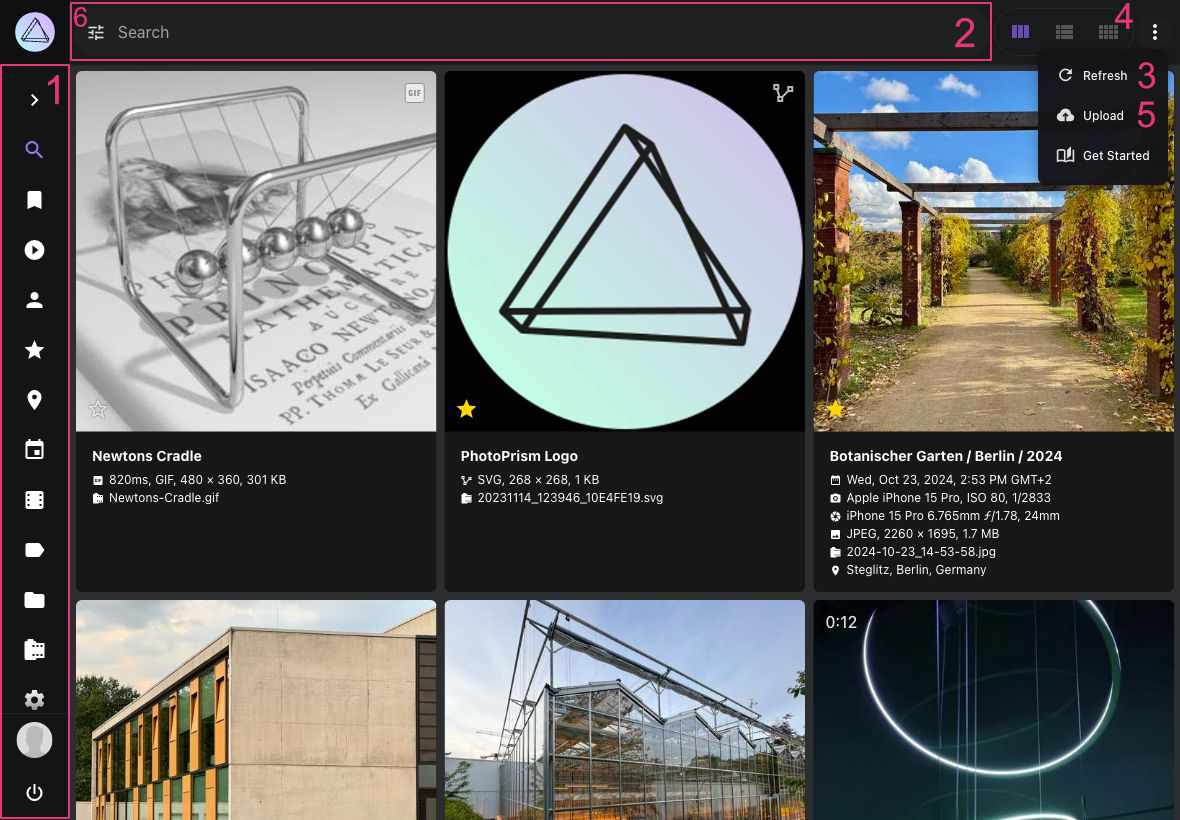
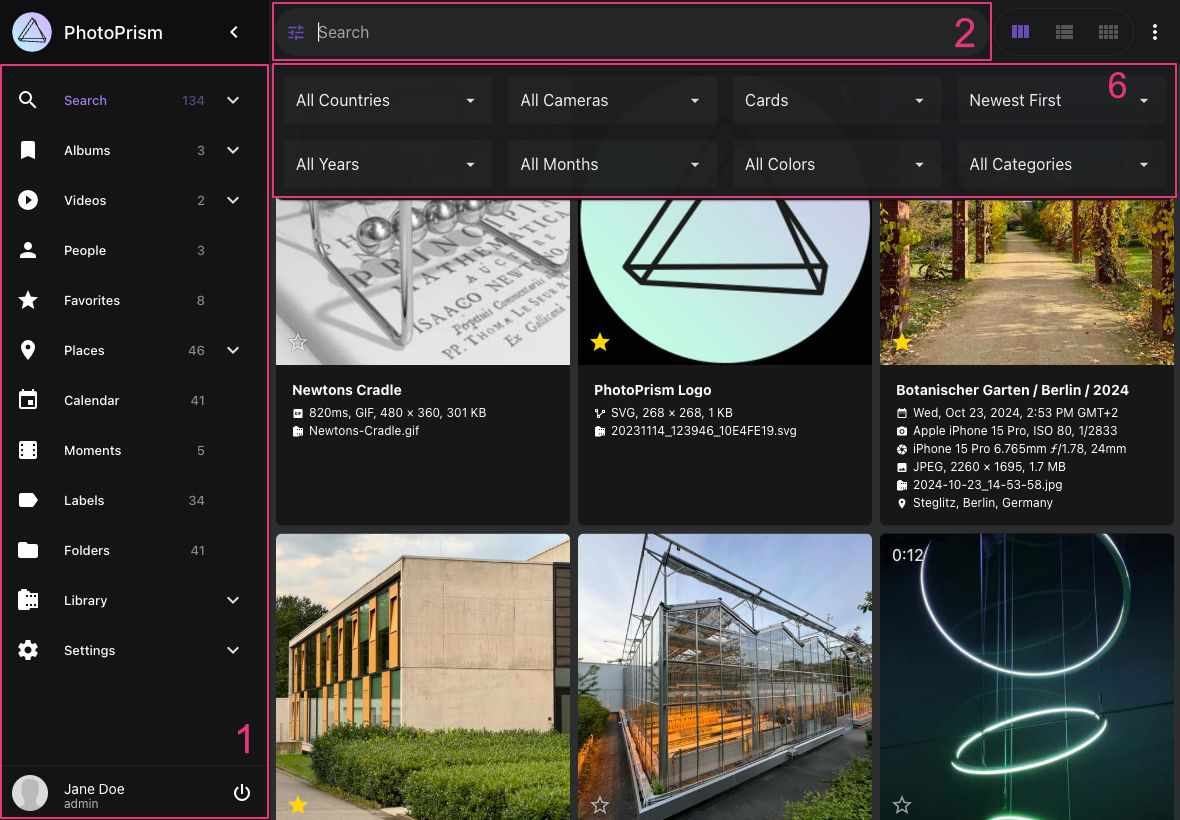
#### 1. Main Navigation ####
Located on the left, minimized on mobile devices.
Click on the links to switch between different pages like Photos, Albums, Places, or Settings.
#### 2. Toolbar ####
Located on the top. Find photos or videos by entering search terms like `cats` and filters like `label:cat`. A list with possible search filters can be found [here](https://docs.photoprism.app/user-guide/search/filters/).
!!! tip "Keyboard Shortcut"
You can quickly focus the search field by pressing **Ctrl + F**.
#### 3. Reload Button ####
:material-refresh: reloads search results without reloading the full page.
!!! tip "Keyboard Shortcut"
You can quickly refresh the page by pressing **Ctrl + R**.
#### 4. View Button ####
Choose your preferred view mode by clicking on it (cards: :material-view-column:, mosaic: :material-view-comfy:, or list: :material-view-list:).
#### 5. Upload Button ####
:material-cloud-upload: opens the upload dialog. Available on most pages, unless read-only mode is enabled or upload is disabled in [Settings](https://docs.photoprism.app/user-guide/settings/general/).
!!! tip "Keyboard Shortcut"
You can quickly open the upload dialog by pressing **Ctrl + U**.
#### 6. Expanded Toolbar ####
The expanded toolbar contains additional options and search filters for country, year, month, camera, color, and category.
!!! tip "Keyboard Shortcut"
You can open the expanded toolbar by pressing **Shift + Ctrl + F**.
#### Context Menu ####
When photos or videos are selected, the context menu appears in the lower right corner.
The number displayed is the count of currently selected items.
It also contains the following buttons:
* :material-archive: Archive photos
* :material-bookmark: Add photos to album
* :material-cloud-download: Download photos
* :material-lock: Mark photos as private
* :material-pencil: Open edit dialog
* :material-share-variant: Share photos
To unselect all items, click the cross at the top:
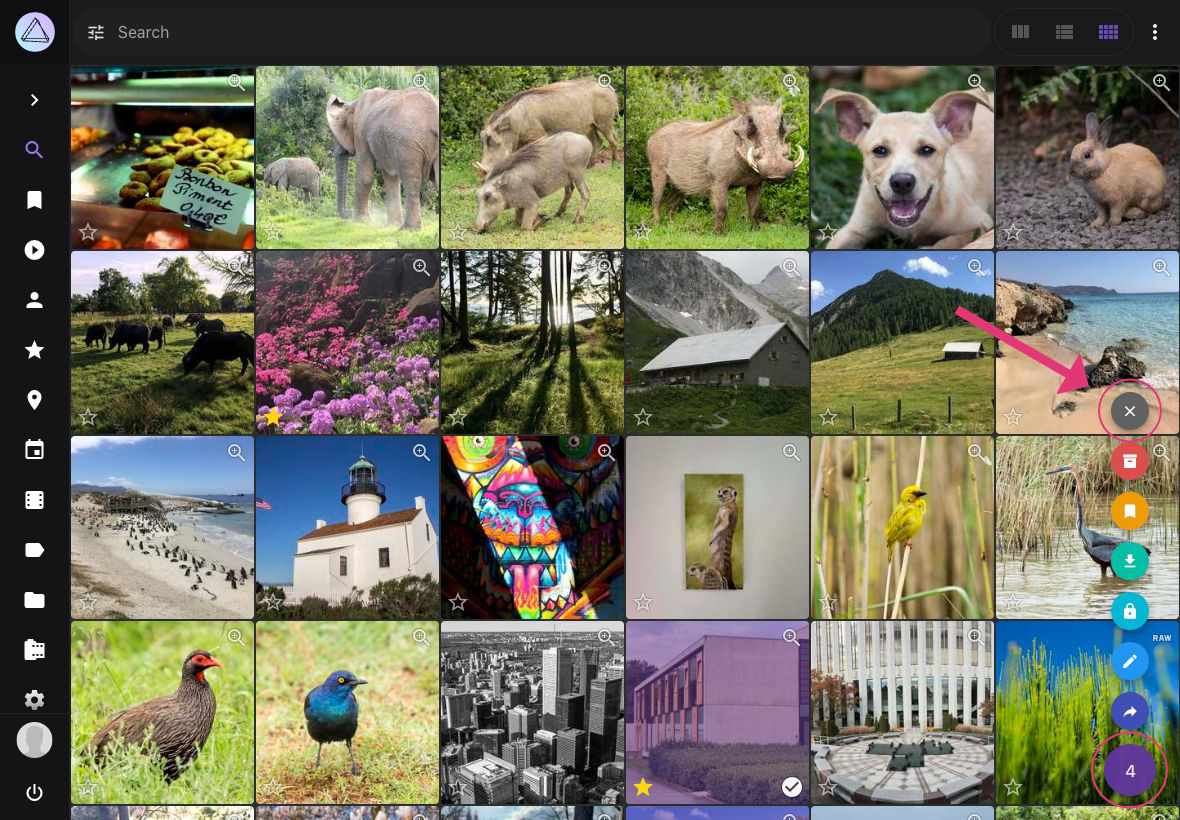
## Selection Mode and Multi-Select ##
### Desktop Browser ###
Select the first picture by clicking :material-checkbox-blank-circle-outline: in the lower right corner.
The user interface is now in selection mode:
- to additionally select individual pictures, click them anywhere except on the play/view icons in the corner
- to select multiple pictures at once, use a shift+click to select all pictures between the last selected picture and the one you shift+click
### Mobile Devices ###
Select the first picture with a long touch.
The user interface is now in selection mode:
- to additionally select individual pictures, touch them anywhere except on the play/view icons in the corner
- to select multiple pictures at once, use a long touch to select all pictures between the last selected picture and the one you long touch
---
# Keyboard Shortcuts
Source: https://docs.photoprism.app/user-guide/organize/keyboard-shortcuts/
# Keyboard Shortcuts
PhotoPrism offers a variety of keyboard shortcuts to help you navigate and use the app more efficiently. Below is a list of available shortcuts, grouped by context.
!!! info ""
On macOS, replace **Ctrl** with **⌘** (Command) key for most shortcuts.
## Common Page Shortcuts
| Shortcut | Action |
|----------------------------------------------------|-----------------------|
| Ctrl + F | Focus Search |
| Ctrl + R | Refresh Page |
| Ctrl + U | Open Upload Dialog |
| Shift + Ctrl + F | Open Expanded Toolbar |
| Ctrl + F (on People, Labels, Library Errors pages) | Focus Search Field |
## Viewer Shortcuts
| Shortcut | Action |
|----------|----------------------|
| Ctrl + I | Toggle Info Sidebar |
| Ctrl + H | Show/Hide Caption |
| Ctrl + M | Mute/Unmute |
| Ctrl + S | Play/Pause Slideshow |
| Ctrl + X | Archive/Restore |
| Ctrl + D | Download |
| Ctrl + E | Edit |
| Ctrl + F | Open Fullscreen |
| Ctrl + L | Like/Unlike |
!!! tip ""
Keyboard shortcuts can help you work faster and keep your hands on the keyboard. Try them out to streamline your workflow!
---
# Introduction
Source: https://docs.photoprism.app/user-guide/library/
# Indexing Your Library
Most users with an existing library will want to [index their originals](https://docs.photoprism.app/user-guide/library/originals/) directly without using the optional import feature, leaving the file and folder names unchanged.
When [importing](https://docs.photoprism.app/user-guide/library/import/), files are first transferred from a temporary folder to the *originals* folder. In the process, duplicates are automatically skipped, and the imported files are given a unique file name and are sorted by year and month.
Importing is also an efficient way to add files, since PhotoPrism does not need to search your *originals* folder to find new files.
!!! info ""
Hidden files and folders that start with a `.`, `@`, `_.`, or `__` like `__MACOSX` are automatically ignored. Other names to be
ignored can be added to a `.ppignore` file in the *originals* or *import* folder it should affect.
You can put it either in the main folder or in a subfolder to limit the scope.
## Indexing Originals
Use *index* if you want to index your photos and videos directly in the *originals* folder, leaving the file and folder names unchanged.
Your folder structure in *originals* might look like this:
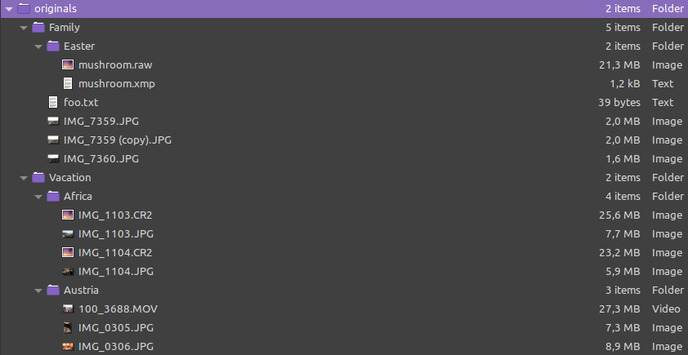
**During indexing:**
* files will not be renamed or moved
* your existing folder structure is preserved, so you can later choose to have your folders appear as albums
* metadata from your files is read to create captions, titles, and locations for your photos
* thumbnails and optionally JSON and/or YAML files containing metadata are created
After indexing, the *originals* folder has not been changed in any way:

### Advantages
* existing file and folder names remain unchanged.
* you can search your images by their current name and location
* indexing is usually faster because no files have to be copied or moved
!!! tldr ""
You can move media files between the different directories within your *originals* folder. The indexer detects this and updates the path automatically when running the next time.
## Importing Files
*Importing* is more efficient when adding files as you don't need to re-index all originals to find new photos and videos.
[*Uploads*](https://docs.photoprism.app/user-guide/library/upload/) will also be treated as import, you can't directly upload to originals (yet).
Your initial folder structure in *import* might look like this:
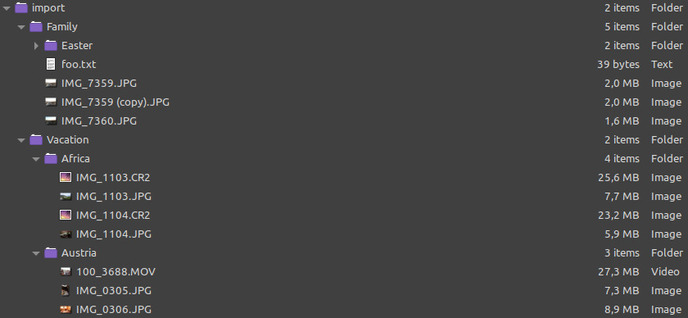
**During import:**
* files are copied or moved from their source directory to the *originals* folder
* duplicates are automatically skipped, "Move" also deletes them in the source directory as if they were successfully moved
* imported files are given a unique file name and are sorted by year and month
* the original file name is indexed as a file property
* all imported files are indexed, the rest remains in the import folder
After importing with "Copy" (default setting), your folders might look like this::
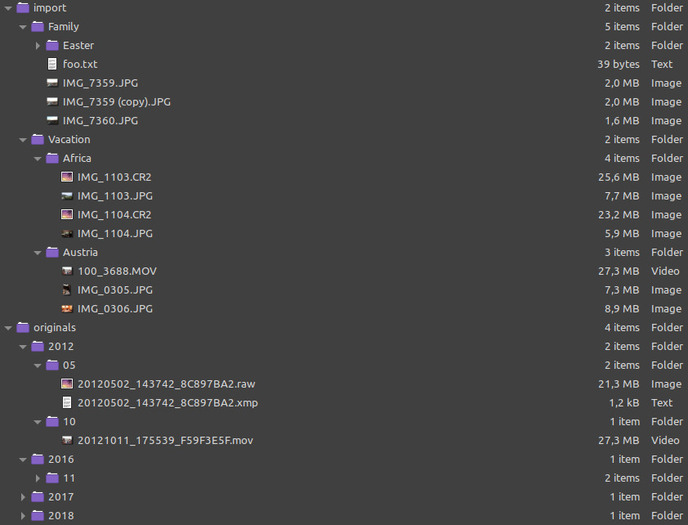
After importing with "Move" your folders might look like this:
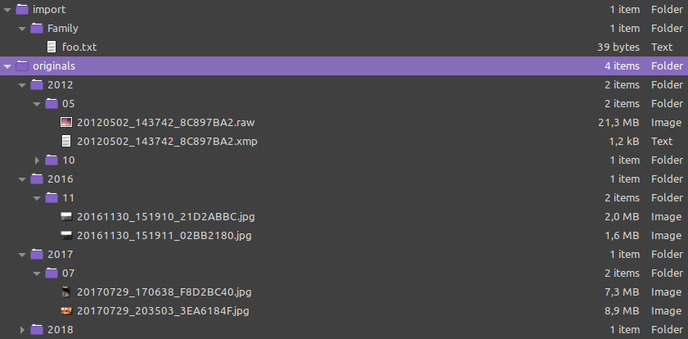
### Advantages
* unsupported files stay untouched in the import directory
* no duplicates in your originals directory
!!! info ""
The original file and folder names are used to extract keywords. For example, when you index a folder with the path "Vacation/Africa", all files from this folder will get the keywords "vacation" and "africa".
## Conclusion
In case your picture library is not well organized and/or you have many duplicates, you may consider importing your files as this will remove duplicates. Be aware that imported files are given a unique file name and are sorted by year and month.
Provided you have a well-organized library with meaningful file and folder names, it is best to index your originals directly and leave the file and folder names unchanged.
---
# Indexing Originals
Source: https://docs.photoprism.app/user-guide/library/originals/
# Indexing Your Originals #
!!! note ""
When using PhotoPrism for the first time, please make sure that the directory containing your photo and video collection has been [configured as *originals* folder](https://docs.photoprism.app/getting-started/docker-compose/#photoprismoriginals), and that the library settings match [your individual preferences](https://docs.photoprism.app/user-guide/settings/library/).
## Manual Indexing
1. Go to *Library* using the main navigation
2. Select a sub-folder or keep the default to index all files
3. Select *Complete Rescan* to re-index all originals, including already indexed and unchanged files
4. Press *Start* to start indexing
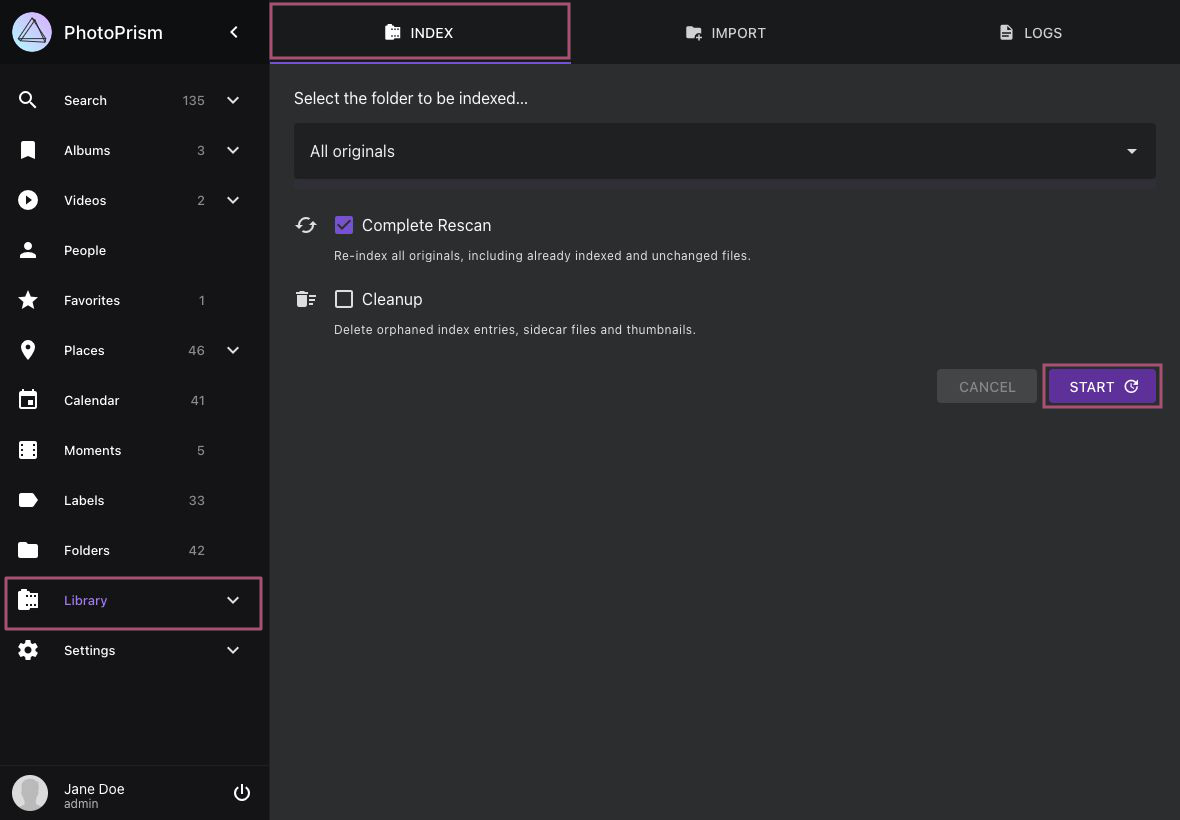
!!! info ""
You can use [WebDAV](https://docs.photoprism.app/user-guide/library/webdav/)-compatible apps, including Microsoft's Windows Explorer and Apple's Finder,
to add files to your *originals* folders from a remote computer or mobile device.
!!! tip "NSFW"
An NSFW detector can be enabled to automatically mark images with potentially objectionable content as
private. Note that this feature is only partially reliable.
Images that have already been indexed before the NSFW detector is activated will not be scanned by the detector.
### When should "Complete Rescan" be selected?
If you select this option, all files in the *originals* folder will be re-indexed, including already indexed and unchanged files.
We recommend performing a complete rescan after major updates to take advantage of new search filters and sorting options. Be sure to [read the notes for each release](https://docs.photoprism.app/release-notes/) to see what changes have been made and if they might affect your library, for example, because of the file types you have or because new search features have been added. If you encounter problems that you cannot solve otherwise (i.e. before reporting a bug), please also try a rescan and see if it solves the problem.
!!! tldr ""
Manually entered information such as labels, people, titles or captions will not be modified when indexing, even if you perform a "complete rescan".
### Cleanup Option
Admins can optionally enable the cleanup option to delete unused thumbnails from the cache folder and remove orphaned index entries. If you do this from time to time, it can speed up indexing and reduce storage usage.
## Scheduled and Automatic Indexing
[PhotoPrism 240523-923ee0cf7](https://docs.photoprism.app/release-notes/#may-23-2024) and newer versions can optionally perform scheduled rescans of your library. This feature can be enabled by [setting a schedule in your configuration](https://docs.photoprism.app/getting-started/config-options/#indexing). If you are using an external scheduler, please be careful not to start several indexing processes at the same time, as this not only causes a high server load, but may also lead to unexpected indexing results.
By default, a library rescan is also triggered automatically after a safety delay of 5 minutes when *originals* are [added or modified via WebDAV](https://docs.photoprism.app/user-guide/sync/webdav/). You can change the safety delay or disable this feature through the [`PHOTOPRISM_AUTO_INDEX`](https://docs.photoprism.app/getting-started/config-options/#indexing) config option.
!!! tldr ""
Be aware that automatic indexing may cause files or sets of files to be incompletely indexed if you are using a slow or unreliable internet connection, which is of particular concern with [large video or RAW files](https://github.com/photoprism/photoprism/issues/4310).
## Free Storage Threshold
To prevent the *storage* volume from filling up completely — which can interrupt operation and cause errors or data loss — PhotoPrism can pause indexing, [importing](https://docs.photoprism.app/user-guide/library/import/), and [uploads](https://docs.photoprism.app/user-guide/library/upload/) when free disk space falls below a configured threshold.
This runtime check is **disabled by default**, because the underlying probe cannot reliably report free space on some filesystems — for example network mounts, FUSE layers, and container overlays — where a false low reading would wrongly block writes. Any [storage limit configured with `PHOTOPRISM_FILES_QUOTA`](https://docs.photoprism.app/getting-started/config-options/#storage) continues to be enforced regardless.
To enable the check, set the [`PHOTOPRISM_STORAGE_FREE`](https://docs.photoprism.app/getting-started/config-options/#storage) config option (or the `--storage-free` command flag) to the minimum free space you want to keep available, expressed as a percentage of the total storage capacity:
- `-1` (the default) disables the check entirely.
- A value between `1` and `99` enables the check at that percentage.
- `0` or any value of `100` or more uses the built-in default of **1% of the total capacity**.
When the check is enabled, an absolute floor of **100 MB** of free space also applies, whichever threshold is reached first. A warning is then written to the logs and the affected operation is skipped until enough space is available again; the check is re-evaluated automatically as soon as space is freed.
!!! warning ""
For safety reasons, this threshold can only be changed by server administrators through the configuration and is intentionally not exposed in the app settings. We recommend enabling the check on filesystems where free space can be read reliably, as a full disk can interrupt operation and lead to data loss.
## Ignoring Files and Folders
Hidden files and folders that start with a `.`, `@`, `_.`, or `__` like `__MACOSX` will be automatically ignored when indexing your library.
Other file and folder names that should be ignored can be added to a `.ppignore` file in the *originals* or *import* folder, e.g.:
```
# ignore a directory by its name
foo
# ignore all folders starting with a #
[#]*
# ignore all files
*.*
# ignore all files with gif extension
*.gif
# ignore videos which name start with MVI
MVI_*.MOV
# or
MVI_*.*
```
Ignore files can be placed either in the main directory or in a subfolder to limit their scope, as only matching files in the same directory and any subdirectories will be ignored. To match specific file extensions or other naming patterns, `*` can be used as a wildcard.
Note that files and folders that have already been indexed cannot be retroactively removed from the index with a `.ppignore` file, i.e. they remain indexed and visible in the user interface, even if you later add their name or a matching name pattern.
Also note that already indexed files may still remain part of a [stack](https://docs.photoprism.app/user-guide/organize/stacks/) if a related file with the same name but a different extension exists and is not ignored, e.g. an already indexed `.raw` file may still appear in a stack with its corresponding `.jpg` file after you add a `.ppignore` rule.
!!! tldr ""
If you are a new user and files or folders have already been indexed, it is generally easiest to reset the database and start with a new index by running `photoprism reset` in a [terminal](https://docs.photoprism.app/getting-started/docker-compose/#command-line-interface).
---
# Import to Originals
Source: https://docs.photoprism.app/user-guide/library/import/
# Importing Files to Originals #
!!! tldr ""
Most users with an existing library will want to [index their originals](https://docs.photoprism.app/user-guide/library/originals/) directly without using the optional import feature, leaving the file and folder names unchanged. Importing first copies or moves from their source directory to the *originals* folder, which is optional.
## Manual Import
1. Add files to the *import* folder if not done already
2. Go to *Library* using the main navigation, and open the *Import* tab
3. Select a sub-folder or keep the default to import all files
4. Select *Move Files* if you want imported files to be removed from the *import* folder
5. Click on *Import*
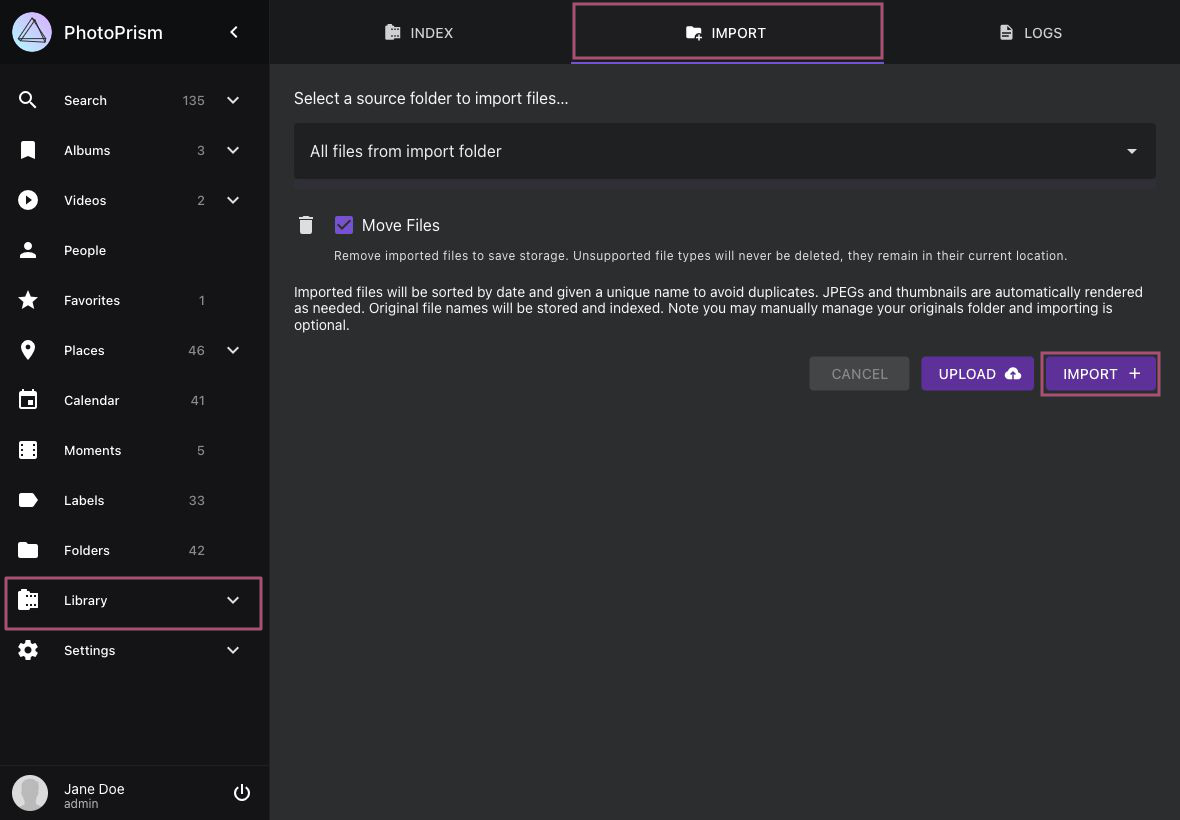
!!! tip ""
You may use [WebDAV](https://docs.photoprism.app/user-guide/library/webdav/) for adding files to the *import* folder.
This is especially helpful if PhotoPrism is running on a remote server.
!!! danger ""
Import is not possible in [read-only mode](https://docs.photoprism.app/user-guide/settings/library/) because it requires [write permissions](https://docs.photoprism.app/getting-started/troubleshooting/docker/#file-permissions) to the folder of *originals*.
!!! info ""
Importing is automatically paused when free disk space falls below the [configured threshold](https://docs.photoprism.app/user-guide/library/originals/#free-storage-threshold), to prevent the *storage* volume from filling up completely.
### When should "Move Files" be selected?
If you select this option, files that have been moved to the *originals* folder, or that already exist, will be automatically deleted from the *import* folder.
This way you save disk space if you don't want to keep them as backup or for other reasons.
## Automatic Import
Automatic imports are disabled by default, as a wrong configuration or unsupported usage can cause files or sets of files to be imported incompletely, e.g. if you are using a slow or unreliable Internet connection, which is of particular concern with [large video or RAW files](https://github.com/photoprism/photoprism/issues/4310).
If you enable automatic imports by setting the config option [`PHOTOPRISM_AUTO_IMPORT`](https://docs.photoprism.app/getting-started/config-options/#indexing) to a positive number indicating the safety delay in seconds, an import is automatically triggered after the safety delay when files are added to the *import* folder [via WebDAV](https://docs.photoprism.app/user-guide/sync/webdav/).
[Learn more ›](https://docs.photoprism.app/getting-started/config-options/#indexing)
## Changing the Import File Path
Starting with [Release 250223-b79d21907](https://docs.photoprism.app/release-notes/#february-23-2025), advanced users can customize the destination file path pattern used by the import feature through the [`settings.yml`](https://docs.photoprism.app/getting-started/config-files/settings/#library) config file, as shown in this example:
```yaml
Import:
Dest: 2006/01/20060102_150405_82F63B78.jpg
```
The date and time placeholders for the import destination file path pattern are described in [the *time* package docs](https://pkg.go.dev/time#Layout). Using a different 8 digit hex number such as `12345678` for the [CRC32 checksum](https://en.wikipedia.org/wiki/Cyclic_redundancy_check) and `.ext` instead of `.jpg` for the file extension will work as well. Invalid and empty patterns are ignored and the default is used instead.
[Learn more ›](https://docs.photoprism.app/getting-started/config-files/settings/#library)
!!! note ""
Setting a custom import file path **will not rename any files** that have already been imported, since this might cause conflicts with other tools or instances that may be accessing your files. Renaming existing files may also result in storage and/or transfer overhead with backup tools that do not recognize that files have been moved, i.e. they may create and/or transfer a new backup copy. We will consider [adding an integrated file renaming feature](https://docs.photoprism.app/getting-started/faq/#can-i-use-photoprism-to-sort-files-into-a-configurable-folder-structure) once we have had time to test possible implementations for usability, performance, and security.
## Frequently Asked Questions
### Can I use PhotoPrism to sort files into a configurable folder structure?
You have complete freedom in how you name your files and folders. So if you don't like the unique names and folders used by the import feature, you can instead use external tools like [ExifTool](https://ninedegreesbelow.com/photography/exiftool-commands.html#rename), [PhockUp](https://github.com/ivandokov/phockup), or [Photo Organizer](https://www.systweak.com/photo-organizer) to reorganize your files based on their metadata.
[Learn more ›](https://docs.photoprism.app/getting-started/faq/#can-i-use-photoprism-to-sort-files-into-a-configurable-folder-structure)
---
# Duplicate Detection
Source: https://docs.photoprism.app/user-guide/library/duplicates/
# Duplicate Detection #
Duplicate files are [automatically detected and skipped while indexing](https://docs.photoprism.app/user-guide/library/originals/) your library, so that they only appear once in search results and albums. Their SHA1 checksums and sizes are used for comparison.
!!! tldr ""
Browsing and deleting duplicates through the web user interface is planned for a [future release](https://github.com/photoprism/photoprism/issues/1308).
## File Import
When [importing](https://docs.photoprism.app/user-guide/library/import/), files are first copied or moved from a temporary folder to the *originals* folder. In the process, duplicates are automatically skipped. "Move" also deletes them in the source directory as if they were successfully moved.
## Related Files
In addition to exact duplicates, there may be similar pictures and related sidecar files (with the same filename) in your library, for example:
- raw + jpg + xmp
- jpg + json
- original + edited version
- original + compressed version
- live and timelapse photos
Depending on your library settings, such files may be automatically grouped into stacks:
[Learn more ›](https://docs.photoprism.app/user-guide/organize/stacks/) [Library Settings ›](https://docs.photoprism.app/user-guide/settings/library/)
---
# Metadata Support
Source: https://docs.photoprism.app/user-guide/library/metadata/
# Metadata Support
Original media and sidecar files are scanned for Exif and XMP data, as well as proprietary metadata, including Google Photos JSON.
For this, PhotoPrism has a [built-in Exif parser](https://docs.photoprism.app/developer-guide/metadata/exif/), a [simple XMP reader](https://docs.photoprism.app/developer-guide/metadata/xmp/) for standalone `.xmp` sidecar files, and can also use [ExifTool](https://exiftool.org/) to extract metadata in various formats such as Exif, XMP, and IPTC from the media files themselves:
[View Supported Tags ›](https://www.photoprism.app/kb/metadata/)
The combined information is then normalized, merged, and [enriched with additional information](https://docs.photoprism.app/user-guide/library/metadata/#enrichment).
!!! tldr ""
Feel free to [submit a feature](https://docs.photoprism.app/developer-guide/issues/) [or pull request](https://docs.photoprism.app/developer-guide/pull-requests/) for Exif or XMP metadata that is not supported yet.
### External Changes
If you update one of these tags with external tools such as [ExifTool](https://exiftool.org/) or Digikam, PhotoPrism reads the changes the next time it indexes the file, provided the file's modification date has been updated.
### XMP Sidecar Files
Many photo editors write their metadata to a standalone `.xmp` file next to the original, rather than into the original itself. PhotoPrism reads these sidecar files while indexing and gives their values priority: when a field is populated from an XMP sidecar, that data is the only source for the field.
Besides the title, description, copyright, camera, lens, and exposure details, the following are read from sidecar files as well:
#### :material-map-marker: Location
GPS coordinates and altitude are read from a sidecar and take precedence over the position embedded in the image, so geotagging a photo in Darktable, digiKam, or Lightroom updates its location in [*Places*](https://docs.photoprism.app/user-guide/organize/places/) the next time it is indexed. Coordinates written as plain decimals, in degrees/minutes/seconds, or in Adobe's degrees-and-decimal-minutes form are all understood.
#### :material-account-box: Face Regions
Names you have assigned to faces in Adobe Bridge, Lightroom, digiKam, ACDSee, or Windows can be imported as [people](https://docs.photoprism.app/user-guide/organize/people/) markers instead of being entered again in PhotoPrism. This works with both standalone sidecar files and XMP embedded in the original, and must be enabled first with [*Import Faces from XMP*](https://docs.photoprism.app/user-guide/settings/advanced/#import-faces-from-xmp).
#### :material-tag-multiple: Subject
The terms in the sidecar's `dc:subject` list — the "Keywords" panel in Adobe applications — populate the *Subject* field, where multi-word terms are kept as they were written. They remain searchable and are matched against your existing [labels](https://docs.photoprism.app/user-guide/organize/labels/).
[View Supported Tags ›](https://www.photoprism.app/kb/metadata/)
### Cloud Migration
PhotoPrism also reads metadata from Google Photos JSON and Apple XMP files:
[Migrate from Google Photos ›](https://docs.photoprism.app/user-guide/use-cases/google/)
[Migrate from Apple Photos ›](https://docs.photoprism.app/user-guide/use-cases/apple/)
## Enrichment
In addition to reading metadata from your original and sidecar files, PhotoPrism enriches the metadata of your photos with additional information:
- dates or keywords from folder or filenames
- keywords derived from image classification, color detection and facial recognition
- GPS information from location estimates
- keywords derived from location details
## Export
We want you to be able to access your metadata independently of PhotoPrism and its database. That's why the indexer additionally creates [human-readable YAML sidecar files](https://docs.photoprism.app/user-guide/backups/export/) that you can open with a text editor or other tools if needed.
!!! note ""
Except for the [image orientation](https://docs.photoprism.app/user-guide/organize/rotate/), PhotoPrism does not yet offer the ability to write changed metadata back to the original files to avoid possible data loss and conflicts with third-party apps. See [GitHub Discussions](https://github.com/photoprism/photoprism/discussions/1092).
---
# Web Upload
Source: https://docs.photoprism.app/user-guide/library/upload/
# File Upload Using the Web UI #
The Upload dialog supports drag-and-drop: drop one or many files (or whole folders) onto the upload area, or click it to open the system file picker. Staged files are listed with their sizes, and the action button is disabled until at least one file has been added.
!!! tip "Keyboard Shortcut"
You can quickly open the upload dialog by pressing **Ctrl + U** from anywhere in the application.
!!! info ""
Uploads are automatically paused when free disk space falls below the [configured threshold](https://docs.photoprism.app/user-guide/library/originals/#free-storage-threshold), to prevent the *storage* volume from filling up completely.
=== "From Toolbar"
1. Click :material-dots-vertical: in the upper right corner
2. Click :material-cloud-upload: in the menu that appears
3. In case you want to upload the files directly to an album select one
4. Drag files onto the upload area, or click it to open the file picker
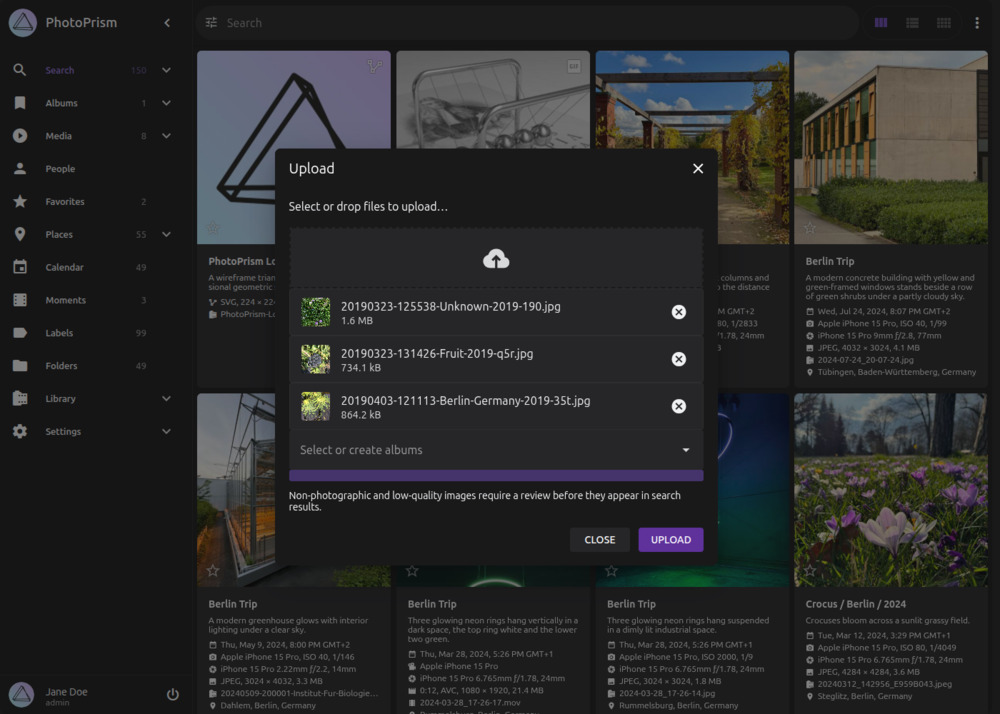
5. Confirm the selection and click *Upload*
=== "From Library"
1. Go to *Library* using the main navigation, and open the *Import* tab
2. Click *Upload*
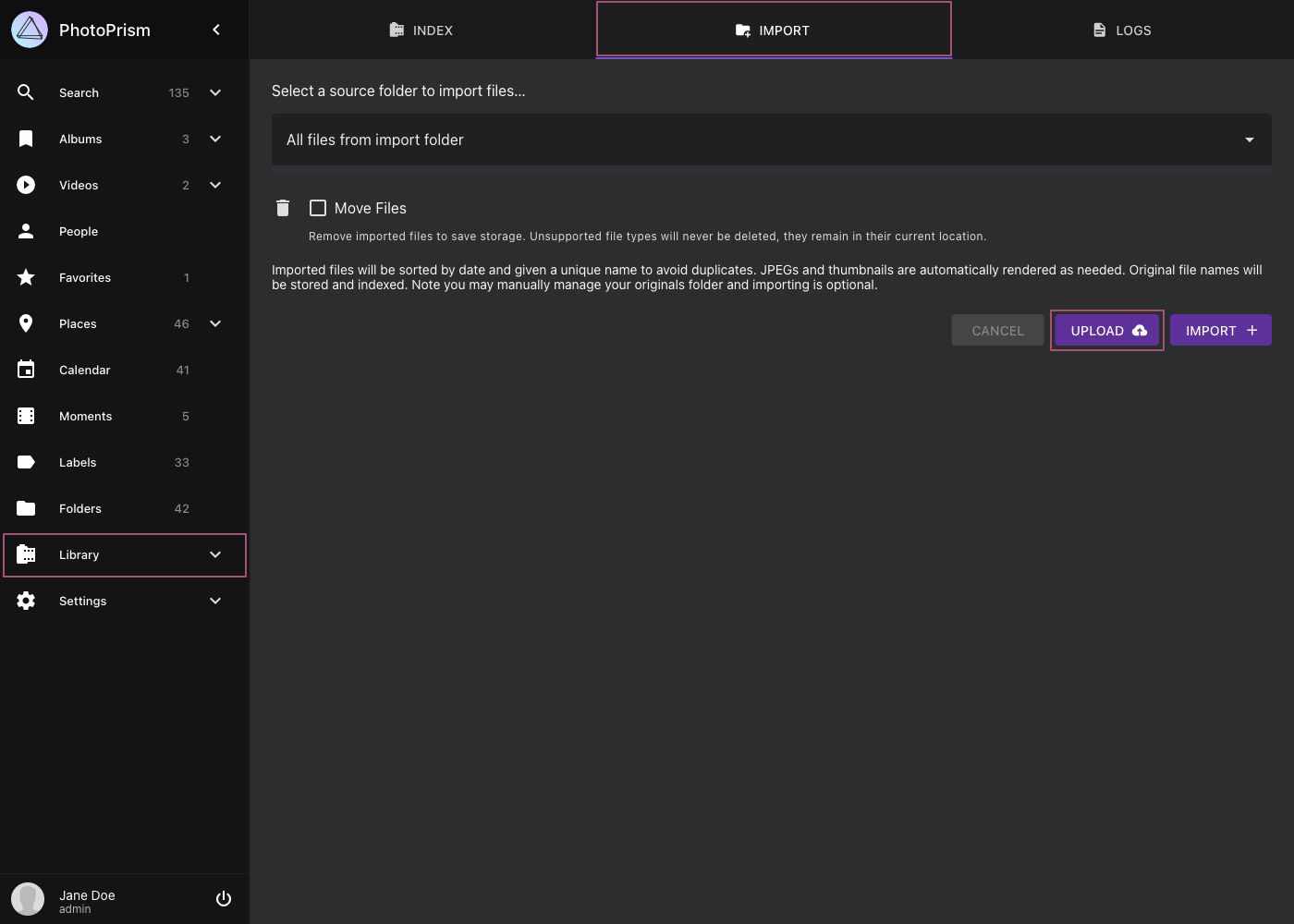
3. In case you want to upload the files directly to an album select one
4. Drag files onto the upload area, or click it to open the file picker
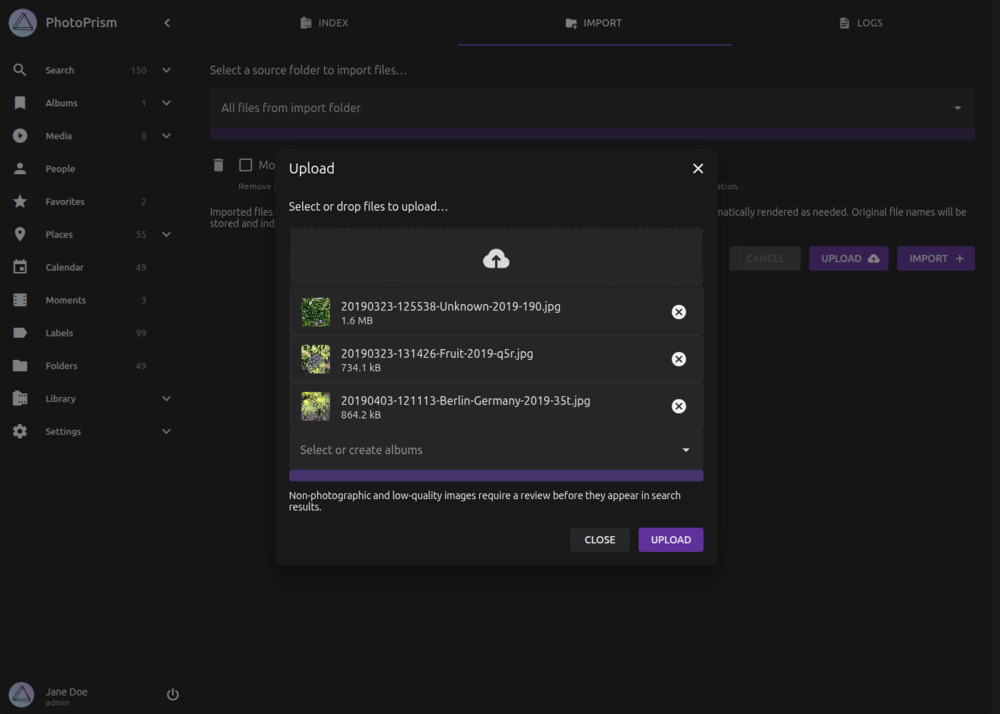
5. Confirm the selection and click *Upload*
!!! info "Preserve Original Format When Uploading on iOS"
iOS may convert photos and videos to a more compatible format **before** they are uploaded via Safari or the PhotoPrism PWA, so PhotoPrism will receive and store the already converted files.
To preserve the original format:
- In the iOS Photos picker, tap the three-dot menu (…) → *Options* → set **Format** to **Current** instead of **Automatic** so your files are uploaded in the original format.
- Alternatively, use dedicated sync apps like [PhotoSync](https://docs.photoprism.app/user-guide/sync/mobile-devices/#using-photosync), which can upload files in their original format via WebDAV.
!!! info "Why GPS Location May Be Missing After Uploading from a Phone"
Recent Android versions remove the embedded GPS coordinates from photos when they are read by an app that does not hold the system *media location* permission ([`ACCESS_MEDIA_LOCATION`](https://developer.android.com/training/data-storage/shared/media#location-info-photos)). Because web browsers cannot request this permission, pictures uploaded through the web UI on a phone may arrive **without location data**. iOS can behave similarly depending on the browser and its privacy settings.
This happens on the device, **before** the files reach PhotoPrism, so the coordinates cannot be recovered during indexing. To preserve the embedded location:
- Upload the original files from a **desktop browser**, or
- Use a dedicated sync app such as [PhotoSync](https://docs.photoprism.app/user-guide/sync/mobile-devices/#using-photosync), which holds the required permission and transfers files unmodified via WebDAV.
You can check whether a file still contains GPS data with [ExifTool](https://exiftool.org/) (for example, `exiftool -a -G1 photo.jpg`).
---
# WebDAV Sync
Source: https://docs.photoprism.app/user-guide/library/webdav/
# WebDAV File Upload #
WebDAV-compatible apps and clients such as [PhotoSync](https://docs.photoprism.app/user-guide/sync/mobile-devices/), Microsoft's Windows Explorer,
and Apple's Finder can connect directly to PhotoPrism:
[Connect via WebDAV ›](https://docs.photoprism.app/user-guide/sync/webdav/)
After files have been transferred, you can [index](https://docs.photoprism.app/user-guide/library/originals/) or [import](https://docs.photoprism.app/user-guide/library/import/) them as usual.
By default, indexing and importing start automatically after a safety delay when files have been uploaded using WebDAV.
!!! tldr ""
You can disable WebDAV in the [advanced settings](https://docs.photoprism.app/user-guide/settings/advanced/). Since it requires write permissions and authentication, the built-in WebDAV server is automatically disabled when running in [read-only](https://docs.photoprism.app/getting-started/config-options/#feature-flags) or [public mode](https://docs.photoprism.app/getting-started/config-options/#authentication).
!!! note ""
You can also use WebDAV to download files from your library: Simply connect to
`http://server-ip:2342/originals/` (local server without HTTPS) or
`https://yourdomain/originals/` (public server with HTTPS enabled), and then copy the files to
a folder on your local device.
---
# File Browser
Source: https://docs.photoprism.app/user-guide/library/files/
# Browsing Files and Folders #
The *Originals* section displays all files of your *originals* directory.
Clicking on a folder opens it. Clicking on a file opens its edit dialog.
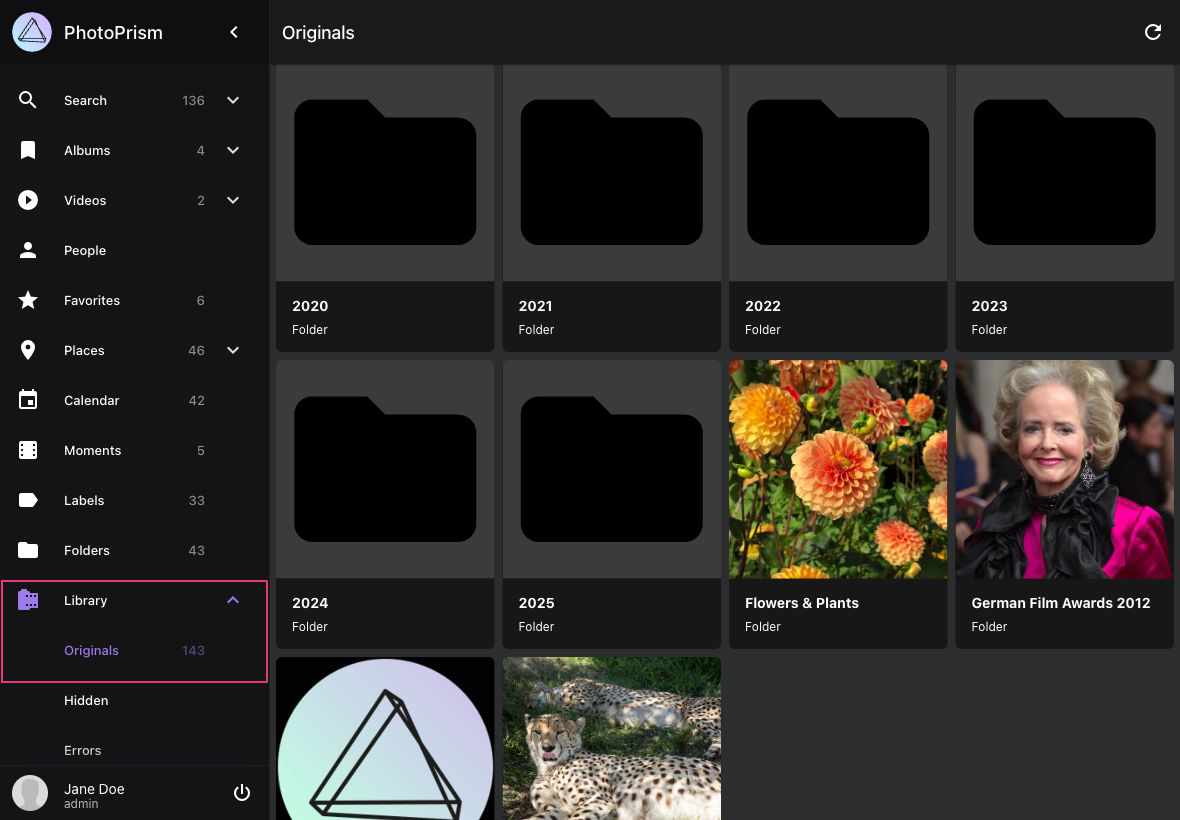
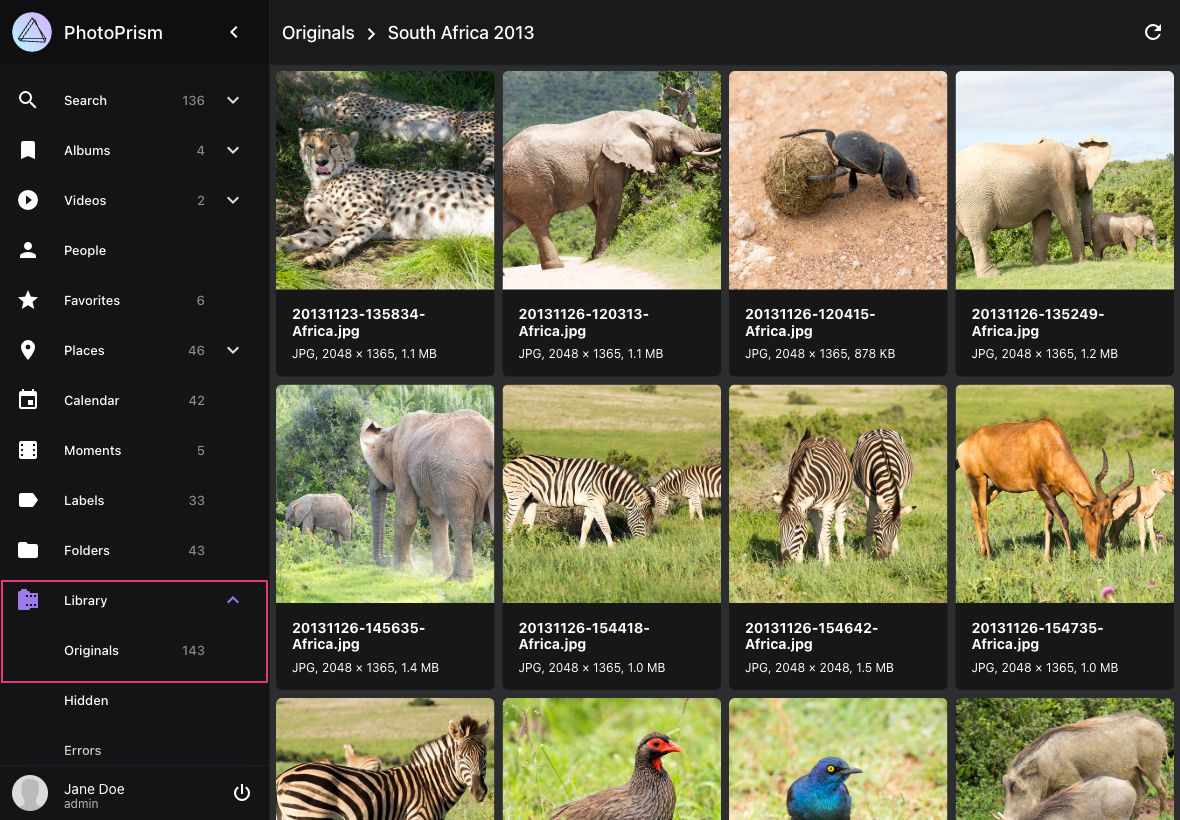
The context menu allows you to perform the following actions:
## Download Files ##
1. Select files
2. Open context menu
3. Click :material-download:
## Create an Album from Files ##
1. Select files
2. Open context menu
3. Click :material-bookmark:
4. Select existing album or enter new album name
5. Click *add to album*
---
# Introduction
Source: https://docs.photoprism.app/user-guide/search/
# Browsing and Searching Your Library
With its many views and search filters, PhotoPrism allows you to explore your photo collection in multiple ways instead of just scrolling through it day by day.
These features help you rediscover long-forgotten shots, find specific pictures, and quickly create albums based on search results.
## Views and Filters
Using the main navigation you can visit the different sections of your photo library:
### :material-magnify: Search
This section shows all photos and videos that are not in review, archived, or private.
!!! hint ""
In case the review, private or archive functions are turned off - Search displays those photos and videos as well.
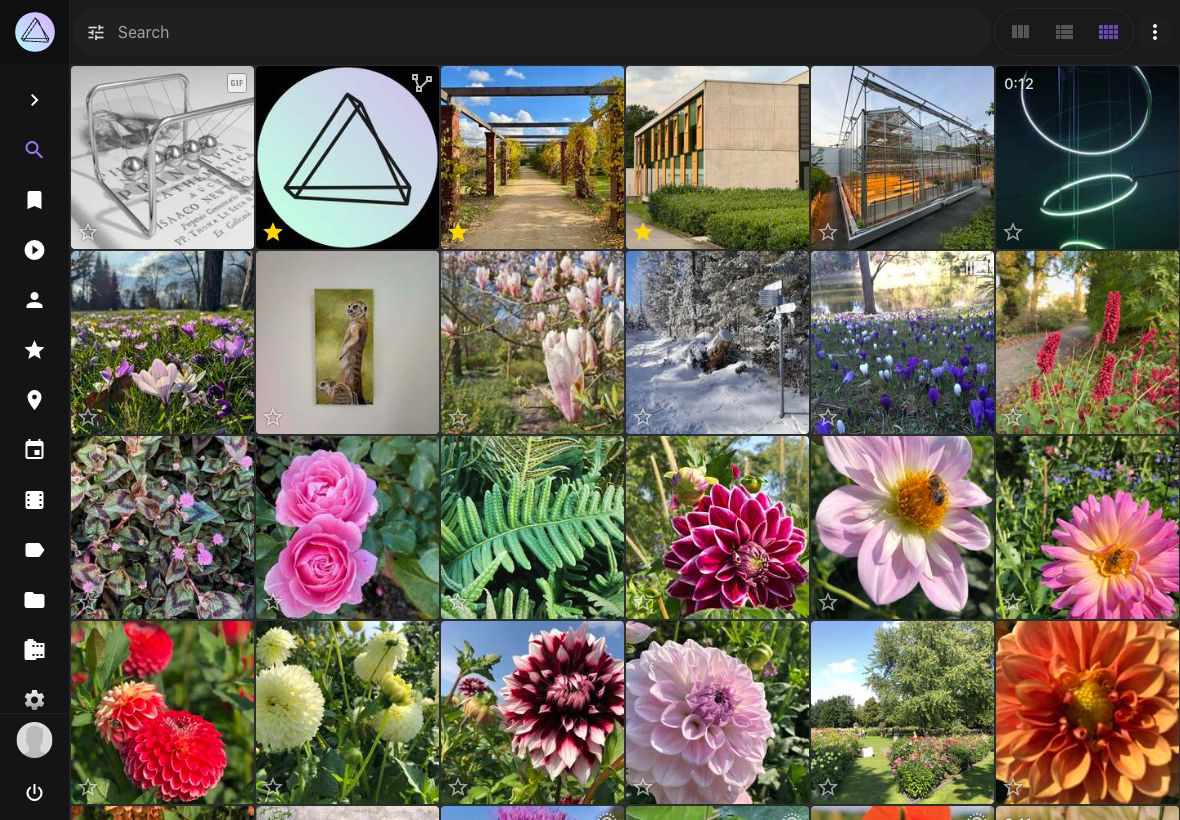
#### Monochrome
Shows monochrome pictures with little or no color.
#### [Panoramas](https://docs.photoprism.app/user-guide/organize/panoramas/)
Shows only panoramic pictures with a wide aspect ratio.
#### [Stacks](https://docs.photoprism.app/user-guide/organize/stacks/)
Shows photos consisting of multiple image files, such as burst shots and edits.
#### [Vectors](https://docs.photoprism.app/user-guide/search/filters/#filter-reference)
Shows vector graphics, such as SVG and Adobe Illustrator files.
#### [Scans](https://docs.photoprism.app/user-guide/organize/scans/)
Shows scanned pictures and documents.
#### [Documents](https://docs.photoprism.app/user-guide/organize/documents/)
Shows PDF documents and other content classified as documents.
#### [Review](https://docs.photoprism.app/user-guide/organize/review/)
Shows pictures that require approval before they appear in search results.
#### [Archive](https://docs.photoprism.app/user-guide/organize/archive/)
Shows archived pictures so you can restore or permanently delete them.
### :material-bookmark: [Albums](https://docs.photoprism.app/user-guide/organize/albums/)
Shows manually curated albums.
#### Unsorted
Shows all photos that are not part of an album.
### :material-play-circle: [Videos](https://docs.photoprism.app/user-guide/organize/video/)
Shows videos that are not in review or archived or private.
#### Live Photos
Shows all short videos up to 3 seconds.
### :material-account: People
Shows photos and videos grouped by people on it.
### :material-star: Favorites
Shows all photos and videos you liked.
### :material-filmstrip-box: [Moments](https://docs.photoprism.app/user-guide/organize/moments/)
Discover albums we automatically create for you.
### :material-calendar: [Calendar](https://docs.photoprism.app/user-guide/organize/calendar/)
Organizes your photos due to time taken.
### :material-map-marker: [Places](https://docs.photoprism.app/user-guide/organize/places/)
Displays all photos and videos with location information on a worldmap.
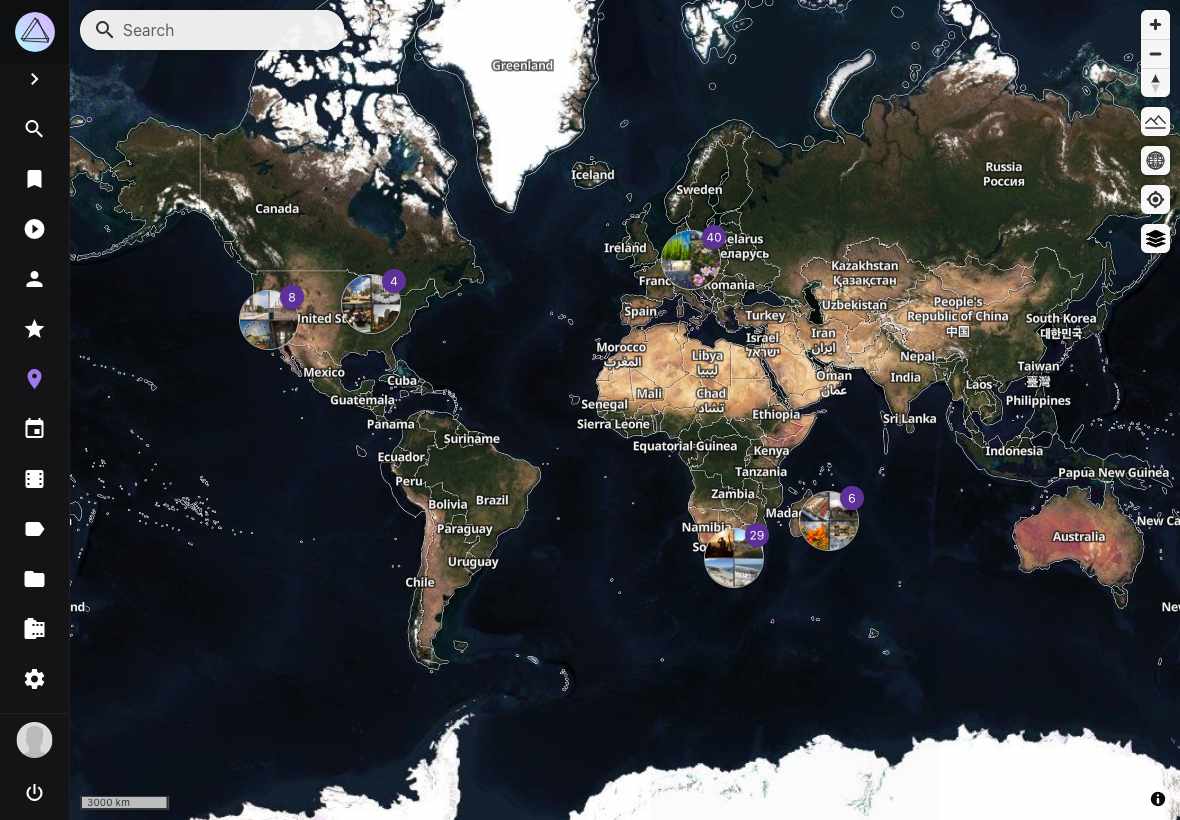
#### Regions {#regions}
Shows your photos grouped by location.
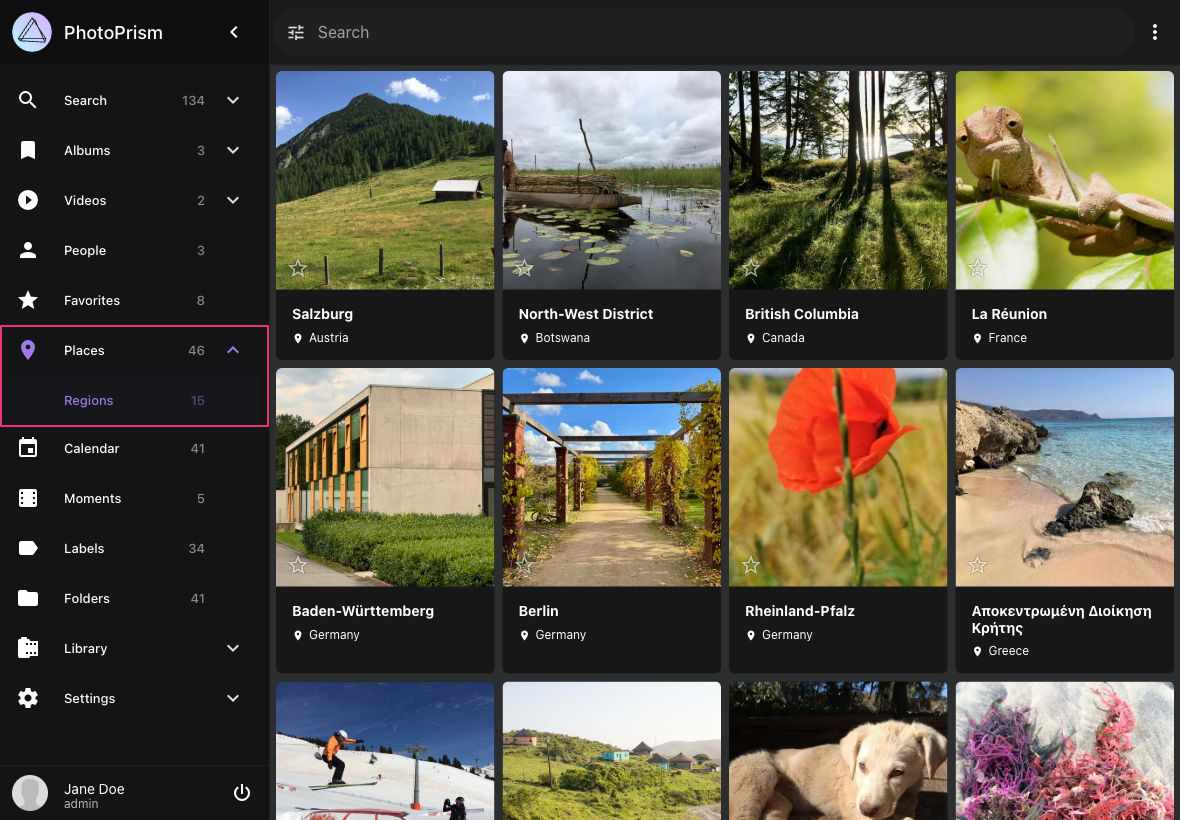
### :material-label: [Labels](https://docs.photoprism.app/user-guide/organize/labels/)
Shows your photos and videos grouped by labels like cat, dog or beach.
### :material-folder: [Folders](https://docs.photoprism.app/user-guide/organize/folders/)
Displays all folders of your originals directory.
### :material-lock: [Private](https://docs.photoprism.app/user-guide/organize/private/)
Shows photos and videos marked as private.
### :material-film: [Originals](https://docs.photoprism.app/user-guide/library/files/)
Hierarchical view of your originals directory.


---
# Result Views
Source: https://docs.photoprism.app/user-guide/search/views/
# Search Result Views
PhotoPrism offers you three different views to browse your photos and videos. In addition you can choose between multiple light and dark themes.
=== "Cards View"
The *cards view* displays important metadata like title, time and location next to the photos
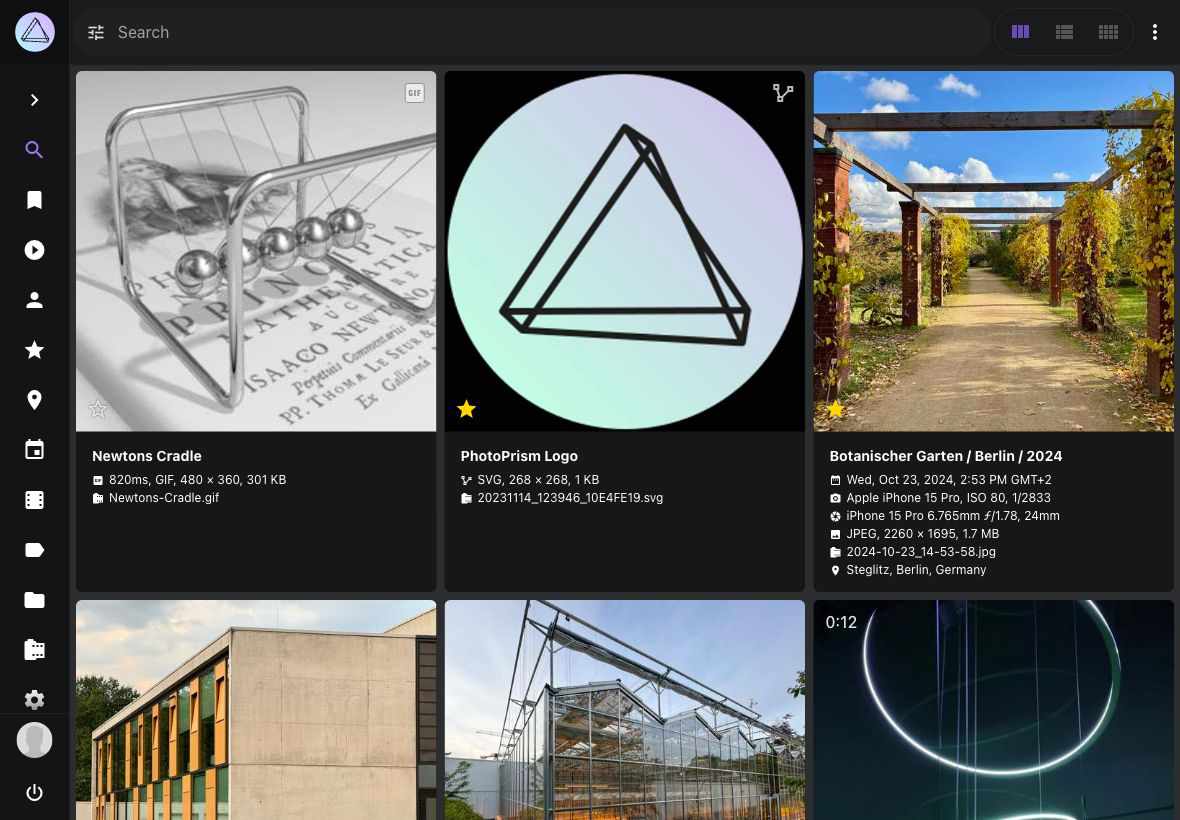
=== "Mosaic View"
The *mosaic view* lets you enjoy your photos without distraction
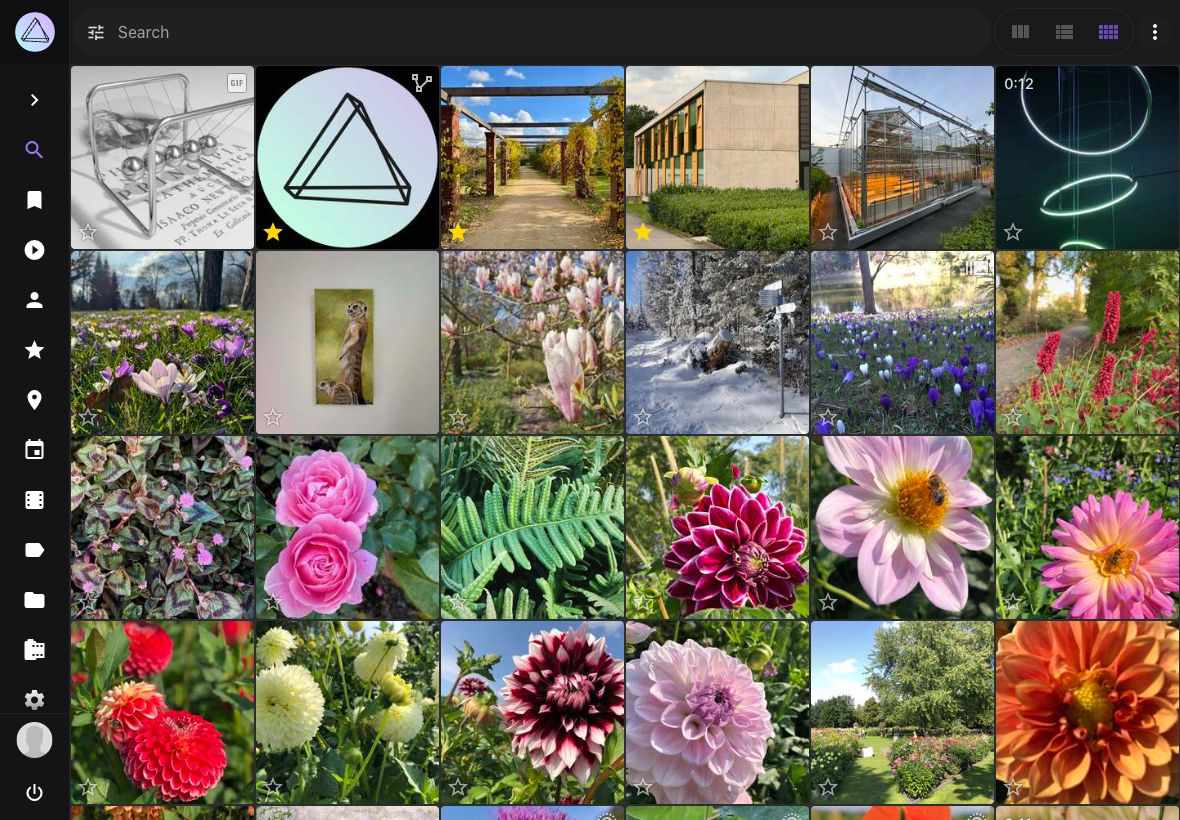
=== "List View"
The *list view* provides you photos and metadata in a well-arranged list
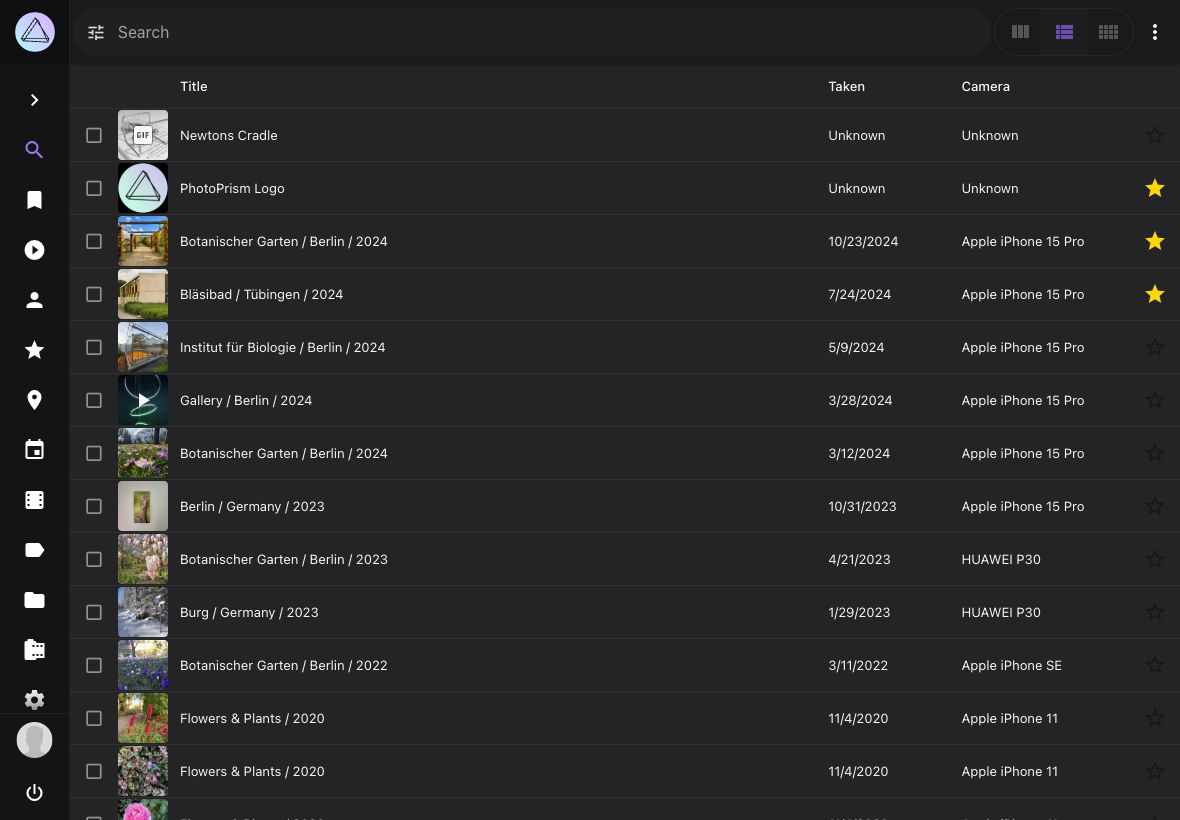
To switch between views you can either use the filter in the filter bar or the view button (:material-view-column:, :material-view-comfy:, :material-view-list:) in the upper right corner.
Additionally, you can open your photos/videos in *fullscreen mode* and start a slideshow (:material-play:).
!!! tip "Keyboard Shortcuts in Fullscreen"
In fullscreen mode, you can use these keyboard shortcuts for quick actions:
- **Ctrl + F** : Toggle fullscreen mode
- **Ctrl + S** : Play/pause slideshow
- **Ctrl + I** : Toggle Info Sidebar
- **Ctrl + H** : Show/Hide Caption
- **Ctrl + M** : Mute/Unmute
- **Ctrl + L** : Like/Unlike
---
# Search Filters
Source: https://docs.photoprism.app/user-guide/search/filters/
# Using Search Filters
Powerful search filters let you easily find specific photos and videos, for example:
* Persons visible on a picture
* Objects that are displayed on a picture
* The [main color](https://docs.photoprism.app/developer-guide/metadata/colors/#standard-colors) of a picture
* The file or folder name of a picture
* Location where a picture has been taken
* Other metadata such as camera, lens, chroma...
Just give it a try!
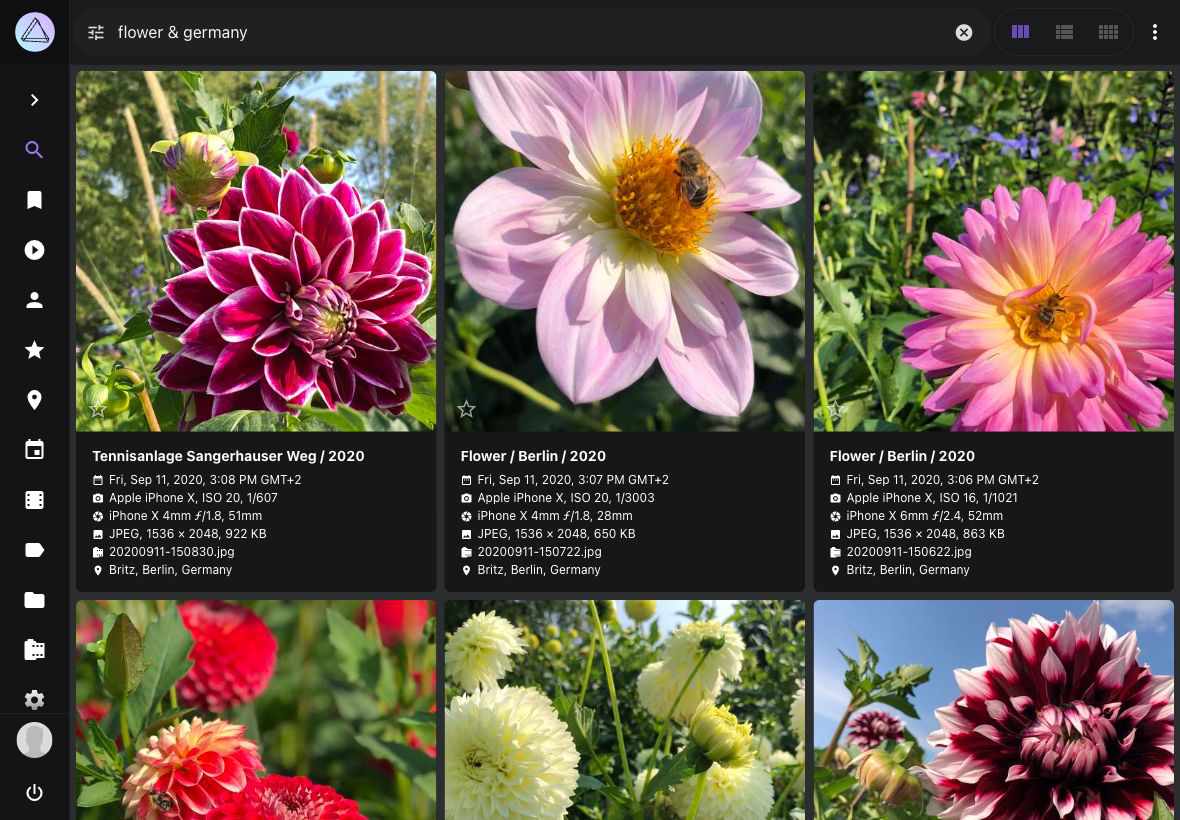
## Introduction ##
The following filters can be set via dropdowns in the search toolbar:
* Country, Year, Month, Order, Camera, [Color](https://docs.photoprism.app/developer-guide/metadata/colors/#standard-colors), Category.
If you set multiple filters, only pictures that meet all filter criteria will be displayed in the search result. Filters can generally be combined unless they contradict each other.
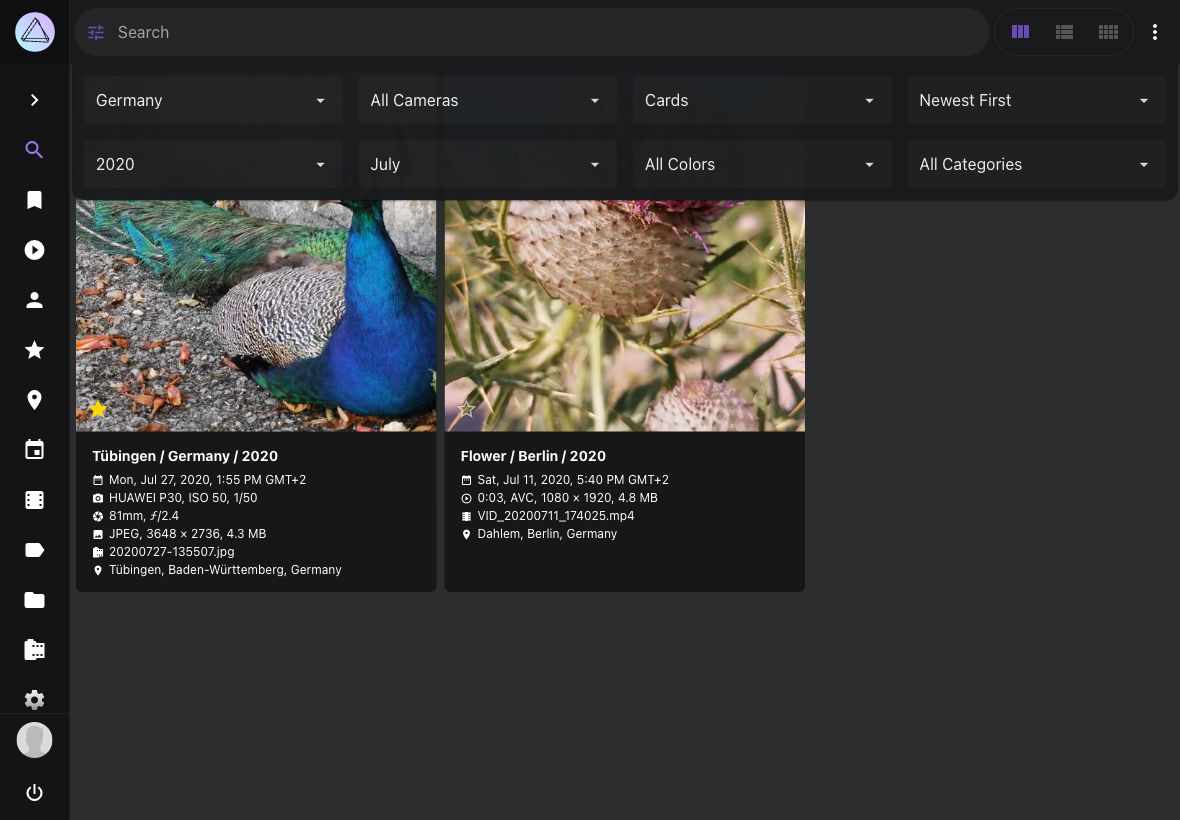
In addition, these and many other filters can be entered into the toolbar search box as follows:
```
label:cat color:green type:live
```
A complete overview of the [available search filters](https://docs.photoprism.app/user-guide/search/filters/#filter-reference) can be found below.
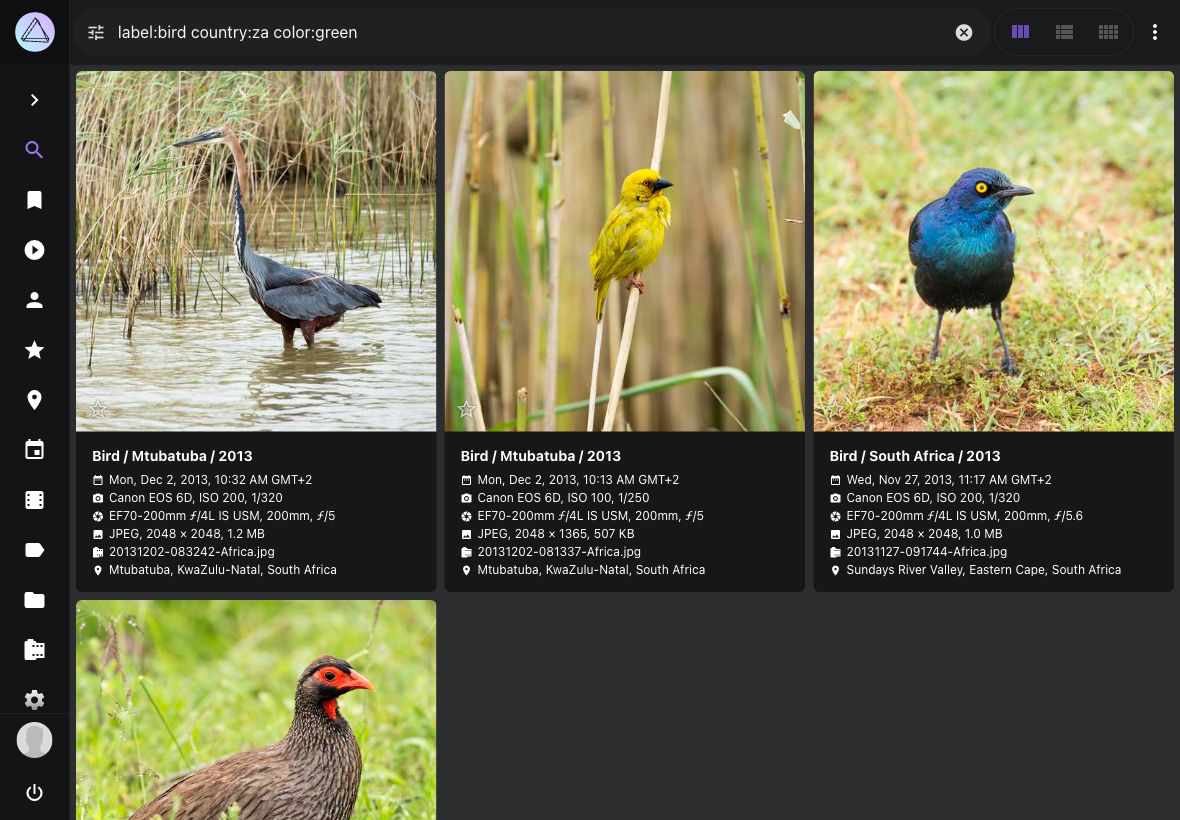
### AND Search ###
To combine different filters use a space as separator:
```
mono:true review:false
```
The search result shows pictures that are monochrome **and** not in review.
Additionally some filters can be combined with `&` as follows:
```
keywords:buffalo&water
```
or:
```
keywords:"buffalo & water"
```
This query will show all photos that have the keywords water **and** buffalo.
& is supported by the following filters:
* albums, keywords, labels, subject/person, subjects/people.
### OR Search ###
An OR search is possible using `|`:
```
label:cat|dog
```
This will show all photos that have either the label cat **or** dog.
The following filters work with |:
* albums, color, country, state, city, day, month, year, keywords, label, path, subject/person, subjects/people, title, type, name, filename, original, hash
### NOT Search ###
The `label` filter accepts a leading `!` to exclude photos that have a given label. AND, OR, and negation can be combined within the same filter:
```
label:!rejected
```
This will show all photos that do **not** have the label rejected.
```
label:"cat&!blurry"
```
This will show all photos that have the label cat **and** do not have the label blurry.
```
label:"cat|dog&!blurry"
```
This will show all photos that have either the label cat **or** dog, while excluding any that also have the label blurry.
To match a label name that starts with a literal `!`, escape it with `\`:
```
label:"\!weird"
```
### Searching for &, |, or ! ###
A search for photos that contain `&`, `|`, or `!` in their caption, filename, name, title, or label name is possible using the escape `\`:
```
caption:Green\|Blue
```
This will show all photos that have the caption Green|Blue, and not all photos that have the caption Green OR Blue. Existing labels whose names contain `&` must likewise be escaped as `\&` in the `label` filter so that they are matched literally instead of as an AND operator.
The following filters work with escape:
* name, filename, caption, title, label
### Wildcard ###
The `*` character will act as a wildcard:
```
name:"IMG_23*"
```
This will show all photos which name start with `IMG_23`.
```
name:"*_23*"
```
This will show all photos which name contain `_23`, like `IMG_2356.MOV` , `2021_02_23.jpg`, etc.
!!!info ""
Wildcards can be combined with & or |: `filename:"*IMG123*|*_22F6FC19.jpg"`
## Filter Reference
This is a complete list of supported search filters with examples. Filters can generally be combined unless they contradict each other, e.g. results cannot be monochrome and have high color saturation at the same time.
| Filter | Type | Examples | Notes |
|:------------|:----------|:--------------------------------------|:---------------------------------------------------------------------------------------------------------------------------------------------------------------------------------------------------------------------------------------------------------|
| dist | decimal | dist:50 | Maximum distance to position in km |
| lat | decimal | lat:41.894043 | Position latitude (-90.0 to 90.0 deg) |
| lng | decimal | lng:-87.62448 | Position longitude (-180.0 to 180.0 deg) |
| chroma | number | chroma:70 | Chroma (0-100) |
| diff | number | diff:-1 diff:2 | Differential Perceptual Hash (000000-FFFFFF) |
| quality | number | quality:0 quality:3 | Minimum quality score (1-7) |
| album | string | album:berlin | Album UID or name, supports * wildcards |
| albums | string | albums:"South Africa & Birds" | Album names, combinable with & or \| |
| alt | string | alt:300-500 | Altitude (m) |
| camera | string | camera:canon | Camera make or model |
| caption | string | caption:"Lake*" | Searches text in captions separated by \|, or specify false to find content without a caption |
| category | string | category:airport | Location category type |
| city | string | city:"Berlin" | City names, separated by \| |
| codec | string | codec:avc1 | Media codec types separated by \|, e.g. jpeg, avc1, or hvc1 |
| color | string | color:"red\|blue" | Color name separated by \|, e.g. purple, magenta, pink, red, orange, gold, yellow, lime, green, teal, cyan, blue, brown, white, grey, or black |
| country | string | country:"de\|us" | Country codes, separated by \| |
| day | string | day:3\|13 | Days 1-31, separated by \| |
| description | string | description:"Lake*" | Searches text in titles or captions separated by \|, or specify false to find content without a title or caption |
| f | string | f:2.8-4.5 | Aperture (F-Number) |
| face | string | face:PN6QO5INYTUSAATOFL43LL2ABAV5ACZG | Find pictures with a specific face ID, you can also specify yes, no, new, or a face type |
| faces | string | faces:yes faces:3 | Minimum number of detected faces (yes means 1) |
| favorite | string | favorite:true favorite:false | Finds favorite content |
| filename | string | filename:"2021/07/12345.jpg" | File names including path and extension, separated by \| |
| folder | string | folder:"*/2020" | Alias for the path filter |
| geo | string | geo:yes | Finds content with or without latitude and longitude |
| hash | string | hash:2fd4e1c67a2d | SHA1 file hashes, separated by \| |
| id | string | id:123e4567-e89b-... | Finds content with the specified Image, Document or Instance IDs, separated by \| |
| iso | string | iso:200-400 | ISO number (light sensitivity) |
| keywords | string | keywords:"sand&water" | Keywords, combinable with & and \| |
| label | string | label:"cat\|dog&!blurry" | Label names: \| is OR within a group, & is AND between groups (every positive group must match), leading ! negates a group (e.g. !rejected). Category expansion applies to both positive and negative terms. Escape a literal &, \|, or leading ! with \ |
| latlng | string | latlng:49.4,13.41,46.5,2.331 | Position bounding box (Lat N, Lng E, Lat S, Lng W) |
| lens | string | lens:ef24 | Lens make or model |
| mm | string | mm:28-35 | Focal length (35mm equivalent) |
| month | string | month:7\|10 | Months from 1-12, separated by \| |
| mp | string | mp:3-6 | Resolution in Megapixels (MP) |
| name | string | name:"IMG_9831-112*" | File names without path and extension, separated by \| |
| near | string | near:pqbcf5j446s0futy | Finds nearby pictures (UID) |
| olc | string | olc:8FWCHX7W+ | Open Location Code (OLC) |
| original | string | original:"IMG_9831-112*" | Original file names of imported files, separated by \| |
| path | string | path:2020/Holiday | Path names separated by \|, supports * wildcards |
| people | string | people:"Jane & John" | Subject names, combinable with & or \| |
| person | string | person:"Jane Doe & John Doe" | Subject names, will be matched exactly and can be combined using & or \| |
| s2 | string | s2:4799e370ca54c8b9 | Position, specified as S2 Cell ID |
| scan | string | scan:true scan:false | Finds scanned photos and documents |
| state | string | state:"Baden-Württemberg" | State or province names, separated by \| |
| subject | string | subject:"Jane Doe & John Doe" | Alias for person |
| subjects | string | subjects:"Jane & John" | Alias for people |
| title | string | title:"Lake*" | Searches text in titles separated by \|, or specify false to find content without a title |
| type | string | type:image\|raw\|live | Finds specific media types, such as image, raw, live, video, animated, audio, vector, or document, separated by \| |
| uid | string | uid:pqbcf5j446s0futy | Finds content with the specified internal UIDs, separated by \| |
| year | string | year:1990\|2003 | Years, separated by \| |
| animated | switch | animated:yes | Finds animated images only |
| archived | switch | archived:yes | Finds archived content |
| audio | switch | audio:yes | Finds audio content only |
| document | switch | document:yes | Finds PDF documents only |
| error | switch | error:yes | Finds content with errors |
| hidden | switch | hidden:yes | Finds hidden content (broken or unsupported) |
| image | switch | image:yes | Finds regular photos and images only |
| landscape | switch | landscape:yes | Finds landscape pictures only |
| live | switch | live:yes | Finds Motion and Live Photos only |
| media | switch | media:yes | Finds live, video, audio, and animated content only |
| mono | switch | mono:yes | Pictures with few or no colors |
| panorama | switch | panorama:yes | Finds panorama pictures only (aspect ratio 1.9:1 or more) |
| photo | switch | photo:yes | Finds regular photos and images, as well as RAW and Live Photos |
| portrait | switch | portrait:yes | Finds portrait pictures only |
| primary | switch | primary:yes | Finds primary JPEG or PNG files only |
| private | switch | private:yes | Finds private content only (except when public:true) |
| public | switch | public:yes | Excludes private content |
| raw | switch | raw:yes | Finds RAW images only |
| review | switch | review:yes | Finds content in review |
| square | switch | square:yes | Finds square pictures only (aspect ratio 1:1) |
| stack | switch | stack:yes | Finds content with more than one media file |
| stackable | switch | stackable:yes | Finds content that can be stacked with additional files |
| unsorted | switch | unsorted:yes | Finds content that is not in an album |
| unstacked | switch | unstacked:yes | Finds content with a file that has been removed |
| vector | switch | vector:yes | Finds vector graphics only |
| video | switch | video:yes | Finds video content only |
| added | timestamp | added:"2006-01-02T15:04:05Z" | Finds content added at or after this time |
| after | timestamp | after:"2022-01-30" | Finds content created on or after this date |
| before | timestamp | before:"2022-01-30" | Finds content created before this date |
| edited | timestamp | edited:"2006-01-02T15:04:05Z" | Finds content edited at or after this time |
| taken | timestamp | taken:"2022-01-30" | Finds content created on the specified date |
| updated | timestamp | updated:"2006-01-02T15:04:05Z" | Finds content updated at or after this time |
!!! question "Why can't I play live photos or find stacks when I search for specific images?"
Our search API and user interface perform a file search. This is intentional since "stacks" can contain files of different types and properties, such as color.
For example, there may be color and monochrome versions. Now, when you search for them or sort them by color, the user interface must display individual files. Otherwise, the results showing a color image/video when you filter by monochrome would make no sense.
Likewise, if you search for `filename.mp4.*`, you will find only JPEGs without video, because the video file extension is `.mp4` without an extra dot at the end.
We recommend using the `path:` and/or `name:` filters with wildcards if searching for individual files limits the search results too much. Most users will want to find all related files so that they can be displayed together, e.g. as live photos consisting of a video and an image.
You can combine these filters with other filters such as `live` to ensure that the results include only pictures with a specific media type. Alternatively, you can use the `filename:` filter with a more permissive wildcard that excludes the file extension.
---
# Albums
Source: https://docs.photoprism.app/user-guide/organize/albums/
# Albums
## Create a New Album
1. Go to *Albums*.
2. In the upper right corner click the plus :material-plus: icon.
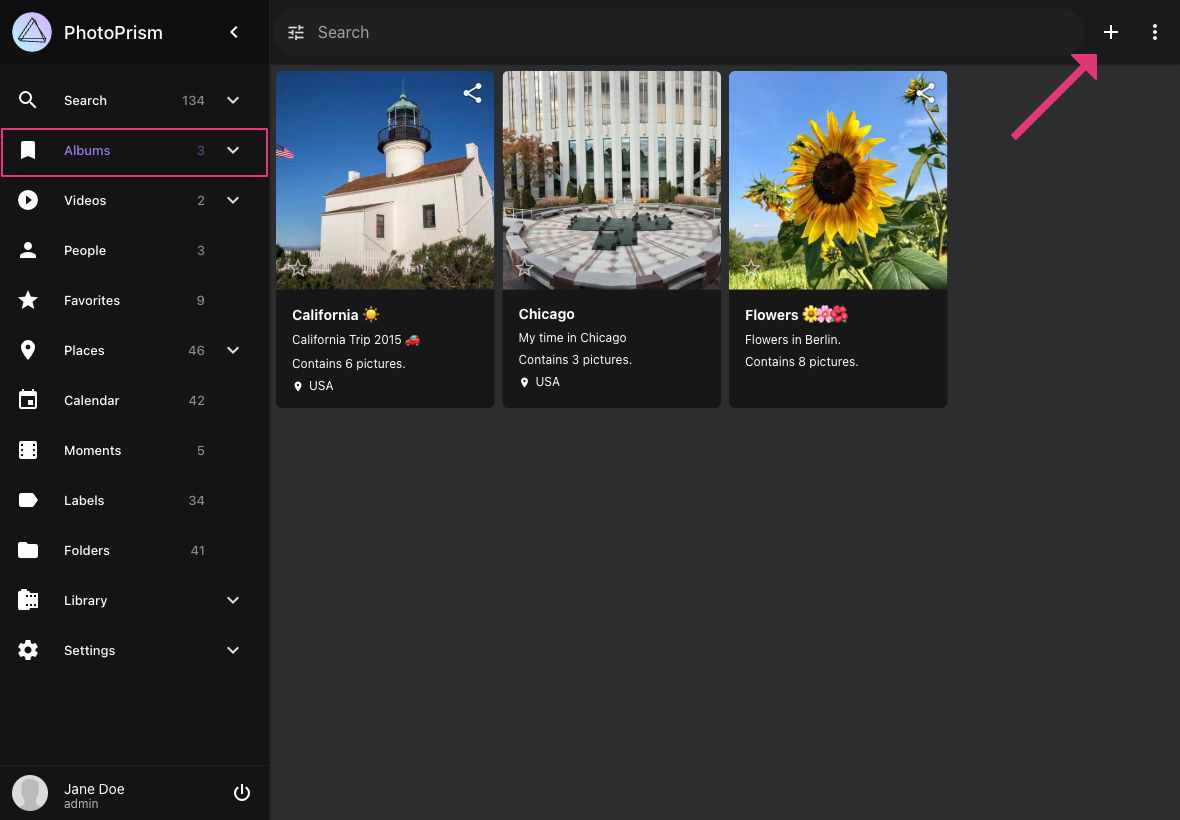
3. A new album with name "Month Year" is created.
## Edit Album Details
Go to *Albums* and open the *album edit dialog*.
=== "From Title"
Click on the *album title*.
=== "Context Menu"
Select album, open context menu and the pencil :material-pencil: icon.
=== "Album Toolbar"
Open album, click :material-dots-vertical: and then click the pencil :material-pencil: icon.
Edit album details and click *Save*.
## Add Pictures to Albums
1. Select photos and videos.
2. Click context menu.
3. Click the bookmark :material-bookmark: icon.
4. Select or create the albums to which the pictures should be added.
5. Click *Confirm*.
!!! tip ""
You can select many photos at once using shift.
## Remove Pictures from an Album
1. Go to your album.
2. Select the pictures you want to remove.
3. Click context menu.
4. Click the eject :material-eject: icon.
## Change Album Cover
To set a cover image for an album:
1. Open the album by clicking on it.
2. Click on the photo you want to use as the cover.
3. When the photo opens, click :material-dots-vertical: in the upper right corner.
4. Select **Set as Album Cover** from the menu.
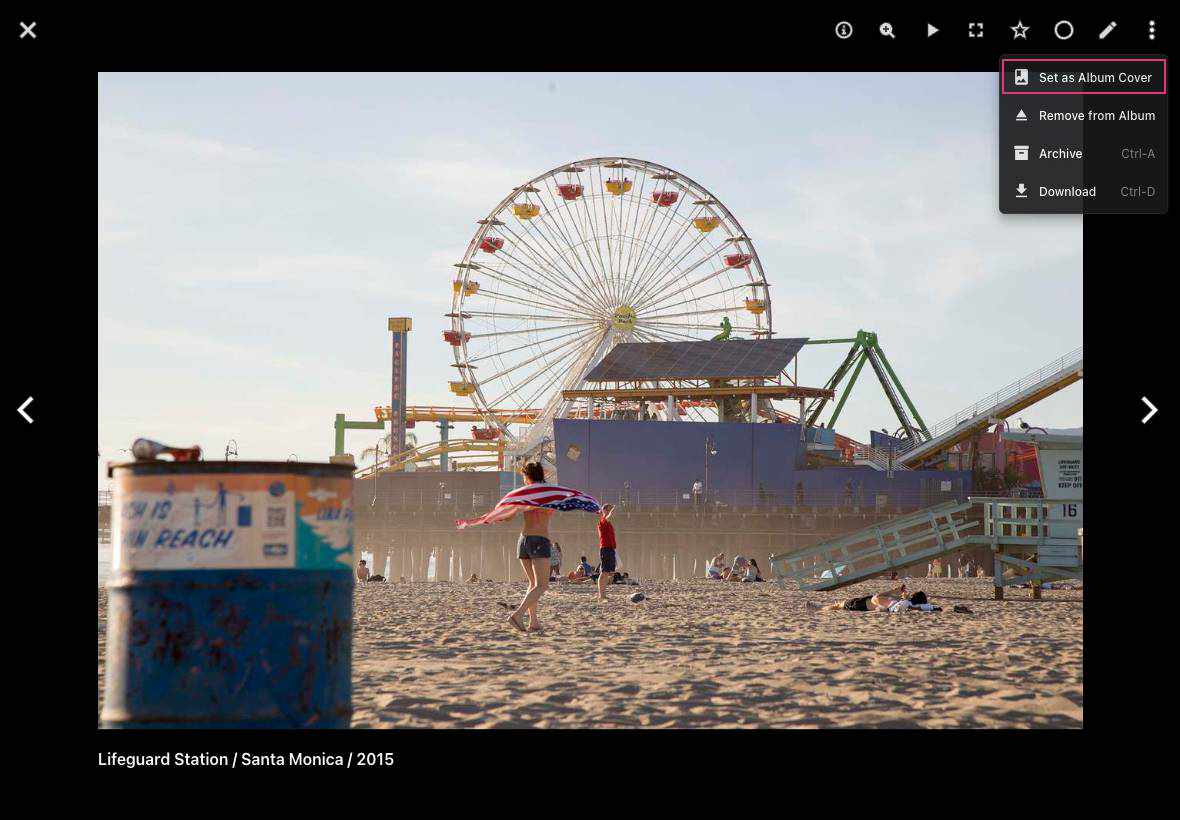
This will set the selected photo as the cover image for the album.
## Delete an Album
=== "Context Menu"
Select album, open context menu and click the trash :material-delete: icon.
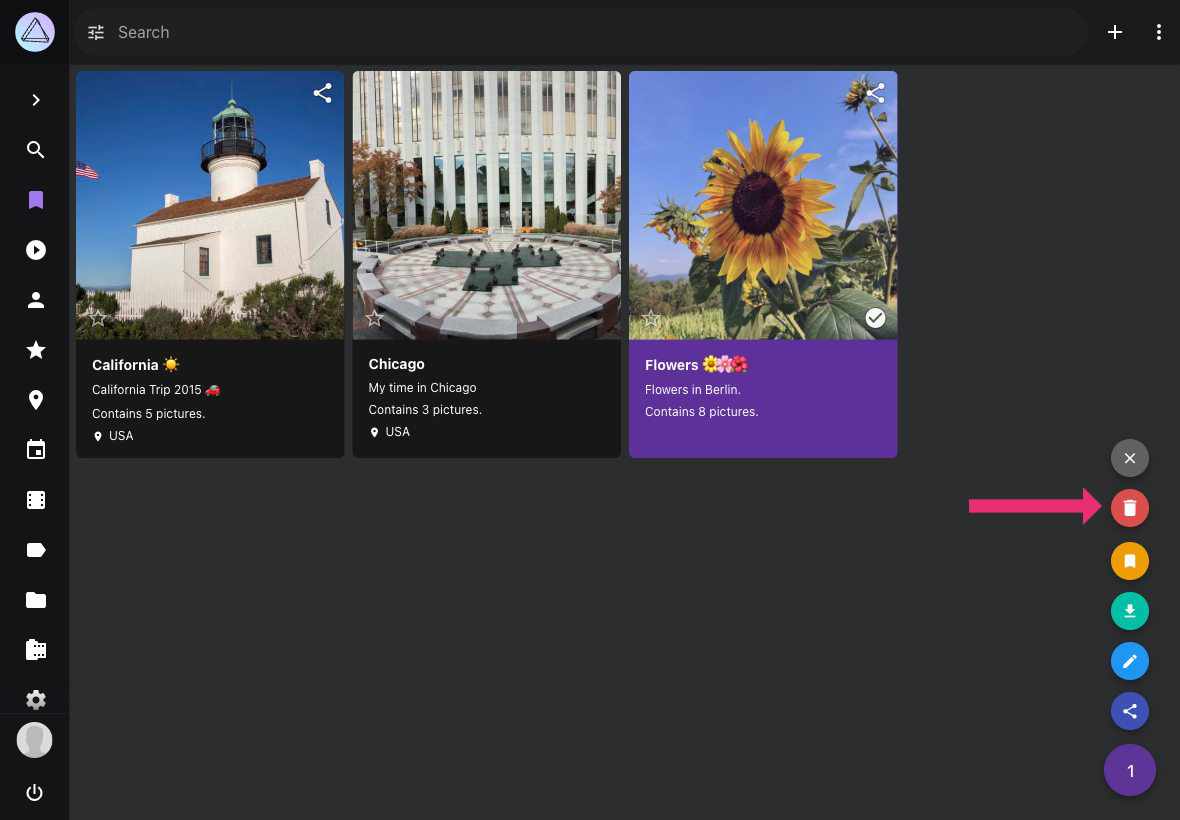
=== "Album Toolbar"
Open album, click :material-dots-vertical: and then click **Delete Album**.
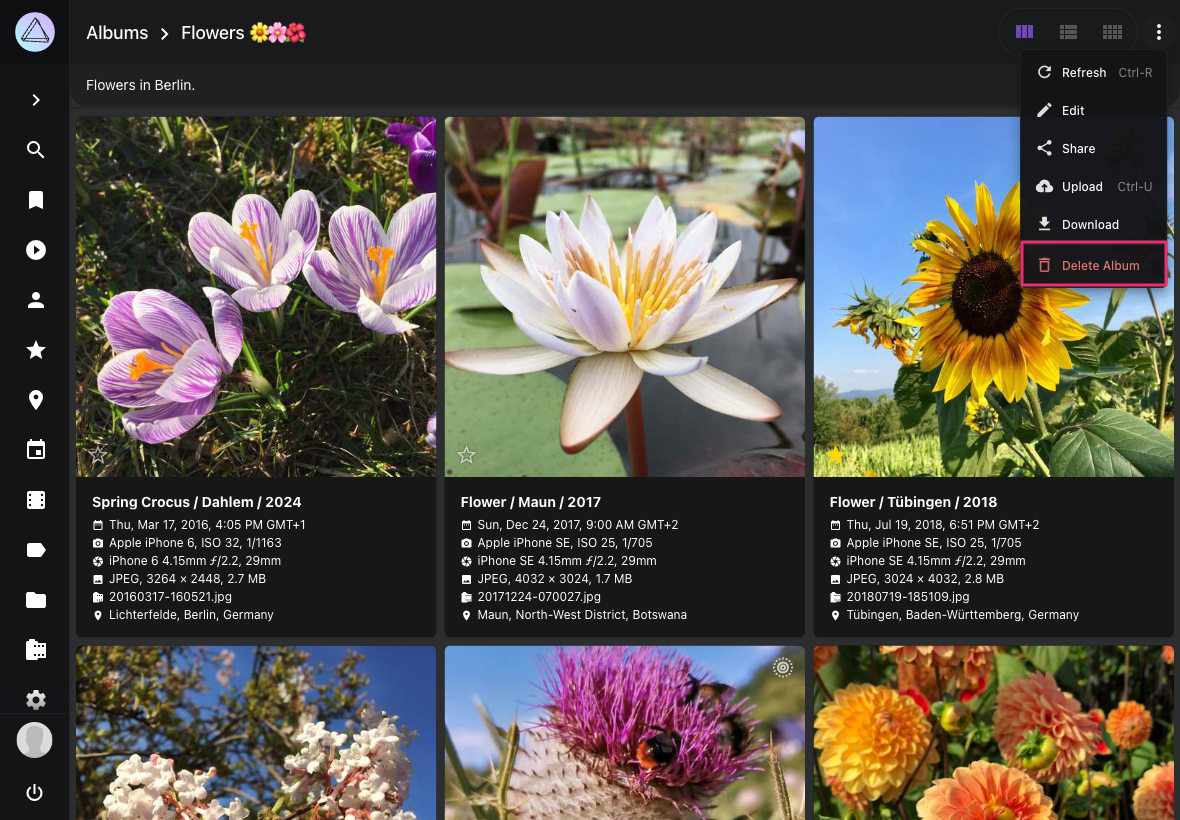
---
# People
Source: https://docs.photoprism.app/user-guide/organize/people/
# Face Recognition
PhotoPrism includes facial recognition that lets you find pictures
of your family and friends. Be ready to discover long forgotten shots! New faces are detected as
you scan your library. They are then grouped by similarity, so you can quickly match them to people.
!!! note ""
Recognition does not start until your library has been fully scanned. Searching and updating faces
temporarily causes a high CPU load and may take a while, depending on your hardware and the number of
images you have.
!!! tldr ""
Existing clusters are automatically optimized in the background, for example, when new
faces are detected, you have reported a bad match, or new files are added to your library.
## Recognized & New People ##
The people section shows you recognized people as well as new face clusters.
To star a person click :material-star:. Starred persons appear first.
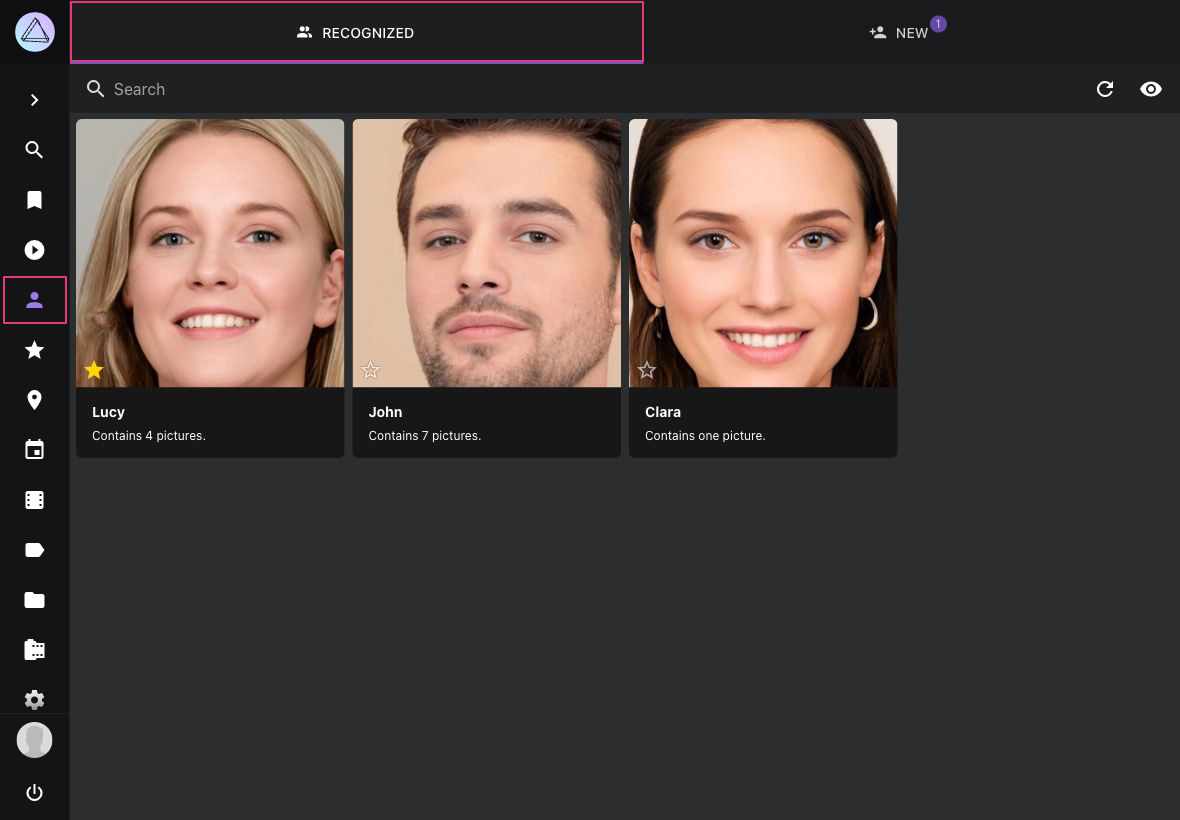
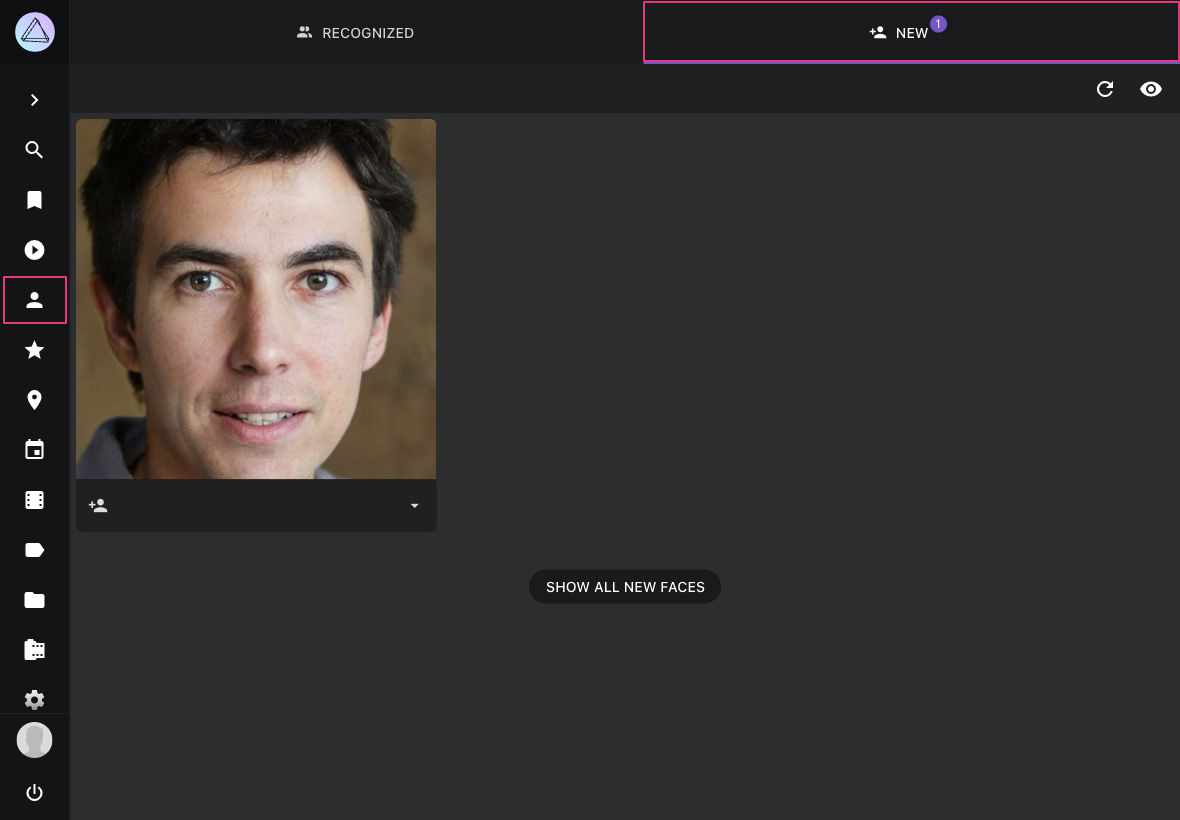
### Why doesn't the New Faces page show all faces? ###
The 'New Faces' page only shows automatically recognized face clusters, as there may be thousands
of unknown faces in your library, including random movie actors or faces on shampoo bottles.
You can use the `face:new` search filter to find images with unknown people.
We recommend combining this filter with other filters like year or location
when searching for specific people. The *People* tab in the photo [edit dialog](https://docs.photoprism.app/user-guide/organize/edit/)
shows all faces, so you can name them or report a bad match by pressing the :material-eject: button.
### When a face was not detected... ###
There can be several reasons why a face was not detected:
- Our [latest release](https://docs.photoprism.app/release-notes/#november-30-2025) includes better face detection. After updating, perform a [complete rescan](https://docs.photoprism.app/user-guide/library/originals/#when-should-complete-rescan-be-selected) or run `photoprism faces index` [in a terminal](https://docs.photoprism.app/getting-started/docker-compose/#opening-a-terminal) to detect more faces that were previously missed
- You may need to wait until indexing is complete, as face recognition will not begin until your library has been scanned
- Only the primary file in stacks will be searched for faces
- Faces can be smaller than the minimum size configured
- Our face detection did not scan the image thoroughly enough
- Reducing the resolution or quality of generated [thumbnails](https://docs.photoprism.app/user-guide/settings/advanced/) negatively impacts face detection and recognition results, just like when you cannot see properly
- Contrast plays a major role, so a bright face with gray hair on a gray background may be less obvious to our face detection than it is to you
- In very rare cases, an actual face may be considered a false positive and thus be ignored
!!! tldr ""
Recognition compares the similarity of faces. The similarity threshold for a face is reduced when
you report a bad match.
## Assign Names to Faces ##
=== "From People"
1. Go to *People*
2. Go to *New*
3. Click on the input field
4. Start typing a name
5. Press *enter*
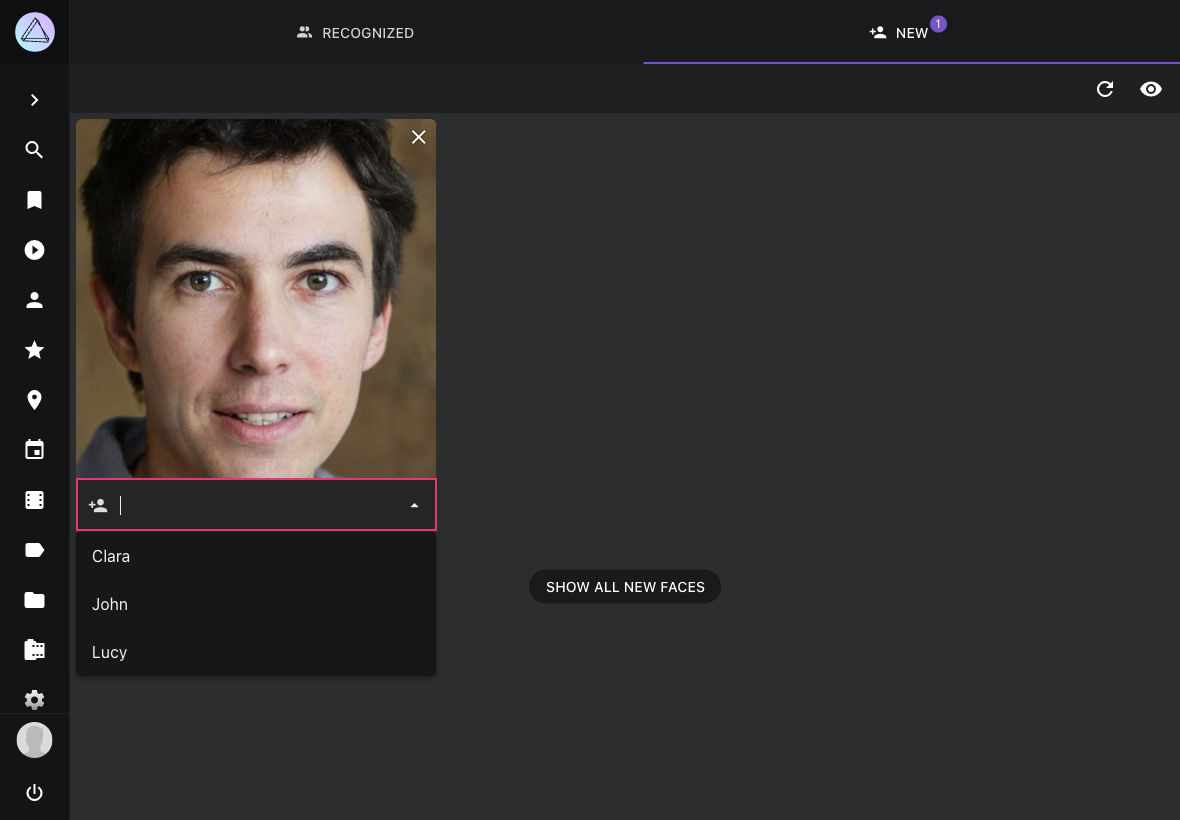
=== "From Photo Edit dialog"
1. Open the photo [*edit dialog*](https://docs.photoprism.app/user-guide/organize/edit/)
2. Go to the *People* tab
3. Click on the input field
4. Start typing a name
5. Press *enter*
You can also assign names to faces directly from the [Info Sidebar](https://docs.photoprism.app/user-guide/organize/info-sidebar/) of the full-screen viewer, which is the only place where you can manually mark a face that PhotoPrism missed during automatic detection.
The person you just added will appear under *Recognized*
!!! tip ""
If you have already named faces in another application such as Adobe Bridge, Lightroom, digiKam, ACDSee, or Windows, PhotoPrism can import those names from XMP metadata while indexing instead of you entering them again. Enable [*Import Faces from XMP*](https://docs.photoprism.app/user-guide/settings/advanced/#import-faces-from-xmp) to use this.
## Change Cover for a Person ##
1. Go to the [people tab](https://docs.photoprism.app/user-guide/organize/edit/#people) on the photo edit dialog of the photo that contains the face that should be used as the cover
2. Hover over :material-dots-vertical: in the upper right corner of the face
3. Click *Set as Cover Image*
## Hiding People ##
You can hide a person in the *Recognized* section by clicking :material-close: in the upper right corner.
Pictures of this person continue to be visible in search results and albums.
To see all people including hidden ones click :material-eye:.
Hidden people can be recovered by clicking :material-eye-off:
## Hiding Faces ##
You can hide face clusters from the *New* section, in the same way you [hide people](https://docs.photoprism.app/user-guide/organize/people/#hiding-people) from the *Recognized* section.
## View all Photos of a Person ##
=== "From People"
1. Go to *People*
2. Go to *Recognized*
3. Click on the person you want to view
=== "From Search"
1. Go to *Search*
2. Search for person:"john"
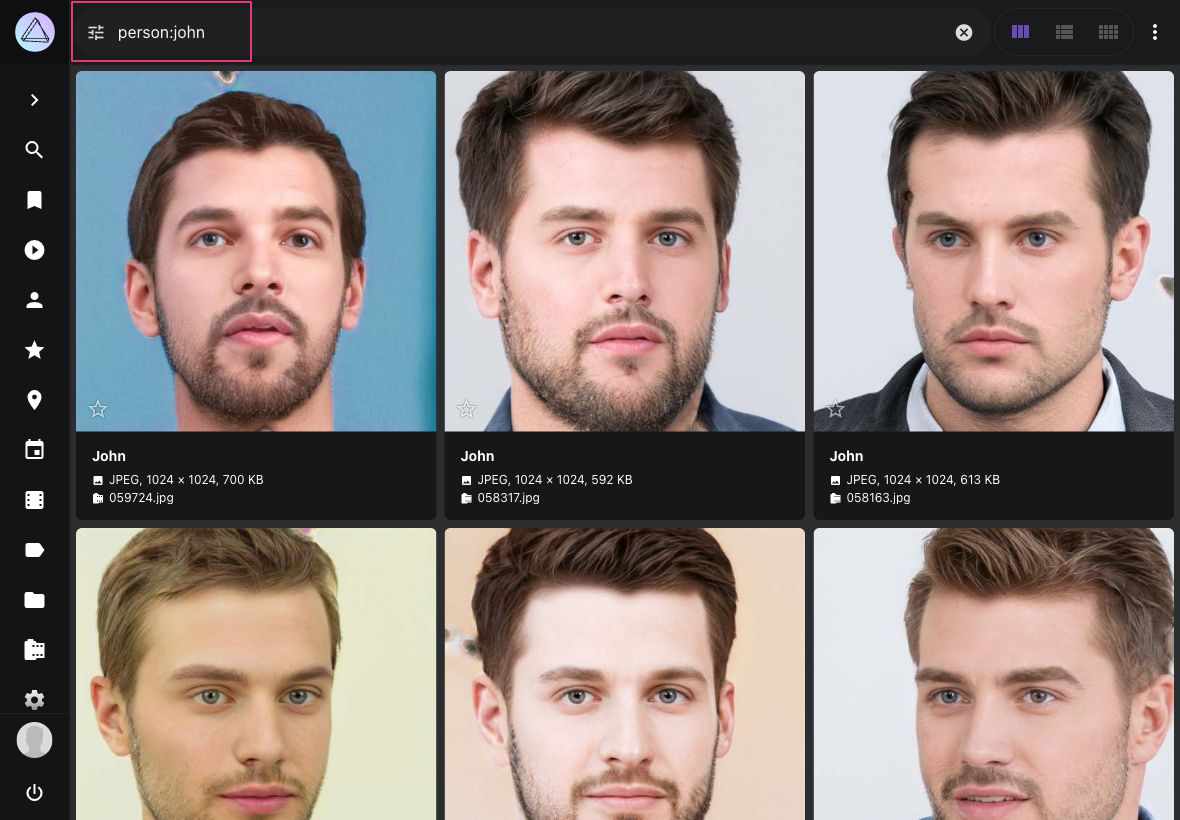
## Rename People ##
To rename all photos of a person:
1. Go to *People*
2. Go to *Recognized*
3. Click on the persons name
4. Type in a new name
5. Click *save*
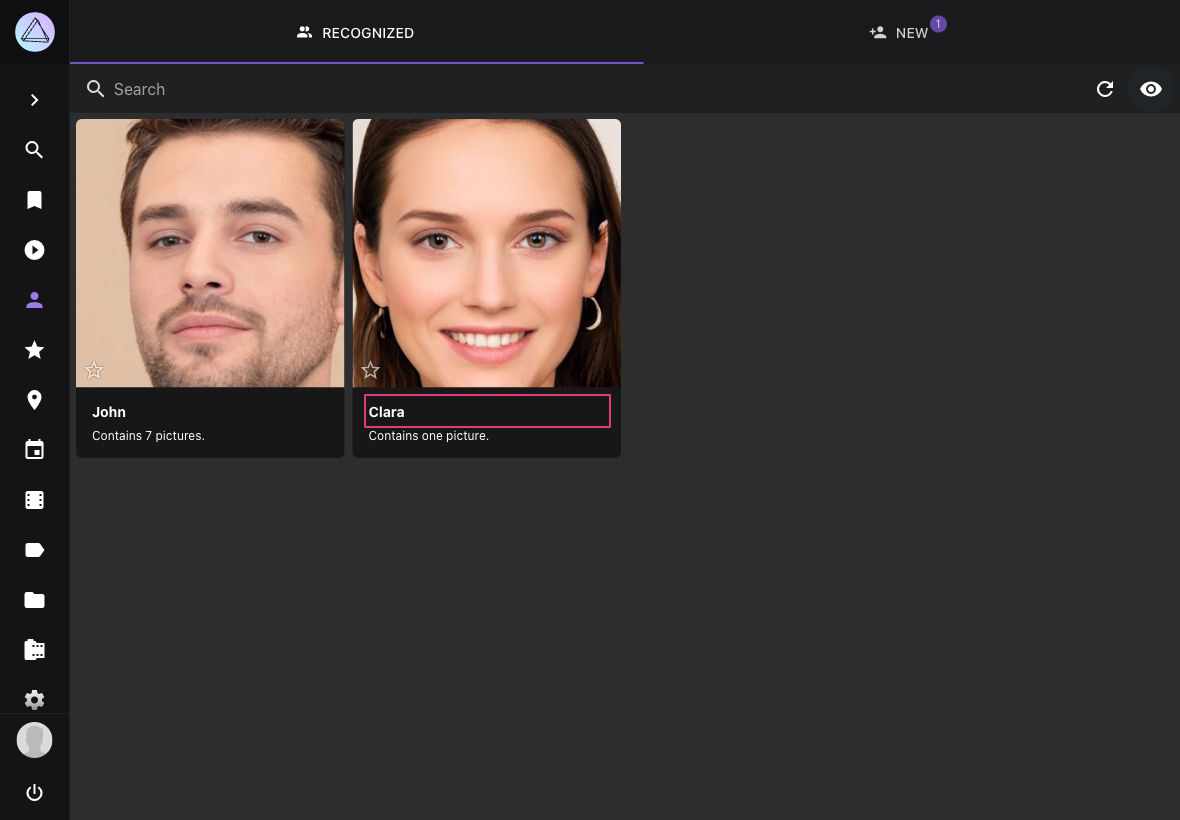
## Change People Assignments ##
You may report bad matches by pressing the :material-eject: button underneath a face in the *People* tab.
This will remove the name. You can either leave it blank or enter the name of a different person.
!!! danger ""
When you reject a match, the corresponding face cluster will be updated in the background so that similar
issues can be resolved automatically.
1. Open the photo [*edit dialog*](https://docs.photoprism.app/user-guide/organize/edit/)
2. Go to the *People* tab
3. Click :material-eject:
4. Then enter a new name or leave it empty
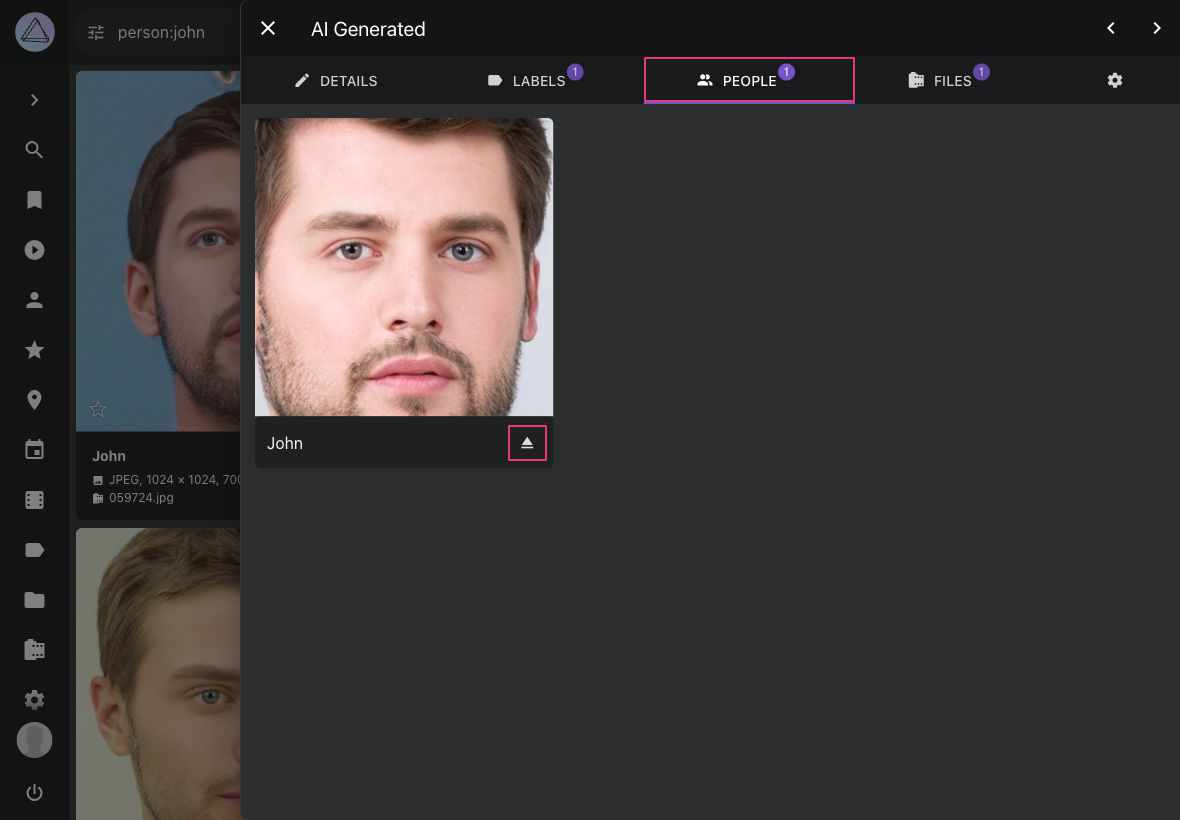
You can also change people assignments from the [Info Sidebar](https://docs.photoprism.app/user-guide/organize/info-sidebar/) of the full-screen viewer.
## Remove Faces ##
In case PhotoPrism detected something wrong as face (false positives), or in case you just don't want to keep a face on the people tab you're not interested in, you can remove it.
1. Open the photo [*edit dialogue*](https://docs.photoprism.app/user-guide/organize/edit/)
2. Go to the *People* tab
3. Click :material-close:
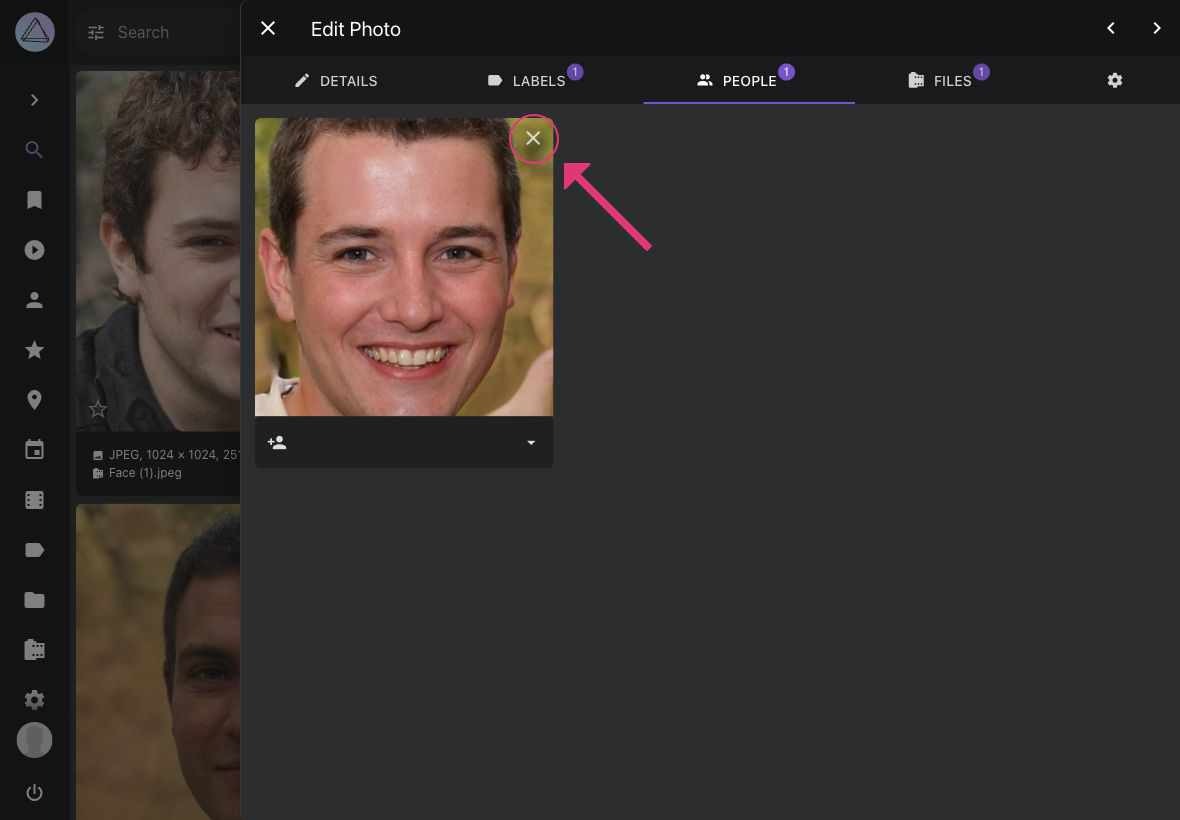
You might undo this action before a reload.
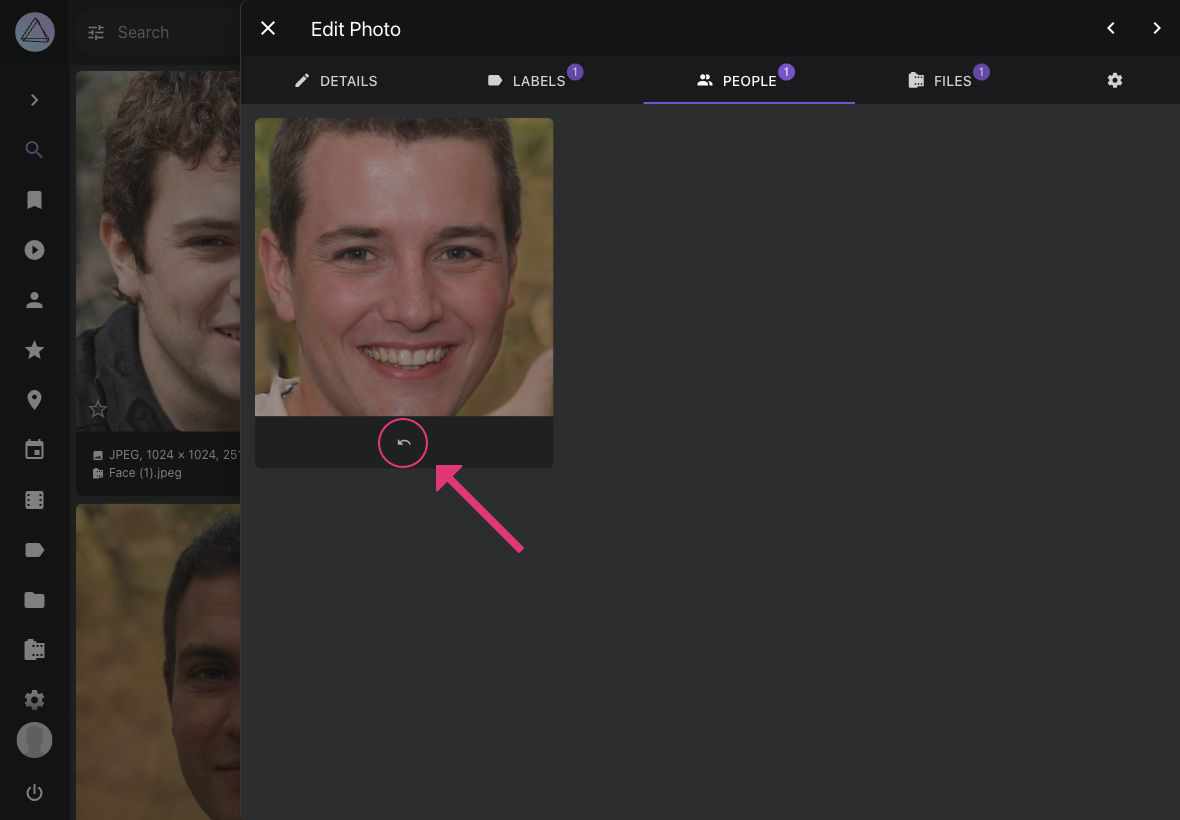
Faces can also be removed from the [Info Sidebar](https://docs.photoprism.app/user-guide/organize/info-sidebar/) of the full-screen viewer.
## Download all Photos of a Person ##
1. Go to *People*
2. Select a person
3. Open context menu
4. Click :material-download:
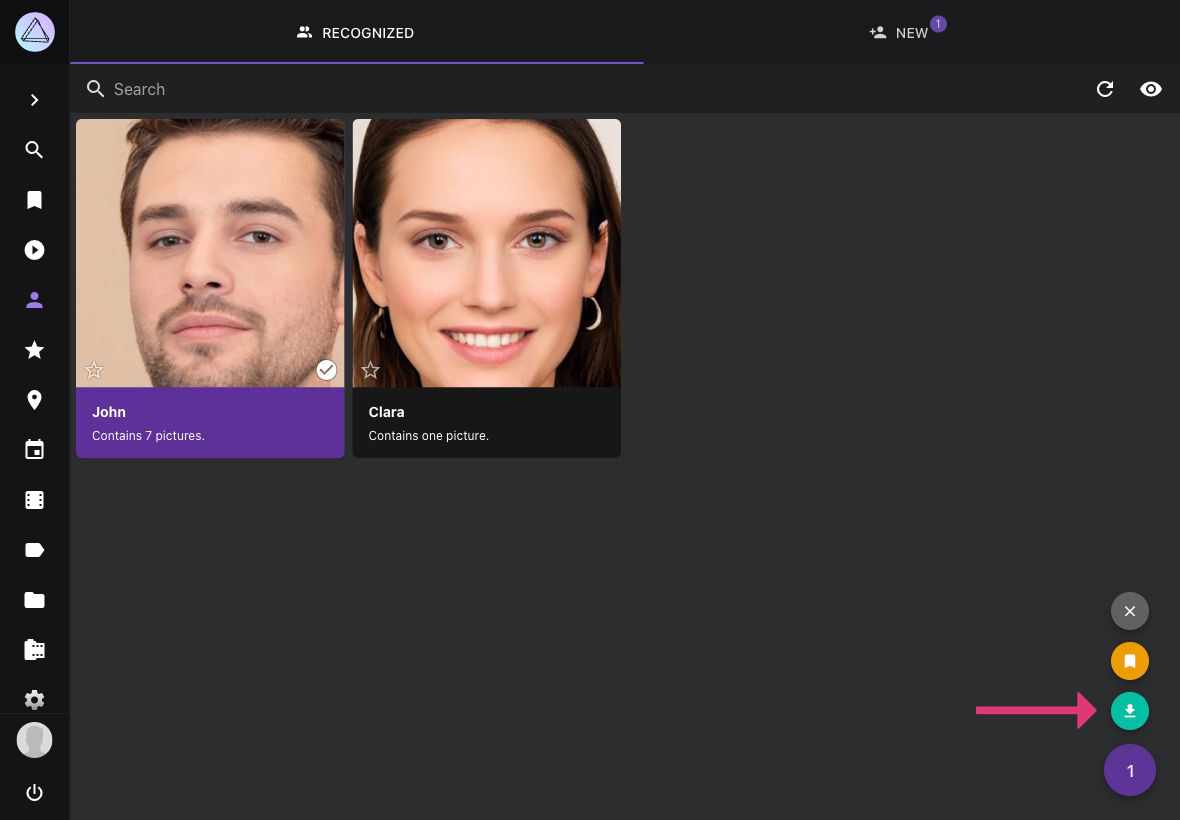
## Create Albums from People ##
1. Go to *People*
2. Select a person
3. Open context menu
4. Click :material-bookmark:
5. Select existing album or enter new album name
6. Click *add to album*
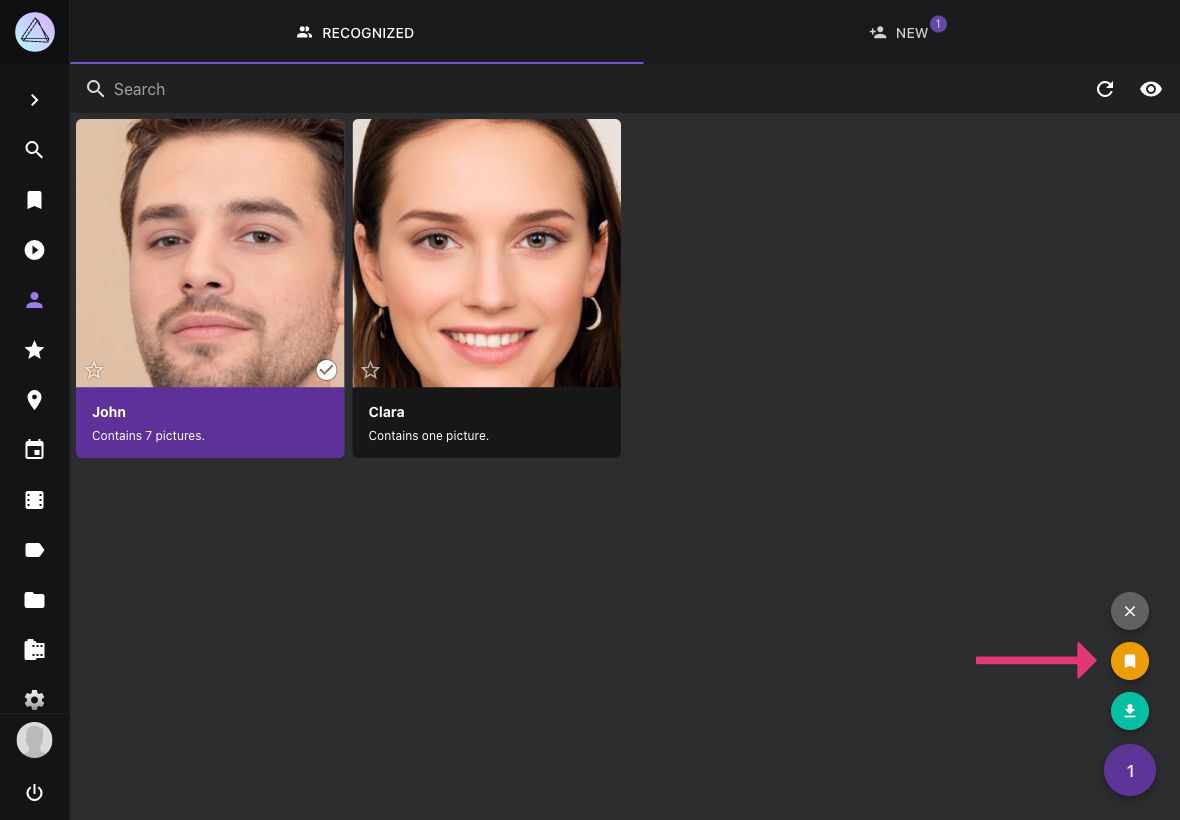
## Search ##
You can find photos with people on it using the following queries:
- `people`, `faces` or `faces:true` will result in all photos with people
- `faces:false` will show all photos without people
- `faces:3` will show all photos with at least 3 people on it
- `person:"John Doe"` or `subject:"John Doe"` will show all photos of the person with the exact name John Doe
- `people:"John"` or `subjects:"John"` will show all photos of people with a name like John e.g. John Doe and John Smith
The person/subject and people/subjects filters can be used with & and | (see [search](https://docs.photoprism.app/user-guide/search/filters/) for more details). Filters may be combined.
`person:"John Doe&Jane Doe" faces:3` will show all photos with John and Jane Doe and one other person.
## Known Issues ##
For all known issues, see [Getting Started > Known Issues > Face Recognition](https://docs.photoprism.app/known-issues/#face-recognition).
### Legacy Hardware ###
Face recognition can be slow (or even crash) on [old devices](https://docs.photoprism.app/getting-started/troubleshooting/performance/#legacy-hardware) due to insufficient resources.
*Like most applications, PhotoPrism has [certain requirements](https://docs.photoprism.app/getting-started/#system-requirements) and our development process does not include testing on unsupported or unusual hardware.*
### Asian Faces and Children
It is a known issue that children and Asian-looking faces cannot be recognized reliably. Detection without automatic recognition should not be affected by that.
This is because the model we use was trained with North American images, which unfortunately do not include many Asians. The absence of children in the training data comes from the fact that parents do not usually share such images under a public license (and may not have the right to do so).
*We will continue to improve our models over time as our resources allow.*
### Background Worker ###
Face recognition was developed and tested under the assumption that the [background worker](https://docs.photoprism.app/getting-started/config-options/#indexing) runs every 15 minutes, unless the backend is busy with other tasks like indexing. It has not been tested with much longer intervals and is not designed for that.
PhotoPrism's background worker groups new faces by similarity, compares faces with clusters, and optimizes existing clusters as needed. Without these routine tasks, the number of faces to be processed becomes too large. The first and next time the worker runs, it can then cause a heavy server load until all the faces, face clusters, and related pictures have been updated. The longer you wait, the more CPU is required and the longer it takes.
An important reason for the worker to run independently of actual changes in the main instance is that some users change the database content directly or run additional instances, for example for indexing. It is a problem that can be solved, but it takes time. If we were to ignore this and don't run the worker at all times, it could lead to many additional support requests, further reducing the amount of time we can spend on development.
*The handling of changes in multiple instances will be improved over time so that the worker can be run less frequently in future releases.*
!!! info "Upcoming Features"
- manual tagging of faces
- importing of XMP face tags
- excluding people when browsing your pictures
- automatic backup of tagged people in YAML files
*[face clusters]: A cluster is a group of faces expected to belong to the same person based on the similarity
---
# Labels
Source: https://docs.photoprism.app/user-guide/organize/labels/
# Labels #
!!! tldr ""
Looking for more accurate AI labels? Try our [Ollama](https://docs.photoprism.app/user-guide/ai/using-ollama/) or [OpenAI](https://docs.photoprism.app/user-guide/ai/using-openai/) integration or configure a [more powerful TensorFlow model](https://docs.photoprism.app/developer-guide/vision/tensorflow/custom-models/).
PhotoPrism uses labels to classify images.
Other tools use the term tags instead of labels.
Labels are set automatically when adding new photos.
You can manually add new labels or edit/remove the ones that have been created by us.
In *Labels* you find all labels of your photos and videos.
You can star labels by clicking :material-star:. Starred labels will be listed first.
PhotoPrism also attaches each generated label to a broader group (or category) of labels. For example, there is a general category 'vehicle' which will include labels such as 'cab', 'catamaran', 'lifeboat' and 'bullet train'. These broad label categories cannot be edited, but can be used in a search, in an identical way to all other labels.
You may wish to see these broad label categories in addition to the usual labels in the *Labels* pages. Clicking the icon in the upper right-hand corner will switch between turning them on :material-eye: ('Show More') and off :material-eye-off: ('Show Less'). You can also include these label categories as part of a more complex search filter - the label categories from your photos will appear in the search filter bar as a drop-down selection under the option 'All Categories'.
### View all Photos with a Label ###
1. Go to *Labels*
2. Click on the label you are interested in
!!! info ""
Alternatively you can use the search field in Photos/Videos. You search for photos with a special label like this: `label:dog`.
### Add Labels to Photos ###
1. Go to the photo [*edit dialog*](https://docs.photoprism.app/user-guide/organize/edit/)
2. Go to *Labels* tab
3. Click on the *label field* in the last row of the label table
4. Enter a label name
5. Click :material-plus: on the right side of this row
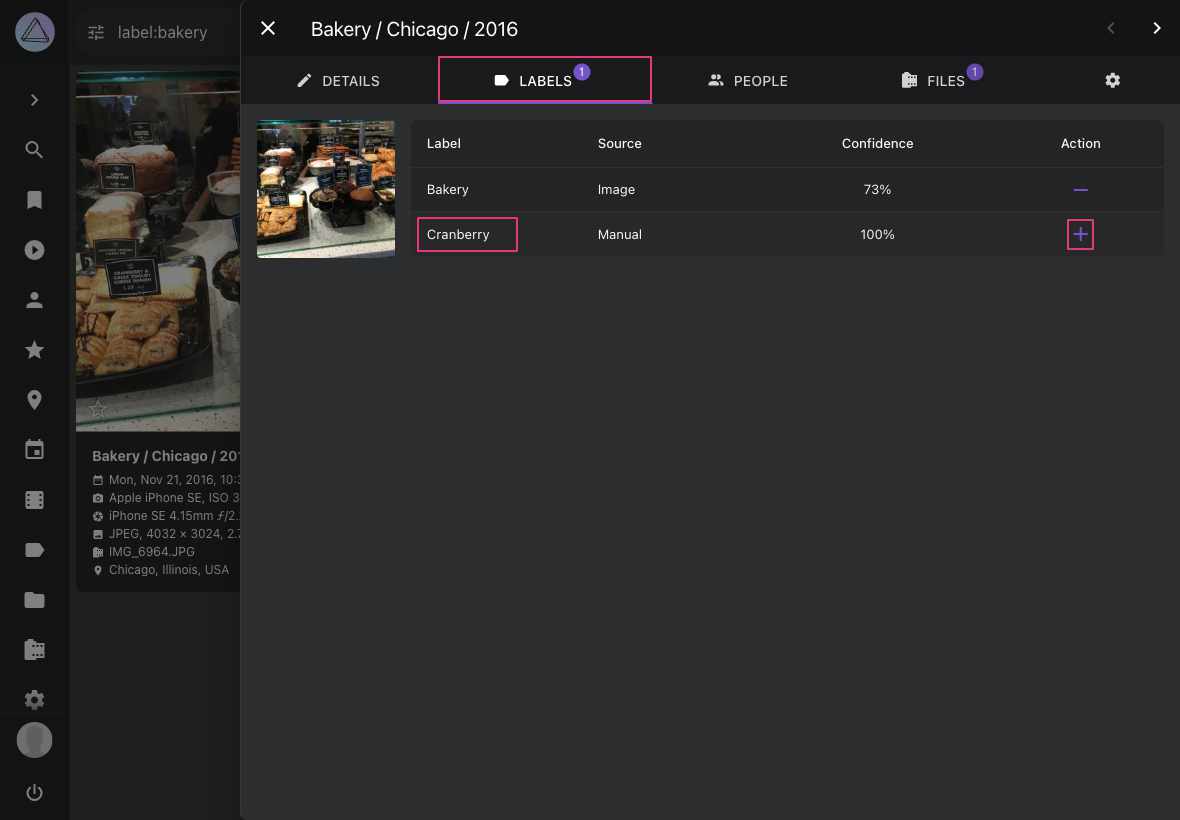
### Remove/Delete Labels from Photos ###
Labels that have been set automatically can be removed.
Manually added labels can be deleted.
1. Go to the photo [*edit dialog*](https://docs.photoprism.app/user-guide/organize/edit/)
2. Go to *Labels* tab
3. Click the :material-minus:/:material-delete: button of the label you want to remove/delete
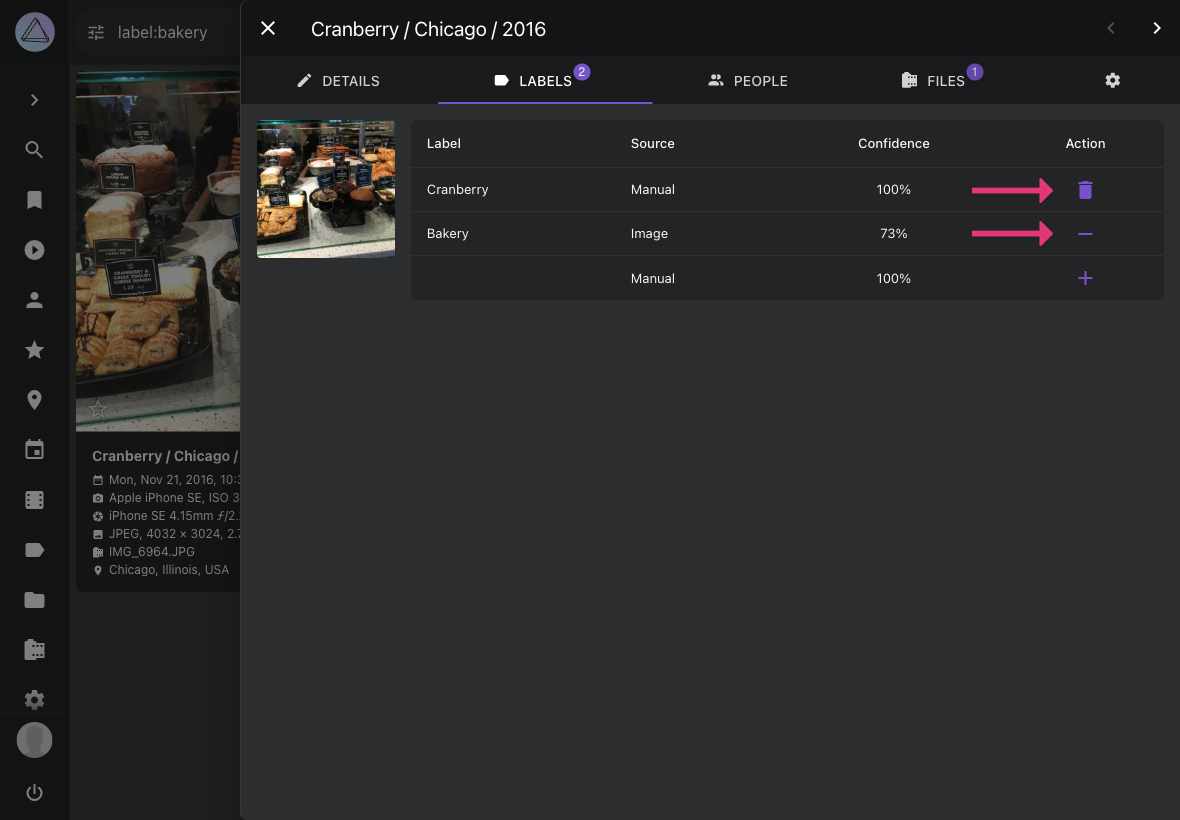
!!! info ""
Removed labels have a confidence of 0% and can be activated again at any time by clicking *add*.
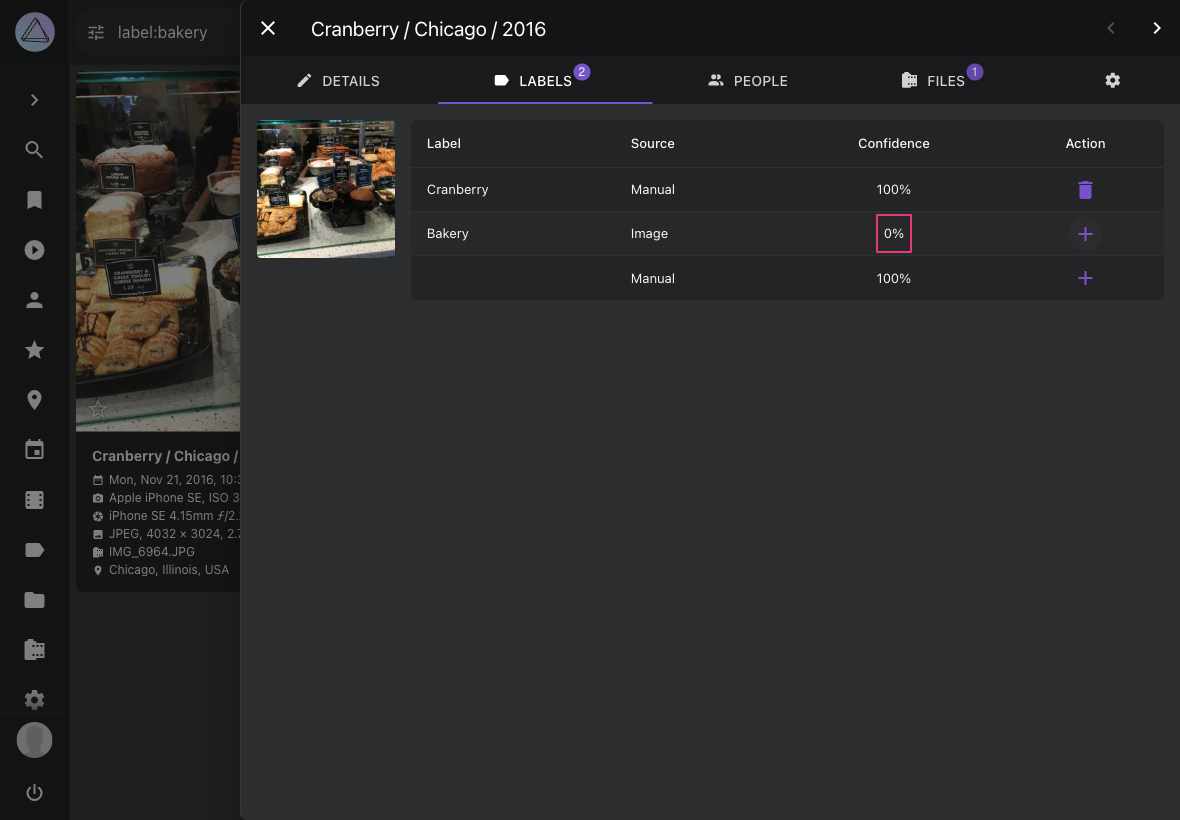
!!! info ""
You can hide Labels in [Settings](https://docs.photoprism.app/user-guide/settings/general/)
### Rename Labels ###
1. Go to *Labels*
2. Click on the label name you want to rename
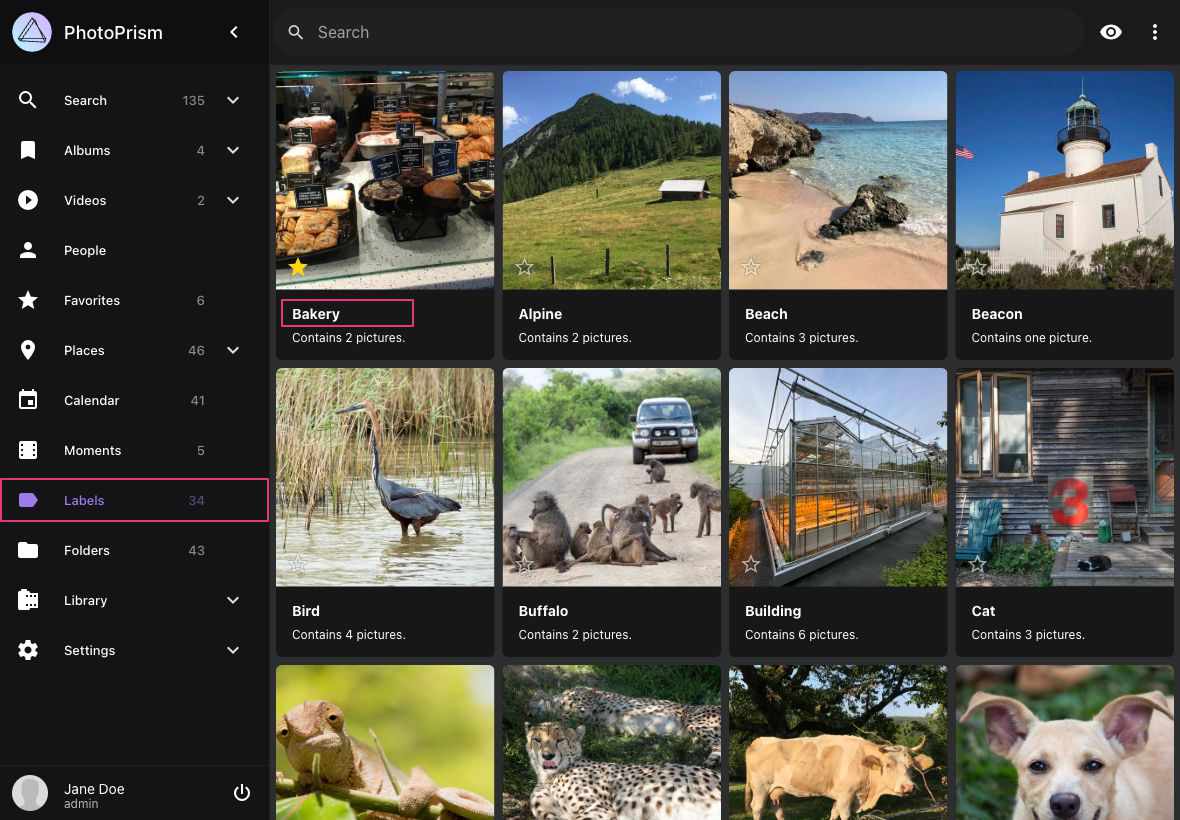
3. Change the name
4. Click save
!!! danger ""
Be aware this change applies to all photos that have this label.
### Delete Labels ###
You can permanently delete a label. No file will get a deleted label set during indexing.
1. Go to *Labels*
2. Select the label you want to delete
3. Open the context menu
4. Click :material-delete:
5. Confirm
!!! danger ""
In case you want a deleted label to appear again, you need to add it to one photo and then index all files again.
---
# Archive
Source: https://docs.photoprism.app/user-guide/organize/archive/
# Archive #
You can move photos and videos you do not want to keep in your collection to *Archive*.
Content that is archived is not deleted but it will not appear in any section apart from *Archive*.
!!! tip "Keyboard Shortcut"
In the fullscreen viewer, you can quickly archive or restore photos by pressing **Ctrl + X**.
### Archive Photos ###
1. Select photos/videos
2. Click context menu
3. Click :material-archive:
### Restore Photos from Archive ###
1. Go to *Archive*
2. Select photos/videos
3. Click context menu
4. Click :material-check:
---
# Delete
Source: https://docs.photoprism.app/user-guide/organize/delete/
# Removing Files Permanently #
You can permanently delete photo and video files you do not want to keep from your filesystem.
Photos and videos must be [archived](https://docs.photoprism.app/user-guide/organize/archive/) before they can be deleted permanently.
Before you start, make sure the **Delete** feature is enabled in [Settings](https://docs.photoprism.app/user-guide/settings/general/).
### Delete Selected Files ###
1. Select the photos and videos your want to delete
2. Go to *Archive*
3. Click context menu
4. Click :material-delete:
5. Confirm
### Delete All Archived Photos ###
1. Go to *Archive*
2. Click :material-delete-sweep:
3. Click *Delete All*
---
# Private
Source: https://docs.photoprism.app/user-guide/organize/private/
# Hiding Private Photos #
## What does private mean? ##
Some of your photos might be private for personal reasons.
Our private functionality provides you with a solution to hide private photos or videos from some sections.
This way you can let family and friends browse through your photos without risking that they see photos you do not want them to see.
By default, photos marked as private will not appear in the following sections:
* Search
* Videos
* People
* Favorites
* Places
* Labels
* Autogenerated Albums (Moments, Calendar, Regions, Folders)
* Shared Albums
Private photos will be displayed in the private section, in user generated albums and within the file browser.
!!! info ""
In case you want private content to appear everywhere you can configure that in [Settings](https://docs.photoprism.app/user-guide/settings/general/).
## Toggle Private Flag ##
1. Go to *Search*
2. Select photos/videos
3. Click context menu
4. Click :material-lock:
---
# Review
Source: https://docs.photoprism.app/user-guide/organize/review/
# Reviewing Non-Photographic and Low-Quality Images #
When adding new photos a quality score from 1 to 5 is created automatically.
Photos with a quality score lower than 3 do not appear in *Search* until you approve them (unless the quality filter was disabled
in [*Settings*](https://docs.photoprism.app/user-guide/settings/general/))
The quality score depends on the following:
* Known date and/or GPS coordinates
* At least 2 MP resolution if taken after 2012
* Photo not classified as info or screenshot
* Photo is favorite, was edited or approved
!!! info ""
In case you do not need the review mechanism you can turn it off in [Settings](https://docs.photoprism.app/user-guide/settings/general/)
### Approve Photos ###
=== "Context Menu"
1. Go to *Review*
2. Select photos and open the context menu
3. Click :material-check:
=== "Cards View"
1. Go to *Review* and make sure you are in *cards view*
2. Click :material-check:
=== "Edit Dialog"
1. Open the photo's [*edit dialog*](https://docs.photoprism.app/user-guide/organize/edit/)
2. Click *approve*
!!! danger ""
The quality score is constantly updated.
If you add date or location information to a photo or like it, the quality score increases automatically.
In case the new score is equal or greater than 3 the photo is approved automatically.
---
# Stacks
Source: https://docs.photoprism.app/user-guide/organize/stacks/
# Stacks
Stacks are groups of files that have the same origin but differ in quality, format, size, or color. Go to *[Settings > Content](https://docs.photoprism.app/user-guide/settings/library/)* to change the stacks-related settings for your library.
To see all images with a group of related files, open *Stacks* in the expanded *Search* navigation:
Since [videos](https://docs.photoprism.app/user-guide/organize/video/) and [Live Photos](https://docs.photoprism.app/user-guide/organize/video/#live-photos) are always stacked with a still image, they are not included in the search results when you navigate to *Search > Stacks*.
### For what reasons can files be stacked?
1. Files that share the same file and folder name (except for the file extension) are always stacked, for example `/2018/IMG_1234.jpg` and `/2018/IMG_1234.avi`
2. Files with sequential names like `/2018/IMG_1234 (2).jpg` and `/2018/IMG_1234 (3).jpg` can be stacked as well (optional)
3. File metadata indicates that the pictures were taken at the same position within the same second (optional)
4. File metadata includes the same *Unique Image ID* or *XMP Instance ID* (optional)
You can change your preferences for 2 - 4 in the *Stacks* section under *[Settings > Content](https://docs.photoprism.app/user-guide/settings/library/#stacks)*.
!!! note ""
Note that it is **not possible to disable stacking of files with the same name** as this would break important functionality, most notably support for Apple [Live Photos](https://docs.photoprism.app/user-guide/organize/video/#live-photos) (which consist of a photo and a video file), any other multi-file/hybrid formats like RAW/JPEG, and indexing of metadata from XMP/JSON sidecar files.
### Are files automatically unstacked when I change the settings?
When you change the stacks-related settings under [*Settings > Content*](https://docs.photoprism.app/user-guide/settings/library/#stacks), files that are already stacked will **not be unstacked automatically**. This is because unstacking is a resource-intensive operation that requires each file to be re-indexed.
The result also depends on the exact order in which you unstack the files, as non-media sidecar files, for example, remain bound to the remaining media file in a stack. We consider providing a command for this in a future release and appreciate [any contributions](https://docs.photoprism.app/developer-guide/) in this regard.
!!! tldr ""
If you are new to PhotoPrism and want to re-index your library with different settings, you can run the `photoprism reset` [command in a terminal](https://docs.photoprism.app/getting-started/docker-compose/#command-line-interface) to reset the index and start from scratch. [Learn more ›](https://docs.photoprism.app/getting-started/docker-compose/#examples)
### Which sequential naming patterns are supported?
If stacking by *Sequential Name* [has been enabled](https://docs.photoprism.app/user-guide/settings/library/#stacks), files with e.g. the following names would be stacked with the file `/2018/IMG_1234.jpg`:
- `/2018/IMG_1234 (2).jpg` `/2018/IMG_1234 (3).jpg`
- `/2018/IMG_1234 copy.jpg` `/2018/IMG_1234 copy 1.jpg` `/2018/IMG_1234 copy 2.jpg`
- `/2018/IMG_1234 (-2.7)` `/2018/IMG_1234 (+3.3).jpg` `/2018/IMG_1234(-2.7).jpg` `/2018/IMG_1234(+3.3).jpg`
## Browse Related Files
1. Click on :material-camera-burst:
2. Use arrows to see all photos of the sequence
## Change Primary Files
The JPEG file marked as *primary* is used in our views. It is listed first in the files tab.
To change the primary file:
1. Open the photos [*edit dialog*](https://docs.photoprism.app/user-guide/organize/edit/)
2. Open *Files* tab
3. Click :material-chevron-down: of the file you want to set as primary
4. Click *primary*
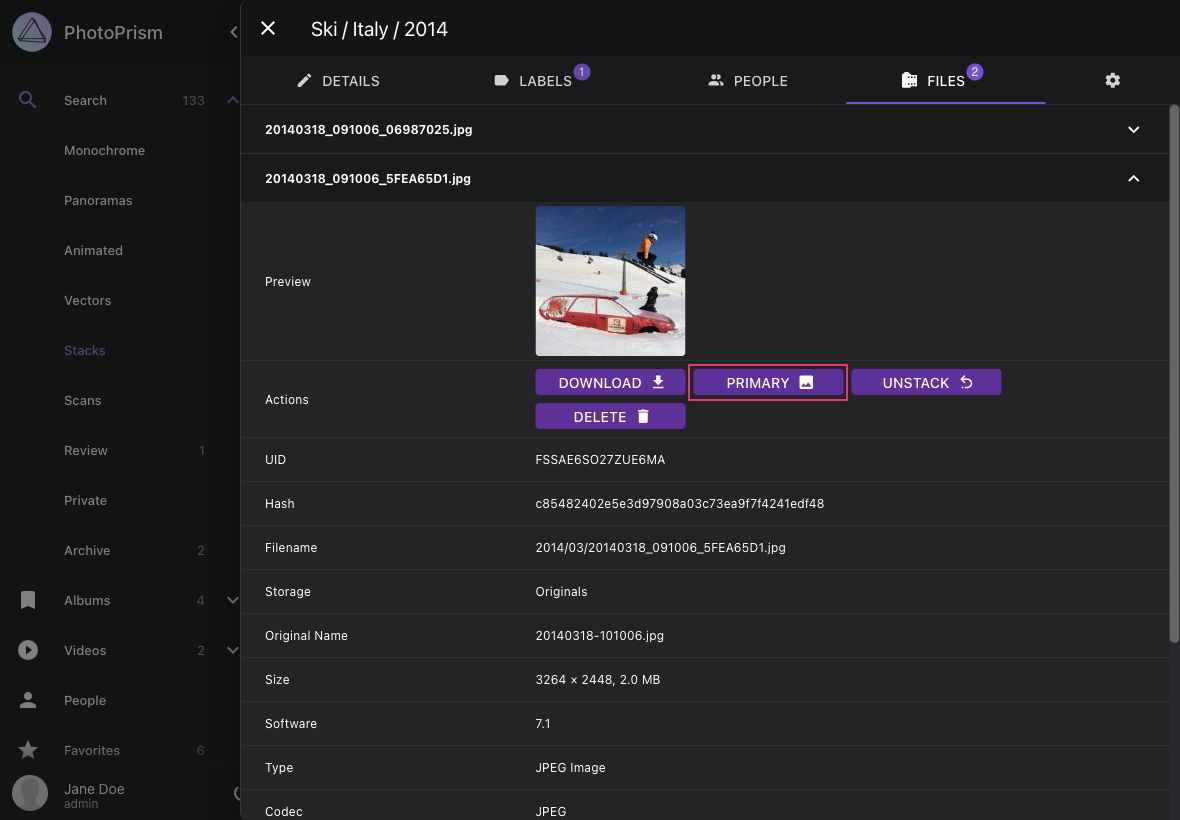
## Unstack Files
1. Open the photos [*edit dialog*](https://docs.photoprism.app/user-guide/organize/edit/)
2. Open *Files* tab
3. Click :material-chevron-down: of the JPEG file that is not marked as primary
4. Click *unstack*
Now, both files appear in our views.
## Delete Non-Primary Files
1. Open the photos [*edit dialog*](https://docs.photoprism.app/user-guide/organize/edit/)
2. Open *Files* tab
3. Click :material-chevron-down: of the JPEG file that is not marked as primary
4. Click *delete*
5. Confirm
*[same position]: GPS latitude and longitude
---
# Edit Dialog
Source: https://docs.photoprism.app/user-guide/organize/edit/
# Viewing and Editing Picture Details
When you click on a title in the cards view or :material-pencil: in the full screen viewer, you can see all the information related to a picture and perform changes to it if you have permission to do so.
=== "Cards View"
1. Click on the title, date/time, or camera details of a picture
=== "Full Screen Viewer"
1. Click the pencil :material-pencil: icon in the upper right corner
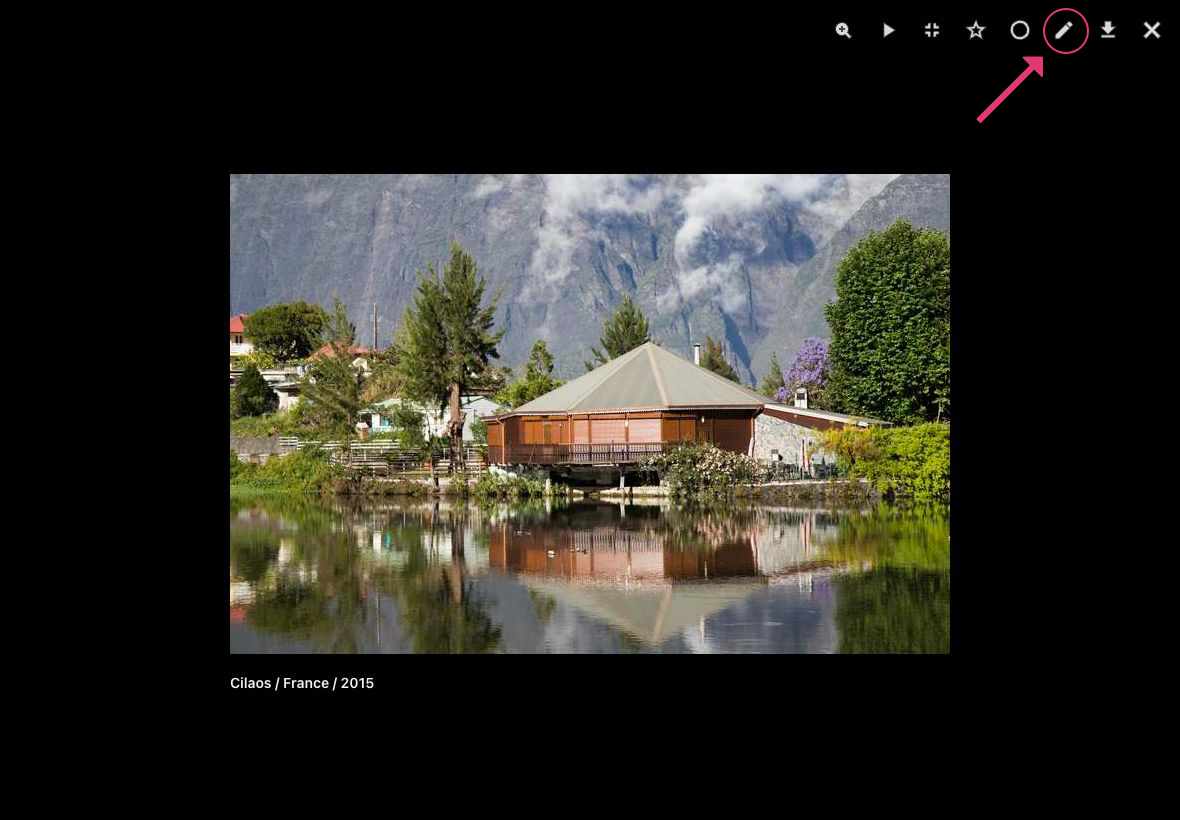
!!! tip "Keyboard Shortcut"
In the fullscreen viewer, you can quickly open the edit dialog by pressing **Ctrl + E**.
=== "Context Menu"
1. Select one pictures.
2. Click on context menu.
3. Click the pencil :material-pencil: icon.
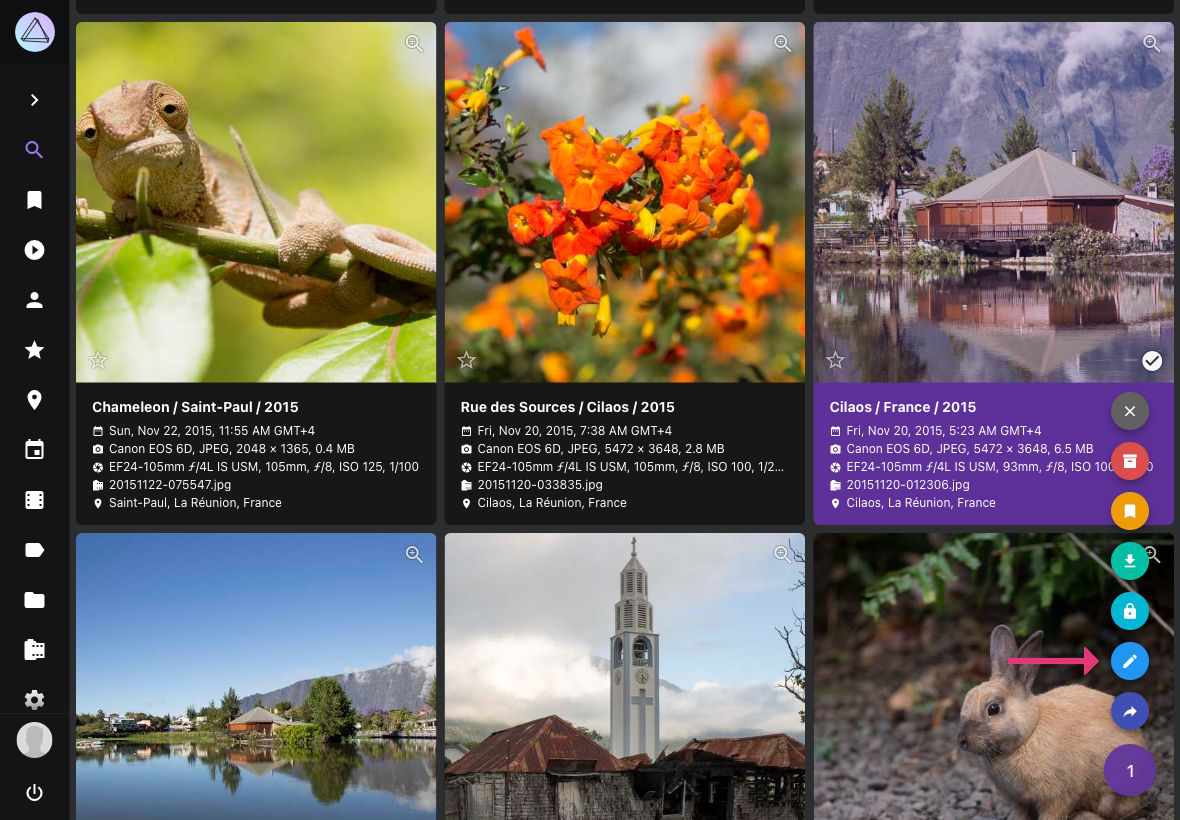
### Details ###
In the *Details* tab, you can view and edit general metadata such as title, date, location, camera, lens, caption, and copyright:
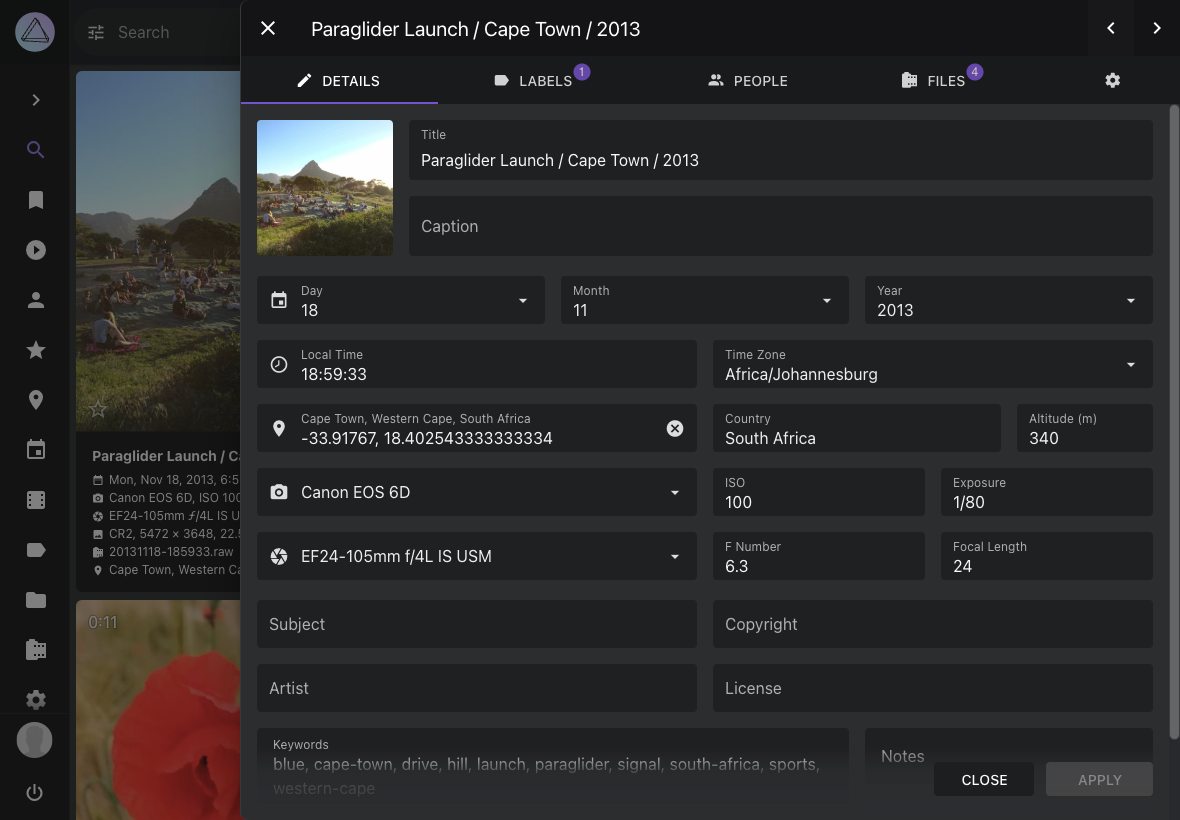
Much of this information is automatically recognized and updated while indexing. If you edit these fields, the changed values will be preserved and are not overwritten even when you reindex your library.
To quickly set new coordinates, you can paste them into the *Location* field if they have the format *48.265684, 7.721380*. Alternatively, you can click on the location marker icon next to this field to open the built-in location component and select a location visually.
Clicking the *Apply* button saves the changes you have made, but does not close the dialog, while the *Close* button closes the dialog without saving additional changes.
!!! note ""
When performing a search, text in the *Title*, *Caption*, and *Keywords* fields can be found, while *Notes* are private and will be ignored.
**Location Selection**
PhotoPrism includes a location component that allows you to easily change the location coordinates of a picture by selecting its location on a map. Simply click on the :material-map-marker: icon next to the *Location* field to open the interactive map interface. You can also search for locations by typing city or street names directly in the map component.
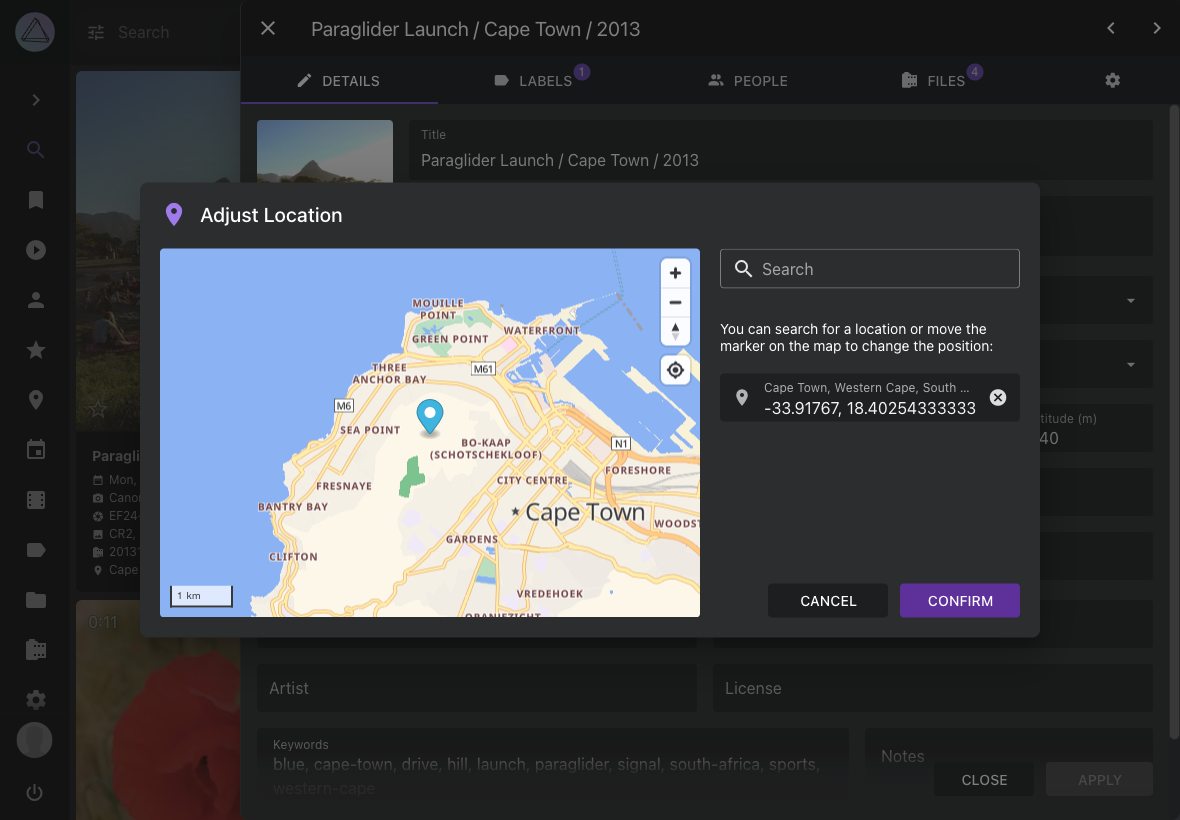
!!! note ""
With this built-in functionality, the [external geolocation browser plugin](https://github.com/andyvalerio/photoprism-geolocation) is no longer needed. We thank our community for their valuable contribution that inspired this feature!
### Labels ###
In the *Labels* tab, you can [view, add and edit labels](https://docs.photoprism.app/user-guide/organize/labels/) and see whether they have been recognized automatically or added manually.
### People ###
Open the *People* tab to see [whose face has been recognized](https://docs.photoprism.app/user-guide/organize/people/#change-people-assignments) in the picture and [assign names to faces](https://docs.photoprism.app/user-guide/organize/people/#assign-names-to-faces) that have not yet been recognized.
### Files ###
The *Files* tab shows you all the files that belong to a picture. If it is a RAW image, you might for example also see a JPEG version of it and an XMP sidecar file:
Click on :material-chevron-down: to see additional details such as file size, type, and codec:
If there is [more than one JPEG or PNG file](https://docs.photoprism.app/user-guide/organize/stacks/), a button in the file details will allow you to change the primary image displayed as a preview in albums and search results. You can also delete non-primary files or [unstack files](https://docs.photoprism.app/user-guide/organize/stacks/) by clicking on the action buttons.
---
# Info Sidebar
Source: https://docs.photoprism.app/user-guide/organize/info-sidebar/
# Info Sidebar
The Info Sidebar opens alongside the full-screen viewer and shows the metadata of the currently displayed picture or video. It is a lightweight alternative to the [Edit Dialog](https://docs.photoprism.app/user-guide/organize/edit/) when you want to inspect or quickly correct individual fields without leaving the viewer.
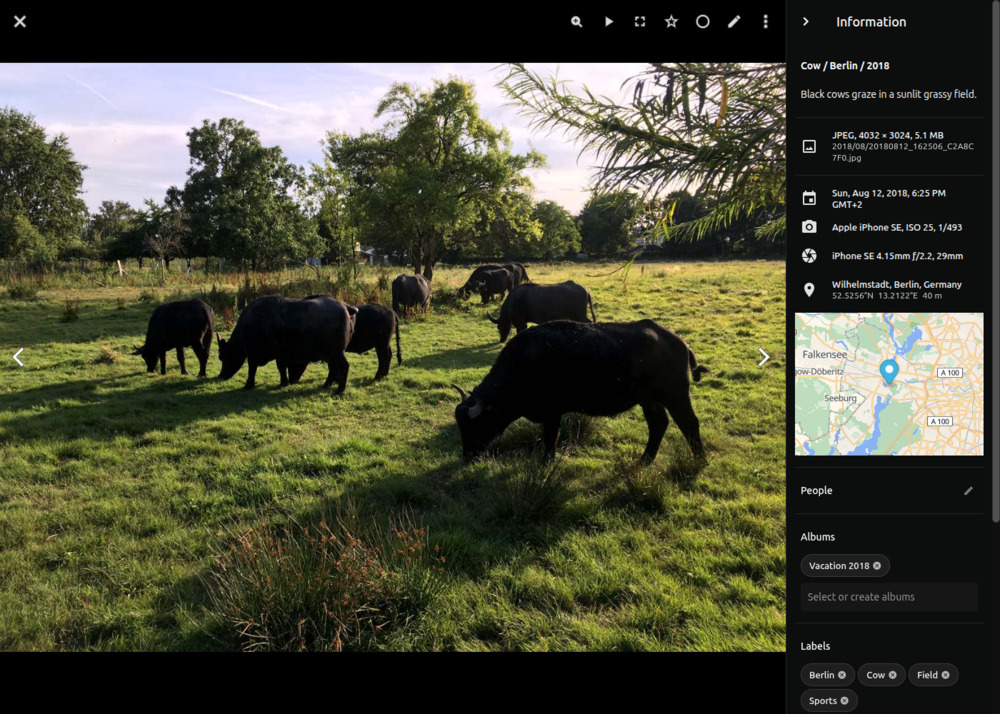
!!! info "Permissions"
Users without edit rights, e.g. *viewers* see a read-only version of the sidebar that omits empty fields. *Guests*, and *visitors* opening a share link, see a further limited subset of the metadata.
## Opening the Sidebar
Press **Ctrl + I** while a picture is open in the full-screen viewer, or pick "Toggle Info Sidebar" from the viewer menu. The same shortcut closes it again. The sidebar position is remembered across page reloads, so it stays open until you explicitly close it.
## What It Shows
The sidebar includes the most frequently used metadata fields, as well as assigned [albums](https://docs.photoprism.app/user-guide/organize/albums/), [labels](https://docs.photoprism.app/user-guide/organize/labels/), and [people](https://docs.photoprism.app/user-guide/organize/info-sidebar/#editing-people-faces):
- **File:** Path and filename of the currently displayed media file.
- **Camera:** Make and model, lens, ISO, exposure, focal length, and f-number.
- **Description:** Title, caption, artist, copyright, and license.
- **Albums:** Clickable chips that link to the matching album.
- **Labels:** Clickable chips that link to the matching search results.
- **People:** Clickable chips that link to the matching search results.
Clicking a chip will open the matching album or search results in a new tab, allowing you to browse the collection while staying in context.
## Editing Metadata
Click on a metadata field, such as *Caption*, to edit it. Some fields can be edited in place, while others open a dialog.
Press Escape to cancel or confirm to save your changes. Note that invalid values cannot be saved and will cause an error message to appear.
## Editing People & Faces
The Info Sidebar provides the same face-management actions that are available on the *People* tab of the [Edit Dialog](https://docs.photoprism.app/user-guide/organize/edit/#people), and is the only place where you can **manually mark a face** that PhotoPrism missed during automatic detection.
Click :material-pencil-outline: next to *People* to enter *edit mode*, which displays all existing face markers on the image and unlocks the change, remove, and manual-marker actions below. Click :material-pencil-off-outline: when you are done. Edit mode is not required to assign a name to an existing unnamed face.
### Assign Names to Faces
1. Open a photo in the [full-screen viewer](https://docs.photoprism.app/user-guide/search/views/) and open the Info Sidebar by pressing **Ctrl + I**.
2. Click the name field next to the face you want to name.
3. Start typing a name; existing people are suggested as you type.
4. Press *enter* to confirm.
### Change People Assignments
1. Open a photo in the [full-screen viewer](https://docs.photoprism.app/user-guide/search/views/) and open the Info Sidebar by pressing **Ctrl + I**.
2. Click :material-pencil-outline: next to *People* to enter edit mode.
3. Click :material-eject: next to the person you want to change.
4. Type a new name and press *enter*, or leave the field empty.
### Manually Mark a Face
1. Open a photo in the [full-screen viewer](https://docs.photoprism.app/user-guide/search/views/) and open the Info Sidebar by pressing **Ctrl + I**.
2. Click :material-pencil-outline: next to *People* to enter edit mode.
3. Drag on the image to draw a rectangle around the missed face.
4. Click :material-check: in the confirm pill to keep the new marker.
5. Type a name in the new row that appears under *People*, then press *enter* to assign a person.
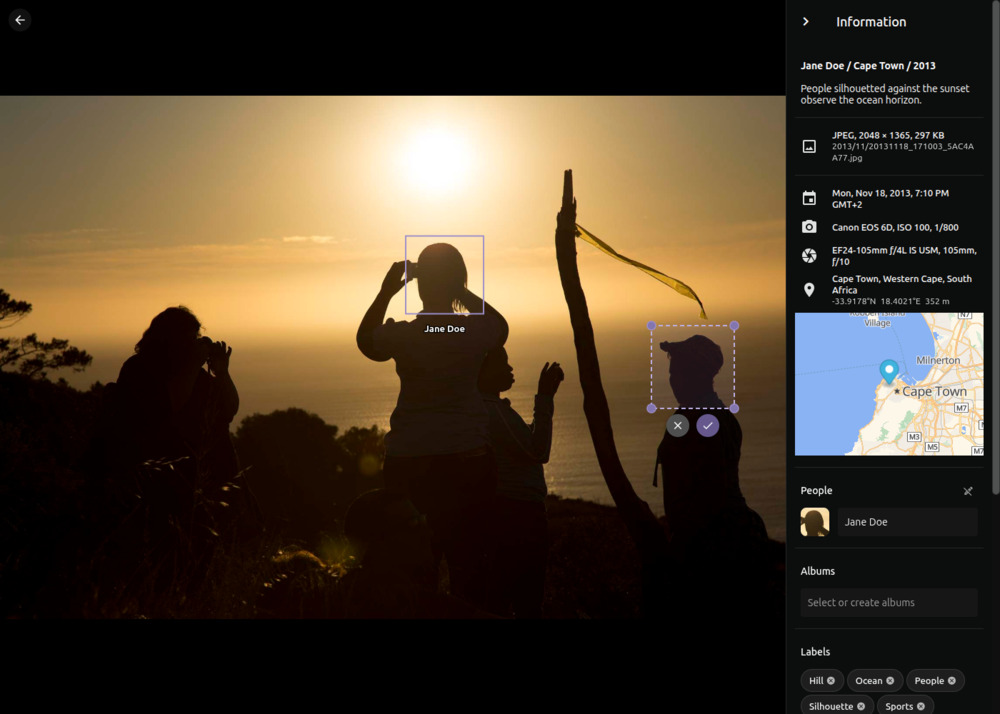
### Remove Faces
Like on the *People* tab of the Edit Dialog, only unnamed face markers can be removed.
1. Open a photo in the [full-screen viewer](https://docs.photoprism.app/user-guide/search/views/) and open the Info Sidebar by pressing **Ctrl + I**.
2. Click :material-pencil-outline: next to *People* to enter edit mode.
3. Click the face marker on the image.
4. Click :material-delete: in the confirm pill to remove it.
---
# Batch Edit
Source: https://docs.photoprism.app/user-guide/organize/batch-edit/
# Batch Edit
With batch editing, you can change the metadata, albums, and labels of many pictures at once. If this feature is enabled, you can select up to **999** pictures and apply the same changes to either the entire selection or a subset of it.
## Opening the Dialog
To open the **Batch Edit** dialog:
1. Select multiple pictures.
2. Open the context menu.
3. Click the pencil :material-pencil: icon.
The form fields in the dialog show the current values only if they are the same for the entire selection. If the values differ, you will see ``. Entering a new value replaces the existing values on **all** pictures you apply the change to.
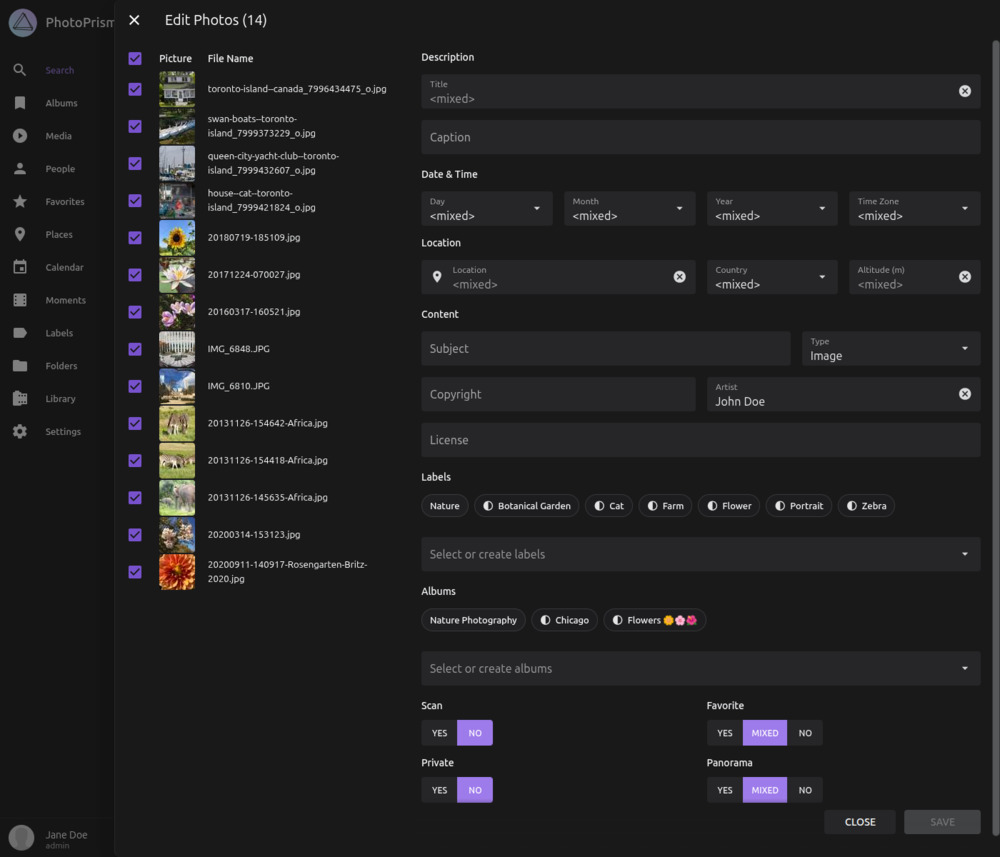
!!! note ""
You can deselect pictures in the dialog to exclude them from the changes. The values shown in the fields still reflect the **original selection**, even if you deselect some pictures.
## Labels and Albums
[](https://docs.photoprism.app/user-guide/organize/img/batch-edit-3-1125.jpg)
Entries that are assigned to **all** selected pictures are listed first. Each entry is shown as a small chip. If a [label](https://docs.photoprism.app/user-guide/organize/labels/) or [album](https://docs.photoprism.app/user-guide/organize/albums/) is assigned to only some of the selected pictures, its chip is shown as *partially assigned*.
- Click a partially assigned label or album chip **once** to assign it to **all** selected pictures.
- Click the same chip **again** to remove that label or album from **all** selected pictures.
You can assign additional labels or albums using the input field:
- Start typing to search existing labels and albums.
- If the name does not exist yet, a new label or album will be created automatically.
---
# Rotate Image
Source: https://docs.photoprism.app/user-guide/organize/rotate/
# Rotate Image #
PhotoPrism allows you to rotate JPG and PNG images.
1. Open the photo [*edit dialog*](https://docs.photoprism.app/user-guide/organize/edit/)
2. Go to the *Files* tab
3. Click on the orientation icon and choose the correct orientation
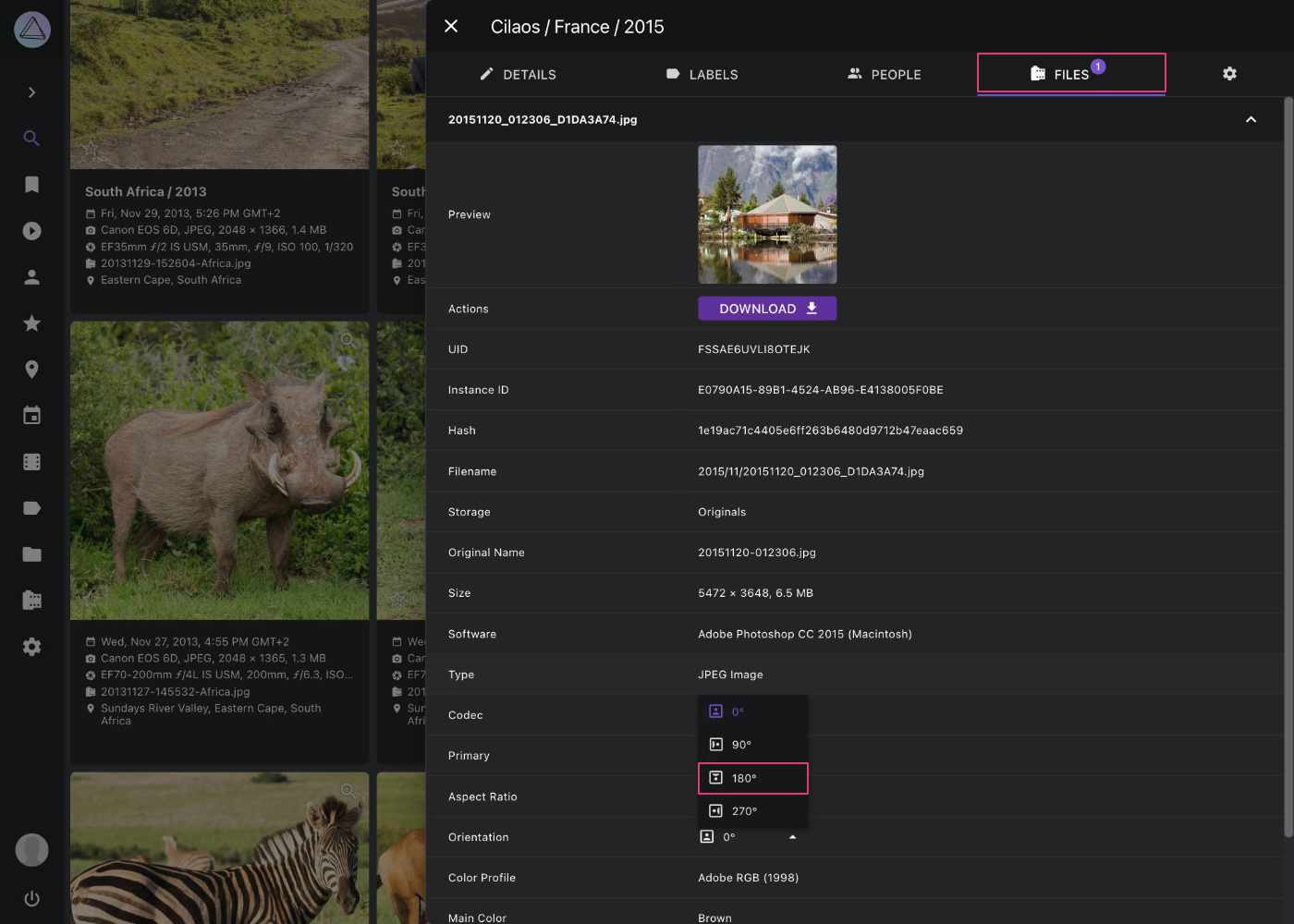
The updated orientation is stored in the metadata of your original file. Therefore, it is not possible to rotate images in read-only mode at this time.
---
# Download
Source: https://docs.photoprism.app/user-guide/organize/download/
# Downloading Files #
=== "Using Context Menu"
1. Select photos
2. Click on the context menu
3. Click :material-cloud-download:. Photos will be downloaded in original size
!!! tip ""
You can select [many photos at once](https://docs.photoprism.app/user-guide/navigate/#selection-mode-and-multi-select) using shift.
!!! info ""
You can [configure](https://docs.photoprism.app/user-guide/settings/library/#download) which files should be downloaded for each photo.
=== "From Fullscreen Mode"
1. Click on the photo
2. In fullscreen mode click :material-download:
!!! info ""
You can [configure](https://docs.photoprism.app/user-guide/settings/library/#download) which files should be downloaded for each photo.
!!! tip "Keyboard Shortcut"
In the fullscreen viewer, you can quickly download files by pressing **Ctrl + D**.
=== "From Edit Dialog"
1. Open the photo's [*edit dialog*](https://docs.photoprism.app/user-guide/organize/edit/)
2. Open the *Files Tab*
3. Click *Download*
---
# Videos
Source: https://docs.photoprism.app/user-guide/organize/video/
# Browsing and Playing Videos
Navigate to *Videos* to browse all your videos. Click on a video to play it.
Please note that not all [video and audio formats](https://caniuse.com/?search=video%20format) can be [played with every browser](https://docs.photoprism.app/getting-started/troubleshooting/browsers/). For example, [AAC](https://caniuse.com/aac) - the default audio codec for [MPEG-4 AVC / H.264](https://caniuse.com/avc) - is supported natively in Chrome, Safari, and Edge, while it is only optionally supported by the OS in Firefox and Opera.
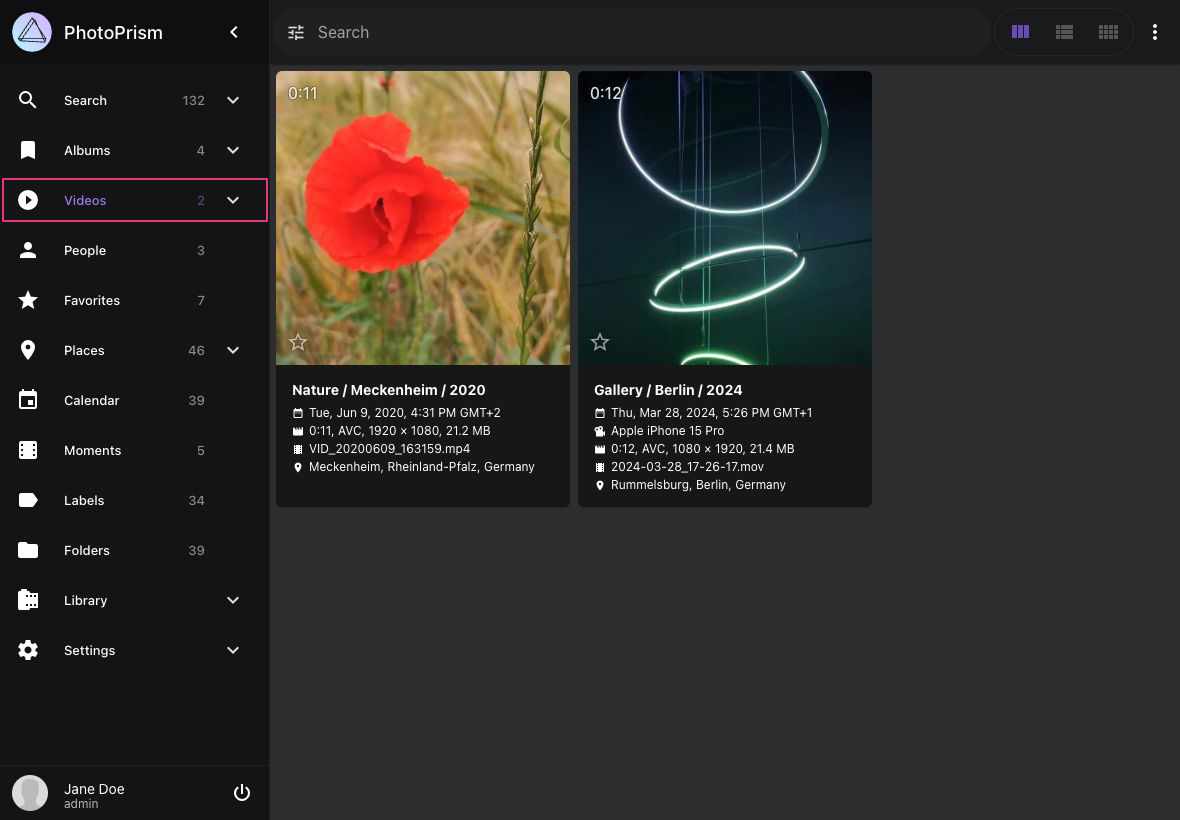
!!! tldr ""
In case [FFmpeg is disabled](https://docs.photoprism.app/user-guide/settings/advanced/#disable-ffmpeg) or not installed, videos cannot be indexed because still images cannot be created.
You should also have [ExifTool enabled](https://docs.photoprism.app/getting-started/config-options/#feature-flags) to extract metadata such as duration, resolution, and codec.
## Live Photos
You can recognize live photos by the :material-adjust: icon that appears in the upper left corner.
Move the mouse cursor over the thumbnail to play the video without changing the view.
You can limit a search to *Live Photos* by using the `type:live` filter or the keyword `live`.
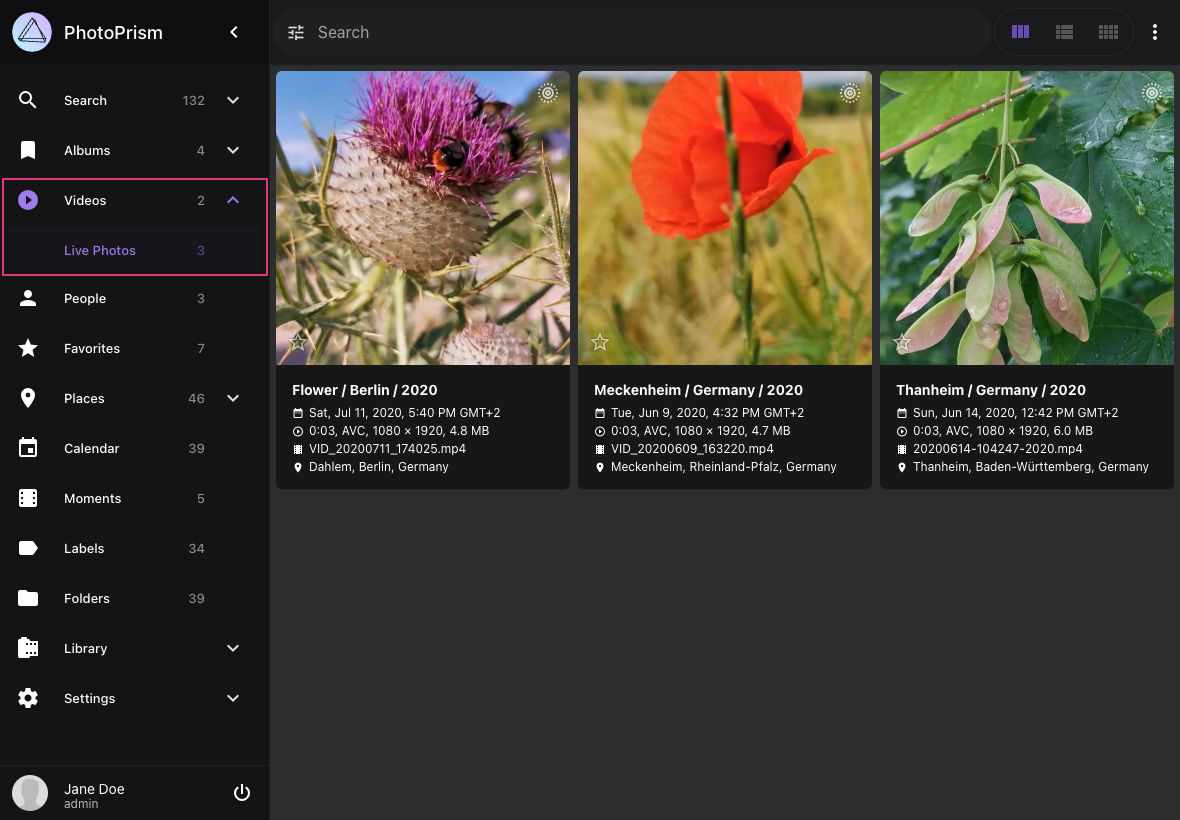
## Transcoding
For maximum browser compatibility, PhotoPrism can transcode video codecs and containers [supported by FFmpeg](https://www.ffmpeg.org/documentation.html) to [MPEG-4 AVC](https://en.wikipedia.org/wiki/MPEG-4), as well as extract still images for thumbnail creation:
- if [FFmpeg is disabled](https://docs.photoprism.app/user-guide/settings/advanced/#disable-ffmpeg) or not installed, indexing and importing videos is not possible because still images cannot be created
- if [ExifTool is disabled](https://docs.photoprism.app/getting-started/config-options/#feature-flags) or not installed, indexing and importing videos is only partially possible because the video metadata cannot be extracted and thus the duration, resolution, and codec are unknown
- [MPEG-4 AVC](https://en.wikipedia.org/wiki/MPEG-4) videos can be [played natively by most modern browsers](https://caniuse.com/mpeg4) and are not re-encoded, even if they exceed the [configured bitrate limit](https://docs.photoprism.app/getting-started/advanced/transcoding/#bitrate-limit); to reduce the size of AVC videos, you can manually replace the original files with a smaller version or wait for a future release that offers this functionality
- OGV, VP8, VP9, AV1, WebM, and HEVC videos will be streamed directly if they are supported by your browser and do not exceed the [configured bitrate limit](https://docs.photoprism.app/getting-started/advanced/transcoding/#bitrate-limit)
- other formats must always be transcoded
**If necessary, videos are transcoded on demand. This can cause unacceptable delays when large video files are played for the first time.**
In this case, you can [run the following command in a terminal](https://docs.photoprism.app/getting-started/docker-compose/#command-line-interface) to pre-transcode all video files as needed:
```
docker compose exec photoprism photoprism convert
```
Our setup guide for advanced users explains how to [configure hardware video transcoding](https://docs.photoprism.app/getting-started/advanced/transcoding/).
!!! note ""
Make sure that there is enough disk space available on your server before transcoding all video files, as this may
require a significant amount of extra storage.
!!! tldr ""
HEVC/H.265 video files can have a `.mp4` file extension too, which is often associated with AVC only. This is because
MP4 is a *container* format, meaning that the actual video content may be compressed with H.264, H.265, or something
else. The file extension doesn't really tell you anything other than that it's probably a video file.
*[HEVC]: High Efficiency Video Coding / H.265
---
# Documents
Source: https://docs.photoprism.app/user-guide/organize/documents/
# Reading Documents #
PhotoPrism indexes PDF files as *documents* and renders their first page as a cover image, so they appear in
search results next to your pictures and videos. Clicking a document opens it in the built-in viewer, where you
can read all of its pages without downloading the file first.
## Finding Documents ##
Navigate to *Search > Documents* to browse everything that has been classified as a document.
You can also limit any search to documents with the `document:yes` filter or the more general `type:document`
filter. [Learn more ›](https://docs.photoprism.app/user-guide/search/filters/#filter-reference)
## Using the Viewer ##
Open a document by clicking its cover in search results. The viewer loads all pages and shows the following controls:
#### :material-view-grid: Thumbnails ####
A strip of page thumbnails is shown on the left so you can see the structure of a document at a glance and jump
straight to a page. Use the :material-view-grid: button to hide the strip and give the page more room.
It is not available on phones, where it would take up most of the screen.
#### :material-chevron-right: Pages ####
Scroll to move through the document, or use the :material-chevron-left: and :material-chevron-right:
buttons next to the page number. To jump to a specific page, type its number into the page field and press **Enter**.
On a keyboard, **Up**, **Down**, and **Page Down** scroll the current page.
#### :material-magnify-plus-outline: Zoom ####
A document opens at a zoom level that fits a whole page on your screen where possible, and fits the page width
otherwise. Use the :material-magnify-minus-outline: and :material-magnify-plus-outline: buttons to change it, or
pinch with two fingers on a touch screen. When a page is larger than the window, you can drag it with the mouse
to pan around.
#### :material-chevron-double-right: Other Documents ####
To move to the previous or next document without leaving the viewer, use the arrows at the left and right edge of
the screen, press the **Left** and **Right** arrow keys, or swipe inward from the left or right edge on a touch screen.
## Sharing Documents ##
Documents can be added to albums and [shared](https://docs.photoprism.app/user-guide/share/) like any other file. Everyone who opens the
share link can read the shared documents in the same viewer, without being able to reach documents outside
the shared albums.
---
# Places
Source: https://docs.photoprism.app/user-guide/organize/places/
# Places #
*Places* displays all photos with GPS information on a world map.
!!! info ""
The Places feature requires a browser with WebGL support. Most modern browsers support WebGL, but some older browsers or browsers with hardware acceleration disabled may not be able to display the map properly.
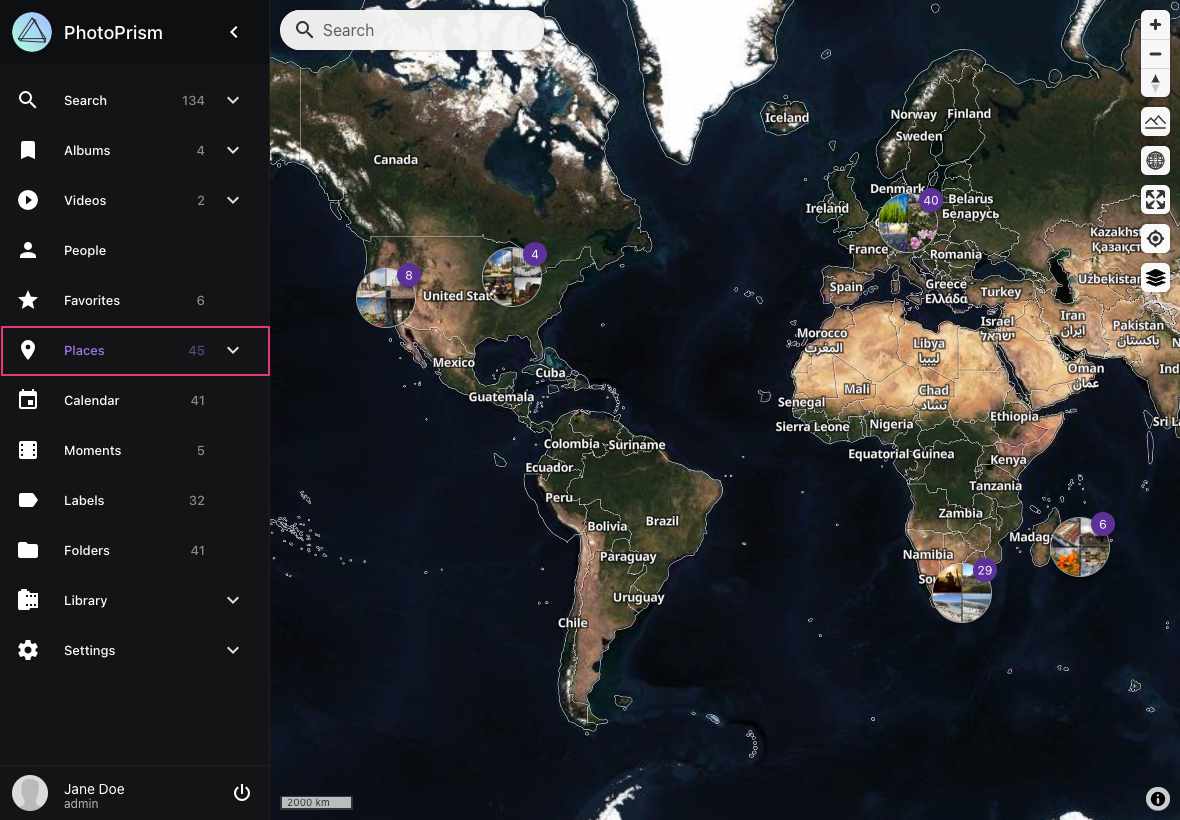
You can set a default map style in [settings](https://docs.photoprism.app/user-guide/settings/general/) or choose between different styles by clicking :material-layers-triple:.
Clicking on a cluster, opens the cluster overlay.
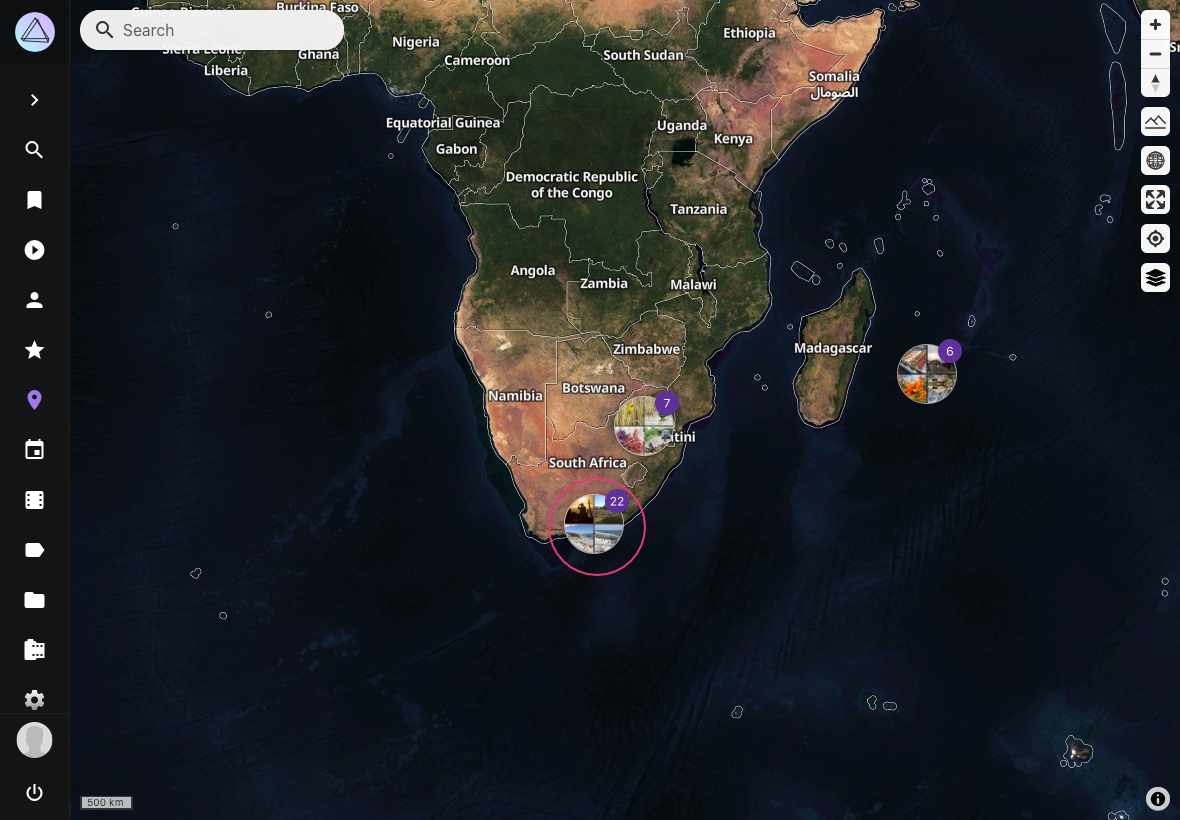
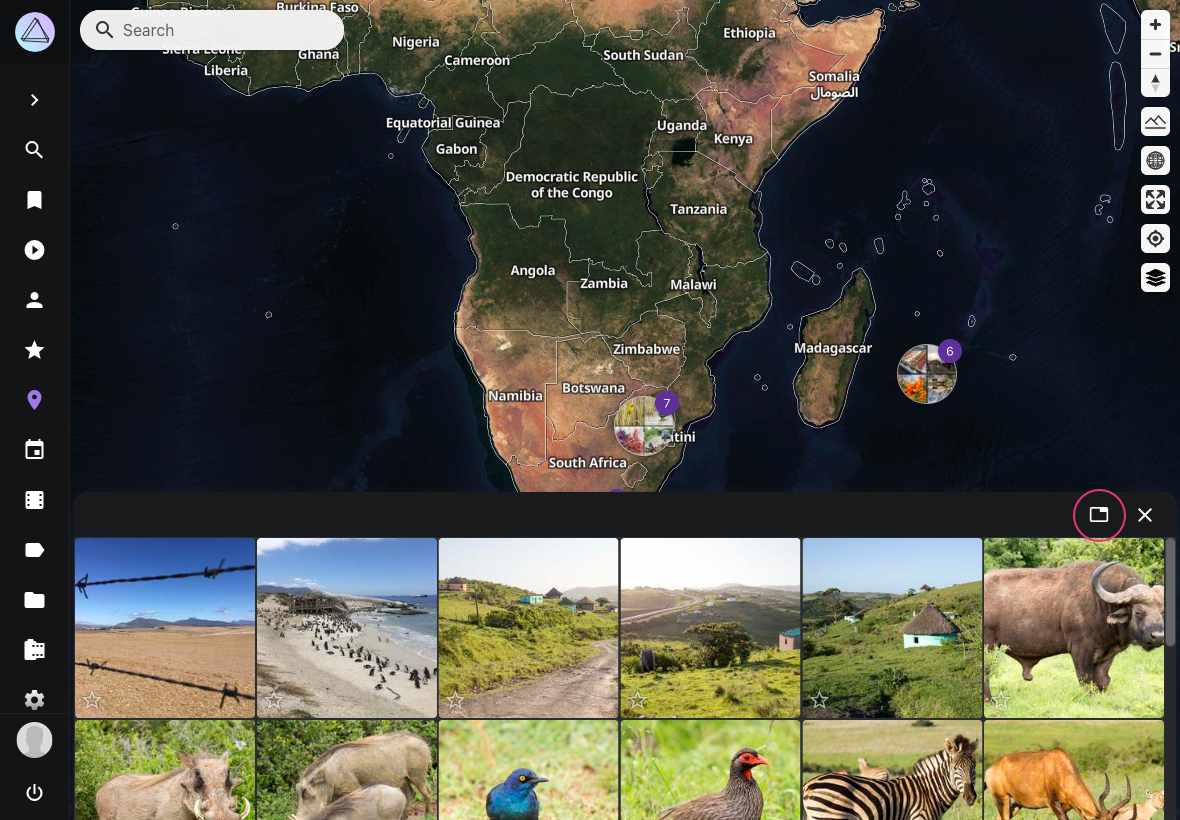
To open photos from this location in the search click :material-tab:.
To clear the location filter click :material-map-marker-off-outline:.
## Search
When using the search only photos matching the search term are shown on the map. You can use most of our [search filters](https://docs.photoprism.app/user-guide/search/filters/) on the map as well.
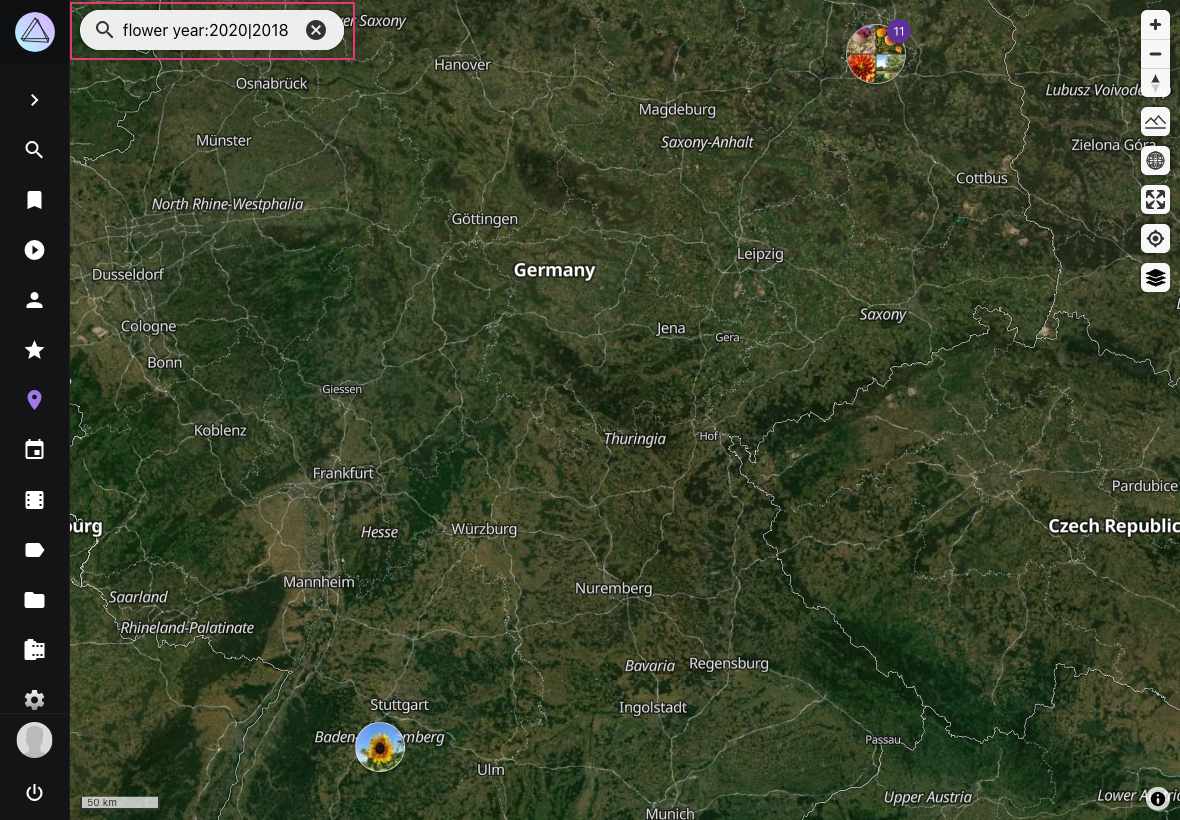
## Enable Terrain Mode
Our "Satellite", "Outdoor" and "Topography" maps can also be viewed in 3D.
To enable terrain mode click :material-image-filter-hdr-outline:. To change the perspective, you can hold down the right mouse button and move it.
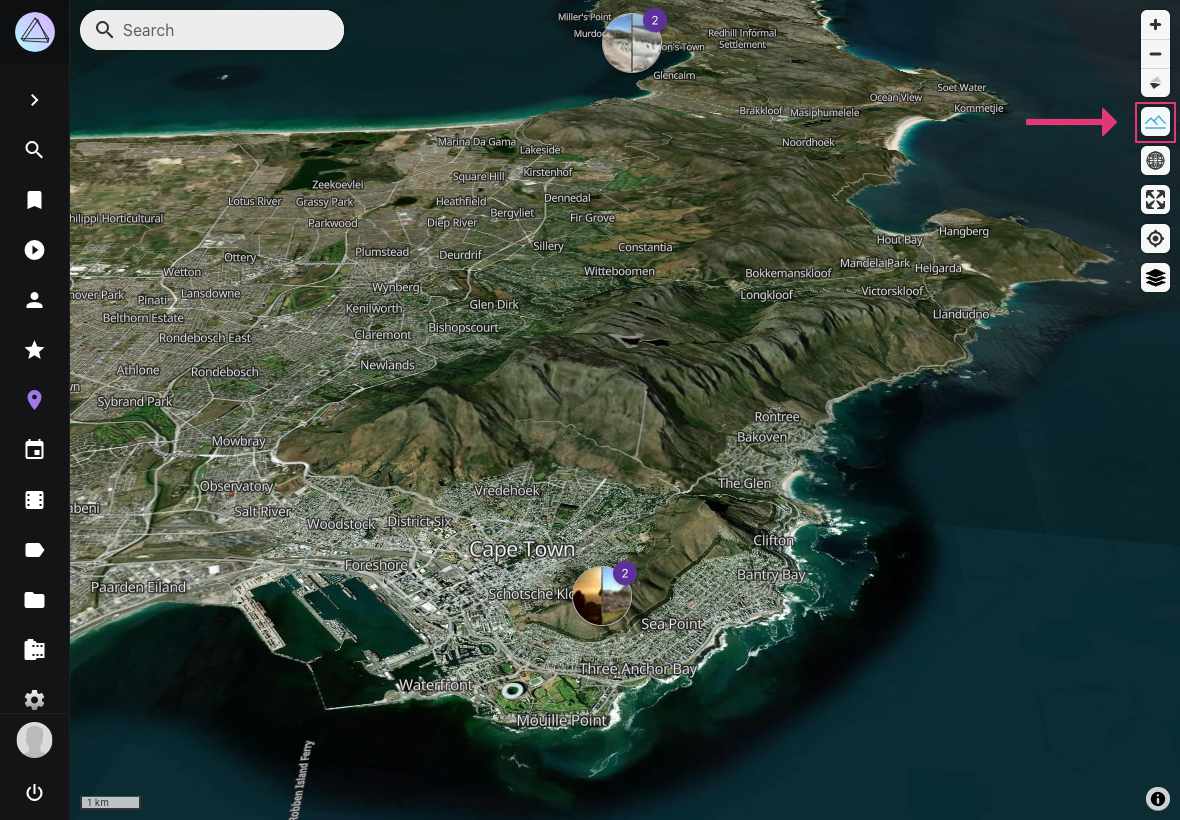
## 3D Earth View
PhotoPrism now offers an immersive 3D Earth view that provides a globe-like perspective of your photo locations. This feature allows you to visualize your photos in a more realistic, three-dimensional representation of the world.
To enable the 3D Earth view:
1. Click on :material-earth: to toggle the 3D Earth view
When in 3D Earth view, you can:
- Rotate the globe by clicking and dragging
- Zoom in and out using the scroll wheel or pinch gestures
- Tilt the view by holding the right mouse button and moving it
The 3D Earth view works with all map styles and can be combined with terrain mode for an even more detailed visualization of your photo locations.
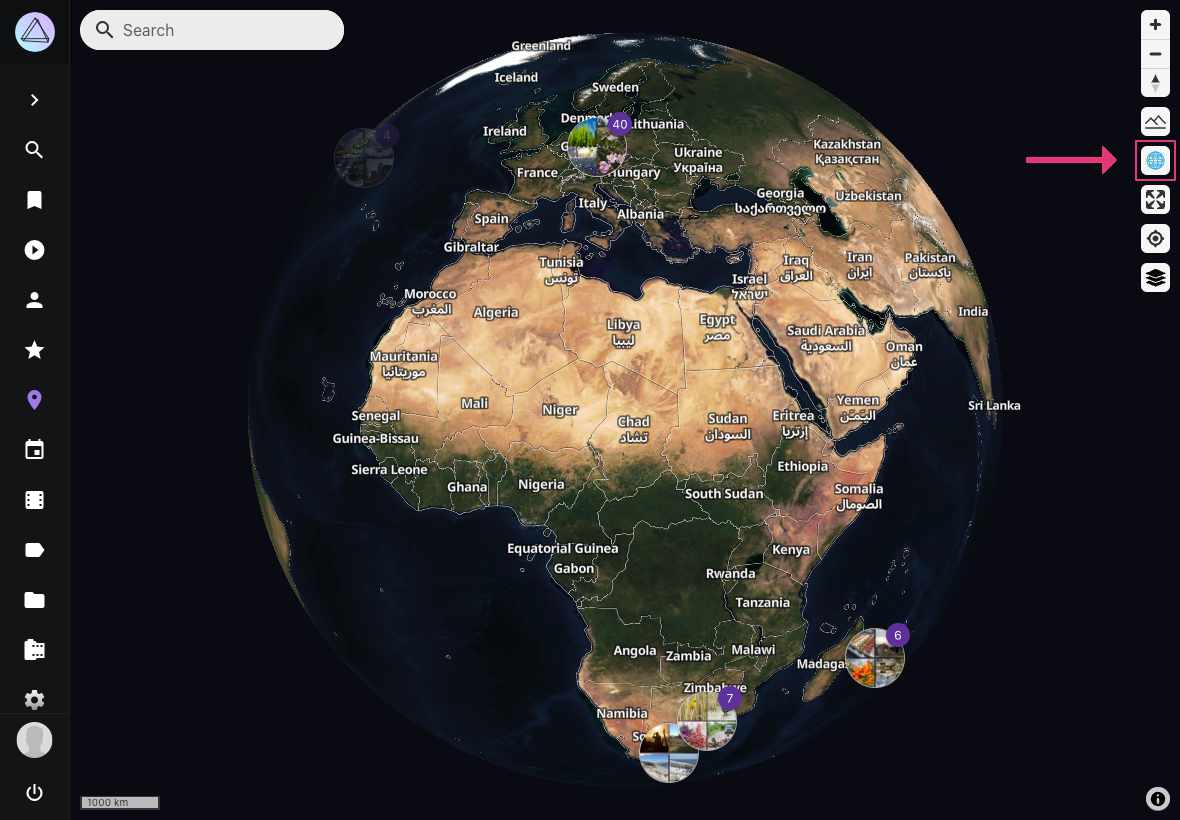
## Open Photo from Search in Places
To navigate directly from the cards results view to the location of a picture on the world map, click on its location.
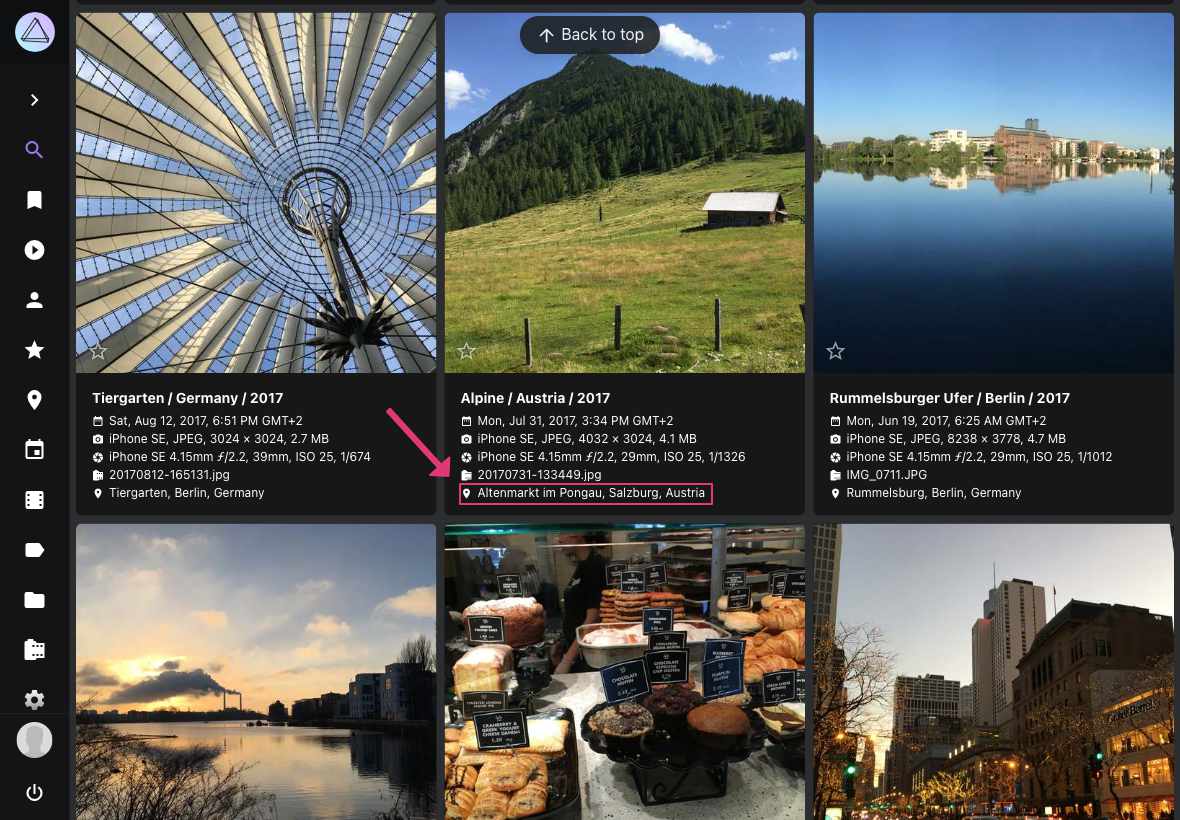
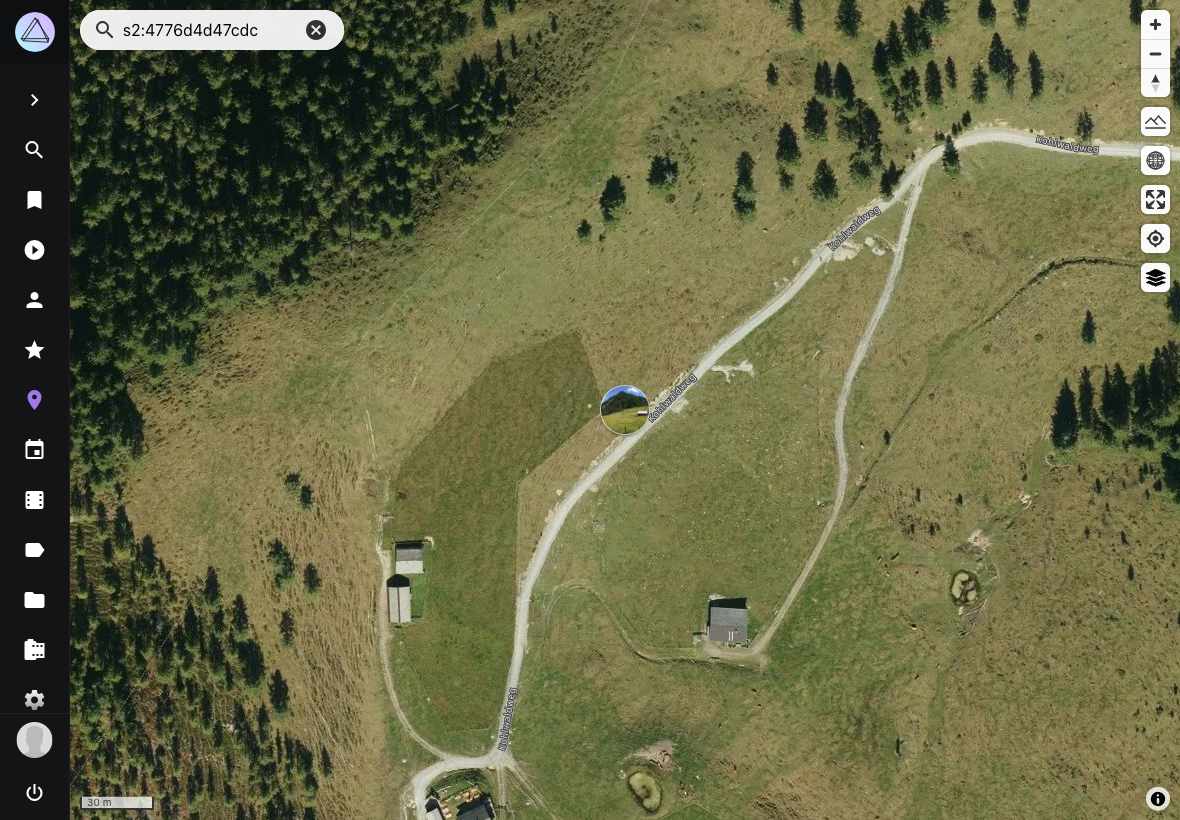
---
# Moments
Source: https://docs.photoprism.app/user-guide/organize/moments/
# Moments #
PhotoPrism creates moments out of your memories.
*Moments* get constantly updated in case you add new photos.
!!! info ""
Moments can be based on location and time e.g. *Germany 2020* or on labels like *Nature & Landscape* or *Pets*.
The context menu allows you to perform the following actions:
## Remove Moments ##
1. Select moment
2. Open context menu
3. Click :material-delete:
4. Confirm
!!! hint ""
Only the moment will be deleted. Your files stay untouched.
## Download Moments ##
1. Select moment
2. Open context menu
3. Click :material-download:
## Create Albums from Moments ##
1. Select moment
2. Open context menu
3. Click :material-bookmark:
4. Select existing album or enter new album name
5. Click *add to album*
## Set Moment Cover ##
To set a cover image for a moment:
1. Open the moment by clicking on it.
2. Click on the photo you want to use as the cover.
3. When the photo opens, click :material-dots-vertical: in the upper right corner.
4. Select **Set as Album Cover** from the menu.

This will set the selected photo as the cover image for the moment.
---
# Calendar
Source: https://docs.photoprism.app/user-guide/organize/calendar/
# Calendar #
The *Calendar* view allows you to browse your library by year and month:
Note that the monthly albums in this view only include pictures that have a valid [creation date and time](https://docs.photoprism.app/user-guide/organize/edit/#details) specified in their metadata or as part of their filename.
Files for which the creation date is *estimated* based on the file modification time will therefore not appear in these albums, even if they have been [properly indexed](https://docs.photoprism.app/user-guide/library/originals/).
You can use the context menu to perform the following actions:
### Download Months
1. Select month
2. Open context menu
3. Click :material-download:
### Create Albums from Months
1. Select month
2. Open context menu
3. Click :material-bookmark:
4. Select existing album or enter new album name
5. Click *add to album*
### Set Month Cover ###
To set a cover image for a month:
1. Open the month by clicking on it in the Calendar view.
2. Click on the photo you want to use as the cover.
3. When the photo opens, click :material-dots-vertical: in the upper right corner.
4. Select **Set as Album Cover** from the menu.

This will set the selected photo as the cover image for the month.
---
# Folders
Source: https://docs.photoprism.app/user-guide/organize/folders/
# Folders #
We automatically display all folders of your *originals directory* in the *Folders section*.
In case you add new files to your *originals directory* your folders will be updated.
The context menu allows you to perform the following actions:
## Download Folders ##
1. Select folder
2. Open context menu
3. Click :material-download:
## Create Albums from Folders ##
1. Select folder
2. Open context menu
3. Click :material-bookmark:
4. Select existing album or enter new album name
5. Click *add to album*
## Set Folder Cover ##
To set a cover image for a folder:
1. Open the folder by clicking on it in the Folders section.
2. Click on the photo you want to use as the cover.
3. When the photo opens, click :material-dots-vertical: in the upper right corner.
4. Select **Set as Album Cover** from the menu.

This will set the selected photo as the cover image for the folder.
---
# Panoramas
Source: https://docs.photoprism.app/user-guide/organize/panoramas/
# Panoramas #
PhotoPrism automatically marks photos with an aspect ratio of 2/1 or higher as *panorama*.
You can view all your panorama images in the *Panorama section*.
## Edit Panorama Flags ##
1. Open the [*photo edit dialog*](https://docs.photoprism.app/user-guide/organize/edit/)
2. Click :material-cog:
3. Set or unset the panorama flag
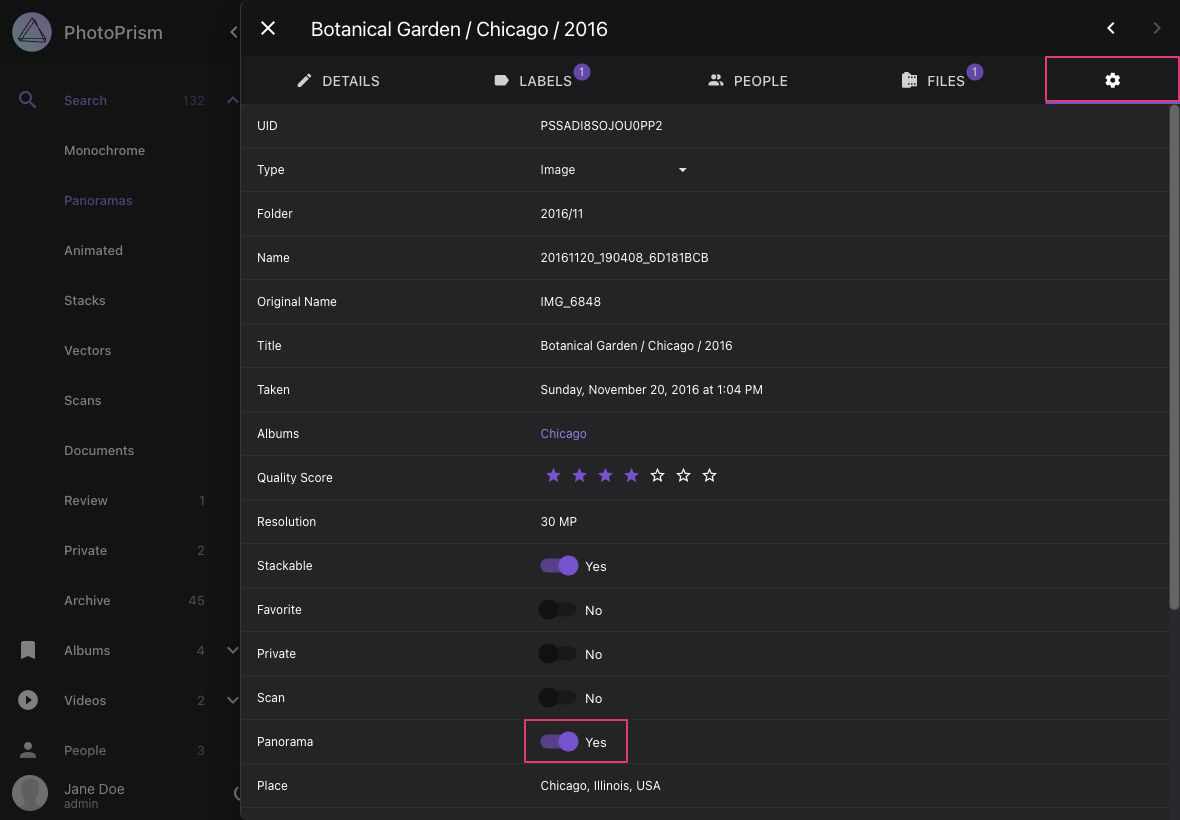
---
# Scans
Source: https://docs.photoprism.app/user-guide/organize/scans/
# Scans #
You can mark scanned photos as *scans* within the photo edit dialog.
We aim to automatically mark scans in the future.
## Set Scan Flags ##
1. Open the [*photo edit dialog*](https://docs.photoprism.app/user-guide/organize/edit/)
2. Click :material-cog:
3. Set or unset the scan flag
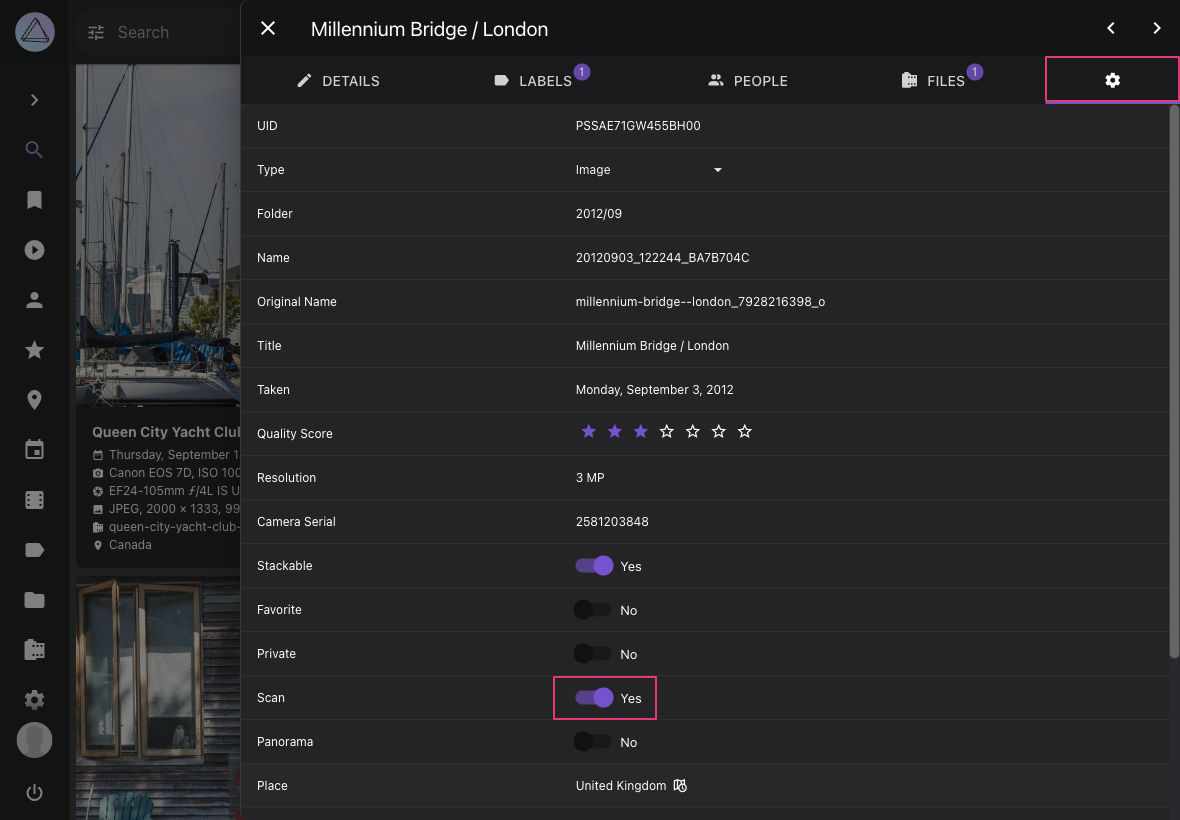
---
# Introduction
Source: https://docs.photoprism.app/user-guide/share/
# Creating and Sharing Album Links
Secret links make it easy to share [manually created albums](https://docs.photoprism.app/user-guide/organize/albums/) as well as selected [Moments](https://docs.photoprism.app/user-guide/organize/moments/), [Months](https://docs.photoprism.app/user-guide/organize/calendar/), [Regions](https://docs.photoprism.app/user-guide/search/#regions), or [Folders](https://docs.photoprism.app/user-guide/organize/folders/) with your loved ones. You can [create multiple links](https://docs.photoprism.app/user-guide/share/#create-sharing-link) for each album and optionally set an expiration date. While no registration is required to use the links, [sharing albums with users who have an account](https://docs.photoprism.app/user-guide/users/sharing/) is also possible this way.
When you share an album, pictures marked as private will not be visible to others. They can view and download the non-private pictures, but they cannot modify them or their metadata.
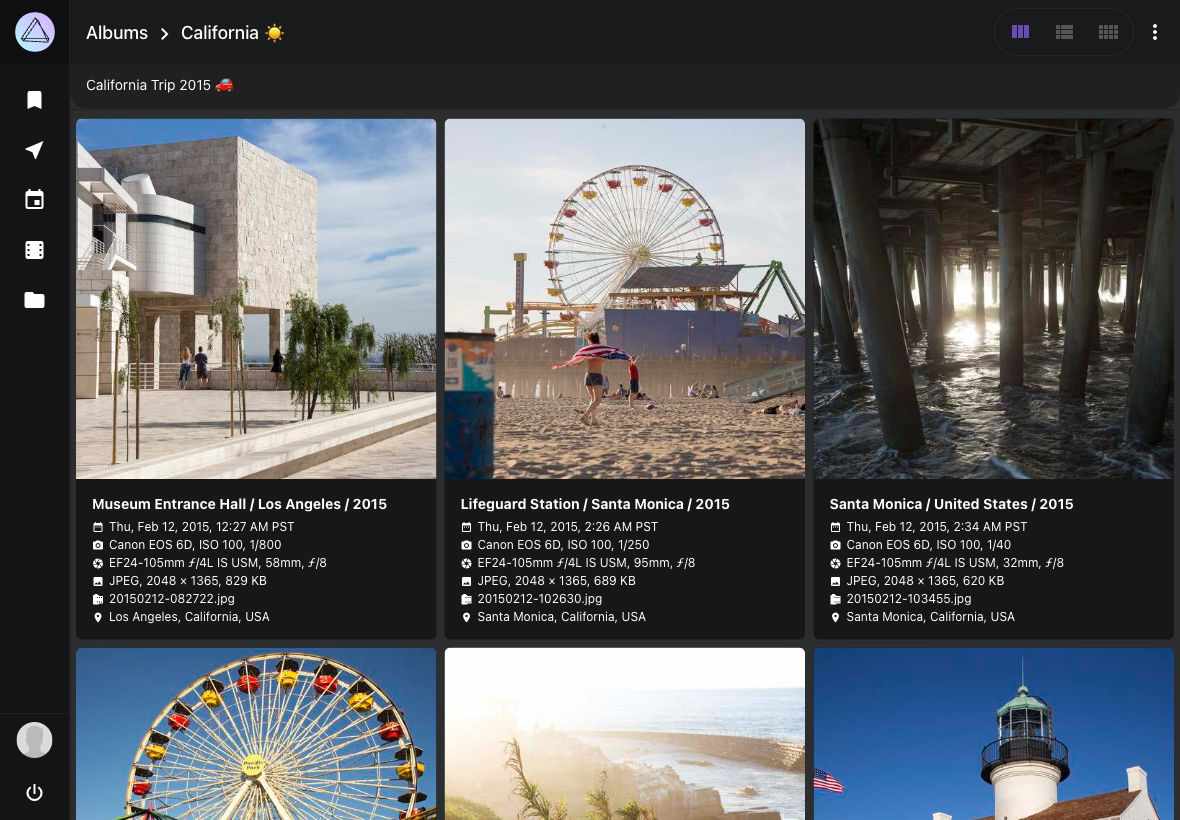
!!! info ""
When link visitors click on the location of a photo, they can view the photos of the shared album in the map view
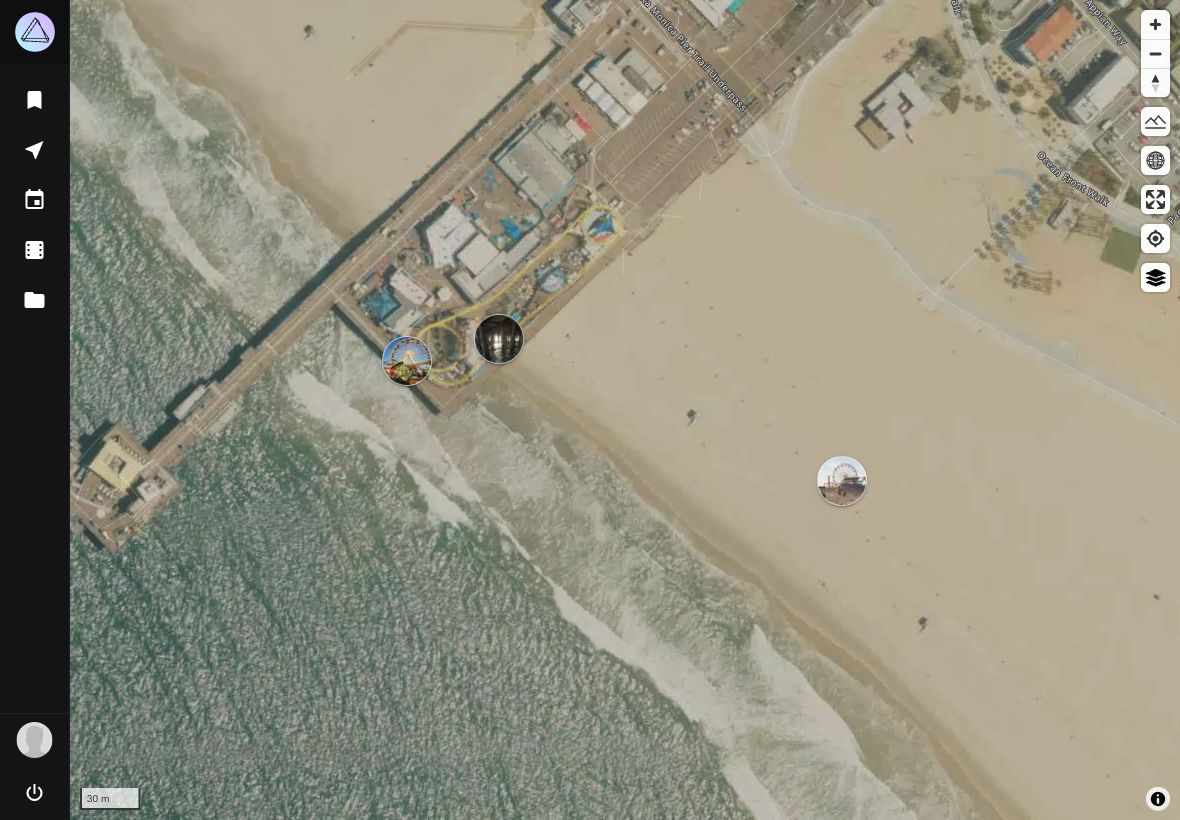
Clicking :material-power: allows link visitors to end their session.
Support for optional password protection of sharing links as well as other enhancements are [planned](https://github.com/photoprism/photoprism/issues?q=is%3Aissue+is%3Aopen+sharing+in%3Atitle+label%3Aidea).
## Create Sharing Link ##
=== "Using Context Menu"
1. Go to *Albums* / *Moments* / *Calendar* / *Regions* / *Folders*
2. Select the album you want to share
3. Open the context menu
4. Click :material-share-variant:
=== "Via Toolbar"
1. Go to *Albums* / *Moments* / *Calendar* / *Regions* / *Folders*
2. Open the album by clicking on it
3. Click :material-dots-vertical: in the toolbar
4. Click :material-share-variant: in the menu that appears
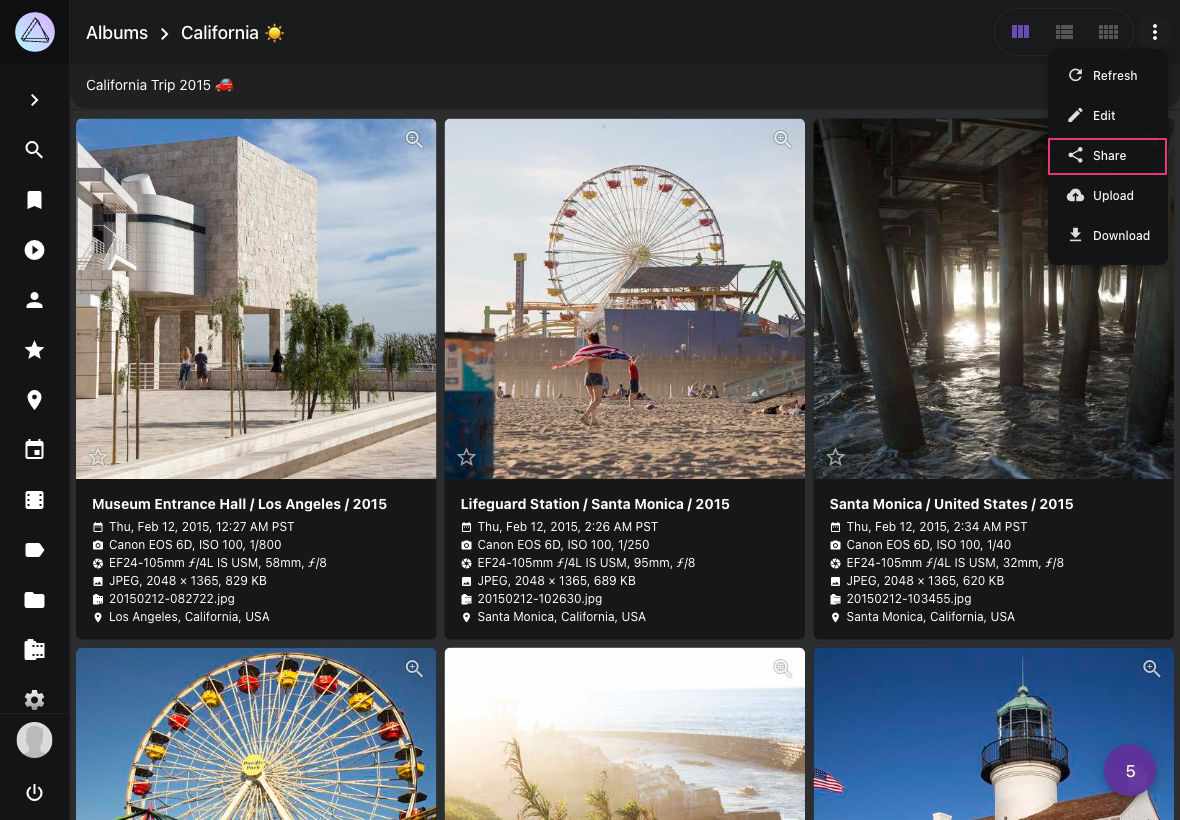
Then
5. Click :material-chevron-down: to open the *link details*
6. Set a *secret* and *expiry date*
7. Click *save*
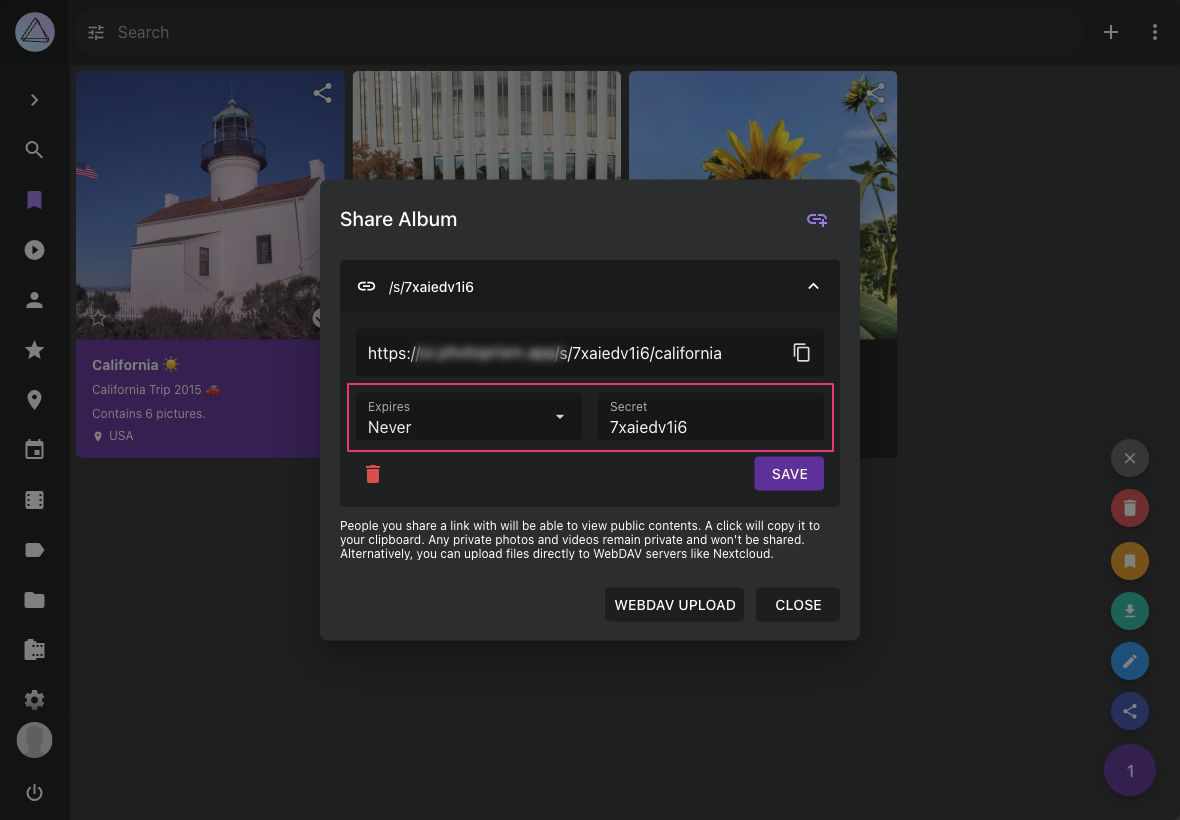
8. Copy the link by clicking on it
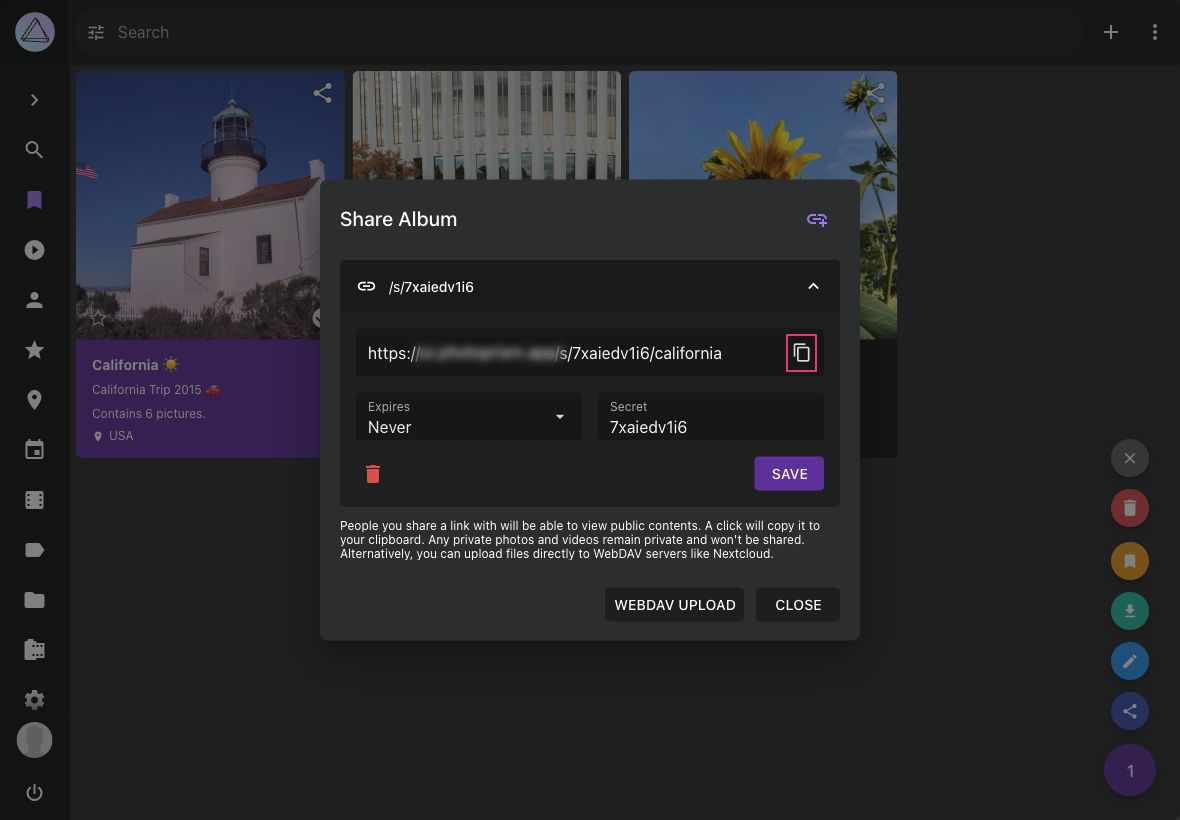
9. Share it with your friends
!!!tip "Share multiple albums with one link"
You can share multiple albums using the same link by using the same secret.
!!!tip ""
You can create additional links with different secrets and expiry dates by clicking :material-link-plus:.
## Delete Sharing Link ##
1. Go to *Albums*
2. Click :material-share-variant: on the album cover
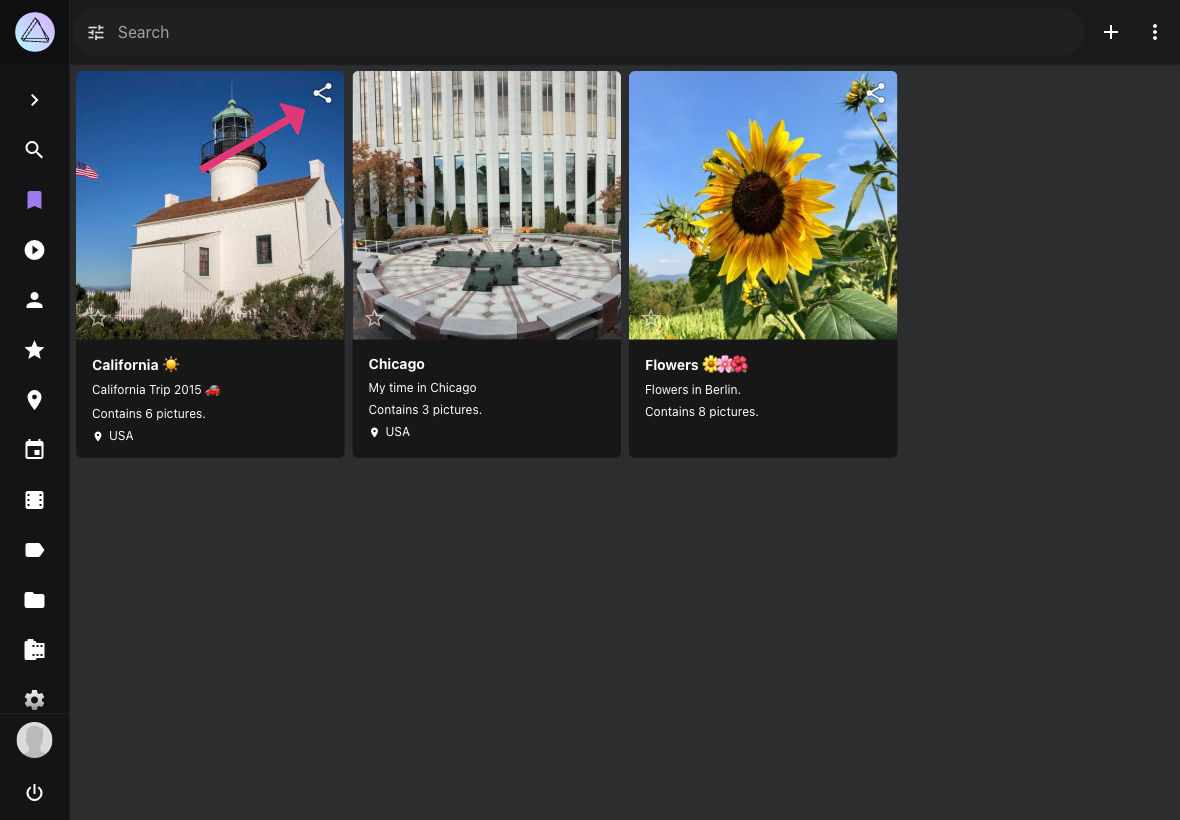
3. Click :material-chevron-down:
4. Click :material-delete:
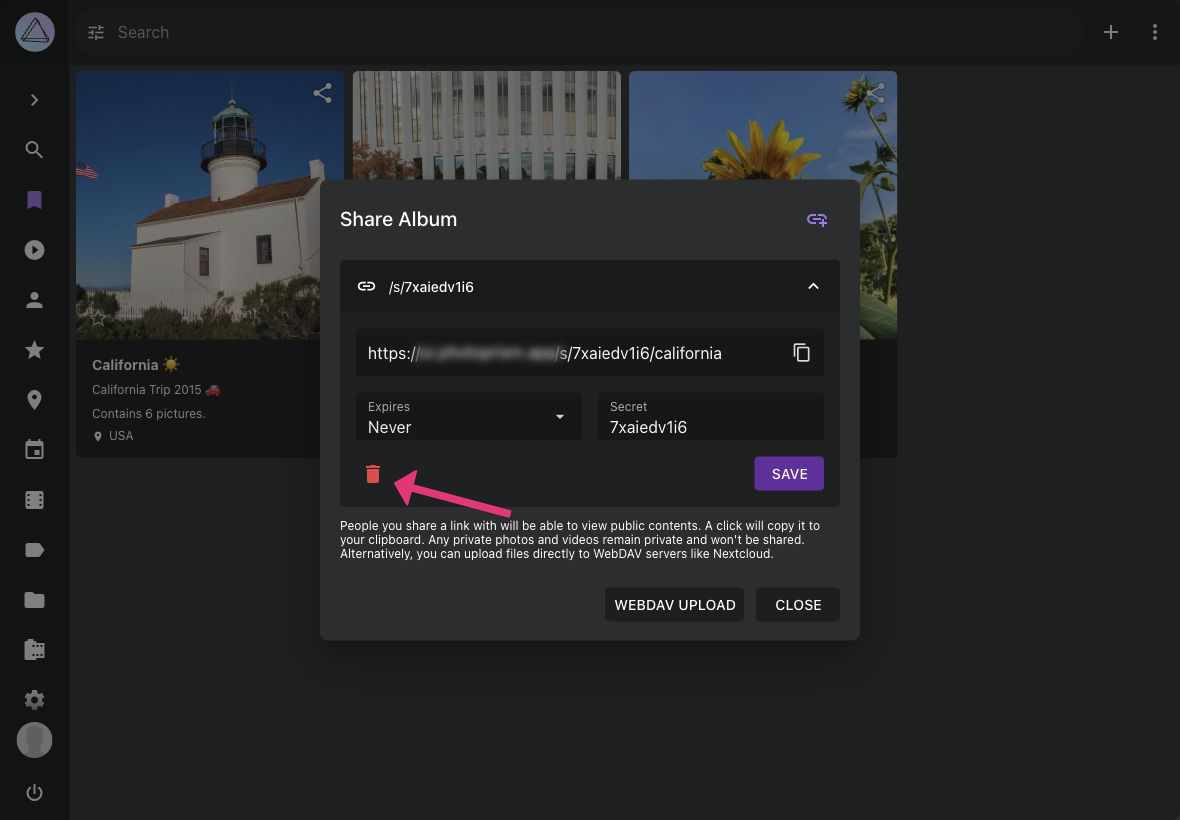
---
# Uploading Files
Source: https://docs.photoprism.app/user-guide/share/services-share/
# Uploading Files to Other Apps & Services
In [Settings > Services](https://docs.photoprism.app/user-guide/settings/sync/), you can connect PhotoPrism to WebDAV-compatible services, such as other PhotoPrism instances or Nextcloud.
## Share Files with other Apps ##
1. Go to *Search*
2. Select photos you want to upload
3. Open the context menu
4. Click :material-arrow-top-right:
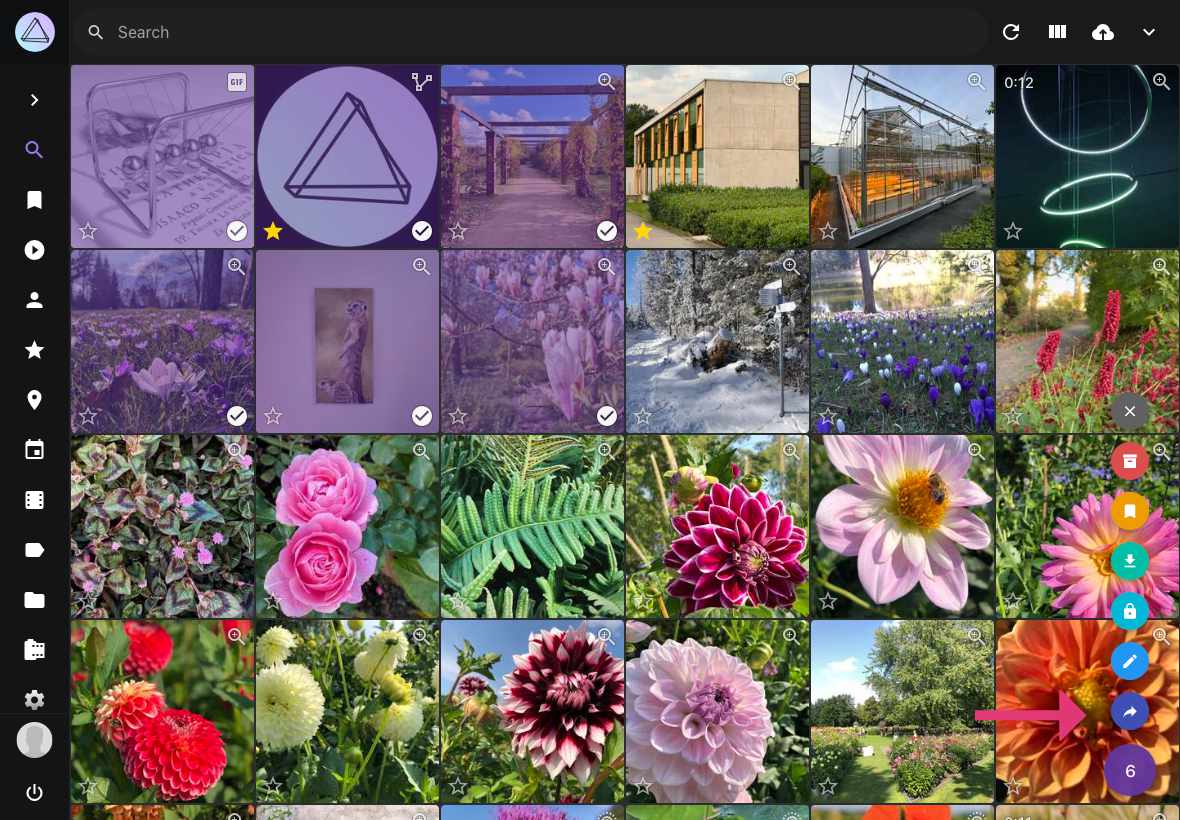
5. Select your account and click *upload*
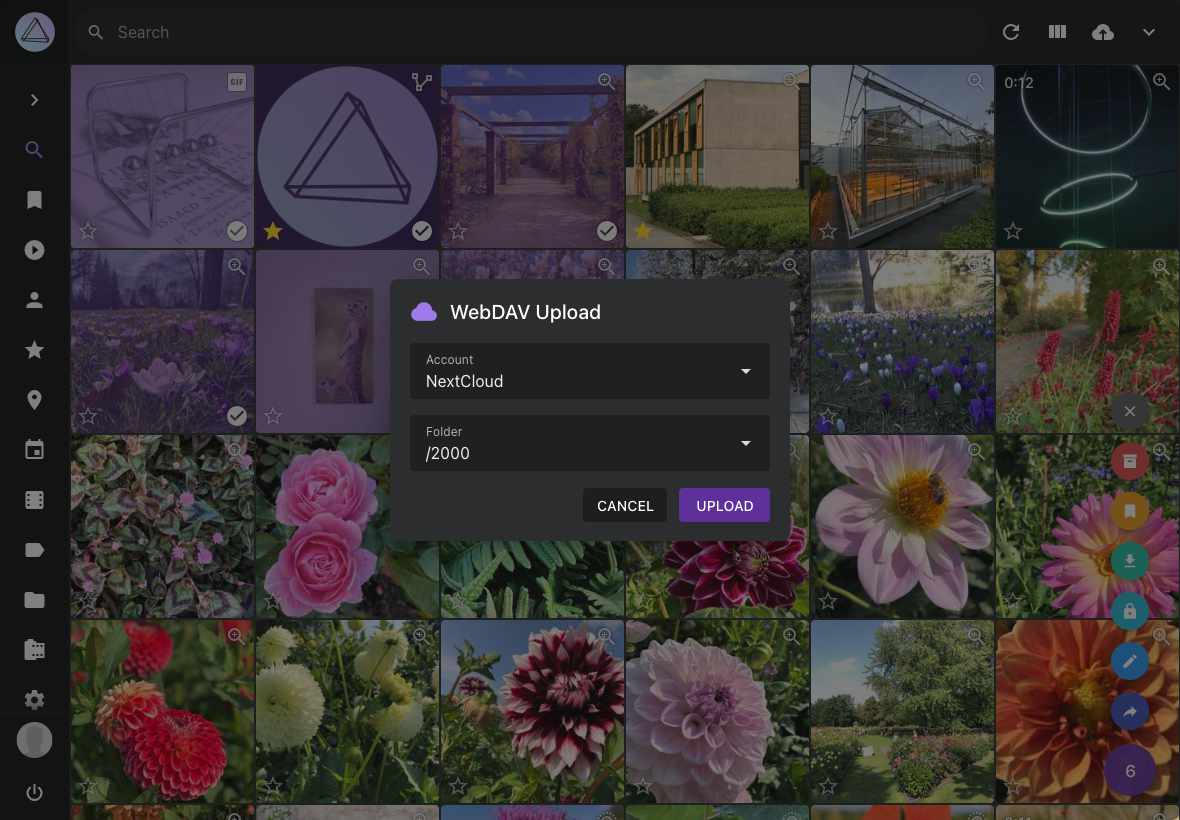
!!! danger ""
Due to problems with some Nextcloud settings it might be that uploading to Nextcloud results in 0 byte files. You find information on how to solve it [here](https://github.com/photoprism/photoprism/issues/443).
## Share Albums with other Apps ##
1. Go to *Albums* / *Moments* / *Calendar* / *Regions* / *Folders*
2. Select the album you want to share
3. Open the context menu
4. Click :material-share-variant:
5. Click *WebDAV Upload*
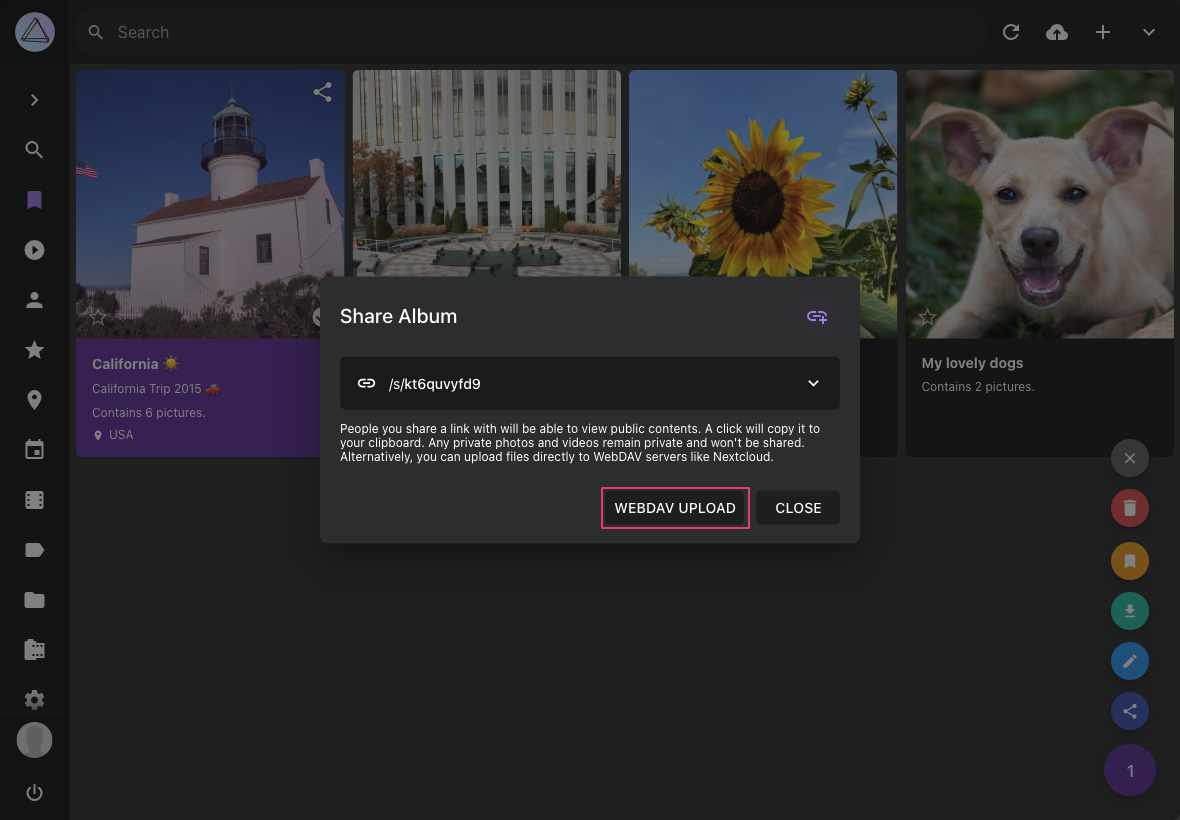
6. Select your account and click *upload*
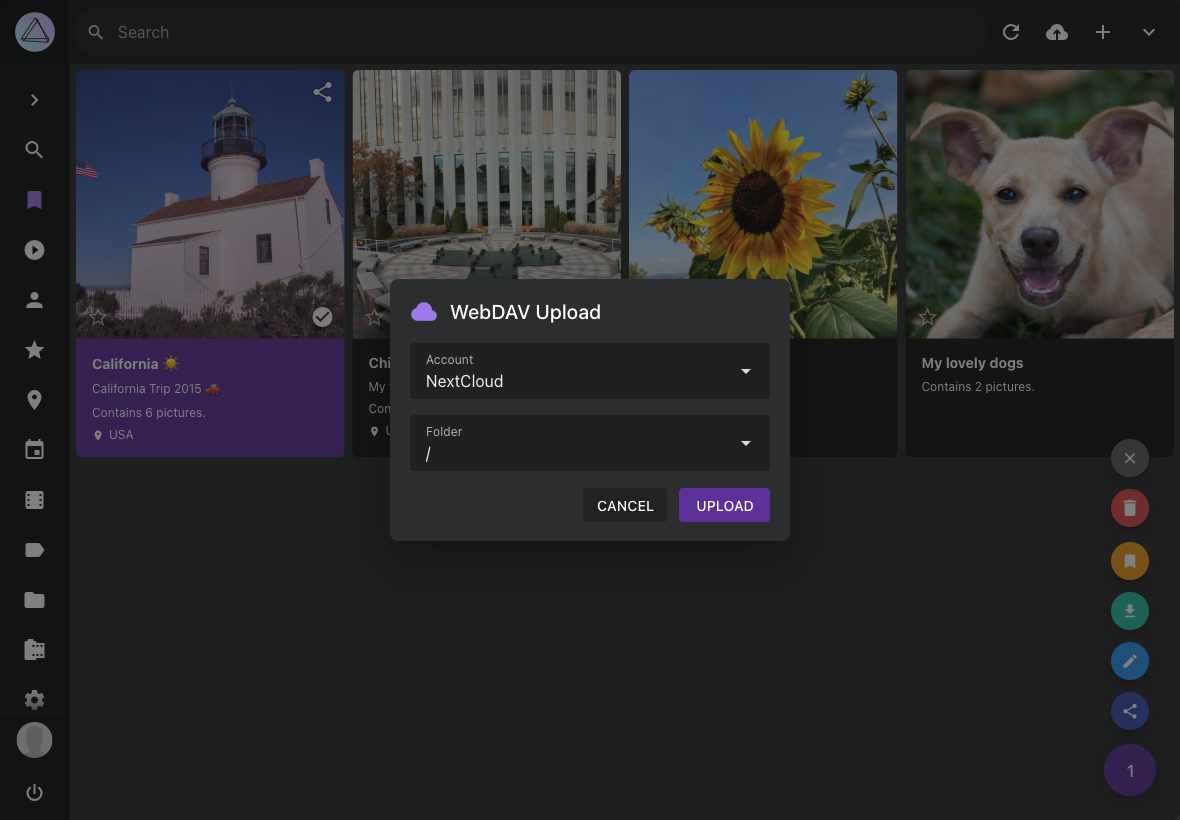
---
# Using WebDAV
Source: https://docs.photoprism.app/user-guide/sync/webdav/
# Connecting via WebDAV
WebDAV-compatible apps and clients such as [PhotoSync](https://docs.photoprism.app/user-guide/sync/mobile-devices/), Microsoft's Windows Explorer,
and Apple's Finder can connect directly to PhotoPrism.
This mounts the *originals* and/or *import* folder as a network drive, allowing you to open, edit, and delete files from a remote device
as if they were local.
After files have been transferred, you can [index](https://docs.photoprism.app/user-guide/library/originals/) or [import](https://docs.photoprism.app/user-guide/library/import/) them as usual.
By default, indexing and importing start automatically after a safety delay when files have been uploaded using WebDAV.
It is also possible to [sync files with external WebDAV servers](https://docs.photoprism.app/user-guide/settings/sync/) such as ownCloud or other PhotoPrism instances.
!!! tldr ""
You can disable WebDAV by navigating to [Settings > Advanced](https://docs.photoprism.app/user-guide/settings/advanced/) and selecting the corresponding option. As WebDAV access always requires authentication, the integrated server is automatically disabled if your instance is running in [public mode](https://docs.photoprism.app/getting-started/config-options/#authentication).
!!! danger ""
Do not use WebDAV [without HTTPS](https://docs.photoprism.app/getting-started/using-https/) outside your local, private network as your password would be transmitted, in clear text, over the Internet. Backup tools and file sync apps like [FolderSync](https://foldersync.io/docs/faq/#https-connection-errors) may refuse to connect as well.
## Server URL
If your instance is connected to the public Internet, the WebDAV URL of the *originals* folder has the following format, where `example.com` must be replaced with the actual hostname and `admin` with the [actual username](https://docs.photoprism.app/user-guide/sync/webdav/#credentials):
```
https://admin@example.com/originals/
```
For users running a local instance on the default port 2342 *without HTTPS*, the URL of the *originals* folder is as follows (the default username for new instances is `admin`, unless you have [changed it](https://docs.photoprism.app/getting-started/config-options/#authentication) in the configuration):
```
http://admin@localhost:2342/originals/
```
Please note that the slash at the end of the path must not be omitted and that the WebDAV URL in your client apps needs to be updated if the hostname or port of the server changes.
!!! note ""
You can view the *originals* folder URL by navigating to [Settings > Account](https://docs.photoprism.app/user-guide/settings/account/) and then clicking *Connect via WebDAV*. It is possible to connect to the *import* folder instead by replacing `/originals/` with `/import/` in the URL.
### Microsoft Windows
On Windows, you must instead [enter a resource string](https://docs.photoprism.app/user-guide/sync/webdav/#connect-to-a-webdav-server) in the following format to [configure WebDAV access](https://docs.photoprism.app/getting-started/troubleshooting/windows/#connecting-via-webdav), where `example.com` must be replaced with the actual hostname of your instance:
```
\\example.com@SSL\originals\
```
If your server does not use the standard port 443 for [HTTPS](https://docs.photoprism.app/getting-started/using-https/), Windows lets you specify a custom port such as 8443 directly after `@SSL`:
```
\\example.com@SSL@8443\originals\
```
For local installations running on the default port 2342 *without HTTPS*, enter the following resource in the [connection dialog](https://docs.photoprism.app/user-guide/sync/webdav/#connect-to-a-webdav-server) (you may need to update the [registry settings](https://docs.photoprism.app/getting-started/troubleshooting/windows/#connecting-via-webdav) for this):
```
\\localhost:2342\originals\
```
Please note that the slash at the end must not be omitted and that the WebDAV resource in Windows needs to be updated when the hostname or port of the server changes.
!!! note ""
You can view the *originals* folder resource by navigating to [Settings > Account](https://docs.photoprism.app/user-guide/settings/account/) and then clicking *Connect via WebDAV*. It is possible to connect to the *import* folder instead by replacing `\originals\` with `\import\`.
## Credentials
To access your instance via WebDAV, you can use your username in combination with your account password or [an app password](https://docs.photoprism.app/user-guide/settings/account/#apps-and-devices), e.g. if you have [2-Factor Authentication (2FA)](https://docs.photoprism.app/user-guide/users/2fa/) enabled for your account or authenticate via [OpenID Connect (OIDC)](https://docs.photoprism.app/getting-started/advanced/openid-connect/) as using your account password is not possible in this case.
If access is denied even though the login credentials are correct, please check whether the account has a [role with WebDAV access](https://docs.photoprism.app/user-guide/users/roles/) and [WebDAV is enabled](https://docs.photoprism.app/user-guide/users/cli/#command-options) for the specific account.
[Learn more ›](https://docs.photoprism.app/user-guide/users/)
## Connect to a WebDAV Server
=== "macOS"
1. In the **Finder** on your Mac, choose Go > Connect to Server
2. Enter the URL as shown above in the **Server Address** field
3. Click **Connect**
If you cannot connect to your instance via WebDAV using these instructions:
- [ ] You do not have sufficient user rights (try as admin)
- [ ] You are experiencing a [general authentication problem](https://docs.photoprism.app/getting-started/troubleshooting/#cannot-log-in)
- [ ] Your instance or reverse proxy uses an invalid [HTTPS](https://docs.photoprism.app/getting-started/using-https/) certificate
- [ ] You are trying to connect to the wrong network or server
=== "Windows"
1. Open Windows **File Explorer**
2. Right click **This PC**
3. From the dropdown, select **Map network drive...**
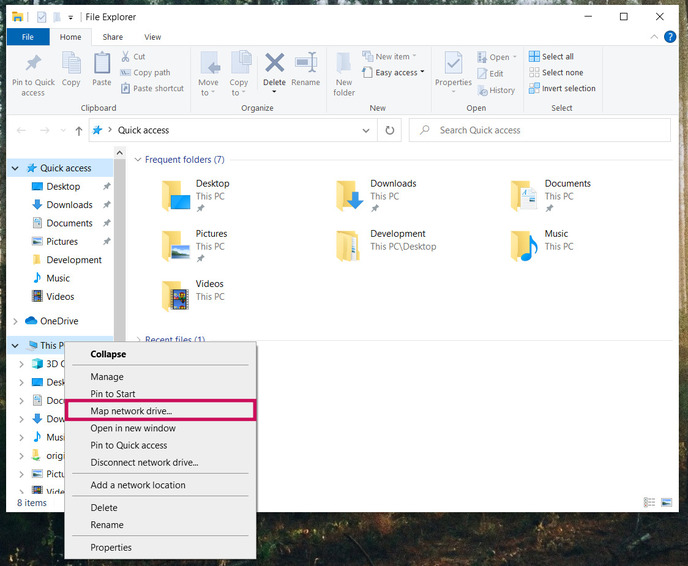
4. Enter the drive letter and folder you want to map your WebDAV connection to
5. Check the boxes **Reconnect at sign-in** and **Connect using different credentials**
6. Click the **Connect to a Web site that you can use to store your documents and pictures** link
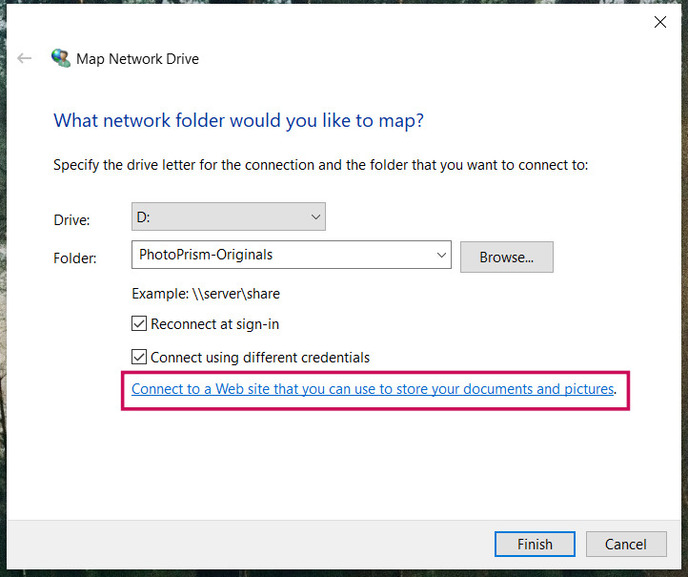
7. Click **Next**
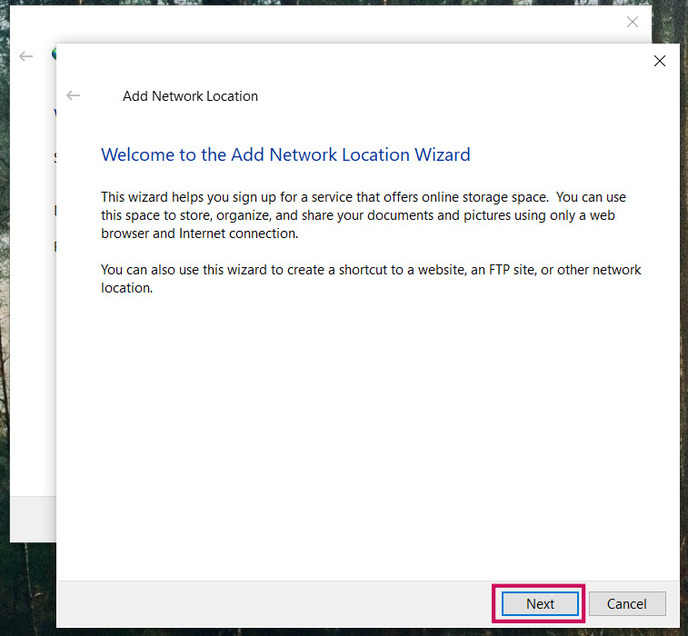
8. Click **Choose a custom network location** and then click **Next**
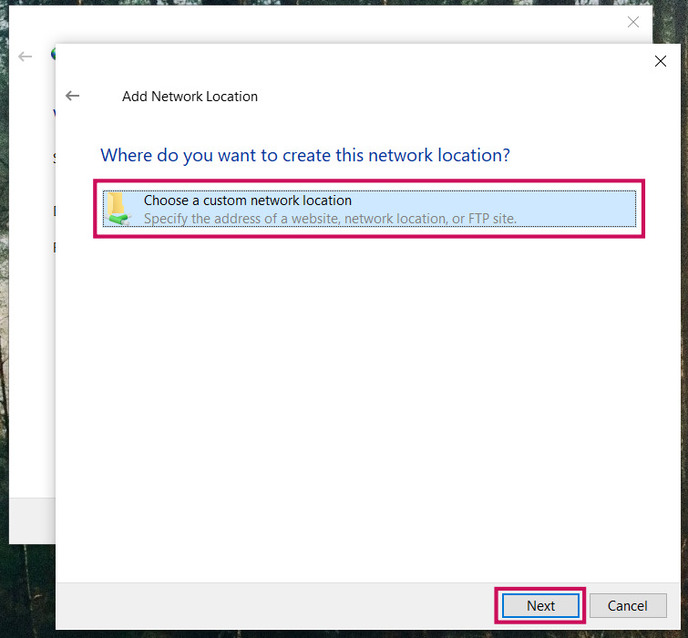
9. In the **Internet or network address** field, enter the URL as shown above and click **Next**
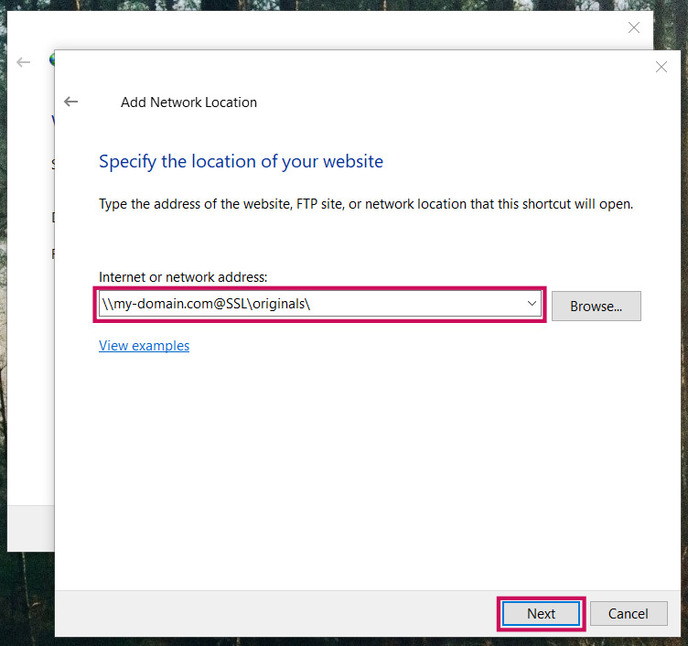
10. Enter your username and password and click **Ok**
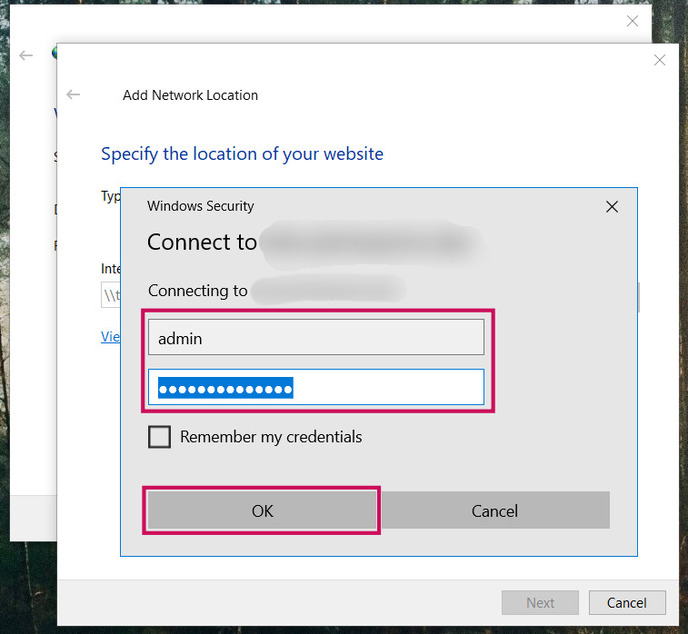
11. Enter a name for the network location and click **Next**
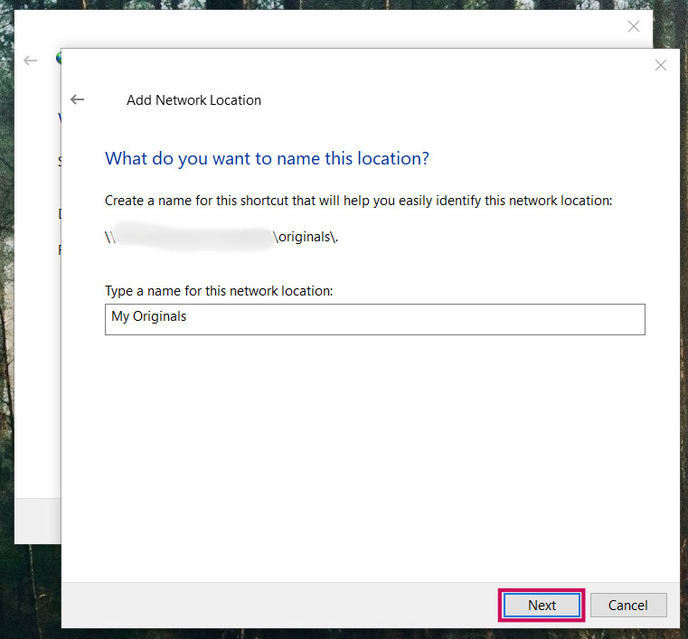
12. Click **Finish**
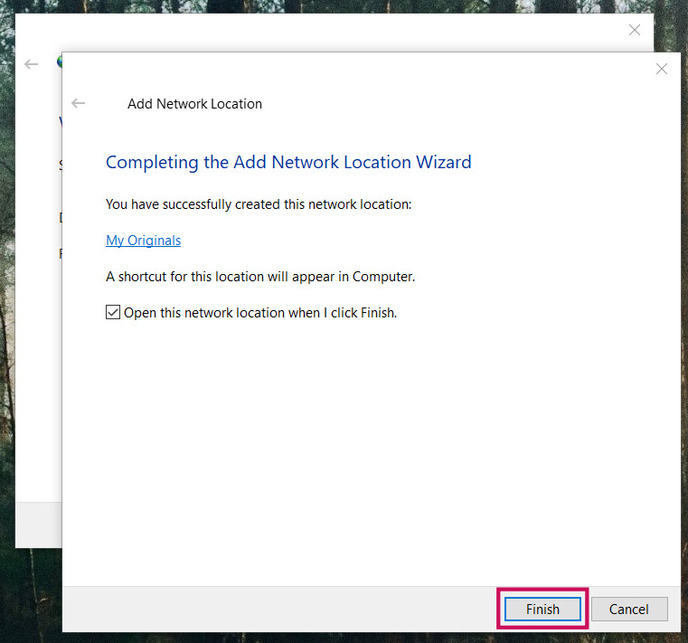
The originals folder appears as a mapped drive in Windows Explorer, and you can immediately add,
edit, or delete files and directories using the Windows File Explorer.
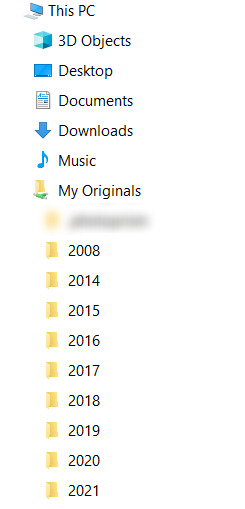
If you [cannot connect to your instance via WebDAV](https://docs.photoprism.app/getting-started/troubleshooting/windows/#connecting-via-webdav) using these instructions:
- [ ] You may need to **[change the basic authentication level](https://docs.photoprism.app/getting-started/troubleshooting/windows/#connecting-via-webdav)** in the registry
- [ ] You do not have sufficient user rights (try as admin)
- [ ] You are experiencing a [general authentication problem](https://docs.photoprism.app/getting-started/troubleshooting/#cannot-log-in)
- [ ] Your instance or reverse proxy uses an invalid [HTTPS](https://docs.photoprism.app/getting-started/using-https/) certificate
- [ ] You are trying to connect to the wrong network or server
---
# Mobile Devices
Source: https://docs.photoprism.app/user-guide/sync/mobile-devices/
# Syncing with Mobile Devices
You can use any app that supports the [WebDAV protocol](https://docs.photoprism.app/user-guide/sync/webdav/) to synchronize photos and videos between your phone and PhotoPrism.
Based on our own experience, we can highly recommend [PhotoSync](https://link.photoprism.app/photosync) as it is one of the most feature-rich and sophisticated apps currently available for iOS and Android. Note that some transfer options, such as [WebDAV](https://www.photosync-app.com/support/nas/answers/how-to-transfer-using-webdav) or [SMB](https://www.photosync-app.com/support/nas/answers/how-to-transfer-photos-using-smb), may require an upgrade after the free trial ends.
An overview of [mobile sync apps](https://docs.photoprism.app/user-guide/sync/mobile-devices/#sync-apps-for-ios-and-android) for iOS and Android can be found below.
!!! tldr ""
WebDAV access can be disabled under [Settings > Advanced](https://docs.photoprism.app/user-guide/settings/advanced/). Since it requires write permissions and authentication, the built-in WebDAV server is automatically disabled when running in [read-only](https://docs.photoprism.app/getting-started/config-options/#feature-flags) or [public mode](https://docs.photoprism.app/getting-started/config-options/#authentication).
## Using PhotoSync
### Set PhotoPrism or WebDAV as Target
1. Open PhotoSync and click :material-cog-outline:
2. Click *Configure*
3. Select PhotoPrism as target
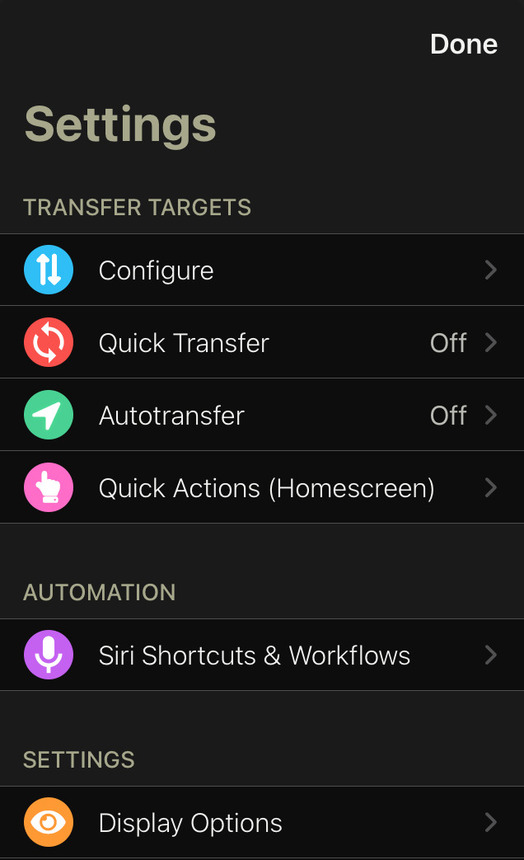
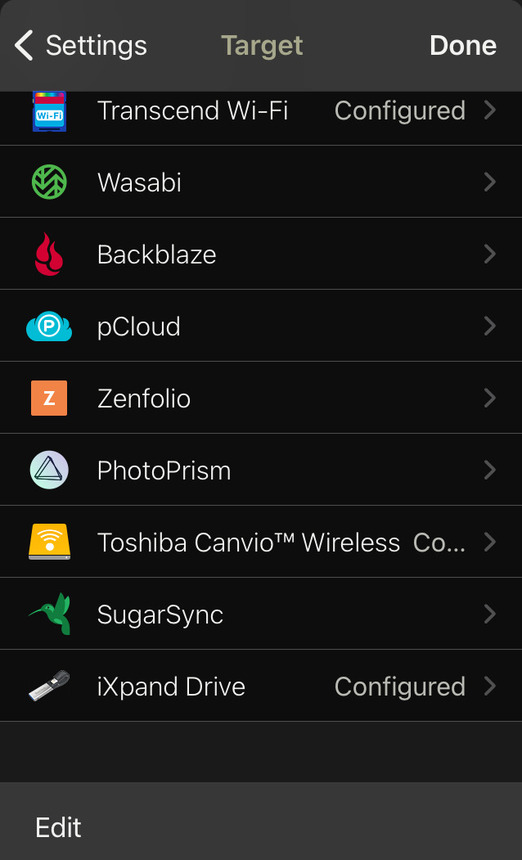
4. Enter your settings
!!! info ""
*Server:* Your server url, e.g. "example.com".
*Port:* Your port. If you are using HTTPS the port is 443.
*Login:* Your username, e.g. "admin".
*Password:* Your admin password.
*Directory:* /import/ or /originals/ depending on your preferred [ingestion method](https://docs.photoprism.app/user-guide/library/).
*Use SSL:* Should be enabled.
[PikaPods](https://docs.photoprism.app/getting-started/cloud/pikapods/) users can find more information [here](https://docs.pikapods.com/apps/photoprism/#sync-from-mobile-apps).
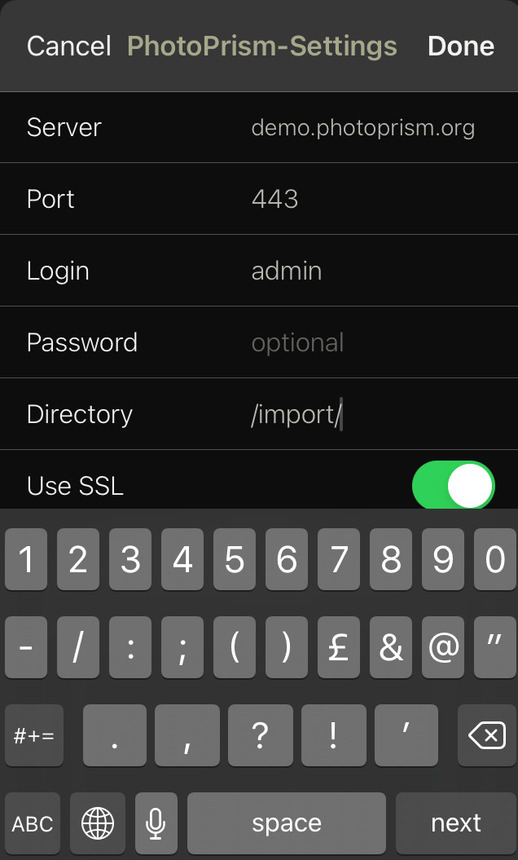
6. Click *Done*
7. You may adapt transfer details to match your preferences
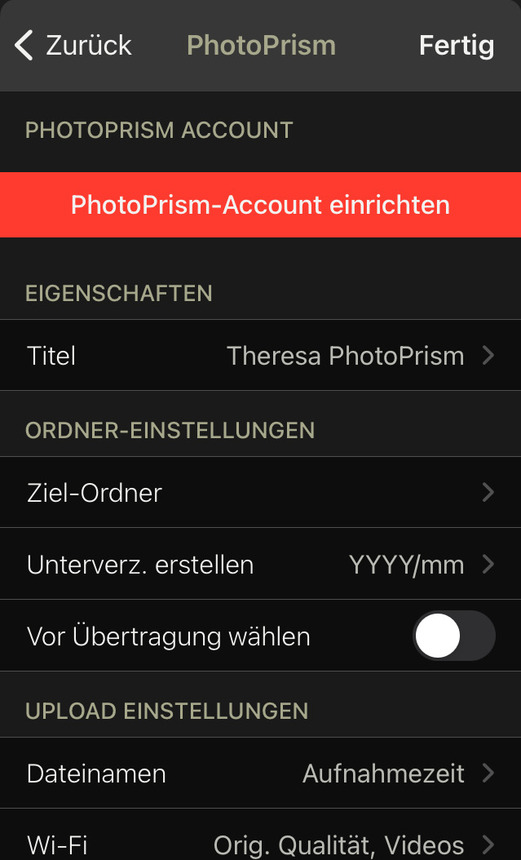
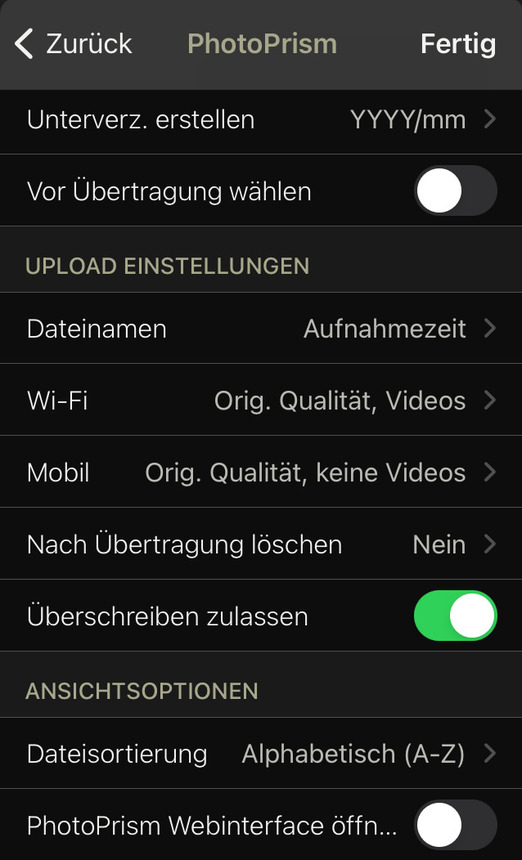
### Set Up Automatic Sync
1. Open PhotoSync and click :material-cog-outline:
2. Click *Autotransfer*

3. Click *Add new trigger* and choose one or more trigger
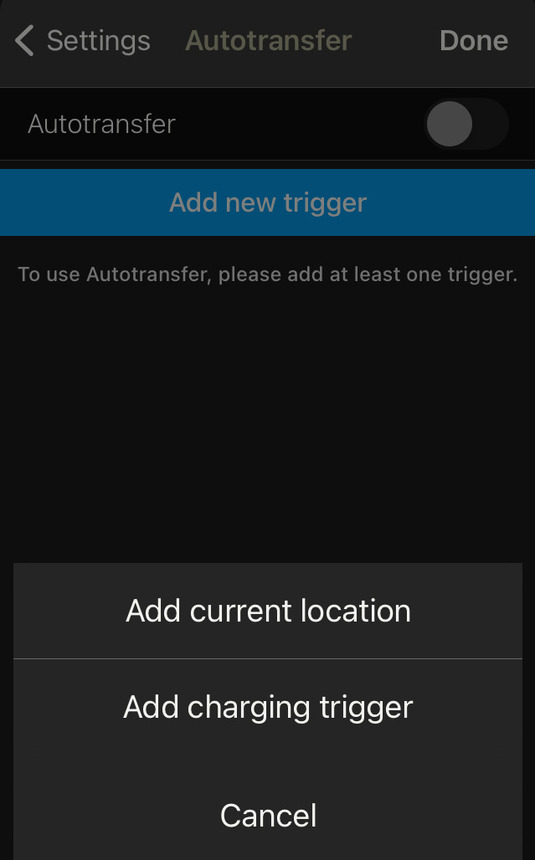
4. Choose PhotoPrism as target
5. Click *Done*
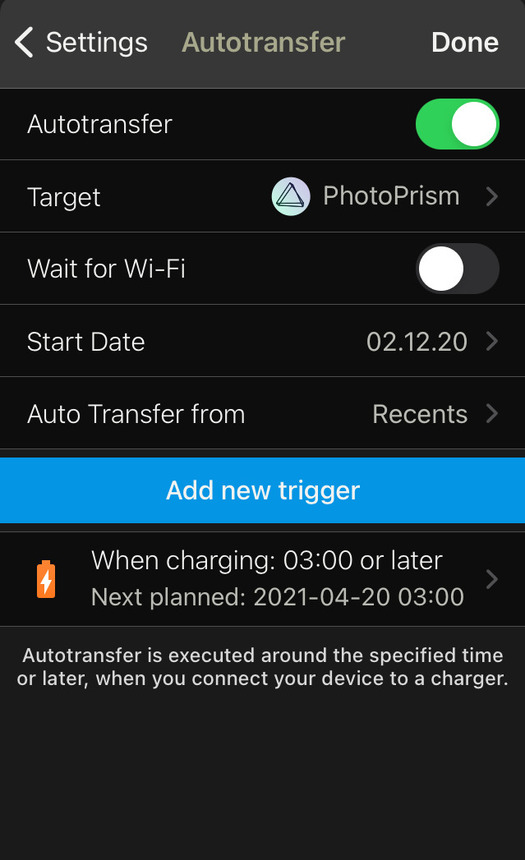
Because PhotoSync uses WebDAV to send files, PhotoPrism automatically starts importing/indexing when it receives new files.
## Sync Apps for iOS and Android
As an alternative to [PhotoSync](https://docs.photoprism.app/user-guide/sync/mobile-devices/#using-photosync), you can also use a wide range of other apps to synchronize your pictures with PhotoPrism, either [directly via WebDAV](https://docs.photoprism.app/user-guide/sync/webdav/#server-url) or by sharing the [
*originals* folder](https://docs.photoprism.app/user-guide/backups/folders/#originals) as an [SMB network drive](https://ubuntu.com/server/docs/samba-as-a-file-server) through your [operating system](https://support.microsoft.com/en-us/windows/file-sharing-over-a-network-in-windows-b58704b2-f53a-4b82-7bc1-80f9994725bf) or [cloud provider](https://learn.microsoft.com/en-us/azure/storage/files/files-smb-protocol):
| Name | Platform | Synchronization | Price | Download |
|---------------------------------------------------------------------------------------------------------------------------------|--------------|-------------------------------------|--------|-------------------------------------------------------------------------------------------------------------------------------------------------------------------------------------------------------------------------|
| [PhotoSync Pro](https://www.photosync-app.com/support/ios/answers/what-is-the-difference-between-photosync-pro-and-premium) | iOS, Android | [WebDAV](https://docs.photoprism.app/user-guide/sync/mobile-devices/#using-photosync), SMB | €6.99 | [App Store](https://link.photoprism.app/photosync-ios), [Google Play](https://link.photoprism.app/photosync-android) |
| [PhotoSync Premium](https://www.photosync-app.com/support/ios/answers/what-is-the-difference-between-photosync-pro-and-premium) | iOS, Android | [WebDAV](https://docs.photoprism.app/user-guide/sync/mobile-devices/#using-photosync), SMB | €24.99 | [App Store](https://link.photoprism.app/photosync-ios), [Google Play](https://link.photoprism.app/photosync-android) |
| [EasySync](https://github.com/phpbg/easysync) | Android | [WebDAV](https://docs.photoprism.app/user-guide/sync/webdav/#server-url) | €2.99 | [Google Play](https://play.google.com/store/apps/details?id=com.phpbg.easysync&pcampaignid=pcampaignidMKT-Other-global-all-co-prtnr-py-PartBadge-Mar2515-1), [F-Droid](https://f-droid.org/packages/com.phpbg.easysync) |
| [Syncthing Fork](https://syncthing.net/) | Android | Syncthing | Free | [Google Play](https://play.google.com/store/apps/details?id=com.github.catfriend1.syncthingandroid) |
| [FolderSync Pro](https://foldersync.io/) | Android | [WebDAV](https://docs.photoprism.app/user-guide/sync/webdav/#server-url), SMB | €6.49 | [Google Play](https://play.google.com/store/apps/details?id=dk.tacit.android.foldersync.full) |
| [Owlfiles Pro](https://www.skyjos.com/owlfiles/) | iOS, Android | [WebDAV](https://docs.photoprism.app/user-guide/sync/webdav/#server-url), SMB | €59.99 | [App Store](https://itunes.apple.com/app/id510282524), [Google Play](https://play.google.com/store/apps/details?id=com.skyjos.apps.fileexplorerfree) |
!!! note ""
Note that this overview is provided for your convenience only and that we are unable to provide [technical support](https://www.photoprism.app/kb/getting-support/) for any of these apps. If you have problems, please contact the author or ask the community for help. You are [welcome to suggest](https://github.com/photoprism/photoprism-docs/tree/develop/docs/user-guide/sync/mobile-devices.md) additional sync apps, so we can include them in this list.
---
# Apps and Services
Source: https://docs.photoprism.app/user-guide/sync/services-sync/
# Syncing with other WebDAV-compatible Apps and Services
Under [Settings > Services](https://docs.photoprism.app/user-guide/settings/sync/) you can connect your PhotoPrism instance to other apps and services that can be accessed via WebDAV, e.g. other PhotoPrism instances, Nextcloud or ownCloud.
!!! danger ""
When syncing, your files will be uploaded or downloaded to/from another service, which requires additional storage space. If you want PhotoPrism to index files from another local application, e.g. Nextcloud, we recommend mounting its file storage directory as [*originals* folder](https://docs.photoprism.app/getting-started/docker-compose/#photoprismoriginals) instead of synchronizing the files via WebDAV. This prevents unnecessary copies of your files from being created.
## Automatically Upload/Download Files to/from another App
1. Go to *Settings*
2. Open *Services* tab
3. Click into the sync cell of your service
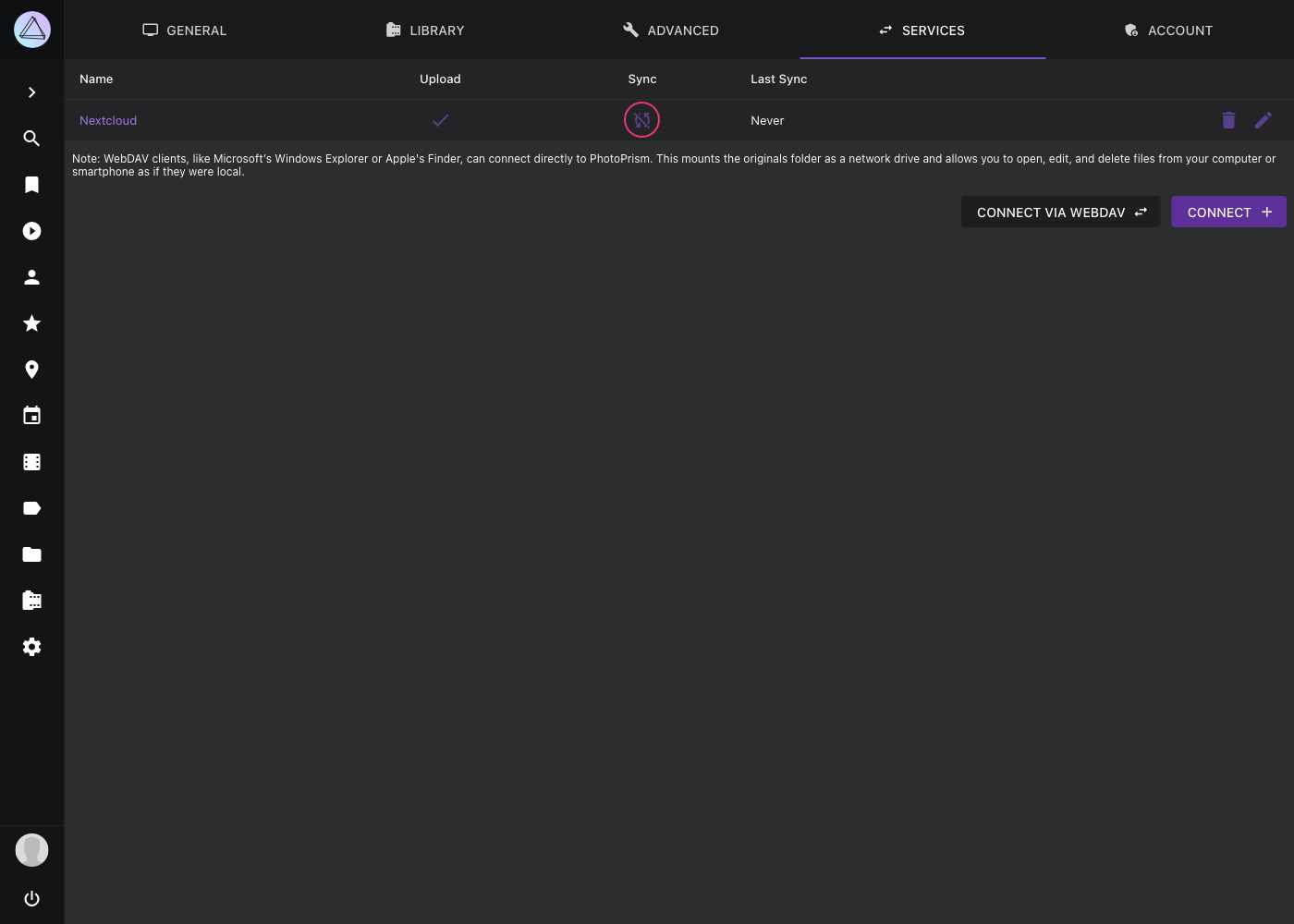
4. Enable synchronization in the upper right corner
5. Choose a folder from your service
6. Choose a sync interval
7. Select the options that are suitable for you and click *Save*
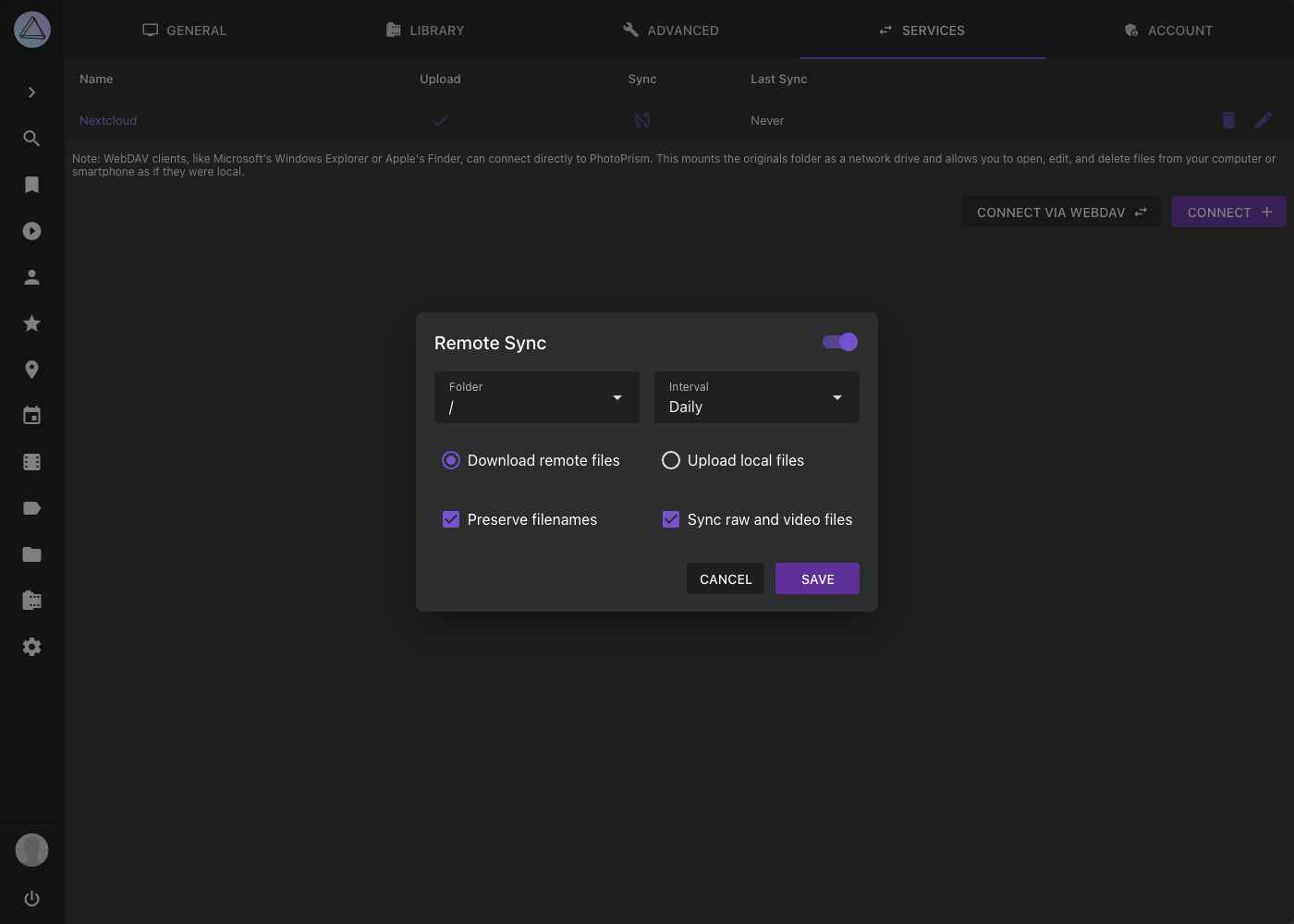
### Remote Sync Options
- *Download remote files* will download all files from the selected folder of the other service that do not yet exist in PhotoPrism
- *Upload local files* will upload all files (including private or archived ones) from PhotoPrism to your service that do not yet exist there
- *Preserve filenames* will keep filenames without renaming them
- *Sync raw and video files* will upload/download raw and video files alongside with JPEGs.
### Troubleshooting Slow or Depth-Limited Servers
PhotoPrism prefers `PROPFIND Depth: infinity` for recursive directory discovery and automatically falls back to iterative `Depth: 1` traversal for WebDAV servers that reject the recursive form (for example pCloud and similar providers). When the fallback is used, the application log records the number of follow-up requests and the elapsed traversal time, so you can grep the logs for `depth-1 fallback` or `PROPFIND` to confirm what the client did during a slow sync. Hidden dotfiles and entries inside hidden dot-directories are excluded from listings because they often represent lock files, partial uploads, or provider metadata.
Large file transfers are not subject to a total request deadline, but PhotoPrism applies separate connect, TLS-handshake, idle-connection, and expect-continue timeouts to recover quickly from stalled or unresponsive servers without interrupting an in-flight transfer.
---
# Syncing with Dropbox
Source: https://docs.photoprism.app/user-guide/sync/dropbox/
# Syncing with Dropbox
It's possible to use [Dropbox](https://www.dropbox.com/) to store your photos, while viewing and managing them through PhotoPrism.
1. Set up a Dropbox account.
2. Install the Dropbox desktop client.
3. Sync your Dropbox to a local directory.
4. If using Docker, configure your `compose.yaml` or `docker-compose.yml` with;
```
volumes:
- "~/Dropbox/Photos:/photoprism/originals"
```
5. Follow the PhotoPrism [getting started](https://docs.photoprism.app/getting-started/) guide as normal.
## Auto-upload from Mobile
The Dropbox mobile apps also have a 'Camera Upload' feature which syncs photos to Dropbox, and then to any machine with Dropbox installed.
To auto-import uploaded files into PhotoPrism;
1. Install the Dropbox [iOS](https://itunes.apple.com/gb/app/dropbox/id327630330?mt=8) or [Android](https://play.google.com/store/apps/details?hl=en_GB&id=com.dropbox.android) app.
2. Enable 'Camera Uploads' in the Dropbox app's settings.
3. Install the Dropbox [desktop client](https://www.dropbox.com/install) on your server or a network-accessible machine
4. Configure the `Camera Uploads` folder as your `import` directory for PhotoPrism.
In your `compose.yaml` or `docker-compose.yml` file, this is;
```
volumes:
- "~/Dropbox/Camera Uploads:/photoprism/import"
```
5. Optional: Enable 'delete on import' in PhotoPrism's settings to delete imported files from Dropbox. This saves Dropbox space, allowing you to remain within the 2 GB free tier.
!!! note ""
The Dropbox mobile app needs to be opened periodically or it tends to fail to identify and sync new photos.
## Smart / Selective Sync
A useful (although paid) feature is [Dropbox Smart Sync](https://www.dropbox.com/smart-sync) (with optional auto-evict) which will download the files from Dropbox's servers only when you (or PhotoPrism) accesses them (such as during initial indexing, or when downloading an original file via the PhotoPrism interface).
This can save space on your server by automatically offloading the originals unless/until they're viewed.
!!! example ""
**Help improve these docs!** You can contribute by clicking :material-file-edit-outline: to send a pull request with your changes.
---
# General
Source: https://docs.photoprism.app/user-guide/settings/general/
# General Settings
In the *General* settings tab, you can configure basic user interface settings, accessibility options, and the maps shown in *Places*:
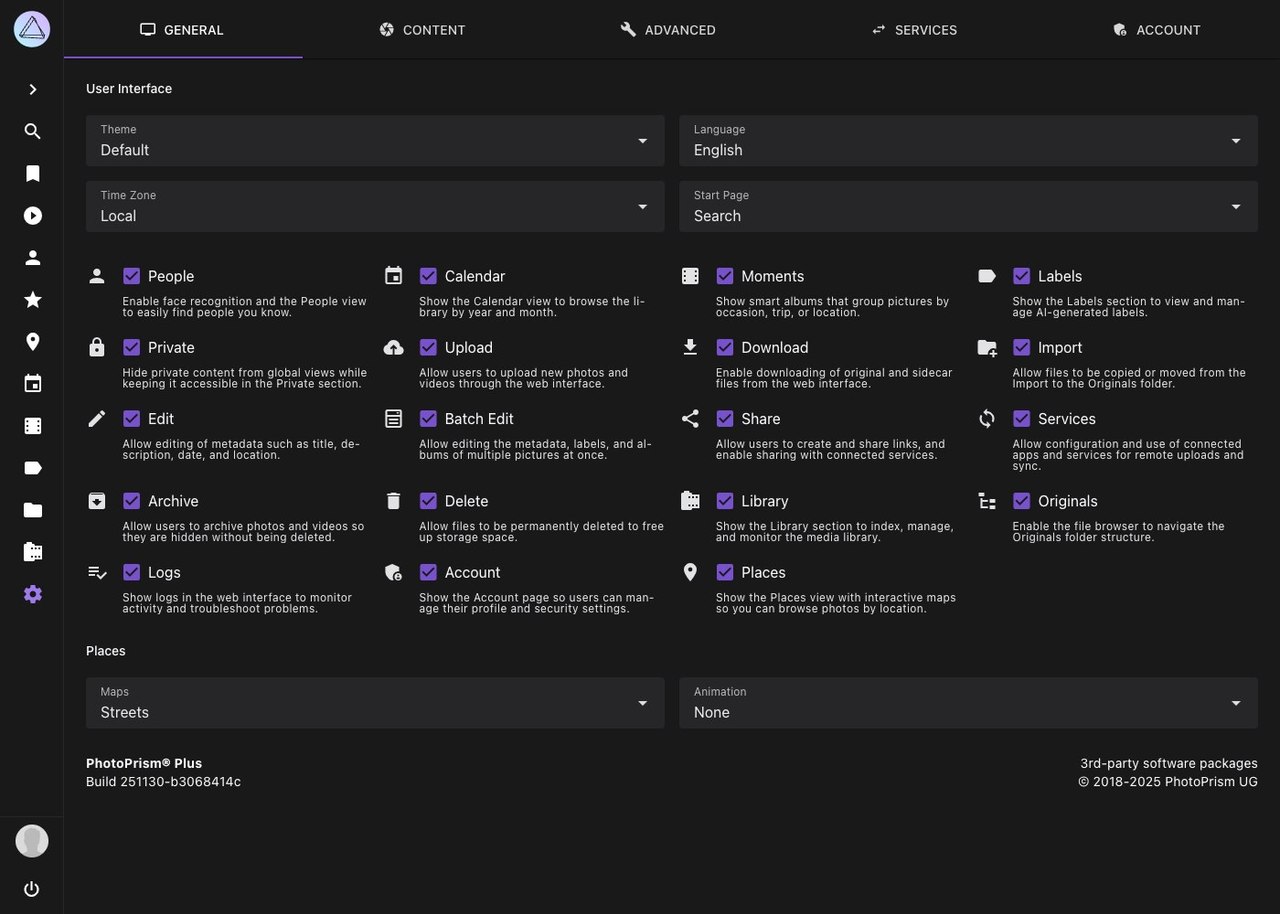
!!! info ""
Feature switches in this tab are primarily intended for instance-wide customization. Some options are only shown to super admins and are not available in every edition or session type.
## User Interface ##
You can change the *theme* and *language* of the user interface and define a *start page* and *time zone*.
To make PhotoPrism suit your individual needs, the following sections and features can be enabled or disabled.
Disabled sections do not appear in the main navigation.
#### :material-bookmark: Albums ####
When disabled, there is no *Albums* section for manually browsing and organizing pictures.
#### :material-star: Favorites ####
When disabled, there is no *Favorites* section for quickly accessing your starred pictures.
#### :material-folder: Folders ####
When disabled, there is no *Folders* section for browsing pictures by directory structure.
#### :material-play-circle: Media ####
When disabled, there is no *Media* section for browsing videos, live photos, and animations.
#### :material-account: People ####
When disabled, the people section is hidden. To disable face detection while indexing, you may set `PHOTOPRISM_DISABLE_FACES` and/or `PHOTOPRISM_DISABLE_TENSORFLOW` to `"true"` in your [config](https://docs.photoprism.app/getting-started/config-options/).
#### :material-calendar: Calendar ####
When disabled, there is no *Calendar* section.
#### :material-filmstrip-box: Moments ####
When disabled, there is no *Moments* section.
#### :material-label: Labels ####
When disabled, there is no *Labels* section and you cannot add or edit labels.
#### :material-lock: Private ####
Hides content marked as private from global views while keeping it accessible in the *Private* section.
#### :material-cloud-upload: Upload ####
When disabled, uploading files via [Web Upload](https://docs.photoprism.app/user-guide/library/upload/) is not possible.
This can be useful when you grant others access to your instance but do not want them to upload files.
#### :material-download: Download ####
When disabled, no files can be downloaded from the PhotoPrism web interface. Please note that browser features such as saving already displayed content may still work.
Which files are included in a download, and whether entire collections can be downloaded as ZIP archives, is configured in the [*Collections*](https://docs.photoprism.app/user-guide/settings/collections/) and [*Content*](https://docs.photoprism.app/user-guide/settings/library/#download) settings tabs.
#### :material-folder-plus: Import ####
When disabled, files can no longer be [imported](https://docs.photoprism.app/user-guide/library/import/) from the import folder. You must use [indexing](https://docs.photoprism.app/user-guide/library/originals/) instead to discover newly added originals.
#### :material-pencil: Edit ####
When disabled, it is not possible to edit photo details.
#### :material-form-select: Batch Edit ####
When disabled, it is not possible to batch edit photo details.
#### :material-share-variant: Share ####
When disabled, users cannot create share links or share content with connected services.
#### :material-sync: Services ####
Allows configuration and use of connected [apps and services](https://docs.photoprism.app/user-guide/settings/sync/) for remote uploads and synchronization.
#### :material-package-down: Archive ####
When disabled, there is no *Archive* section. Pictures that were archived before will appear in search results again.
#### :material-delete: Delete ####
When disabled, files can no longer be permanently deleted from the archive.
#### :material-film: Library ####
When disabled, there is no *Library* section for indexing and maintenance tasks.
#### :material-file-tree: Originals ####
When disabled, there is no *Originals* file-browser section.
#### :material-playlist-check: Logs ####
When disabled, logs are not shown in the web interface.
#### :material-shield-account-variant: Account ####
When disabled, there is no *Account* section.
#### :material-map-marker: Places ####
When disabled, there is no *Places* section.
## Accessibility ##
The options in the *Accessibility* section adjust how the interface responds to input and motion.
They are instance-wide defaults set by super admins, and they are not per-user preferences.
#### :material-cursor-default-click-outline: Open on Hover ####
When enabled, menus open as soon as the mouse cursor moves over them instead of waiting for a click.
Disable this option if menus keep opening unintentionally while you move the pointer across the page.
Touch devices always open menus on tap, so this option has no effect on phones and tablets.
Changes take effect immediately, without reloading the page.
#### :material-motion-pause-outline: Reduce Motion ####
Shortens or removes interface animations and transitions, including the fly-to animation on the maps in [*Places*](https://docs.photoprism.app/user-guide/organize/places/).
Your preferred map animation length is kept and applies again when you turn *Reduce Motion* off.
Changes take effect immediately, except for a map that is already open. It follows the new setting the next time you open it.
#### :material-arrow-up-down: Hide Scrollbar ####
Hides the permanent scrollbar that some desktop browsers reserve space for.
Mobile browsers show a scrollbar only while scrolling, so this option makes no visible difference there.
Changes take effect after the page has been reloaded.
#### :material-magnify-plus-outline: Allow Page Zoom ####
Allows the page to be zoomed with pinch gestures on mobile devices.
It is disabled by default so that pinch gestures zoom pictures instead of the interface around them.
Changes take effect after the page has been reloaded.
## Places ##
At the bottom of the *General* settings tab, you can choose your preferred map style and animation length for *Places*.
PhotoPrism includes multiple high-resolution world maps so you can browse your library by location.
To enhance your photos with location data such as country, state, city, and category, PhotoPrism also includes reverse geocoding based on OpenStreetMap data.
---
# Content
Source: https://docs.photoprism.app/user-guide/settings/library/
# Content Settings
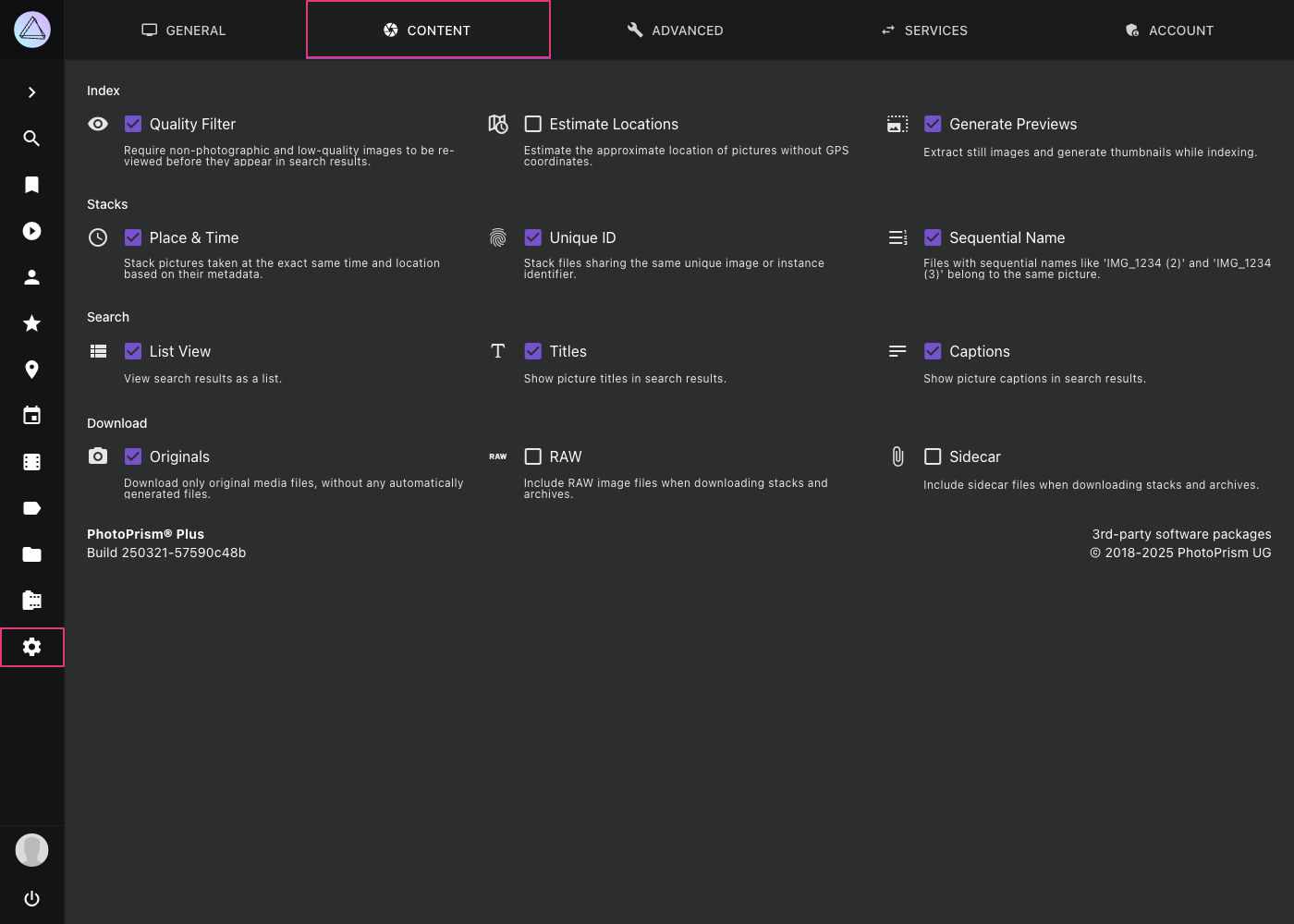
!!! info ""
Some of these settings are only visible to users with [Super Admin](https://docs.photoprism.app/user-guide/users/roles/#admin) privileges.
## Index
#### :material-eye: Quality Filter
Requires a [review of non-photographic and low-quality images](https://docs.photoprism.app/user-guide/organize/review/) before they appear in search results.
#### :material-map-clock-outline: Estimate Locations
Estimates the location of pictures taken without GPS information by extrapolating it from other pictures taken on the same day.
!!! danger ""
Be aware that, if you have pictures from unrelated events at different locations, the GPS coordinates of pictures from one event will be applied/extrapolated to pictures of the other event that lack coordinates (even if these are in different folders).
!!! note ""
Location estimation is not performed for non-photographic pictures or pictures without camera information.
#### :material-image-size-select-large: Generate Previews
Automatically creates JPEG or PNG preview images for other file types so they can be displayed in search results and in the full-screen viewer.
!!! danger ""
*Generate Previews* should normally remain enabled. Otherwise, PhotoPrism cannot fully index file types other than JPEG or PNG unless a compatible preview sidecar file with the same filename prefix already exists. See *Stacks* to learn more about sidecar naming conventions.
!!! note ""
To prevent accidental breakage, *Generate Previews* can only be disabled when [Experimental Features](https://docs.photoprism.app/user-guide/settings/advanced/#experimental-features) are enabled.
## Stacks
[Stacks](https://docs.photoprism.app/user-guide/organize/stacks/) are groups of files that have the same origin but may differ in quality, format, size, or color. You can navigate to [*Search > Stacks*](https://docs.photoprism.app/user-guide/organize/stacks/) to find pictures with stacked media files.
PhotoPrism offers you the following optional stacking methods, which you can choose to enable based on your personal preferences:
* :material-clock-outline: **Place & Time** stacks pictures taken at the same GPS position and second
* :material-fingerprint: **Unique ID** matches the *ImageUniqueID* (Exif) or *Instance ID* (XMP)
* :material-format-list-numbered-rtl: **Sequential Name**, for example `/2018/IMG_1234 (2).jpg` and `/2018/IMG_1234 (3).jpg`
Files that share the same file and folder name (except for the file extension) are always stacked, for example `/2018/IMG_1234.jpg` and `/2018/IMG_1234.avi`.
!!! note ""
Note that it is **not possible to disable stacking of files with the same name** as this would break important functionality, most notably support for Apple [Live Photos](https://docs.photoprism.app/user-guide/organize/video/#live-photos) (which consist of a photo and a video file), any other multi-file/hybrid formats like RAW/JPEG, and indexing of metadata from XMP/JSON sidecar files.
### Are files automatically unstacked when I change the settings?
When you change these settings, files that are already stacked will **not be unstacked automatically**. This is because unstacking is a resource-intensive operation that requires each file to be re-indexed.
The result also depends on the exact order in which you unstack the files, as non-media sidecar files, for example, remain bound to the remaining media file in a stack. We consider providing a command for this in a future release and appreciate [any contributions](https://docs.photoprism.app/developer-guide/) in this regard.
!!! tldr ""
If you are new to PhotoPrism and want to re-index your library with different settings, you can run the `photoprism reset` [command in a terminal](https://docs.photoprism.app/getting-started/docker-compose/#command-line-interface) to reset the index and start from scratch.
### Which sequential naming patterns are supported?
If stacking by *Sequential Name* has been enabled, files with e.g. the following names would be stacked with the file `/2018/IMG_1234.jpg`:
- `/2018/IMG_1234 (2).jpg` `/2018/IMG_1234 (3).jpg`
- `/2018/IMG_1234 copy.jpg` `/2018/IMG_1234 copy 1.jpg` `/2018/IMG_1234 copy 2.jpg`
- `/2018/IMG_1234 (-2.7)` `/2018/IMG_1234 (+3.3).jpg` `/2018/IMG_1234(-2.7).jpg` `/2018/IMG_1234(+3.3).jpg`
## Search
In this section, you can disable list view and the display of titles and captions in search results.
## Download
#### :material-camera: Originals
Only files in the *originals* folder will be downloaded, not automatically generated files from the *sidecar* folder. This is the recommended default.
#### :material-raw: RAW
Download RAW image files.
#### :material-paperclip: Sidecar
Download sidecar files such as XMP metadata. This is generally not recommended except for specific professional workflows.
#### :material-file-download: Filename
Determines how downloaded files are named: with their *Current Name*, their *Original Name*, or a *Share Friendly* name composed of the capture time and the picture title.
!!! note ""
These settings do not affect ZIP archives when downloading full collections. Those are configured in the [*Collections*](https://docs.photoprism.app/user-guide/settings/collections/) settings tab. [Learn more ›](https://docs.photoprism.app/user-guide/settings/collections/#download)
---
# Collections
Source: https://docs.photoprism.app/user-guide/settings/collections/
# Collections Settings
The *Collections* settings tab configures how albums, folders, moments, calendar months, and places behave:
whether they can be downloaded as ZIP archives, which files such an archive contains, and the sort order that
newly created collections start with.
!!! info ""
This tab is only shown to super admins. The *Download* options additionally require the [*Download* feature](https://docs.photoprism.app/user-guide/settings/general/#download) to be enabled in the [*General*](https://docs.photoprism.app/user-guide/settings/general/) settings tab.
## Features ##
#### :material-download-off: Disable Downloads ####
Prevents entire collections from being downloaded as ZIP archives, for example through the download button on an album.
Individual pictures can still be downloaded as long as the [*Download* feature](https://docs.photoprism.app/user-guide/settings/general/#download) is enabled.
## Download ##
These options determine which files are added to a ZIP archive when a whole collection is downloaded.
They are only shown when downloads have not been disabled above.
#### :material-camera: Originals ####
Only files in the *originals* folder are included, not the automatically generated files in the *sidecar* folder.
This is the recommended default.
#### :material-raw: RAW ####
Includes RAW image files. Since a RAW file is typically much larger than the JPEG rendered from it, enabling this
option can increase the size of an archive considerably.
#### :material-paperclip: Sidecar ####
Includes sidecar files such as XMP metadata. This is generally not recommended except for specific professional workflows.
#### :material-file-download: Filename ####
Determines how the files inside the archive are named:
| Option | Filenames |
|----------------|---------------------------------------------------------------------------------------------------------------|
| Current Name | The name the file currently has in your library |
| Original Name | The name the file had when it was uploaded or imported, falling back to the current name |
| Share Friendly | A normalized name composed of the capture time and the picture title, e.g. `20260728-181530-Sunset-Beach.jpg` |
!!! note ""
The same three content options are also available for downloading individual pictures and stacks in the [*Content*](https://docs.photoprism.app/user-guide/settings/library/#download) settings tab. The options here apply to complete collections only.
## Sort Order ##
Sets the order in which pictures are arranged inside **newly created** collections. Each collection stores its own
sort order, so changing a value here leaves existing albums untouched. To change one of those, open its *Edit Album*
dialog and pick a different *Sort Order* there.
| Setting | Applies To | Default |
|-------------------------------------|-----------------------------------------------------|----------------|
| [Albums](https://docs.photoprism.app/user-guide/organize/albums/) | Albums you create manually | Oldest First |
| [Folders](https://docs.photoprism.app/user-guide/organize/folders/) | Folder albums created from your directory structure | Recently Added |
| [Moments](https://docs.photoprism.app/user-guide/organize/moments/) | Smart albums grouped by occasion, trip, or location | Oldest First |
| Regions | Smart albums grouped by state or region | Newest First |
| [Calendar](https://docs.photoprism.app/user-guide/organize/calendar/) | Smart albums grouped by year and month | Oldest First |
Available sort orders are *Newest First*, *Oldest First*, *Recently Added*, *Picture Title*, *File Name*, *File Size*,
*Video Duration*, and *Most Relevant*.
!!! tldr ""
These values can also be set directly in the `settings.yml` file in your config folder. [Learn more ›](https://docs.photoprism.app/getting-started/config-files/settings/#albums)
---
# Advanced
Source: https://docs.photoprism.app/user-guide/settings/advanced/
# Advanced Settings
System [config options](https://docs.photoprism.app/getting-started/config-options/) such as the image quality can be changed
on the advanced settings page. You can also disable specific features and enable the debug or read-only mode.
!!! tldr ""
Since they are not safe to use without authentication, these settings are not available when running in [public mode](https://docs.photoprism.app/getting-started/config-options/#authentication). Changing [config options](https://docs.photoprism.app/getting-started/config-options/) is still possible via configuration files and with command parameters.
!!! note ""
Changing advanced settings always **requires a restart** to take effect. Selecting a different thumbnail
quality or size won't replace existing thumbnails. You can regenerate them using the
[command-line interface](https://docs.photoprism.app/getting-started/docker-compose/#command-line-interface).
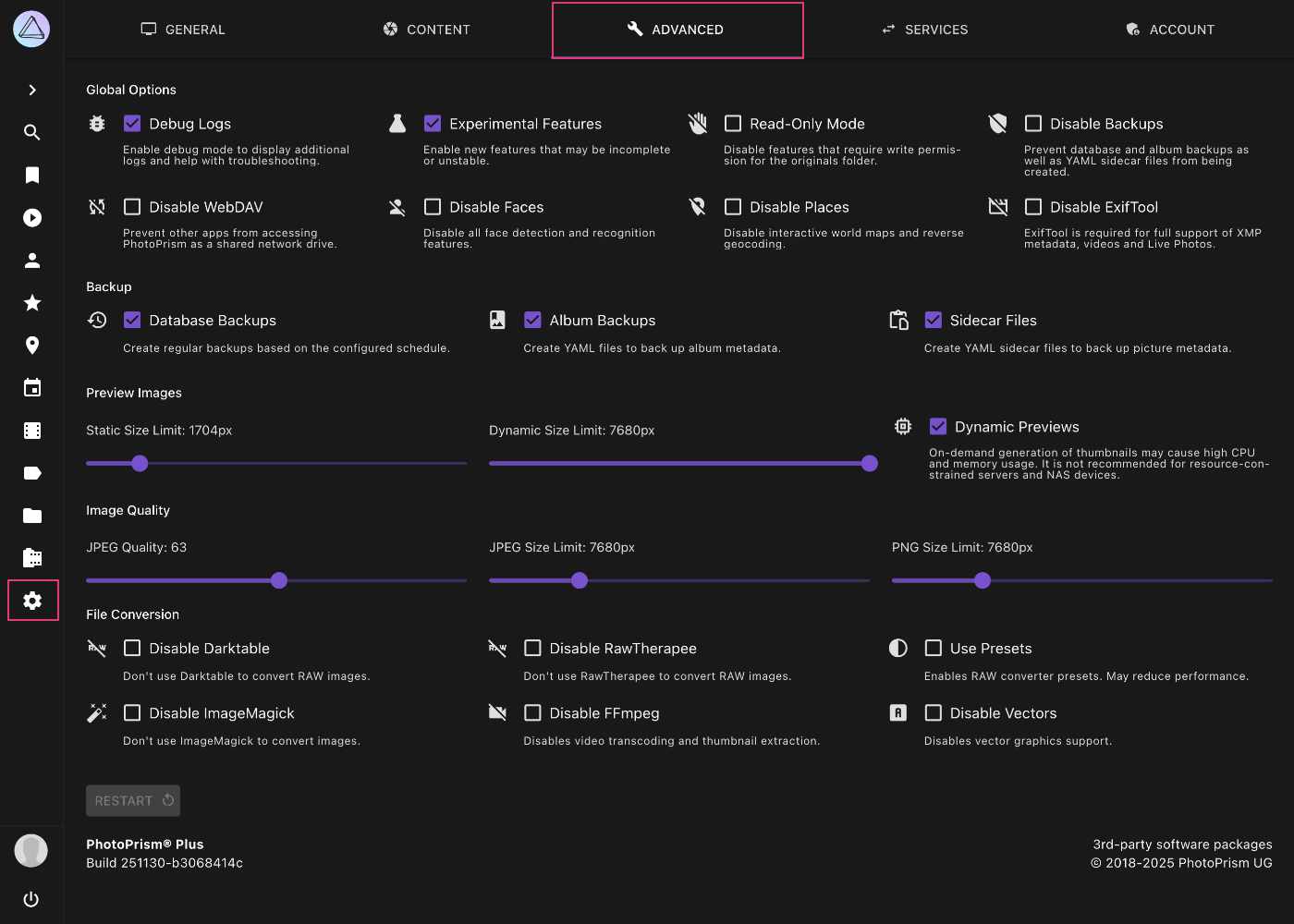
All [config options](https://docs.photoprism.app/getting-started/config-options/) can also be set in your `compose.yaml` or `docker-compose.yml`
or via command-line parameters. Values changed through the web interface are saved in a config file stored in
the `storage/config` folder by default.
## Global Options
### Debug Logs
When enabled, debug logs are shown in *Library > Logs*.
Requires a restart.
The corresponding [config toggle](https://docs.photoprism.app/getting-started/config-options/#logging) is `PHOTOPRISM_DEBUG`.
### Experimental Features
When enabled, your instance exposes new features that may still be incomplete or unstable.
The corresponding [config toggle](https://docs.photoprism.app/getting-started/config-options/#feature-flags) is `PHOTOPRISM_EXPERIMENTAL`.
### Read-only Mode
When enabled, importing, uploading, and deleting files is not possible.
The corresponding [config toggle](https://docs.photoprism.app/getting-started/config-options/#feature-flags) is `PHOTOPRISM_READONLY`.
### Disable Backups
This option prevents the creation of database, album and YAML sidecar file backups.
The corresponding [config toggle](https://docs.photoprism.app/getting-started/config-options/#feature-flags) is `PHOTOPRISM_DISABLE_BACKUPS`.
### Disable WebDAV
This option prevents other apps from connecting to PhotoPrism via the built-in WebDAV server.
Requires a restart for changes to be applied.
The corresponding [config toggle](https://docs.photoprism.app/getting-started/config-options/#feature-flags) is `PHOTOPRISM_DISABLE_WEBDAV`.
### Disable Faces
When selected, all face detection and recognition features will be disabled.
The corresponding [config toggle](https://docs.photoprism.app/getting-started/config-options/#feature-flags) is `PHOTOPRISM_DISABLE_FACES`.
### Import Faces from XMP
When enabled, face regions and names found in XMP metadata are imported as people markers while indexing, so names
assigned in applications such as Adobe Bridge, Lightroom, digiKam, ACDSee, or Windows do not have to be entered again.
[Learn more ›](https://docs.photoprism.app/user-guide/library/metadata/#face-regions)
The corresponding [config option](https://docs.photoprism.app/getting-started/config-options/#computer-vision) is `PHOTOPRISM_XMP_FACES`.
### Disable Places
When selected, geo-information (latitude, longitude) will still be read (and indexed)
from your files metadata, however PhotoPrism will not use reverse lookup to
determine place names using those coordinates as it normally would.
The Places section will not be visible.
The corresponding [config toggle](https://docs.photoprism.app/getting-started/config-options/#feature-flags) is `PHOTOPRISM_DISABLE_PLACES`.
### Disable ExifTool
This option prevents the creation of `json` files with Exif data in `storage/sidecar`.
Note that you must have [ExifTool](https://exiftool.org/) enabled to extract video metadata such as duration, resolution, and codec.
The corresponding [config toggle](https://docs.photoprism.app/getting-started/config-options/#feature-flags) is `PHOTOPRISM_DISABLE_EXIFTOOL`.
### Disable TensorFlow (Deprecated)
!!! warning ""
This option is deprecated. To disable image classification and facial recognition, use the configuration options `PHOTOPRISM_DISABLE_FACES` and `PHOTOPRISM_DISABLE_CLASSIFICATION` instead. For more details, see the related [GitHub issue](https://github.com/photoprism/photoprism/issues/5310).
When selected, image classification and facial recognition will be disabled because both rely on TensorFlow.
The corresponding [config toggle](https://docs.photoprism.app/getting-started/config-options/#feature-flags) is `PHOTOPRISM_DISABLE_TENSORFLOW`.
## Backups
### Database Backups
When selected, database backups are created based on the configured schedule.
The corresponding [config toggle](https://docs.photoprism.app/getting-started/config-options/#backup) is `PHOTOPRISM_BACKUP_DATABASE`.
The schedule as well as the number of backups that will be retained can be [configured](https://docs.photoprism.app/getting-started/config-options/#backup) with `PHOTOPRISM_BACKUP_SCHEDULE` and `PHOTOPRISM_BACKUP_RETAIN`.
### Album Backups
When selected, [YAML files that back up album metadata](https://docs.photoprism.app/user-guide/backups/export/) will be created based on the configured schedule.
The corresponding [config toggle](https://docs.photoprism.app/getting-started/config-options/#backup) is `PHOTOPRISM_BACKUP_ALBUMS`.
The backup schedule can be [configured](https://docs.photoprism.app/getting-started/config-options/#backup) with `PHOTOPRISM_BACKUP_SCHEDULE`.
### Sidecar Files
When selected, [YAML files that back up picture metadata](https://docs.photoprism.app/user-guide/backups/export/) will be created.
The corresponding [config toggle](https://docs.photoprism.app/getting-started/config-options/#sidecar-files) is `PHOTOPRISM_SIDECAR_YAML`.
## Preview Images
This section controls how JPEG preview and thumbnail images are rendered. These are high-quality, scaled-down versions of your originals.
[Thumbnails are necessary](https://docs.photoprism.app/getting-started/faq/#why-is-my-storage-folder-so-large-what-is-in-it) because web browsers are bad at resizing large images to fit the screen. Using full-resolution originals for slideshows and in search results would also consume a lot of browser memory and significantly reduce indexing performance.
### Downscaling Filter
PhotoPrism renders thumbnails with `libvips`, which always uses a high-quality Lanczos 3-lobe kernel for downscaling. The `PHOTOPRISM_THUMB_FILTER` [config option](https://docs.photoprism.app/getting-started/config-options/#preview-images) and the "Downscaling Filter" dropdown are retained for backwards compatibility but no longer change the rendered output.
!!! info ""
The legacy native `imaging` image-processing library was removed in the April 2026 release. Thumbnails are now always generated with libvips, so the previously-selectable filters (blackman, lanczos, cubic, linear, nearest) have no effect.
### Static and Dynamic Size Limits
**Static Size Limit**: During initial indexing or import (as thumbnails are generated),
no thumbnails will be created above this size.
The corresponding [config option](https://docs.photoprism.app/getting-started/config-options/) is `PHOTOPRISM_THUMB_SIZE`.
**Dynamic Size Limit**: During dynamic (on-demand) thumbnail generation,
no thumbnails will be created above this size.
The corresponding [config option](https://docs.photoprism.app/getting-started/config-options/) is `PHOTOPRISM_THUMB_SIZE_UNCACHED`.
!!! danger ""
Reducing the *Static Size Limit* of thumbnails has a **significant impact on [face recognition](https://docs.photoprism.app/user-guide/organize/people/) and image classification** results. Simply put, it means that the indexer can no longer see properly.
!!! danger ""
If the configured size limit is exceeded (for example, if users have a larger screen), a sufficiently large thumbnail can't be created, and the photo viewer may be forced to display the original image instead.
**Downscaling images in browsers typically results in poor quality, and they may also be displayed in the wrong orientation.**
The smallest configurable size is 720px for consumption by the indexer to perform color detection, face detection,
and image classification. Recreating them every time they are needed is too demanding for even the most powerful
servers. Unless you only have a few small images, it would render the app unusable.
It is recommended that you set these limits high so that browsing pictures is as smooth as possible.
However, if the amount of disk storage required is a serious problem, and you are
willing to increase server load instead, it is possible to set the
*Static Size Limit* to the minimum of 720px in combination with a higher *Dynamic Size Limit*.
This allows the server to generate larger thumbnails on demand. It may also result in a noticeable delay
when viewing pictures in full-screen mode.
!!! tip ""
To view original images, enable *Dynamic Previews*, and configure *Dynamic Size Limit* and *Static Size Limit* to a small value like `720`. When viewing images exceeding that limit, the original files will be displayed.
### Dynamic Previews
Enable generating thumbnails on the fly as they are needed for viewing or analysis. This saves disk space, but is more processor-intensive and is therefore not recommended on less powerful devices such as Raspberry Pi.
!!! tip ""
Thumbnails in sizes up to the configured [static size limit](https://docs.photoprism.app/user-guide/settings/advanced/#static-and-dynamic-size-limits) [will always be generated during indexing](https://docs.photoprism.app/getting-started/faq/#can-i-skip-creating-thumbnails-completely).
The corresponding [config toggle](https://docs.photoprism.app/getting-started/config-options/#preview-images) is `PHOTOPRISM_THUMB_UNCACHED`.
### Which thumbnails will be generated?
The smallest configurable static and dynamic size limit is 720px, so most sizes up to `fit_720` are **always** generated by default.
[Higher size limits](https://docs.photoprism.app/user-guide/settings/advanced/#static-and-dynamic-size-limits) generate thumbnails with more detail at higher resolutions - either statically (pre-generated while indexing) or **on demand** if the [configuration permits](https://docs.photoprism.app/getting-started/config-options/#preview-images).
**Optional** thumbnail sizes cannot be pre-generated and are only rendered on request, for example when sharing an image on Instagram.
The following overview shows the name, dimensions, and aspect ratio for each thumbnail size as well as a description of how it is used:
| Name | Width | Height | Aspect Ratio | Available | Usage |
|-----------|-------|--------|--------------|-----------|-------------------|
| colors | 3 | 3 | 1:1 | Always | Color Detection |
| tile_50 | 50 | 50 | 1:1 | Always | List View |
| tile_100 | 100 | 100 | 1:1 | Always | Places View |
| left_224 | 224 | 224 | 1:1 | On-Demand | AI |
| right_224 | 224 | 224 | 1:1 | On-Demand | AI |
| tile_224 | 224 | 224 | 1:1 | Always | AI, Mosaic View |
| left_384 | 384 | 384 | 1:1 | Optional | AI |
| right_384 | 384 | 384 | 1:1 | Optional | AI |
| tile_384 | 384 | 384 | 1:1 | Optional | AI |
| left_480 | 480 | 480 | 1:1 | Optional | AI |
| right_480 | 480 | 480 | 1:1 | Optional | AI |
| tile_480 | 480 | 480 | 1:1 | Optional | AI |
| tile_500 | 500 | 500 | 1:1 | Always | Cards View |
| fit_720 | 720 | 720 | Preserved | Always | SD TV, Mobile |
| tile_1080 | 1080 | 1080 | 1:1 | Optional | Instagram |
| fit_1280 | 1280 | 1024 | Preserved | On-Demand | HD TV, SXGA |
| fit_1600 | 1600 | 900 | Preserved | Optional | Social Media |
| fit_1920 | 1920 | 1200 | Preserved | On-Demand | Full HD |
| fit_2048 | 2048 | 2048 | Preserved | Optional | DCI 2K, Tablets |
| fit_2560 | 2560 | 1600 | Preserved | On-Demand | Quad HD |
| fit_3840 | 3840 | 2400 | Preserved | Optional | 4K Ultra HD |
| fit_4096 | 4096 | 4096 | Preserved | On-Demand | DCI 4K, Retina 4K |
| fit_5120 | 5120 | 5120 | Preserved | On-Demand | Retina 5K |
| fit_7680 | 7680 | 4320 | Preserved | On-Demand | 8K Ultra HD 2 |
| fit_15360 | 15360 | 8640 | Preserved | On-Demand | 16K UHD |
!!! tldr ""
Generated thumbnail files are stored in the `storage/cache/thumbnails` folder, where the path and file name depend on the size and file hash, e.g. `storage/cache/thumbnails/1/a/3/1a30c1f...9_100x100_center.jpg`.
## Image Quality
### JPEG Quality
Choose a value above 90 to display your images in the best possible quality. Note that higher values
require more space in the *storage* folder for less compressed thumbnail files, which may also take longer to create.
Lower quality thumbnails, on the other hand, are smaller, load faster on slow Internet connections,
and require less space in the *storage* folder and in the browser cache.
- Quality levels of 90% or higher are generally considered *high quality*
- 80% to 90% is considered *medium quality*
- 70% to 80% is considered *low quality*, as you might see with highly compressed content on social media
Anything below 70% is generally of [very low quality](https://fotoforensics.com/tutorial-estq.php).
Example: If a quality of 95 results in a thumbnail file size of 500kB, then reducing the quality
to 80 reduces the file size to about 100kB.
The corresponding [config option](https://docs.photoprism.app/getting-started/config-options/) is `PHOTOPRISM_JPEG_QUALITY`.
!!! tldr ""
**The actual compression depends on how much information an image contains.** Empty areas and skies,
for example, are easier to compress. Images with a lot of details suffer the most.
For this reason, reducing the quality of thumbnails also negatively impacts [face recognition](https://docs.photoprism.app/user-guide/organize/people/)
and image classification results. Simply put, this means that the indexer sees fewer details.
### JPEG Size Limit
This sets the maximum size of the JPEG files created when converting original RAW images.
The corresponding [config option](https://docs.photoprism.app/getting-started/config-options/#preview-images) is `PHOTOPRISM_JPEG_SIZE`.
!!! tldr ""
[RawTherapee and "heif-convert" cannot limit the resolution](https://docs.photoprism.app/known-issues/#jpeg-size-limit) of JPEG files when converting files from other formats such as RAW, DNG, HEIC or AVIF.
### PNG Size Limit
This sets the maximum size of the PNG files created when converting original images.
The corresponding [config option](https://docs.photoprism.app/getting-started/config-options/#preview-images) is `PHOTOPRISM_PNG_SIZE`.
## File Conversion
Many photographers keep their originals in some sort of lossless RAW format instead of compressed JPEG, especially when shooting with a Digital SLR. Some [mobile phones](https://www.fredericpaulussen.be/how-to-raw-photos-huawei-p30-pro/) also support RAW or use HEIC/HEIF for a similar purpose. PhotoPrism aims at providing excellent support for all [RAW](https://en.wikipedia.org/wiki/Raw_image_format) formats, independent of camera brand and model. Please let us know when there is an issue with your specific device.
Web browsers in general cannot display RAW image files. They need to be converted, which is what our *import* and *convert* commands do. You'll also find a checkbox for this step in our [Web UI](https://docs.photoprism.app/user-guide/settings/general/).
In addition, PhotoPrism also supports TIFF, PNG, BMP and GIF files. Be aware that files in those formats often don't contain useful metadata and are typically used for screenshots, charts, graphs and icons only.
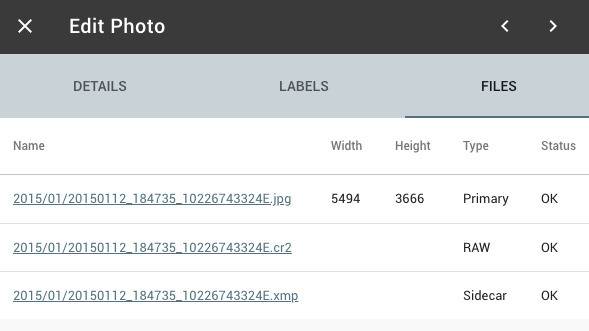
!!! info ""
Generated sidecar files will be stored outside your originals folder by default, so that
RAW to JPEG conversion also works in read-only mode.
### Disable Darktable
If this feature is disabled, [Darktable](https://www.darktable.org/) will not be used for RAW conversion.
The corresponding [config toggle](https://docs.photoprism.app/getting-started/config-options/) is `PHOTOPRISM_DISABLE_DARKTABLE`.
### Disable RawTherapee
If this feature is disabled, [RawTherapee](https://www.rawtherapee.com/) is not used for RAW conversion.
The corresponding [config toggle](https://docs.photoprism.app/getting-started/config-options/) is `PHOTOPRISM_DISABLE_RAWTHERAPEE`.
### Use Presets
Disables simultaneous conversion of RAW files to apply Darktable presets.
The corresponding [config toggle](https://docs.photoprism.app/getting-started/config-options/) is `PHOTOPRISM_RAW_PRESETS`.
### Disable ImageMagick
If this feature is disabled, [ImageMagick](https://imagemagick.org/) is not used for conversion.
The corresponding [config toggle](https://docs.photoprism.app/getting-started/config-options/) is `PHOTOPRISM_DISABLE_IMAGEMAGICK`.
### Disable FFmpeg
If this feature is disabled, [FFmpeg](https://www.ffmpeg.org/documentation.html) is not used to transcode videos or extract still images for thumbnail creation, and indexing or importing video files is not possible.
The corresponding [config toggle](https://docs.photoprism.app/getting-started/config-options/) is `PHOTOPRISM_DISABLE_FFMPEG`.
!!! info ""
To prevent inexperienced users from accidentally disabling the creation of thumbnails for videos *FFmpeg* can only be disabled when [Experimental Features](https://docs.photoprism.app/user-guide/settings/advanced/#experimental-features) are enabled.
### Disable Vectors
Disables support for vector graphics.
---
# Services
Source: https://docs.photoprism.app/user-guide/settings/sync/
# Services
You can connect your PhotoPrism instance to other services with WebDAV support, such as other PhotoPrism instances, Nextcloud or ownCloud. This allows you to [share](https://docs.photoprism.app/user-guide/share/services-share/) or [synchronize](https://docs.photoprism.app/user-guide/sync/services-sync/) files between multiple services.
PhotoPrism can also expose its originals via WebDAV so that compatible clients on macOS, Windows, and mobile devices can connect directly. [Learn more ›](https://docs.photoprism.app/user-guide/sync/webdav/)
!!! tldr ""
These settings are not available when running in public mode because they are not safe to use without authentication.
## Add Service ##
1. Go to *Settings*.
2. Open the *Services* tab.
3. Click *Connect*.
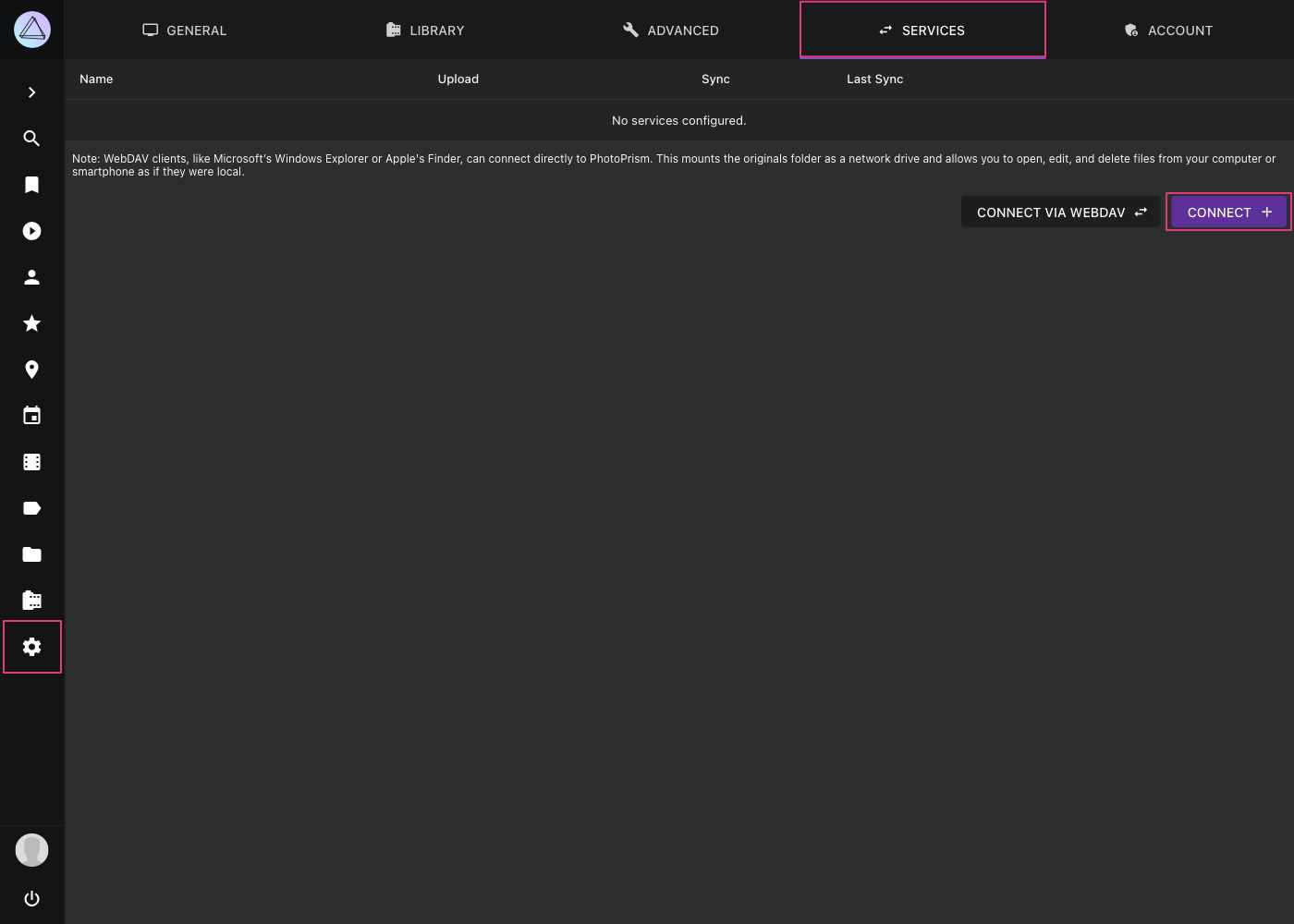
4. Fill in the service URL, username, and password.
5. Click *Connect*.
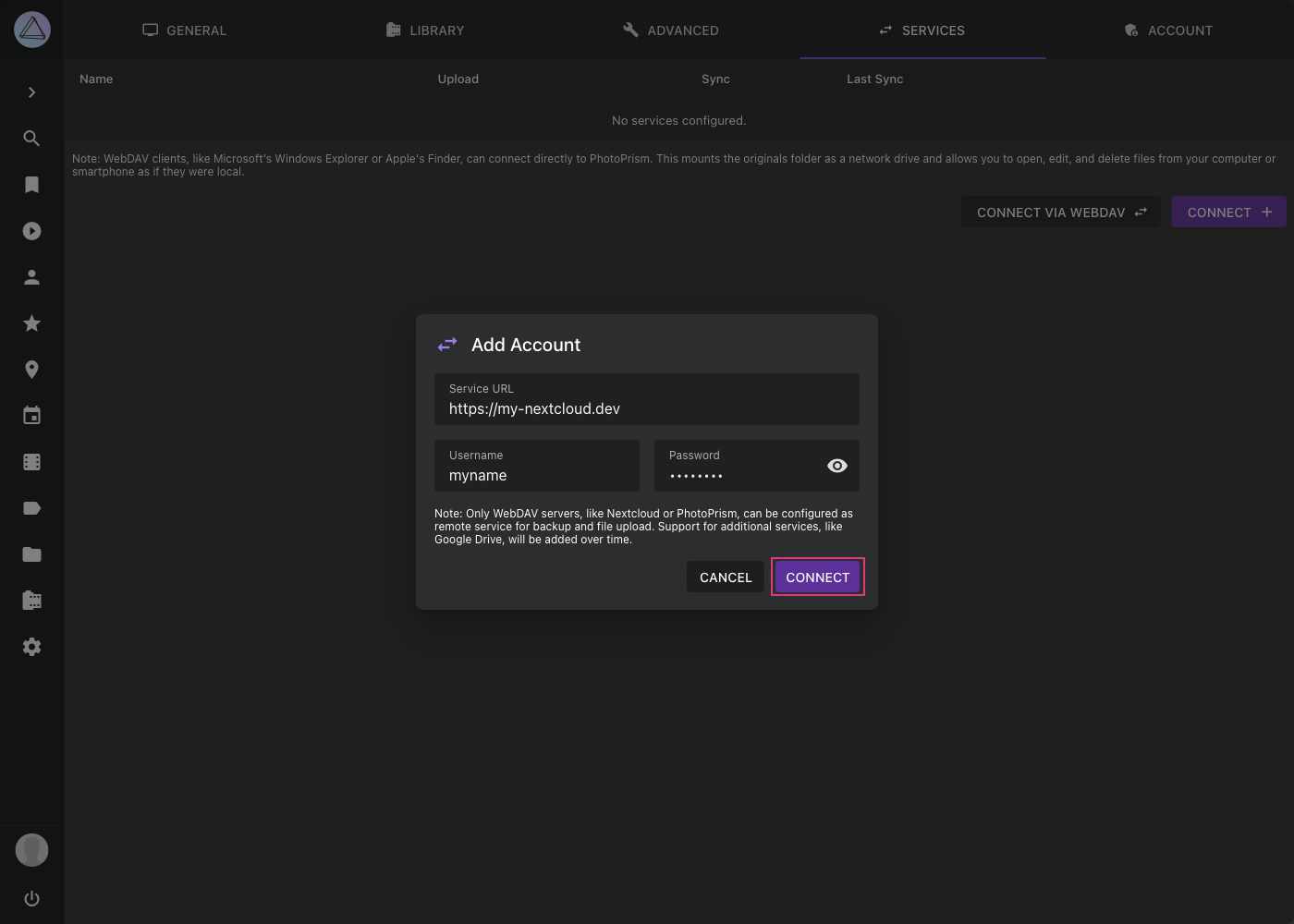
6. The service is now connected to PhotoPrism.
## Edit Connection Details ##
1. Go to *Settings*.
2. Open the *Services* tab.
3. Click the pencil :material-pencil: icon.
4. Edit account details and click *Save*.
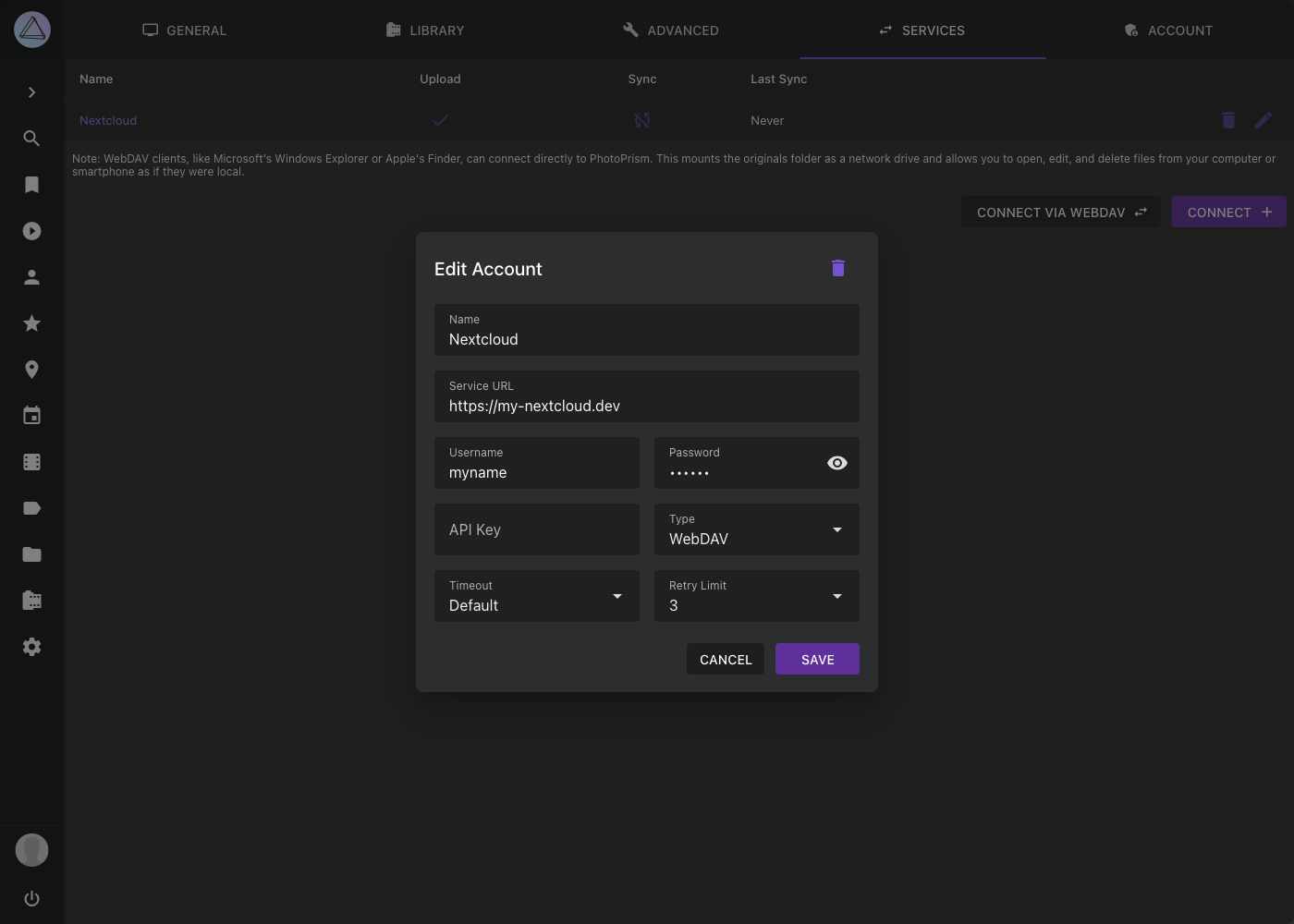
## Edit Upload Settings ##
1. Go to *Settings*.
2. Open the *Services* tab.
3. Click into the upload cell of your service.
4. Select the folder to which photos should be uploaded and click *Save*.
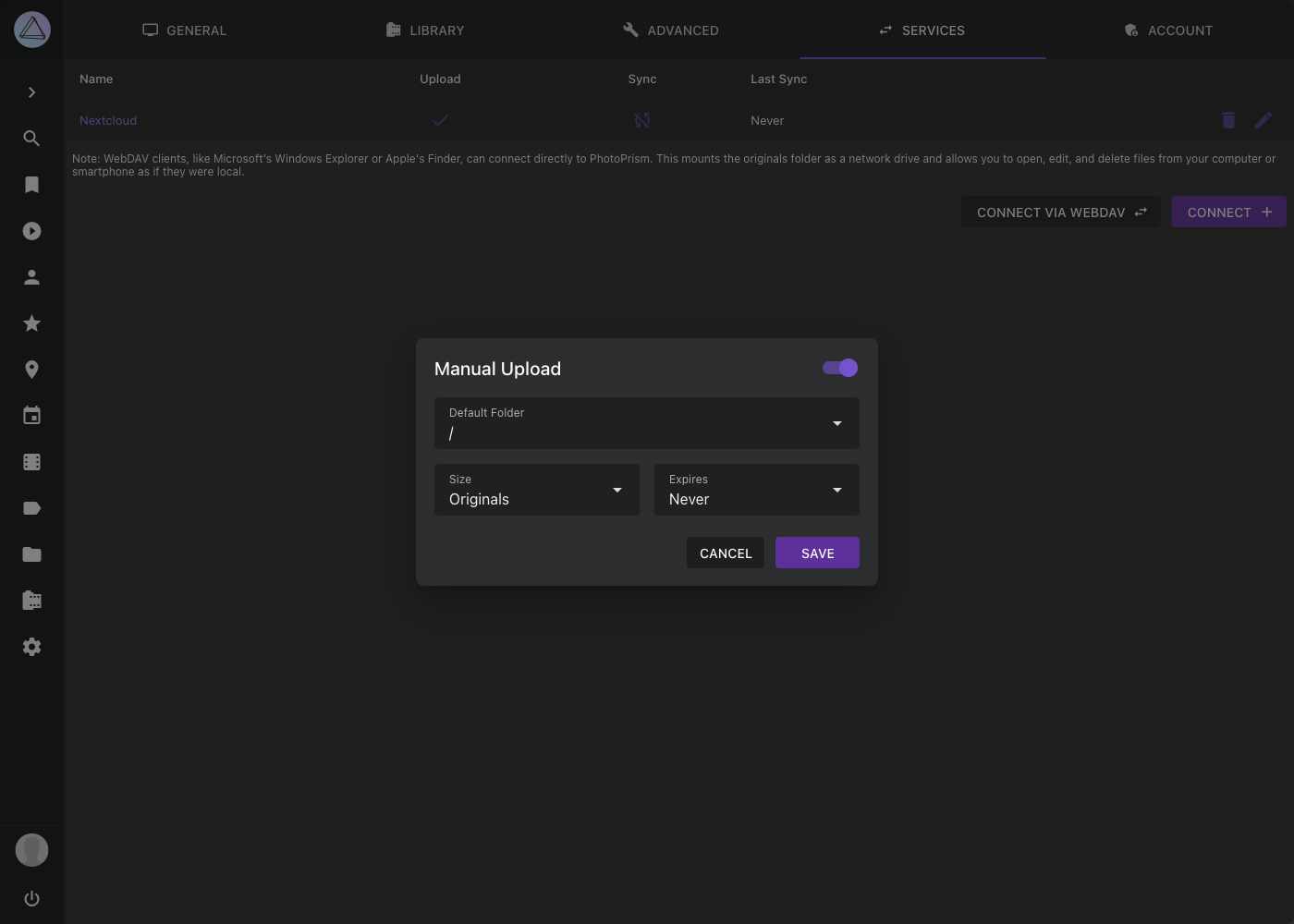
You can now [share albums or files with this service](https://docs.photoprism.app/user-guide/share/services-share/).
!!! danger ""
Some Nextcloud configurations can cause uploaded files to appear as 0-byte files. See the [known workaround](https://github.com/photoprism/photoprism/issues/443).
## Edit Sync Settings ##
1. Go to *Settings*.
2. Open *Services* tab.
3. Click into the sync cell of your service.

4. Enable synchronization in the upper right corner.
5. Choose a folder from your service.
6. Choose a sync interval.
7. Select the options that are suitable for you and click *Save*.

### Remote Sync Options ###
- *Download remote files* will download all files from the selected folder of the other service that do not yet exist in PhotoPrism.
- *Upload local files* will upload all files (including private or archived ones) from PhotoPrism to your service that do not yet exist there.
- *Preserve filenames* will keep filenames without renaming them.
- *Sync raw and video files* will upload and download RAW and video files together with JPEGs.
---
# Account
Source: https://docs.photoprism.app/user-guide/settings/account/
# Account Settings
!!! tldr ""
For security reasons, changing account-related settings through the user interface requires authentication, so these settings are not available when [public mode](https://docs.photoprism.app/getting-started/config-options/#authentication) is enabled.
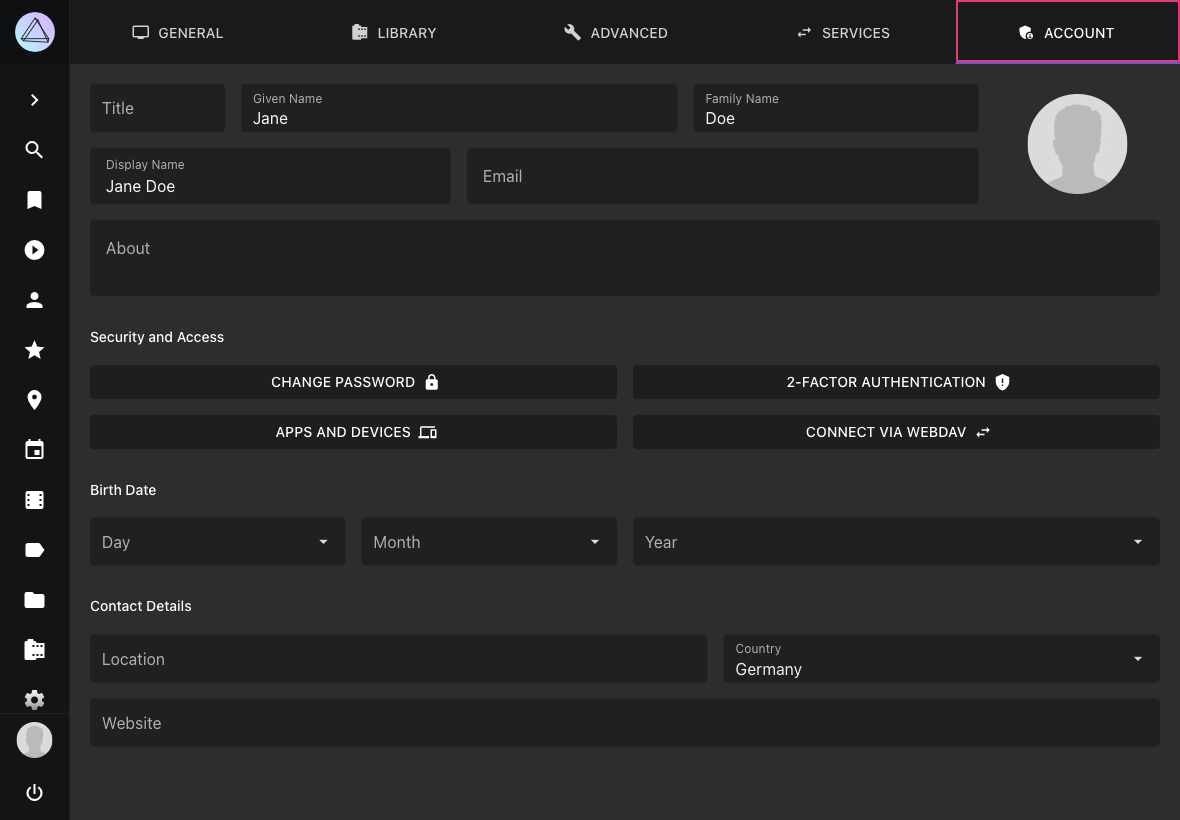
## Change Password ##
The *Change Password* button is available for accounts that use local password authentication.
1. Go to *Settings*
2. Open *Account* tab
3. Click *Change Password*
4. Enter your current password
5. Enter your new password twice
6. Click *Change*
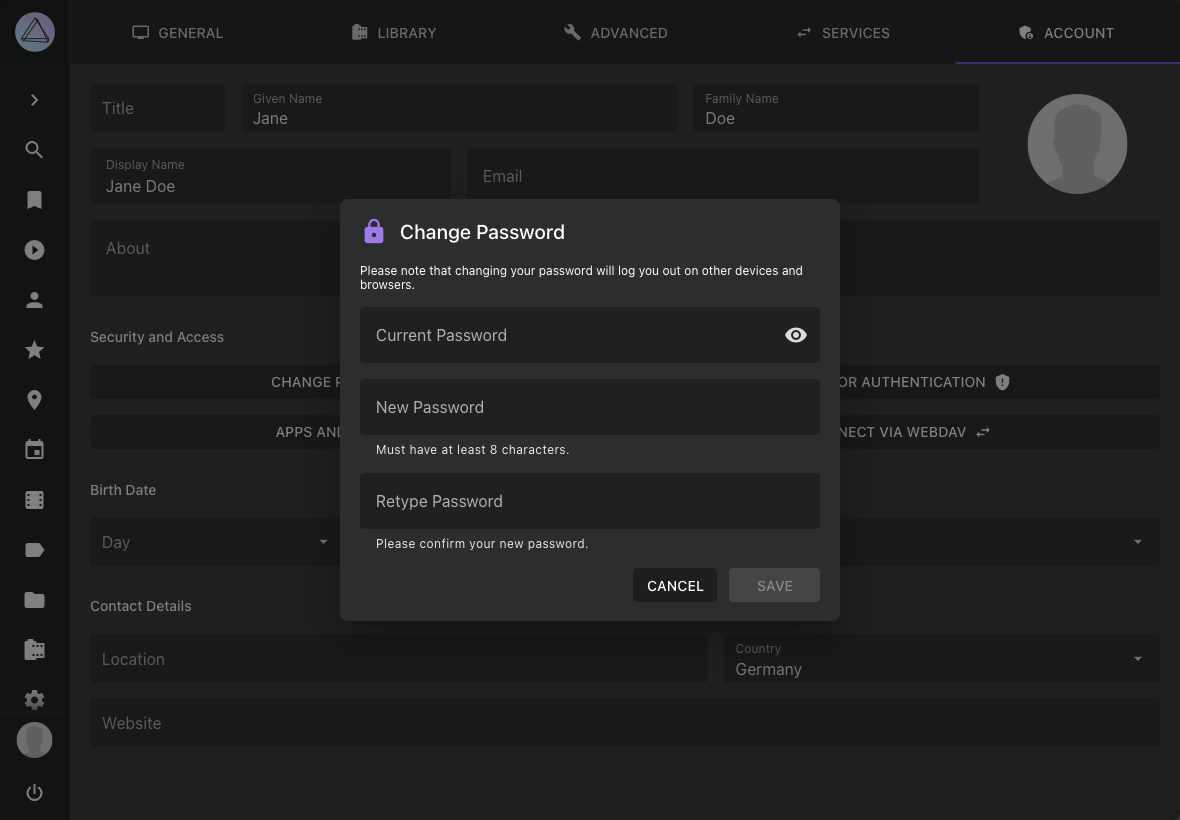
## 2-Factor Authentication
Two-factor authentication (2FA) can add an extra layer of security to your account in case someone gains access to your password. If enabled, you will need a randomly generated verification code in addition to your password to log in.
[Learn more ›](https://docs.photoprism.app/user-guide/users/2fa/)
## Apps and Devices
If 2FA is enabled for your account, other apps and services will no longer be able to use your password as they do not have access to the verification codes.
You can therefore generate app-specific passwords for them by navigating to *Settings > Account* and then clicking the *Apps and Devices* button. We also recommend using app-specific passwords in case 2FA is not enabled for your account.
Example for generating an app password that you can use with [WebDAV-compatible](https://docs.photoprism.app/user-guide/sync/webdav/) file synchronization apps like [PhotoSync](https://docs.photoprism.app/user-guide/sync/mobile-devices/):
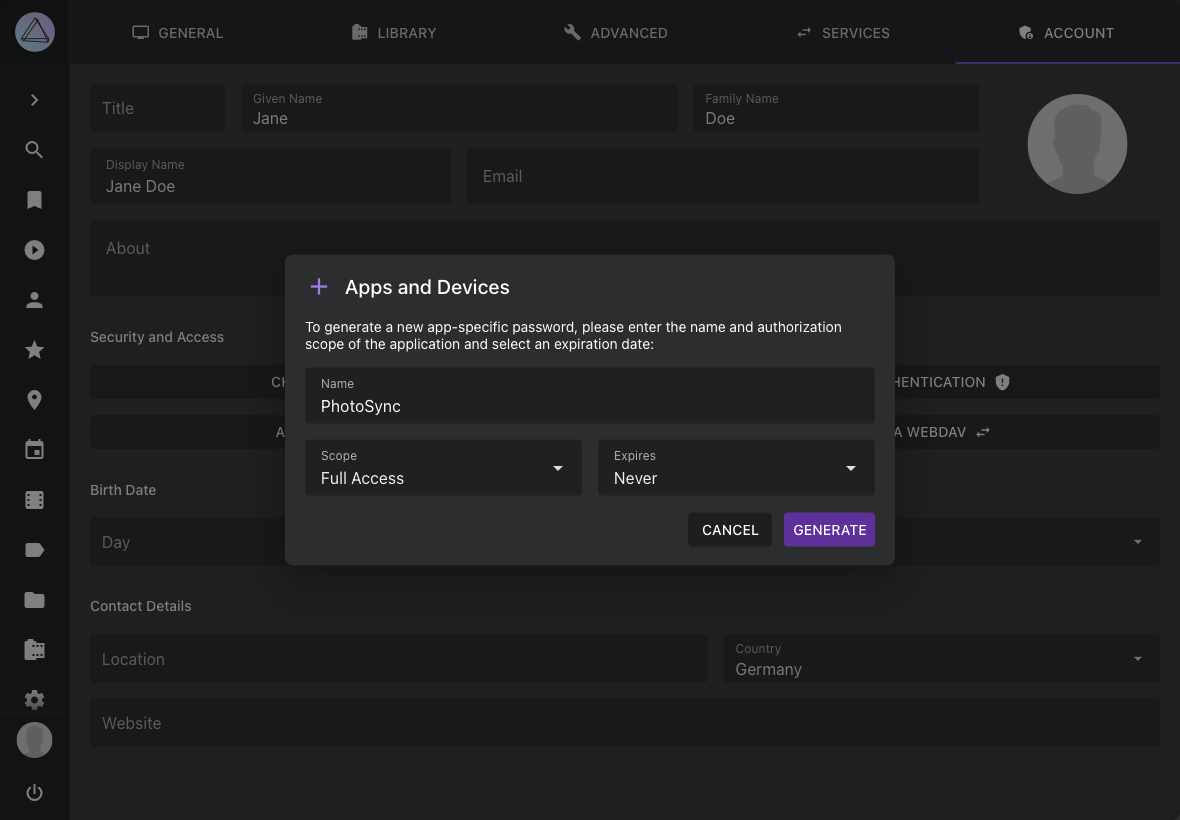
!!! tldr ""
By selecting the *WebDAV* [scope](https://docs.photoprism.app/user-guide/users/client-credentials/#authorization-scopes), you ensure that the app password cannot be used to log in through the regular user interface. Apps also cannot change your password or manage user accounts, even if you grant them *Full Access*.
## Connect via WebDAV ##
This button is only shown when WebDAV access is enabled for your account and the built-in WebDAV server is available.
To open a dialog that shows you the URLs required to connect an app or computer via WebDAV:
1. Go to *Settings*
2. Open *Account* tab
3. Click *Connect via WebDAV*
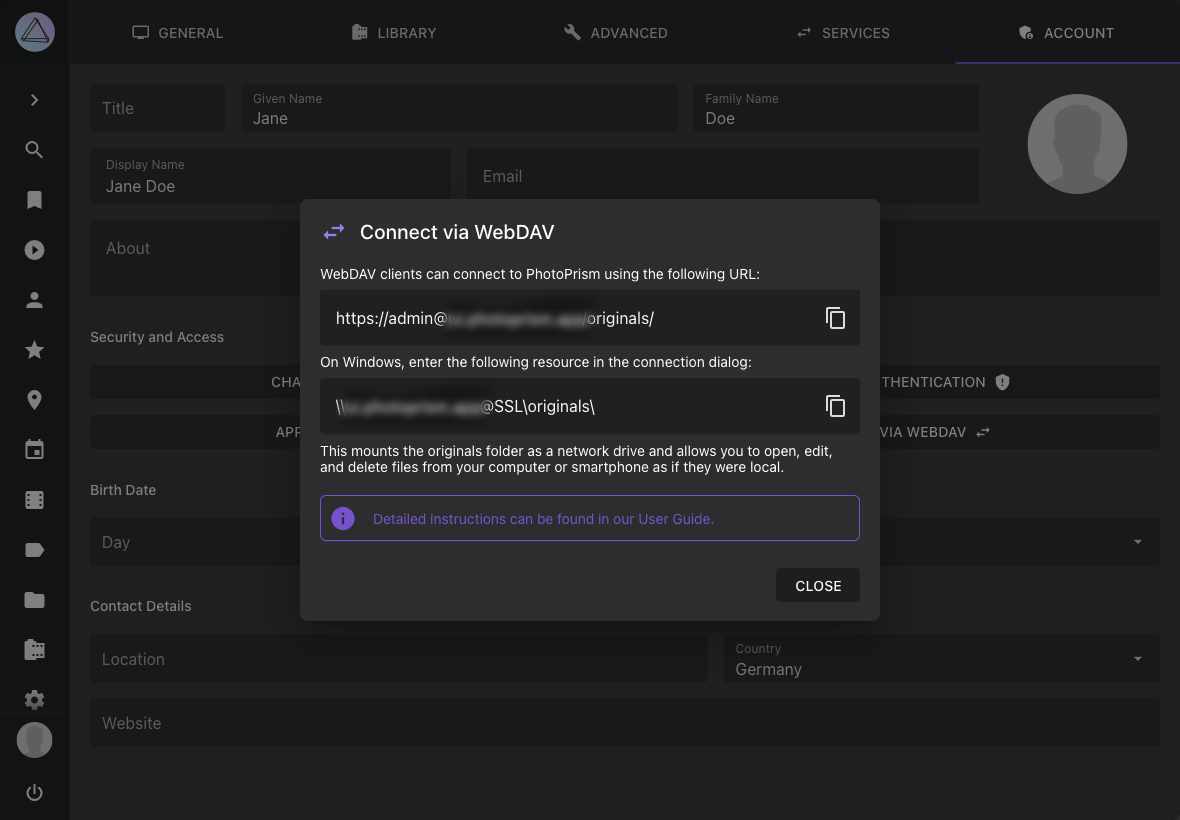
---
# Introduction
Source: https://docs.photoprism.app/user-guide/ai/
# Using AI Models
As an addition to the built-in TensorFlow models, PhotoPrism lets you generate captions and labels with [Ollama](https://docs.photoprism.app/user-guide/ai/using-ollama/) and the [OpenAI API](https://docs.photoprism.app/user-guide/ai/using-openai/). Our step-by-step guides explain how to set them up and provide tested configuration examples you can use as a starting point.
[Learn more ›](https://docs.photoprism.app/user-guide/ai/using-ollama/)
## Model Engines
PhotoPrism currently supports the following runtimes and services:
| Engine | Resolution | Runs | Best For |
|------------------------------------------------------------------------|------------|-------------|---------------------------------------------------------------------------------------------------------------|
| [TensorFlow](https://docs.photoprism.app/developer-guide/vision/tensorflow/custom-models/) | 224 px | Built-in | Fast, offline default models for core features (labels, faces, NSFW) |
| [Ollama](https://docs.photoprism.app/user-guide/ai/using-ollama/) | 720 px | Self-Hosted | Good for generating quality captions & labels; a server with GPU is recommended |
| [OpenAI API](https://docs.photoprism.app/user-guide/ai/using-openai/) | 720 px | Cloud | Highest quality captions & labels, also suitable for users without a GPU; requires API key and network access |
### Performance
- **TensorFlow:** Our built-in models generally perform well on all types of hardware.
- **Ollama:** [Generating labels](https://docs.photoprism.app/user-guide/ai/ollama-models/#gemma-4-labels) for an image on an NVIDIA RTX 4060 usually takes 1-4 seconds. The exact time varies depending on the model used and the [number of labels](https://docs.photoprism.app/user-guide/ai/ollama-models/#qwen3-vl-labels) generated.
- **OpenAI:** Processing one image takes about 3 seconds, though this can vary by model, region, and demand.
!!! tldr ""
Without GPU acceleration, Ollama models will be significantly slower, taking anywhere from 10 seconds to over a minute to complete. This may be acceptable if you only want to process a few pictures or are willing to wait.
## `vision.yml` Reference
Custom AI engines, models, and run modes can be specified in a `vision.yml` file located in your config directory (default: `storage/config`). The file defines a list of models and thresholds to be used, e.g.:
!!! info ""
If PhotoPrism can’t read your config file, make sure the file exists at the config path configured for your instance. Older installations may use `storage/settings`.
Run `docker compose exec photoprism photoprism show config | grep config-path` to find out what's your configured config path.
```yaml
Models:
- Type: caption
Model: gemma4:latest
Engine: ollama
Run: auto
Options:
Temperature: 0.05
Service:
Uri: http://ollama:11434/api/generate
Think: "false"
- Type: labels
Model: qwen3-vl:latest
Engine: ollama
Service:
Uri: http://ollama:11434/api/generate
Think: "false"
Thresholds:
Confidence: 10
Topicality: 0
NSFW: 75
```
If a model type is omitted, PhotoPrism will use the built-in defaults for `labels`, `nsfw`, `face`, or `caption`. The optional `Thresholds` block can be used to filter out labels with a low probability or adjust the probability of flagging content as NSFW.
| Field | Default | Notes |
|-------------------------|----------------------------------------|------------------------------------------------------------------------------------|
| `Type` (required) | — | `labels`, `caption`, `face`, `nsfw`. Drives routing & scheduling. |
| `Model` | `""` | Model identifier in the format `:`. |
| `Name` | derived from `Model` | Model name. |
| `Version` | `latest` (non-OpenAI) | Model version, not used by OpenAI. |
| `Engine` | inferred from service/alias | Aliases set formats, file scheme, resolution. Explicit `Service` values still win. |
| `Run` | `auto` | See Run modes table below. |
| `Default` | `false` | Keep one per type for TensorFlow fallbacks. |
| `Disabled` | `false` | Registered but inactive. |
| `Resolution` | 224 (TensorFlow) / 720 (Ollama/OpenAI) | Thumbnail edge in px; TensorFlow models default to 224 unless you override. |
| `System` / `Prompt` | engine defaults / empty | Override prompts per model. |
| `Format` | `""` | Response hint (`json`, `text`, `markdown`). |
| `Schema` / `SchemaFile` | engine defaults / empty | Inline vs file JSON schema (labels). |
| `TensorFlow` | engine defaults / empty | Local TF model info (paths, tags). |
| [`Options`](https://docs.photoprism.app/user-guide/ai/#options) | engine defaults / empty | Sampling/settings merged with engine defaults. |
| [`Service`](https://docs.photoprism.app/user-guide/ai/#service) | engine defaults / empty | Remote endpoint config (see below). |
### Run Modes
| Value | When it runs | Recommended use |
|-----------------|------------------------------------------------------------------|------------------------------------------------|
| `auto` | TensorFlow defaults during index; external via metadata/schedule | Leave as-is for most setups. |
| `manual` | Only when explicitly invoked (CLI/API) | Experiments and diagnostics. |
| `on-index` | During indexing + manual | Fast built-in models only. |
| `newly-indexed` | Metadata worker after indexing + manual | External/Ollama/OpenAI without slowing import. |
| `on-demand` | Manual, metadata worker, and scheduled jobs | Broad coverage without index path. |
| `on-schedule` | Scheduled jobs + manual | Nightly/cron-style runs. |
| `always` | Indexing, metadata, scheduled, manual | High-priority models; watch resource use. |
| `never` | Never executes | Keep definition without running it. |
!!! tldr ""
For performance reasons, `on-index` is only supported for the built-in TensorFlow models.
### Options
Adjusts model parameters, such as temperature and top-p, as well as other constraints, when using [Ollama](https://docs.photoprism.app/user-guide/ai/using-ollama/) or [OpenAI](https://docs.photoprism.app/user-guide/ai/using-openai/):
| Option | Engines | Default | Description |
|--------------------|----------------|---------------------|-----------------------------------------------------------------------------------------|
| `Temperature` | Ollama, OpenAI | engine default | Controls randomness with a value between `0.01` and `2.0`; not used for OpenAI's GPT-5. |
| `TopK` | Ollama | engine default | Limits sampling to the top K tokens to reduce rare or noisy outputs. |
| `TopP` | Ollama, OpenAI | engine default | Nucleus sampling; keeps the smallest token set whose cumulative probability ≥ `p`. |
| `MinP` | Ollama | engine default | Drops tokens whose probability mass is below `p`, trimming the long tail. |
| `TypicalP` | Ollama | engine default | Keeps tokens with typicality under the threshold; combine with TopP/MinP for flow. |
| `TfsZ` | Ollama | engine default | Tail free sampling parameter; lower values reduce repetition. |
| `Seed` | Ollama | random per run | Fix for reproducible outputs; unset for more variety between runs. |
| `NumKeep` | Ollama | engine default | How many tokens to keep from the prompt before sampling starts. |
| `RepeatLastN` | Ollama | engine default | Number of recent tokens considered for repetition penalties. |
| `RepeatPenalty` | Ollama | engine default | Multiplier >1 discourages repeating the same tokens or phrases. |
| `PresencePenalty` | OpenAI | engine default | Increases the likelihood of introducing new tokens by penalizing existing ones. |
| `FrequencyPenalty` | OpenAI | engine default | Penalizes tokens in proportion to their frequency so far. |
| `PenalizeNewline` | Ollama | engine default | Whether to apply repetition penalties to newline tokens. |
| `Stop` | Ollama, OpenAI | engine default | Array of stop sequences (e.g., `["\\n\\n"]`). |
| `Mirostat` | Ollama | engine default | Enables Mirostat sampling (`0` off, `1/2` modes). |
| `MirostatTau` | Ollama | engine default | Controls surprise target for Mirostat sampling. |
| `MirostatEta` | Ollama | engine default | Learning rate for Mirostat adaptation. |
| `NumPredict` | Ollama | engine default | Ollama-specific max output tokens; synonymous intent with `MaxOutputTokens`. |
| `MaxOutputTokens` | Ollama, OpenAI | engine default | Upper bound on generated tokens; adapters raise low values to defaults. |
| `ForceJson` | Ollama, OpenAI | engine default | Forces structured output when enabled. |
| `SchemaVersion` | Ollama, OpenAI | derived from schema | Override when coordinating schema migrations. |
| `CombineOutputs` | OpenAI | engine default | Controls whether multi-output models combine results automatically. |
| `Detail` | OpenAI | engine default | Controls OpenAI vision detail level (`low`, `high`, `auto`). |
| `NumCtx` | Ollama, OpenAI | engine default | Context window length (tokens). |
| `NumThread` | Ollama | runtime auto | Caps CPU threads for local engines. |
| `NumBatch` | Ollama | engine default | Batch size for prompt processing. |
| `NumGpu` | Ollama | engine default | Number of GPUs to distribute work across. |
| `MainGpu` | Ollama | engine default | Primary GPU index when multiple GPUs are present. |
| `LowVram` | Ollama | engine default | Enable VRAM-saving mode; may reduce performance. |
| `VocabOnly` | Ollama | engine default | Load vocabulary only for quick metadata inspection. |
| `UseMmap` | Ollama | engine default | Memory map model weights instead of fully loading them. |
| `UseMlock` | Ollama | engine default | Lock model weights in RAM to reduce paging. |
| `Numa` | Ollama | engine default | Enable NUMA-aware allocations when available. |
### Service
Configures the endpoint URL, method, format, and authentication for [Ollama](https://docs.photoprism.app/user-guide/ai/using-ollama/), [OpenAI](https://docs.photoprism.app/user-guide/ai/using-openai/), and other engines that perform remote HTTP requests:
| Field | Default | Notes |
|------------------------------------|--------------------------|----------------------------------------------------------------------------------------------------------------------------------------------------------------------------------------------------------------------------------------------------------|
| `Uri` | engine default | Service endpoint URL. Empty for local models. |
| `Method` | `POST` | Override only if provider needs it. |
| `Key` | `""` | Bearer token; supports env expansion (OpenAI: `OPENAI_API_KEY`, Ollama: `OLLAMA_API_KEY`[^1]). |
| `Username` / `Password` | `""` | Injected as basic auth when `Uri` lacks userinfo. |
| `Model` | `""` | Endpoint-specific override; wins over model/name. |
| `Org` / `Project` | `""` | Organization / Project ID when using OpenAI. |
| `Think` | `""` (Ollama: `"false"`) | Ollama reasoning hint. The Ollama engine defaults it to `"false"` (reasoning off) so thinking models (Qwen3.5, `qwen3-vl:*`, …) don't leak reasoning into captions/labels; re-enable with `"true"`. Quoted `"true"`/`"false"` are sent as JSON booleans. |
| `Tier` | `""` | OpenAI service tier sent as `service_tier` (e.g. `flex` for cheaper, slower processing). OpenAI-only; supports `${ENV}` expansion. |
| `RequestFormat` / `ResponseFormat` | engine default | Explicit values win over engine defaults. |
| `FileScheme` | engine default | Controls image transport e.g. `data` or `base64`. |
| `Disabled` | `false` | Disables the endpoint without removing the model. |
!!! tldr ""
**Authentication:** All credentials and identifiers support `${ENV_VAR}` expansion. `Service.Key` sets `Authorization: Bearer `; `Username`/`Password` injects HTTP basic authentication into the service URI when it is not already present. When `Service.Key` is empty, PhotoPrism defaults to `OPENAI_API_KEY` (OpenAI engine) or `OLLAMA_API_KEY`[^1] (Ollama engine), also honoring their `_FILE` counterparts.
[^1]: Available since the [March 5, 2026 release](https://docs.photoprism.app/release-notes/#march-5-2026).
---
# Ollama Setup
Source: https://docs.photoprism.app/user-guide/ai/using-ollama/
# Ollama Setup Guide
Learn how to set up and connect a self-hosted Ollama instance to generate detailed captions and accurate labels for your pictures with [vision-capable LLMs](https://ollama.com/search?c=vision).
## Step 1: Install Ollama
To run Ollama on the same server as PhotoPrism, add the `ollama` service to the `services` section of your `compose.yaml` (or `docker-compose.yml`) file, as shown in the example below.[^1]
Alternatively, most of the [`compose.yaml`](https://docs.photoprism.app/getting-started/docker-compose/) [configuration examples](https://dl.photoprism.app/docker/compose.yaml) on our download server already have Ollama preconfigured, so you can start it with the following command (remove `profiles: ["ollama"]` from the `ollama` service to start it by default, without using `--profile ollama`):
```
docker compose --profile ollama up -d
```
Note that Ollama does not require authentication by default, so only expose port `11434` within **trusted networks** or behind a reverse proxy with access control.
Experienced users can set up and operate Ollama on a dedicated server shared by multiple instances.
The [NVIDIA Container Toolkit](https://docs.nvidia.com/datacenter/cloud-native/container-toolkit/install-guide.html) must be installed for NVIDIA GPU acceleration to work.
!!! example "compose.yaml"
```yaml
services:
photoprism:
## The ":preview" build gives early access to new features:
image: photoprism/photoprism:preview
...
## Ollama Large-Language Model Runner (optional)
## Run "ollama pull [name]:[version]" to download a vision model
## listed at , for example:
## docker compose exec ollama ollama pull gemma4:latest
ollama:
image: ollama/ollama:latest
restart: unless-stopped
stop_grace_period: 15s
## Insecurely exposes the Ollama service on port 11434
## without authentication (for private networks only):
# ports:
# - "11434:11434"
environment:
## Ollama Configuration Options:
OLLAMA_HOST: "0.0.0.0:11434"
OLLAMA_MODELS: "/root/.ollama" # model storage path (see volumes section below)
OLLAMA_MAX_QUEUE: "100" # maximum number of queued requests
OLLAMA_NUM_PARALLEL: "1" # maximum number of parallel requests
OLLAMA_MAX_LOADED_MODELS: "1" # maximum number of loaded models per GPU
OLLAMA_LOAD_TIMEOUT: "5m" # maximum time for loading models (default "5m")
OLLAMA_KEEP_ALIVE: "5m" # duration that models stay in memory (default "5m")
OLLAMA_CONTEXT_LENGTH: "4096" # maximum input context length
OLLAMA_MULTIUSER_CACHE: "false" # optimize prompt caching for multi-user scenarios
OLLAMA_NOPRUNE: "false" # disables pruning of model blobs at startup
OLLAMA_NOHISTORY: "true" # disables readline history
OLLAMA_FLASH_ATTENTION: "true" # required for OLLAMA_KV_CACHE_TYPE quantization
OLLAMA_KV_CACHE_TYPE: "f16" # cache precision: f16 (default), q8_0, q4_0
OLLAMA_SCHED_SPREAD: "false" # allows scheduling models across all GPUs.
# OLLAMA_DEBUG: "true" # shows additional debug information
# OLLAMA_INTEL_GPU: "true" # enables experimental Intel GPU detection
## Telemetry / privacy opt-outs (containers do not inherit /etc/environment):
DO_NOT_TRACK: "true"
HF_HUB_DISABLE_TELEMETRY: "1"
# OLLAMA_NO_CLOUD: "1" # uncomment to disable Ollama Cloud models/features
## NVIDIA GPU Hardware Acceleration (optional):
# NVIDIA_VISIBLE_DEVICES: "all"
# NVIDIA_DRIVER_CAPABILITIES: "compute,utility"
volumes:
- "./ollama:/root/.ollama"
## NVIDIA GPU Hardware Acceleration (optional):
# deploy:
# resources:
# reservations:
# devices:
# - driver: "nvidia"
# capabilities: [ gpu ]
# count: "all"
```
### Flash Attention & KV Cache
**`OLLAMA_FLASH_ATTENTION`** enables a small speedup on supported model architectures (`gemma3`, `gptoss`, `mistral3`, `qwen3*`). It silently no-ops on unsupported architectures and on CPU. **Required** if you also enable `OLLAMA_KV_CACHE_TYPE` quantization. Set to `"false"` if you use [Qwen3-2507 builds](https://github.com/ollama/ollama/issues/12432) — they are incompatible with flash attention.
**`OLLAMA_KV_CACHE_TYPE`** controls the precision of the per-token attention key/value cache:
- **`f16`** (default) — native precision, works for every architecture, no quality loss.
- **`q8_0`** — halves cache VRAM; clean for `qwen3*` / `gpt-oss` / `mistral3`; causes [a 5x slowdown](https://github.com/ollama/ollama/issues/11949) on [`gemma3`](https://ollama.com/library/gemma3); silently falls back to `f16` for [`gemma4`](https://ollama.com/library/gemma4) / [`qwen2.5vl`](https://ollama.com/library/qwen2.5vl) (not on the [flash-attention allowlist](https://github.com/ollama/ollama/issues/13337)).
- **`q4_0`** — quarters cache VRAM; still usable on Qwen, noticeably degrades Gemma; only reach for it when VRAM-constrained.
!!! tldr ""
The defaults [used in the example](https://docs.photoprism.app/user-guide/ai/using-ollama/#step-1-install-ollama) above (`OLLAMA_FLASH_ATTENTION: "true"` + `OLLAMA_KV_CACHE_TYPE: "f16"`) are a safe combination for our [recommended models](https://docs.photoprism.app/user-guide/ai/ollama-models/) on typical hardware.
## Step 2: Download Models
Once the Ollama service is running (see [Step 1](https://docs.photoprism.app/user-guide/ai/using-ollama/#step-1-install-ollama)), you can download [any of the listed vision models](https://ollama.com/search?c=vision) that match your hardware capabilities and preferences, as you will need it for the next step. For example:
```bash
docker compose exec ollama ollama pull gemma4:latest
```
[Learn more ›](https://docs.photoprism.app/user-guide/ai/ollama-models/)
## Step 3: Configure Models
Now, create a new `vision.yml` file in your config path (default: `storage/config`) or edit the existing file in [the *storage/config* folder](https://docs.photoprism.app/getting-started/docker-compose/#photoprismstorage) of your PhotoPrism instance, following the example below. Its absolute path from inside the container is `/photoprism/storage/config/vision.yml`:
!!! info ""
If PhotoPrism can’t read your config file, make sure the file exists at the config path configured for your instance. Older installations may use `storage/settings`.
Run `docker compose exec photoprism photoprism show config | grep config-path` to find out what's your configured config path.
!!! example "vision.yml"
```yaml
Models:
- Type: labels
Model: gemma4:latest
Engine: ollama
Run: auto
Service:
Uri: http://ollama:11434/api/generate
Think: "false"
- Type: caption
Model: gemma4:latest
Engine: ollama
Run: auto
Service:
Uri: http://ollama:11434/api/generate
Think: "false"
```
[Learn more ›](https://docs.photoprism.app/user-guide/ai/ollama-models/#gemma-4-labels)
### Scheduling Options
- `Run: auto` (recommended) automatically runs the model after indexing is complete to prevent slowdowns during indexing or importing. It also [allows manual](https://docs.photoprism.app/user-guide/ai/cli/#run-vision-models) and [scheduled invocations](https://docs.photoprism.app/getting-started/config-options/#computer-vision).
- `Run: manual` disables automatic execution, allowing you to [run the model manually](https://docs.photoprism.app/user-guide/ai/cli/#run-vision-models) via `photoprism vision run -m caption` or `photoprism vision run -m labels`.
[Learn more ›](https://docs.photoprism.app/user-guide/ai/#run-modes)
### Configuration Tips
PhotoPrism evaluates models from the bottom of the list up, so placing the Ollama entries after the others ensures Ollama is chosen first while the others remain available as fallback options.
Ollama-generated captions and labels are stored with the `ollama` metadata source automatically, so you do not need to request a specific `source` field in the schema or pass `--source` to the CLI unless you want to override the default.
!!! tip "Prompt Localization"
To generate output in other languages, keep the base instructions in English and add the desired language (e.g., "Respond in German"). This method works for both [caption](https://docs.photoprism.app/user-guide/ai/ollama-models/#qwen3-vl-caption) and [label prompts](https://docs.photoprism.app/user-guide/ai/ollama-models/#qwen3-vl-labels).
!!! info "NSFW Detection"
When you serve the `labels` model through Ollama, NSFW detection is **not** automatic. PhotoPrism asks the model to include NSFW classification in the same response only when **both** `PHOTOPRISM_DETECT_NSFW=true` and `PHOTOPRISM_EXPERIMENTAL=true` are set. Without that combination, running `photoprism vision run -m labels` skips NSFW flagging even if the LLM "knows" the content is unsafe. See [NSFW Detection](https://docs.photoprism.app/user-guide/ai/nsfw/) for the full matrix.
## Step 4: Restart PhotoPrism
Run the following commands to restart `photoprism` and apply the new settings:
```bash
docker compose stop photoprism
docker compose up -d
```
You should now be able to use the `photoprism vision` [CLI commands](https://docs.photoprism.app/user-guide/ai/cli/#run-vision-models) when [opening a terminal](https://docs.photoprism.app/getting-started/docker-compose/#opening-a-terminal), e.g. `photoprism vision run -m caption` to generate captions, or `photoprism vision run -m labels` to generate labels.
[Learn more ›](https://docs.photoprism.app/user-guide/ai/cli/#run-vision-models)
## Troubleshooting
### Verifying Your Configuration
If you encounter issues, a good first step is to verify how PhotoPrism has loaded your [`vision.yml`](https://docs.photoprism.app/user-guide/ai/#visionyml-reference) configuration. You can do this by running:
```bash
docker compose exec photoprism photoprism vision ls
```
This command outputs the settings for all supported and configured model types. Compare the results with your [`vision.yml`](https://docs.photoprism.app/user-guide/ai/#visionyml-reference) file to confirm that your configuration has been loaded correctly and to identify any parsing errors or misconfigurations.
### Performing Test Runs
The following [terminal commands](https://docs.photoprism.app/getting-started/docker-compose/#opening-a-terminal) will perform a single run for the specified model type:
```bash
photoprism vision run -m labels --count 1 --force
photoprism vision run -m caption --count 1 --force
```
If you don't get the expected results or notice any errors, you can re-run the commands with trace log mode enabled to inspect the request and response:
```bash
photoprism --log-level=trace vision run -m labels --count 1 --force
photoprism --log-level=trace vision run -m caption --count 1 --force
```
### Incomplete Captions with Thinking Models
If you use a reasoning or "thinking" model and notice incomplete or truncated captions, the model may be spending most of its output token budget on internal reasoning, leaving too few tokens for the actual caption.
To fix this, either disable reasoning for that model with `Service.Think: "false"`, switch to a non-thinking model, or increase the `NumPredict` value in your [`vision.yml`](https://docs.photoprism.app/user-guide/ai/#visionyml-reference) [options](https://docs.photoprism.app/user-guide/ai/#options) to give the model more room:
```yaml
Models:
- Type: caption
Model: qwen3-vl:latest
Engine: ollama
Service:
Think: "false"
```
If you still need reasoning enabled, increase the output budget for the final caption:
```yaml
Options:
NumPredict: 4096
```
### GPU Performance Issues
When using Ollama with GPU acceleration, you may experience performance degradation over time due to VRAM management issues. This typically manifests as processing times gradually increasing and the Ollama service appearing to "crash" while still responding to requests, but without GPU acceleration.
The issue occurs because Ollama's VRAM allocation doesn't properly recover after processing multiple requests, leading to memory fragmentation and eventual GPU processing failures.
The Ollama service does not automatically recover from these VRAM issues. To restore full GPU acceleration, manually restart the Ollama container:
```bash
docker compose down ollama
docker compose up -d ollama
```
This should clear the VRAM and restore normal GPU-accelerated processing performance.
[^1]: Unrelated configuration details have been omitted for brevity.
---
# Ollama Cloud
Source: https://docs.photoprism.app/user-guide/ai/ollama-cloud/
# Ollama Cloud Setup
Learn how to use PhotoPrism with [Ollama Cloud](https://ollama.com/blog/ollama-cloud) to generate detailed captions and accurate labels for your pictures without running a local Ollama instance.
## Step 1: Get an API Key
In order to use Ollama Cloud, you need an account at [ollama.com](https://ollama.com) and a valid API key, which you can generate at .
## Step 2: Configure Environment
Add the `OLLAMA_BASE_URL` and `OLLAMA_API_KEY` environment variables to the `photoprism` service in your `compose.yaml` (or `docker-compose.yml`) file, as shown in the example below.[^1]
!!! example "compose.yaml"
```yaml
services:
photoprism:
image: photoprism/photoprism:latest
environment:
OLLAMA_BASE_URL: "https://ollama.com"
OLLAMA_API_KEY: "your-api-key"
...
```
With these variables set, PhotoPrism automatically uses the Ollama Cloud endpoint for all Ollama-based models configured in your [`vision.yml`](https://docs.photoprism.app/user-guide/ai/#visionyml-reference). You do not need to specify a `Service.Uri` or `Service.Key` in the model configuration, as they are resolved from the environment.
!!! info ""
When `OLLAMA_BASE_URL` is set to `https://ollama.com`, PhotoPrism switches to cloud defaults automatically. An API key alone does not force cloud usage. Ollama Cloud model names change and are occasionally retired without notice, so we recommend setting an explicit, currently-available `Model:` in `vision.yml` — for example `minimax-m3:cloud` — and checking the [list of cloud models](https://ollama.com/search?c=cloud) if label or caption generation stops working.
## Step 3: Configure Models
Create a new `vision.yml` file in your config path (default: `storage/config`) or edit the existing file in [the *storage/config* folder](https://docs.photoprism.app/getting-started/docker-compose/#photoprismstorage) of your PhotoPrism instance, following the example below.
Since the service URI is resolved from `OLLAMA_BASE_URL`, you can omit the `Service` block:
!!! example "vision.yml"
```yaml
Models:
- Type: labels
Model: minimax-m3:cloud
Engine: ollama
Run: auto
Service:
Think: "false"
- Type: caption
Model: minimax-m3:cloud
Engine: ollama
Run: auto
Service:
Think: "false"
```
Make sure the models you configure are [available on Ollama Cloud](https://ollama.com/search?c=cloud). You can browse the [list of supported cloud models](https://ollama.com/search?c=cloud) to see which ones can be used. You do not need to pull them manually, cloud models are served remotely.
Setting `Service.Think: "false"` keeps the model's reasoning out of captions and labels. Many current models are thinking (reasoning) models, and with reasoning enabled recent Ollama versions emit it into the result (captions begin with text like *"The user wants a concise description of the provided image…"* and label JSON fails to parse). On PhotoPrism [260601](https://github.com/photoprism/photoprism/releases/tag/260601-a7d098548) and earlier this is required to keep reasoning out of captions and labels; later releases disable Ollama reasoning by default, so there it is a safety net rather than a requirement. It stays harmless everywhere. Re-enable reasoning only intentionally with `Service.Think: "true"`.
Always set an explicit `Model:` for cloud use: the built-in default can lag behind Ollama Cloud's current catalog (models are occasionally retired), so pinning a currently-available model such as `minimax-m3:cloud` avoids ambiguity and keeps label and caption generation working.
[Learn more ›](https://docs.photoprism.app/user-guide/ai/ollama-models/)
### Scheduling Options
- `Run: auto` (recommended) automatically runs the model after indexing is complete to prevent slowdowns during indexing or importing. It also [allows manual](https://docs.photoprism.app/user-guide/ai/cli/#run-vision-models) and [scheduled invocations](https://docs.photoprism.app/getting-started/config-options/#computer-vision).
- `Run: manual` disables automatic execution, allowing you to [run the model manually](https://docs.photoprism.app/user-guide/ai/cli/#run-vision-models) via `photoprism vision run -m caption` or `photoprism vision run -m labels`.
[Learn more ›](https://docs.photoprism.app/user-guide/ai/#run-modes)
### Configuration Tips
PhotoPrism evaluates models from the bottom of the list up, so placing the Ollama entries after the others ensures Ollama is chosen first while the others remain available as fallback options.
Ollama-generated captions and labels are stored with the `ollama` metadata source automatically, so you do not need to request a specific `source` field in the schema or pass `--source` to the CLI unless you want to override the default.
!!! tip "Prompt Localization"
To generate output in other languages, keep the base instructions in English and add the desired language (e.g., "Respond in German"). This method works for both [caption](https://docs.photoprism.app/user-guide/ai/ollama-models/#qwen3-vl-caption) and [label prompts](https://docs.photoprism.app/user-guide/ai/ollama-models/#qwen3-vl-labels).
## Step 4: Restart PhotoPrism
Run the following commands to restart `photoprism` and apply the new settings:
```bash
docker compose stop photoprism
docker compose up -d
```
You should now be able to use the `photoprism vision` [CLI commands](https://docs.photoprism.app/user-guide/ai/cli/#run-vision-models) when [opening a terminal](https://docs.photoprism.app/getting-started/docker-compose/#opening-a-terminal), e.g. `photoprism vision run -m caption` to generate captions, or `photoprism vision run -m labels` to generate labels.
[Learn more ›](https://docs.photoprism.app/user-guide/ai/cli/#run-vision-models)
## Troubleshooting
### Verifying Your Configuration
If you encounter issues, a good first step is to verify how PhotoPrism has loaded your [`vision.yml`](https://docs.photoprism.app/user-guide/ai/#visionyml-reference) configuration. You can do this by running:
```bash
docker compose exec photoprism photoprism vision ls
```
This command outputs the settings for all supported and configured model types. Compare the results with your [`vision.yml`](https://docs.photoprism.app/user-guide/ai/#visionyml-reference) file to confirm that your configuration has been loaded correctly and to identify any parsing errors or misconfigurations.
### Performing Test Runs
The following [terminal commands](https://docs.photoprism.app/getting-started/docker-compose/#opening-a-terminal) will perform a single run for the specified model type:
```bash
photoprism vision run -m labels --count 1 --force
photoprism vision run -m caption --count 1 --force
```
If you don't get the expected results or notice any errors, you can re-run the commands with trace log mode enabled to inspect the request and response:
```bash
photoprism --log-level=trace vision run -m labels --count 1 --force
photoprism --log-level=trace vision run -m caption --count 1 --force
```
[^1]: Unrelated configuration details have been omitted for brevity.
---
# Ollama Models
Source: https://docs.photoprism.app/user-guide/ai/ollama-models/
# Ollama Models
We recommend choosing a [vision model](https://ollama.com/search?c=vision) that balances speed, accuracy, and reliability. Two models that meet these criteria and that we can recommend are [Gemma 4](https://ollama.com/library/gemma4) and [Qwen3-VL](https://ollama.com/library/qwen3-vl):
| Model | Use Case | Notes |
|--------------|------------------------------------------------------------|-------------------------------------------------------------------------------------------|
| **Gemma 4** | Standard caption and label generation | Light, reliable JSON output; good default. |
| **Qwen3-VL** | Advanced vision and reasoning tasks (OCR, complex prompts) | Better visual grounding and multi-language support; available in many sizes and variants. |
[**Gemma 4**](https://ollama.com/library/gemma4) is very consistent in terms of performance, with errors occurring rarely. However, it is less suitable for long/complex prompts and captions. We recommend using the [standard variant](https://ollama.com/library/gemma4/tags), `gemma4:latest` (currently aliases `gemma4:e4b`), for most [use cases](https://docs.photoprism.app/user-guide/ai/ollama-models/#gemma-4-labels). The smaller [`gemma4:e2b`](https://ollama.com/library/gemma4/tags) variant is noticeably faster and a good choice if a single primary-subject label per photo is enough. If you already have [Gemma 3](https://ollama.com/library/gemma3) configured, it continues to work fine — Gemma 4 is a drop-in replacement that runs at similar latency (around 2 seconds for label generation on an NVIDIA RTX 4060 in our testing).
[**Qwen3-VL**](https://ollama.com/library/qwen3-vl) tends to be somewhat less predictable and consistent in the [smaller `2b` and `4b` variants](https://ollama.com/library/qwen3-vl/tags), where performance and error rates can vary widely [unless controlled as shown in the examples](https://docs.photoprism.app/user-guide/ai/ollama-models/#qwen3-vl-labels) below. The standard `qwen3-vl:latest` (`8b`) version generally works well without major adjustments. Label generation on an NVIDIA RTX 4060 typically takes [2–3 seconds](https://docs.photoprism.app/user-guide/ai/ollama-models/#qwen3-vl-labels), roughly comparable to [Gemma 4](https://docs.photoprism.app/user-guide/ai/ollama-models/#gemma-4-labels).
A newer community variant, [`frob/qwen3.5-instruct:4b`](https://ollama.com/frob/qwen3.5-instruct), has been a capable alternative in our testing — it uses the same Options profile as `qwen3-vl:4b-instruct` (see [below](https://docs.photoprism.app/user-guide/ai/ollama-models/#qwen3-vl-labels)) and delivers similar latency. In limited testing, we've observed slightly better recognition of less-common subjects (for example, correctly labeling a chameleon as "chameleon" rather than as the generic "lizard" that some other 4B models return). As with any Qwen-family model, it requires the strict options and "AT MOST N labels" prompt shape — without them it will over-generate and truncate the JSON response.
Performance also depends on your hardware, so e.g., [Qwen3-VL variants](https://ollama.com/search?q=qwen3-vl) might outperform Gemma 4 when running on Apple Silicon or NVIDIA Blackwell GPUs. Our recommendation is therefore to test both models to see which one works best for you. If you generate both captions and labels, stick with this model so that Ollama doesn't need to swap models between requests.
!!! tldr ""
Without GPU acceleration, Ollama models will be significantly slower, taking anywhere from 10 seconds to over a minute to complete. This may be acceptable if you only want to process a few pictures or are willing to wait.
!!! warning "Disable Reasoning for Thinking Models"
Many current vision models — the Qwen3.5 family, `qwen3-vl:*`, `frob/qwen3.5-instruct:4b`, and others — are **thinking (reasoning) models**. With reasoning enabled, recent Ollama versions emit it into the result: captions begin with text such as *"The user wants a concise description of the provided image…"* and label JSON fails to parse. **Set `Service.Think: "false"`** for these models (as shown in the examples below) to turn reasoning off — on PhotoPrism [260601](https://github.com/photoprism/photoprism/releases/tag/260601-a7d098548) and earlier it is required to keep their reasoning out of captions and labels. Later releases disable Ollama reasoning by default, so there it is a safety net rather than a requirement; it stays harmless everywhere, which is why the examples always include it. Re-enable reasoning only intentionally with `Service.Think: "true"`.
## Temperature, TopK, and TopP
Specifying the `Temperature`, `TopK`, and `TopP` [options](https://docs.photoprism.app/user-guide/ai/#options) when using Ollama models allows you to control the randomness and creativity of generative [large-language models](https://en.wikipedia.org/wiki/Large_language_model):
| Parameter | Effect on Output | When to Use |
|-------------|--------------------------------------------|------------------------------------------------|
| Temperature | Adjusts overall randomness | Control creativity without limiting vocabulary |
| TopK | Restricts choices to most probable tokens | Prevent rare or irrelevant tokens |
| TopP | Adapts vocabulary size based on confidence | Dynamic control over diversity |
### Combining Techniques
These methods can be combined to fine-tune the output further. For instance:
- **Temperature + TopK:** adjust randomness while choosing the most probable tokens.
- **Temperature + TopP:** control creativity with temperature and adaptively limit tokens.
You can additionally specify **MinP** to cut off tokens with very low probability, which are typically rare labels and odd phrasings that you don't want for classification.
## Caption Prompts
With most models, the following should generate concise captions with exactly one sentence:
> Create a caption with exactly one sentence in the active voice that describes the main visual content. Begin with the main subject and clear action. Avoid text formatting, meta-language, and filler words.
**Example:** *A sleek pool extends over a dramatic cliffside overlooking turquoise waters.*
For detailed captions, try this prompt, which should generate up to three sentences:
> Write a descriptive caption in 3 sentences or fewer that captures the essence of the visual content. Avoid text formatting, meta-language, and filler words. Do not start captions with phrases such as "This image", "The picture", or "Here are". Begin with the subject(s), then describe the surroundings, and finally add atmosphere (e.g., time of day). If possible, include the subject's gender and general age group.
**Example:** *A gray cat with a fluffy coat is lounging on a cushion, its eyes closed in a peaceful slumber. The background features a blurred view of trees and a blue sky, suggesting it's daytime. The cat's relaxed posture and the serene outdoor setting create a tranquil and cozy atmosphere.*
For other languages, keep the base instructions in English and add the desired language (e.g., "Respond in German"). This method works for both caption and label prompts.
!!! tldr ""
When tuning prompts, keep them as short as possible. Overly long prompts can increase hallucinations and latency.
## Configuration Examples
The following drop-in examples can be specified in your `vision.yml` file, which is located in the config directory (default: `storage/config`). [Learn more ›](https://docs.photoprism.app/user-guide/ai/#visionyml-reference).
### Gemma 4: Labels
```yaml
Models:
- Type: labels
Model: gemma4:latest
Engine: ollama
Run: auto
Service:
Uri: http://ollama:11434/api/generate
Think: "false"
```
Why this works:
- **Engine:** Applies suitable **Resolution**, **Format**, **Prompt** and **Options** defaults (720 px thumbnails, JSON prompts for labels). Specifying a custom prompt is not required.
- **Run:** `auto` allows manual, after indexing, and scheduled runs → [Run Modes](https://docs.photoprism.app/user-guide/ai/#run-modes).
- **Model:** `gemma4:latest` currently aliases `gemma4:e4b` and returns three to four labels per photo with graded topicality. For a faster single-label-per-photo primary-subject classifier, switch to `gemma4:e2b`.
### Gemma 4: Caption
```yaml
Models:
- Type: caption
Model: gemma4:latest
Engine: ollama
Run: auto
Prompt: >
Create a caption with exactly one sentence in the active voice that
describes the main visual content. Begin with the main subject and
clear action. Avoid text formatting, meta-language, and filler words.
Service:
Uri: http://ollama:11434/api/generate
Think: "false"
```
Why this works:
- **Engine:** Uses 720 px thumbnails and applies suitable **Format**, **Prompt** and **Options** defaults. Specifying a [custom prompt](https://docs.photoprism.app/user-guide/ai/ollama-models/#caption-prompts) is not required, but possible.
- **Run:** `auto` allows manual, after indexing, and scheduled runs → [Run Modes](https://docs.photoprism.app/user-guide/ai/#run-modes).
- **Prompt:** Uses the built-in [default prompt](https://docs.photoprism.app/user-guide/ai/ollama-models/#caption-prompts). For other languages, keep the base instructions in English and add the desired language (e.g., "Respond in German").
### Qwen3-VL: Labels
```yaml
Models:
- Type: labels
Model: qwen3-vl:4b-instruct
Engine: ollama
Run: on-demand
Prompt: |
Analyze the image and return JSON label objects with name, confidence (0-1), and topicality (0-1):
- Return AT MOST 3 labels.
- Each label name MUST be a single-word noun in canonical singular form.
- Do NOT repeat the same label name more than once.
- Do NOT add any fields other than name, confidence, topicality.
- Do NOT output any text before or after the JSON.
Options:
Seed: 3407 # model default, see https://github.com/QwenLM/Qwen3-VL
Temperature: 0.01 # low randomness, fewer hallucinations
TopK: 40 # consider only top ~40 tokens
TopP: 0.9 # cut off tail of distribution
MinP: 0.05 # drop rare tokens
TypicalP: 1.0 # effectively off
RepeatLastN: 128 # look back to prevent repetition
RepeatPenalty: 1.2 # penalty to avoid simple loops
NumPredict: 512 # prevent runaway output
Service:
Uri: http://ollama:11434/api/generate
Think: "false"
```
Why this works:
- **Model:** [`qwen3-vl:4b-instruct`](https://ollama.com/library/qwen3-vl/tags) is a lightweight version of Qwen3-VL. You can alternatively try [`frob/qwen3.5-instruct:4b`](https://ollama.com/frob/qwen3.5-instruct) (a newer community variant; uses the same options profile and has shown a quality edge on less-common subjects in our testing), [`huihui_ai/qwen3-vl-abliterated:4b-instruct`](https://ollama.com/huihui_ai/qwen3-vl-abliterated), [`qwen3-vl:latest`](https://ollama.com/library/qwen3-vl), or other [variants](https://ollama.com/search?c=vision&q=qwen3-vl).
- **Engine:** Applies suitable **Resolution**, **Format**, and **Options** defaults.
- **Run:** `on-demand` allows manual, metadata worker, and scheduled jobs → [Run Modes](https://docs.photoprism.app/user-guide/ai/#run-modes).
- **Prompt:** Ensures low latency, prevents repetition, and controls the type and number of labels returned. For other languages, keep the base instructions in English and add the desired language (e.g., "Respond in German").
- **Seed:** Ensures stable labels. Our example uses the [instruct model variant](https://github.com/QwenLM/Qwen3-VL?tab=readme-ov-file#instruct-models) default.
- **Temperature, TopP,** and **TopK:** Picks high-probability, common words, not creative synonyms.
- **MinP:** Cuts off very low-probability tokens, which are typically those rare labels and odd phrasings you don’t want for classification.
- **RepeatLastN** and **RepeatPenalty:** Ensures that labels are unique by penalizing repetition.
- **NumPredict:** Limits the maximum number of output tokens to prevent infinite repetition.
### Qwen3-VL: Caption
```yaml
Models:
- Type: caption
Model: qwen3-vl:4b-instruct
Engine: ollama
Run: on-schedule
System: You are an image captioning assistant.
Prompt: |
Write one or two concise sentences that describe the main subject, key actions, and setting of the image:
- Describe only what is clearly visible in the image; do not invent names, ages, or backstories.
- Use natural, fluent language without bullet points or lists.
- Do NOT start with phrases like "The image shows" or "In this picture".
- Do NOT mention camera settings, image quality, filters, or art style unless they are essential to understanding the content.
- Do NOT include quotation marks around the caption.
- Respond with the caption text only, and nothing else.
Options:
Seed: 3407 # model default, see https://github.com/QwenLM/Qwen3-VL
Temperature: 0.25 # reduce randomness for fewer hallucinations
TopK: 20 # matches the model's default
TopP: 0.8 # matches the model's default
MinP: 0.05 # cut very low-probability, odd tokens
TypicalP: 1.0 # effectively disabled; TopP/MinP dominate
RepeatLastN: 64 # short history for 1–2 sentences
RepeatPenalty: 1.1 # penalty to avoid loops without harming fluency
NumPredict: 128 # prevent runaway output
Service:
Uri: http://ollama:11434/api/generate
Think: "false"
```
Why this works:
- **Model:** Using [`qwen3-vl:4b-instruct`](https://ollama.com/library/qwen3-vl/tags) for both labels and captions avoids time-consuming Ollama model swaps. You can alternatively try [`frob/qwen3.5-instruct:4b`](https://ollama.com/frob/qwen3.5-instruct) (a newer community variant; uses the same options profile and has shown a quality edge on less-common subjects in our testing), [`huihui_ai/qwen3-vl-abliterated:4b-instruct`](https://ollama.com/huihui_ai/qwen3-vl-abliterated), [`qwen3-vl:latest`](https://ollama.com/library/qwen3-vl), or other [variants](https://ollama.com/search?c=vision&q=qwen3-vl).
- **Engine:** Applies suitable **Resolution**, **Format**, and **Options** defaults.
- **Run:** `on-schedule` allows manual and scheduled jobs → [Run Modes](https://docs.photoprism.app/user-guide/ai/#run-modes).
- **System:** Tells the model to describe images in natural language.
- **Prompt:** Asks for one or two sentences describing the subject, actions, and setting while banning meta phrases such as "The image shows...", lists, and extra commentary. This pushes the model toward clean alt-text-style captions that can be displayed directly in UIs without further processing. Guidelines such as "describe only what is clearly visible" and "do not invent names/ages/backstories" prevent the model from hallucinating brands, story details, or emotions, keeping captions factual and safe for automated use.
- **Seed:** Gives stable, reproducible captions for the same image + prompt, which is useful for indexing and re-generating captions in a media library scenario. If you want more variety per refresh, simply drop or randomize the seed.
- **Temperature** and **MinP:** Removes the long tail of very low-probability tokens (weird words, broken fragments) and keeps token choices close to the most likely ones. Together, this yields simple, high-confidence captions rather than imaginative paraphrases.
- **TopK** and **TopP:** Ensures stability and lower hallucination risk in a captioning context.
- **RepeatPenalty** and **RepeatLastN:** Discourages repetition without affecting normal phrasing.
- **NumPredict:** High enough for 1–2 sentences, but low enough to avoid rambling.
## Usage Tips
### Model Run Modes
To avoid unnecessary API requests, especially when [testing your configuration](https://docs.photoprism.app/user-guide/ai/ollama-models/#performing-test-runs), set `Run: manual` and [run the models manually](https://docs.photoprism.app/user-guide/ai/cli/#run-vision-models) via `photoprism vision run -m caption` or `photoprism vision run -m labels`. `Run: auto` will automatically run a model once indexing is complete to prevent slowdowns during indexing or importing. This option also [allows manual](https://docs.photoprism.app/user-guide/ai/cli/#run-vision-models) and [scheduled invocations](https://docs.photoprism.app/getting-started/config-options/#computer-vision).
[Learn more ›](https://docs.photoprism.app/user-guide/ai/#run-modes)
### Replacing Existing Labels
If you want to remove existing labels from the built-in image classification model, run the command `photoprism vision reset -m labels -s image` in [a terminal](https://docs.photoprism.app/getting-started/docker-compose/#opening-a-terminal) before you regenerate all labels with Ollama using the following command:
```
photoprism vision run -m labels
```
[Learn more ›](https://docs.photoprism.app/user-guide/ai/cli/#reset-vision-data)
## Troubleshooting
### Verifying Your Configuration
If you encounter issues, a good first step is to verify how PhotoPrism has loaded your [`vision.yml`](https://docs.photoprism.app/user-guide/ai/#visionyml-reference) configuration. You can do this by running:
```bash
docker compose exec photoprism photoprism vision ls
```
This command outputs the settings for all supported and configured model types. Compare the results with your [`vision.yml`](https://docs.photoprism.app/user-guide/ai/#visionyml-reference) file to confirm that your configuration has been loaded correctly and to identify any parsing errors or misconfigurations.
### Performing Test Runs
The following [terminal commands](https://docs.photoprism.app/getting-started/docker-compose/#opening-a-terminal) will perform a single run for the specified model type:
```bash
photoprism vision run -m labels --count 1 --force
photoprism vision run -m caption --count 1 --force
```
If you don't get the expected results or notice any errors, you can re-run the commands with trace log mode enabled to inspect the request and response:
```bash
photoprism --log-level=trace vision run -m labels --count 1 --force
photoprism --log-level=trace vision run -m caption --count 1 --force
```
---
# OpenAI API
Source: https://docs.photoprism.app/user-guide/ai/using-openai/
# Using the OpenAI API
Learn how to use PhotoPrism with OpenAI's GPT-5 models to generate high-quality captions and labels for your pictures.
## Setup
### Prerequisites
- In order to use OpenAI services, you need a valid API key, which can be configured via `OPENAI_API_KEY` or `OPENAI_API_KEY_FILE`.
- PhotoPrism must also have network access to `api.openai.com`.
### Configuration
Add the following caption and/or labels model configurations to your `vision.yml` file:
```yaml
Models:
- Type: labels
Model: gpt-5-mini
Engine: openai
Run: auto
Options:
MaxOutputTokens: 1024 # optional: change token limit
Service:
Key: ${OPENAI_API_KEY}
- Type: caption
Model: gpt-5-nano
Engine: openai
Run: auto
Options:
Detail: low # optional: default is low
MaxOutputTokens: 512 # optional: change token limit
Service:
Key: ${OPENAI_API_KEY}
```
Recommendations:
- Keep the `Model` name exactly as published by OpenAI. The default model is `gpt-5-mini`. Model identifiers are case-sensitive — PhotoPrism preserves the case as written in `vision.yml`, so values such as `QuantTrio/Qwen3-VL-30B-A3B-Instruct-AWQ` from Hugging Face or another OpenAI-compatible catalog reach the upstream API exactly as configured.
- `Service.Key` can be omitted if `OPENAI_API_KEY` / `_FILE` is set in the environment. You can optionally set `Service.Org` and `Service.Project` when your account requires them for accounting purposes.
- `Service.Tier` optionally sets the OpenAI `service_tier` (for example `flex` for cheaper, slower processing); leave it unset to use OpenAI's default (`auto`).
- PhotoPrism evaluates models from the bottom of the list up, so putting the OpenAI entries after the others ensures OpenAI is chosen first, leaving other models as backups.
!!! tldr ""
By default, PhotoPrism uses the OpenAI Responses API endpoint at `https://api.openai.com/v1/responses` with a single 720 px thumbnail (`detail: low`). It can be changed by setting a custom `Service.Uri`.
## Usage Tips
### Model Run Modes
To avoid unnecessary API requests and costs, especially when [testing your configuration](https://docs.photoprism.app/user-guide/ai/using-openai/#performing-test-runs), set `Run: manual` and [run the models manually](https://docs.photoprism.app/user-guide/ai/cli/#run-vision-models) via `photoprism vision run -m caption` or `photoprism vision run -m labels`. `Run: auto` will automatically run a model once indexing is complete to prevent slowdowns during indexing or importing. This option also [allows manual](https://docs.photoprism.app/user-guide/ai/cli/#run-vision-models) and [scheduled invocations](https://docs.photoprism.app/getting-started/config-options/#computer-vision).
[Learn more ›](https://docs.photoprism.app/user-guide/ai/#run-modes)
### Replacing Existing Labels
If you want to remove existing labels from the built-in image classification model, run the command `photoprism vision reset -m labels -s image` in [a terminal](https://docs.photoprism.app/getting-started/docker-compose/#opening-a-terminal) before you regenerate all labels with OpenAI using the following command:
```
photoprism vision run -m labels
```
[Learn more ›](https://docs.photoprism.app/user-guide/ai/cli/#reset-vision-data)
### Generating Custom Labels
You may override the default `System` or `Prompt` instructions in your [`vision.yml`](https://docs.photoprism.app/user-guide/ai/#visionyml-reference) configuration to customize the generated labels to your needs:
- **System:** You are a PhotoPrism vision model. Emit JSON that matches the provided schema and keep label names short, singular nouns.
- **Prompt:** Analyze the image and return label objects with name, confidence (0-1), and topicality (0-1).
Keep prompts short and **retain the JSON schema reminder** for labels. For **other languages**, keep the base prompt in English and add the desired language (e.g., "Respond in German"). This method works for both caption and label prompts.
Example:
```yaml
Models:
- Type: labels
Model: gpt-5-mini
Engine: openai
Run: auto
Prompt: >
Analyze the image and return up to 3 label objects with
German singular name, confidence (0-1), and topicality (0-1).
```
### Changing the Caption Prompt
If you want longer captions, **other languages**, or need **domain-specific** descriptions, you may override the default `System` or `Prompt` instructions in your [`vision.yml`](https://docs.photoprism.app/user-guide/ai/#visionyml-reference) configuration:
- **System:** You are a PhotoPrism vision model. Return concise, user-friendly captions that describe the main subjects accurately.
- **Prompt:** Provide exactly one sentence describing the key subject and action in the image. Avoid filler words and technical jargon.
Example:
```yaml
Models:
- Type: caption
Model: gpt-5-mini
Engine: openai
Run: auto
Prompt: >
Provide one or two German sentences describing the key subject and
action in the image. Avoid filler words and technical jargon.
```
## Troubleshooting
### Verifying Your Configuration
If you encounter issues, a good first step is to verify how PhotoPrism has loaded your [`vision.yml`](https://docs.photoprism.app/user-guide/ai/#visionyml-reference) configuration. You can do this by running:
```bash
docker compose exec photoprism photoprism vision ls
```
This command outputs the settings for all supported and configured model types. Compare the results with your [`vision.yml`](https://docs.photoprism.app/user-guide/ai/#visionyml-reference) file to confirm that your configuration has been loaded correctly and to identify any parsing errors or misconfigurations.
### Performing Test Runs
The following [terminal commands](https://docs.photoprism.app/getting-started/docker-compose/#opening-a-terminal) will perform a single run for the specified model type:
```bash
photoprism vision run -m labels --count 1 --force
photoprism vision run -m caption --count 1 --force
```
If you don't get the expected results or notice any errors, you can re-run the commands with trace log mode enabled to inspect the request and response:
```bash
photoprism --log-level=trace vision run -m labels --count 1 --force
photoprism --log-level=trace vision run -m caption --count 1 --force
```
---
# Face Recognition
Source: https://docs.photoprism.app/user-guide/ai/face-recognition/
# Face Recognition
PhotoPrism uses a multi-stage AI pipeline to detect, embed, and cluster faces so they can be [easily organized by person](https://docs.photoprism.app/user-guide/organize/people/):
1. **Detection** — the ONNX SCRFD engine locates faces in each image.
2. **Embedding** — 512-dimensional vectors are generated to characterise each face.
3. **Clustering** — similar faces are grouped so they can be assigned to a person.
## Detection Engine
PhotoPrism ships a **single face detector** based on ONNX SCRFD. The legacy Pigo cascade detector was removed in the [April 2026 release](https://docs.photoprism.app/release-notes/); configurations that still set `FACE_ENGINE=pigo` are accepted and silently use ONNX so existing installations keep working after upgrade.
### ONNX SCRFD 0.5g
[ONNX Runtime](https://onnxruntime.ai/)-backed [CNN model](https://dl.photoprism.app/onnx/models/) that delivers **higher recall** on challenging faces. It:
- Detects faces that are partially occluded (covered by hands, objects, etc.)
- Works better with off-axis or angled faces
- Handles difficult lighting conditions more effectively
- Consumes 720 px thumbnails (model input 640 px)
- Schedules work on the meta/vision workers
- Defaults to half the available CPUs (minimum 1 thread)
The detector is automatically enabled when `FACE_ENGINE=auto` and the bundled SCRFD model is present; otherwise face detection is disabled. The prebuilt runtime targets glibc ≥ 2.27 on `amd64` / `arm64` architectures.
## Face Embeddings
### FaceNet
After detection, PhotoPrism uses [TensorFlow](https://docs.photoprism.app/user-guide/ai/#model-engines) to run [FaceNet](https://en.wikipedia.org/wiki/FaceNet), which generates 512-dimensional embedding vectors that characterize each face. These vectors are then used to:
1. **Match faces** across different pictures.
2. **Cluster similar faces** using the DBSCAN algorithm.
3. **Assign faces to people** with manual confirmation.
All face embeddings are L2-normalized to unit length (‖x‖₂ = 1) at:
- Creation time (after TensorFlow inference)
- Midpoint calculation when merging clusters
- Deserialization when loading from the database
This normalization ensures that Euclidean distance comparisons are equivalent to cosine similarity, aligning with FaceNet research standards.
## Config Options
!!! example ""
We recommend that only advanced users and developers change these parameters.
### Detection Settings
| Environment Variable | CLI Flag | Default | Description |
|--------------------------------|-----------------------|-------------------------|---------------------------------------------------------------------------------------------|
| PHOTOPRISM_FACE_ENGINE | --face-engine | auto | Detection engine (`auto`, `onnx`, `none`). Legacy `pigo` is accepted and aliased to `onnx`. |
| PHOTOPRISM_FACE_ENGINE_THREADS | --face-engine-threads | runtime.NumCPU()/2 (≥1) | Number of ONNX inference threads. |
| PHOTOPRISM_FACE_SIZE | --face-size | 50 | Minimum size of faces in `PIXELS` (20-10000). |
| PHOTOPRISM_FACE_SCORE | --face-score | 9.0 | Minimum face `QUALITY` score (1-100). |
| PHOTOPRISM_FACE_OVERLAP | --face-overlap | 42 | Face area overlap threshold in `PERCENT` (1-100). |
### Clustering Settings
!!! danger ""
It is strongly recommended that you run the "photoprism faces reset" command in a terminal to remove existing clusters and mappings after changing any of the clustering parameters, as otherwise inconsistencies may result in unexpected behavior or errors.
| Environment Variable | CLI Flag | Default | Description |
|-------------------------------|----------------------|---------|-------------------------------------------------------------------------|
| PHOTOPRISM_FACE_CLUSTER_SIZE | --face-cluster-size | 80 | Minimum size of automatically clustered faces in `PIXELS` (20-10000) |
| PHOTOPRISM_FACE_CLUSTER_SCORE | --face-cluster-score | 15 | Minimum `QUALITY` score of automatically clustered faces (1-100) |
| PHOTOPRISM_FACE_CLUSTER_CORE | --face-cluster-core | 4 | `NUMBER` of faces forming a cluster core (1-100) |
| PHOTOPRISM_FACE_CLUSTER_DIST | --face-cluster-dist | 0.64 | Similarity `DISTANCE` of faces forming a cluster core (0.1-1.5) |
| PHOTOPRISM_FACE_MATCH_DIST | --face-match-dist | 0.46 | Similarity `OFFSET` for matching faces with existing clusters (0.1-1.5) |
### Tuning Tips
- A reasonable range for the similarity distance between face embeddings is between 0.60 and 0.70, with a higher value being more aggressive and leading to larger clusters with more false positives.
- To cluster a smaller number of faces, you can reduce the kernel to 3 or 2 similar faces.
- Use `FACE_ENGINE=auto` to let PhotoPrism decide whether detection is possible with the bundled model.
## CLI Reference
- `photoprism faces stats` — show counts and engine info.
- `photoprism faces audit [--subject UID] [--fix]` — check and optionally repair face data.
- `photoprism faces reset [--engine auto|onnx|none] [--force]` — wipe people and markers, then regenerate with the chosen engine.
- `photoprism faces index` — (re)detect faces in originals.
- `photoprism faces update [--force]` — cluster and match detected faces.
- `photoprism faces optimize` — compact clusters after updates.
### Version Upgrade
To benefit from the [facial recognition improvements](https://github.com/photoprism/photoprism/issues/5167), we recommend running `photoprism faces audit --fix` and `photoprism faces index` [in a terminal](https://docs.photoprism.app/getting-started/docker-compose/#opening-a-terminal) to resolve any inconsistencies before detecting and matching additional faces:
```bash
photoprism faces audit --fix # resolve inconsistencies
photoprism faces index # detect new faces
photoprism faces update # cluster and match
photoprism faces optimize # optional tidy-up
```
If you want the new engine to re-detect all faces for a clean state, you can do so by executing the commands `photoprism faces reset -f` and then `photoprism faces index`. After that, all detected faces must be reassigned.
!!! note ""
A [complete rescan](https://docs.photoprism.app/user-guide/library/originals/#when-should-complete-rescan-be-selected) will also detect additional faces, but takes longer since more indexing tasks are performed.
---
# NSFW Detection
Source: https://docs.photoprism.app/user-guide/ai/nsfw/
# NSFW Detection
PhotoPrism can automatically flag pictures as **private** when an image-classification model considers them unsafe for work. It can also reject such files during **web upload** so they never enter the library. NSFW detection is opt-in and is disabled by default. It is intended mainly to help administrators of shared instances keep adult content out of their libraries without having to review every upload manually.
## Configuration Options
Two independent config options govern the runtime behavior. Both are off by default:
| Config Option | Effect |
|-------------------------------------------------------------------------------------|-------------------------------------------------------------------------------------------------------------------------------------------------------------------------------------------------------------------------------------------------------------------------|
| [`PHOTOPRISM_DETECT_NSFW`](https://docs.photoprism.app/getting-started/config-options/#computer-vision) | When `true`, photos detected as NSFW during indexing or a `photoprism vision run` are marked as **private**. When `false` (default), NSFW signals are ignored even if the underlying model returns them. |
| [`PHOTOPRISM_UPLOAD_NSFW`](https://docs.photoprism.app/getting-started/config-options/#storage) | When `false`, the **web upload** dialog rejects files that the NSFW model flags as unsafe (the rejected file is deleted before indexing). When `true` (default), uploads are accepted regardless and any NSFW flagging happens later during indexing per `DETECT_NSFW`. |
The two options are independent: you can reject uploads without flagging existing imports, flag existing imports without policing uploads, or both.
## Which Model Detects NSFW?
The model used for NSFW detection follows the same [`vision.yml`](https://docs.photoprism.app/user-guide/ai/#visionyml-reference) mechanism as labels, captions, and faces. If no `Type: nsfw` entry is configured, PhotoPrism uses the built-in TensorFlow NSFW model. You can override it just like any other model — for example, to point at an Ollama or OpenAI endpoint trained to score NSFW content:
```yaml
Models:
- Type: nsfw
Model:
Engine: ollama
Service:
Uri: ${OLLAMA_BASE_URL}/api/generate
Think: "false"
```
Once the dedicated NSFW model entry is configured, it runs whenever `PHOTOPRISM_DETECT_NSFW` is `true` and the indexer or `photoprism vision run --models nsfw` invokes it.
!!! info ""
The built-in TensorFlow NSFW model is small and fast and ships with every PhotoPrism image. There is no need to configure an LLM-based replacement unless you want to.
### Using a Labels Model
When `Type: labels` is served by [Ollama](https://docs.photoprism.app/user-guide/ai/using-ollama/) or the [OpenAI API](https://docs.photoprism.app/user-guide/ai/using-openai/), PhotoPrism can ask the model to include NSFW classification in the same response, avoiding a second inference pass. This shortcut is **experimental** and gated by two environment variables that must **both** be set to `true`:
- [`PHOTOPRISM_DETECT_NSFW`](https://docs.photoprism.app/getting-started/config-options/#computer-vision)
- [`PHOTOPRISM_EXPERIMENTAL`](https://docs.photoprism.app/getting-started/config-options/#feature-flags)
If either is `false`, the label-generation prompt will not ask for NSFW fields, so the LLM response cannot trigger NSFW flagging — even if an image contains NSFW content. The following matrix summarizes the behavior when Ollama or OpenAI is configured for labels and the user runs `photoprism vision run --models labels`:
| Detect NSFW | Experimental | Labels Prompt | Outcome |
|-------------|--------------|-----------------------------------------------|---------------------------------------------------------------------------------------------------------------------------------------------------------------------------------------|
| `false` | `false` | Default labels prompt (no NSFW fields) | NSFW detection does not run. |
| `false` | `true` | Default labels prompt (no NSFW fields) | NSFW detection does not run. |
| `true` | `false` | Default labels prompt (no NSFW fields) | NSFW detection does not run via labels; the dedicated NSFW model only runs when `nsfw` is explicitly included in the run's models (e.g. `--models labels,nsfw`). |
| `true` | `true` | NSFW-aware prompt (`nsfw`, `nsfw_confidence`) | LLM returns NSFW fields; photos above the configured threshold are flagged as private. The dedicated NSFW model still runs as a fallback when `nsfw` is included in the run's models. |
!!! tldr ""
If you switched from TensorFlow to an Ollama or OpenAI labels model and noticed that NSFW detection stopped working, the most likely cause is that one of the two flags above is missing. Enable both `PHOTOPRISM_DETECT_NSFW=true` and `PHOTOPRISM_EXPERIMENTAL=true`, or include `nsfw` in the explicit `--models` list so the dedicated NSFW model runs alongside labels.
## NSFW Threshold
The `Thresholds.NSFW` value in [`vision.yml`](https://docs.photoprism.app/user-guide/ai/#visionyml-reference) controls how confident the model must be before a picture is flagged. The threshold accepts an integer between `0` and `100` and defaults to `75`. Lower values are more aggressive (more pictures flagged); higher values are more permissive. The threshold applies to both the dedicated NSFW model and the NSFW fields returned through the label-generation prompt.
```yaml
Thresholds:
NSFW: 75
```
## Running NSFW Detection Manually
To re-evaluate the existing library after enabling or tuning NSFW detection, run the vision worker with the `nsfw` model in [a terminal](https://docs.photoprism.app/getting-started/docker-compose/#opening-a-terminal):
```bash
docker compose exec photoprism photoprism vision run --models nsfw
```
Add `--force` to override existing `private` flags, and restrict the run to a subset of the library by appending a search filter (same syntax as the `--vision-filter` config option), for example:
```bash
docker compose exec photoprism photoprism vision run --models nsfw --force public:true
```
[Learn more ›](https://docs.photoprism.app/user-guide/ai/cli/#run-vision-models)
---
# CLI Commands
Source: https://docs.photoprism.app/user-guide/ai/cli/
# Computer Vision Commands
## View Model Configuration
You can use the following terminal command, to inspect your current model configuration:
```bash
docker compose exec photoprism photoprism vision ls
```
### Command Options
You can combine it with these flags to change the output format:
| Command Flag | Description |
|--------------|----------------------------------------|
| `--md, -m` | format as machine-readable Markdown |
| `--csv, -c` | export as semicolon separated values |
| `--tsv, -t` | export as tab separated values |
## Run Vision Models
Once you have configured your preferred computer vision models and services in the `vision.yml` file, you can use the following command to run a model on a set of pictures, as specified by the search filter:
```bash
photoprism vision run [options] [filter]
```
### Command Options
| Command Flag | Description |
|-------------------------------|---------------------------------------------------------------------------------------------------------------------------------|
| `--models MODELS`, `-m MODELS`| computer vision MODELS to run, e.g. caption, labels, or nsfw (default: "caption") |
| `--count NUMBER`, `-n NUMBER` | maximum NUMBER of pictures to be processed (default: 100000) |
| `--source TYPE`, `-s TYPE` | custom data source TYPE (auto, default, image, marker, ollama, openai, vision) (default: "image") |
| `--force`, `-f` | force existing data to be updated if the model supports it and the source priority is equal to or higher (default: false) |
To generate captions for all photos in your library, you can run:
```bash
docker compose exec photoprism photoprism vision run --models=caption
```
Note: Processing time will vary based on your library size and hardware performance and may take a considerable amount of time for large collections.
If you have a model for labels configured in your `vision.yml` you can run the following to generate labels:
```bash
docker compose exec photoprism photoprism vision run --models=labels
```
To generate captions only for photos matching a specific search filter such as those in a particular album, use the following command:
```bash
docker compose exec photoprism photoprism vision run --models=caption album:Holidays
```
To re-generate captions for photos that already have some, add the --force flag to your command:
```bash
docker compose exec photoprism photoprism vision run --models=caption --force
```
This is especially useful when testing different models or prompts. Note that the configured source must have a equal or higher priority than the source of the existing captions for them to be replaced.
## Reset Vision Data
The `photoprism vision reset` command allows you to reset data generated by computer vision models for pictures that match the specified search filters. This is useful when you want to clear existing AI-generated data and start fresh, or when switching between different models.
```bash
photoprism vision reset [options] [filter]
```
### Command Options
| Command Flag | Description |
|--------------------------------|---------------------------------------------------------------------------------------------------|
| `--models MODELS`, `-m MODELS` | computer vision MODELS to reset, e.g. caption or labels |
| `--count NUMBER`, `-n NUMBER` | maximum NUMBER of pictures to be processed (default: 100000) |
| `--source TYPE`, `-s TYPE` | custom data source TYPE (auto, default, image, marker, ollama, openai, vision) (default: "image") |
| `--yes`, `-y` | runs the command non-interactively (default: false) |
!!! warning ""
You must always specify the `--source` flag to reset data from a specific source. Without it, the command may not reset any pictures. Use the source that matches where your data came from (e.g., `ollama` or `image`).
### Examples
To reset captions generated by Ollama for all photos in your library:
```bash
docker compose exec photoprism photoprism vision reset --models=caption --source=ollama --yes
```
To reset labels for photos in a specific album:
```bash
docker compose exec photoprism photoprism vision reset --models=labels --source=ollama album:TestAlbum
```
!!! note ""
The `--yes` flag runs the command non-interactively without requiring confirmation. Omit this flag if you want to be prompted before the reset operation begins.
!!! info "Regenerating captions deleted in the UI"
If you removed captions in the Web UI, either on the edit or the batch edit dialog, the caption source becomes `manual` or `batch`. The `photoprism vision reset` command does not reset captions with source `batch` or `manual`.
To regenerate captions for these pictures, you need to run the caption model with source `vision`:
```bash
docker compose exec photoprism photoprism vision run --models=caption --source=vision
```
The `vision` source has a high priority (64), which allows it to replace empty captions with source `manual` and `batch`.
You can inspect all available sources and their priorities with:
```bash
docker compose exec photoprism photoprism vision sources show
```
Relevant caption-related sources currently have these priorities:
- `image`: 8 (built-in TensorFlow models)
- `ollama`: 16 (Ollama captions and labels)
- `openai`: 16 (OpenAI captions and labels)
- `batch`: 64 (batch edit in the UI)
- `vision`: 64 (manual vision runs via CLI)
- `manual`: 64 (captions edited directly in the UI)
## Face Detection Commands
PhotoPrism provides specialized commands for managing face detection, clustering, and optimization. These commands are particularly useful when switching between detection engines or troubleshooting face recognition issues.
### Index Faces
Detect faces in your photos:
```bash
docker compose exec photoprism photoprism faces index [subfolder]
```
### Audit Face Data
Check the integrity of face embeddings and cluster statistics:
```bash
docker compose exec photoprism photoprism faces audit
```
To automatically fix normalization issues and update face distances:
```bash
docker compose exec photoprism photoprism faces audit --fix
```
To audit a specific person:
```bash
docker compose exec photoprism photoprism faces audit --subject=
```
This provides detailed information including:
- Retry counts for cluster merging
- Sample statistics
- Outstanding clusters that need attention
### Optimize Face Clusters
Run the clustering optimization algorithm to merge similar face clusters:
```bash
docker compose exec photoprism photoprism faces optimize
```
If you've manually cleaned up problematic clusters and want to retry merging:
```bash
docker compose exec photoprism photoprism faces optimize --retry
```
This clears retry counters and allows the optimizer to reprocess clusters that previously failed to merge.
### Reset Face Detection
Clear all face data and start fresh:
```bash
docker compose exec photoprism photoprism faces reset
```
!!! danger ""
The `faces reset` command will delete all existing face markers and clusters. Make sure you have backups if needed, as this operation cannot be undone.
[Learn more about face recognition ›](https://docs.photoprism.app/user-guide/ai/face-recognition/)
---
# Creating Backups
Source: https://docs.photoprism.app/user-guide/backups/
# Creating Backups
At a minimum, a backup of PhotoPrism should include the files in [your *originals* folder](https://docs.photoprism.app/getting-started/docker-compose/#photoprismoriginals) and a copy of the index database. We also recommend backing up [the *storage* folder](https://docs.photoprism.app/getting-started/docker-compose/#photoprismstorage) so you do not need to recreate thumbnail or sidecar files and your backup includes the complete configuration.
!!! tldr ""
The easiest way to create a full backup is to first run the backup command to generate a database dump as shown below.
Then back up your *originals* and *storage* folders using any standard file backup utility.
## Scheduled Backups
The default configuration creates daily database backups and retains up to 3 SQL dumps. You can change the schedule, enabled backup types, and retention limits in the [backup configuration](https://docs.photoprism.app/getting-started/config-options/#backup).
We recommend creating a full backup of all files, including your configuration and index database, before starting a [server migration](https://docs.photoprism.app/user-guide/backups/#mariadb-server-migration) or making any other major changes.
## Backup Command
If you are using Docker Compose, you can run the following command [in a terminal](https://docs.photoprism.app/getting-started/docker-compose/#command-line-interface) to manually create a new MariaDB or SQLite database backup:
```
docker compose exec photoprism photoprism backup -i -f
```
By default, a backup is created in a driver-specific subdirectory such as `storage/backup/mysql/[YYYY-MM-DD].sql` or `storage/backup/sqlite/[YYYY-MM-DD].sql`. Omit `-f` if you do not want to overwrite an existing file with the same name. You can change the backup base folder with [`PHOTOPRISM_BACKUP_PATH`](https://docs.photoprism.app/getting-started/config-options/#backup).
If you are using Podman on a Red Hat-compatible Linux distribution, replace `docker compose` with `podman-compose`.
Our [Advanced Backup Guide](https://docs.photoprism.app/getting-started/advanced/backups/#sqlite-backups) shows additional ways to create SQLite dumps.
### Custom file names
You can specify a custom filename as an argument to store the dump in a file of your choice. Use `-f` if you want to overwrite an existing file:
```
docker compose exec photoprism photoprism backup -i my_custom_dump.sql
```
If you pass only a filename, it is created in the current working directory inside the container, typically `/photoprism/`. For example, to store the file in the default backup directory:
```
docker compose exec photoprism photoprism backup -i /photoprism/storage/backup/mysql/my_custom_dump.sql
```
You can also use `-` as the filename to write the SQL dump to [stdout](https://docs.photoprism.app/getting-started/advanced/backups/).
!!! tldr ""
Note that our examples use the new `docker compose` command by default. If your server does not yet support it, you can still use `docker-compose` or alternatively `podman-compose` on Red Hat-compatible distributions.
## Important Directories
### Originals
The [*originals* folder](https://docs.photoprism.app/getting-started/docker-compose/#photoprismoriginals) contains your original photo and video files. You can back it up and restore it using any standard file backup program if you have not already set this up.
[Learn more ›](https://docs.photoprism.app/user-guide/backups/folders/#originals)
### Storage
SQLite, config, cache, backup, thumbnail, and sidecar files are saved in [the *storage* folder](https://docs.photoprism.app/getting-started/docker-compose/#photoprismstorage). As with the *originals* folder, the exact path on your computer [depends on your configuration](https://docs.photoprism.app/getting-started/config-options/#storage).
We recommend backing up this folder as well so you do not need to recreate thumbnails and have a complete copy of your configuration. As with the *originals* folder, you can use any standard file backup utility for this.
[Learn more ›](https://docs.photoprism.app/user-guide/backups/folders/#storage)
### Database
If you are [using MariaDB](https://docs.photoprism.app/getting-started/troubleshooting/mariadb/) or [another dedicated database server](https://docs.photoprism.app/getting-started/faq/#should-i-use-sqlite-mariadb-or-mysql) instead of [SQLite](https://docs.photoprism.app/getting-started/troubleshooting/sqlite/), they will store their data in a separate *database* folder whose location depends on your configuration, e.g. in the `mariadb` service section of [your `compose.yaml` file](https://docs.photoprism.app/getting-started/docker-compose/#database).
## MariaDB Server Migration
For detailed information on how to move your [MariaDB database](https://docs.photoprism.app/user-guide/backups/#database) to another server or virtual machine, please see the [Server Migration](https://docs.photoprism.app/getting-started/troubleshooting/mariadb/#server-migration) section of our [MariaDB Troubleshooting Guide](https://docs.photoprism.app/getting-started/troubleshooting/mariadb/).
[Learn more ›](https://docs.photoprism.app/getting-started/troubleshooting/mariadb/#server-migration)
---
# Restoring Backups
Source: https://docs.photoprism.app/user-guide/backups/restore/
# Restoring Backups
To restore your instance, you need the files in [your *originals* folder](https://docs.photoprism.app/getting-started/docker-compose/#photoprismoriginals) and a copy of the index database. We also recommend [having a backup](https://docs.photoprism.app/user-guide/backups/) of [the *storage* folder](https://docs.photoprism.app/getting-started/docker-compose/#photoprismstorage) so you do not need to recreate thumbnail or sidecar files and your backup includes the complete configuration:
- If you have backup copies of your *storage* and *originals* folders, the easiest way is to restore those folders first and then run the restore command if you use MariaDB or another external database.
- Otherwise, you need to perform a [complete rescan of your library](https://docs.photoprism.app/user-guide/library/originals/) to recreate missing sidecar and thumbnail files.
- Some metadata and albums can also be [recovered from YAML backup files](https://docs.photoprism.app/user-guide/backups/export/) even if you no longer have a copy of the index database, unless you have [disabled backups](https://docs.photoprism.app/getting-started/config-options/#feature-flags).
## Restore Command
To restore the index from an existing MariaDB or SQLite dump, you can run the following command:
```
docker compose exec photoprism photoprism restore -i -f
```
If you are using Podman on a Red Hat-compatible Linux distribution:
```
podman-compose exec photoprism photoprism restore -i -f
```
This automatically searches the configured database backup directory for the most recent SQL dump and restores it. You can change the backup base folder with [`PHOTOPRISM_BACKUP_PATH`](https://docs.photoprism.app/getting-started/config-options/#backup).
Omit `-f` to avoid replacing an existing index. As with the backup command, you can also specify a specific dump filename as an argument:
```
docker compose exec photoprism photoprism restore -i [filename]
```
Restoring the database also restores user accounts, passwords, sessions, and other settings stored in the index. If credentials have changed since the backup was created, sign in with the values from the restored backup.
!!! tldr ""
Note that our examples use the new `docker compose` command by default. If your server does not yet support it, you can still use `docker-compose` or alternatively `podman-compose` on Red Hat-compatible distributions.
## MariaDB Server Migration
For detailed information on how to move your [MariaDB database](https://docs.photoprism.app/user-guide/backups/folders/#database) to another server or virtual machine, please see the [Server Migration](https://docs.photoprism.app/getting-started/troubleshooting/mariadb/#server-migration) section of our [MariaDB Troubleshooting Guide](https://docs.photoprism.app/getting-started/troubleshooting/mariadb/).
[Learn more ›](https://docs.photoprism.app/getting-started/troubleshooting/mariadb/#server-migration)
---
# External Storage
Source: https://docs.photoprism.app/user-guide/backups/external-storage/
# Using External Storage
Because of their limited performance and reliability, we do not recommend using conventional SD cards, USB sticks, or external USB 2 hard disk drives to store your working files. They may still be appropriate for backups.
External [Solid-State Drives (SSD)](https://docs.photoprism.app/getting-started/troubleshooting/performance/#storage) connected via USB 3 are generally reliable and fast enough for your *originals*, *database*, and *storage* folders. This lets you, for example, index on one computer, eject the drive, and then connect it to another computer to browse your pictures.
Keep in mind that database files may not be binary compatible in some cases, for example if the version or computer architecture does not match. They can also become corrupted if you disconnect an external drive before all changes have been written to disk. We therefore recommend that you regularly [create database backups](https://docs.photoprism.app/user-guide/backups/) so you can restore your index if needed.
---
# Metadata Exports
Source: https://docs.photoprism.app/user-guide/backups/export/
# Metadata Exports
Control over your data does not end with the [ability to create](https://docs.photoprism.app/user-guide/backups/) and [restore a database](https://docs.photoprism.app/user-guide/backups/restore/) backup. PhotoPrism also creates [human-readable YAML files](https://docs.photoprism.app/developer-guide/technologies/yaml/) that let you view and restore album and photo metadata, even if you did not create a regular database backup or no longer have it.
If backups have not been disabled in the [Advanced Settings](https://docs.photoprism.app/user-guide/settings/advanced/#backups), PhotoPrism automatically creates YAML exports for your [albums](https://docs.photoprism.app/user-guide/backups/export/#album-backups) and [photos](https://docs.photoprism.app/user-guide/backups/export/#photo-backups). Album backups are stored in the album backup directory, and photo metadata is written to your configured *sidecar* path. These files are updated when related records change.
Keep in mind that the original metadata remains in your database. Changes you make to the YAML files do not affect the user interface unless the index is later restored from those files.
## Album Backups
Album backups are created for the following album types: `album`, `folder`, `state`, `moment`, and `month`. By default, they are stored in `storage/backup/albums`. Existing legacy installations may still use `storage/albums`.
### Albums
Each album YAML file stores the following metadata:
- UID, slug, type, title, location, category, description, sort order, country, creation time, update time, and photo assignments including the date each photo was added
### Folder Backups
Each folder YAML file stores the following metadata:
- UID, slug, type, title, location, category, description, filter, sort order, country, year, month, day, creation time, and update time
### Month Backups
Each month YAML file stores the following metadata:
- UID, slug, type, title, location, category, description, filter, sort order, country, year, month, creation time, and update time
### State Backups
Each state YAML file stores the following metadata:
- UID, slug, type, title, location, category, description, filter, sort order, country, creation time, and update time
### Moment Backups
Each moment YAML file stores the following metadata:
- UID, slug, type, title, location, category, description, filter, sort order, country, year, creation time, and update time
## Photo Backups
PhotoPrism creates a YAML sidecar file for each primary photo in your configured `sidecar path`.
The following metadata is stored:
- TakenAt and source, UID, type, title and source, caption and source, original name, time zone, place source, altitude, latitude, longitude, year, month, day, ISO, exposure, f-number, focal length, quality, favorite state, private state, keywords and source, notes and source, subject and source, artist and source, copyright and source, license and source, creation time, update time, edit time, and deletion state
---
# Directory Overview
Source: https://docs.photoprism.app/user-guide/backups/folders/
The following overview describes the most important files and folders used by PhotoPrism:
## Originals
Your original photo and video media files are [stored in the *originals* folder](https://docs.photoprism.app/getting-started/docker-compose/#photoprismoriginals). If [read-only mode](https://docs.photoprism.app/user-guide/settings/advanced/#read-only-mode) is disabled, new files can be added using the [web upload dialog](https://docs.photoprism.app/user-guide/library/upload/), the [import functionality](https://docs.photoprism.app/user-guide/library/import/), or by [mounting the folder via WebDAV](https://docs.photoprism.app/user-guide/sync/webdav/). PhotoPrism will generally [not move, rename, or otherwise modify the files in this folder](https://docs.photoprism.app/getting-started/faq/#in-which-cases-could-files-in-the-originals-folder-get-modified) unless a user requests it. The path can be changed using the environment variable `PHOTOPRISM_ORIGINALS_PATH`, the [corresponding CLI flag](https://docs.photoprism.app/getting-started/config-options/#storage), or a [YAML configuration file](https://docs.photoprism.app/getting-started/config-files/#storage).
[Learn more ›](https://docs.photoprism.app/getting-started/docker-compose/#photoprismoriginals)
## Storage
Unless you have a [custom configuration](https://docs.photoprism.app/user-guide/settings/advanced/), the [*storage* folder](https://docs.photoprism.app/getting-started/docker-compose/#photoprismstorage) is used to read and write [config](https://docs.photoprism.app/user-guide/backups/folders/#config), [cache](https://docs.photoprism.app/user-guide/backups/folders/#cache), [backup](https://docs.photoprism.app/user-guide/backups/folders/#backup), [thumbnail](https://docs.photoprism.app/user-guide/backups/folders/#thumbnails), and [sidecar](https://docs.photoprism.app/user-guide/backups/folders/#sidecar) files. We recommend [not configuring](https://docs.photoprism.app/known-issues/#nested-storage-folder) the *storage* folder inside the *originals* folder unless its name starts with `.` so it remains hidden. The path can be changed using the environment variable `PHOTOPRISM_STORAGE_PATH`, the [corresponding CLI flag](https://docs.photoprism.app/getting-started/config-options/#storage), or a [YAML configuration file](https://docs.photoprism.app/getting-started/config-files/#storage).
[Learn more ›](https://docs.photoprism.app/getting-started/docker-compose/#photoprismstorage)
### Cache
This folder contains the subdirectories `json` and `thumbnails` for storing ExifTool JSON files and thumbnail images. The path can be changed using the environment variable `PHOTOPRISM_CACHE_PATH`, the [corresponding CLI flag](https://docs.photoprism.app/getting-started/config-options/#storage), or a [YAML configuration file](https://docs.photoprism.app/getting-started/config-files/#storage).
[Learn more ›](https://docs.photoprism.app/getting-started/faq/#why-is-my-storage-folder-so-large-what-is-in-it)
#### JSON
Unless you have disabled [ExifTool](https://exiftool.org/) in [Settings > Advanced](https://docs.photoprism.app/user-guide/settings/advanced/), it may create JSON files with file metadata in this directory, for example when indexing or importing new files.
[Learn more ›](https://docs.photoprism.app/user-guide/settings/advanced/#disable-exiftool)
#### Thumbnails
PhotoPrism creates thumbnails in different sizes for each photo. They are stored in the `thumbnails` directory. More information can be found in [Preview Images](https://docs.photoprism.app/user-guide/settings/advanced/#preview-images).
[Learn more ›](https://docs.photoprism.app/user-guide/settings/advanced/#preview-images)
### Sidecar
The *sidecar* folder contains [YAML backup files](https://docs.photoprism.app/user-guide/backups/export/#photo-backups) for your photo metadata as well as, for example, automatically generated JPEG versions of RAW images. Both can be configured in [Settings > Advanced](https://docs.photoprism.app/user-guide/settings/advanced/). The path can be changed using the environment variable `PHOTOPRISM_SIDECAR_PATH`, the [corresponding CLI flag](https://docs.photoprism.app/getting-started/config-options/#storage), or a [YAML configuration file](https://docs.photoprism.app/getting-started/config-files/#storage).
[Learn more ›](https://docs.photoprism.app/user-guide/settings/advanced/#backups)
### Config
The *config* folder contains configuration files and certificates. Its path can be changed using the environment variable `PHOTOPRISM_CONFIG_PATH`, the [corresponding CLI flag](https://docs.photoprism.app/getting-started/config-options/#storage), or a [YAML configuration file](https://docs.photoprism.app/getting-started/config-files/#storage).
[Learn more ›](https://docs.photoprism.app/getting-started/config-files/)
### Backup
The *backup* folder contains database dumps as well as album [backup files](https://docs.photoprism.app/getting-started/advanced/backups/). By default, it is located in the *storage* folder. Its path can be changed using the environment variable `PHOTOPRISM_BACKUP_PATH`, the [corresponding CLI flag](https://docs.photoprism.app/getting-started/config-options/#backup), or a [YAML configuration file](https://docs.photoprism.app/getting-started/config-files/#backup).
[Learn more ›](https://docs.photoprism.app/getting-started/config-options/#backup)
## Import
The [import feature](https://docs.photoprism.app/user-guide/library/import/) lets you transfer files from the *import* folder to the [*originals* folder](https://docs.photoprism.app/user-guide/backups/folders/#originals). Duplicates are automatically skipped, and the imported files are given unique file paths based on their content and metadata. The base path of the *import* directory can be changed using the environment variable `PHOTOPRISM_IMPORT_PATH`, the [corresponding CLI flag](https://docs.photoprism.app/getting-started/config-options/#storage), or a [YAML configuration file](https://docs.photoprism.app/getting-started/config-files/#storage).
[Learn more ›](https://docs.photoprism.app/getting-started/docker-compose/#photoprismimport)
## Database
If you are [using MariaDB](https://docs.photoprism.app/getting-started/troubleshooting/mariadb/) or [another dedicated database server](https://docs.photoprism.app/getting-started/faq/#should-i-use-sqlite-mariadb-or-mysql) instead of [SQLite](https://docs.photoprism.app/getting-started/troubleshooting/sqlite/), it stores its data in a separate *database* folder whose location depends on your configuration, for example in the `mariadb` service section of [your `compose.yaml` file](https://docs.photoprism.app/getting-started/docker-compose/#database).
[Learn more ›](https://docs.photoprism.app/getting-started/troubleshooting/mariadb/#server-migration)
## Temp
Uploads, downloads, and other *temporary* files may be created in the *temp* folder. The path can be changed using the environment variable `PHOTOPRISM_TEMP_PATH`, the [corresponding CLI flag](https://docs.photoprism.app/getting-started/config-options/#storage), or a [YAML configuration file](https://docs.photoprism.app/getting-started/config-files/#storage).
[Learn more ›](https://docs.photoprism.app/getting-started/config-options/#storage)
## Assets
The *assets* folder contains static resources such as machine learning models, icons, and templates. Its path can be changed using the environment variable `PHOTOPRISM_ASSETS_PATH`, the [corresponding CLI flag](https://docs.photoprism.app/getting-started/config-options/#storage), or a [YAML configuration file](https://docs.photoprism.app/getting-started/config-files/#storage).
[Learn more ›](https://docs.photoprism.app/getting-started/config-options/#storage)
---
# Google Photos
Source: https://docs.photoprism.app/user-guide/use-cases/google/
# Migrate from Google Photos #
## Transfer Files ##
1. Go to [Google Takeout](https://takeout.google.com/)
2. Click `Deselect all` then check only `Google Photos`.
3. Trigger the *export* of your Google Photos Data.
4. Depending on the number of photos, it can take a few days for your data to be exported
5. *Download* your data and extract all archives into to your *originals* or *import* folder
- the folder should include the photos themselves, alongside json files for each of the photos
6. Start [*indexing*](https://docs.photoprism.app/user-guide/library/originals/) or [*importing*](https://docs.photoprism.app/user-guide/library/import/)
## Metadata ##
**The following metadata is read by PhotoPrism from each photo's JSON file**
- Title
- Caption
- Geolocation Info (lat/long)
- Date/Time Taken
- Date/Time Created
- Date/Time Updated
## Transfer Albums ##
!!! note ""
Google Photos albums won't be automatically imported yet as we're trying to find a way to deal with
auto-generated albums users may not want to import.
The community has created a bash script to import albums from a Google Takeout.
For more information and support, see the project page on Github:
https://github.com/inthreedee/photoprism-transfer-album
!!! example ""
**Help improve these docs!** You can contribute by clicking :material-file-edit-outline: to send a pull request with your changes.
---
# Apple Photos
Source: https://docs.photoprism.app/user-guide/use-cases/apple/
# Migrate from Apple Photos #
## Transfer Files ##
1. Select the files or albums you want to export
2. Click *File > Export > Export Unmodified Original For Photos*
3. Select *Export IPTC as XMP*
4. Click *Export*
5. Move the exported files/folders to your *originals* or *import* directory and start indexing or importing
## Metadata ##
**Apple saves the following information in its XMP files:**
- Title
- Caption
- TakenAt Date
- Keywords (include people)
- GPS information
**The following metadata is read by PhotoPrism from the exported XMP files for each photo during indexing:**
- Title
- Caption
- TakenAt Date
- Keywords
- GPS information
Coordinates from an XMP file take precedence over the position embedded in the picture itself, so
exported photos appear in the right location in [*Places*](https://docs.photoprism.app/user-guide/organize/places/) after indexing.
[Learn more ›](https://docs.photoprism.app/user-guide/library/metadata/#xmp-sidecar-files)
!!! example ""
**Help improve these docs!** You can contribute by clicking :material-file-edit-outline: to send a pull request with your changes.
---
# Flickr
Source: https://docs.photoprism.app/user-guide/use-cases/flickr/
# Migrate from Flickr #
## Transfer Files ##
1. Go to https://www.flickr.com/account
2. *Request* your Flickr data
3. Depending on the amount of photos it can take a few days for your data to be exported
4. *Download* your data and add it to your *originals directory* (including json files)
5. Start [*indexing*](https://docs.photoprism.app/user-guide/library/originals/)
!!! example ""
**Help improve these docs!** You can contribute by clicking :material-file-edit-outline: to send a pull request with your changes.
---
# Admin Web UI
Source: https://docs.photoprism.app/user-guide/users/
# Managing User Accounts
!!! example ""
[PhotoPrism® Plus](https://www.photoprism.app/editions/#compare) includes a web user interface for account and session management, in addition to the [command-line interface](https://docs.photoprism.app/user-guide/users/cli/) available in all editions.
You can add, edit, and delete user accounts by navigating to *Settings > Users* as an [Admin](https://docs.photoprism.app/user-guide/users/roles/#admin):
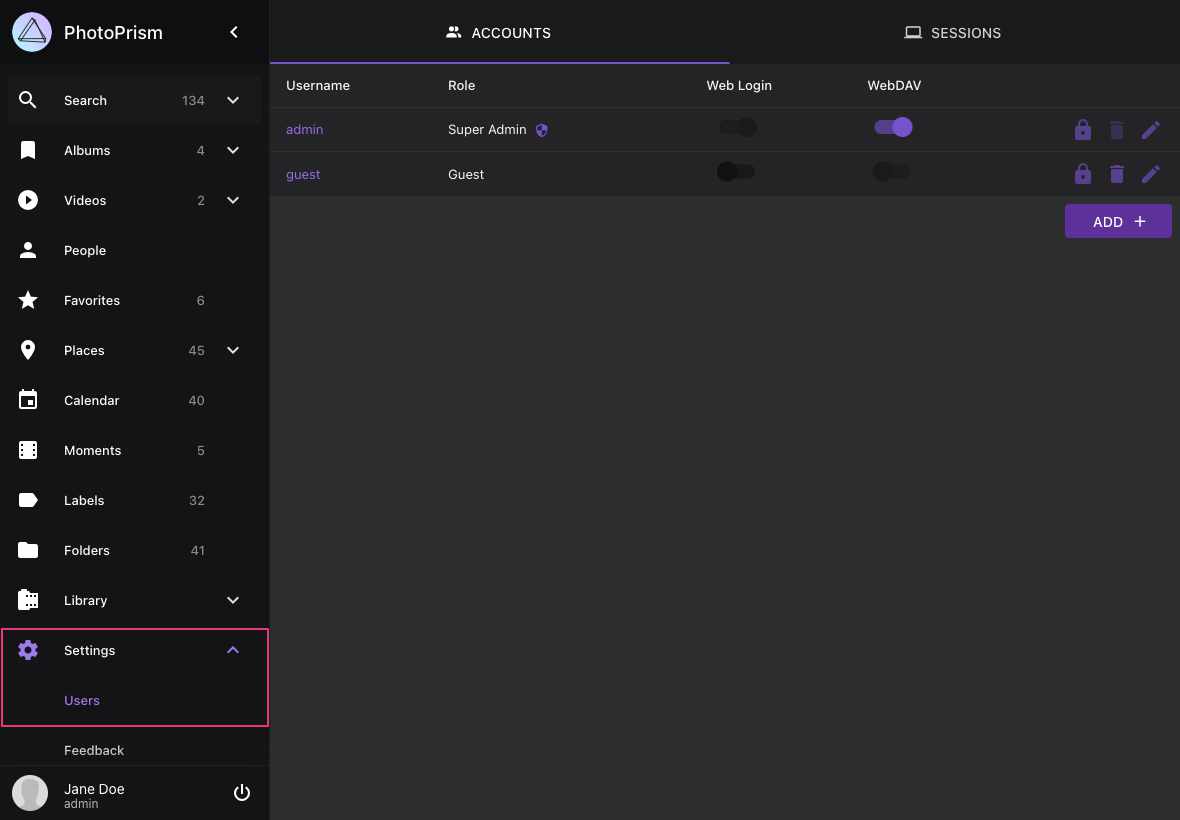
## Adding a New User
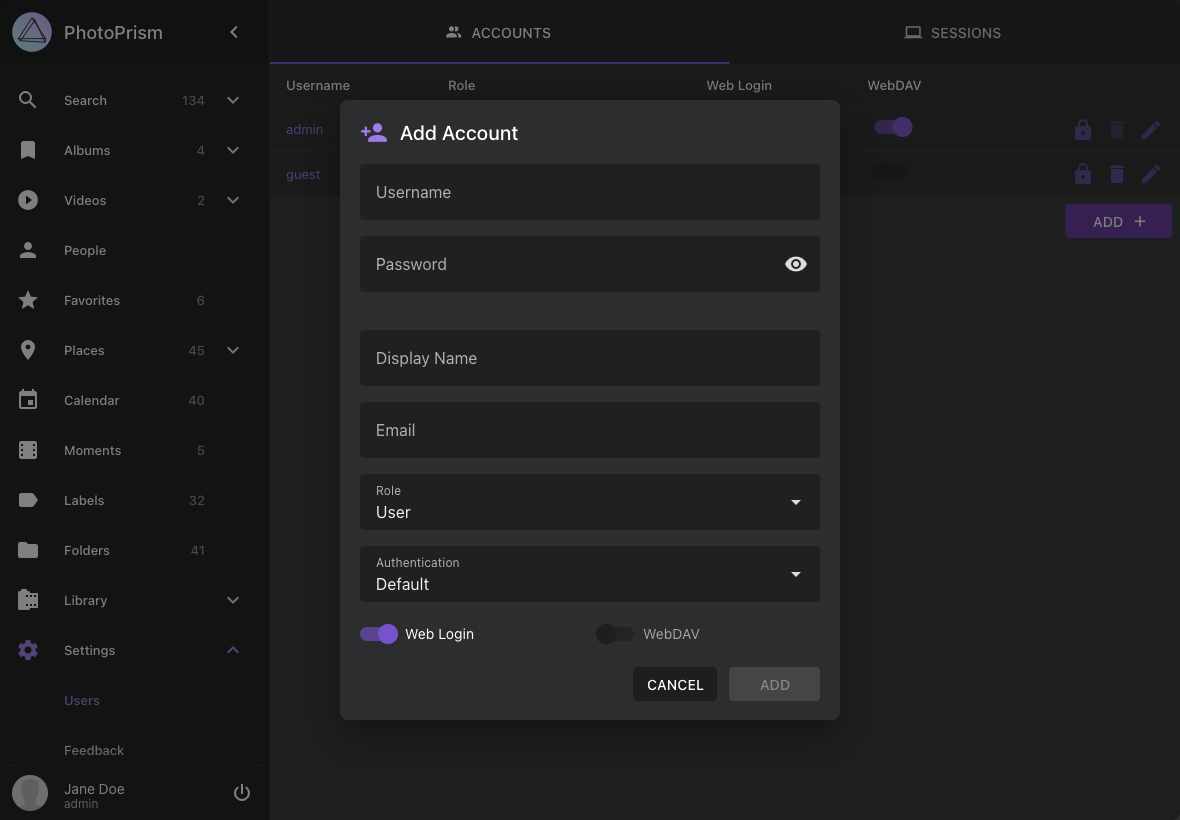
## Editing User Details
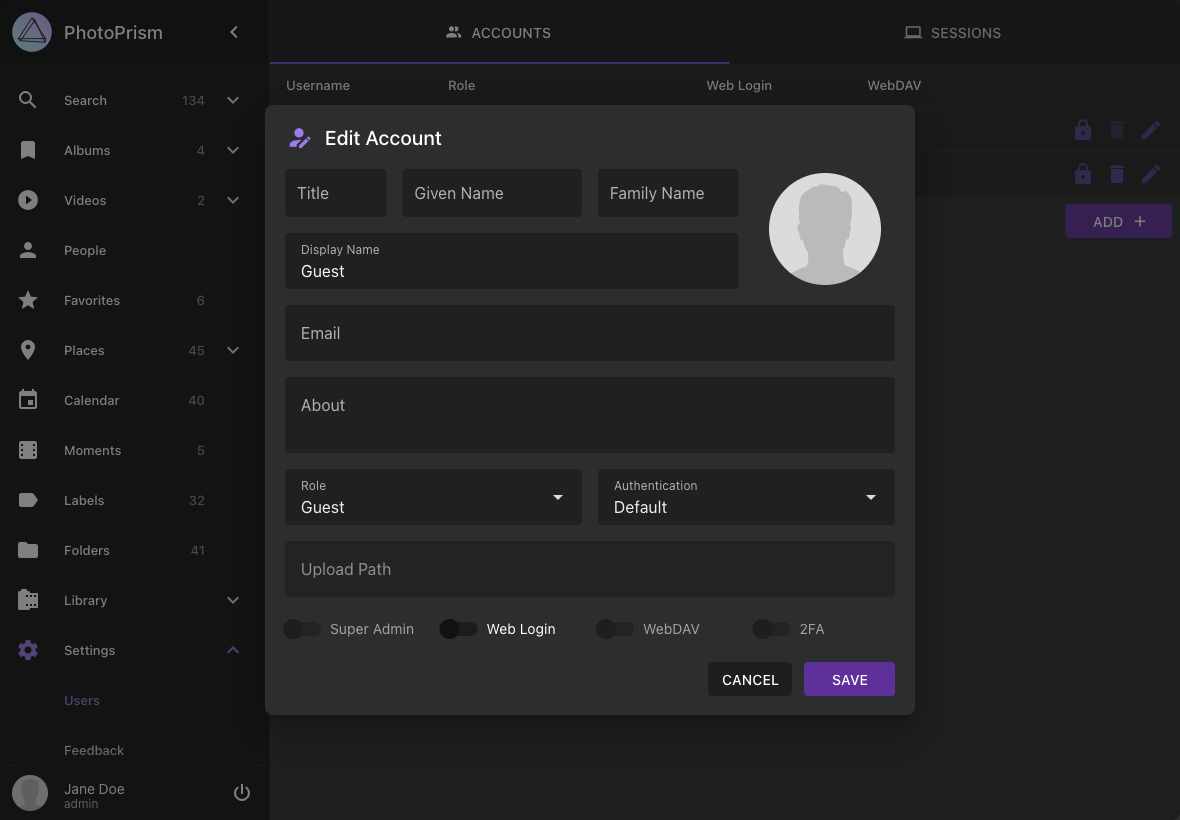
Only [super admins](https://docs.photoprism.app/user-guide/users/roles/#admin) can change the [authentication provider](https://docs.photoprism.app/user-guide/users/cli/#command-options) of another account through the web interface. Their own account is excluded so that they do not accidentally lock themselves out, for example by setting the provider to `none`.
## Changing Passwords
Super admins can reset another user's password without knowing the current one. Regular admins can change another user's password only if they know the current password.
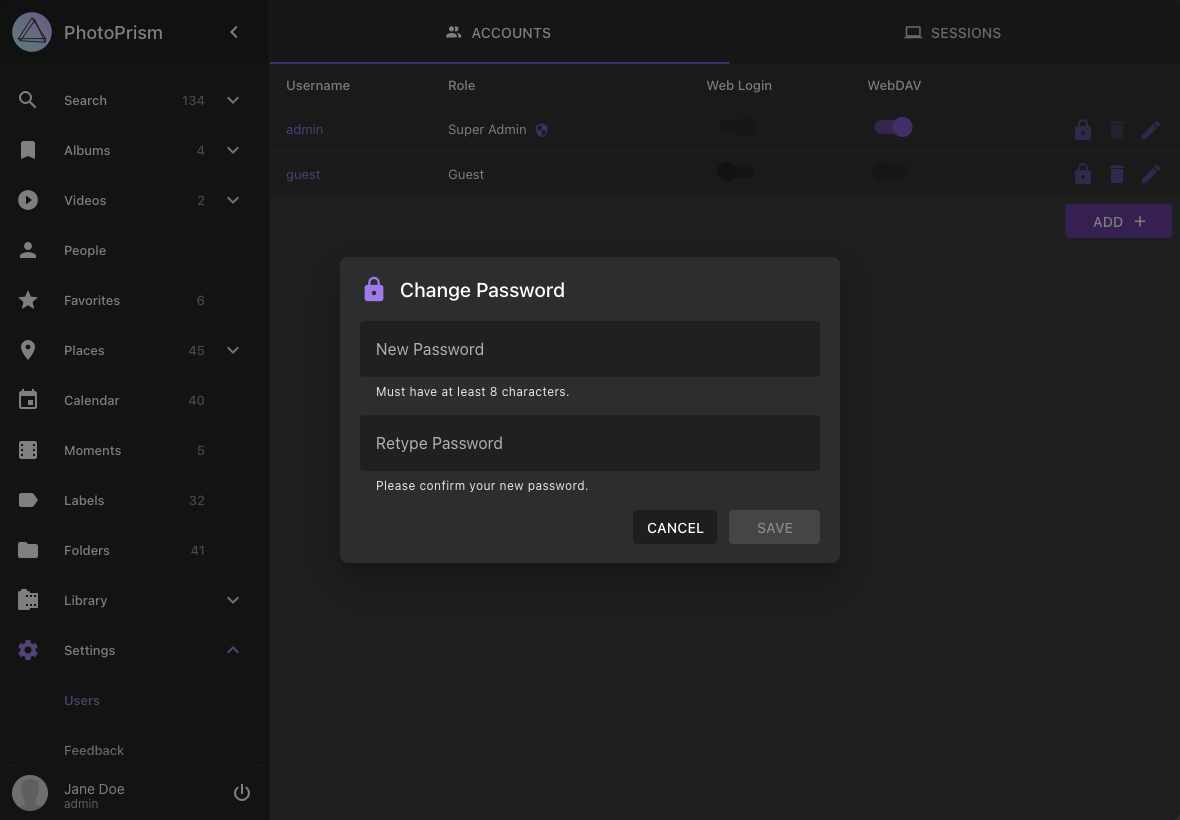
## Deleting a User
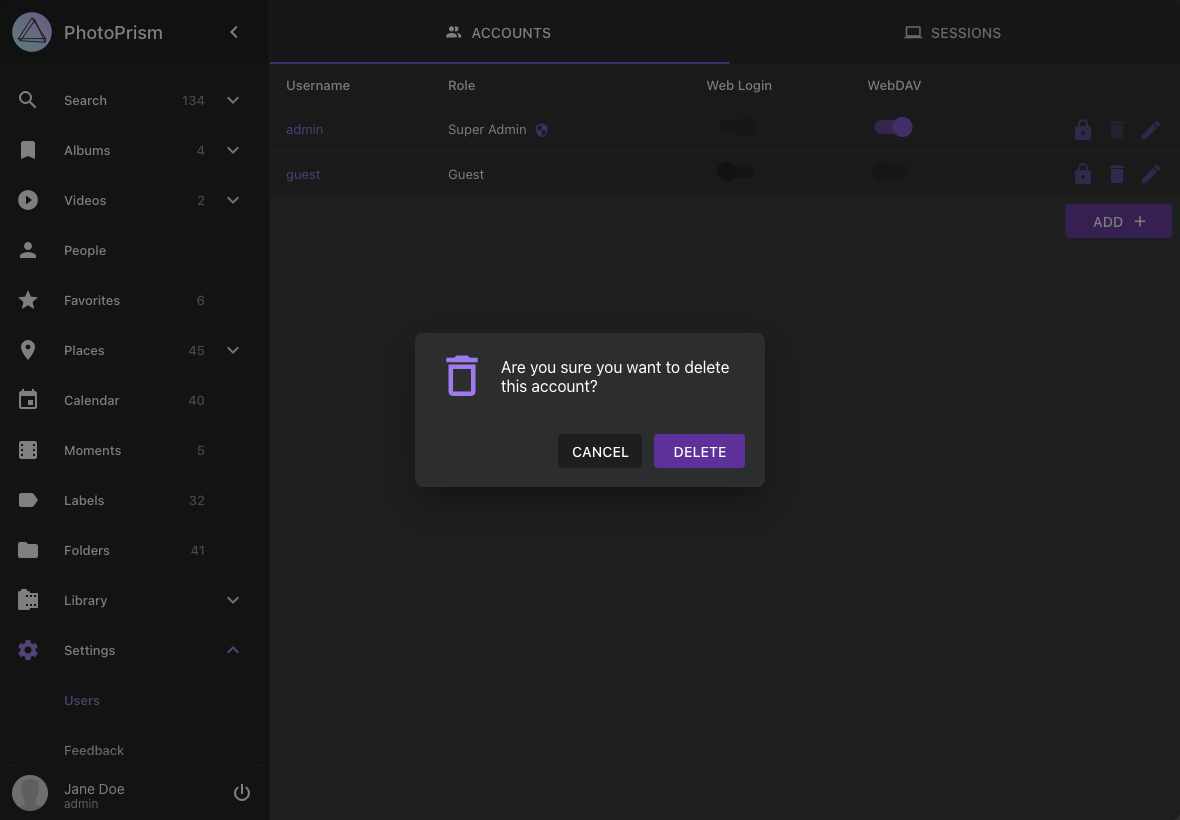
## Managing Sessions
You can view and delete active sessions by navigating to *Settings > Users > Sessions* as an [Admin](https://docs.photoprism.app/user-guide/users/roles/#admin):
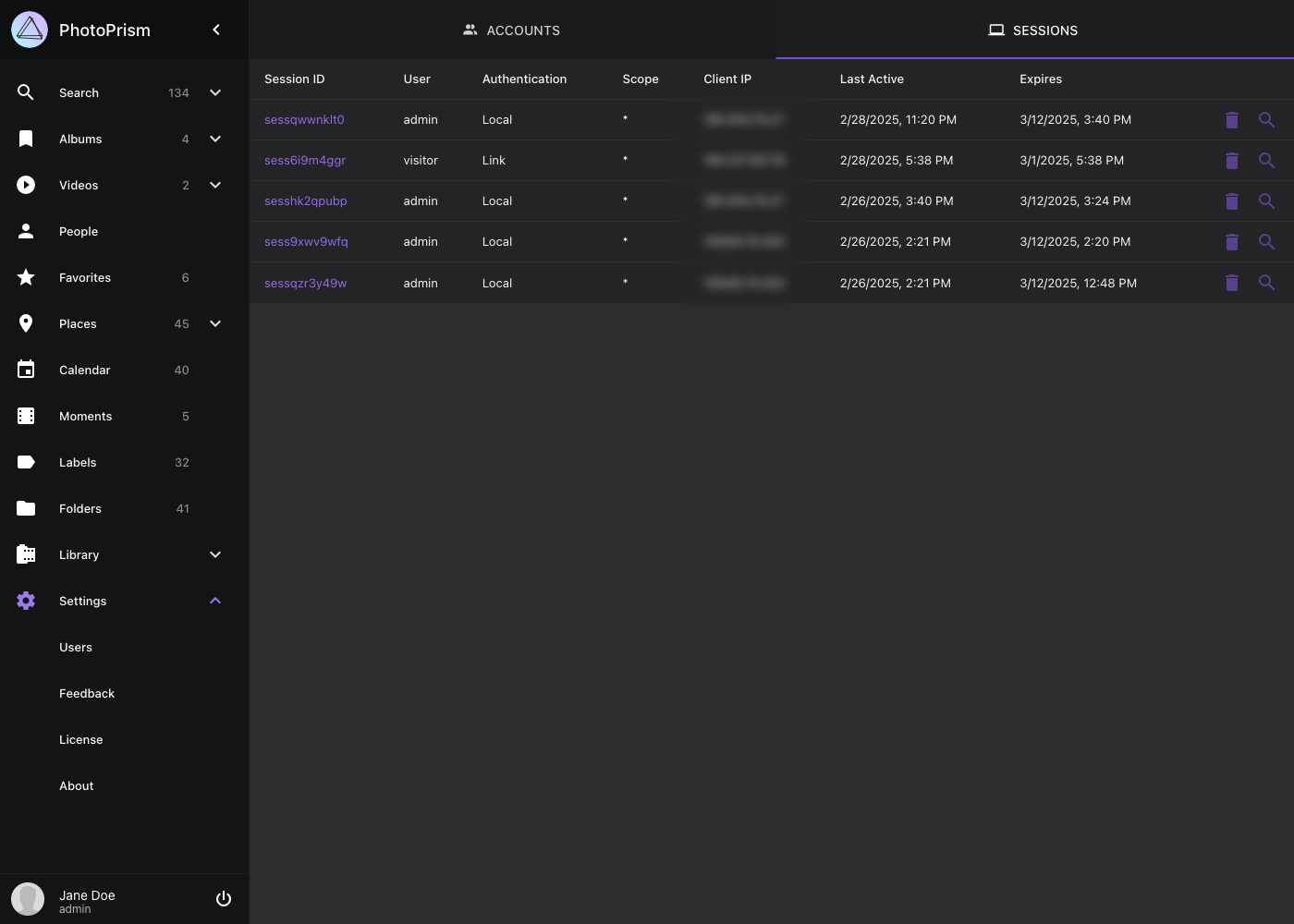
To view session details, click :material-magnify:.
To delete a session, click :material-delete:.
!!! info ""
When a password or privilege level changes, PhotoPrism invalidates that user's other active sessions to protect the account.
---
# CLI Commands
Source: https://docs.photoprism.app/user-guide/users/cli/
# User Management Commands
## Changing a Password
Running the following in a terminal changes the password of an existing user without affecting other account settings, for example if you cannot remember the current password or if there was a problem [configuring the initial admin account](https://docs.photoprism.app/getting-started/config-options/#authentication) (replace `[username]` with the username of the account you want to update):
```bash
photoprism passwd [username]
```
Note that when you use [Docker Compose](https://docs.photoprism.app/getting-started/docker-compose/#command-line-interface) and do not [already have a terminal session open](https://docs.photoprism.app/getting-started/docker-compose/#opening-a-terminal), you must prepend `docker compose exec photoprism` so that the command is executed within the `photoprism` container, for example:
```bash
docker compose exec photoprism photoprism passwd admin
```
This also [applies to other terminal commands](https://docs.photoprism.app/getting-started/docker-compose/#examples), including those listed below.
!!! tldr ""
The examples in our documentation use the new `docker compose` command by default. If your server does not yet support it, you can still use `docker-compose` or alternatively `podman-compose` on Red Hat-compatible distributions.
## Removing a Password
Changing the authentication of an existing account to a password-less provider like [*OIDC*](https://docs.photoprism.app/getting-started/advanced/openid-connect/) will not remove a previously set password, so it can still be used to log in (optionally also with [2FA](https://docs.photoprism.app/user-guide/users/2fa/)).
If a local password has been set for [such an account](https://docs.photoprism.app/getting-started/advanced/openid-connect/#existing-accounts) and should no longer be used, you can remove it by running the following command [in a terminal](https://docs.photoprism.app/getting-started/docker-compose/#opening-a-terminal):
```bash
photoprism passwd --rm [username]
```
## Managing User Accounts
As an alternative to the [web user interface](https://docs.photoprism.app/user-guide/users/), you can [run the following commands in a terminal](https://docs.photoprism.app/getting-started/docker-compose/#command-line-interface) to perform tasks such as adding, viewing, editing and deleting user accounts:
| CLI Command | Description |
|---------------------------------------------|----------------------------------------------|
| `photoprism users ls [search]` | Searches existing user accounts |
| `photoprism users legacy [search]` | Searches legacy user accounts |
| `photoprism users add [options] [username]` | Adds a new user account |
| `photoprism users show [username]` | Displays user account information |
| `photoprism users mod [options] [username]` | Modifies an existing user account |
| `photoprism users rm [username]` | Removes a user account |
| `photoprism users reset --yes` | Removes all accounts and resets the database |
!!! tldr ""
Users who experience login problems after upgrading from [development builds](https://docs.photoprism.app/getting-started/updates/#development-preview), or [old releases prior to November 2022](https://docs.photoprism.app/known-issues/#new-user-management), can run the `photoprism users reset --yes` command to recreate the session and user-management database tables so they are compatible with the current version. We recommend trying [`photoprism auth reset --yes`](https://docs.photoprism.app/user-guide/users/cli/#session-management) first, since it is less disruptive. Note that any [client access tokens](https://docs.photoprism.app/user-guide/users/client-credentials/#access-tokens) and [app passwords](https://docs.photoprism.app/user-guide/settings/account/#apps-and-devices) that users may have created will also be deleted and must be recreated.
### Command Options
The `users add` and `users mod` commands support these flags to set or change account properties. The list below shows the baseline flags from the public repository and the edition-specific extensions currently provided by Plus and Pro:
| Command Flag | Description |
|--------------------------------------|---------------------------------------------------------------------|
| `--name NAME`, `-n NAME` | full NAME for display in the interface |
| `--email EMAIL`, `-m EMAIL` | unique EMAIL address of the user |
| `--password PASSWORD`, `-p PASSWORD` | PASSWORD for local authentication (8-72 characters) |
| `--role value`, `-r value` | user account ROLE accepted by the current edition |
| `--auth PROVIDER`, `-A PROVIDER` | authentication PROVIDER supported by the current edition |
| `--auth-id ID` | authentication ID e.g. Subject ID or Distinguished Name (DN) |
| `--superadmin`, `--super` | make user super admin with full access |
| `--no-login`, `-l` | disable login on the web interface |
| `--webdav`, `-w` | allow to sync files via WebDAV |
| `--disable-2fa` | deactivate two-factor authentication |
| `--upload-path value`, `-u value` | upload files to this subfolder in Plus and Pro |
| `--scope SCOPES`, `-s SCOPES` | set a user authorization scope in Pro |
| `--attr ATTRIBUTES`, `-a ATTRIBUTES` | set custom user attributes in Pro |
| `--base-path value`, `-d value` | restrict search to this originals folder in Pro |
!!! note ""
Option availability depends on the edition you run. Our Community Edition provides the baseline command set, while PhotoPrism Plus and Pro add more flags and account-management capabilities. Use `photoprism users add --help` and `photoprism users mod --help` on your instance to see the exact options supported by that build.
### Creating a New Account
The `photoprism users add` command creates a new user account or offers to **restore a previously deleted account** with the same *username* if it exists. For example, you can run the following to add a new admin account with the username "bob" and the password "mysecret":
```bash
docker compose exec photoprism photoprism users add -p mysecret -n "Bob" bob
```
If you do not specify an initial password with the `-p` flag, you will be prompted to enter a password for the new account. Further account properties can be set with the flags listed above.
!!! example ""
Personal editions focus on *Admin*, *Guest*, and related baseline account types. Additional roles such as *Manager*, *User*, *Viewer*, and *Contributor* are only available with PhotoPrism Pro.
### Viewing Account Details
To view the account properties of a specific user, use the `show` subcommand:
```bash
docker compose exec photoprism photoprism users show bob
```
### Searching User Accounts
To list all existing accounts, you can run the following:
```bash
docker compose exec photoprism photoprism users ls
```
With the `photoprism users ls` command, you can also find specific accounts based on a search term you provide:
```bash
docker compose exec photoprism photoprism users ls bob
```
To display a description and the available options for a command, use the `--help` flag:
```bash
docker compose exec photoprism photoprism users ls --help
```
## Viewing Login Attempts
For security reasons, the authentication logs are not accessible from the web user interface. They can only be viewed in the application service logs or by running the following command in a terminal:
```bash
docker compose exec photoprism photoprism audit logins [username]
```
### Command Options
You can combine it with these flags to change the output format and the maximum number of search results:
| Command Flag | Description |
|--------------|----------------------------------------|
| `--md, -m` | format as machine-readable Markdown |
| `--csv, -c` | export as semicolon separated values |
| `--tsv, -t` | export as tab separated values |
| `-n LIMIT` | LIMIT number of results (default: 100) |
### Example Report
| Client IP | Username | Realm | Status | Last Login | Failed At |
|------------|----------|-------|--------|---------------------|-----------|
| 172.19.0.1 | user | api | OK | 2023-02-03 07:17:46 | |
| 172.19.0.1 | viewer | api | OK | 2023-02-03 07:16:55 | |
| 172.19.0.1 | admin | api | OK | 2023-02-03 06:55:06 | |
!!! tldr ""
Run `photoprism audit reset --yes` to clear all audit logs and reset the database table to a clean state.
## Session Management
You can use the following terminal commands to generate, inspect, and, if necessary, delete access tokens for the authentication of browsers and other clients (including [app passwords](https://docs.photoprism.app/user-guide/users/2fa/#step-3-app-passwords)):
| CLI Command | Description |
|-------------------------------------|----------------------------------------------------------|
| `photoprism auth ls [search]` | Lists currently authenticated users and clients |
| `photoprism auth add [username]` | Adds a new authentication secret for client applications |
| `photoprism auth show [identifier]` | Shows detailed information about a session |
| `photoprism auth rm [identifier]` | Deletes a session by id or access token |
| `photoprism auth reset --yes` | Resets the authentication of all users and clients |
In order to grant limited API access to other applications and services, the `photoprism clients add` command lets you generate [OAuth2 client credentials](https://docs.photoprism.app/user-guide/users/client-credentials/#client-credentials) for them, or you can use the `photoprism auth add` command to [generate access tokens](https://docs.photoprism.app/user-guide/users/client-credentials/#access-tokens) with a [limited scope](https://docs.photoprism.app/user-guide/users/client-credentials/#authorization-scopes) and lifetime.
[Learn more ›](https://docs.photoprism.app/user-guide/users/client-credentials/)
!!! tldr ""
Should you experience login problems, for example after upgrading from a [previous release](https://docs.photoprism.app/release-notes/) or [development preview](https://docs.photoprism.app/getting-started/updates/#development-preview), we recommend running the `photoprism auth reset --yes` command [in a terminal](https://docs.photoprism.app/getting-started/docker-compose/#command-line-interface) to reset the `auth_sessions` table to a clean state and force a re-login of all users. Note that any [client access tokens](https://docs.photoprism.app/user-guide/users/client-credentials/#access-tokens) and [app passwords](https://docs.photoprism.app/user-guide/settings/account/#apps-and-devices) that users may have created will also be deleted and must be recreated.
---
# Account Roles
Source: https://docs.photoprism.app/user-guide/users/roles/
# Roles and Permissions
| Role | Search Library | View & Download | Upload | WebDAV | Manage |
|---------|:----------------:|:----------------:|:----------------:|:--------:|:----------------:|
| admin | :material-check: | :material-check: | :material-check: | optional | :material-check: |
| user | :material-check: | :material-check: | :material-check: | optional | |
| viewer | except private | except private | | | |
| guest | | shared | | | |
| visitor | | shared | | | |
## Admin
*Admins* have unrestricted access to all pictures, albums, and settings.
Regular *Admins* can lose their privileges due to an intentional or accidental role change. However, accounts with the optional "superadmin" status (can be set with the `-s` flag) retain their admin privileges even if they are assigned a non-admin or invalid role. This is to prevent them from locking themselves out.
When *Super Admins* change settings such as the language or theme, these automatically become the default settings for other users, unless they have explicitly made a different choice. In addition, global feature flags can only be changed by *Super Admins*.
## User
*Users* have full access to the library and can view, edit, and delete all pictures and albums. Unlike *Admins*, *Users* cannot view or change the [Library](https://docs.photoprism.app/user-guide/settings/library/) and [Advanced Settings](https://docs.photoprism.app/user-guide/settings/advanced/), only personal preferences such as theme, language, and password. In addition, their WebDAV access can be disabled. Future releases may include more ways to customize user privileges, e.g. with individual account attributes.
## Viewer
*Viewers* are similar to regular *Users*, except that they do not have write access to the library and cannot see content that has been archived or marked private. They also cannot upload/import files or trigger indexing. Like all registered users, *Viewers* can change and save personal preferences such as theme, language, and password.
## Manager
*Managers* are intended for delegated administration. They can help manage content and selected account settings without being granted the full super-admin capabilities that affect global configuration defaults.
## Contributor
*Contributors* are intended for upload-centric workflows. They can submit files to their assigned upload area without receiving unrestricted access to all personal and administrative settings.
## Guest
*Guests* have read-only access to view and download the resources that other users have shared with them. They can also change personal settings such as theme, language, and password.
## Visitor
*Visitors* cannot be added manually. This special role is tied to a system account that represents anonymous users who use links to view albums or other content that has been shared with them. Visitors can only access these resources and cannot log in with a username or password. Other than guests, they also cannot retain their personal settings for longer than their browsing session lasts.
!!! example ""
Additional [user account](https://docs.photoprism.app/user-guide/users/cli/#command-options) roles such as *Manager*, *User*, *Viewer*, and *Contributor* are only available with PhotoPrism Pro. Personal editions focus on the baseline roles shown during local setup.
---
# Sharing with Guests
Source: https://docs.photoprism.app/user-guide/users/sharing/
# Sharing Albums with Guests
Users with the [admin](https://docs.photoprism.app/user-guide/users/roles/#admin) or [user role](https://docs.photoprism.app/user-guide/users/roles/#user) can [create secret links](https://docs.photoprism.app/user-guide/share/) to give other [user accounts](https://docs.photoprism.app/user-guide/users/) shared access to selected [Albums](https://docs.photoprism.app/user-guide/organize/albums/), [Moments](https://docs.photoprism.app/user-guide/organize/moments/), [Months](https://docs.photoprism.app/user-guide/organize/calendar/), [Regions](https://docs.photoprism.app/user-guide/search/#regions), and [Folders](https://docs.photoprism.app/user-guide/organize/folders/). This works in the same way as [sharing with](https://docs.photoprism.app/user-guide/share/) [visitors](https://docs.photoprism.app/user-guide/users/roles/#visitor) who do not have an account.
When authenticated users with [limited privileges](https://docs.photoprism.app/user-guide/users/roles/), such as [guests](https://docs.photoprism.app/user-guide/users/roles/#guest), open a share link, they gain permanent read-only access to the shared items until the link is removed or expires.
[Learn more ›](https://docs.photoprism.app/user-guide/share/)
!!! tldr ""
In a future release, you will be able to share content with local users directly from the web interface without having to [create links](https://docs.photoprism.app/user-guide/share/) first.
## Multiple Libraries
[PhotoPrism® Plus](https://www.photoprism.app/editions/#compare) includes advanced multi-user functionality and additional account roles. These roles are intended for situations where you want other people to have access to your library, such as giving family members access to your pictures without granting write permissions or exposing private content.
It is recommended to set up additional instances if you have multiple users in a family, so that everyone can manage their own files independently. This way you can avoid problems with conflicting library settings, file permissions, and dealing with duplicates.
In future versions, users will be able to share albums and other content in a decentralized way, regardless of where their library is hosted. We are also working on a dedicated web interface for managing multiple libraries and user accounts, which will be made available as a separate tool.
!!! tldr ""
Our ultimate goal is to make personal sharing compatible with other apps like [Pixelfed](https://pixelfed.org/) and [Mastodon](https://joinmastodon.org/).
---
# Setting Up 2FA
Source: https://docs.photoprism.app/user-guide/users/2fa/
# 2-Factor Authentication
Two-factor authentication (2FA) can add an extra layer of security to [your account](https://docs.photoprism.app/user-guide/settings/account/) in case someone gains access to your password. If enabled, you will need a randomly generated verification code in addition to your password to log in:
### Authenticator Apps
To enable 2FA for your account, you need a compatible authenticator app or device, for example:
- [Google Authenticator](https://apps.apple.com/us/app/google-authenticator/id388497605)
- [Microsoft Authenticator](https://apps.apple.com/us/app/microsoft-authenticator/id983156458)
- [2FA Authenticator (2FAS)](https://apps.apple.com/us/app/2fa-authenticator-2fas/id1217793794)
It is best if you have the authenticator app installed on your phone, as this way you can easily set it up by scanning the displayed QR code with your camera and always have it with you.
!!! info "Hardware Devices"
While there are also dedicated hardware devices available as an alternative to authenticator apps, these are less common and we cannot give any recommendations.
## Setup
### Step 1: Verification Code
You can enable 2FA for your account by navigating to [*Settings > Account*](https://docs.photoprism.app/user-guide/settings/account/) and then clicking the *2-Factor Authentication* button to open the setup dialog:
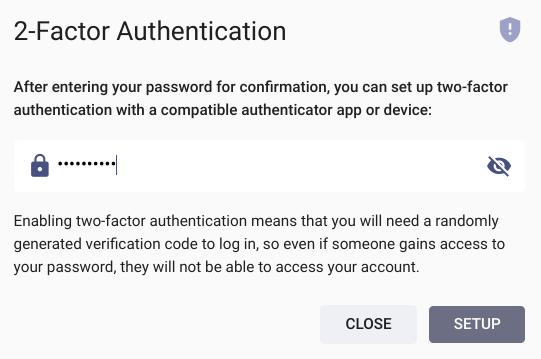
On the following page, scan the displayed QR code with your authenticator app (or use the setup key shown if you are using an app or device without camera) and then enter the generated verification code to proceed.
### Step 2: Recovery Code
In the last step before 2FA is activated, you will be shown a recovery code that you can use to access your account when you cannot generate a valid verification code with your app or device:
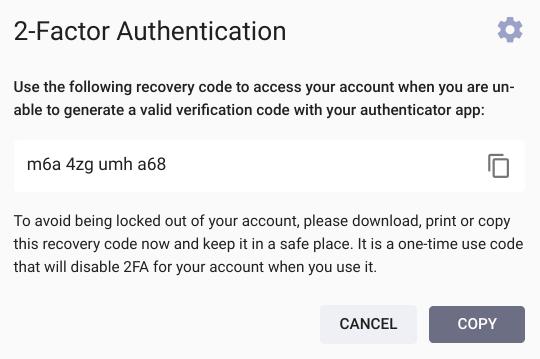
!!! danger ""
To avoid being locked out of your account, please download, print or **copy this recovery code** and keep it in a safe place. It is a one-time use code that will **disable 2FA for your account** when you use it.
### Step 3: App Passwords
If 2FA is enabled for your account, other apps and services will no longer be able to use your password as they do not have access to the verification codes.
You can therefore generate app-specific passwords for them by navigating to [*Settings > Account*](https://docs.photoprism.app/user-guide/settings/account/) and then clicking the *Apps and Devices* button. We also recommend using app-specific passwords in case 2FA is not enabled for your account.
Example for generating an app password that you can use with [WebDAV-compatible](https://docs.photoprism.app/user-guide/sync/webdav/) file synchronization apps like [PhotoSync](https://docs.photoprism.app/user-guide/sync/mobile-devices/):
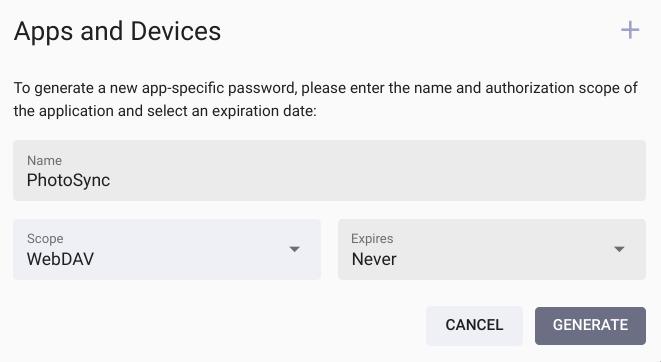
!!! tldr ""
By selecting the *WebDAV* [scope](https://docs.photoprism.app/user-guide/users/client-credentials/#authorization-scopes), you ensure that the app password cannot be used to log in through the regular user interface or for other actions. Apps will also not be able to change your password or manage user accounts, even if you grant them *Full Access*.
## New Authenticator
To switch to a new authenticator app or device, first [deactivate 2FA](https://docs.photoprism.app/user-guide/users/2fa/#deactivating-2fa) and then [re-enable it](https://docs.photoprism.app/user-guide/users/2fa/#setup).
## Deactivating 2FA
If 2FA has been enabled for your account, you can disable it by navigating to [*Settings > Account*](https://docs.photoprism.app/user-guide/settings/account/), clicking the *2-Factor Authentication* button and then entering your password for confirmation:
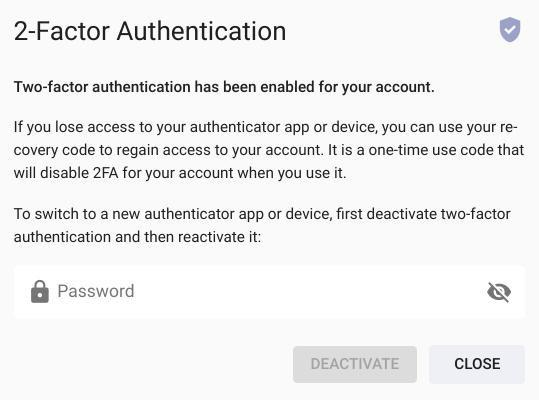
!!! tldr ""
Should you lose access to your authenticator app or device, you can use your [recovery code](https://docs.photoprism.app/user-guide/users/2fa/#step-2-recovery-code) to regain access to your account. It is a one-time use code that disables 2FA for your account when you use it.
Alternatively, if you don't remember your recovery code, you can [ask an administrator](https://docs.photoprism.app/user-guide/users/roles/#admin) to disable 2FA for you in the *User Details* dialog of the [Admin Web UI](https://docs.photoprism.app/user-guide/users/#editing-user-details) or by running the [following command](https://docs.photoprism.app/user-guide/users/cli/#command-options) in a [terminal](https://docs.photoprism.app/getting-started/docker-compose/#command-line-interface):
```bash
photoprism users mod --disable-2fa [username]
```
---
# Client Credentials
Source: https://docs.photoprism.app/user-guide/users/client-credentials/
# Authenticating External Apps and Services
In order to grant limited access to other applications and services, administrators can use the [`photoprism auth`](https://docs.photoprism.app/user-guide/users/cli/#session-management) and [`photoprism clients`](https://docs.photoprism.app/user-guide/users/client-credentials/#client-credentials) subcommands to generate authentication tokens for them. While [app passwords](https://docs.photoprism.app/user-guide/users/client-credentials/#app-passwords) are bound to user accounts and can be [generated by anyone](https://docs.photoprism.app/user-guide/settings/account/#apps-and-devices) from the UI, [OAuth2](https://docs.photoprism.app/developer-guide/api/oauth2/) [access tokens](https://docs.photoprism.app/user-guide/users/client-credentials/#access-tokens) and [client credentials](https://docs.photoprism.app/user-guide/users/client-credentials/#client-credentials) can be used to [access the REST API](https://docs.photoprism.app/developer-guide/api/) without being tied to a user account.
## App Passwords
All users can generate app-specific passwords for their own use from the web interface by navigating to [*Settings > Account*](https://docs.photoprism.app/user-guide/settings/account/) and then clicking the [*Apps and Devices*](https://docs.photoprism.app/user-guide/settings/account/#apps-and-devices) button.
Alternatively, running the following command [in a terminal](https://docs.photoprism.app/getting-started/docker-compose/#command-line-interface) will generate a new app-specific password e.g. for the *admin* account, so that WebDAV-compatible clients can synchronize files even if [2FA is enabled for the account](https://docs.photoprism.app/user-guide/users/2fa/) or the [account password is changed](https://docs.photoprism.app/user-guide/settings/account/#change-password):
```bash
docker compose exec photoprism photoprism auth add -n Sync -s "webdav" admin
```
You will then be shown the generated app password so you can copy it and keep it in a safe place or enter it directly into an app, as you will not be able to see it again:
```
|-----------------------------|---------------------|
| App Password | Authorization Scope |
|-----------------------------|---------------------|
| HY8fxO-8hvNqB-43UV4q-1AZ0vu | webdav |
|-----------------------------|---------------------|
```
For added security, we recommend setting an expiration date for the app passwords and access tokens you generate. Common scopes for app passwords are `"*"` for full access or `"webdav"` for [WebDAV-compatible](https://docs.photoprism.app/user-guide/sync/webdav/) [file synchronization apps](https://docs.photoprism.app/user-guide/sync/mobile-devices/).
!!! note ""
Besides using [app passwords](https://docs.photoprism.app/user-guide/settings/account/#apps-and-devices) to create sessions through the `POST /api/v1/session` endpoint, developers can also [use them as access tokens](https://docs.photoprism.app/developer-guide/api/#client-authentication) in the *Bearer Authorization* header without first creating a session access token.
### Command Options
The following flags can be used with the `photoprism auth add` command (if you omit *name* or *scope*, you will be asked to enter them interactively):
| Command Flag | Description |
|-----------------------------------|--------------------------------------------------------------------------------------------------------------|
| `--name CLIENT, -n CLIENT` | CLIENT name to help identify the application |
| `--scope SCOPES, -s SCOPES` | authorization SCOPES e.g. "metrics" or "photos albums" (`"*"` to allow all) |
| `--expires LIFETIME, -e LIFETIME` | authentication LIFETIME in seconds, after which access expires (-1 to disable the limit) (default: 31536000) |
### Authorization Scopes
Run the following command to see the authorization scopes supported by your current version:
```bash
docker compose exec photoprism photoprism show scopes
```
You can then pass one or more of those scope names to `photoprism auth add` or `photoprism clients add`, depending on whether you need an app password, an access token, or OAuth2 client credentials.
!!! note ""
Clients authenticated with app passwords are unable to change the account password or manage user accounts, even if you specify all scopes or use the wildcard `"*"` to allow all.
## Access Tokens
If you do not specify a username as argument for the `photoprism auth add` command, a client access token will be generated (the same flags and scopes as above can be used to limit token authorization and lifetime):
```
|--------------------------------------------------|---------------------|
| Access Token | Authorization Scope |
|--------------------------------------------------|---------------------|
| 7dbfa37b5a3db2a9e9dd186479018bfe2e3ce5a71fc2f955 | files folders |
|--------------------------------------------------|---------------------|
```
Generating access tokens is a good choice for developers and other advanced users to connect scripts and external services to the PhotoPrism API, e.g. services that collect metrics or start indexing at regular intervals.
Please note, however, that client access tokens cannot be used to synchronize files via WebDAV, even if the token authorization scope is set to `"webdav"` or `"*"`, as this requires a registered user account. Access tokens also cannot be used as a direct password replacement for apps, since clients are not allowed to use the `POST /api/v1/session` endpoint that is required for logging in through the user interface.
## Client Credentials
If clients support authentication via [OAuth2 client credentials](https://www.oauth.com/oauth2-servers/access-tokens/client-credentials/), you can use the following terminal commands to generate a `client_id` and `client_secret` for them, list registered clients, and delete client credentials that are no longer used:
| CLI Command | Description |
|----------------------------------------|--------------------------------------------|
| `photoprism clients ls [search]` | Lists registered client applications |
| `photoprism clients add [username]` | Registers a new client application |
| `photoprism clients show [identifier]` | Shows client configuration details |
| `photoprism clients mod [identifier]` | Updates client application settings |
| `photoprism clients rm [identifier]` | Deletes the specified client application |
| `photoprism clients reset --yes` | Removes all registered client applications |
For example, running the following [in a terminal](https://docs.photoprism.app/getting-started/docker-compose/#command-line-interface) will generate credentials for [Prometheus](https://prometheus.io/docs/prometheus/latest/configuration/configuration/#oauth2), with access limited to the *metrics* endpoint:
```bash
docker compose exec photoprism photoprism clients add -n Prometheus -s metrics
```
You will then be shown the generated `client_id` and `client_secret` so you can copy them and keep them in a safe place:
```
|------------------|----------------------------------|
| Client ID | Client Secret |
|------------------|----------------------------------|
| csce0w2joodmirvi | 5VKkBeZLDvojjpE9XzCMXShnrxmxHWvN |
|------------------|----------------------------------|
```
!!! note ""
[OAuth2 client credentials](https://www.oauth.com/oauth2-servers/access-tokens/client-credentials/) cannot be directly used for synchronizing files via WebDAV, as a [password replacement for apps](https://docs.photoprism.app/user-guide/settings/account/#apps-and-devices), or for logging in to the web interface.
### Command Options
The following parameters can be used with the `photoprism clients add` command, e.g. to limit the number of access tokens the client can request:
| Command Flag | Description |
|-----------------------------------|-----------------------------------------------------------------------------------------------------|
| `--name CLIENT, -n CLIENT` | CLIENT name to help identify the application |
| `--role ROLE, -r ROLE` | client authorization ROLE (default: "client") |
| `--scope SCOPES, -s SCOPES` | client authorization SCOPES e.g. "metrics" or "photos albums" (`"*"` to allow all) |
| `--expires LIFETIME, -e LIFETIME` | access token LIFETIME in seconds, after which a new token must be requested (default: 86400) |
| `--tokens NUMBER, -t NUMBER` | maximum NUMBER of access tokens that the client can request (-1 to disable the limit) (default: 10) |
If you omit the *name* or *scope* parameter, you will be asked to enter them interactively. To see the currently supported scopes, run:
```bash
docker compose exec photoprism photoprism show scopes
```
!!! note ""
When requesting access tokens, clients can further restrict the scope of the tokens by passing the scope parameter to the `POST /api/v1/oauth/token` endpoint.
---
# Mobile App (PWA)
Source: https://docs.photoprism.app/user-guide/pwa/
# Mobile App (PWA)
PhotoPrism currently does not include a native app that can be installed through an app store. However, there are [many compatible apps](https://www.photoprism.app/partners/), and you can conveniently install our Progressive Web App (PWA) on your desktop or home screen for an almost native app-like experience.
## Installation Requirements
The compatibility of our PWA has been tested with Apple Safari and Google Chrome, but other modern browsers like Firefox or Microsoft Edge may generally be compatible as well.
!!! note ""
When self-hosting PhotoPrism, please make sure the [site URL is configured correctly](https://docs.photoprism.app/getting-started/config-options/#site-information). In addition, PWAs must be hosted on a dedicated domain with HTTPS in order to be installed. If that is not possible, you can still choose "Create Shortcut...", "Add to Home Screen...", or a similarly named action from the browser menu to make the app accessible from your home screen.
## Step-by-Step Instructions
=== "Apple Safari (iOS)"
1. Open PhotoPrism in Safari
2. Click :material-export-variant:
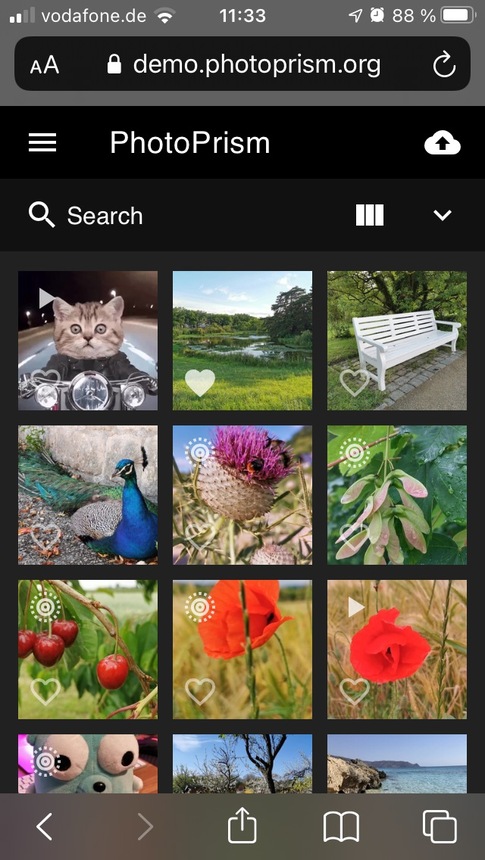
3. Click *Add to Home Screen*
4. Choose a name and click *Add*
5. The PWA is now installed on the home screen of your device and can be launched from there.
!!! info "Preserve Original Format When Uploading on iOS"
iOS may convert photos and videos to a more compatible format **before** they are uploaded via Safari or the PhotoPrism PWA, so PhotoPrism will receive and store the already converted files.
To preserve the original format:
- In the iOS Photos picker, tap the three-dot menu (…) → *Options* → set **Format** to **Current** instead of **Automatic** so your files are uploaded in the original format.
- Alternatively, use dedicated sync apps like [PhotoSync](https://docs.photoprism.app/user-guide/sync/mobile-devices/#using-photosync), which can upload files in their original format via WebDAV.
=== "Google Chrome (Android)"
1. Open PhotoPrism in Chrome
2. Click :material-dots-vertical: (of the Chrome, not website)
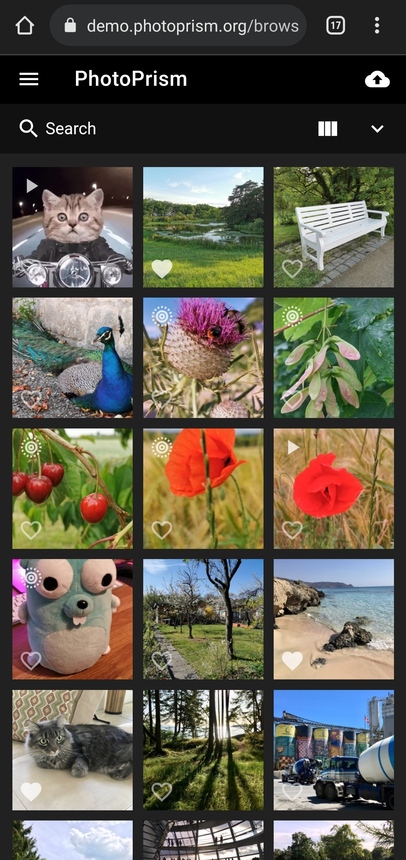
3. Click *Install app*
4. Choose a name and click *Add*
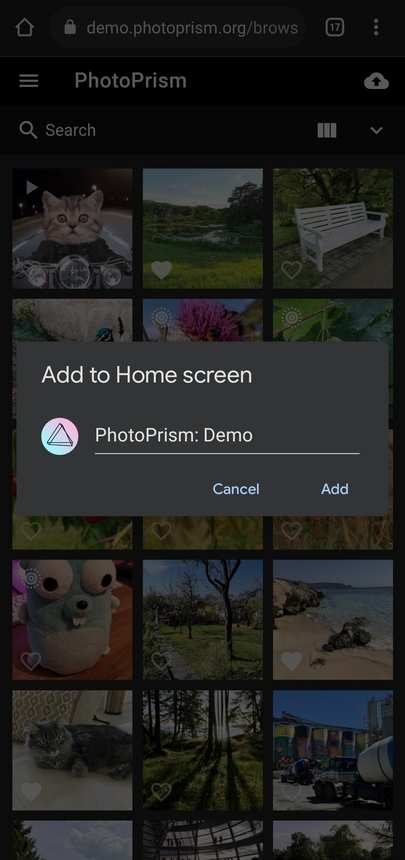
---
# iOS and Android
Source: https://docs.photoprism.app/user-guide/native-apps/
# Native Mobile Apps for iOS and Android
As an addition to our platform-independent [Progressive Web App (PWA)](https://docs.photoprism.app/user-guide/pwa/), the following native apps are being maintained by other companies and individual developers:
| Name | Platform | Developer | License | Download |
|---------------------------------------------------|--------------|---------------------------------------------------------|------------------------------------------------------------------|----------------------------------------------------------------------------------------------------------------------|
| [Gallery for PhotoPrism](https://docs.photoprism.app/user-guide/native-apps/#gallery-for-photoprism) | Android | [Oleg Koretsky](https://github.com/Radiokot) | [GPL 3.0](https://github.com/Radiokot/photoprism-android-client) | [Google Play](https://link.photoprism.app/gallery-app), [F-Droid](https://link.photoprism.app/gallery-fdroid) |
| [PhotoSync](https://docs.photoprism.app/user-guide/native-apps/#photosync) | iOS, Android | [touchbyte GmbH](https://link.photoprism.app/photosync) | Proprietary | [App Store](https://link.photoprism.app/photosync-ios), [Google Play](https://link.photoprism.app/photosync-android) |
| [Stream](https://docs.photoprism.app/user-guide/native-apps/#stream) | iOS | [Yu Yang](https://link.photoprism.app/stream-app) | Proprietary | [App Store](https://link.photoprism.app/stream-ios) |
[View all ›](https://docs.photoprism.app/developer-guide/native-apps/)
## Gallery for PhotoPrism
With this [Android app](https://github.com/Radiokot/photoprism-android-client), you can easily browse the pictures in your library and share them with other apps. The app offers a timeline view, authentication, bookmarks, and many other useful features. It can also be installed on Android TV, so you can browse your library with a remote control. [Learn more ›](https://radiokot.com.ua/p/photoprism-android-gallery)
## PhotoSync
[PhotoSync](https://link.photoprism.app/photosync) lets you transfer photos and videos directly from your mobile phone. It backs up your pictures securely in the background or you can manually select files to upload into specific folders. [Learn more ›](https://link.photoprism.app/photosync)
## Stream
[Stream](https://link.photoprism.app/stream-app) is an iOS app that brings PhotoPrism and local photos together in one unified gallery. It features natural language search for easy photo discovery and supports batch operations for efficient management. [Learn more ›](https://link.photoprism.app/stream-app) [Read FAQ ›](https://link.photoprism.app/stream-faq)
---
# Release Notes
Source: https://docs.photoprism.app/release-notes/
# Release Notes
!!! note ""
You can test [**upcoming features and enhancements**](https://link.photoprism.app/roadmap) by changing the image tag from `:latest` to [`:preview`](https://hub.docker.com/r/photoprism/photoprism/tags?page=1&name=preview) and then following [our update guide](https://docs.photoprism.app/getting-started/updates/#development-preview) to download the newest image from [Docker Hub](https://hub.docker.com/r/photoprism/photoprism/tags) and restart your instance.
### July 28, 2026
Build 260728-bbde8f452
With this [major new release](https://github.com/photoprism/photoprism/releases/tag/260728-bbde8f452), [equirectangular 360° photos and videos](https://github.com/photoprism/photoprism/issues/5623) can now be explored interactively. To preserve detail when zooming in, the maximum [thumbnail and video resolution has been increased to 16K](https://github.com/photoprism/photoprism/issues/5669).
A new [inline document viewer](https://github.com/photoprism/photoprism/issues/5488) makes it possible to read multi-page PDFs without downloading them first. Metadata enthusiasts benefit from enhanced XMP support, allowing GPS coordinates and face regions to be imported from both [XMP sidecar files](https://github.com/photoprism/photoprism/issues/5712) and [embedded XMP metadata](https://github.com/photoprism/photoprism/issues/5751). In addition, camera and lens make and model information can now be [edited through the CLI and API](https://github.com/photoprism/photoprism/issues/5663). Elsewhere, the Settings interface has been reorganized and now includes a dedicated Accessibility section, where you can, for example, prevent action menus from opening on hover. Album download and sorting options have moved to a new Collections tab.
[AI-related improvements](https://docs.photoprism.app/user-guide/ai/) include a [new `service_tier` option](https://github.com/photoprism/photoprism/issues/5725) for more cost-effective API requests, along with various [fixes and improvements for Ollama](https://github.com/photoprism/photoprism/issues/5728). A special thank you to all [our members](https://www.photoprism.app/editions/#compare), [contributors](https://docs.photoprism.app/developer-guide/pull-requests/), and [testers](https://github.com/photoprism/photoprism/issues?q=is%3Aissue%20state%3Aopen%20label%3Aplease-test) who helped make this release possible! 🌈
What's new?
- Viewer: [Added support for 360° panorama photos and videos](https://github.com/photoprism/photoprism/pull/5623) by [@omerdduran](https://github.com/omerdduran)
- Viewer: [Added an inline viewer for reading multi-page PDF documents](https://github.com/photoprism/photoprism/issues/5488) by [@omerdduran](https://github.com/omerdduran)
- AI: [Added `service_tier` setting for OpenAI-compatible service requests](https://github.com/photoprism/photoprism/issues/5725)
- AI: [Updated Ollama default settings and default cloud model](https://github.com/photoprism/photoprism/issues/5726)
- AI: [Improved Ollama caption and label quality by disabling reasoning output](https://github.com/photoprism/photoprism/issues/5728)
- AI: [Improved retry handling for rate-limited (HTTP 429) vision requests](https://github.com/photoprism/photoprism/issues/5729)
- AI: [Improved image reference validation for computer vision requests](https://github.com/photoprism/photoprism/issues/5734)
- AI: [Fixed a concurrency issue in the local TensorFlow classifier](https://github.com/photoprism/photoprism/issues/5694)
- UX: [Added a setting to prevent action menus from opening on hover](https://github.com/photoprism/photoprism/issues/5650) by [@lastzero](https://github.com/lastzero)
- UX: [Improved face-marker overlay performance and interaction](https://github.com/photoprism/photoprism/issues/5672) by [@omerdduran](https://github.com/omerdduran)
- UX: [Improved notification messages to appear in the current interface language](https://github.com/photoprism/photoprism/issues/5682)
- UX: [Fixed clearing the photo selection after saving batch edits](https://github.com/photoprism/photoprism/issues/5738)
- Auth: [Added a configurable OpenID Connect sign-in prompt to force re-authentication](https://github.com/photoprism/photoprism/issues/5698)
- Auth: [Added OpenID Connect RP-initiated logout to end the upstream provider session](https://github.com/photoprism/photoprism/issues/5684)
- Auth: [Fixed Cognito-issued ID token validation by sending a nonce during OIDC sign-in](https://github.com/photoprism/photoprism/issues/5695)
- Auth: [Fixed the OpenID Connect sign-in button not being translated](https://github.com/photoprism/photoprism/pull/5754)
- Auth: [Improved login, session, and OIDC error messages to appear in the current language](https://github.com/photoprism/photoprism/issues/5699)
- People: [Added import of face regions from XMP sidecar files](https://github.com/photoprism/photoprism/issues/5712) by [@omerdduran](https://github.com/omerdduran)
- People: [Added import of face regions from embedded XMP metadata](https://github.com/photoprism/photoprism/issues/5751) by [@omerdduran](https://github.com/omerdduran)
- People: [Added a type-ahead cache for faster name suggestions](https://github.com/photoprism/photoprism/issues/5666) by [@lastzero](https://github.com/lastzero)
- Places: [Fixed stacking of photos at the same location when zoomed in](https://github.com/photoprism/photoprism/issues/5643)
- Albums: [Fixed download of sidecar files when the option is enabled](https://github.com/photoprism/photoprism/issues/5743)
- Albums: [Fixed single file downloads from a shared folder, moment, calendar, or region](https://github.com/photoprism/photoprism/issues/5727)
- Albums: [Fixed error when creating a share link as a non-admin user](https://github.com/photoprism/photoprism/issues/5748)
- Folders: [Fixed search results not including pictures from subdirectories](https://github.com/photoprism/photoprism/issues/5724)
- Batch Edit: [Fixed the sorting of pictures in searches after editing dates](https://github.com/photoprism/photoprism/issues/5739)
- Settings: [Added a "Collections" tab to configure download settings](https://github.com/photoprism/photoprism/issues/848) by [@omerdduran](https://github.com/omerdduran)
- Settings: [Added 16K thumbnail and video size support for 360° media](https://github.com/photoprism/photoprism/issues/5669) by [@lastzero](https://github.com/lastzero)
- Settings: [Reorganized interface with a new accessibility section](https://github.com/photoprism/photoprism/issues/5429) by [@omerdduran](https://github.com/omerdduran)
- Index: [Added a fallback to embedded JPEG previews for unsupported files](https://github.com/photoprism/photoprism/issues/5673)
- Index: [Added native JPEG XL decoding as an alternative to the external `djxl` tool](https://github.com/photoprism/photoprism/issues/5693)
- Index: [Fixed duplicate creation when identical files are indexed in parallel](https://github.com/photoprism/photoprism/issues/5652) by [@knowald](https://github.com/knowald)
- Index: [Improved indexing to record original file names only for imported files](https://github.com/photoprism/photoprism/issues/5668)
- Metadata: [Added extraction of GPS coordinates from XMP sidecar files](https://github.com/photoprism/photoprism/issues/4106) by [@omerdduran](https://github.com/omerdduran)
- Metadata: [Added Lens Make and Model updates via CLI and API](https://github.com/photoprism/photoprism/issues/5656) by [@keif888](https://github.com/keif888)
- Metadata: [Added Camera Make and Model updates via CLI and API](https://github.com/photoprism/photoprism/issues/5663) by [@lastzero](https://github.com/lastzero)
- Metadata: [Improved support for metadata from XMP sidecar files](https://github.com/photoprism/photoprism/pull/5563) by [@omerdduran](https://github.com/omerdduran)
- Metadata: [Improved XMP handling to map `dc:subject` to the Subject field](https://github.com/photoprism/photoprism/issues/2075)
- PWA: [Added glass, mint, neon, and rainbow app icons and full-bleed touch variants](https://github.com/photoprism/photoprism/issues/5737)
- PWA: [Improved the app manifest with maskable icons, language, and screenshots](https://github.com/photoprism/photoprism/issues/5691)
- PWA: [Fixed using the configured app icon as the iOS Home Screen icon](https://github.com/photoprism/photoprism/issues/5737)
- CLI: [Improved role and auth-provider usage descriptions](https://github.com/photoprism/photoprism/issues/5667) by [@lastzero](https://github.com/lastzero)
- CLI: [Fixed `auth add` command when the database runs with `NO_ZERO_DATE` enabled](https://github.com/photoprism/photoprism/issues/5707)
- API: [Added an `X-Count` header to label and service search responses](https://github.com/photoprism/photoprism/issues/5649) by [@keif888](https://github.com/keif888)
- WebDAV: [Fixed uploads reporting success even when they failed](https://github.com/photoprism/photoprism/issues/5745)
- WebDAV: [Improved uploads to skip videos and RAW files when raw and video sync is off](https://github.com/photoprism/photoprism/issues/5744)
- WebDAV: [Fixed routine sync-client folder checks being logged as errors](https://github.com/photoprism/photoprism/issues/5715)
- Storage: [Fixed a path lookup error when resolving filesystem locations](https://github.com/photoprism/photoprism/issues/5683)
- Storage: [Added automatic expiry for temporary download archives](https://github.com/photoprism/photoprism/commit/4bcd670c5)
- Database: [Improved error logging to capture connection issues](https://github.com/photoprism/photoprism/issues/5637)
- Database: [Upgraded config examples from MariaDB 11.8 to 12.3 (LTS)](https://github.com/photoprism/photoprism/issues/5705)
- Database: [Fixed byte truncation to be rune-safe for all text columns](https://github.com/photoprism/photoprism/issues/5638)
- Docker: [Removed per-user skeleton files to reduce the image size](https://github.com/photoprism/photoprism/issues/5154) by [@alexisLefebvre](https://github.com/alexisLefebvre)
- Helm: [Added support for external database password secrets](https://github.com/photoprism/photoprism/issues/5661) by [@kurczynski](https://github.com/kurczynski)
- Security: [Added a feature flag to disable app passwords](https://github.com/photoprism/photoprism/issues/5647) by [@lastzero](https://github.com/lastzero)
- Security: [Added signed download tokens and improved preview token handling](https://github.com/photoprism/photoprism/issues/5733)
- Security: [Hardened WebDAV syncing, indexing](https://github.com/photoprism/photoprism/issues/5735), and [file locking](https://github.com/photoprism/photoprism/issues/5736)
- Security: [Upgraded `libheif` from v1.22.2 to v1.23.1 (CVE-2026-50142)](https://github.com/photoprism/photoprism/issues/5653)
- Security: [Upgraded Go from v1.26.3 to v1.26.5](https://github.com/golang/go/issues?q=milestone%3AGo1.26.5) and [ONNX Runtime to v1.26.0](https://github.com/photoprism/photoprism/commit/1fad248031eca0ae80f1bb7b122535e79852558b)
- Translations: [Improved French](https://docs.photoprism.app/developer-guide/translations-weblate/) by [@jean-louis67](https://github.com/jean-louis67), and [Hebrew](https://docs.photoprism.app/developer-guide/translations-weblate/) by [@avma](https://github.com/avma)
!!! note ""
We recommend performing a [complete rescan](https://docs.photoprism.app/user-guide/library/originals/) of your library after upgrading to benefit from the improvements. Please note that manually marking faces on 360° content is not yet supported in this release.
!!! info ""
Missing [user interface translations](https://translate.photoprism.app/engage/photoprism/) have been generated with the help of DeepL and Google Translate. Native speakers are [welcome to help us improve them](https://docs.photoprism.app/developer-guide/translations-weblate/) where needed.
### June 1, 2026
Build 260601-a7d098548
This [service release](https://github.com/photoprism/photoprism/releases/tag/260601-a7d098548) includes important security and reliability updates. As an additional safety measure, indexing, importing, and uploading can be disabled when [free disk space falls below a configurable threshold](https://docs.photoprism.app/user-guide/library/originals/#free-storage-threshold) to prevent storage volumes from filling up. A special thank you to everyone who [reported bugs](https://docs.photoprism.app/developer-guide/issues/#creating-bug-reports) and helped us [test the changes](https://github.com/photoprism/photoprism/issues?q=is%3Aissue%20state%3Aopen%20label%3Aplease-test)! 🔒🔧
What's new?
- Index: [Optional free disk space threshold prevents storage from filling up](https://github.com/photoprism/photoprism/issues/5613)
- Index: [Fixed recovery of hidden stacks whose primary image was replaced](https://github.com/photoprism/photoprism/issues/5625)
- Videos: [Improved hardware transcoding setup and documentation](https://github.com/photoprism/photoprism/issues/5631)
- Videos: [Fixed VAAPI transcoding for compatibility with FFmpeg 8](https://github.com/photoprism/photoprism/issues/5630)
- Videos: [Added an option to exclude formats from FFmpeg processing](https://docs.photoprism.app/getting-started/advanced/transcoding/#excluded-formats)
- Thumbs: [PNGs are exported without an ICC profile if `libpng` rejects it](https://github.com/photoprism/photoprism/issues/5616)
- Folders: [Fixed recurring deletion and re-creation of folder albums](https://github.com/photoprism/photoprism/issues/5615)
- Security: [Reinforced user profile endpoint authorization checks](https://github.com/photoprism/photoprism/issues/5619) by [@geo-chen](https://github.com/geo-chen)
- Security: [Removed Pebble binary from Ubuntu base images (CVE-2026-39821)](https://github.com/photoprism/photoprism/issues/5620)
- Security: [Upgraded `libheif` from v1.21.2 to v1.22.2 (17 CVE fixes)](https://github.com/photoprism/photoprism/issues/5621)
### May 23, 2026
Build 260523-0544f71c1
This [update](https://github.com/photoprism/photoprism/releases/tag/260523-0544f71c1) introduces a redesigned [Info Sidebar](https://docs.photoprism.app/user-guide/organize/info-sidebar/) that lets you [edit metadata, albums, and labels](https://github.com/photoprism/photoprism/issues/4966) as well as [manually tag faces](https://github.com/photoprism/photoprism/issues/1548) without leaving the full-screen viewer. On the AI side, our ONNX-based face recognition pipeline has fully [replaced the legacy Pigo detector](https://github.com/photoprism/photoprism/issues/5508), and the [`vision.yml`](https://docs.photoprism.app/user-guide/ai/#visionyml-reference) configuration now accepts [mixed-case model names](https://github.com/photoprism/photoprism/issues/5594) so all identifiers from Hugging Face, Ollama, and OpenAI-compatible catalogs can be used.
Media handling has been thoroughly modernized: video transcoding now supports [Vulkan hardware acceleration via FFmpeg 8](https://github.com/photoprism/photoprism/issues/5592), images use a [native HEIC/AVIF reader](https://github.com/photoprism/photoprism/issues/5509) (with `libheif` upgraded to v1.21.2), and [layered TIFF and Adobe Photoshop PSD](https://github.com/photoprism/photoprism/issues/5383) files are now supported. Other highlights include [NOT & AND operators in the label filter](https://github.com/photoprism/photoprism/issues/5535), a [drag-and-drop file upload zone](https://github.com/photoprism/photoprism/issues/1216), [`zstd` compression](https://github.com/photoprism/photoprism/issues/5550) for faster page loads, [hardened WebDAV interoperability](https://github.com/photoprism/photoprism/issues/3541), and a new Ubuntu 26.04 LTS base image.
As always, a big thank you to [everyone who contributed](https://docs.photoprism.app/developer-guide/) and [helped with testing](https://github.com/photoprism/photoprism/issues?q=is%3Aissue%20state%3Aopen%20label%3Aplease-test)! We hope you enjoy this release. 🌈💎✨
What's new?
- Viewer: [Sidebar shows editable metadata, albums, and labels](https://github.com/photoprism/photoprism/issues/4966) by [@omerdduran](https://github.com/omerdduran)
- Viewer: [Captions can be hidden using the menu or a keyboard shortcut](https://github.com/photoprism/photoprism/issues/5580)
- Faces: [Viewer sidebar allows to manually tag faces on pictures](https://github.com/photoprism/photoprism/issues/1548) by [@omerdduran](https://github.com/omerdduran)
- Faces: [Dropped legacy Pigo detector in favor of ONNX-based detection](https://github.com/photoprism/photoprism/issues/5508)
- UX: [Added a drag-and-drop zone to the file upload dialog](https://github.com/photoprism/photoprism/issues/1216)
- UX: [Improved form input validation and numeric range caps](https://github.com/photoprism/photoprism/issues/5584)
- Login: [Enhanced login page with "Stay signed in on this device" toggle](https://github.com/photoprism/photoprism/issues/5476)
- Login: [OIDC provider initialization is retried after transient discovery failure](https://github.com/photoprism/photoprism/issues/5478)
- Login: [Fixed OIDC redirect of unauthenticated users when opening direct links](https://github.com/photoprism/photoprism/issues/5506)
- Search: [Improved label filter with support for NOT & AND operators](https://github.com/photoprism/photoprism/issues/5535)
- Labels: [Added support for homophones and homophone-aware lookups](https://github.com/photoprism/photoprism/issues/5227) by [@keif888](https://github.com/keif888)
- Labels: [Fixed duplicates when renaming a label and re-adding the previous name](https://github.com/photoprism/photoprism/issues/5531)
- Labels: [Fixed case and punctuation variants creating duplicates in the edit dialog](https://github.com/photoprism/photoprism/issues/5532)
- Folders: [Child folders with emoji paths no longer overwrite parent albums](https://github.com/photoprism/photoprism/issues/5366)
- Videos: [Added support for Vulkan hardware transcoding using FFmpeg 8](https://github.com/photoprism/photoprism/issues/5592)
- Videos: [HEVC remux output is tagged as `hvc1` based on MP4 chunk scan](https://github.com/photoprism/photoprism/issues/5593)
- Images: [Added support for layered TIFF and Adobe Photoshop PSD images](https://github.com/photoprism/photoprism/issues/5383)
- Images: [Added native HEIC/AVIF reader and upgraded `libheif` to v1.21.2](https://github.com/photoprism/photoprism/issues/5509)
- Images: [Replaced `disintegration/imaging` library with native format support](https://github.com/photoprism/photoprism/issues/5353)
- Server: [Added `zstd` compression support for faster loading times](https://github.com/photoprism/photoprism/issues/5550)
- Server: [Added pre-compressed frontend bundles for faster loading times](https://github.com/photoprism/photoprism/issues/5552)
- Server: [Fixed nil-DB race in async count and cover update goroutines](https://github.com/photoprism/photoprism/issues/5551)
- WebDAV: [Hardened timeouts, cancellation, and Depth-1 fallback diagnostics](https://github.com/photoprism/photoprism/issues/5474)
- WebDAV: [Fixed settings dialog to allow credentials for existing services to be changed](https://github.com/photoprism/photoprism/issues/5558)
- WebDAV: [Added fallback for servers that only allow `PROPFIND` with a Depth of 1](https://github.com/photoprism/photoprism/issues/3541)
- CLI: [Improved `vision run` command updates sidecar YAML files](https://github.com/photoprism/photoprism/issues/5493)
- CLI: [Added a `faces config` subcommand to list face-related options](https://github.com/photoprism/photoprism/issues/5597)
- CLI: [Fixed flags placed after positional arguments being silently dropped](https://github.com/photoprism/photoprism/issues/5604)
- MCP: [Added read-only support for the Model Context Protocol (MCP)](https://github.com/photoprism/photoprism/issues/5024)
- MCP: [Added `--disable-mcp` flag to disable Model Context Protocol support](https://github.com/photoprism/photoprism/issues/5536)
- Config: [Removed limitation for vision model names to be lowercased](https://github.com/photoprism/photoprism/issues/5594)
- Config: [Improved worker auto-configuration based on number of CPU cores](https://github.com/photoprism/photoprism/issues/5567)
- Config: [Consolidated SQL driver names and parsing in `pkg/dsn`](https://github.com/photoprism/photoprism/issues/5588) by [@keif888](https://github.com/keif888)
- Config: [Default HTTP and HTTPS ports are stripped from base URLs](https://github.com/photoprism/photoprism/issues/5590)
- Logs: [Information about long-running processes is logged](https://github.com/photoprism/photoprism/pull/5481) by [@keif888](https://github.com/keif888)
- Docker: [Upgraded base image to Ubuntu 26.04 LTS (Resolute Raccoon)](https://github.com/photoprism/photoprism/issues/5543)
- Security: [Search queries now use parameterized statements for all user input](https://github.com/photoprism/photoprism/issues/5587)
- Security: [Upgraded Go from v1.26 to v1.26.3](https://github.com/golang/go/issues?q=milestone%3AGo1.26.3) and [ONNX Runtime to v1.25.1](https://github.com/photoprism/photoprism/issues/5555)
### March 5, 2026
Build 260305-fad9d5395
This service release focuses on security hardening, interoperability improvements, and bug fixes to create a stable platform for upcoming features. 🔧
Ollama users benefit from [easier configuration](https://docs.photoprism.app/user-guide/ai/using-ollama/) with the `OLLAMA_BASE_URL` and `OLLAMA_API_KEY` environment variables, as well as improved fallback response handling for [caption generation](https://docs.photoprism.app/user-guide/ai/ollama-models/#caption-prompts) with reasoning models. To improve reliability, we addressed edge cases in [indexing](https://docs.photoprism.app/user-guide/library/originals/), [Places](https://docs.photoprism.app/user-guide/organize/places/) (GPS boundary overshoots), [folder albums](https://docs.photoprism.app/user-guide/organize/folders/) (emoji and slug collisions), [thumbnails](https://docs.photoprism.app/user-guide/settings/advanced/#preview-images), [metadata parsing](https://docs.photoprism.app/user-guide/library/metadata/), [WebDAV](https://docs.photoprism.app/user-guide/sync/webdav/) response headers, CLI validation, [OIDC](https://docs.photoprism.app/getting-started/advanced/openid-connect/) compatibility, and shared-domain hosting.
What's new?
- Ollama: [Added support for configuration via `OLLAMA_BASE_URL` and `OLLAMA_API_KEY`](https://github.com/photoprism/photoprism/issues/5361)
- Ollama: [Added a "thinking" response fallback for captions](https://github.com/photoprism/photoprism/issues/5455) by [@lastzero](https://github.com/lastzero)
- Index: [Fixed merged photos keeping image type after video file merges](https://github.com/photoprism/photoprism/issues/5418)
- Places: [Fixed handling of minor GPS coordinate overshoots near map boundaries](https://github.com/photoprism/photoprism/issues/5445)
- Folders: [Fixed emoji subfolders conflicting with parent folder albums](https://github.com/photoprism/photoprism/issues/5366)
- Folders: [Fixed folder album path collisions caused by truncated slugs](https://github.com/photoprism/photoprism/issues/5437)
- Library: [Hidden results now display file error reasons in Card and List views](https://github.com/photoprism/photoprism/issues/5391)
- Thumbs: [Fixed error buffer handling when interop index was missing](https://github.com/photoprism/photoprism/issues/5389)
- Metadata: [Clamped invalid Google JSON GPS coordinates to geo bounds](https://github.com/photoprism/photoprism/issues/5373)
- WebDAV: [Hardened response headers for interoperability](https://github.com/photoprism/photoprism/issues/5472) by [@lastzero](https://github.com/lastzero)
- CLI: [Standardized input path validation and exit codes](https://github.com/photoprism/photoprism/issues/5457) by [@lastzero](https://github.com/lastzero)
- SQLite: [Improved compatibility with Google OIDC identity provider](https://github.com/photoprism/photoprism/issues/4951) by [@keif888](https://github.com/keif888)
- Server: [Added HTTP security hardening config options](https://github.com/photoprism/photoprism/issues/5471) by [@lastzero](https://github.com/lastzero)
- Server: [Improved configuration and performance of Gzip route exclusions](https://github.com/photoprism/photoprism/issues/5384)
- Server: [Resolved known issues when hosting on a shared domain](https://github.com/photoprism/photoprism/issues/2391)
- Logs: [Fixed handling of missing caption thumbnails and video remux errors](https://github.com/photoprism/photoprism/issues/5398)
- Security: [Upgraded Go to v1.26, which includes fixes and improvements](https://github.com/golang/go/issues?q=milestone%3AGo1.26)
- Translations: [Updated French, German, Latvian, and Romanian](https://docs.photoprism.app/developer-guide/translations-weblate/)
### November 30, 2025
Build 251130-b3068414c
This [major update](https://github.com/photoprism/photoprism/releases/tag/251130-b3068414c) introduces the long-awaited [Batch Edit](https://docs.photoprism.app/user-guide/organize/batch-edit/) dialog, which allows you to [edit the metadata of multiple pictures](https://docs.photoprism.app/user-guide/organize/batch-edit/) in one go. On the AI side, an [upgraded face recognition pipeline](https://docs.photoprism.app/user-guide/ai/face-recognition/) delivers more and better matches. PhotoPrism now integrates directly with [Ollama](https://docs.photoprism.app/user-guide/ai/using-ollama/) and [OpenAI](https://docs.photoprism.app/user-guide/ai/using-openai/) to generate [captions and labels](https://docs.photoprism.app/user-guide/ai/). Support for [custom TensorFlow models](https://docs.photoprism.app/developer-guide/vision/tensorflow/custom-models/), [refined configuration](https://docs.photoprism.app/user-guide/ai/#visionyml-reference), and [new scheduling options](https://docs.photoprism.app/user-guide/ai/#run-modes) offer further flexibility.
You'll also notice many performance and usability enhancements, such as the ability to [change the cover image for a person](https://docs.photoprism.app/user-guide/organize/people/#change-cover-for-a-person), as well as updated dependencies and new translations.
As always, a big thank you to [everyone who contributed](https://docs.photoprism.app/developer-guide/) and [helped with testing](https://github.com/photoprism/photoprism/issues?q=is%3Aissue%20state%3Aopen%20label%3Aplease-test)! We hope you enjoy the new release as much as we do. 🌈💎✨
Upgrade Notes
- To benefit from the [facial recognition improvements](https://docs.photoprism.app/user-guide/ai/face-recognition/), we recommend running `photoprism faces audit --fix` and `photoprism faces index` [in a terminal](https://docs.photoprism.app/getting-started/docker-compose/#opening-a-terminal) to resolve any inconsistencies before detecting and matching additional faces. If you want the new engine to re-detect all faces for a clean state, you can do so by executing the commands `photoprism faces reset -f` and then `photoprism faces index` (after that, all detected faces must be reassigned). A [complete rescan](https://docs.photoprism.app/user-guide/library/originals/#when-should-complete-rescan-be-selected) will also detect additional faces, but takes longer since more indexing tasks are performed.
- PhotoPrism now [supports multiple AI engines](https://docs.photoprism.app/user-guide/ai/#model-engines), so the `PHOTOPRISM_DISABLE_TENSORFLOW` option [has been deprecated](https://github.com/photoprism/photoprism/issues/5310). You can still disable individual AI features using the [`PHOTOPRISM_DISABLE_*` feature flags](https://docs.photoprism.app/getting-started/config-options/#feature-flags) and/or a [custom `vision.yml`](https://docs.photoprism.app/user-guide/ai/#visionyml-reference) configuration.
What's new?
- AI: [Support for custom TensorFlow image classification models](https://github.com/photoprism/photoprism/pull/5011) by [@raystlin](https://github.com/raystlin)
- AI: [Direct Ollama integration for generating captions](https://github.com/photoprism/photoprism/issues/5123) and [labels](https://github.com/photoprism/photoprism/issues/5232) by [@lastzero](https://github.com/lastzero)
- AI: [Generate Captions & Labels using the OpenAI Responses API](https://github.com/photoprism/photoprism/issues/5322) by [@lastzero](https://github.com/lastzero)
- AI: [Improved face detection and embedding pipeline with a new CNN engine](https://github.com/photoprism/photoprism/issues/5167)
- AI: [Improved model configuration and `photoprism vision run` command](https://github.com/photoprism/photoprism/commit/4bc9cd6ca23bb65072b766ae16b7966b4e7b3e36)
- AI: [Added scheduling options for running vision models in the background](https://github.com/photoprism/photoprism/issues/5234)
- UX: [Added a batch edit dialog to edit multiple pictures at once](https://github.com/photoprism/photoprism/issues/271) by [@AsikNasik](https://github.com/AsikNasik)
- UX: [Added a menu to select a cover image for people](https://github.com/photoprism/photoprism/issues/4151) by [@omerdduran](https://github.com/omerdduran)
- UX: ["Add to Album" dialog allows selection of multiple albums](https://github.com/photoprism/photoprism/pull/5177) by [@omerdduran](https://github.com/omerdduran)
- UX: [Improved people name editing and focus management](https://github.com/photoprism/photoprism/pull/5307) by [@omerdduran](https://github.com/omerdduran)
- UX: [Improved window scroll position restoration when navigating](https://github.com/photoprism/photoprism/issues/5211)
- UX: [Disabled autofocus on mobile devices to prevent keyboard from opening](https://github.com/photoprism/photoprism/issues/5213)
- UX: [Added a browser capability check displaying a warning if unsupported](https://github.com/photoprism/photoprism/issues/5047)
- UX: [Improved memory and event management in Viewer](https://github.com/photoprism/photoprism/issues/5260) and [Places](https://github.com/photoprism/photoprism/issues/5259)
- Auth: [2FA can be activated, even if the recovery code cannot be copied](https://github.com/photoprism/photoprism/issues/5106)
- Search: [Added escaping for `|` and `&` in filters](https://github.com/photoprism/photoprism/pull/5188) by [@keif888](https://github.com/keif888)
- Search: [Improved Boolean value parsing in filters](https://github.com/photoprism/photoprism/pull/5191) by [@keif888](https://github.com/keif888)
- Index: [Selecting "Complete Rescan" refreshes the detected media types](https://github.com/photoprism/photoprism/issues/5096)
- Index: [Underlying errors are logged when file type detection fails](https://github.com/photoprism/photoprism/issues/5149)
- Index: [Improved error logging when PDF documents cannot be indexed](https://github.com/photoprism/photoprism/issues/5166)
- Index: [Fixed in-memory photo and file lookup tables to prevent file rescans](https://github.com/photoprism/photoprism/issues/5235)
- Thumbs: [Embedding of ICC profiles based on InteropIndex](https://github.com/photoprism/photoprism/pull/5178) by [@akdor1154](https://github.com/akdor1154)
- Videos: [Fixed issues with non-keyframes when extracting still images](https://github.com/photoprism/photoprism/issues/5189)
- Intel QSV: [`libvpl2` will be installed when `PHOTOPRISM_INIT` includes "intel"](https://github.com/photoprism/photoprism/discussions/5098)
- API: [Added a force flag to the `DELETE /api/v1/albums/UID` endpoint](https://github.com/photoprism/photoprism/issues/5122)
- API: [Corrected handling of CORS preflight requests](https://github.com/photoprism/photoprism/issues/5133) by [@techmatt101](https://github.com/techmatt101)
- API: [Configured service key can be used for Vision API authentication](https://github.com/photoprism/photoprism/issues/5299)
- API: [`/api/v1/metrics` endpoint reports file system and account usage](https://github.com/photoprism/photoprism/issues/5355)
- Config: [`PHOTOPRISM_DISABLE_FRONTEND` disables the web user interface](https://github.com/photoprism/photoprism/issues/5111)
- CLI: [Added `--json` output format flag to `photoprism show` commands](https://github.com/photoprism/photoprism/issues/5220)
- CLI: [Added `vision reset` command to regenerate captions and labels](https://github.com/photoprism/photoprism/issues/5233)
- CLI: [Improved `photoprism dl` command to support additional flags](https://github.com/photoprism/photoprism/issues/5261)
- Setup: [Added `ollama` service to `compose.yaml` configuration examples](https://dl.photoprism.app/docker/)
- PWA: [Replaced "@lcdp/offline-plugin" with "workbox-webpack-plugin"](https://github.com/photoprism/photoprism/issues/5274)
- Docker: [Upgraded to Ubuntu 25.10](https://github.com/photoprism/photoprism/issues/5276), incl. [ExifTool v13.25](https://github.com/exiftool/exiftool/blob/master/Changes) and [libheif v1.20.2](https://github.com/strukturag/libheif/releases/tag/v1.20.2)
- Docker: [Preinstalled `libmagic-mgc` package for file type detection](https://github.com/photoprism/photoprism/issues/5149)
- Docker: [Improved `cmd.sh` script to terminate child processes](https://github.com/photoprism/photoprism/pull/5172) by [@keif888](https://github.com/keif888)
- Security: [Upgraded Go to v1.25.4, which includes fixes and improvements](https://github.com/golang/go/issues?q=milestone%3AGo1.25.4)
- Translations: [Updated Spanish and Vietnamese](https://docs.photoprism.app/developer-guide/translations-weblate/)
### July 7, 2025
Build 250707-d28b3101e
This [release](https://github.com/photoprism/photoprism/releases/tag/250707-d28b3101e) adds support for using [Ollama models in the Vision AI service](https://github.com/photoprism/photoprism-vision/pull/5), improves search performance, and [introduces an "Adjust Location" dialog](https://github.com/photoprism/photoprism/issues/465) for setting photo coordinates on a map. Users can now [delete albums from the toolbar](https://github.com/photoprism/photoprism/issues/4994) and customize the [language of location details](https://github.com/photoprism/photoprism/issues/883). Video and metadata handling have been refined, with updates to [transcoding](https://github.com/photoprism/photoprism/issues/4969), scanner detection, and [CLI tools](https://github.com/photoprism/photoprism/issues/4982). A fix for [SQLite index updates](https://github.com/photoprism/photoprism/issues/3742) is also included. [Batch editing](https://github.com/photoprism/photoprism/issues/271) features are in final development and will be available in an upcoming release. As always, a big thank you to [everyone who contributed](https://docs.photoprism.app/developer-guide/) and [helped with testing](https://github.com/photoprism/photoprism/issues?q=is%3Aissue%20state%3Aopen%20label%3Aplease-test)! ✨
What's new?
- AI: [Added Ollama model and data URL support to the Vision Service](https://github.com/photoprism/photoprism-vision/pull/5) by [@sgflt](https://github.com/sgflt)
- UX: [Added "Adjust Location" dialog to set coordinates on a map](https://github.com/photoprism/photoprism/issues/465) by [@omerdduran](https://github.com/omerdduran)
- UX: [Added "Delete Album" action to the album toolbar menu](https://github.com/photoprism/photoprism/issues/4994) by [@omerdduran](https://github.com/omerdduran)
- UX: [Optimized thumbnail rendering performance in result views](https://github.com/photoprism/photoprism/issues/4985) by [@lastzero](https://github.com/lastzero)
- Places: [Added a config option to set the language of location details](https://github.com/photoprism/photoprism/issues/883)
- Viewer: [Fixed timezone handling in the information sidebar](https://github.com/photoprism/photoprism/pull/5015) by [@omerdduran](https://github.com/omerdduran)
- Viewer: [Seeking disables looping when playing a short video](https://github.com/photoprism/photoprism/commit/1709f708edbd44ea8dda02cc3f343330f7779836)
- Videos: [Added config options for transcoding preset, quality, and device](https://github.com/photoprism/photoprism/issues/4969)
- Videos: [Fixed playback when using QSV to transcode HEVC files](https://github.com/photoprism/photoprism/issues/5040)
- Videos: [Short videos up to 3 seconds are no longer classified as Live Photos](https://github.com/photoprism/photoprism/issues/5089)
- Motion Photos: [Fixed playback of videos embedded in Samsung HEIF files](https://github.com/photoprism/photoprism/issues/5027)
- Metadata: [Updated list of unwanted descriptions](https://github.com/photoprism/photoprism/pull/5078) by [@srett](https://github.com/srett)
- Metadata: [Improved scanner detection based on device make and model](https://github.com/photoprism/photoprism/issues/5073)
- Metadata: [Fixed an issue that prevented changing the day to "Unknown" in February](https://github.com/photoprism/photoprism/issues/5038)
- Labels: [Updated Animal and Snow label category assignments](https://github.com/photoprism/photoprism/issues/5057)
- Upload: [Improved token used to distinguish simultaneous uploads](https://github.com/photoprism/photoprism/issues/4970) by [@raxod502](https://github.com/raxod502)
- CLI: [Added `photoprism dl` command to import media from a URL](https://github.com/photoprism/photoprism/issues/4982)
- CLI: [Fixed an error in the backup command when a custom filename is specified](https://github.com/photoprism/photoprism/issues/5088)
- API: [Added a Content-Type header to the metrics endpoint](https://github.com/photoprism/photoprism/pull/5042) by [@brandon1024](https://github.com/brandon1024)
- API: [Authorized clients are allowed to create album share links](https://github.com/photoprism/photoprism/issues/4973)
- SQLite: [Fixed "'too many SQL variables'" error on index updates](https://github.com/photoprism/photoprism/issues/3742) by [@keif888](https://github.com/keif888)
- Security: [Updated Go to v1.24.4, which includes fixes and improvements](https://github.com/golang/go/issues?q=milestone%3AGo1.24.4)
- Translations: [Updated Arabic, French, German, and Japanese](https://github.com/photoprism/photoprism/discussions/4980)
### April 26, 2025
Build 250426-27ec7a128
This [update](https://github.com/photoprism/photoprism/releases/tag/250426-27ec7a128) adds [preinstalled Linux Video Acceleration API (VAAPI) drivers](https://docs.photoprism.app/getting-started/advanced/transcoding/) and [fixes the package names](https://github.com/photoprism/photoprism/issues/4967) in the [Intel QSV hardware driver](https://docs.photoprism.app/getting-started/advanced/transcoding/#intel-quick-sync) installation script. 🔧
We have also fixed the [.deb](https://dl.photoprism.app/pkg/linux/deb/) and [.rpm](https://dl.photoprism.app/pkg/linux/rpm/) [installation package](https://dl.photoprism.app/pkg/linux/README.html) builds as an alternative to the plain .tar.gz packages [attached to this release](https://github.com/photoprism/photoprism/releases/tag/250426-27ec7a128). Note that these are intended for experienced users and third-party integration maintainers only, as they require manual configuration and do not include tested system dependencies. Since we are unable to [provide support](https://www.photoprism.app/kb/getting-support/) for custom installations, we recommend [using one of our Docker images](https://docs.photoprism.app/getting-started/docker-compose/) to run PhotoPrism on a private server or NAS device. 📦
What's new?
- Videos: [Fixed hardware driver installation for Intel QSV](https://github.com/photoprism/photoprism/issues/4967)
- Setup: [Fixed .deb and .rpm installation package builds](https://github.com/photoprism/photoprism/issues/4968)
### April 25, 2025
Build 250425-21ddba459
This [release](https://github.com/photoprism/photoprism/releases/tag/250425-21ddba459) includes a long list of enhancements and new features, many of them contributed by our community. Most notably, [performance has been significantly improved](https://github.com/photoprism/photoprism/issues/4778) in [many areas](https://github.com/photoprism/photoprism/pull/4323), we have added [a collapsible info sidebar](https://github.com/photoprism/photoprism/issues/4812) to the fullscreen viewer, it is possible to [choose a specific picture as album cover](https://github.com/photoprism/photoprism/issues/383), and you can [configure computer vision tasks](https://github.com/photoprism/photoprism/issues/1090) like image classification to [use an external service](https://github.com/photoprism/photoprism/issues/1090#issuecomment-2800728541) for [scalability](https://github.com/photoprism/photoprism/issues/98) and [customization](https://github.com/photoprism/photoprism/issues/127). A big THANK YOU to everyone who [submitted pull requests](https://docs.photoprism.app/developer-guide/), [improved translations](https://docs.photoprism.app/developer-guide/translations-weblate/), or [helped with testing](https://github.com/photoprism/photoprism/issues?q=is%3Aissue%20state%3Aopen%20label%3Aplease-test)! :octicons-heart-fill-24:{ .heart .purple }
Important Changes
- To take advantage of the [performance improvements in TensorFlow 2](https://github.com/photoprism/photoprism/issues/222), users of [our Docker images](https://docs.photoprism.app/getting-started/docker-compose/) can set the [`PHOTOPRISM_INIT`](https://docs.photoprism.app/getting-started/config-options/#docker-image) variable to `"tensorflow"`. This will automatically detect, download, and [install a version of TensorFlow](https://github.com/photoprism/photoprism/blob/develop/scripts/dist/install-tensorflow.sh) optimized for your CPU.
- If you are using one of our [manual installation packages](https://dl.photoprism.app/pkg/linux/README.html), you can find [libtensorflow binaries optimized for AMD64](https://dl.photoprism.app/tensorflow/amd64/) and [ARM64 CPUs](https://dl.photoprism.app/tensorflow/arm64/) on our download server. Updated [libheif binaries for HEIC/HEIF image](https://dl.photoprism.app/dist/libheif/) support are also available.
- A 32-bit version for [Raspberry Pis with an ARMv7 CPU](https://docs.photoprism.app/getting-started/raspberry-pi/#older-armv7-based-devices) is no longer part of our [regular releases](https://github.com/photoprism/photoprism/releases), as [TensorFlow 2 does not run](https://github.com/photoprism/photoprism/issues/222#issuecomment-2781300037) on them. We have therefore [created an ARMv7 architecture branch](https://github.com/photoprism/photoprism/tree/arch/armv7) with an [irregular release schedule](https://hub.docker.com/r/photoprism/photoprism/tags?name=armv7) and [welcome contributions](https://docs.photoprism.app/developer-guide/).
What's new?
- AI: [Upgraded Google TensorFlow from v1.15.2 to v2.18.0](https://github.com/photoprism/photoprism/issues/222) by [@raystlin](https://github.com/raystlin)
- AI: [Vision API allows remote use of other instances and models](https://github.com/photoprism/photoprism/issues/1090)
- UX: [Reduced frontend bundle size by 54% for faster loading](https://github.com/photoprism/photoprism/issues/4778) by [@AsikNasik](https://github.com/AsikNasik)
- UX: [Asynchronous updates improve backend responsiveness](https://github.com/photoprism/photoprism/pull/4323) by [@tschechniker](https://github.com/tschechniker)
- UX: [Arrow keys can be used to navigate in the Edit dialog](https://github.com/photoprism/photoprism/pull/3623) by [@tomplast](https://github.com/tomplast)
- UX: [Added additional keyboard shortcuts with usage hints in action menus](https://github.com/photoprism/photoprism/issues/1131)
- UX: [Improved focus management for more reliable keyboard event handling](https://github.com/photoprism/photoprism/issues/4916)
- UX: [Disabled animation when refreshing search results to prevent flickering](https://github.com/photoprism/photoprism/issues/4917)
- UX: [User interface language can be changed on the login page](https://github.com/photoprism/photoprism/issues/4942)
- UX: [Fixed incorrect spelling in log messages](https://github.com/photoprism/photoprism/pull/4506) by [@yarikoptic](https://github.com/yarikoptic)
- People: [Improved performance and strategy for manual tagging](https://github.com/photoprism/photoprism/issues/3124) by [@theshadow27](https://github.com/theshadow27)
- Search: [Find pictures with specific or no terms in Title and Caption](https://github.com/photoprism/photoprism/issues/4947)
- Search: [Result views are reset when there are no matches or an error occurs](https://github.com/photoprism/photoprism/issues/4935)
- Viewer: [Added a collapsible sidebar for displaying metadata](https://github.com/photoprism/photoprism/issues/4812) by [@omerdduran](https://github.com/omerdduran)
- Viewer: [Added a new menu control in the top bar for additional actions](https://github.com/photoprism/photoprism/issues/4811)
- Viewer: [Added "Set as Album Cover" and Archive/Restore actions to the menu](https://github.com/photoprism/photoprism/issues/383)
- Viewer: [Fixed opening pictures from randomly sorted search results](https://github.com/photoprism/photoprism/issues/4905)
- Viewer: [Optimized thumbnail size selection for high aspect ratios](https://github.com/photoprism/photoprism/issues/4927)
- Videos: [Transcoding creates fragmented MP4s optimized for streaming](https://github.com/photoprism/photoprism/issues/4892)
- Videos: [Fixed Intel Quick Sync Video (QSV) hardware transcoding](https://github.com/photoprism/photoprism/pull/4382) by [@hicasper](https://github.com/hicasper)
- Videos: [Improved transcoding and indexing logs](https://github.com/photoprism/photoprism/pull/4549) by [@Akashic101](https://github.com/Akashic101)
- Places: [Improved styles, colors, and mountain shading of the default world map](https://github.com/photoprism/photoprism/issues/4959)
- Upload: [Added support for uploading multiple pictures as a zip archive](https://github.com/photoprism/photoprism/issues/4929)
- Upload: [File extensions and total size of Web uploads can be restricted](https://github.com/photoprism/photoprism/issues/4895)
- Import: [Hidden `.keep` and `.gitkeep` files are preserved](https://github.com/photoprism/photoprism/pull/4092) by [@zhzy0077](https://github.com/zhzy0077)
- WebDAV: [Added `Depth` header to improve service discovery](https://github.com/photoprism/photoprism/pull/4608) by [@esteve](https://github.com/esteve)
- Config: [Passwords and secrets can be read from files](https://github.com/photoprism/photoprism/pull/2302) by [@petertrr](https://github.com/petertrr)
- Setup: [Improved inline documentation in compose.yaml examples](https://github.com/photoprism/photoprism/issues/4051)
- Docker: [Upgraded Ubuntu 25.04 (Plucky Puffin) base image includes FFmpeg v7.1.1, Darktable v5.0.1, RawTherapee v5.11, ExifTool v13.10](https://github.com/photoprism/photoprism/issues/4953), and [libheif v1.19.7](https://github.com/strukturag/libheif/releases/tag/v1.19.7)
- Security: [Go has been updated to v1.24.2, which includes fixes and improvements](https://github.com/golang/go/issues?q=milestone%3AGo1.24.2)
- Translations: [Updated Arabic, French, and German](https://docs.photoprism.app/developer-guide/translations-weblate/)
### March 21, 2025
Build 250321-57590c48b
[](https://github.com/photoprism/photoprism/releases/tag/250321-57590c48b)This release includes some major usability enhancements, [PDF file format support](https://github.com/photoprism/photoprism/issues/4600), the latest [translations contributed by our community](https://docs.photoprism.app/developer-guide/translations-weblate/), and fixes for recently discovered issues. [With the UI update now largely complete](https://github.com/photoprism/photoprism/issues/3168), we know that many users will be excited to hear that after this release, our development focus will shift to [batch editing](https://github.com/photoprism/photoprism/issues/271), as well as [improved multi-user](https://github.com/photoprism/photoprism/issues/98#issuecomment-2439980099) and [AI capabilities](https://github.com/photoprism/photoprism/issues?q=state%3Aopen%20label%3Aai). We've been very much looking forward to this, and it's a great feeling to finally get started! 🤖
What's new?
- UX: [Search toolbars and tabs remain visible while scrolling](https://github.com/photoprism/photoprism/issues/4830)
- UX: [Users can choose their Start Page and Time Zone in Settings](https://github.com/photoprism/photoprism/issues/577)
- UX: [Disk usage can be limited and displayed in sidebar navigation](https://github.com/photoprism/photoprism/issues/4266)
- UX: [Metadata displayed in the Cards View can be configured](https://github.com/photoprism/photoprism/issues/1164)
- UX: [Improved List View layout for easier selection](https://github.com/photoprism/photoprism/issues/4727)
- Index: [Added file format support for Adobe PDF documents](https://github.com/photoprism/photoprism/issues/4600)
- Albums: [Added file name and file type settings for zip downloads](https://github.com/photoprism/photoprism/issues/4344)
- Albums: [Added default sort order settings for each album type](https://github.com/photoprism/photoprism/issues/405)
- Videos: [Added codec search filter and Nvidia GPU detection](https://github.com/photoprism/photoprism/issues/4848)
- Labels: [Fixed searching for labels that consist only of emojis](https://github.com/photoprism/photoprism/issues/4761)
- Upload: [Fixed an issue that could cause the same album to be created multiple times](https://github.com/photoprism/photoprism/discussions/4849)
- WebDAV: [File downloads are flagged as failed when retry limit is reached](https://github.com/photoprism/photoprism/issues/4827)
- MariaDB: [Added version check to determine zero-configuration SSL support](https://github.com/photoprism/photoprism/issues/4837)
- Translations: [Updated Chinese (Simplified), French, German, Turkish, and Ukrainian](https://docs.photoprism.app/developer-guide/translations-weblate/)
- Security: [Go has been updated to v1.24.1, which includes fixes and improvements](https://github.com/golang/go/issues?q=milestone%3AGo1.24.1)
### February 28, 2025
Build 250228-43447fa38
With [this update](https://github.com/photoprism/photoprism/releases/tag/250228-43447fa38), you'll get additional usability and performance improvements, as well as a new thumbnail size for [Retina 5K displays](https://github.com/photoprism/photoprism/issues/4810) that bridges the gap [between 4K and 8K](https://docs.photoprism.app/user-guide/settings/advanced/#which-thumbnails-will-be-generated). We would also like to take this opportunity to [thank our community](https://floss.social/@photoprism), whose [support has been](https://www.photoprism.app/oss/faq/) [and continues to be essential](https://docs.photoprism.app/developer-guide/) to the [success of the project](https://github.com/photoprism/photoprism)! 🌈💎✨
What's new?
- UX: [Added menu action button for archiving pictures from albums](https://github.com/photoprism/photoprism/issues/3442)
- UX: [Upload to WebDAV menu action only appears if sharing is enabled](https://github.com/photoprism/photoprism/commit/cb9826de96497d8ef052dcfd905cf3a5e34b84f1)
- Viewer: [Content preloading is less eager to reduce server load](https://github.com/photoprism/photoprism/commit/69290b1ab17471d6dbed1ad5cb382cd212ad9799)
- Viewer: [Fullscreen toggle is always visible in experimental mode](https://github.com/photoprism/photoprism/commit/bc9c1205ee379b95751c4791e63b2850b96c42b5)
- Viewer: [Added a new thumbnail size suitable for Retina 5K displays](https://github.com/photoprism/photoprism/issues/4810)
- Videos: [M4V container files are assumed to be MP4 compatible](https://github.com/photoprism/photoprism/issues/4820)
- Places: [Browser scrollbar stays hidden when cluster view is open](https://github.com/photoprism/photoprism/commit/1b0c3c804ef51ed42bed9cbd52df61f1f1265102)
### February 24, 2025
Build 250224-834c16bc7
This [service release](https://github.com/photoprism/photoprism/releases/tag/250224-834c16bc7) changes the [default thumbnail size](https://docs.photoprism.app/user-guide/settings/advanced/#which-thumbnails-will-be-generated) in the [Photo/Video Viewer](https://github.com/photoprism/photoprism/issues/1307) to improve loading and swiping performance, especially on mobile Retina displays. It also includes [updated translations](https://translate.photoprism.app/engage/photoprism/) and dependencies.
What's new?
- Viewer: [Changed thumbnail size calculation for improved performance](https://github.com/photoprism/photoprism/commit/ea32ef6970d649e541843cf41e52ecb1c17865b0)
### February 23, 2025
Build 250223-b79d21907
This [major new release](https://github.com/photoprism/photoprism/releases/tag/250223-b79d21907) features an [updated user interface](https://github.com/photoprism/photoprism/issues/3168#screenshots) with many usability enhancements and new features, such as a [hybrid photo and video viewer](https://github.com/photoprism/photoprism/issues/1307) that replaces the [dedicated video player](https://github.com/photoprism/photoprism/issues/3372), a [redesigned edit dialog](https://github.com/photoprism/photoprism/issues/4763) that is more responsive and easier to use, and an immersive [3D Earth](https://github.com/photoprism/photoprism/issues/4762) view in [Places](https://demo.photoprism.app/library/places). It also includes dozens of layout optimizations for right-to-left languages.
It's been [a long road](https://github.com/photoprism/photoprism/graphs/contributors?from=9%2F10%2F2023&to=2%2F23%2F2025) to get here, as we've put a lot of effort into quality and detail, and welcomed new team members along the way. So thank you for your patience while we got this ready for you, and we hope you enjoy the new look and features as much as we do! 👨🚀🚀✨
Breaking Changes
- It is recommended that you [perform a complete rescan of your library](https://docs.photoprism.app/user-guide/library/originals/#indexing-your-originals) after upgrading, as otherwise videos that do not require transcoding may be [transcoded during playback](https://docs.photoprism.app/user-guide/organize/video/#transcoding) due to missing metadata, resulting in high CPU and disk usage. [Learn more ›](https://docs.photoprism.app/user-guide/library/originals/#indexing-your-originals)
What's new?
- UX: [Updated user interface with many new features and enhancements](https://github.com/photoprism/photoprism/issues/3168#screenshots)
- UX: [Edit dialog has been redesigned to be more mobile and user-friendly](https://github.com/photoprism/photoprism/issues/4763)
- UX: [New hybrid photo and video viewer replaces dedicated video player](https://github.com/photoprism/photoprism/issues/1307)
- Viewer: [Higher resolution thumbnails are used when zooming into an image](https://github.com/photoprism/photoprism/issues/4704)
- Viewer: [Videos are played automatically when a slideshow is running](https://github.com/photoprism/photoprism/issues/4698)
- Search: [Cards view and mosaic view show the video duration on thumbnails](https://github.com/photoprism/photoprism/issues/3168#screenshots)
- Search: [Cards view always shows the filename and camera details for videos](https://github.com/photoprism/photoprism/issues/3168#screenshots)
- Places: [Added a 3D Earth view mode that can be enabled for any map](https://github.com/photoprism/photoprism/issues/4762)
- Places: [Upgraded MapLibre GL JS library from v3.6 to v5.1](https://github.com/photoprism/photoprism/issues/4058) by [@QyuBee](https://github.com/QyuBee)
- Places: [Locations are no longer estimated for non-photographic pictures](https://github.com/photoprism/photoprism/issues/4589)
- Places: [Updated reverse geocoding data to include corrections from OSM](https://github.com/photoprism/photoprism/issues/4688)
- Metadata: [Labels are set based on matching keywords in title, subject](https://github.com/photoprism/photoprism/issues/4602) and [caption](https://github.com/photoprism/photoprism/issues/4603)
- Metadata: [Improved recognition of images created by digital film scanners](https://github.com/photoprism/photoprism/issues/4581)
- Metadata: [Numerals are preserved in titles generated from file and folder names](https://github.com/photoprism/photoprism/issues/3447)
- Import: [Advanced users can configure a custom destination file path pattern](https://docs.photoprism.app/user-guide/library/import/#changing-the-import-file-path)
- Settings: [Fixed Windows resource string in WebDAV dialog when using HTTPS](https://github.com/photoprism/photoprism/issues/4798)
- API: [`Description` field has been renamed to `Caption` in `/photos` endpoints](https://github.com/photoprism/photoprism/issues/4603#issuecomment-2631743288)
- CLI: [Added a `users` command flag to find and restore deleted user accounts](https://github.com/photoprism/photoprism/issues/4570)
- Setup: [Renamed `docker-compose.yml` config examples to `compose.yaml`](https://github.com/photoprism/photoprism/issues/4591)
- Config: [Added options to recreate Unix server socket and set permissions](https://github.com/photoprism/photoprism/issues/4765)
- Docker: [Replaced entrypoint script for graceful server shutdown and restart](https://github.com/photoprism/photoprism/issues/4767)
- Docker: [Base image has been upgraded from Ubuntu 24.04 to 24.10 (Oracular Oriole)](https://github.com/photoprism/photoprism/issues/4631)
- Docker: [NAS devices running a very old Linux kernel can use the `:legacy` image](https://github.com/photoprism/photoprism/issues/4339#issuecomment-2673765576)
- Security: [Added `X-Robots-Tag` header and `robots.txt` file to control crawlers](https://github.com/photoprism/photoprism/issues/4574)
- Security: [Go has been upgraded to v1.24, which includes fixes and improvements](https://github.com/golang/go/issues?q=milestone%3AGo1.24)
### September 15, 2024
Build 240915-e1280b2fb
This update includes [improved HEIC file support for iOS 18 compatibility](https://github.com/photoprism/photoprism/issues/4439), updated dependencies and [translations](https://docs.photoprism.app/developer-guide/translations-weblate/), UX enhancements, and fixes for [recently discovered issues](https://github.com/photoprism/photoprism/issues?q=is%3Aissue+label%3Abug+sort%3Acreated-desc). Please note that a [complete re-scan of your library](https://docs.photoprism.app/user-guide/library/originals/) is required to increase the [GPS location accuracy](https://github.com/photoprism/photoprism/issues/3953#issuecomment-2351563642) of pictures, e.g. under [Places](https://docs.photoprism.app/user-guide/organize/places/). A big thank you to everyone who [contributed](https://docs.photoprism.app/developer-guide/) and [helped with testing](https://github.com/orgs/photoprism/projects/5)! 🛰🌎
What's new?
- HEIC: [Improved `.heic` image file support for compatibility with iOS 18](https://github.com/photoprism/photoprism/issues/4439)
- Search: [Sidecar files are no longer shown in the results when sorting by file size](https://github.com/photoprism/photoprism/issues/4519)
- Archive: [Recently archived pictures are displayed first by default](https://github.com/photoprism/photoprism/issues/3975)
- Places: [Fixed an issue where no pictures were found when clicking on clusters](https://github.com/photoprism/photoprism/issues/3953)
- Library: [Removed the archive button from the action menu under](https://github.com/photoprism/photoprism/issues/4255) [*Library > Hidden*](https://demo.photoprism.app/library/hidden)
- API: [Fixed an issue where update requests could fail silently in case of database errors](https://github.com/photoprism/photoprism/issues/4504)
- API: [Added interactive Swagger developer documentation with examples](https://docs.photoprism.app/developer-guide/api/docs/)
- Security: [Go has been updated to v1.22.7, which includes security and bug fixes](https://github.com/golang/go/issues?q=milestone%3AGo1.22.7)
- Translations: [Added Irish (Gaeilge) and updated Basque, French and German](https://docs.photoprism.app/developer-guide/translations-weblate/)
### July 11, 2024
Build 240711-2197af848
Our latest update adds support for [single sign-on via OpenID Connect (OIDC)](https://docs.photoprism.app/getting-started/advanced/openid-connect/). We would like to thank [everyone who contributed](https://github.com/photoprism/photoprism/graphs/contributors) to this, especially [Timo Volkmann](https://github.com/moximoti), who [got things rolling](https://dl.photoprism.app/pdf/publications/20220113-Volkmann_OpenID_Connect_Thesis.pdf) and did [much of the necessary work](https://github.com/photoprism/photoprism/issues/782#issuecomment-907613351)! 🌈
What's new?
- Auth: [Added support for single sign-on via OpenID Connect (OIDC)](https://github.com/photoprism/photoprism/issues/782)
- Index: [Slashes and null bytes are trimmed from `.ppignore` patterns](https://github.com/photoprism/photoprism/discussions/4349#discussioncomment-9848756)
- Videos: [Added support for MPEG-5 Essential Video Coding (EVC)](https://github.com/photoprism/photoprism/issues/4314)
- Videos: [Added filter to transcode 10bit videos with Intel QSV](https://github.com/photoprism/photoprism/issues/4380)
- CLI: [Local passwords can be removed with `photoprism passwd --rm`](https://docs.photoprism.app/user-guide/users/cli/#removing-a-password)
- Security: [Go has been updated to the latest stable release v1.22.5](https://github.com/golang/go/issues?q=milestone%3AGo1.22.5)
- Translations: [Updated French and Japanese](https://docs.photoprism.app/developer-guide/translations-weblate/)
### May 31, 2024
Build 240531-60b3a4628
With this update, you can [choose to install FFmpeg 7](https://ffmpeg.org/index.html#pr7.0) for faster [software video transcoding](https://docs.photoprism.app/getting-started/advanced/transcoding/#software-transcoding). You also get the latest translations [contributed by our community](https://docs.photoprism.app/developer-guide/translations-weblate/) as well as improved [backup commands](https://docs.photoprism.app/user-guide/backups/) and [configuration defaults](https://docs.photoprism.app/getting-started/config-options/).
What's new?
- Videos: [You can choose to install FFmpeg 7.0 for faster transcoding](https://docs.photoprism.app/getting-started/advanced/transcoding/#software-transcoding)
- MariaDB: [Backup and restore commands support socket connections](https://github.com/photoprism/photoprism/issues/4306)
- Config: [Increased auto-index delay and disabled auto-import by default](https://github.com/photoprism/photoprism/issues/4310)
- Translations: [Updated Japanese](https://docs.photoprism.app/developer-guide/translations-weblate/)
### May 28, 2024
Build 240528-977d6c0de
This service release reduces the server load when [downloading many files](https://github.com/photoprism/photoprism/issues/4298), expands the list of [available config options](https://docs.photoprism.app/getting-started/config-options/), and gets you the latest translations [contributed by our community](https://docs.photoprism.app/developer-guide/translations-weblate/).
What's new?
- Download: [Zip archives are not compressed to reduce server load](https://github.com/photoprism/photoprism/issues/4298)
- Search: [Added `added`, `updated` and `edited` search filters for app developers](https://github.com/photoprism/photoprism/issues/4300)
- Config: [Replaced the terms whitelist and blacklist with alternatives](https://github.com/photoprism/photoprism/issues/3981)
- Config: [New feature flag `PHOTOPRISM_DISABLE_BACKUPS` disables all backups](https://github.com/photoprism/photoprism/issues/4294)
- Config: [New feature flag `PHOTOPRISM_DISABLE_VIPS` disables the use of libvips](https://github.com/photoprism/photoprism/issues/4296)
- Config: [Due to compatibility issues, libvips is disabled on 32-bit operating systems](https://github.com/photoprism/photoprism/issues/4299)
- Setup: [Improved .deb packages for installation on Ubuntu/Debian Linux](https://dl.photoprism.app/pkg/linux/README.html)
- Setup: [Improved AUR packages for installation on Arch Linux (Thomas Eizinger)](https://docs.photoprism.app/getting-started/faq/#arch-linux-packages)
- Translations: [Updated French and German](https://docs.photoprism.app/developer-guide/translations-weblate/)
### May 23, 2024
Build 240523-923ee0cf7
This update adds a scheduler so you can [easily create database backups](https://docs.photoprism.app/getting-started/config-options/#backup) and [re-index your library](https://docs.photoprism.app/getting-started/config-options/#indexing) at regular intervals. It also includes [many updated dependencies](https://github.com/photoprism/photoprism/issues/4084#issuecomment-2112733848) and [support for ICC color profiles](https://docs.photoprism.app/getting-started/config-options/#preview-images), which especially benefits Apple iPhone and professional users working with color spaces other than sRGB. 🎨
Important Changes
- If you keep the [default settings](https://docs.photoprism.app/getting-started/config-options/#backup), daily database backups will be automatically created, with up to 3 backup files being retained. This is to prevent the available storage space from filling up. We recommend [setting the corresponding config options](https://docs.photoprism.app/getting-started/config-options/#backup) before installing the update if you want to disable scheduled backups, keep more backup files, or prefer a specific time for creating backups. The previously available `--disable-backups` flag has been deprecated in favor of [these finer-grained options](https://docs.photoprism.app/getting-started/config-options/#backup).
- In order to preserve ICC color profiles and reduce memory usage, new thumbnails will be [generated with the `libvips` image processing library](https://github.com/photoprism/photoprism/issues/1474). You can run the `photoprism thumbs -f` [command in a terminal](https://docs.photoprism.app/getting-started/docker-compose/#command-line-interface) to regenerate your existing thumbs as needed, or delete the `storage/cache/thumbnails` folder and then re-index your library. To continue using the native image processing library, set `PHOTOPRISM_THUMB_LIBRARY` to `"imaging"` in your `compose.yaml` or `docker-compose.yml` [configuration file](https://docs.photoprism.app/getting-started/config-options/#preview-images). If you [build from source](https://docs.photoprism.app/getting-started/faq/#building-from-source) or use one of our [binary installation packages](https://dl.photoprism.app/pkg/linux/README.html), the system on which you build and/or run PhotoPrism must have `libvips` >= 8.10 installed.
What's new?
- Colors: [Added libvips support to preserve ICC profiles in thumbnails](https://github.com/photoprism/photoprism/issues/1474)
- Search: [Clicking on a timestamp finds pictures taken on the same day](https://github.com/photoprism/photoprism/issues/4273)
- Search: [Added a sort option to order search results by picture title](https://github.com/photoprism/photoprism/pull/4218)
- Review: [Photos are automatically approved when adding them to an album](https://github.com/photoprism/photoprism/issues/4229)
- People: [Faces tagged on private or archived pictures will be ignored](https://github.com/photoprism/photoprism/issues/4238)
- Index: [`*.thm` thumbnail files are not used as primary image anymore](https://github.com/photoprism/photoprism/issues/3900)
- Index: [Added a config option for scheduling automatic library rescans](https://github.com/photoprism/photoprism/issues/4251)
- Index: [Improved recovery of metadata from sidecar YAML files](https://github.com/photoprism/photoprism/issues/4286)
- Upload: [Improved ETA display when using the web upload dialog](https://github.com/photoprism/photoprism/issues/4285)
- Backups: [Added config options for creating backups at regular intervals](https://github.com/photoprism/photoprism/issues/4243)
- Moments: [Background worker no longer creates backups to avoid disk activity](https://github.com/photoprism/photoprism/issues/4237)
- Docker: [Upgraded base image from Ubuntu 23.10 to Ubuntu 24.04 LTS](https://github.com/photoprism/photoprism/issues/4084)
- Security: [Go has been updated to the latest stable release v1.22.3](https://github.com/golang/go/issues?q=milestone%3AGo1.22.3)
- Translations: [Updated Chinese (traditional), Danish, French, and German](https://docs.photoprism.app/developer-guide/translations-weblate/)
### April 20, 2024
Build 240420-ef5f14bc4
Our new stable release comes with a long list of indexing and security-related improvements. Most notably, we've added support for [2-Factor Authentication (2FA)](https://docs.photoprism.app/user-guide/users/2fa/) to protect your account in case someone gains access to your password. As all security-related changes had to be thoroughly tested, this is one of the updates that were longer in the making. We appreciate your patience while we've been working on this and would like to thank everyone involved! 🔐
What's new?
- Account: [Added support for 2-Factor Authentication (2FA)](https://github.com/photoprism/photoprism/issues/808)
- Account: [Added dialog to manage App Passwords from the UI](https://github.com/photoprism/photoprism/issues/4114)
- Places: [Updated reverse geocoding data and standard map tiles](https://github.com/photoprism/photoprism/issues/3849)
- Albums: [Fixed links to albums in the settings tab of the edit dialog](https://github.com/photoprism/photoprism/issues/4060)
- Photos: [Non-JPEG files like HEIC are no longer flagged as stacks in the UI](https://github.com/photoprism/photoprism/issues/3993)
- Videos: [Improved Intel QSV hardware transcoding support and performance](https://github.com/photoprism/photoprism/issues/4030)
- Videos: [Added support for Material Exchange Format (MXF) files](https://github.com/photoprism/photoprism/issues/3935)
- UI/UX: [Improved visibility of buttons and toggles in search results](https://github.com/photoprism/photoprism/issues/4174)
- Index: [A warning is shown for files with an invalid filename extension](https://github.com/photoprism/photoprism/issues/3518)
- Index: [Nested storage folders within the originals path are ignored](https://github.com/photoprism/photoprism/issues/1642)
- Import: [Modification times are preserved when moving or copying files](https://github.com/photoprism/photoprism/issues/4139)
- Metadata: [Media files with a matching `ContentIdentifier` can be stacked](https://github.com/photoprism/photoprism/issues/3960)
- Metadata: [File mod time instead of birth time is used as creation time fallback](https://github.com/photoprism/photoprism/issues/4157)
- Metadata: [Improved validation for focal length, f-number, and exposure values](https://github.com/photoprism/photoprism/issues/4170)
- Metadata: [Stop words are no longer ignored when generating titles from filenames](https://github.com/photoprism/photoprism/issues/4192)
- WebDAV: [File modification date is preserved if client submits an `X-OC-MTime` header](https://github.com/photoprism/photoprism/issues/3959)
- API: [Added support for OAuth2 Client Credentials and Access Tokens](https://github.com/photoprism/photoprism/issues/3943)
- API: [Added Prometheus-compatible metrics and monitoring endpoint](https://github.com/photoprism/photoprism/issues/213)
- CDN: [Improved Cross-Origin Resource Sharing (CORS) and cache headers](https://github.com/photoprism/photoprism/issues/3931)
- MariaDB: [Info log is shown when waiting for the database to become available](https://github.com/photoprism/photoprism/issues/4059)
- MariaDB: [Changed image name in Docker Compose config example for ARMv7](https://github.com/photoprism/photoprism/pull/4199)
- Docker: [Missing user accounts are automatically created by the entrypoint script](https://github.com/photoprism/photoprism/issues/4000)
- Setup: [Added ARMv7 `tar.gz` packages for installation without Docker](https://github.com/photoprism/photoprism/issues/4082)
- Performance: [Added index for `files.file_error` to reduce query time](https://github.com/photoprism/photoprism/issues/4149)
- Security: [Go has been updated to the latest stable release v1.22.2](https://github.com/golang/go/issues?q=milestone%3AGo1.22.2)
### November 28, 2023
Build 231128-f48ff16ef
Our latest service release provides updated dependencies and fixes for [recently discovered issues](https://github.com/photoprism/photoprism/issues?q=is%3Aissue+label%3Abug+sort%3Acreated-desc). In addition, official [installation packages with binaries for Linux are now available](https://dl.photoprism.app/pkg/linux/README.html) as an alternative to [our Docker images](https://docs.photoprism.app/getting-started/docker-compose/). Please note that only experienced users should choose this installation method, since these [do not include all dependencies](https://dl.photoprism.app/pkg/linux/README.html#dependencies) and need to be set up manually.
What's new?
- Search: [Improved camera and lens information in the cards view details](https://github.com/photoprism/photoprism/issues/3816)
- Search: [Fixed cards view rendering when a lens has no model description](https://github.com/photoprism/photoprism/issues/3918)
- Search: [Added filter to find pictures by resolution range in Megapixels (MP)](https://github.com/photoprism/photoprism/issues/3896)
- PWA: [Fixed list of available icon sizes in the app manifest file](https://github.com/photoprism/photoprism/pull/3838)
- JPEG: [Fixed regression when handling image files with EOF error](https://github.com/photoprism/photoprism/issues/3855)
- JPEG: [Fixed indexing of image files with invalid color metadata](https://github.com/photoprism/photoprism/issues/3843)
- JPEG/PNG: [Added panic handler for unexpected thumbnail save errors](https://github.com/photoprism/photoprism/issues/3858)
- HEIC: [Libheif has been upgraded from version 1.13.0 to 1.17.1](https://github.com/photoprism/photoprism/issues/3852)
- RAW: [Darktable has been upgraded from version 4.2.1 to 4.4.2](https://github.com/photoprism/photoprism/issues/3741)
- Videos: [Improved performance when extracting still images for creating thumbnails](https://github.com/photoprism/photoprism/pull/3893)
- Vectors: [Improved SVG conversion using RSVG instead of ImageMagick](https://github.com/photoprism/photoprism/issues/3885)
- Docker: [Base image has been upgraded from Ubuntu 23.04 to 23.10 (Mantic Minotaur)](https://github.com/photoprism/photoprism/blob/develop/docker/develop/mantic/Dockerfile)
- Setup: [Added `tar.gz`, `deb` and `rpm` packages for installation without Docker](https://github.com/photoprism/photoprism/issues/3861)
- Security: [Go has been updated to the latest stable release v1.21.4](https://github.com/golang/go/issues?q=milestone%3AGo1.21.4)
### October 21, 2023
Build 231021-9abea5b55
This update adds search filters for finding pictures by ISO number, focal length, aperture, and altitude. It also includes a number of user interface improvements, updated translations, as well as fixes for [recently discovered issues](https://github.com/photoprism/photoprism/issues?q=is%3Aissue+label%3Abug+sort%3Acreated-desc). We would like to thank everyone who [submitted pull requests](https://docs.photoprism.app/developer-guide/), [helped with testing](https://github.com/orgs/photoprism/projects/5), or [contributed in other ways](https://www.photoprism.app/oss/faq/)! ✨
What's new?
- Search: [Added filters for ISO number, focal length, and aperture range](https://github.com/photoprism/photoprism/issues/3818)
- Search: [Added `alt:...` filter to find pictures by altitude range](https://github.com/photoprism/photoprism/pull/3800)
- Search: [Cards view shows ISO number, focal length, aperture, and exposure](https://github.com/photoprism/photoprism/issues/3816)
- Live Photos: [Fixed Google HEVC motion photo playback and transcoding](https://github.com/photoprism/photoprism/issues/3814)
- Live Photos: [Improved indexing of related files with vendor-specific naming schemes](https://github.com/photoprism/photoprism/issues/2983)
- Metadata: [Updated offline map data for more accurate timezone lookups](https://github.com/photoprism/go-tz)
- Metadata: [Creation time is calculated with UTC offset if timezone is unknown](https://github.com/photoprism/photoprism/discussions/3780)
- Config: [Creation of default certificate is skipped if HTTPS/TLS is disabled](https://github.com/photoprism/photoprism/issues/3823)
- Translations: [Updated German, Greek, and Romanian](https://translate.photoprism.app/engage/photoprism/)
### October 11, 2023
Build 231011-63f708417
This service release includes an [updated ARMv7 build](https://hub.docker.com/r/photoprism/photoprism/tags?page=1&ordering=last_updated&name=armv7), a number of usability improvements requested by our community, and fixes for [recently discovered issues](https://github.com/photoprism/photoprism/issues?q=is%3Aissue+label%3Abug+sort%3Acreated-desc). We would like to thank everyone involved!
What's new?
- PWA: [Fixed automatic screen orientation in Google Chrome on Android](https://github.com/photoprism/photoprism/issues/3413)
- Upload: [Current album is preselected when using the mobile nav menu](https://github.com/photoprism/photoprism/issues/3784)
- Videos: [Creation of thumbnails can only be disabled in experimental mode](https://github.com/photoprism/photoprism/issues/3793)
- Settings: [Ability to permanently delete files is now enabled by default](https://github.com/photoprism/photoprism/issues/3801)
- RAW/HEIC: [Original media information is shown in the cards view details](https://github.com/photoprism/photoprism/issues/2040)
- Live Photos: [Embedded video files can be streamed and transcoded](https://github.com/photoprism/photoprism/issues/3764)
- Metadata: [Improved camera make and model name normalization](https://github.com/photoprism/photoprism/discussions/3077)
- Docker: [An updated ARMv7 image is available on Docker Hub](https://hub.docker.com/r/photoprism/photoprism/tags?page=1&ordering=last_updated&name=armv7)
- Security: [Go has been updated to the latest stable release v1.21.3](https://github.com/golang/go/issues?q=milestone%3AGo1.21.3)
### September 23, 2023
Build 230923-e59851350
Our [latest release](https://docs.photoprism.app/getting-started/updates/) includes a [redesigned Places view](https://user-images.githubusercontent.com/301686/269433540-cd48e79f-b2a8-4fb5-bc54-52467b15b743.jpg), with the search box moved to the top and a preview for selected clusters at the bottom. We've also added support for [Samsung](https://github.com/photoprism/photoprism/issues/439)/[Google Motion Photos](https://github.com/photoprism/photoprism/issues/1739), so you can view them like Apple Live Photos after [re-indexing your library](https://docs.photoprism.app/user-guide/library/originals/). Beyond those highlights, you'll get many usability improvements, new search filters, and fixes for [recently discovered issues](https://github.com/photoprism/photoprism/issues?q=is%3Aissue+label%3Abug+sort%3Acreated-desc). A big thank you to [everyone who contributed](https://github.com/photoprism/photoprism/graphs/contributors)!
What's new?
- UX: [Added a preview image to the Labels tab in the photo edit dialog](https://github.com/photoprism/photoprism/pull/3532)
- UX: [Reduced padding in mosaic view in favor of larger thumbnails](https://github.com/photoprism/photoprism/issues/3572)
- UX: [Edit dialog allows pasting latitude and longitude in a single operation](https://github.com/photoprism/photoprism/pull/3568)
- UX: [Reduced the number of info notifications in the user interface](https://github.com/photoprism/photoprism/issues/3608)
- UX: [Improved user interface styles, added new "Chrome" and "Mint" themes](https://github.com/photoprism/photoprism/commit/20df14e9d16b456a5edbc456544f875ee9da16a4)
- Search: [Added `scan:false` filter to find photos that are not scans](https://github.com/photoprism/photoprism/commit/be0fdc1774266bd4ec09e01ab93496fb07a4cbed)
- Search: [Added `favorite:false` filter to find pictures not marked as favorites](https://github.com/photoprism/photoprism/commit/20d20c7fa923baa9b5041631b3bcf6873bc2c874)
- Albums: [New share preview shows album contents as a stack of Polaroids](https://github.com/photoprism/photoprism/issues/3658#issuecomment-1711870557)
- Albums: [Fixed preview image URL when sharing album links](https://github.com/photoprism/photoprism/issues/3658)
- Albums: [Current album is preselected when opening the upload dialog](https://github.com/photoprism/photoprism/issues/3644)
- Albums: [Last edited timestamp is updated when pictures are added](https://github.com/photoprism/photoprism/issues/3080)
- People: [Fixed an error when reusing the name of a previously deleted person](https://github.com/photoprism/photoprism/issues/3414)
- Places: [Added cluster view to browse pictures close to each other in an overlay](https://github.com/photoprism/photoprism/issues/1187)
- Places: [Added support sub-km distances when searching for locations](https://github.com/photoprism/photoprism/issues/3558)
- Places: [Added support for the `label` and `category` search filters](https://github.com/photoprism/photoprism/commit/a865300666bfa26f8de47ac3fb19a31617f97056)
- Places: [Added map style selector and a scale for comparing distances](https://github.com/photoprism/photoprism/issues/2106)
- Archive: [Added "Delete All" button to permanently delete all archived files](https://github.com/photoprism/photoprism/issues/3701)
- Library: [Added option for admins to perform index and cache cleanup from the UI](https://github.com/photoprism/photoprism/issues/3699)
- Library: [Fixed escaping of hash characters in folder names](https://github.com/photoprism/photoprism/issues/3695)
- Live Photos: [Added support for Samsung Motion Photos](https://github.com/photoprism/photoprism/issues/439)
- Live Photos: [Added support for Google Camera Motion Photos](https://github.com/photoprism/photoprism/issues/1739)
- Live Photos: [Fixed indexing of sidecar video file properties](https://github.com/photoprism/photoprism/issues/3559)
- Videos: [Added support for AMD GPUs in `install-gpu.sh` script](https://github.com/photoprism/photoprism/pull/3710)
- Videos: [Removed deprecated FFmpeg `-vsync vfr` command flag](https://github.com/photoprism/photoprism/issues/3659#issuecomment-1707529050)
- Metadata: [Changed order of field names from which the title is extracted](https://github.com/photoprism/photoprism/commit/82dac4b7db65f1e490d3cd26a17b122832b0445f)
- Metadata: [Added support for reading fstop favorite flag from XMP sidecar files](https://github.com/photoprism/photoprism/pull/1873)
- Metadata: [Samsung/Google Motion Photos are flagged as Live Photos](https://github.com/photoprism/photoprism/issues/2788)
- Config: [Added support for serving HTTP requests over Unix sockets](https://github.com/photoprism/photoprism/issues/2337)
- Config: [A lower cache duration can be set for video content](https://github.com/photoprism/photoprism/issues/3631)
- SQLite: [Updates are performed in batches to limit the number of variables](https://github.com/photoprism/photoprism/issues/3742)
- Docker: [Added support for user ID ranges 1201-1250 and 2000-2100](https://github.com/photoprism/photoprism/issues/3719)
- Security: [Reduced bcrypt cost for faster login on small devices](https://github.com/photoprism/photoprism/issues/3718)
- Security: [Go has been updated to the latest stable release v1.21.1](https://github.com/golang/go/issues?q=milestone%3AGo1.21.1)
- Translations: [Updated Chinese (Simplified and Traditional)](https://translate.photoprism.app/engage/photoprism/)
### July 19, 2023
Build 230719-73fa7bbe8
Our latest release includes [new features and enhancements](https://github.com/photoprism/photoprism/pulls) contributed [by our community](https://docs.photoprism.app/developer-guide/pull-requests/), a number of security improvements, as well as fixes for [recently discovered issues](https://github.com/photoprism/photoprism/issues?q=is%3Aissue+label%3Abug+sort%3Acreated-desc). Thank you to everyone who submitted pull requests, helped with testing, signed up as a member, or contributed in other ways! We appreciate it very much.
What's new?
- Setup: [Added a batch script for simplified installation under Windows](https://dl.photoprism.app/docker/windows/install.bat)
- Search: [Added `geo:false` filter to find pictures without GPS coordinates](https://github.com/photoprism/photoprism/issues/3493)
- Photos: [JPEG files with missing EOI marker are automatically repaired](https://github.com/photoprism/photoprism/pull/2721)
- Photos: [Fixed an error when opening panoramas taken with a Samsung S21](https://github.com/photoprism/photoprism/issues/3363)
- Videos: [Added a config option to limit the resolution of transcoded videos](https://github.com/photoprism/photoprism/issues/3466)
- Videos: [Fixed container and codec checks in `photoprism convert` command](https://github.com/photoprism/photoprism/issues/3525)
- Metadata: [Dates in WhatsApp generated file names can be parsed](https://github.com/photoprism/photoprism/issues/1102)
- Metadata: [Year 0000 is mapped to 0001 when parsing dates from Exiftool](https://github.com/photoprism/photoprism/pull/2508)
- Security: [Default to a self-signed HTTPS/TLS certificate if no other certificate is available](https://github.com/photoprism/photoprism/issues/3509)
- Security: [Clipboard contents are cleared on logout and when user privileges change](https://github.com/photoprism/photoprism/issues/3512)
- Security: [Go has been updated to v1.20.6, which includes bug fixes and enhancements](https://github.com/golang/go/issues?q=milestone%3AGo1.20.6)
- Translations: [Updated Japanese](https://translate.photoprism.app/engage/photoprism/)
!!! info ""
We recommend that you [explicitly disable TLS](https://docs.photoprism.app/getting-started/config-options/#web-server) by adding `PHOTOPRISM_DISABLE_TLS: "true"` to your `compose.yaml` or `docker-compose.yml` file when running PhotoPrism behind a reverse proxy. HTTPS could otherwise be accidentally enabled if a certificate matching the site URL is found or [`PHOTOPRISM_DEFAULT_TLS` is set to `"true"`](https://docs.photoprism.app/getting-started/config-options/#web-server).
### June 25, 2023
Build 230625-17242fb07
This service release includes the [latest translations contributed by our community](https://translate.photoprism.app/engage/photoprism/), as well as fixes for [recently discovered issues](https://github.com/photoprism/photoprism/issues?q=is%3Aissue+label%3Abug+sort%3Acreated-desc).
What's new?
- Albums: [Invalid entries are automatically hidden and flagged as missing](https://github.com/photoprism/photoprism/issues/3481)
- CLI: [Fixed an issue where entering a very long password could disable the login](https://github.com/photoprism/photoprism/issues/3482)
- Security: [Updated third-party dependencies in backend](https://github.com/photoprism/photoprism/commit/96e0981c3179a428ea4c5614ee3ffec417232d52) [and frontend](https://github.com/photoprism/photoprism/commit/ee6e6c66e388ddb901e212dc6736f5dbfa28c459)
- Translations: [Updated Chinese (Simplified), Italian, and Japanese](https://translate.photoprism.app/engage/photoprism/)
### June 15, 2023
Build 230615-90a18f6e7
This update includes [new features and enhancements](https://github.com/photoprism/photoprism/pulls?q=is%3Apr+is%3Aclosed+label%3Amerged+sort%3Aupdated-desc) contributed [by our community](https://docs.photoprism.app/developer-guide/pull-requests/),
as well as fixes for [recently discovered issues](https://github.com/photoprism/photoprism/issues?q=is%3Aissue+label%3Abug+sort%3Acreated-desc). We would like to thank everyone involved!
What's new?
- Photos: [Related albums are displayed in the Info tab of the edit dialog](https://github.com/photoprism/photoprism/pull/3095)
- Photos: [Added a link from the Files tab to the related folder in the file browser](https://github.com/photoprism/photoprism/pull/2926)
- Moments: [Added labels to match *Holidays* as well as additional *Pets*](https://github.com/photoprism/photoprism/pull/3081)
- CLI: [Added `photoprism find` command to search the index for specific files](https://github.com/photoprism/photoprism/pull/3222)
- CLI: [Fixed the `photoprism import` command destination parameter type](https://github.com/photoprism/photoprism/issues/3473)
- PikaPods: [Fixed an issue that caused newly deployed instances to require a restart](https://www.reddit.com/r/photoprism/comments/13z9x5r/comment/jmqp8t0/)
- Security: [Updated third-party dependencies in backend](https://github.com/photoprism/photoprism/commit/b91723e90caf3012cf55a4d2b2f68dda81c9f702) [and frontend](https://github.com/photoprism/photoprism/commit/9a5af3176e937a494d69f96e99d9191e0f1b5ee2)
### June 7, 2023
Build 230607-9e086c7eb
With this much anticipated update, our new high-resolution vector world map becomes available to all users. It also features a special terrain mode for mountain lovers, so you can view the "Satellite", "Outdoor" and "Topography" maps in 3D!
What's new?
- Places: [Improved the level of detail of the freely available default world map](https://github.com/photoprism/photoprism/issues/2998#issuecomment-1575607476)
- Places: [Added terrain mode to display the satellite, outdoor and topography maps in 3D](https://github.com/photoprism/photoprism/issues/3455)
- Security: [Go has been updated to v1.20.5, which includes bug fixes and enhancements](https://github.com/golang/go/issues?q=milestone%3AGo1.20.5)
- Translations: [Updated Chinese (Simplified), Italian, and Slovak](https://translate.photoprism.app/engage/photoprism/)
PhotoPrism® Plus
- Config: [CSP header is updated automatically when a CDN is configured](https://github.com/photoprism/photoprism/issues/3454)
### June 3, 2023
Build 230603-378d4746a
This service release fixes [recently discovered issues](https://github.com/photoprism/photoprism/issues?q=is%3Aissue+label%3Abug+sort%3Acreated-desc) and improves compatibility with the upcoming [MariaDB v11.0](https://mariadb.com/kb/en/release-notes-mariadb-11-0-series/). If you are upgrading from MariaDB 10.x to 11.0, please [make sure that you replace](https://github.com/photoprism/photoprism/commit/bff649469d084498a1e75492c0bd99bda3f5a340#diff-03a31d6e73f48b7bba98b65352ce67a7d153fe2461f9c7b5e76be49a97ebf0cb) `command: mysqld` with `command: ` (followed by the command flags) in your `compose.yaml` or `docker-compose.yml` file, otherwise the database server might fail to start. Thank you to everyone who contributed with pull requests, [reported bugs](https://www.photoprism.app/kb/reporting-bugs/), and helped us test the changes!
What's new?
- Folders: [Searching for substrings now returns all matching albums](https://github.com/photoprism/photoprism/issues/3441)
- Search: [Fixed an issue where the "Unknown country" filter has been ignored](https://github.com/photoprism/photoprism/issues/3412)
- Navigation: [Fixed account feature check when clicking on the profile picture](https://github.com/photoprism/photoprism/pull/3365)
- Config: [Fixed setting the title of the search page based on the site title](https://github.com/photoprism/photoprism/issues/3439)
- MariaDB: [Improved compatibility with the upcoming release 11.0](https://github.com/photoprism/photoprism/issues/3443)
- Security: [Updated third-party dependencies in backend and frontend](https://github.com/photoprism/photoprism/commit/0ff2fee91d791f203a3c64bc0409746cd8a62a47)
- Security: [Go has been updated to v1.20.4, which includes bug fixes and enhancements](https://github.com/golang/go/issues?q=milestone%3AGo1.20.4)
- Translations: [Updated Chinese (Traditional), Dutch, German, and French](https://translate.photoprism.app/engage/photoprism/)
PhotoPrism® Plus
- Security: [Malicious client requests can be automatically detected and blocked](https://docs.photoprism.app/getting-started/config-options/#web-server)
### May 13, 2023
Build 230513-0b780defb
As [promised](https://x.com/photoprism_app/status/1632036907419877377), this update makes hardware transcoding and many other config options available to all users. [A big thank you to all of our contributors, members, and sponsors](https://github.com/photoprism/photoprism/blob/develop/SPONSORS.md), whose generous support has been and continues to be essential to the success of the project! :octicons-heart-fill-24:{ .heart .purple }
What's new?
- Config: [Additional options are now available to all users](https://github.com/photoprism/photoprism/commit/0e415fec1ce173b185bc8b2efcb63a83022b5ef2)
### May 6, 2023
Build 230506-9de9a3540
This update resolves two recently reported issues and includes updated translations.
What's new?
- Sharing: [Upload checks if files have been deleted](https://github.com/photoprism/photoprism/issues/3379)
- CLI: [Logging output is reduced in production mode](https://github.com/photoprism/photoprism/issues/3370)
- Translations: [Updated French](https://github.com/photoprism/photoprism/pull/3373)
### May 4, 2023
Build 230504-cbf48798c
This service release makes the Nordic theme and the [Hide People](https://docs.photoprism.app/user-guide/organize/people/#hiding-people) feature available to all users. It also changes the theme order in [Settings](https://docs.photoprism.app/user-guide/settings/general/) so that the freely available themes come first.
What's new?
- Settings: [Changed order in the theme dropdown so the freely available themes come first](https://github.com/photoprism/photoprism/issues/3368)
### May 2, 2023
Build 230502-c405f6eff
With this major new release, you'll get a long list of new features and enhancements with a focus on [performance](https://x.com/photoprism_app/status/1628850699772600323), [security](https://x.com/photoprism_app/status/1651596098249662465), and [file type support](https://www.photoprism.app/kb/file-formats/). In addition, our [Plus Members](https://www.photoprism.app/editions/#compare) can now register [directly in the app](https://www.photoprism.app/kb/activation/) to unlock additional features like [vector graphics support](https://demo.photoprism.app/library/browse?view=cards&order=added&q=vectors) and a new [admin web UI](https://demo.photoprism.app/library/admin/users) for [user and session management](https://docs.photoprism.app/user-guide/users/). Thank you to all [contributors](https://github.com/photoprism/photoprism/graphs/contributors), [members](https://www.photoprism.app/membership/), and [sponsors](https://github.com/photoprism/photoprism/blob/develop/SPONSORS.md) who made this possible!
What's new?
- UX: [Improved user interface layout for right-to-left languages](https://github.com/photoprism/photoprism/commit/3a1293d5d42ba8d0cf6f4efa1540a9db7f3681d9)
- UX: [Improved highlight and background colors in the cards view](https://github.com/photoprism/photoprism/commit/c243d45c118a6691c626397a9f81f08385ee6a60)
- UX: [Improved theme styles and search field contrast in Places](https://github.com/photoprism/photoprism/commit/0d2a25eb0cd12e114dff87570e4015b6eba8c73c)
- UX: [Navigation shows the total number of pictures without those under review](https://github.com/photoprism/photoprism/issues/3164)
- UX: [Enabled long-touch menu in photo viewer on iOS Safari](https://github.com/photoprism/photoprism/issues/1233)
- PWA: [Increased allowed length of app name on home screen](https://github.com/photoprism/photoprism/commit/5dc71ff1ff69c157568c11d08b941b1d1875dc38)
- PWA: [Improved manifest.json for more reliable installation prompts](https://github.com/photoprism/photoprism/issues/3181)
- Themes: [Added "Carbon", "Neon"](https://github.com/photoprism/photoprism/commit/93251d77a02a7de1ced8e28caf3deb2220a442c4), [and "Nordic"](https://github.com/photoprism/photoprism/commit/53cddf5a4365614024670bb455de41e2b45da2b0) based on [colors from nordtheme.com](https://www.nordtheme.com/)
- Themes: [Removed "Electra", "Moonlight", "Seaweed"](https://github.com/photoprism/photoprism/commit/e1405eba5430d30769d90292bdc69debe0e27092), [and "Cyano"](https://github.com/photoprism/photoprism/commit/53cddf5a4365614024670bb455de41e2b45da2b0)
- People: [Ambiguous faces are skipped when matching to improve performance](https://github.com/photoprism/photoprism/issues/3124)
- People: [Entering names is faster with many faces tagged](https://github.com/photoprism/photoprism/issues/3151)
- Search: [Added `id:...` filter to find pictures by Exif UID, XMP Document ID or Instance ID](https://github.com/photoprism/photoprism/issues/3035)
- Search: [Increased batch size for better performance when loading results](https://github.com/photoprism/photoprism/issues/3009)
- Search: [Deleted albums are ignored when using the `unsorted` filter](https://github.com/photoprism/photoprism/issues/3051)
- Search: [Sepia colored pictures are excluded when using the `mono` filter](https://github.com/photoprism/photoprism/issues/2657)
- Photos: [Image orientation can be changed through the user interface](https://github.com/photoprism/photoprism/issues/464)
- RAW: [Upgraded RawTherapee from v5.8 to v.5.9 to fix ProRAW support](https://github.com/photoprism/photoprism/issues/2291)
- Videos: [Improved player compatibility with browser plugins](https://github.com/photoprism/photoprism/issues/1439)
- Videos: [Improved preview image generation depending on duration](https://github.com/photoprism/photoprism/issues/1241#issuecomment-1363473310)
- Videos: [Playback durations of less than one second can be indexed and displayed](https://github.com/photoprism/photoprism/issues/3224)
- Videos: [Added .dv to the list of known video file types](https://github.com/photoprism/photoprism/issues/3226)
- Videos: [Specific video and audio streams can be selected for transcoding](https://github.com/photoprism/photoprism/issues/3284)
- Videos: [Improved detection of HEVC support for Google Chrome](https://github.com/photoprism/photoprism/issues/3275)
- Albums: [Added extended search form with sorting options](https://github.com/photoprism/photoprism/issues/353)
- Albums: [Fixed form field styles in the share dialog](https://github.com/photoprism/photoprism/commit/7c671e0dfc52936b1a3af426db1e0f5e165a12f7)
- Albums: [Double quotes in album names are replaced by Unicode characters](https://github.com/photoprism/photoprism/issues/2891)
- Albums: [Improved error handling and validation of query parameters](https://github.com/photoprism/photoprism/issues/3320)
- Albums: ["Download as zip" button is displayed on mobile screens](https://github.com/photoprism/photoprism/issues/3340)
- Moments: [Changed default sort order in the overview to "newest"](https://github.com/photoprism/photoprism/issues/3280)
- Folders: [Search is case-insensitive and uses wildcards for improved usability](https://github.com/photoprism/photoprism/issues/2050)
- Metadata: [GPS coordinates are normalized to be within a common range](https://github.com/photoprism/photoprism/issues/2109)
- Metadata: [Out-of-range altitude values are ignored to prevent indexing errors](https://github.com/photoprism/photoprism/issues/3182)
- Metadata: [Date defaults caused by software or camera bugs are ignored](https://github.com/photoprism/photoprism/issues/3229)
- Metadata: [Software name is displayed on the Files tab, if available](https://github.com/photoprism/photoprism/commit/3c1b7acf1191c48620e3bdc8256694b7513856c9)
- Metadata: [Valid year range in Exif data and filenames has been extended from 1990 to 1970](https://github.com/photoprism/photoprism/issues/3220)
- Metadata: [Scanned images are automatically recognized by device name](https://github.com/photoprism/photoprism/issues/3221)
- Metadata: [Added TakenAtLocal to YAML backups to prevent incorrectly restored times](https://github.com/photoprism/photoprism/issues/3338)
- Metadata: [Notes can be extracted from the Comment and UserComment fields](https://github.com/photoprism/photoprism/issues/3352)
- Index: [Improved performance by skipping updates when there are no changes](https://github.com/photoprism/photoprism/issues/3227)
- Index: [Improved performance when flagging hidden files](https://github.com/photoprism/photoprism/issues/2928)
- Index: [Added file format support for Adobe Photoshop PSD images](https://github.com/photoprism/photoprism/issues/2207)
- Index: [Added support for decoding JPEG XL and playing PNG animations](https://github.com/photoprism/photoprism/issues/3197)
- Index: [Corrupted JPEG images are automatically repaired if necessary](https://github.com/photoprism/photoprism/issues/2463)
- Index: [TIFF images with unsupported file format features can be converted](https://github.com/photoprism/photoprism/issues/1612)
- Upload: [Estimated time remaining is displayed in minutes and seconds](https://github.com/photoprism/photoprism/issues/3049)
- Download: [Added settings to choose which files to download by default](https://github.com/photoprism/photoprism/issues/449)
- Backups: [Improved backup and restore commands to better handle large index dumps](https://github.com/photoprism/photoprism/issues/3140)
- WebDAV: [Enabled access to the originals and import folders in read-only mode](https://github.com/photoprism/photoprism/issues/3183)
- WebDAV: [Replaced client library to prevent incomplete uploads to other servers](https://github.com/photoprism/photoprism/issues/3310)
- WebDAV: [Download sync is prevented when read-only mode is enabled](https://github.com/photoprism/photoprism/commit/d48db6cae4b25e8ff3daf867db42e106ea4c2297)
- API: [Search results can be sorted randomly to get a random set of pictures](https://github.com/photoprism/photoprism/issues/153#issuecomment-1408480166)
- API: [HEAD requests are now supported for frontend bootstrap paths](https://github.com/photoprism/photoprism/issues/2965)
- CLI: [Added file extension flag to the `photoprism convert` command](https://github.com/photoprism/photoprism/issues/3038)
- CLI: [Commands create thumbnails and convert files in deterministic order](https://github.com/photoprism/photoprism/issues/3194)
- Config: [Migrations are skipped if the same version has already been initialized](https://github.com/photoprism/photoprism/issues/3215)
- Config: [Use dynamic social preview image based on app name](https://github.com/photoprism/photoprism/issues/3160)
- Config: [Custom template path is not searched for files if not specified](https://github.com/photoprism/photoprism/issues/2946)
- Config: [Advanced settings include additional options for PNGs and vector graphics](https://github.com/photoprism/photoprism/issues/2207#issuecomment-1436041896)
- Config: [Added advanced HTTP cache control options](https://github.com/photoprism/photoprism/issues/3297)
- Config: [Added option to stream videos over a Content Delivery Network (CDN)](https://github.com/photoprism/photoprism/issues/2875)
- Docker: [Ubuntu base image has been upgraded from v22.04 to v23.04](https://github.com/photoprism/photoprism/issues/3305)
- Docker: [MariaDB image and binaries have been upgraded from v10.9 to v10.11](https://github.com/photoprism/photoprism/issues/3332)
- Podman: [Added config examples for users of Red Hat-based Linux distributions](https://github.com/photoprism/photoprism/tree/develop/setup/podman)
- Security: [Improved bcrypt password support with explicit 72-character limit](https://github.com/photoprism/photoprism/issues/1987#issuecomment-1507190623)
- Security: [Go has been updated to v1.20.3, which includes bug fixes and other improvements](https://github.com/golang/go/issues?q=milestone%3AGo1.20.3)
- Translations: [Added Afrikaans (South Africa)](https://github.com/photoprism/photoprism/pull/3031/files) and [Basque](https://github.com/photoprism/photoprism/pull/3323/files) (Euskara)
- Translations: Updated Arabic, Bulgarian, Chinese, Czech, Dutch, Estonian, French, German, Italian, Malay, Russian, Ukrainian and many others
PhotoPrism® Plus
- Auth: [Admins can manage user accounts and active sessions through the web UI](https://demo.photoprism.plus/library/admin/users)
- Index: [Added file format support for SVG, AI, PS and EPS vector graphics](https://github.com/photoprism/photoprism/issues/2207)
!!! info ""
Our new [Plus License](https://www.photoprism.app/plus/license/) is used for both the extensions [we provide to our members](https://www.photoprism.app/membership/faq/#how-can-i-install-photoprism-plus-without-the-docker-image) and the standard [Docker images](https://hub.docker.com/r/photoprism/photoprism/tags) available on Docker Hub. This allows us to bundle the extensions with the compiled application, while the [Community Edition](https://github.com/photoprism/photoprism) remains freely available under the terms of the [GNU Affero General Public License (AGPL)](https://docs.photoprism.app/license/agpl/).
If you don't plan to use [any additional features](https://www.photoprism.app/editions/#compare), you can alternatively use the "ce" tag instead of "latest" to get a slightly smaller Docker image distributed under the AGPL. Note that system dependencies and other third-party components included in this image are still subject to additional terms and conditions.
[View Membership FAQ ›](https://www.photoprism.app/membership/faq/) [View Plus License ›](https://www.photoprism.app/plus/license/)
### November 18, 2022
Build 221118-e58fee0fb
This service release includes compatibility fixes for MariaDB 10.10, the [latest translations](https://translate.photoprism.app/engage/photoprism/), a new theme, and updated dependencies.
We recommend not using the `:latest` tag for the MariaDB Docker image and to [upgrade manually](https://docs.photoprism.app/getting-started/updates/#mariadb-server) by changing the tag once we had a chance to test a new major version.
What's new?
- UI: [Added "Electra" theme](https://github.com/photoprism/photoprism/issues/2916)
- MariaDB: [Compatibility fixes for version 10.10](https://github.com/photoprism/photoprism/issues/2913)
- Translations: [Updated Czech and Estonian](https://github.com/photoprism/photoprism/pull/2911/files)
### November 17, 2022
Build 221117-3268c4de8
This update includes [video transcoding](https://docs.photoprism.app/getting-started/advanced/transcoding/) improvements and the latest [translations contributed by our community](https://translate.photoprism.app/engage/photoprism/).
What's new?
- Videos: [Fixed installation of Intel Quick Sync drivers for hardware transcoding](https://github.com/photoprism/photoprism/issues/2700)
- Videos: [Added `.m2ts` to known file extensions](https://github.com/photoprism/photoprism/issues/2899)
- Translations: [Updated Chinese (Traditional)](https://github.com/photoprism/photoprism/pull/2903/files) and [Estonian](https://github.com/photoprism/photoprism/pull/2906/files)
### November 16, 2022
Build 221116-122ebfb70
With this update you get the [latest translations](https://translate.photoprism.app/engage/photoprism/), updated dependencies, and two metadata bug fixes. Thanks to [all who contributed](https://github.com/photoprism/photoprism/graphs/contributors)!
What's new?
- Metadata: [Bad Unicode strings are sanitized automatically](https://github.com/photoprism/photoprism/issues/2897)
- Metadata: [UTC can be overridden by local time with unknown zone](https://github.com/photoprism/photoprism/issues/2876)
- MariaDB: [Unsupported versions are allowed in "unsafe" mode](https://github.com/photoprism/photoprism/issues/2878)
- Translations: [Added Estonian](https://github.com/photoprism/photoprism/pull/2879)
- Translations: [Updated Polish](https://github.com/photoprism/photoprism/commit/196fc8b2077267a8fd6fddc66c091a53617dbfa4), [Italian](https://github.com/photoprism/photoprism/pull/2886/files), [Korean, Romanian](https://github.com/photoprism/photoprism/pull/2884/files), and [Chinese (Traditional)](https://github.com/photoprism/photoprism/pull/2890)
### November 5, 2022
Build 221105-7a295cab4
This service release provides UX improvements for the photo editing dialog and includes the latest [translations contributed by our community](https://translate.photoprism.app/engage/photoprism/). Note that [our guides now use the new `docker compose` command](https://docs.photoprism.app/getting-started/docker-compose/#step-2-start-the-server) by default. If your server does not yet support it, you can still use `docker-compose` to start and stop your instance.
What's new?
- UX: [Improved layout of form fields in photo edit dialog](https://github.com/photoprism/photoprism/commit/7a295cab4931d15d685e272b9363c734cfe78c0f)
- Account: [Disabled "gender" dropdown when busy or in demo mode](https://github.com/photoprism/photoprism/commit/08a7ab2b78885e698e9cc026ac66d818769d6705)
- Docker: [Changed "docker-compose" command to "docker compose"](https://github.com/photoprism/photoprism/pull/1192)
- Translations: [Updated Estonian, Hungarian, and Russian](https://github.com/photoprism/photoprism/commit/95c0ff6c7f908a90b927939e96c2475f8087cd5f#diff-1669a8e9dc01e9e39ed09a83475354fdc8ed4617fa36f9904c7272991ee35ed2)
### November 4, 2022
Build 221104-20d180b21
A small update featuring [improved NVIDIA GPU support](https://docs.photoprism.app/getting-started/advanced/transcoding/#nvidia-container-toolkit), the latest [translations contributed by our community](https://translate.photoprism.app/engage/photoprism/), and updated dependencies.
What's new?
- NVIDIA: [Added a ready-to-use `docker-compose.yml` config example](https://dl.photoprism.app/docker/nvidia/compose.yaml)
- NVIDIA: [Updated FFmpeg parameters for hardware video transcoding](https://github.com/photoprism/photoprism/issues/2613#issuecomment-1288293791)
- NVIDIA: [Updated install-gpu.sh script](https://github.com/photoprism/photoprism/commit/6d865152df0736ce2e3f826684015d982d2882c6) and [related documentation](https://docs.photoprism.app/getting-started/advanced/transcoding/#nvidia-container-toolkit)
- Translations: [Updated Chinese](https://github.com/photoprism/photoprism/commit/ddc1da8a30463932fc3792698827c01f270b1035)
### November 3, 2022
Build 221103-211eb36ea
With this update you'll get the latest [translations contributed by our community](https://translate.photoprism.app/engage/photoprism/), updated dependencies as well as a few minor bug fixes and improvements.
What's new?
- Index: [Paths starting with `_.` and `__` like `__MACOSX` are ignored](https://github.com/photoprism/photoprism/issues/2844)
- Config: [Updated new trusted proxy header options and command help](https://github.com/photoprism/photoprism/commit/c29bc5a8d4c9ef49e7c265fca1338515d0008d64)
- MariaDB: [Improved server version check on startup](https://github.com/photoprism/photoprism/issues/2845)
- Security: [Go has been updated to v1.19.3, which includes security fixes](https://github.com/golang/go/issues?q=milestone%3AGo1.19.3)
- Translations: [Updated Chinese, French, Norwegian Bokmål, and Romanian](https://github.com/photoprism/photoprism/commit/46d6c3200b50d0afb2536e8042733582d2a097c3)
### November 2, 2022
Build 221102-905925b4d
Due to the many new features, enhancements and bug fixes, this is one of those updates that took longer to release.
Before upgrading, please read the full release notes and note that this release does not yet include support for user roles other than *Admin*, as we need to specify, create and test each new role before we can release it. Once this is done, we will also provide additional user management documentation.
!!! example ""
We've generated missing translations with the help of DeepL and Google Translate. Native speakers are
invited to [help us improve those if needed](https://docs.photoprism.app/developer-guide/translations-weblate/).
A special thank you to [everyone who contributed](https://docs.photoprism.app/developer-guide/)!
Breaking Changes
- In order to improve security and compatibility, the default Docker image is now based on Ubuntu 22.04 LTS (Jammy Jellyfish) instead of Debian 12 (Bookworm). The entrypoint script has been updated to [preserve group permissions required for hardware transcoding](https://github.com/photoprism/photoprism/issues/2739).
- Session and user management have been re-implemented. **If you are upgrading from a preview build, you will need to run the `photoprism users reset --yes` [command in a terminal](https://docs.photoprism.app/getting-started/docker-compose/#command-line-interface) after the upgrade to recreate the new database tables so that they are compatible with the stable version. This will not affect your pictures or albums.**
- Upgrading from the last stable version should work without any problems. However, if you have already created additional accounts with the previously offered unofficial multi-user support, you will notice that only the main admin account is migrated automatically. Run `photoprism users legacy` [in a terminal](https://docs.photoprism.app/getting-started/docker-compose/#command-line-interface) to display the legacy accounts so you can migrate them manually if needed.
- Sharing link visitors can now see the picture locations in the regular album view and optionally on a map after clicking the link. Based on user feedback, we may add settings to hide the locations for enhanced privacy.
- We recommend performing a full rescan after the upgrade to take advantage of new search filters and sort options.
- Indexing is also necessary to find and view HEIC, DNG, and AVIF images that were previously unsupported or had errors. In some cases with incorrectly converted images, it may be necessary to recreate the JPEG sidecar files by running the `photoprism convert -f` command [in a terminal](https://docs.photoprism.app/getting-started/docker-compose/#command-line-interface) before starting the rescan. To regenerate your thumbnails, run `photoprism thumbs -f`.
What's new?
- Auth: [Session and user management have been re-implemented](https://github.com/photoprism/photoprism/issues/98)
- Auth: [API has been improved to prevent unnecessary re-logins](https://github.com/photoprism/photoprism/pull/1746)
- Auth: [User interface routes have been prefixed with `/library`](https://github.com/photoprism/photoprism/issues/840)
- UX: [Scroll position is restored again when navigating back](https://github.com/photoprism/photoprism/pull/2782)
- UX: [Loading screen and mobile toolbar menu have been redesigned](https://github.com/photoprism/photoprism/issues/2409)
- UX: [Improved user interface styles for RTL languages](https://github.com/photoprism/photoprism/pull/2732)
- Search: [Added `city:...` and `state:...` to filter by location details](https://github.com/photoprism/photoprism/pull/2670)
- Search: [Results can now also be sorted by "File Size" and "Video Duration"](https://github.com/photoprism/photoprism/issues/2620)
- Albums: [Added breadcrumbs to navigate back on large screens](https://github.com/photoprism/photoprism/issues/1409)
- Albums: [Deselected labels are ignored when adding photos by label](https://github.com/photoprism/photoprism/issues/2821)
- HEIC: [Added support for Sony's `.HIF` file extension](https://github.com/photoprism/photoprism/pull/2693)
- HEIC: [Updated `heif-convert` tool to fix conversion problems](https://github.com/photoprism/photoprism/issues/2726)
- AVIF: [Added support for the AV1 Image File Format](https://github.com/photoprism/photoprism/issues/2706)
- RAW: [Updated Darktable from v3.8.1 to v4.0.1 (AMD64 only)](https://github.com/photoprism/photoprism/issues/2703)
- ProRAW: [JPEGs embedded in `.DNG` files can be searched and viewed](https://github.com/photoprism/photoprism/issues/2291#issuecomment-1271704046)
- Videos: [Added VAAPI hardware AVC encoder support](https://github.com/photoprism/photoprism/pull/2709)
- Index: [Delayed RAW file format check to improve indexing performance](https://github.com/photoprism/photoprism/pull/2683)
- Import: [Selection of a source folder with dots in its name is now possible](https://github.com/photoprism/photoprism/issues/2807)
- Import: [Related original names are indexed in addition to the main filename](https://github.com/photoprism/photoprism/pull/2623)
- Settings: [Services cannot be managed in public mode to increase security](https://github.com/photoprism/photoprism/discussions/2468#discussioncomment-3678435)
- Backups: [Worker no longer recreates all album YAML files on every run](https://github.com/photoprism/photoprism/issues/2705)
- Metadata: [Added more place names with known countries](https://github.com/photoprism/photoprism/pull/2720)
- Metadata: [Default to UTC when reading time from XMP file](https://github.com/photoprism/photoprism/issues/636#issuecomment-1241686328)
- Config: [Increased default resolution limit from 100 to 150 MP](https://github.com/photoprism/photoprism/discussions/2677)
- Config: [`imprint` info text option has been renamed to `legal-info`](https://github.com/photoprism/photoprism/issues/2797)
- SQLite: [Added busy timeout preset to reduce locking errors when indexing](https://github.com/photoprism/photoprism/issues/2707)
- MariaDB: [Startup fails with an error message if an unsupported version is used](https://github.com/photoprism/photoprism/issues/2381)
- Docker: [Default image is based on Ubuntu 22.04 LTS (Jammy Jellyfish)](https://github.com/photoprism/photoprism/issues/2178)
- Docker: [Switched from `gosu` to `setpriv` in entrypoint.sh script](https://github.com/photoprism/photoprism/pull/2730)
- Security: [New files are created without execution permission](https://github.com/photoprism/photoprism/issues/2809)
- Security: [Go has been updated to v1.19.2, which includes security fixes](https://github.com/golang/go/issues?q=milestone%3AGo1.19.2)
- Translations: Added [Persian](https://github.com/photoprism/photoprism/pull/2767)
- Translations: Updated [Chinese](https://github.com/photoprism/photoprism/commit/6d435cab9e23c9c64fe418dafb26e0ac41970175), [Dutch](https://github.com/photoprism/photoprism/pull/2841), [Finnish](https://github.com/photoprism/photoprism/pull/2712/files), [French](https://github.com/photoprism/photoprism/pull/2830), [German](https://github.com/photoprism/photoprism/pull/2825), [Spanish](https://github.com/photoprism/photoprism/pull/2835/files), and many more
### September 1, 2022
Build 220901-f493607b0
With this update you get all the [latest translations contributed by our community](https://translate.photoprism.app/engage/photoprism/), [mobile navigation enhancements](https://dl.photoprism.app/img/ui/mobile-toolbar-navigation-open.jpg), updated dependencies and, as usual, fixes for [recently discovered issues](https://github.com/photoprism/photoprism/issues?q=is%3Aissue+label%3Abug+sort%3Acreated-desc). Thanks to everyone involved!
What's new?
- UX: [Mobile toolbar menu has been redesigned and expanded](https://github.com/photoprism/photoprism/commit/ecadf17d506e2a4cfa9fb1bb33e942f1a6499c25)
- UX: [Improved search result and *Gemstone* theme styles](https://github.com/photoprism/photoprism/commit/3612ea016dd3b20af352009e92258f55d47a550b)
- Search: [Known file extensions are stripped from `name:...` filter string](https://github.com/photoprism/photoprism/issues/2667)
- Library: [Indexing will be aborted if the originals folder is empty](https://github.com/photoprism/photoprism/pull/2299)
- Videos: [Local time is extracted from `DateTimeOriginal` if possible](https://github.com/photoprism/photoprism/issues/2640)
- Albums: [All pictures are shown if "Private" has been disabled in *Settings*](https://github.com/photoprism/photoprism/issues/2570)
- Thumbs: [`photoprism thumbs` command regenerates thumbnails of sidecar files](https://github.com/photoprism/photoprism/issues/2669)
- Docker: [Permissions of original media files are no longer updated on startup](https://github.com/photoprism/photoprism/pull/2371)
- Build: [Go has been updated to v1.19, which includes fixes and enhancements](https://tip.golang.org/doc/go1.19)
- Build: [NodeJS has been updated from v16 to v18](https://nodejs.org/en/blog/announcements/v18-release-announce/)
- Translations: [Added Catalan, Finnish, Ukrainian](https://github.com/photoprism/photoprism/pull/2574), [and Slovene](https://github.com/photoprism/photoprism/pull/2636)
### July 30, 2022
Build 220730-0e1222c83
Fixes the activation of public mode with `PHOTOPRISM_AUTH_MODE` instead of `PHOTOPRISM_PUBLIC`.
What's new?
- Auth: [Activate public mode via `PHOTOPRISM_AUTH_MODE="public"`](https://github.com/photoprism/photoprism/issues/2565)
### July 28, 2022
Build 220728-729ddd920
Includes indexing, metadata, and authentication enhancements, as well as [updated translations](https://translate.photoprism.app/engage/photoprism/).
What's new?
- Library: [Added support for indexing and importing symbolically linked files](https://github.com/photoprism/photoprism/issues/1049)
- Thumbs: [Creating redundant JPEG files is skipped to save disk space](https://github.com/photoprism/photoprism/issues/1874)
- Zip: [Improved file system rights detection and temporary file handling](https://github.com/photoprism/photoprism/issues/2532)
- Metadata: [Creation time is extracted from DateTimeCreated, if available](https://github.com/photoprism/photoprism/pull/2513)
- Metadata: [Unknown values are ignored when parsing timestamps](https://github.com/photoprism/photoprism/issues/2510)
- Purge: [Fixed SQL error when the photo ID of a file is missing](https://github.com/photoprism/photoprism/issues/2540)
- Cleanup: [Improved logging when deleting related sidecar files](https://github.com/photoprism/photoprism/issues/2521)
- Config: [Added `PHOTOPRISM_AUTH_MODE` option to select authentication mode](https://github.com/photoprism/photoprism/commit/591a6562707457045f504defba69e693afccba65)
- Config: [Improved inline docs in `docker-compose.yml` examples](https://github.com/photoprism/photoprism/pull/2536)
- Build: [Updated Go to v1.18.4, which includes a number of security and compiler fixes](https://github.com/golang/go/issues?q=milestone%3AGo1.18.4+label%3ACherryPickApproved)
- Translations: [Added Greek](https://github.com/photoprism/photoprism/pull/2529)
Breaking Changes
- Config: [`PHOTOPRISM_AUTH` has been removed in favor of `PHOTOPRISM_AUTH_MODE`](https://github.com/photoprism/photoprism/commit/591a6562707457045f504defba69e693afccba65)
- Config: [`PHOTOPRISM_PUBLIC` has been deprecated in favor of `PHOTOPRISM_AUTH_MODE`](https://github.com/photoprism/photoprism/commit/591a6562707457045f504defba69e693afccba65)
### June 29, 2022
Build 220629-5d7448d2
With this update, you'll enjoy a much faster and [smoother scrolling experience](https://github.com/photoprism/photoprism/pull/2433) as well as [direct streaming](https://github.com/photoprism/photoprism/issues/2461) of OGV, VP8, VP9, AV1, WebM and HEVC videos if they do not exceed the [configured bitrate limit](https://docs.photoprism.app/getting-started/config-options/#file-conversion). Special thanks to [Heiko Mathes](https://github.com/heikomat) and [Andre Carrera](https://github.com/acarrera94) for their contributions!
- UX: [Much faster and smoother scrolling experience in albums and search results](https://github.com/photoprism/photoprism/pull/2433)
- Videos: [Direct streaming of OGV, VP8, VP9, AV1, WebM, and HEVC where supported](https://github.com/photoprism/photoprism/issues/2461)
- Videos: [Fixed incorrect frame rate when using NVIDIA hardware transcoding](https://github.com/photoprism/photoprism/issues/2442)
- Sharing: [Fixed the spacing of the top navigation toolbar on small screens](https://github.com/photoprism/photoprism/pull/2430)
- RAW: [Display actual dimensions as Exif metadata can be wrong, e.g. for `.NEF` files](https://github.com/photoprism/photoprism/issues/2447)
- WebDAV: [Endpoints have been disabled in public mode as they cannot be used](https://github.com/photoprism/photoprism/issues/2464)
- API: [Maximum number of search results has been increased to 100,000 files](https://github.com/photoprism/photoprism/commit/b6d32f828b6f4beea504e433f67c5395df178053)
- CLI: [Config command also lists `disable-webdav` and `http-compression`](https://github.com/photoprism/photoprism/issues/2476)
- Documentation: [Added notes about manual session invalidation and other known issues](https://docs.photoprism.app/known-issues/)
- Translations: [Updated Arabic](https://github.com/photoprism/photoprism/pull/2458/files), [Dutch, Polish](https://github.com/photoprism/photoprism/pull/2435/files), [Japanese, Chinese](https://github.com/photoprism/photoprism/pull/2445/files), [French](https://github.com/photoprism/photoprism/commit/0f0d2b4df05ff0534c9435a7802e47672f0adcb7), [German, and Italian](https://github.com/photoprism/photoprism/commit/49b9c4afb76ea316620194142e836003b0298f23)
### June 17, 2022
Build 220617-0402b8d3
This update features updated translations as well as fixes for [recently discovered issues](https://github.com/photoprism/photoprism/issues?q=is%3Aissue+label%3Abug+sort%3Acreated-desc).
- Albums: [A deleted album is restored when trying to add a new album with the same name](https://github.com/photoprism/photoprism/issues/2429)
- WebDAV: [Added support for auto indexing/importing in a sub-directory on a shared domain](https://github.com/photoprism/photoprism/pull/2392)
- Translations: [Updated Arabic, Czech, Korean, and Norwegian Bokmål](https://github.com/photoprism/photoprism/pull/2421)
### June 14, 2022
Build 220614-dea9ff68
A small but important update that includes translations to Arabic, a migration fix for MariaDB, and many updated dependencies.
- Security: [Updated Go to v1.18.3](https://github.com/photoprism/photoprism/commit/942fedf67992ef5eb9d8f371da88aec333a13af0), [which includes TLS and validation fixes](https://github.com/golang/go/issues?q=milestone%3AGo1.18.3)
- MariaDB: [Removed migration that could corrupt photo descriptions in the index](https://github.com/photoprism/photoprism/issues/2398)
- Translations: [Added Arabic](https://github.com/photoprism/photoprism/pull/2417), [updated Danish and Polish](https://github.com/photoprism/photoprism/pull/2413)
### May 28, 2022
Build 220528-efb5d710
This update includes translations that were recently contributed via [translate.photoprism.app](https://translate.photoprism.app/). Missing translations were added by us using DeepL and Google Translate. Native speakers are invited to help improve those if needed. Thank you very much!
- UX: [Mobile toolbar menu has been redesigned](https://dl.photoprism.app/img/ui/mobile-grayscale-submenu.png) and [made accessible in public mode](https://github.com/photoprism/photoprism/issues/2370)
- Themes: [*Gemstone* and *Raspberry* have been updated](https://dl.photoprism.app/img/ui/desktop-gemstone-plus.png)
### May 27, 2022
Build 220527-005770ca
This update improves navigation fonts and [mobile submenu colors](https://dl.photoprism.app/img/ui/mobile-submenu-light-797x567.png) for light themes. We are also working to establish [PhotoPrism+](https://www.photoprism.app/membership/) as the name for our community membership and associated benefits. For this, membership [information in the app](https://try.photoprism.app/library/about), [on our website](https://www.photoprism.app/membership/), on [GitHub Sponsors](https://link.photoprism.app/sponsor) and [Patreon](https://link.photoprism.app/patreon) is gradually being updated.
- UX: [Fixed light theme colors of mobile navigation submenu](https://github.com/photoprism/photoprism/issues/2359)
- UX: [Splash screen has been updated and no longer depends on admin theme](https://github.com/photoprism/photoprism/issues/2360)
### May 24, 2022
Build 220524-c76de0df
This service release fixes potential issues with our new Debian 12-based Docker image that shipped with the last update. These may have prevented users from deploying it without making changes to their environment. In our ongoing effort to improve usability and performance, we have also implemented a number of UX/UI optimizations, such as using the default operating system font instead of Google's Roboto.
- UX: [Added submenu to mobile navigation toolbar](https://github.com/photoprism/photoprism/commit/8b5fbec950ddf6209609f17fa829cc8adabf3699)
- UX: [Updated splash screen information and animation](https://github.com/photoprism/photoprism/commit/c1d06f5d2b74e1975442589f2b7ac280cbd4da88)
- UX: [Numerous translations have been added and updated](https://translate.photoprism.app/)
- UX: [Improved UI styles for right-to-left languages](https://github.com/photoprism/photoprism/commit/ab185f719e9f79f01a32f1d38279ec1dfddc826a)
- Auth: [Short initial passwords are permitted again to avoid login problems](https://github.com/photoprism/photoprism/issues/2339)
- Logs: [Repeated log messages are omitted to prevent feedback loops](https://github.com/photoprism/photoprism/issues/2335)
- Logs: [Trace and debug messages are no longer displayed in the UI to avoid information leaks and reduce websocket communication overhead](https://github.com/photoprism/photoprism/issues/2335)
- Search: [`mono:true` filter now omits files with unknown chroma](https://github.com/photoprism/photoprism/issues/2341)
- Docker: [Removed incorrect permission check for storage folder on startup](https://github.com/photoprism/photoprism/issues/2334)
- Docker: [Supported User and Group ID ranges have been documented](https://github.com/photoprism/photoprism/issues/2336)
**Thank you to everyone who [helped with testing](https://github.com/orgs/photoprism/projects/5), [signed up as a member](https://www.photoprism.app/membership/), or [contributed](https://github.com/photoprism/photoprism/graphs/contributors) in other ways! We appreciate it very much.**
### May 17, 2022
Build 220517-b9c68f8f
This update features search UX enhancements, a new Docker base image based on Debian 12 "Bookworm",
as well as fixes for [recently discovered issues](https://github.com/photoprism/photoprism/issues?q=is%3Aissue+label%3Abug+sort%3Acreated-desc). Front- and backend [translations](https://translate.photoprism.app/) in numerous
languages have been added and updated. Thanks to all involved!
- File Formats: [Added native support for WebP images](https://github.com/photoprism/photoprism/issues/1226) and [animated GIFs](https://github.com/photoprism/photoprism/commit/82d61d1f93961daa5b9ffea31e2ae4ab8897d2a7)
- UX: [RAW files are skipped by default when downloading photos and ZIP archives](https://github.com/photoprism/photoprism/issues/2234)
- Auth: [Passwords must have at least 8 characters to mitigate brute-force attacks](https://github.com/photoprism/photoprism/issues/2248)
- Search: [User interface and database performance optimizations](https://github.com/photoprism/photoprism/issues/1438)
- Search: [Fixed occasional lag when entering queries in the search toolbar](https://github.com/photoprism/photoprism/issues/1995)
- Search: [Improved `album:...` filter supports numeric names, `albums:..` also AND/OR](https://github.com/photoprism/photoprism/issues/1994)
- Search: [Improved `camera:...` and `lens:...` filters accept names in addition to IDs](https://github.com/photoprism/photoprism/issues/2079)
- Search: [Added `square:yes` and `landscape:yes` filters](https://github.com/photoprism/photoprism/issues/2169)
- Albums: ["Add to album" dialog preloads more names for auto-completion](https://github.com/photoprism/photoprism/pull/2152)
- Albums: [Album names are shortened if necessary to avoid errors when saving](https://github.com/photoprism/photoprism/issues/2181)
- Albums: [Fixed accidental creation of duplicates by pressing Enter multiple times](https://github.com/photoprism/photoprism/issues/2233)
- People: [Improved logging and fixed potential issues with matching unrecognized faces](https://github.com/photoprism/photoprism/issues/2182)
- Places: [Number of pictures rendered on the map has been limited to 500,000](https://github.com/photoprism/photoprism/commit/49e923232380117c8b1eab9ff5b41de878d46ab2)
- Library: [Added button to clear log history under *Library* > *Errors*](https://github.com/photoprism/photoprism/discussions/1683)
- Library: [RAW previews and the number of actual files are shown under Originals](https://github.com/photoprism/photoprism/issues/2273)
- Library: [Disabled hidden files warning while indexing as it can be misleading](https://github.com/photoprism/photoprism/issues/2189)
- Index: [Fixed errors when re-indexing libraries with archived photos](https://github.com/photoprism/photoprism/issues/2257)
- Index: [RAW and video conversion commands run in a virtual home directory](https://github.com/photoprism/photoprism/issues/2262)
- Thumbnails: [Reduced default JPEG quality from 92 to 85 to optimize storage and loading](https://github.com/photoprism/photoprism/issues/2215)
- Metadata: [Manual local time changes are always preserved when reindexing](https://github.com/photoprism/photoprism/issues/2239)
- Metadata: [Fixed Exif orientation flag when converting HEIF/HEIC images to JPEG](https://github.com/photoprism/photoprism/discussions/2214)
- Metadata: [Fault-tolerant parsing of timestamps from Exif and JSON sidecar files](https://github.com/photoprism/photoprism/issues/625)
- Metadata: [Improved parsing of two-digit years in original file paths](https://github.com/photoprism/photoprism/issues/2271)
- Metadata: [Exif IFD1 tags with existing IFD0 values are ignored to improve standard compliance](https://github.com/photoprism/photoprism/issues/2231)
- Metadata: [Brute-force search is skipped by default if no Exif headers were found in JPEG, PNG, TIFF, and HEIF files](https://github.com/photoprism/photoprism/issues/2196)
- Metadata: [SubSecDateTimeOriginal and SubSecCreateDate timestamps are preferred](https://github.com/photoprism/photoprism/issues/2320)
- WebDAV: [Up- and download sync can no longer be enabled at the same time to prevent unexpected behavior](https://github.com/photoprism/photoprism/issues/1785)
- WebDAV: [Added timeout/retry settings and improved handling of sync errors](https://github.com/photoprism/photoprism/issues/1781)
- WebDAV: [Fixed sharing videos and uploading automatically created albums](https://github.com/photoprism/photoprism/issues/2293)
- CLI: [Renamed `--config-file` to `--defaults-yaml` and improved command help](https://github.com/photoprism/photoprism/issues/2250)
- CLI: [Added short names for common config flags, e.g. `-i` for `--wakeup-interval`](https://github.com/photoprism/photoprism/issues/2195)
- CLI: [Run `photoprism show tags` to display metadata tags and supported standards](https://github.com/photoprism/photoprism/issues/2252)
- CLI: [Run `photoprism show formats` to display supported media and sidecar file formats](https://github.com/photoprism/photoprism/issues/2247)
- CLI: [Run `photoprism show filters` to display a search filter overview with examples](https://github.com/photoprism/photoprism/commit/7291c1d70329d85af2dfc1e9de512d28378974a5)
- Config: [Improved FFmpeg parameters for Intel QSV hardware transcoding](https://github.com/photoprism/photoprism/issues/2222)
- Config: [Added NVIDIA hardware video transcoding support for members](https://github.com/photoprism/photoprism/issues/2125)
- Config: [Added `--disable-raw` flag to disable indexing and conversion of RAW files](https://github.com/photoprism/photoprism/issues/2227)
- Config: [Added `--resolution-limit` option to skip high-resolution images when indexing](https://github.com/photoprism/photoprism/issues/1017)
- Docker: [New Debian 12 "Bookworm" base image with FFmpeg 4.4.1 and Darktable 3.8.1](https://github.com/photoprism/photoprism/issues/2178)
- Docker: [Added default users and groups for enhanced video transcoding compatibility](https://github.com/photoprism/photoprism/issues/2228)
- Translations: [Added Swedish, Romanian, Turkish, Lithuanian, Bulgarian, Malay, and Croatian](https://translate.photoprism.app/)
### March 2, 2022
Build 220302-0059f429
The [Docker images](https://hub.docker.com/r/photoprism/photoprism/tags) for this release are based on Debian 11
"Bullseye" and include many updated dependencies such as [Darktable 3.8](https://www.darktable.org/2022/02/darktable-3.8.1-released/).
Behind the scenes, the build process has also been improved so that it will be easier to provide standalone packages in the future.
- Auth: [New login screen with more space for buttons, links, and legal information](https://github.com/photoprism/photoprism/issues/782)
- Metadata: [Redesigned file details tab in the edit dialog](https://github.com/photoprism/photoprism/issues/2017)
- Metadata: [Support for Zulu formatted timestamps in Exiftool JSON and XMP](https://github.com/photoprism/photoprism/issues/2082)
- Sharing: [Fixed upload of complete albums via WebDAV](https://github.com/photoprism/photoprism/issues/1376)
- Sharing: [Manual WebDAV upload of video and RAW files](https://github.com/photoprism/photoprism/issues/829)
- iOS: [Fixed multi-select via long touch in Safari PWA mode](https://github.com/photoprism/photoprism/issues/2074)
- API: [Added cache control header for faster thumbnail loading](https://github.com/photoprism/photoprism/issues/822#issuecomment-1046276315)
- Config: [Simplified configuration of Unix domain socket database connections](https://github.com/photoprism/photoprism/commit/9c1325f38ec38bc4ca01df4ca8bc723841cc7cc7)
- Config: [Added `--imprint` and `--imprint-url` to display legal information in the footer](https://github.com/photoprism/photoprism/issues/1990)
- Docker: [Automatic installation of compatible CPU and GPU drivers](https://github.com/photoprism/photoprism/issues/2076)
- Translations: [Updated all front- and backend locales](https://github.com/photoprism/photoprism/issues/2083)
*You can now join us on [translate.photoprism.app](https://translate.photoprism.app/) to help translate the UI!*
### January 21, 2022
Build 220121-2b4c8e1f
We've generated missing translations with the help of DeepL and Google Translate. Native speakers are
invited to help us improve those if needed. [Learn how to contribute](https://docs.photoprism.app/developer-guide/translations-weblate/).
- [Minimum memory requirements have been reduced to 3 GB](https://github.com/photoprism/photoprism/discussions/1921#discussioncomment-2005493)
- Photos: [Fixed buttons in full screen view](https://github.com/photoprism/photoprism/issues/1961)
- People: [Fixed typo that prevented face matching optimization](https://github.com/photoprism/photoprism/issues/1957)
- Moments: [Improved update performance on MariaDB](https://github.com/photoprism/photoprism/issues/1953)
- Translations: [Pre-translated missing UI messages](https://github.com/photoprism/photoprism/commit/f7b82f616d73ed2f61e0195e31d5029ca1bda3b6)
### January 18, 2022
Build 220118-76c94a1f
- Auth: [Logout redirects to base URI instead of site root](https://github.com/photoprism/photoprism/issues/1901)
- Videos: [Excluded streaming from gzip compression](https://github.com/photoprism/photoprism/commit/4d8292a9c3e357dc8d956a13ee9d6faa34b69119)
- Videos: [Fixed Content-Type header and streaming in Safari](https://github.com/photoprism/photoprism/issues/1648)
- Folders: [Fixed search query string substitutions and sanitation](https://github.com/photoprism/photoprism/issues/1930)
- UI: [Updated information and links in *Settings* > *About*](https://try.photoprism.app/library/about)
- UI: [Improved bootstrap template rendering performance](https://github.com/photoprism/photoprism/commit/03457bdb755b7cfb088a72f564119fb8e7a46ec2)
### January 7, 2022
Build 220107-f5b7ef83
Based on our zero bug policy, this update focuses on bug fixes, security, and UX enhancements for search
filters, metadata, and the indexer. In addition, one of the merged pull requests may improve face recognition
performance on smaller devices and with large libraries.
- People: [Improved update performance on MariaDB](https://github.com/photoprism/photoprism/pull/1804)
- People: [Improved contrast of person selection menu](https://github.com/photoprism/photoprism/issues/1824)
- Albums: [Private pictures are excluded from download as zip](https://github.com/photoprism/photoprism/issues/1836)
- Search: [Improved query parser for additional security](https://github.com/photoprism/photoprism/issues/1814)
- Search: [Added `uid:...` search filter to find photos by uid](https://github.com/photoprism/photoprism/issues/1820)
- Search: [`keywords:...` filter does not exclude stopwords anymore](https://github.com/photoprism/photoprism/issues/1859)
- Index: [Original filenames can be extracted from Exiftool JSON](https://github.com/photoprism/photoprism/issues/1892)
- Index: [More accurate and resilient handling of related files and photo stacks](https://github.com/photoprism/photoprism/issues/1823)
- Live Photos: [HEIF is used to create primary JPEG instead of a MOV still image](https://github.com/photoprism/photoprism/issues/926)
- Metadata: [Reduced log level for missing Exif data from warn to info](https://github.com/photoprism/photoprism/commit/5462b1e69eddccedbf0259263aba04b68cf8044c)
- Metadata: [Increased size of projection and color profile fields to 40 characters](https://github.com/photoprism/photoprism/issues/1830)
- Backups: [Improved help for config options and CLI commands](https://github.com/photoprism/photoprism/issues/1887)
- Help: [Fixed reverse proxy documentation links](https://github.com/photoprism/photoprism/pull/1870)
- Config: [Added Apple Video Toolbox hardware transcoding support for macOS](https://github.com/photoprism/photoprism/pull/1843)
- Config: [Added `/opt/photoprism` to search path for asset and storage folders](https://github.com/photoprism/photoprism/issues/1821)
### December 15, 2021
Build 211215-93b26f19
PhotoPrism is not directly affected by the [Apache Log4j](https://www.malwarebytes.com/blog/news/2021/12/log4j-zero-day-log4shell-arrives-just-in-time-to-ruin-your-weekend) vulnerability.
Logs may still contain messages that can cause harm if consumed by an unpatched Java application.
As a precaution, this release includes additional [rules and filters to validate user input](https://github.com/photoprism/photoprism/issues/1814).
- Sharing: [Fixed album link redirect on shared domains](https://github.com/photoprism/photoprism/issues/1617)
- Import: [More helpful warning when another import is already running](https://github.com/photoprism/photoprism/issues/1810)
- Docker: [ARMv7 image for 32-bit processors and operating systems](https://github.com/photoprism/photoprism/issues/1815)
### December 10, 2021
Build 211210-2cb90e7e
Starting with this release, the [regular multi-arch Docker image](https://hub.docker.com/r/photoprism/photoprism/tags?name=latest) is 64-bit only.
A 32-bit version of our stable release for [older devices](https://docs.photoprism.app/getting-started/raspberry-pi/#older-armv7-based-devices)
is offered separately. This frees up development and infrastructure resources with minimal impact.
- Security: [Updated Go to v1.17.5, which includes HTTP/2 and networking fixes](https://groups.google.com/g/golang-announce/c/hcmEScgc00k)
- People: [Concurrent updates are no longer possible to prevent inconsistencies](https://github.com/photoprism/photoprism/commit/1b583e071e80b68352b1b366d60e010d8f8f9535)
- Places: [Additional logs to detect invalid GPS coordinates in metadata](https://github.com/photoprism/photoprism/commit/4e358bbfd488eda86efa3265a6c443be0ae8f038)
- SQLite: [Reduced routine maintenance log levels and fixed migration warnings](https://github.com/photoprism/photoprism/discussions/1791)
- Thumbnails: [Apple Display P3 profile support for more accurate colors](https://github.com/photoprism/photoprism/issues/1798)
- Translations: [Updated French](https://github.com/photoprism/photoprism/pull/1799)
### December 3, 2021
Build 211203-fdb6b5e1
Since the [funding goal](https://link.photoprism.app/sponsor) required to make all features and maps generally
available has not been reached, *early-access features* have been renamed to *sponsor features* in this update.
Offline and high-resolution street maps remain free for everyone, while hybrid, topographic, and outdoor maps are
now a member feature. We believe this is fair. A big thank you to all our [sponsors](https://link.photoprism.app/sponsors)
and [contributors](https://github.com/photoprism/photoprism/graphs/contributors/)!
- CLI: [Improved parameter](https://github.com/photoprism/photoprism/issues/1778) and [command descriptions](https://github.com/photoprism/photoprism/issues/1735)
- CLI: [Reset command optionally also deletes files in the cache folder](https://github.com/photoprism/photoprism/issues/1787)
- Config: [Improved `docker-compose.yml` examples](https://dl.photoprism.app/docker/)
### November 30, 2021
Build 211130-13cfcf6d
- Videos: [Live photos page has been added to the sub-navigation](https://github.com/photoprism/photoprism/issues/1761)
- Albums: [Manually created albums are sorted by name, with favorites first](https://github.com/photoprism/photoprism/issues/1777)
- Places: [Improved location details in border regions](https://github.com/photoprism/photoprism/issues/1767) and [near Paris](https://github.com/photoprism/photoprism/issues/1776)
- PWA: [Updated app icons, style is now also applied to the user interface](https://github.com/photoprism/photoprism/tree/develop/assets/static/icons)
*For our [sponsors](https://link.photoprism.app/patreon) and [contributors](https://docs.photoprism.app/developer-guide/):*
- UI: New *Abyss* and *Gemstone* dark themes 💎
### November 28, 2021
Build 211128-7e8974fd
Official support for MySQL 8 is discontinued with this update as Oracle seems to have stopped shipping [new features and enhancements](https://github.com/photoprism/photoprism/issues/1764).
As a result, the testing effort required before each release is no longer feasible. We recommend [upgrading](https://docs.photoprism.app/getting-started/troubleshooting/#version-upgrade)
to [MariaDB 10.6](https://mariadb.com/kb/en/function-differences-between-mariadb-106-and-mysql-80/) or later.
PostgreSQL support is [planned for 2022](https://github.com/photoprism/photoprism/issues/47) without a specific release date yet.
- CLI: [`photoprism migrations run --failed` will re-run previously failed migrations](https://github.com/photoprism/photoprism/commit/7e8974fd20fcbf3ec403541125599deaeb1ee353)
### November 27, 2021
Build 211127-86c43159
When possible, location estimates now include a latitude and longitude. Photos load faster when you open
them in *Places*, and the viewer sorts them by distance. Time zone handling has been completely reworked,
in particular for UTC. The Docker base image has been updated to Ubuntu 21.10, which ships with
Darktable 3.6 among other updated dependencies.
- UX: Redesigned [splash screen](https://github.com/photoprism/photoprism/commit/293fa0ca784ae19998cc8ff3459883a137fff4c2) based on theme colors
- Places: [Viewer loads faster and sorts photos by distance instead of date](https://try.photoprism.app/library/places)
- Places: [Less frequent estimates to reduce background activity](https://github.com/photoprism/photoprism/issues/1736)
- Places: [Normalized names of states, oceans, and lakes](https://github.com/photoprism/photoprism/issues/1664)
- Places: [Updated location data from OpenStreetMap](https://www.openstreetmap.org/)
- Places: [State albums are grouped by country name](https://github.com/photoprism/photoprism/issues/1608)
- Folders: [Path names are searched in addition to titles](https://github.com/photoprism/photoprism/issues/1737)
- People: [Improved face detection performance](https://github.com/esimov/pigo/releases/tag/v1.4.5)
- People: [Fixed naming faces in non-primary files](https://github.com/photoprism/photoprism/issues/1710)
- People: [Optimized matching of children's faces](https://github.com/photoprism/photoprism/issues/1587)
- RAW: [Updated Darktable to 3.6.0](https://github.com/photoprism/photoprism/issues/1632)
- Metadata: [Improved estimates and UTC time zone handling](https://github.com/photoprism/photoprism/issues/1668)
- Metadata: [Altitude is indexed even if coordinates are missing](https://github.com/photoprism/photoprism/issues/1749)
- Auth: [Usernames are not case-sensitive anymore](https://github.com/photoprism/photoprism/commit/a354a170418371384ae047aef2bf49888e444dc5)
- CLI: [Added `--force` flag to `photoprism optimize` command](https://github.com/photoprism/photoprism/commit/04cde0f39254c7eff04b3e481ebdca4ead747b16)
- CLI: [Improved parameter and command descriptions](https://github.com/photoprism/photoprism/commit/9da2e92fb603057cf7e2e596391e88db161d2bbc)
- Config: [Improved `docker-compose.yml` examples](https://dl.photoprism.app/docker/)
- Translations: Added [Bahasa Indonesia](https://github.com/photoprism/photoprism/issues/1689) and [Hungarian](https://github.com/photoprism/photoprism/pull/1751)
- Translations: Updated [Polish](https://github.com/photoprism/photoprism/pull/1674) and [Italian](https://github.com/photoprism/photoprism/pull/1706)
*For our [sponsors](https://link.photoprism.app/patreon) and [contributors](https://docs.photoprism.app/developer-guide/):*
- CLI: [Run `photoprism places update` to retrieve updated location details](https://docs.photoprism.app/getting-started/docker-compose/#command-line-interface)
- Config: [Set `PHOTOPRISM_APP_ICON` to choose an alternative PWA icon](https://docs.photoprism.app/getting-started/config-options/)
### October 18, 2021
Build 211018-e200f322
- UI: [Updated *Lavender* theme](https://github.com/photoprism/photoprism/commit/1efdf1c1a3690fa22658bc42786aa6b1fff217e4)
- Places: [Fixed maps initialization after reload in non-public mode](https://github.com/photoprism/photoprism/commit/e200f322be07f6ada9cd88902ba65372c69f0364)
- Search: [Added `live` and `raw:true` filters as alternative to `type:…`](https://github.com/photoprism/photoprism/commit/25a954d56821108369cc1a397f1b0a7a3a22c504)
- Search: [Added `faces:new` alias for `face:new`](https://docs.photoprism.app/user-guide/organize/people/#recognized-new-people)
- Config: [Maximum background worker interval has been increased to 7 days](https://github.com/photoprism/photoprism/issues/1618)
- Security: [Added `Content-Security-Policy` header to prevent framing attacks](https://github.com/photoprism/photoprism/commit/2ddb1d6daaab847cd95f38aaa2f9293f35023f9a)
- Translations: Updated [Russian](https://github.com/photoprism/photoprism/pull/1622) and [Slovak](https://github.com/photoprism/photoprism/pull/1620)
*For our [sponsors](https://link.photoprism.app/patreon) and [contributors](https://docs.photoprism.app/developer-guide/):*
- UI: New *Vanta* dark theme ✨
### October 10, 2021
Build 211010-83b4f783
- Translations: [Fixed German frontend typo](https://github.com/photoprism/photoprism/blob/fa57db7aa43fa03eef7a738122e15a98af574713/frontend/src/locales/de.po#L494)
- Translations: [Updated all backend locales](https://github.com/photoprism/photoprism/tree/develop/assets/locales)
*We've generated missing translations with the help of DeepL and Google Translate. Native speakers are
invited to help us improve those if needed. [Learn how to contribute](https://docs.photoprism.app/developer-guide/translations-weblate/).*
### October 9, 2021
Build 211009-d6cc8df5`
- UX: [Improved wording of search result notifications](https://github.com/photoprism/photoprism/commit/67d06fd647a7bf4fcf2c3e487a590b6597111d08)
- UX: [Fixed sidebar navigation on small screens](https://github.com/photoprism/photoprism/issues/1175)
- Users: [Show name and email in sidebar navigation](https://github.com/photoprism/photoprism/commit/d6cc8df531dbc17ffc6f55bc259bb45c8ea60011)
- Folders: [Directory names listed in .ppignore are ignored](https://github.com/photoprism/photoprism/issues/1609)
- Config: [Allows bypassing low memory suggestion](https://github.com/photoprism/photoprism/issues/1611)
- Docs: [Updated about page](https://github.com/photoprism/photoprism/commit/1cc8cb7ad42bcd847a03a3bba52ad265b0f3fce2)
- Translations: [Updated all frontend locales](https://github.com/photoprism/photoprism/tree/develop/frontend/src/locales)
### October 7, 2021
Build 211007-8f55d6f8
- People: [Improved stability and performance of new faces overview page](https://github.com/photoprism/photoprism/issues/1576)
- Index: [Duplicate error logs caused by broken JPEG files have been removed](https://github.com/photoprism/photoprism/commit/f7153cdd219d487733a7a3a8809b333bdace6294)
- UX: [Enhanced visibility of file errors in the edit dialog files tab](https://github.com/photoprism/photoprism/commit/6cd5ee6d9b53aed74d92c46ccb29f78adf11811a)
- CLI: [Revised descriptions of commands and configuration flags](https://github.com/photoprism/photoprism/search?q=cli+help&type=commits)
*For our [sponsors](https://link.photoprism.app/patreon) and [contributors](https://docs.photoprism.app/developer-guide/):*
- People: [Recognized faces can be hidden on the overview page](https://github.com/photoprism/photoprism/issues/1554)
### October 2, 2021
Build 211002-bf015326
- People: [Enhanced UI / UX for renaming and merging faces](https://github.com/photoprism/photoprism/issues/1557)
- People: [Improved face detection accuracy](https://github.com/photoprism/photoprism/commit/582a3308375b8a2aaf5ca578d3c2e7d9081b580d)
- Labels: [Improved photo count accuracy](https://github.com/photoprism/photoprism/issues/584)
- Covers: [Thumbnails load and update faster](https://github.com/photoprism/photoprism/issues/383)
- Search: [Finds titles when query is too short for full-text index](https://github.com/photoprism/photoprism/issues/1560)
- Search: [`name:…` filter ignores path and extension](https://github.com/photoprism/photoprism/commit/39dc5cb777fbcb5b433430836373d136c6c5ec08)
- Videos: [Optional Intel GPU hardware transcoding support](https://github.com/photoprism/photoprism/issues/1337)
- Index: [Automatic cleanup of orphaned file entries](https://github.com/photoprism/photoprism/issues/1559)
- Logs: [Updated log messages for improved readability](https://github.com/photoprism/photoprism/commit/9a88d7fc6acf2ad5e7cfa215c78ccae39ccbb7ed)
- Translations: [Updated German and French](https://github.com/photoprism/photoprism/tree/develop/frontend/src/locales)
- Docker: [Simplified installation of TensorFlow with AVX / AVX2 support](https://github.com/photoprism/photoprism/issues/1337)
- Docker: [Entrypoint script uses prefixed environment variables, `UID` and `GID` are deprecated](https://github.com/photoprism/photoprism/issues/1545#issuecomment-929511730)
### September 25, 2021
Build 210925-96168e4b
- [Recognizes faces so that specific people can be found](https://github.com/photoprism/photoprism/issues/22)
- UX: [Improved UI design, navigation, and wording](https://github.com/photoprism/photoprism/search?o=desc&q=UX&s=committer-date&type=commits)
- Search: [Omit full-text index if query is too short](https://github.com/photoprism/photoprism/issues/1517)
- Search: [Added `keywords:…`, `subjects:…`, and `albums:…` filters](https://github.com/photoprism/photoprism/issues/882)
- Places: [Internationalized maps incl RTL support](https://github.com/photoprism/photoprism/issues/1391)
- Labels: [Added photo counts to overview page](https://github.com/photoprism/photoprism/issues/584)
- Albums: [Fixed share expiration date in form label](https://github.com/photoprism/photoprism/issues/621)
- Calendar: [Empty month albums are hidden](https://github.com/photoprism/photoprism/issues/1456)
- Viewer: [Photos will be updated when search filters change](https://github.com/photoprism/photoprism/issues/1343)
- Index: [Ignore Synology `@eaDir` folders](https://github.com/photoprism/photoprism/issues/1543)
- Import: [Ignore dot files listed in `.ppignore`](https://github.com/photoprism/photoprism/issues/1348)
- Upload: [Added more detailed error logs](https://github.com/photoprism/photoprism/issues/1486)
- Videos: [Skip related images when downloading](https://github.com/photoprism/photoprism/issues/1436)
- Videos: [Added .mp as known MP4 file extension](https://github.com/photoprism/photoprism/issues/1501)
- Videos: [Default to UTC as metadata time zone](https://github.com/photoprism/photoprism/issues/1388)
- Exiftool: [Enabled large file support](https://github.com/photoprism/photoprism/issues/1401)
- Metadata: [Improved Exif parser with cycle detection](https://github.com/photoprism/photoprism/issues/1326)
- Metadata: [Support for long projection type names like transverse-cylindrical](https://github.com/photoprism/photoprism/issues/1508)
- Config: [Added RAW file extension blacklists for Darktable and RawTherapee](https://github.com/photoprism/photoprism/issues/1362)
- Config: [Added disable options for image classification and facial recognition](https://docs.photoprism.app/getting-started/config-options/)
- Config: [Added support for non-root site URLs](https://github.com/photoprism/photoprism/issues/425)
- Config: [Added content delivery network URL option](https://github.com/photoprism/photoprism/issues/1351)
- MariaDB: [Set explicit table engine, charset, and collation](https://github.com/photoprism/photoprism/issues/1371)
- MariaDB: [Added log message for old versions with broken table name resolution](https://github.com/photoprism/photoprism/issues/1544)
- Docker: [Added `HOME` env for Darktable & RawTherapee](https://github.com/photoprism/photoprism/issues/1525)
- Docker: [Single multi-arch image for AMD64, ARM64, and ARMv7](https://github.com/photoprism/photoprism/issues/1158)
### May 23, 2021
Build 210523-b1856b9d
- RAW: [Added RawTherapee flag to use existing sidecar files](https://github.com/photoprism/photoprism/issues/1267)
- Import: [Never remove ignored folders such as for Syncthing](https://github.com/photoprism/photoprism/issues/1319)
### May 20, 2021
Build 210520-4b32bac7
- Docker: [Fixed home directory permissions in new base image](https://github.com/photoprism/photoprism/issues/1301)
- HEIF: [Test if JPEG was already rotated based on video metadata](https://github.com/photoprism/photoprism/blob/develop/scripts/dist/heif-convert.sh)
### May 19, 2021
Build 210519-24b5c7e6
- Metadata: [Updated Exiftool to fix security issue](https://github.com/photoprism/photoprism/issues/1302)
### May 18, 2021
Build 210518-80981c25
- Safari: [Fixed PWA file download on iOS](https://github.com/photoprism/photoprism/issues/895)
- Docker: [Added config example for scheduled background tasks](https://dl.photoprism.app/docker/scheduler/)
- Docker: [Updated base image includes Darktable 3.4.1, RawTherapee 5.8, and FFmpeg 4.3.2](https://github.com/photoprism/photoprism/commit/77ddcecf29c95e1b33ba11046fd002ed3d408382)
- TensorFlow: [Improved error handling](https://github.com/photoprism/photoprism/issues/1270)
- Translations: [Updated French](https://github.com/photoprism/photoprism/pull/1286)
### May 5, 2021
Build 210505-d3e53a89
- UI: [Improved RTL (right-to-left language) alignment](https://github.com/photoprism/photoprism/pull/1220)
- RAW: [Added config options to disable specific converters](https://github.com/photoprism/photoprism/issues/1245)
- Metadata: [Preserve stopwords in existing keywords](https://github.com/photoprism/photoprism/issues/1153)
- Metadata: [Allow single quotes in keywords](https://github.com/photoprism/photoprism/issues/1196)
- WebDAV: [Keep favorite flag when uploading via PhotoSync](https://github.com/photoprism/photoprism/issues/1210)
- Translations: Updated [Dutch](https://github.com/photoprism/photoprism/pull/1247)
and [German](https://github.com/photoprism/photoprism/commit/c9795495ee5b2a57be8ddcdb16ca29cfab018bb4)
### April 26, 2021
Build 210426-da6e948f
- UI: [Added Yellowstone theme for members, unlocked Grayscale theme for everyone](https://github.com/photoprism/photoprism/commit/180e46b95f52a5ef2d67ea8ac5e1d8a9b08ef970)
- Metadata: [Support for XMP sidecar CreateDate and Keywords](https://github.com/photoprism/photoprism/issues/1151)
- Metadata: [Merge keywords from different sources](https://github.com/photoprism/photoprism/issues/1153)
- Translations: Updated [Hebrew](https://github.com/photoprism/photoprism/pull/1221)
### April 22, 2021
Build 210422-97e75b04
- UX: [Improved touch event accuracy](https://github.com/photoprism/photoprism/issues/1048)
- UX: [Optimized rendering on small screens](https://github.com/photoprism/photoprism/commit/b07ba63108dace2a8d5b2df18a06647252a36272)
- UX: [Fixed autocomplete in "add to album" dialog](https://github.com/photoprism/photoprism/issues/1130)
- HEIF: [Prevent redundant sidecar JPEG files](https://github.com/photoprism/photoprism/issues/926)
- Backup: [Added command flags and usage docs](https://github.com/photoprism/photoprism/issues/1190)
- Translations: Added [Danish](https://github.com/photoprism/photoprism/commits?author=tcarlsen)
and [Kurdish](https://github.com/photoprism/photoprism/commits?author=Hrazhan)
### February 22, 2021
Build 210222-ac5a9d5e
- UX: [Autofocus for input fields and confirm on enter](https://github.com/photoprism/photoprism/issues/1078)
- Restore: [Find YAML album backups in originals folder](https://github.com/photoprism/photoprism/commit/32ef03083d9414e0ab1f52bbb3837251e0438689)
- Metadata: [Improved location labels and moments](https://github.com/photoprism/photoprism/commit/d42eb4e01b8844d46f7332e1b8d8dc7a18e41a14)
- Thumbnails: [Fixed auto-rotation for HEIF, TIFF, and PNG images](https://github.com/photoprism/photoprism/issues/1064)
- Translations: [Added Norwegian (Bokmål)](https://github.com/photoprism/photoprism/pull/1079)
### February 17, 2021
Build 210217-49039368
- Videos: [Optimized transcoding parameters](https://github.com/photoprism/photoprism/issues/703)
- Videos: [Use AAC audio for MP4 transcoding](https://github.com/photoprism/photoprism/issues/1061)
- Metadata: [Default to landscape orientation if data is invalid](https://github.com/photoprism/photoprism/issues/1052)
- Translations: [Updated Brazilian Portuguese](https://github.com/photoprism/photoprism/pull/1053)
### February 16, 2021
Build 210216-4939e36a
- UX: Automatically hide scrollbar in photo viewer and Places
- Delete: [Permanently remove all related sidecar files](https://github.com/photoprism/photoprism/issues/167#issuecomment-779179817)
- Videos: [Added transcoding config options](https://github.com/photoprism/photoprism/issues/703)
- Videos: [Added batch transcoding via convert command](https://github.com/photoprism/photoprism/issues/703)
- Metadata: [Remove estimate when setting a new country](https://github.com/photoprism/photoprism/issues/1018)
- Metadata: [Workaround for Exif strings containing newlines](https://github.com/dsoprea/go-exif/issues/55)
### February 11, 2021
Build 210211-b9595dd4
- Videos: [Native player featuring performance and UX enhancements](https://github.com/photoprism/photoprism/issues/915)
- Index: [Improved detection of missing photos, files, and folders](https://github.com/photoprism/photoprism/issues/1010)
### February 8, 2021
Build 210208-9e10ba69
- Upload: [Adds duplicates to selected albums as well](https://github.com/photoprism/photoprism/issues/991)
- Library: [Show folder covers in Originals](https://github.com/photoprism/photoprism/issues/1011)
- Metadata: [Automatically remove orphan countries, cameras, and lenses](https://github.com/photoprism/photoprism/issues/982)
- Metadata: [Improved Exif parser](https://github.com/photoprism/photoprism/issues/990)
- Backup: [Restore archive flag from YAML files](https://github.com/photoprism/photoprism/issues/912)
- Docker: [Improved entrypoint script](https://github.com/photoprism/photoprism/issues/1000)
### January 28, 2021
Build 210128-a82061e0
- UX: Improved theme colors and icons
- UX: Download all related media files using their current name by default
- UX: Redirect already authenticated users from /login to /browse
- Mobile: [Prevent like on touch swipe](https://github.com/photoprism/photoprism/issues/953)
- Translations: Updated German and French
- Config: Reduced auto index & import safety delay defaults
- Metadata: [Improved photo titles, removed small words from title endings](https://github.com/photoprism/photoprism/commit/57dc591b124b071cb943cca8c11e98824b65cefc)
- Metadata: Improved date extraction from current and original file names
- Metadata: [Fallback to earliest file mod time in case there is no other date](https://github.com/photoprism/photoprism/issues/930)
- Import: [Index keywords from non-primary filenames as well](https://github.com/photoprism/photoprism/issues/920)
- WebDAV: [Improved service discovery](https://github.com/photoprism/photoprism/issues/496)
- Purge: [Hide missing files in edit dialog and set new primary if needed](https://github.com/photoprism/photoprism/issues/917)
- Archive: [Physically delete files after confirmation](https://github.com/photoprism/photoprism/issues/167)
- Moments: [Added delete button to context menu](https://github.com/photoprism/photoprism/issues/942)
- Settings: [Added Estimates and Delete feature flags](https://github.com/photoprism/photoprism/issues/954)
- CLI: Added cleanup command to remove orphaned index entries and thumbnails
### January 21, 2021
Build 210121-07e559df
- UX: [Improved video playback and icons](https://github.com/photoprism/photoprism/issues/935)
- UX: [Restructured main navigation](https://github.com/photoprism/photoprism/issues/859)
- Mobile: [Show search field in albums](https://github.com/photoprism/photoprism/issues/937)
### January 20, 2021
Build 210120-e7cd5e9a
- API: [Apply limit, offset and sort order when searching for IDs](https://github.com/photoprism/photoprism/issues/890)
- ARM64: [Reverted database image back to arm64v8/mariadb in config example](https://github.com/photoprism/photoprism/issues/535#issuecomment-763210250)
### January 19, 2021
Build 210119-a5399f06
- UX: Optimized user interface for [iOS and tablets](https://github.com/photoprism/photoprism/issues/832)
- UX: Improved theme colors
- UX: [Scroll position is restored when navigating back](https://github.com/photoprism/photoprism/issues/896)
- Translations: Added [Czech](https://github.com/photoprism/photoprism/issues/902)
- Metadata: [Estimate timezone](https://github.com/photoprism/photoprism/issues/914)
and [allow overwriting estimated locations](https://github.com/photoprism/photoprism/pull/918)
- Settings: [Fixed disabling logs](https://github.com/photoprism/photoprism/issues/891)
*For our [sponsors](https://link.photoprism.app/patreon) and [contributors](https://docs.photoprism.app/developer-guide/):*
- UX: Added two [dark themes](https://github.com/photoprism/photoprism/issues/700)
### January 11, 2021
Build 210111-cc05c430
- UX: Disabled preloading in live photo player to reduce memory footprint
- UX: [Updated main navigation, find all media types via /browse](https://github.com/photoprism/photoprism/issues/859)
- UX: [Removed lag when selecting pictures](https://github.com/photoprism/photoprism/issues/477)
- UX: Tweaked tile size breakpoints in *Albums*, *Labels*, and *Search*
- UX: [Added tooltips to navigation expand and minimize buttons](https://github.com/photoprism/photoprism/issues/823)
- UX: [Preload additional search results](https://github.com/photoprism/photoprism/issues/500)
- UX: [Removed image loading spinners for faster rendering](https://github.com/photoprism/photoprism/issues/862)
- Thumbnails: [Added cache control headers for improved performance](https://github.com/photoprism/photoprism/issues/822)
- Album Covers: [Cache will be flushed after updating private flags](https://github.com/photoprism/photoprism/issues/807)
- Search: [Improved performance of photos query](https://github.com/photoprism/photoprism/commit/dcf94e26a53e2c3e78c9998f6e7b442fbbf3d544)
- [PWA](https://developer.mozilla.org/en-US/docs/Web/Progressive_web_apps): Added service worker so that app can be installed [more easily](https://github.com/photoprism/photoprism/issues/852)
- [PWA](https://developer.mozilla.org/en-US/docs/Web/Progressive_web_apps): [Enabled auto-rotate](https://github.com/photoprism/photoprism/issues/744)
so that photos may be viewed in landscape mode
- Frontend: Removed [unused dependencies](https://github.com/photoprism/photoprism/pull/824) and
[reduced build size](https://github.com/photoprism/photoprism/pull/836)
- Translations: Updated [Russian](https://github.com/photoprism/photoprism/pull/837),
[French](https://github.com/photoprism/photoprism/pull/849),
[Simplified Chinese](https://github.com/photoprism/photoprism/commit/614f93f696c7a180ff8196a01d3a10881847d459), and
[German](https://github.com/photoprism/photoprism/commit/e015e17f3f2b7d29d2d7d71518b9d8657daff99c)
- Index: Automatically create [JPEGs for related media files](https://github.com/photoprism/photoprism/issues/813) as well
- Import: Improved [error handling](https://github.com/photoprism/photoprism/issues/261) when the file system becomes unavailable
- Config: [Updated docker-compose.yml examples](https://dl.photoprism.app/docker/)
- Config: [Added optional gzip compression for built-in web server](https://docs.photoprism.app/getting-started/config-options/)
- Config: Limit number of indexing workers to half the number of physical cores by default to
avoid [high load](https://x.com/miguelarios_/status/1347775696492503040) on hyper-threading capable CPUs
### January 4, 2021
Build 210104-7f9e806a
- Config: Added [auto index & import](https://github.com/photoprism/photoprism/issues/281) defaults to [Dockerfiles](https://github.com/photoprism/photoprism/commit/1d9ade4c22bba01e03182b04d5b819e0ee6211a5)
- Import: [Extract metadata with ExifTool before moving](https://github.com/photoprism/photoprism/issues/810)
- Import: Automatically create folder albums
- Help: Updated WebSocket page
- UX: Added `UI.Zoom` setting to [re-enable page zoom](https://github.com/photoprism/photoprism/issues/799)
- UI: Updated default theme
- Translations: Added Hebrew & Japanese, updated Brazilian Portuguese
- Albums & Cards View: Reduced tile size on large screens
- WebDAV: Less verbose logging
### January 2, 2021
Build 210102-af71e5f7
- WebDAV: Uploads and other changes trigger [auto indexing / importing](https://github.com/photoprism/photoprism/issues/281)
- Config: Use random hash for improved preview token security
- UX: Disabled page zoom so that app feels more native on mobile devices
- UX: Reduced min password length to 4 characters
- UX: Improved [docker-compose.yml examples](https://dl.photoprism.app/docker/)
- UX: Reduced icon size in "add to album" dialog
### December 31, 2020
Build 201231-8e22fbf8
- Initial Stable Release
### Getting Updates
Even when you use an image with the `:latest` tag, Docker does not automatically download new images for you. To update, you can either [manually pull the newest image](https://docs.photoprism.app/getting-started/updates/) and restart, or set up a service like [Watchtower](https://docs.photoprism.app/getting-started/updates/#watchtower) to get automatic updates.
[Learn more ›](https://docs.photoprism.app/getting-started/updates/)
*[CPU]: Processor in your server or device
---
# FAQ
Source: https://docs.photoprism.app/user-guide/faq/
# Frequently Asked Questions
## General
??? question "Does your software depend on any external services?"
As explained in our [Privacy Policy](https://www.photoprism.app/privacy/#section-7), reverse geocoding and interactive world maps depend on retrieving the necessary information [from us](https://www.photoprism.app/contact/) and [MapTiler AG](https://www.maptiler.com/contacts/), headquartered in Switzerland. Both services are provided with a very high level of privacy and confidentiality.
Your use of these services is [fully covered by us](https://docs.photoprism.app/getting-started/faq/#are-the-keys-for-using-interactive-world-maps-provided-free-of-charge). Depending on your usage, this can save you much more than the cost of a [PhotoPrism+ Membership](https://www.photoprism.app/membership/), since other providers generally charge usage-based fees and often don't allow you to cache the data they provide, compromising performance and your privacy with unnecessary requests.
[View Privacy Policy ›](https://www.photoprism.app/privacy/#section-7) [View Compliance FAQ ›](https://www.photoprism.app/kb/compliance-faq/#privacy)
In order to successfully set up your installation and view location details in PhotoPrism, you must [allow incoming requests as well as those to our Geocoding API and Docker](https://docs.photoprism.app/getting-started/troubleshooting/firewall/) if you have a firewall installed, and make sure that your Internet connection is working:
[](https://docs.photoprism.app/getting-started/troubleshooting/firewall/)
[Learn more ›](https://docs.photoprism.app/getting-started/troubleshooting/firewall/#outgoing-connections)
??? question "Why are some features only available to members?"
PhotoPrism is **100% self-funded and independent**. Voluntary donations do not cover the cost of a team working full time to provide you with updates, documentation, and support. It is your decision whether you want to sign up to enjoy additional benefits.
[View Membership FAQ ›](https://www.photoprism.app/membership/faq/)
??? question "What are the advantages of purchasing a commercial license?"
A key difference between the [public license](https://docs.photoprism.app/license/agpl/) and a [commercial license agreement](https://www.photoprism.app/teams/) is that you get access to additional support and configuration options, as well as the right to customize functionality to your needs without having to publicly disclose your changes. Our [Compliance FAQ](https://www.photoprism.app/kb/compliance-faq/) gives answers to the most frequently asked questions about product compliance and scalability.
[Compare Team Editions ›](https://www.photoprism.app/teams/#compare)
??? question "When exactly will new features be released?"
Our [Project Roadmap](https://link.photoprism.app/roadmap) shows what tasks are in progress and what features will be implemented next. You may give ideas you like a thumbs-up, so we know what's most popular.
Be aware that we have a zero-bug policy and do our best to help users when they need support or have other questions. This comes at a price though, as we can't give exact release dates for new features. Our team receives many more requests than can be implemented, so we want to emphasize that we are in no way obligated to implement the features, enhancements, or other changes you request. We do, however, appreciate your feedback and carefully consider all requests.
**Since [sustained funding](https://www.photoprism.app/oss/faq/) is key to quickly releasing new features, we encourage all users to support our mission by [signing up as a member](https://www.photoprism.app/membership/) or purchasing a [commercial license](https://www.photoprism.app/teams/).**
## Membership
??? question "How can I activate my membership?"
To connect a new instance to your membership account, you will need to log in with the super admin user that is automatically created during setup (see your `compose.yaml` or `docker-compose.yml` file or the app store documentation), and then follow the steps described in our activation guide.
[View Activation Guide ›](https://www.photoprism.app/kb/activation/)
??? question "Are there alternatives to a recurring subscription?"
Yes, our Plus members automatically receive a free Lifetime Essentials membership after 24 months. Likewise, Silver members receive a Lifetime Plus membership after 24 months, Gold members after 12 months, and Platinum members after only 6 months.
If you would like to sign up for a Silver, Gold or Platinum membership, you can do so either [directly on our website](https://my.photoprism.app/register) or [on Patreon](https://link.photoprism.app/patreon). In addition, we are working on a Plus Feature Pack that includes just the features without support, so we can offer it to you at a lower price.
Note that as a lifetime member you will always receive updates and support for your personal use from us, unlike with so-called lifetime licenses, which may only be good until the next major version is released.
[View Membership FAQ ›](https://www.photoprism.app/membership/faq/)
??? question "What happens if I cancel my membership?"
If you are eligible for a Lifetime Essentials or Plus membership, you can continue to use these features even if you decide to stop supporting us. Otherwise, you can continue to use all the freely available features. In no case will you lose access to your pictures.
[Compare Features ›](https://www.photoprism.app/editions/#compare)
## User Interface
??? question "Can I select multiple pictures at once?"
Yes, this is possible. How it works depends on what kind of device you use.
**Desktop Browser**
Select the first picture by clicking :material-checkbox-blank-circle-outline: in the lower right corner.
The user interface is now in selection mode:
- to additionally select individual pictures, click them anywhere except on the play/view icons in the corner
- to select multiple pictures at once, use a shift+click to select all pictures between the last selected picture and the one you shift+click
**Mobile Devices**
Select the first picture with a long touch.
The user interface is now in selection mode:
- to additionally select individual pictures, touch them anywhere except on the play/view icons in the corner
- to select multiple pictures at once, use a long touch to select all pictures between the last selected picture and the one you long touch
??? question "Can I use trees for organizing my pictures and albums?"
Except in *Library > Originals* and for object classification in *Labels*, PhotoPrism does not
support hierarchically organized content for a number of reasons:
First, there are many tools (including Windows Explorer and Mac OS Finder) that already browse folders in such a way.
A common UX challenge is dealing with namespaces.
For example, the album "Berlin" may exist 5 times in different parts of a tree.
To avoid ambiguities, simple input fields need to be replaced with a tree browser that
shows the complete context.
This is especially difficult on mobile screens.
Personal albums can typically be browsed by time, with optional filters for more specific results.
This is different in Enterprise asset management, where trees are required to manage
responsibilities & [permissions](https://github.com/photoprism/photoprism/issues/455#issuecomment-675859270).
We might do a special release for professional users later.
While you have complete freedom with organizing your original files and folders,
we don't think trees should be an integral part of our user interface.
Most users won't be able to sort their memories in a strictly hierarchical way
and prefer to explore them in multiple dimensions instead.
## Search Results
??? question "Why are results ordered by local time instead of UTC when sorting by newest/oldest"?"
When sorting by time, PhotoPrism uses the local capture time ("wall time") because most photos contain this information, and it is what most people expect to see on a timeline. For still images, EXIF timestamps are usually stored without a reliable time zone, so they are treated as local time by convention. Interpreting them as UTC would often change the chronological order by hours (or even days), making them *appear* incorrect.
In addition, real-world libraries and cameras mix timestamp fields inconsistently (sometimes with offsets, sometimes without).
PhotoPrism therefore avoids "guessing" UTC from incomplete metadata and instead sorts using the local timestamp when available.
[Learn more ›](https://github.com/photoprism/photoprism/issues/2320)
??? question "Why is the date of pictures without metadata displayed as *Unknown* in the search results?"
If there is no date information available in the metadata or the original file names, the file system modification time is used to sort pictures in search results and to [create canonical file names for them during import](https://docs.photoprism.app/user-guide/library/import/). However, this is usually not the actual date a photo was taken (or a graphic was created by the original author), but only the time you downloaded or copied it. As a result, the date of pictures without a reliable creation date will be displayed as "Unknown" until you manually [set a date in the edit dialog](https://docs.photoprism.app/user-guide/organize/edit/).
## Maps & Places
??? question "Why is the location missing after I upload photos from my phone?"
Recent Android versions remove the embedded GPS coordinates from photos when they are read by an app that does not hold the system *media location* permission ([`ACCESS_MEDIA_LOCATION`](https://developer.android.com/training/data-storage/shared/media#location-info-photos)). Because web browsers cannot request this permission, pictures uploaded through the web UI on a phone may arrive without location data. iOS can behave similarly depending on the browser and its privacy settings.
Note that this happens on the device, *before* the files reach PhotoPrism, so the coordinates cannot be recovered during indexing. To preserve the location, upload the originals from a desktop browser or use a sync app like [PhotoSync](https://docs.photoprism.app/user-guide/sync/mobile-devices/#using-photosync), which holds the required permission and transfers files unmodified via WebDAV. You can check whether a file still contains GPS data with [ExifTool](https://exiftool.org/).
??? question "Why are some pictures positioned at unvisited locations on the map?"
PhotoPrism can estimate the location of pictures taken without GPS information by extrapolating it from the location of other pictures taken on the same day. These estimates can be [disabled in the settings](https://docs.photoprism.app/user-guide/settings/library/) if you don't want them.
??? question "Are the keys for using interactive world maps provided free of charge?"
All users have access to a [high-resolution vector map](https://maps.photoprism.app/) that we host on [our own infrastructure](https://github.com/photoprism/photoprism/issues/2998), so no commercial API key is required. It is based on [data published by OpenStreetMap](https://planet.openstreetmap.org/) (OSM).
In addition, we automatically provide [our members](https://www.photoprism.app/membership/) and [business customers](https://www.photoprism.app/teams/#compare) with an API key for MapTiler's commercial service, which includes [satellite, outdoor and 3D maps](https://www.photoprism.app/kb/personal/#maps-and-places). You can test these on [our public demo](https://try.photoprism.app/library/places).
[Learn more ›](https://www.photoprism.app/kb/personal/#maps-and-places)
??? question "Why don't you use the free map tile service provided by OpenStreetMap?"
Other [free and open-source software](https://en.wikipedia.org/wiki/Free_and_open-source_software) sometimes uses the public maps that OpenStreetMap provides for development and testing. These are [not intended for end-user applications](https://operations.osmfoundation.org/policies/tiles/) like ours.
Using their service also means that [their usage](https://operations.osmfoundation.org/policies/tiles/) and [privacy policies](https://wiki.osmfoundation.org/wiki/Privacy_Policy) apply, as your request data is stored and used to generate [publicly available reports](https://planet.openstreetmap.org/tile_logs/). This differs from our services, which ensure [a high level of privacy](https://www.photoprism.app/privacy/) and provide a better user experience with faster loading times.
[Learn more ›](https://docs.photoprism.app/getting-started/faq/#are-the-keys-for-using-interactive-world-maps-provided-free-of-charge)
## Media Library
??? question "What media file types are supported?"
PhotoPrism supports indexing, viewing, and [converting](https://docs.photoprism.app/user-guide/settings/library/) most popular image, video and RAW formats, including JPEG, PNG, GIF, BMP, HEIF, HEIC, MP4, MOV, WebP, and WebM.
[TIFF is partially supported](https://github.com/golang/go/issues?q=is%3Aissue+image%2Ftiff+)
without extensions like GeoTIFF.
When indexing, a JPEG or PNG sidecar file is automatically created for videos and images in other formats, such as RAW, JPEG XL, or vector graphics. It is needed for thumbnail generation, image classification, and face detection.
If installed, converting RAW files is possible with the following converters (our Docker image includes both):
- [Darktable](https://www.darktable.org/) ([supported cameras](https://www.darktable.org/resources/camera-support/))
- [RawTherapee](https://rawtherapee.com/) ([supported cameras](https://www.libraw.org/supported-cameras))
On a Mac, RAW files can also be converted with [Sips](https://ss64.com/osx/sips.html) ([supported cameras](https://support.apple.com/en-us/HT211241)).
Our goal is to provide top-notch support for all RAW formats, regardless of camera make and model.
Please let us know about any issues with a particular camera or file format.
For maximum browser compatibility, [video codecs and containers](https://docs.photoprism.app/developer-guide/media/) supported by [FFmpeg](https://en.wikipedia.org/wiki/FFmpeg#Supported_codecs_and_formats) can be transcoded to [MPEG-4 AVC](https://en.wikipedia.org/wiki/Advanced_Video_Coding) on demand, just as still images can be extracted for thumbnail creation.
Make sure you have JSON sidecar files enabled if you have videos, live photos, and/or [animated GIFs](https://github.com/photoprism/photoprism/issues/590) so that video-specific metadata such as codec, frames, and duration can be extracted, indexed, and searched.
You find a complete list of file formats and extensions [here](https://docs.photoprism.app/developer-guide/media/).
??? question "What metadata sidecar file types are supported?"
Currently, three types of [file formats](https://docs.photoprism.app/developer-guide/media/) are supported:
#### JSON ####
If not disabled via `PHOTOPRISM_DISABLE_EXIFTOOL` or `--disable-exiftool`, [ExifTool](https://exiftool.org/) is used
to automatically create a JSON sidecar for each media file. **In this way, embedded XMP and video metadata can also be indexed.**
Native metadata extraction is limited to common Exif headers. Note that this causes small amount of overhead when
indexing for the first time.
JSON files can also be useful for debugging, as they contain the full metadata and can be processed with common
development tools and text editors.
*Metadata JSON files exported from Google Photos can be read as well. Support for more schemas may be added over time.*
#### YAML ####
Unless disabled by setting the `PHOTOPRISM_SIDECAR_YAML` option to `"false"` in your configuration, PhotoPrism automatically creates/updates [human-friendly YAML sidecar files](https://docs.photoprism.app/developer-guide/technologies/yaml/) during indexing and after manual editing of fields such as title, date, or location. They serve as a backup in case the database (index) is lost, or when folders are synchronized with a remote instance.
Like JSON, [YAML](https://docs.photoprism.app/developer-guide/technologies/yaml/) files can be opened with common development tools and
text editors. However, changes are not synchronized with the original index, as this could overwrite existing data.
#### XMP ####
XMP (Extensible Metadata Platform) is an XML-based metadata container format [developed by Adobe](https://www.adobe.com/products/xmp.html).
It provides many more fields (as part of embedded models like Dublin Core) than Exif. This also makes it difficult - if not
impossible - to provide full support.
PhotoPrism handles XMP through two separate code paths. **XMP embedded in media files is indexed via [ExifTool](https://exiftool.org/)**,
which flattens XMP, Exif, and IPTC into a single JSON document that the indexer then reads; PhotoPrism never parses the embedded
XML directly. If ExifTool is disabled, embedded XMP is not indexed. **Standalone `.xmp` sidecar files are read by a built-in
proof-of-concept XML reader** that does *not* use ExifTool and currently recognizes only a limited set of fields
(title, caption, creator/artist, copyright, keywords, capture date, camera make/model, lens model, and the F-Stop favorite flag).
See the [XMP developer guide](https://docs.photoprism.app/developer-guide/metadata/xmp/) for the full field list, the associated namespaces, and known
limitations. [Contributions are welcome](https://docs.photoprism.app/developer-guide/metadata/xmp/).
??? question "Why are my video files not indexed?"
In case [FFmpeg is disabled](https://docs.photoprism.app/user-guide/settings/advanced/#disable-ffmpeg) or not installed, videos cannot be indexed because still images cannot be created.
You should also have [ExifTool enabled](https://docs.photoprism.app/getting-started/config-options/#feature-flags) to extract metadata such as duration, resolution, and codec.
??? question "Some files seem hidden, where are they?"
If the [quality filter](https://docs.photoprism.app/user-guide/organize/review/) is enabled, you might find them in *Search > Review*. Otherwise, their
format may not be supported, they may be corrupted, or they may be stacked with other files if their name,
exact date & location, or unique image ID indicate they belong to the same photo. You may then unstack
them if this happened by mistake e.g. because of bad metadata.
[View Troubleshooting Checklist ›](https://docs.photoprism.app/getting-started/troubleshooting/#missing-pictures)
??? question "For what reasons can files be stacked?"
1. Files that share the same file and folder name (except for the file extension) are always stacked, for example `/2018/IMG_1234.jpg` and `/2018/IMG_1234.avi`
2. Files with sequential names like `/2018/IMG_1234 (2).jpg` and `/2018/IMG_1234 (3).jpg` can be stacked as well (optional)
3. File metadata indicates that the pictures were taken at the same position within the same second (optional)
4. File metadata includes the same *Unique Image ID* or *XMP Instance ID* (optional)
You can change your preferences for 2 - 4 in the *Stacks* section under *[Settings > Content](https://docs.photoprism.app/user-guide/settings/library/#stacks)*.
Note that it is **not possible to disable stacking of files with the same name** as this would break important functionality, most notably support for Apple [Live Photos](https://docs.photoprism.app/user-guide/organize/video/#live-photos) (which consist of a photo and a video file), any other multi-file/hybrid formats like RAW/JPEG, and indexing of metadata from XMP/JSON sidecar files.
??? question "Are files automatically unstacked when I change the settings?"
When you change the stacks-related settings under *[Settings > Content](https://docs.photoprism.app/user-guide/settings/library/)*, files that are already stacked will **not be unstacked automatically**. This is because unstacking is a resource-intensive operation that requires each file to be re-indexed.
The result also depends on the exact order in which you unstack the files, as non-media sidecar files, for example, remain bound to the remaining media file in a stack. We consider providing a command for this in a future release and appreciate [any contributions](https://docs.photoprism.app/developer-guide/) in this regard.
If you are new to PhotoPrism and want to re-index your library with different settings, you can run the `photoprism reset` [command in a terminal](https://docs.photoprism.app/getting-started/docker-compose/#command-line-interface) to reset the index and start from scratch.
[Learn more ›](https://docs.photoprism.app/getting-started/docker-compose/#examples)
??? question "I already indexed some files. Why are Folders, Calendar and Moments still empty?"
Folders, Calendar and Moments are populated at the end of the indexing process.
??? question "Why can't I see all of my pictures in the Calendar view?"
The monthly albums in this view only include pictures that have a valid [creation date and time](https://docs.photoprism.app/user-guide/organize/edit/#details) specified in their metadata or as part of their filename. Files for which the creation date is *estimated* based on the file modification time will therefore not appear in these albums, even if they have been [properly indexed](https://docs.photoprism.app/user-guide/library/originals/).
[Learn more ›](https://docs.photoprism.app/user-guide/organize/calendar/)
??? question "Why does the count in *Search* not match the count of files in *Originals*?"
*Library > Originals* shows actual files, whereas *Search* counts unique photos and videos.
Photos and videos may have more than one file, for example:
* A raw file + related jpg file + related xmp file = 3 files, 1 photo
* A mp4 file + related jpg file = 2 files, 1 video
It is also possible that multiple .jpg files are stacked because they are related to each other.
??? question "When should I perform a complete rescan?"
We recommend performing a [complete rescan](https://docs.photoprism.app/user-guide/library/originals/#when-should-complete-rescan-be-selected) after major updates to take advantage of new search filters and sorting options. Be sure to [read the notes for each release](https://docs.photoprism.app/release-notes/) to see what changes have been made and if they might affect your library, for example, because of the file types you have or because new search features have been added. If you encounter problems that you cannot solve otherwise (i.e. before reporting a bug), please also try a rescan and see if it solves the problem.
You can start a [rescan from the user interface](https://docs.photoprism.app/user-guide/library/originals/) by navigating to *Library* > *Index*, selecting "Complete Rescan", and then clicking "Start". Manually entered information such as labels, people, titles or captions will not be modified when indexing, even if you perform a "complete rescan". Be careful not to start multiple indexing processes at the same time, as this will lead to a high server load.
??? question "Can I use the web interface to permanently delete files?"
Yes, you can [permanently delete](https://docs.photoprism.app/user-guide/organize/delete/) files.
??? question "In which cases could files in the originals folder get modified?"
PhotoPrism generally does not write to the *originals* folder, with the following exceptions: (1) You rotate an image in the user interface, so its Exif header must be updated. (2) You unstack files that were stacked based on their name, so they must be renamed. (3) You add files using the import functionality or the web upload. (4) You manually delete files in the user interface. (5) You have configured the *originals* folder as your sidecar folder. (6) You access the *originals* folder with a WebDAV client to manage your files without having *read-only mode* enabled.
## RAW Images
??? question "What is a RAW image file?"
Professional and semi-professional photographers often keep their originals in a [lossless RAW format](https://en.wikipedia.org/wiki/Raw_image_format), close to how they were taken with the physical sensor, rather than in a compressed image format like JPEG, especially if they shoot with a digital SLR camera. Newer mobile phones may also be able to capture images in RAW mode. Our goal is to provide top-notch support for [all RAW images](https://docs.photoprism.app/getting-started/faq/#what-media-file-types-are-supported), regardless of camera make and model. A full list of file types and extensions can be found in our [Knowledge Base](https://www.photoprism.app/kb/file-formats/).
Since web browsers generally cannot display RAW image files directly, they must be converted. This is done during [import](https://docs.photoprism.app/user-guide/library/import/) or [initial indexing](https://docs.photoprism.app/user-guide/library/). It can also be triggered manually [in a terminal](https://docs.photoprism.app/getting-started/docker-compose/#command-line-interface) with the `photoprism convert` command.
??? question "Will JPEGs be updated when the related RAW or XMP files change?"
JPEGs are currently not regenerated when related RAW or XMP files change. RAW files are digital negatives by design. PhotoPrism therefore assumes that their image information is immutable.
XMP files can affect the appearance, but most of the metadata they contain, such as title and caption, does not. Creating JPEGs from RAW files is a time-consuming task, and in most cases would cause a huge, unjustified amount of overhead. In addition, the rendering information in XMP files is not well standardized. For example, changes you make in Photoshop may not be compatible with Darktable.
We recommend manually updating existing JPEG sidecar files as needed or creating additional JPEGs, so you can choose between different versions. New files and other metadata changes are detected and reflected in the index as usual when your library is scanned.
??? question "Are edits preserved when converting a RAW image with an XMP sidecar file?"
PhotoPrism currently supports Darktable and RawTherapee as RAW image converters. Darktable fully supports XMP sidecar files, RawTherapee might only partially. However, XMP is only a "container" format, so the fields (namespaces) used there to indicate how an image should be converted (as well as other metadata) differ between Lightroom/Photoshop, Darktable, and RawTherapee.
In other words, just because an application generally supports XMP that doesn't mean it can use metadata created with another application or by another vendor like Adobe. If you think that's confusing, well, that's because it is. You have an open format, but you still suffer from vendor lock-in - probably not entirely unintentional on Adobe's part.
From our experience, some basic edits done with Adobe tools - such as cropping - might be preserved when you convert the same RAW image with other software like Darktable. Advanced edits, such as lens or color corrections, will likely not be applied.
## Live Photos
??? question "Why can't I play Live Photos or find stacks when I search for specific images?"
Our search API and user interface perform a file search. This is intentional since "stacks" can contain files of different types and properties, such as color.
For example, there may be color and monochrome versions. Now, when you search for them or sort them by color, the user interface must display individual files. Otherwise, the results showing a color image/video when you filter by monochrome would make no sense.
Likewise, if you search for `filename.mp4.*`, you will find only JPEGs without video, because the video file extension is `.mp4` without an extra dot at the end.
We recommend using the `path:` and/or `name:` filters with wildcards if searching for individual files limits the search results too much. Most users will want to find all related files so that they can be displayed together, e.g. as live photos consisting of a video and an image.
You can combine these filters with other filters such as `live` to ensure that the results include only pictures with a specific media type. Alternatively, you can use the `filename:` filter with a more permissive wildcard that excludes the file extension.
## Metadata
??? question "Windows shows different metadata values. Could this be a bug in PhotoPrism?"
We recommend that you use [ExifTool](https://exiftool.org/) to see all metadata fields and values, as Windows has limited functionality.
It might then become clear why there are differences. For example, it could be that Windows does not support some fields and therefore ignores them, or that the data shown is actually from the file system and not from the files. Should you still believe to have found a bug, please [provide us with sample files](https://www.photoprism.app/contact/#file-samples) so that we can reproduce the issue.
??? question "Why do some pictures have 08/12/2002 as date if they were not taken on that day?"
This is usually caused by a [bug in Android](https://issuetracker.google.com/issues/36963276) that caused photos to be created with an incorrect CreateDate. While the date can easily be changed in the edit dialog, this only updates the index without modifying your originals.
To fix the date directly in your image or video files, please use other applications like Photoshop, or [ExifTool](https://exiftool.org/), and re-index your library.
??? question "Why do some pictures have an odd date like 01/01/1980?"
This may happen in case there was an issue with your camera's settings when the photo was taken.
While the date can easily be changed in the [edit dialog](https://docs.photoprism.app/user-guide/organize/edit/), this only updates the index
without modifying your originals.
To fix the date directly in your image or video files, please use other applications
like Photoshop, or [ExifTool](https://exiftool.org/), and re-index your library.
??? question "What's the difference between keywords and labels?"
Keywords contain a list of search terms extracted from metadata, file names, and other sources
like geodata. Pictures with matching keywords automatically show up in related *Labels*.
Although related, keywords and labels serve different purposes:
* **Labels** may have parent categories and are primarily used for classification, like "animal", "cat", or "boat". Duplicates and ambiguities should be avoided.
* **Keywords** are primarily used for searching. They may include similar terms and translations, like "kitten", "kitty", and "cat".
??? question "How can I check the metadata of images and videos?"
We [recommend using Exiftool](https://docs.photoprism.app/getting-started/troubleshooting/metadata/) if some of your pictures are displayed incorrectly (stretched, distorted), information seems to be missing (e.g. title or caption), or the [wrong time and location](https://docs.photoprism.app/user-guide/organize/edit/) are shown.
[Learn more ›](https://docs.photoprism.app/getting-started/troubleshooting/metadata/)
## Thumbnails
??? question "Isn't it insecure that thumbnail image URLs work even if you are not logged in?"
Like most commercial image hosting services, we've chosen to use a **cookie-free thumbnail API** to minimize request latency and avoid unnecessary network traffic. If you were to copy private session cookies and use them in a different browser window, you would have a similar problem, except that they also work for other API endpoints, not just a single image.
Even if URLs were to become invalid every minute: Digital copies are as good as originals. Once shared and downloaded, such images should be considered "leaked" because they are cached and can be re-shared by the recipient at any time, with no sure way to get all copies back. Any form of protection we could provide would essentially be "snake oil", could be circumvented, and would have a negative impact on the user experience, such as disabling the browser cache or context menu.
For the highest level of protection, it is recommended to shield your private server from the public Internet. Always use **HTTPS, a VPN and/or ideally TLS client certificates** and make sure that only people you trust have access to your instance.
Visit [docs.photoprism.app/developer-guide/media/thumbnails/](https://docs.photoprism.app/developer-guide/media/thumbnails/) to learn more.
## WebDAV
??? question "Why are files uploaded via WebDAV not indexed/imported immediately?"
`PHOTOPRISM_AUTO_INDEX` and `PHOTOPRISM_AUTO_IMPORT` let you specify how long PhotoPrism should [wait before indexing or importing](https://docs.photoprism.app/getting-started/config-options/#indexing) newly uploaded files. The default setting is 300 seconds, or 5 minutes. This is a safety mechanism for users with slow uploads to avoid incomplete file sets, for example when uploading pictures with sidecar files. You can therefore reduce the delay if you have a fast connection and usually do not upload [stacks of related files](https://docs.photoprism.app/user-guide/organize/stacks/) such as RAW images with sidecar JPEG and XMP files.
In some cases, it is also possible that [the index is already being updated](https://docs.photoprism.app/user-guide/library/originals/), so you will have to wait until the process is complete before indexing new files.
??? question "Why do I get an error when trying to add a remote server for syncing?"
When adding a new remote server, PhotoPrism tests a number of
[common endpoints](https://github.com/photoprism/photoprism/blob/develop/internal/service/heuristic.go).
Only when that fails, you'll see an error. There may be different reasons for this:
- you are using HTTPS with an invalid certificate (not signed, outdated, domain doesn't match,...)
- your server has permission issues, or an otherwise bad configuration. For example, Nextcloud blocks requests
if the host doesn't match `trusted_domains` in its `config.php`
- the IP is not reachable from your PhotoPrism instance due to network settings, or a firewall
- the internal hostname can not be resolved to an IP address
- it's the wrong host or port
- username or password are wrong
[Curl](https://curl.se/) is an excellent tool for
[testing HTTP connections](https://code.blogs.iiidefix.net/posts/webdav-with-curl/) if you don't mind using a terminal:
```
curl -X PROPFIND -H "Depth: 1" -u user:pass https://example.org/webdav/
```
To avoid overlooking issues, it's best to run it from the same Docker container, virtual machine,
or server environment where PhotoPrism is installed.
??? question "My file sync app fails with "unable to parse TLS packet headers" when trying to connect via WebDAV?"
Because of security considerations, some backup tools and file sync apps like
[FolderSync removed support for non-SSL HTTP communication](https://foldersync.io/docs/faq/#https-connection-errors).
If you install PhotoPrism on a public server outside your home network, **always run it behind a secure
HTTPS reverse proxy**. Your files and passwords will otherwise be transmitted in clear text and can be intercepted
by anyone, including your provider, hackers, and governments. Backup tools and file sync apps may refuse to
connect as well.
*[sidecar files]: additional files that sit next to a main file
*[same position]: GPS latitude and longitude
---